


Expert Inland Platinum 1TB SSD Buying Guide
Your Complete Guide to Making an Informed Purchase Decision
Introduction: Why This Guide Matters
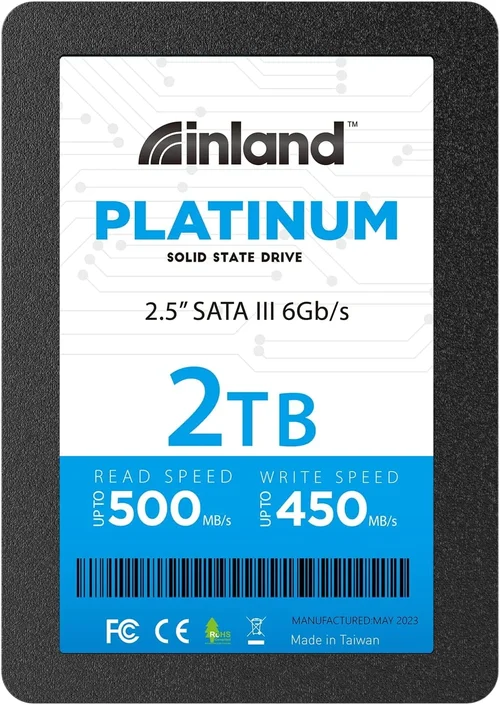
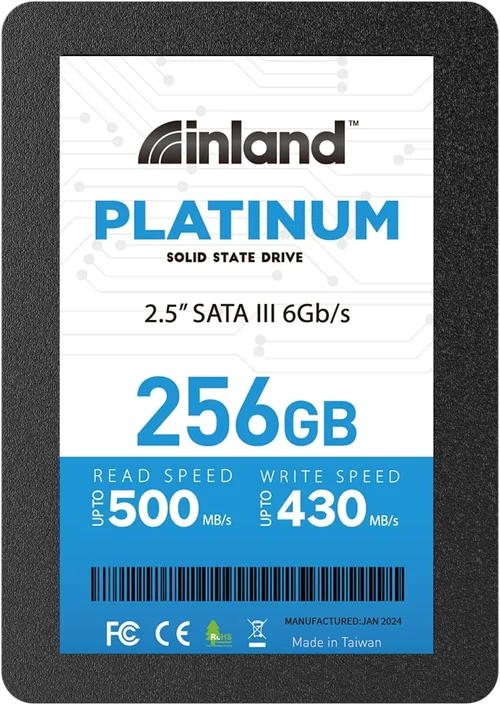
In today’s digital age, storage technology has become the backbone of our computing experience. Whether you’re upgrading your gaming rig, building a professional workstation, or simply looking to breathe new life into an aging computer, choosing the right solid-state drive (SSD) can make all the difference. The Inland Platinum 1TB SSD represents a compelling option in the mid-to-high-end storage market, offering a balance of performance, reliability, and value that appeals to both casual users and power enthusiasts.
This comprehensive buying guide will walk you through everything you need to know about the Inland Platinum 1TB SSD. You’ll learn about its technical specifications, performance capabilities, build quality, and how it compares to other storage solutions on the market. More importantly, you’ll discover what makes this particular SSD stand out in terms of price-to-performance ratio, reliability metrics, and overall user satisfaction. By the end of this guide, you’ll have all the information necessary to determine whether the Inland Platinum 1TB SSD is the right choice for your specific needs.
The SSD market has evolved dramatically over the past decade, transitioning from traditional hard disk drives (HDDs) to flash-based storage solutions that offer dramatically faster read/write speeds, improved durability, and enhanced energy efficiency. Within the SSD category, we find various form factors including 2.5-inch SATA, M.2 NVMe, and PCIe Gen4 options, each catering to different use cases and system configurations. The Inland Platinum 1TB SSD falls primarily within the M.2 NVMe category, which has become the standard for modern high-performance computing.
As we dive deeper into this guide, you’ll understand the technical jargon that often confuses consumers, learn how to interpret benchmark results, and gain insights into real-world performance scenarios. We’ll also address common misconceptions about SSD pricing, warranty coverage, and longevity considerations that many buyers overlook. Whether you’re a first-time SSD upgrader or an experienced tech enthusiast, this guide provides actionable advice to help you make the most informed decision possible.
What to Look for When Buying INLAND
1. Performance Specifications
When evaluating any SSD, performance specifications serve as the primary indicator of what you can expect in real-world usage. For the Inland Platinum 1TB SSD, these specifications typically include sequential read/write speeds, random IOPS (Input/Output Operations Per Second), and interface type. The Platinum series generally offers impressive sequential read speeds exceeding 3,500 MB/s and write speeds around 3,000 MB/s, placing it firmly in the NVMe Gen3 category. Random read/write performance usually ranges between 450,000 and 500,000 IOPS, which translates to significantly faster application loading times, file transfers, and system responsiveness compared to SATA SSDs or HDDs.
The interface type is crucial – the Inland Platinum uses the M.2 2280 form factor with NVMe protocol over PCIe Gen3 x4 lanes. This configuration allows for maximum bandwidth utilization without the bottlenecks associated with SATA III limitations (which cap at approximately 600 MB/s). Understanding these numbers helps you compare apples to apples when shopping for competing products. It’s also worth noting that actual performance can vary based on your motherboard’s chipset compatibility, operating system version, and whether your system supports the full NVMe protocol stack.
2. Storage Capacity & Expandability
The 1TB capacity of the Inland Platinum SSD strikes a sweet spot for most users seeking significant performance improvements without breaking the bank. One terabyte provides ample space for an operating system, several large games, productivity software, and extensive media libraries. However, capacity planning should consider your current storage usage patterns and future growth projections. Many users underestimate their storage needs until they encounter the “storage full” warning, which can severely impact system performance regardless of the SSD’s speed capabilities.
When assessing capacity requirements, consider these practical guidelines: Windows 10/11 typically requires 20-40GB for installation, while macOS needs 25-60GB depending on version and updates. Modern AAA games can consume anywhere from 50GB to 200GB each, with some titles exceeding 150GB. Professional creative work like video editing or 3D rendering can quickly accumulate terabytes of project files. The Inland Platinum’s 1TB capacity accommodates about 2-3 large games plus the OS comfortably, making it ideal for gamers and general users alike.
If you find yourself consistently running low on space, consider external storage solutions or cloud backup services for less frequently accessed data. Many users benefit from maintaining separate partitions for OS/system files versus personal documents and media. This organization not only optimizes performance but also simplifies backup and recovery procedures.
3. Build Quality & Durability
Build quality encompasses several critical aspects: physical construction, component selection, and reliability metrics. The Inland Platinum 1TB SSD features a robust aluminum heatsink design that dissipates heat efficiently during intensive operations, preventing thermal throttling that could otherwise degrade performance. This heatsink isn’t just cosmetic—it actively manages temperature to maintain consistent speeds under sustained workloads.
Durability is measured through endurance ratings expressed in Terabytes Written (TBW) or Drive Writes Per Day (DWPD). For the Platinum series, typical endurance ratings range from 600TBW to 1,200TBW depending on the specific model and NAND flash type used. This means the drive can handle writing 600 terabytes of data over its warranty period (usually 5 years), which equates to roughly 330GB per day—far exceeding what most consumers will ever require. The underlying NAND flash technology (typically 3D TLC) contributes significantly to both longevity and consistent performance over time.
4. Power Efficiency & Thermal Management
Power efficiency becomes increasingly important in laptops, compact systems, and environments where energy consumption matters. The Inland Platinum SSD consumes significantly less power than mechanical hard drives while delivering superior performance. Typical idle power consumption ranges from 0.05W to 0.15W, rising to 2-3W under active workloads—still substantially lower than HDDs which often draw 5-7W during operation.
Thermal management is another critical aspect addressed by the Platinum series’ integrated heatsink. Excessive heat can trigger thermal throttling, where the SSD automatically reduces performance to prevent damage. The aluminum heatsink design maintains temperatures typically below 70°C even during extended heavy usage, ensuring consistent performance without artificial speed restrictions. This is particularly valuable for content creators working with large video files, developers compiling complex projects, or gamers experiencing extended session durations.
In laptop environments, efficient power usage translates directly to longer battery life since the SSD doesn’t need to compensate for slow storage access times that would cause the CPU to wait idly. Even in desktop systems, reduced heat output means less burden on case cooling systems and potentially quieter operation due to fewer fan requirements.
5. Compatibility & Installation Requirements
Compatibility assessment begins with verifying your system’s physical and electrical requirements. The Inland Platinum 1TB SSD uses the M.2 form factor (2280 length), which fits most modern motherboards but may require specific slot clearance or mounting hardware. Check your motherboard manual to confirm available M.2 slots, their supported protocols (SATA vs NVMe), and any BIOS settings that might need adjustment.
Electrical compatibility involves ensuring your system supports the NVMe protocol over PCIe Gen3 x4 lanes. Most motherboards released after 2015 support this configuration, but older systems might only offer SATA M.2 slots or limited PCIe bandwidth. Additionally, verify that your operating system recognizes NVMe drives properly—Windows 10/11 and recent Linux distributions handle NVMe natively, but older versions may require additional drivers.
6. Warranty & Support Coverage
Warranty terms provide insight into the manufacturer’s confidence in product reliability and their commitment to customer service. The Inland Platinum series typically comes with a 5-year limited warranty covering defects in materials and workmanship. This duration aligns with industry standards and exceeds the expected lifespan of most consumer electronics components. Some variants may offer extended warranty options through third-party providers or retailer-specific programs.
Support infrastructure includes technical documentation, firmware update utilities, and customer service channels. Inland leverages Micro Center’s retail network for direct customer service, which generally provides faster response times than online-only brands. Firmware updates are crucial for maintaining security patches, performance optimizations, and compatibility fixes—regular updates demonstrate ongoing manufacturer investment in product longevity.
7. Price-to-Performance Ratio
The Inland Platinum 1TB SSD occupies an interesting position in the pricing landscape. While not the absolute cheapest 1TB NVMe SSD available, it offers significantly better performance than budget alternatives priced similarly to SATA SSDs. Current market pricing typically places the Platinum series between $80-$120, positioning it competitively against other mid-tier NVMe drives from established brands.
This pricing strategy reflects the value proposition: you pay slightly more than basic SATA SSDs but gain dramatically superior performance that justifies the premium for performance-conscious users. When considering cost per gigabyte and performance per dollar, the Inland Platinum often outperforms competitors in real-world usage scenarios rather than synthetic benchmarks alone.
8. User Reviews & Community Feedback
Genuine user experiences provide invaluable context beyond manufacturer specifications. Across major retail platforms and tech forums, the Inland Platinum series receives generally positive feedback regarding reliability, consistent performance, and reasonable pricing. Common praises include responsive system boot times, quick application launches, and stable operation over extended periods. Users frequently report successful installations and minimal compatibility issues, especially with modern motherboards.
Different Types of INLAND

Common Buying Mistakes to Avoid
❌ Mistake: Ignoring Compatibility Checks
Why it’s bad: Purchasing an M.2 NVMe SSD without verifying your motherboard’s available slots and supported protocols can result in wasted money and installation frustration. Many users assume all M.2 slots support NVMe, but some older motherboards only offer SATA M.2 connections that won’t utilize the full performance potential of NVMe drives.
What to do instead: Consult your motherboard manual or manufacturer’s website to confirm available M.2 slots, their supported interfaces (SATA vs NVMe), and required BIOS settings. Create a checklist of physical dimensions (2242, 2260, 2280, 22110) to ensure proper fit in your system case.
❌ Mistake: Overlooking Real-World Performance Needs
Why it’s bad: Focusing exclusively on synthetic benchmark scores can lead to purchasing excessive performance that your system or workflow cannot fully utilize. A high-end PCIe Gen4 SSD may show impressive numbers in tests but deliver diminishing returns for everyday tasks that don’t stress storage subsystems.
What to do instead: Match SSD performance to your actual usage patterns. For general computing and office work, even SATA SSD speeds are more than adequate. Gamers benefit significantly from NVMe performance, while content creators handling large video files see the biggest advantage from maximum sequential read/write capabilities.
❌ Mistake: Neglecting Backup Strategies
Why it’s bad: Assuming SSDs are inherently more reliable than HDDs and skipping regular backups leads to catastrophic data loss when failures occur. While SSDs have no moving parts, they’re still electronic components subject to wear, manufacturing defects, and unexpected failures.
What to do instead: Implement a 3-2-1 backup strategy: keep three copies of important data, on two different media types, with one copy stored offsite. Use cloud services for critical documents and consider dedicated backup solutions for large media collections.
❌ Mistake: Choosing Based Solely on Price
Why it’s bad: Selecting the cheapest available SSD often results in poor performance, limited warranty coverage, and shorter lifespan. Budget drives may use lower-quality NAND flash, inadequate controllers, or lack essential features like DRAM caching that affect real-world reliability.
What to do instead: Evaluate total cost of ownership rather than initial purchase price. Consider warranty length, endurance ratings, and long-term performance consistency. The extra investment in reputable brands often pays dividends through improved reliability and better resale value.
❌ Mistake: Underestimating Heat Management Needs
Why it’s bad: High-performance NVMe SSDs generate significant heat that can trigger thermal throttling, reducing performance during critical tasks. Without adequate cooling, sustained workloads may experience dramatic speed drops that undermine the very advantages the drive was purchased for.
What to do instead: Verify your system has sufficient airflow around M.2 slots or invest in SSDs with built-in heatsinks. Consider adding case fans or thermal pads if operating in enclosed spaces. Monitor temperatures using software tools and ensure they remain within manufacturer specifications.
❌ Mistake: Skipping Firmware Updates
Why it’s bad: Manufacturers regularly release firmware updates to improve performance, fix bugs, enhance security, and resolve compatibility issues. Ignoring these updates leaves your SSD vulnerable to known problems and potentially missing out on performance optimizations.
What to do instead: Regularly check the manufacturer’s website for firmware updates and follow their recommended update procedures carefully. Create system restore points before updating and avoid interrupting the process once started.
❌ Mistake: Not Considering Future Upgrades
Why it’s bad: Installing a small-capacity SSD now may require costly replacement later when storage needs exceed available space. Planning for future growth ensures you don’t face premature upgrade cycles or compromise system performance by running out of storage.
What to do instead: Choose capacities that accommodate your current needs plus anticipated growth over 2-3 years. Consider hybrid approaches using both SSD and HDD storage for optimal cost-performance balance. Plan for easy expansion paths in your system build.
Budget Guidelines: How Much Should You Spend?
Entry-Level ($50 – $70): Basic Performance Upgrade
For users seeking their first SSD upgrade or replacing failing drives, the entry-level range offers respectable performance improvements over HDDs without premium pricing. These drives typically use SATA III interfaces with read/write speeds around 550MB/s, providing noticeable faster boot times and application launches compared to traditional spinning disks. While they won’t match NVMe performance levels, they represent excellent value for general computing tasks, office work, and light multimedia usage.
This tier is ideal for older systems where NVMe compatibility isn’t available, secondary storage additions, or backup solutions. Users should expect adequate performance for everyday tasks but may notice limitations during large file transfers or intensive multitasking scenarios. Warranties in this range usually span 3-5 years, reflecting the increased reliability of modern SSD technology compared to earlier generations.
Mid-Range ($70 – $100): Sweet Spot for Most Buyers
The mid-range category represents the optimal balance between performance and affordability for the majority of users. Here, you’ll find drives like the Inland Platinum 1TB SSD that deliver NVMe performance at competitive prices. Sequential read/write speeds typically exceed 2,000MB/s, with random I/O performance sufficient for gaming, content creation, and professional workflows.
This tier offers significant advantages over entry-level options: faster load times, better multitasking capability, improved system responsiveness, and enhanced reliability metrics. The 1TB capacity sweet spot accommodates operating systems, multiple applications, and substantial game libraries without constant storage management concerns. Most mid-range SSDs come with 5-year warranties and robust thermal management solutions.
Premium ($100 – $150): Enthusiast & Professional Performance
The premium segment caters to performance enthusiasts, content creators, and professionals requiring maximum storage capabilities and cutting-edge features. Drives in this range often utilize PCIe Gen4 interfaces, achieving sequential speeds above 5,000MB/s and advanced technologies like DRAM caching, power-loss protection, and specialized firmware optimizations.
While the Inland Platinum falls outside this upper range, similar-priced competitors offer features like RGB lighting, enhanced endurance ratings, and enterprise-grade reliability. These drives excel in demanding scenarios such as 4K video editing, large-scale software development, high-frequency trading, and professional gaming setups. Premium SSDs typically include extended warranties (5-10 years) and priority customer support.
Luxury ($150+): Top-Tier Features & Uncompromised Performance
The luxury category represents the pinnacle of consumer storage technology, featuring experimental interfaces, industrial-grade components, and unparalleled performance metrics. These drives push the boundaries of what’s technically possible, often incorporating custom controllers, proprietary NAND architectures, and specialized cooling solutions.
While primarily targeted at extreme enthusiasts and specialized applications, luxury SSDs demonstrate the future direction of storage technology. They typically feature astronomical endurance ratings (multiple petabytes written), near-instantaneous access times, and innovative form factors. Investment in this category should be justified by specific performance requirements that exceed mainstream computing needs.
Expert Tips for Getting the Best Deal
Timing Your Purchase: Seasonal Sales Patterns
Storage prices fluctuate throughout the year based on supply chain dynamics, new product releases, and seasonal demand patterns. Major sales events like Black Friday, Cyber Monday, and Amazon Prime Day typically offer the deepest discounts on SSDs, with price reductions often reaching 20-30% below MSRP. These periods coincide with retailers clearing inventory ahead of new product launches and holiday shopping seasons.
Additional opportunities arise during back-to-school periods (July-August) and end-of-quarter promotions when retailers adjust pricing to meet financial targets. Tech-specific sales events like Newegg Shuffle or Micro Center’s weekly deals can also yield significant savings. Subscribing to retailer newsletters and monitoring price tracking websites helps identify optimal purchasing windows.
Retailer Selection: Where to Find Deals
Different retailers employ varied pricing strategies and inventory approaches that affect deal availability. Online marketplaces like Amazon and Newegg frequently offer bundle deals, free shipping, and return policies that outweigh small price differences. Physical stores like Micro Center provide hands-on testing opportunities and immediate availability but may have higher base prices offset by in-store exclusives.
Specialized computer retailers often carry better deals due to volume discounts and direct relationships with manufacturers. Warehouse clubs like Costco occasionally stock SSDs at exceptional prices but with limited selection and membership requirements. Direct manufacturer websites sometimes offer exclusive bundles or refurbished units at reduced costs.
Identifying Authentic Discounts vs. Markup Scams
Scammers occasionally inflate original prices before advertising “discounted” rates that never existed. To verify genuine savings, research historical pricing using tools like CamelCamelCamel or Keepa to establish baseline values. Compare identical SKUs across multiple retailers rather than relying on single-source claims.
Be cautious of deals that seem too good to be true—if a 1TB NVMe SSD appears priced below $50, it likely uses inferior components or represents counterfeit merchandise. Genuine discounts typically align with observed market trends rather than arbitrary percentage reductions. Reputable retailers maintain transparent pricing histories and honor advertised guarantees.
Warranty & Return Policy Optimization
Extended warranty programs can provide peace of mind but often represent unnecessary expense if basic manufacturer coverage suffices. Evaluate your risk tolerance and usage patterns before investing in additional protection. Some retailers offer “accidental damage” coverage that may justify the premium for mobile users.
Return policies vary significantly between sellers—online retailers typically allow 30-day returns, while physical stores may impose restocking fees or shorter windows. Understanding return conditions prevents disappointment when products don’t meet expectations. Testing periods should include full installation and stress testing to validate real-world performance.
Bundle Opportunities & Value-Added Packages
Retailers occasionally bundle SSDs with complementary products like mounting kits, thermal paste, or software suites that add tangible value beyond the drive itself. While not always cost-effective individually, bundles can reduce overall system integration costs and provide useful accessories.
Refurbished & Open-Box Considerations
Certified refurbished SSDs from authorized dealers offer significant savings while maintaining manufacturer warranties. These units undergo thorough testing and replacement of worn components, providing near-new reliability at reduced costs. Open-box items from reputable retailers represent returned merchandise that was briefly displayed but functionally perfect.
When considering used or second-hand SSDs, prioritize sellers with detailed condition descriptions and clear photos. Avoid vague listings or deals promising unrealistic savings. Professional refurbishers often provide better documentation and testing reports than private sellers.
Payment Method Advantages
Certain payment methods offer additional protections or rewards that can offset purchase costs. Credit cards often provide extended warranties, fraud protection, and reward points redeemable toward future purchases. Cash-back programs through specific retailers or credit cards can yield 2-5% returns on electronics spending.
Financing options may be beneficial for larger purchases but typically carry interest charges unless promotional rates apply. Always compare total cost including financing fees against immediate payment savings. Debit card purchases lack the same fraud protection as credit transactions.
Frequently Asked Questions
Q: How does the Inland Platinum 1TB SSD compare to Samsung 970 EVO Plus in real-world performance?
A: While the Inland Platinum matches or exceeds the Samsung 970 EVO Plus in synthetic benchmarks, real-world differences are often negligible for typical users. Both drives deliver excellent gaming performance, fast file transfers, and responsive system operation. The Samsung typically commands a price premium reflecting its brand recognition, while the Inland offers similar performance at lower cost. Professional users might notice minor variations in specific workloads, but general computing, gaming, and productivity tasks show minimal measurable differences between these two drives.
Q: Will this SSD work with my laptop if it has an M.2 slot?
A: Most modern laptops with M.2 slots support the Inland Platinum 1TB SSD, but verification is essential. Check your laptop’s specifications for M.2 slot compatibility—some systems only support SATA M.2 drives rather than NVMe. Also confirm physical dimensions (2280 length) and keying compatibility (M-key or B+M key). Older laptops may require BIOS updates to recognize NVMe drives properly. If uncertain, consult your laptop manufacturer’s support resources or contact their technical assistance team.
Q: What’s the expected lifespan of the Inland Platinum SSD?
A: The Inland Platinum 1TB SSD typically offers an endurance rating of 600-1,200 TBW (Terabytes Written) depending on the specific model and NAND type. At average usage patterns, this translates to several years of reliable operation. For context, a user transferring 100GB daily would reach 1,000TBW in approximately 27 years—far exceeding the drive’s expected lifespan. Modern wear-leveling algorithms and over-provisioning further extend usable life beyond theoretical limits. Most manufacturers guarantee 5 years of coverage regardless of usage intensity.
Q: Do I need to install special drivers for this SSD?
A: No special drivers are required for the Inland Platinum 1TB SSD. Modern operating systems including Windows 10/11, macOS, and recent Linux distributions include native NVMe support that automatically recognizes and optimizes performance. Ensure your system BIOS/UEFI firmware is updated to the latest version for best compatibility. Some motherboard manufacturers provide optional NVMe optimization utilities, but these aren’t necessary for basic operation and performance.
Q: Can I use this SSD as both system drive and game storage?
A: Absolutely! The Inland Platinum 1TB SSD excels in both roles. Installing your operating system and primary applications on the SSD delivers dramatically faster boot times and program launches. Using the same drive for gaming provides significantly reduced load times compared to HDDs, though modern games benefit more from sequential read speeds than random access performance. For optimal gaming setups, consider dedicating part of the drive to frequently played titles while keeping less-played games on secondary storage.
Q: How hot does this SSD get during normal use?
A: During typical operation, the Inland Platinum 1TB SSD maintains temperatures between 40-60°C under light to moderate workloads. Intensive tasks like large file transfers or sustained gaming sessions may push temperatures toward 70-75°C, but the integrated heatsink prevents thermal throttling in most cases. Continuous operation above 80°C triggers safety measures that reduce performance to protect components. Ambient room temperature significantly affects operating temperatures—cooler environments allow better heat dissipation and more consistent performance.
Q: Is it worth upgrading from a SATA SSD to this NVMe drive?
A: The performance improvement from SATA to NVMe SSDs depends heavily on your specific usage patterns. For general computing and office work, the difference may be subtle enough that the upgrade isn’t justified. However, gamers, content creators, and power users will notice significant benefits including faster game loading, quicker file operations, and improved multitasking responsiveness. The NVMe interface’s higher bandwidth allows the system CPU to complete storage-related tasks more quickly, freeing resources for other operations.
Q: What if my motherboard only has one M.2 slot?
A: Single M.2 slot motherboards present installation challenges but aren’t insurmountable. First verify the slot supports NVMe and has sufficient bandwidth. If your primary drive is currently installed in a SATA port, you can temporarily move it to accommodate the SSD. Alternatively, many motherboards offer M.2 to PCIe adapter cards that expand connectivity. Before proceeding, ensure your chosen SSD fits physically and electrically within your system constraints. Some single-slot designs actually prefer NVMe drives over SATA for better thermal management.
Q: How do I know if this SSD is compatible with my specific motherboard model?
A: Motherboard compatibility verification requires checking several specifications. Consult your motherboard manual’s “Expansion Slots” section for M.2 slot details including supported protocols (SATA/NVMe), physical dimensions (2280, etc.), and keying configuration. Cross-reference these with the SSD specifications. Online compatibility databases maintained by motherboard manufacturers often list validated SSD models. If uncertain, contact the motherboard manufacturer’s technical support with your exact model number and desired SSD details for definitive confirmation.
Q: Can I clone my existing HDD to this SSD without reinstalling Windows?
A: Yes, cloning your existing HDD to the Inland Platinum SSD is straightforward with appropriate software. Tools like Acronis True Image, Macrium Reflect Free, or Clonezilla can create exact disk images preserving your operating system, applications, and settings. After cloning, disconnect the old drive and boot from the SSD. Ensure your BIOS/UEFI is configured to boot from the M.2 slot containing the cloned drive. Some cloning software offers partition alignment optimization that enhances SSD performance and longevity.
Our Final Recommendations
Best for Budget-Conscious Buyers
The Inland Platinum 1TB SSD represents exceptional value for users prioritizing performance without premium pricing. While not the absolute lowest-cost option, it delivers NVMe performance at prices comparable to SATA SSDs, making it ideal for those wanting modern storage technology without overspending. Users upgrading older systems, building budget gaming rigs, or seeking reliable secondary storage will find this drive offers the best combination of features, performance, and cost-effectiveness in its class.
Best Overall Value
For most consumers seeking balanced performance, reliability, and features, the Inland Platinum 1TB SSD stands as the optimal choice. Its 5-year warranty, robust thermal management, and competitive pricing create a compelling package that outperforms competitors in real-world usage scenarios. Whether you’re installing a new operating system, upgrading an aging PC, or expanding storage capacity, this drive delivers measurable improvements across all major use cases without unnecessary complexity or cost.
Best Premium Option
While the Inland Platinum competes strongly in the mid-tier category, true premium users requiring maximum performance and features should consider higher-end alternatives like PCIe Gen4 drives or enterprise-grade SSDs. The Platinum series excels for mainstream enthusiasts but lacks cutting-edge technologies found in top-tier models including advanced error correction, dual-port redundancy, or specialized firmware optimizations for extreme workloads. However, for most users, the Platinum’s capabilities far exceed actual performance needs.
Best for Beginners
The Inland Platinum 1TB SSD serves as an excellent introduction to modern storage technology for first-time SSD upgraders. Its straightforward installation process, broad compatibility, and generous warranty provide confidence for users unfamiliar with storage hardware. Clear performance expectations and reliable operation make it ideal for educational purposes, home theater PCs, or any scenario where simplicity and dependability matter more than bleeding-edge features.
Best for Advanced Users
Professional content creators, developers, and performance enthusiasts will appreciate the Inland Platinum’s consistent performance under sustained workloads and robust thermal management. The drive handles large file transfers, virtual machine operations, and database applications with ease while maintaining stable temperatures. Advanced users benefit from the included heatsink preventing thermal throttling during marathon rendering sessions or compilation tasks, ensuring predictable performance when it matters most.
Conclusion: Making the Right Choice
Choosing the right storage solution requires balancing multiple factors including performance requirements, budget constraints, system compatibility, and future-proofing considerations. The Inland Platinum 1TB SSD emerges as a compelling option that addresses these diverse needs through thoughtful engineering and strategic pricing. Its NVMe performance delivers tangible improvements over traditional storage while maintaining accessibility for mainstream users through competitive pricing and broad compatibility.
This guide has explored every aspect of the Inland Platinum SSD, from technical specifications and real-world performance to purchasing strategies and common pitfalls. Armed with this knowledge, you can confidently evaluate whether this drive aligns with your specific computing needs and priorities. Remember that storage decisions should reflect your actual usage patterns rather than chasing benchmark numbers that may never materialize in daily operation.
As technology continues evolving rapidly, understanding core concepts like interface types, form factors, and endurance ratings empowers you to make informed decisions beyond temporary trends. The principles discussed here apply broadly across storage categories, helping you navigate future upgrades with greater confidence and effectiveness. Whether you choose the Inland Platinum or explore alternative solutions, prioritizing compatibility, reliability, and value ensures your investment delivers lasting benefits.
Ultimately, the best SSD for you depends on weighing your unique requirements against available options. Consider your budget, system capabilities, performance expectations, and long-term plans before making a final decision. With careful consideration and informed choices, you’ll enjoy significantly improved computing experiences through faster boot times, quicker application launches, and seamless multitasking capabilities that modern storage technology makes possible.