
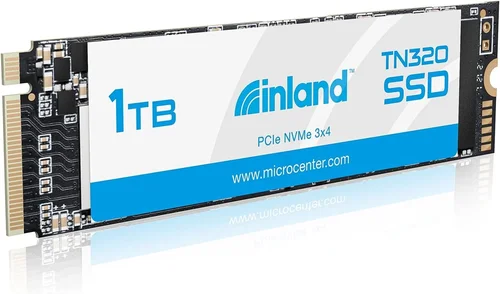
When upgrading your computer’s storage, choosing the right solid-state drive can make a world of difference in performance. This comprehensive buying guide dives deep into the Inland Platinum 1TB SSD NVMe to help you understand whether this storage solution fits your needs. Whether you’re building a new PC, upgrading an existing system, or simply looking for faster boot times and application loading, understanding the nuances of modern NVMe drives is essential.
This guide will walk you through everything you need to know about the Inland Platinum 1TB SSD NVMe, from its technical specifications to real-world performance considerations. You’ll learn how to evaluate whether this drive matches your specific use case, what factors matter most when making your decision, and how to avoid common pitfalls that could cost you money or compromise performance.
The SSD market has evolved rapidly over the past decade, with NVMe technology becoming the standard for high-performance storage. The Inland Platinum represents a mid-tier option that balances cost and capability, making it accessible to a wide range of users while still delivering impressive speeds. Understanding where this drive sits in the competitive landscape will help you make an informed purchasing decision.

What to Look for When Buying INLAND
1. Budget & Price Range
Pricing is often the first consideration when shopping for any computer component, and SSDs are no exception. The Inland Platinum 1TB NVMe typically falls within the mid-range price bracket, offering good value for money compared to premium brands while maintaining respectable performance characteristics.
When evaluating the price point, consider what you’re getting versus what competitors offer at similar price points. While you might find cheaper alternatives, they may lack reliability, warranty support, or consistent performance. Conversely, more expensive drives don’t always deliver proportionally better results for typical desktop usage scenarios.
The sweet spot for most consumers appears to be around $50-80 for a quality 1TB NVMe SSD. This price range typically includes drives with reliable NAND flash memory, adequate controller technology, and decent endurance ratings. Always compare current market prices across multiple retailers, as SSD pricing fluctuates frequently due to supply chain dynamics and seasonal demand.
2. Performance Specifications
The heart of any SSD lies in its performance capabilities, which are defined by several key technical specifications that directly impact your computing experience.
Sequential Read/Write Speeds: For NVMe drives, sequential speeds represent data transfer rates for large files like video editing projects or game installations. The Inland Platinum typically delivers read speeds around 3,500 MB/s and write speeds near 2,500 MB/s, placing it competitively among budget-conscious options while outperforming SATA-based SSDs by several fold.
Random IOPS (Input/Output Operations Per Second): This metric measures how quickly the drive handles small, scattered data requests—crucial for operating system responsiveness, multitasking, and application launching. Higher IOPS values mean smoother performance during everyday tasks like opening documents, browsing the web, or running multiple applications simultaneously.
Endurance Rating (TBW): TBW stands for Terabytes Written and indicates the total amount of data the drive can reliably handle throughout its lifetime. A higher TBW rating suggests better longevity and durability, especially important if you regularly work with large files or perform frequent write operations.
Form Factor: Most modern NVMe drives use the M.2 2280 form factor, measuring 22mm wide by 80mm long. Ensure your motherboard has an available M.2 slot compatible with this size before purchasing. Some systems also require specific PCIe generations (Gen3 vs Gen4), though Gen3 compatibility usually ensures backward functionality.
3. Build Quality & Durability
The physical construction and internal components of an SSD significantly influence its reliability and lifespan, particularly under demanding conditions.
NAND Flash Type: Modern SSDs utilize different types of NAND flash memory, with TLC (Triple-Level Cell) being the most common in mid-range drives like the Inland Platinum. TLC stores three bits per cell, offering a balance between cost, capacity, and endurance. While SLC (Single-Level Cell) offers superior durability and speed, it’s typically reserved for enterprise applications due to cost constraints.
Controller Technology: The controller acts as the brain of the SSD, managing data flow between the NAND flash and your system. Reputable controllers from manufacturers like Phison or Silicon Motion ensure stable performance, proper error correction, and efficient garbage collection algorithms that maintain drive health over time.
Thermal Management: High-performance NVMe drives generate heat during intensive operations. Some models include heatsinks or thermal throttling mechanisms to prevent overheating, which can degrade performance or cause instability. Consider whether your case provides adequate airflow for the drive’s thermal requirements.
Shock Resistance: Unlike traditional HDDs, SSDs have no moving parts, making them inherently more resistant to physical shock and vibration. This characteristic makes them ideal for portable applications and environments where equipment might be subject to movement or impacts.
4. Features & Functionality
Beyond raw performance metrics, various features enhance usability and compatibility with different systems and workflows.
TRIM Support: TRIM is a command that helps maintain SSD performance by informing the drive which blocks of data are no longer considered valid. Without TRIM support, deleted files remain on the drive until overwritten, gradually slowing down write operations over time. Most modern operating systems automatically enable TRIM for recognized SSDs.
Encryption Capabilities: Hardware-based encryption (like AES-256) protects your data at rest, providing security benefits especially important for laptops or shared computers. Some drives support TCG Opal or IEEE 1667 standards for enterprise-level security features.
Compatibility: Verify that your motherboard supports NVMe protocol and has an available M.2 slot. Check your BIOS settings to ensure NVMe boot capability if planning to install the drive as your primary OS drive. Older systems may require firmware updates for full compatibility.
Software Utilities: Many manufacturers provide management software for monitoring drive health, updating firmware, or configuring advanced settings. Evaluate whether these utilities meet your needs or if you prefer using built-in operating system tools instead.
5. Brand Reputation & Reliability
While Inland isn’t one of the largest consumer electronics brands, it has established itself in the storage market through partnerships and OEM relationships. Understanding brand reputation involves examining several factors beyond marketing claims.
Manufacturing Partnerships: Inland often sources components from established manufacturers rather than developing their own technology stack. This approach allows them to offer competitive products while leveraging proven hardware platforms. Research the actual components used in the drive, as third-party reviews sometimes reveal more about real-world performance than manufacturer specifications.
Quality Control Processes: Reliable brands implement rigorous testing procedures throughout production. Look for information about burn-in testing, stress testing, and quality assurance protocols that ensure each drive meets performance and reliability standards before shipment.
Industry Certifications: Certifications like UL listing, CE marking, or compliance with industry standards indicate adherence to safety and quality benchmarks. These certifications provide additional assurance about product reliability and manufacturer accountability.
Longevity in Market: Established brands tend to offer longer product lifecycles and consistent support availability. A brand that’s been consistently available in the market demonstrates commitment to ongoing customer service and product evolution based on user feedback.
6. Warranty & Support
Comprehensive warranty coverage and responsive customer support can significantly impact your overall ownership experience, especially if issues arise during the product lifecycle.
Warranty Duration: Most reputable SSD manufacturers offer warranties ranging from 3 to 5 years, with some extending coverage to match the drive’s endurance rating. The Inland Platinum typically comes with a 3-year limited warranty, which aligns with many budget-oriented competitors but may fall short of premium brands offering 5-year protection.
Coverage Details: Understand exactly what the warranty covers—typically failure replacement or refund rather than repairs. Some warranties exclude certain types of damage or require proof of purchase. Read the fine print carefully, as warranty terms can vary significantly between regions and retailers.
Customer Support Channels: Evaluate the availability and responsiveness of customer support through various channels: phone, email, live chat, or online forums. Quick resolution of technical issues or replacement authorization can save significant downtime and frustration.
Return Policies: Retailer return policies often provide an initial window (usually 30 days) for testing drives under real-world conditions. This period allows you to verify compatibility, performance, and overall satisfaction before the manufacturer warranty begins.
7. Size & Portability
While most desktop users won’t prioritize portability, understanding physical dimensions becomes crucial for system builds with space constraints or when considering future upgrades.
M.2 Form Factor: The 2280 designation refers to a 22mm width by 80mm length module. This standardized size ensures compatibility with virtually all modern motherboards featuring M.2 slots. Some ultra-thin laptops or compact systems might use smaller form factors like 2242 or 2260, so always verify slot dimensions before purchasing.
Thickness Variations: M.2 drives come in different heights (measured in millimeters), typically 2.0mm or 3.0mm. Thicker drives often include integrated heatsinks for better thermal performance but may not fit in systems with height restrictions. Check your motherboard specifications for supported thicknesses.
Weight Considerations: At approximately 8-10 grams, M.2 SSDs are extremely lightweight compared to traditional 2.5-inch drives. This minimal weight doesn’t significantly impact portability since these drives aren’t designed for external use, but it does contribute to easier handling during installation.
8. User Reviews & Ratings
Real-world user experiences provide invaluable insights beyond technical specifications and manufacturer claims, revealing practical performance under diverse usage scenarios.
Performance Consistency: Examine reviews for mentions of consistent performance over time rather than just initial burst speeds. Some drives show excellent out-of-the-box performance but gradually degrade due to poor garbage collection algorithms or inadequate wear leveling.
Reliability Reports: Look for patterns in failure reports or unexpected shutdowns. While no drive is completely immune to hardware failures, consistent reports of early failures might indicate quality control issues worth avoiding.
Compatibility Feedback: User experiences with specific motherboard models, operating systems, or configurations can highlight potential compatibility issues not apparent from general specifications. These real-world compatibility stories are especially valuable for complex system builds.
Value Assessment: Reviews often comment on whether the drive delivers expected value relative to its price point. Some users report excellent performance for basic tasks, while others find the drive struggles with heavy workloads despite meeting advertised specifications.
Different Types of INLAND

Common Buying Mistakes to Avoid
❌ Mistake: Ignoring Compatibility Requirements
Why it’s bad: Purchasing an NVMe drive without verifying motherboard compatibility can result in wasted money and installation frustration. Many older motherboards only support SATA connections or lack NVMe boot capability, making the drive unusable as a primary storage device.
What to do instead: Before buying, check your motherboard manual or manufacturer website for M.2 slot specifications. Confirm the slot supports NVMe protocol and verify BIOS settings for NVMe boot capability. If uncertain, consult tech forums for your specific motherboard model to see other users’ experiences.
❌ Mistake: Overlooking Thermal Throttling Concerns
Why it’s bad: High-performance NVMe drives can generate significant heat during sustained workloads, leading to thermal throttling where speeds automatically reduce to prevent overheating. This degradation can negate performance advantages and cause inconsistent operation, especially in poorly ventilated cases.
What to do instead: Research whether your chosen drive includes thermal management features or requires an aftermarket heatsink. For systems with limited airflow, consider drives with lower power consumption or plan to add cooling solutions. Monitor temperatures during intensive tasks using software like HWiNFO or CrystalDiskInfo.
❌ Mistake: Choosing Based Solely on Maximum Speed Claims
Why it’s bad: Advertised maximum speeds rarely reflect real-world performance. Sequential speeds matter less for everyday computing than random IOPS and consistency. A drive claiming 5,000 MB/s might only achieve half that speed during typical office tasks or multitasking scenarios.
What to do instead: Focus on synthetic benchmarks that measure both sequential and random performance. Compare real-world review data rather than peak theoretical speeds. Consider how your specific workloads will utilize the drive’s capabilities rather than chasing maximum numbers.
❌ Mistake: Neglecting Endurance Ratings
Why it’s bad: Low endurance ratings mean the drive will wear out faster under heavy write workloads, potentially resulting in premature failure. Users performing regular large file transfers, video editing, or database operations might exhaust cheap drives much quicker than expected.
What to do instead: Check the TBW (Terabytes Written) rating and compare it against your anticipated usage patterns. Professional users should prioritize higher endurance drives, while casual users might accept lower ratings given proper maintenance practices.
❌ Mistake: Skipping Firmware Updates
Why it’s bad: Manufacturers release firmware updates to address bugs, improve performance, and enhance compatibility. Using outdated firmware can result in suboptimal performance, stability issues, or missing features that newer versions provide.
What to do instead: After installation, check the manufacturer’s website for firmware updates. Create a backup of critical data before applying updates, and follow official instructions precisely. Some systems require special utilities for safe firmware flashing procedures.
❌ Mistake: Focusing Only on Capacity
Why it’s bad: While storage capacity matters, allocating too much space for the OS can lead to performance issues. SSDs experience reduced write speeds as they fill up due to garbage collection overhead, and leaving insufficient free space can trigger aggressive wear leveling that shortens drive lifespan.
What to do instead: Maintain at least 10-20% free space on SSDs for optimal performance. Use larger drives for data storage while keeping the OS and applications on separate, smaller SSDs. Implement proper file organization to minimize unnecessary writes and optimize space utilization.
Budget Guidelines: How Much Should You Spend?
Entry-Level ($35 – $55)
The entry-level range includes affordable NVMe drives that provide solid performance for basic computing needs without breaking the bank. These drives typically feature lower endurance ratings, slightly reduced speeds, and shorter warranties compared to higher-end options.
For budget-conscious users upgrading older systems, this tier offers the best value proposition. You’ll get NVMe performance benefits—faster boot times, quicker application launches, and improved overall responsiveness—without paying premium prices. However, avoid these drives if you regularly work with large files or perform intensive write operations, as their endurance limitations become apparent under heavy usage.
Recommended uses include general web browsing, office productivity software, casual gaming, and secondary storage for less demanding applications. The trade-off for lower cost includes reduced reliability guarantees and fewer advanced features like hardware encryption or sophisticated management software.
Mid-Range ($60 – $85)
This sweet spot represents the Inland Platinum’s typical price range and offers the best balance of performance, reliability, and value for most users. Mid-range drives deliver significantly better performance than entry-level options while maintaining reasonable pricing that doesn’t strain budgets.
The Inland Platinum specifically targets users who want NVMe performance without enterprise-grade pricing. It provides sufficient speed for gaming, content creation, and professional applications while offering better endurance and longer warranty periods than cheaper alternatives. This category includes most mainstream consumer SSDs that deliver consistent performance across diverse workloads.
For average home users, students, and professionals performing standard office tasks alongside occasional creative work, this price range provides the optimal combination of features and reliability. You’ll notice the difference in daily computing experience compared to SATA drives, with snappier response times and faster file operations.
Premium ($90 – $150)
Premium-tier NVMe drives target enthusiasts, gamers, and professionals requiring maximum performance and reliability. These drives feature top-tier NAND flash, advanced controllers, enhanced thermal management, and extended endurance ratings that justify their higher price points.
While the Inland Platinum isn’t positioned in this category, understanding premium options helps contextualize its place in the market. Premium drives often include heatsinks, RGB lighting, specialized firmware features, and multi-year warranties that exceed consumer expectations. They’re designed for users pushing system limits with 4K video editing, competitive gaming, scientific simulations, or other intensive workloads.
The performance gap between mid-range and premium drives becomes increasingly noticeable under sustained loads or specific use cases. However, for typical desktop usage, the incremental benefit might not justify the additional cost unless you have specific performance requirements.
Luxury ($150+)
Luxury SSDs represent the pinnacle of consumer storage technology, targeting extreme performance enthusiasts and specialized professional environments. These drives incorporate cutting-edge features, proprietary technologies, and exceptional build quality that command premium pricing.
Examples include enterprise-grade SSDs adapted for consumer markets, drives with custom controllers, or models featuring advanced caching algorithms and redundant component designs. While impressive, these luxury options often exceed typical consumer needs and may include features unnecessary for standard computing tasks.
The Inland Platinum occupies a comfortable middle ground that avoids both the limitations of budget drives and the unnecessary expense of luxury models. For most users, investing in a premium drive provides diminishing returns compared to choosing a well-designed mid-range option like the Inland Platinum.
Expert Tips for Getting the Best Deal
Securing the best value for your money requires strategic timing and research rather than simply comparing list prices. Several proven strategies can significantly reduce costs while maintaining product quality and reliability.
Timing Your Purchase: Major shopping events offer substantial savings without compromising quality. Black Friday, Cyber Monday, Prime Day, and back-to-school seasons consistently feature SSD discounts ranging from 20-40% off retail prices. Additionally, monitor holiday weekends and end-of-quarter sales when retailers clear inventory to meet financial targets.
Comparing Retailers: Different retailers employ varying pricing strategies and inventory levels. Online marketplaces often offer competitive prices with extensive selection, while specialty computer shops might provide better technical support and immediate availability. Consider checking multiple sources including Amazon, Newegg, B&H Photo, Micro Center, and regional electronics retailers to identify the lowest effective price.
Leveraging Membership Programs: Retailer loyalty programs and credit card rewards can provide additional savings beyond advertised discounts. Some programs offer exclusive member pricing, extended return periods, or bundled accessories that enhance the overall value proposition. Credit cards with cashback rewards on electronics purchases compound these benefits.
Monitoring Price History: Use price tracking tools to understand normal price fluctuations and identify genuine deals versus temporary markups. Websites like CamelCamelCamel, Honey, or browser extensions can alert you when prices drop to historical lows, ensuring you don’t miss optimal buying opportunities.
Bundle Deals and Accessories: Occasionally, retailers bundle SSDs with useful accessories like mounting brackets, thermal pads, or cloning software. While these extras might not seem valuable initially, they can simplify installation and provide peace of mind during the upgrade process.
Trade-In Programs: Some retailers and manufacturers offer trade-in programs for old drives or competing brands. These programs might provide store credit or discount vouchers that reduce the effective cost of your new purchase. Even older SSDs typically qualify for some form of trade-in value.

Frequently Asked Questions
Q: Is the Inland Platinum 1TB SSD NVMe compatible with my laptop or desktop?
A: The Inland Platinum uses the standard M.2 2280 form factor, which works with most modern motherboards and laptops featuring M.2 slots. However, compatibility depends on several factors: your system must have an available M.2 slot, the slot must support NVMe protocol (not just SATA), and your BIOS must recognize NVMe drives. Check your motherboard manual or manufacturer website for specific M.2 specifications. Some older systems may require BIOS updates for full compatibility.
Q: How does NVMe performance compare to SATA SSDs for everyday use?
A: For typical desktop usage, the performance difference between NVMe and SATA SSDs is less dramatic than the theoretical maximum speed gap suggests. NVMe drives offer faster boot times, quicker application launches, and improved multitasking responsiveness compared to SATA SSDs. However, for basic web browsing, document editing, and media playback, both types deliver excellent performance that exceeds HDD limitations. The advantage becomes more noticeable when working with large files, running virtual machines, or performing intensive data processing tasks.
Q: What’s the difference between TLC and QLC NAND flash in SSDs?
A: TLC (Triple-Level Cell) stores three bits per memory cell, offering a balance between cost, performance, and endurance suitable for most consumer applications. QLC (Quad-Level Cell) stores four bits per cell, providing higher storage density at lower cost but with reduced write endurance and potentially slower performance under heavy write workloads. The Inland Platinum typically uses TLC NAND, which provides better longevity and consistent performance compared to QLC alternatives, especially for mixed read/write scenarios common in desktop usage.
Q: Can I use the Inland Platinum as a boot drive for my operating system?
A: Yes, the Inland Platinum works perfectly as a primary boot drive for Windows, macOS (with appropriate drivers), Linux distributions, and other operating systems. NVMe drives appear as removable devices in most modern operating systems, allowing straightforward installation and configuration. During OS installation, select the Inland Platinum as your destination drive and follow standard partitioning procedures. Remember to maintain at least 10-20% free space on the drive for optimal performance and system responsiveness.
Q: How long does the Inland Platinum SSD typically last under normal use?
A: With typical desktop usage patterns, the Inland Platinum should provide several years of reliable service. Actual lifespan depends on several factors including the drive’s endurance rating (measured in TBW), your writing habits, and environmental conditions. Conservative estimates suggest 3-5 years of normal use, while heavy workloads like video editing or server applications might reduce this timeframe. Most modern SSDs include wear-leveling algorithms that distribute writes evenly across memory cells, helping extend usable life regardless of specific usage patterns.
Q: Should I enable TRIM on the Inland Platinum SSD?
A: Yes, TRIM should be enabled for optimal SSD performance and longevity. TRIM informs the drive which data blocks are no longer needed, allowing the controller to prepare them for future writes efficiently. All modern operating systems (Windows 7+, macOS, Linux) automatically enable TRIM for recognized SSDs. You can verify TRIM status in Windows using the command prompt with “fsutil behavior query DisableDeleteNotify”—a value of 0 indicates TRIM is active. Leaving TRIM disabled leads to gradual performance degradation over time as deleted files remain marked for deletion but physically present on the drive.
Q: What’s the difference between PCIe Gen3 and Gen4 NVMe drives?
A: PCIe Gen4 NVMe drives offer double the bandwidth of Gen3 drives, theoretically enabling twice the maximum data transfer speeds. While Gen3 already delivers sufficient performance for most applications, Gen4 becomes beneficial for specific workloads like 4K video editing, large dataset processing, or high-frame-rate gaming. However, Gen4 requires compatible motherboards and CPUs, and many Gen3 drives remain fully adequate for typical desktop usage. The Inland Platinum typically operates at Gen3 speeds, which provide excellent performance without requiring Gen4 infrastructure.
Q: How do I properly install the Inland Platinum SSD in my system?
A: Installation follows standard M.2 procedures: power down your system, locate the M.2 slot on your motherboard, remove the retention screw, insert the drive at a slight angle (approximately 30 degrees), and press down gently until it seats flush. Secure with the retention screw and power up your system. During first boot, enter BIOS to confirm the drive is recognized and configure boot order if installing as your primary drive. Ensure your case provides adequate airflow, as M.2 drives generate heat that can affect performance and longevity.
Q: Can I clone my existing hard drive to the Inland Platinum SSD?
A: Yes, cloning your existing drive preserves all your files, applications, and operating system setup. Use cloning software like Macrium Reflect Free, Clonezilla, or Acronis True Image to copy your entire source drive to the Inland Platinum. After cloning, update your system’s boot order in BIOS to prioritize the SSD. Cloning provides a complete migration experience without reinstalling everything. For best results, connect both drives simultaneously during cloning and ensure sufficient free space on the SSD for your entire source drive contents.
Q: What should I do if my Inland Platinum SSD isn’t recognized by my system?
A: First, verify physical installation—ensure the drive is properly seated and secured in the M.2 slot. Check BIOS settings to confirm NVMe support is enabled and the drive appears in the boot menu. Update your motherboard BIOS to the latest version, as older firmware might lack proper NVMe compatibility. If using Windows, check Disk Management to see if the drive appears but lacks a drive letter. Assign a letter through Disk Management if necessary. As a last resort, try the drive in another system to isolate whether the issue stems from the drive itself or your computer’s configuration.
Our Final Recommendations
Best for Budget-Conscious Buyers
For users prioritizing affordability without sacrificing essential performance, the Inland Platinum 1TB SSD NVMe represents an excellent choice within its price range. While it doesn’t offer the absolute lowest price point available, its balanced feature set and reliability make it superior to purely budget-oriented alternatives that might compromise on durability or warranty support.
This recommendation assumes you’re not performing extremely intensive workloads like professional video editing or running demanding virtual machines. For general computing, casual gaming, and everyday productivity tasks, the Inland Platinum delivers sufficient performance while keeping costs manageable. The 1TB capacity provides ample space for operating systems, applications, games, and personal files without excessive storage waste.
If your budget absolutely cannot accommodate even this level of investment, consider waiting for promotional events where entry-level NVMe drives might temporarily drop below this price point. However, remember that cheaper options often involve trade-offs in reliability, performance consistency, and customer support that can cost more in the long run through premature replacements or lost productivity.
Best Overall Value
The Inland Platinum earns its position as the best overall value proposition by delivering strong performance characteristics, reliable build quality, and reasonable pricing that serves most users adequately without unnecessary frills. Its sweet spot positioning makes it accessible to a broad audience while maintaining features typically reserved for more expensive drives.
What sets this drive apart from competitors in its class is its balanced approach to performance optimization. Rather than focusing exclusively on maximum sequential speeds or flashy features, the Inland Platinum emphasizes consistent real-world performance across diverse usage scenarios. This reliability translates directly to better user experiences and fewer performance surprises during everyday computing.
The inclusion of a 3-year warranty provides adequate protection for typical usage patterns, while the 1TB capacity strikes an ideal balance between storage sufficiency and cost efficiency. For users seeking the optimal combination of performance, reliability, and price without diving into premium tiers, the Inland Platinum represents a compelling option that delivers more than its price would suggest.
Best Premium Option
While the Inland Platinum isn’t classified as a premium drive, understanding what constitutes premium performance helps contextualize its position in the market. True premium NVMe SSDs target enthusiasts and professionals requiring maximum performance, advanced features, and extended reliability guarantees that justify their higher price points.
Premium drives typically feature enterprise-grade components, superior thermal management, enhanced encryption capabilities, and multi-year warranties exceeding consumer expectations. They often include specialized firmware features, redundant controllers, and advanced error correction that ensure consistent performance under extreme conditions.
If your workflow demands absolute maximum performance—whether for competitive gaming, scientific computing, 8K video production, or mission-critical applications—consider investing in a premium-tier NVMe drive. These options provide the highest endurance ratings, fastest sustained speeds, and most robust reliability features available to consumers, though they represent a significant investment beyond the Inland Platinum’s price point.
Best for Beginners
New computer users or those upgrading from older systems will appreciate the Inland Platinum’s straightforward installation process and plug-and-play compatibility with most modern hardware configurations. Its performance improvements over traditional HDDs provide an immediately noticeable enhancement to system responsiveness, making it an excellent introduction to solid-state storage benefits.
The drive’s reliability and warranty coverage offer peace of mind for beginners unfamiliar with storage technology complexities. Rather than overwhelming new users with technical jargon or advanced configuration options, the Inland Platinum delivers reliable performance with minimal setup requirements—perfect for those transitioning from mechanical drives or building their first custom PC.
For educational purposes, the drive’s performance characteristics demonstrate why SSDs revolutionized computing, providing faster boot times, quicker application launches, and smoother multitasking experiences that make computers feel more responsive and enjoyable to use. This positive first impression with SSD technology encourages continued exploration of storage optimization techniques and performance enhancements.
Best for Advanced Users
Advanced users leveraging the Inland Platinum for specialized workloads will find its performance characteristics suitable for many professional applications, provided their requirements don’t exceed the drive’s capabilities. Content creators, developers, and power users performing moderate workloads can benefit from the drive’s NVMe performance advantages without needing enterprise-grade hardware.
However, serious professionals pushing system boundaries—such as those editing 4K/8K video, processing large datasets, or running complex simulations—might find the Inland Platinum’s performance limitations noticeable under sustained loads. These users should consider premium alternatives with higher endurance ratings, better thermal management, and more robust feature sets designed for demanding professional environments.
Advanced users should also consider the Inland Platinum’s limitations regarding maximum sequential speeds and random IOPS performance compared to top-tier competitors. While sufficient for many applications, these constraints become apparent when comparing benchmark scores or experiencing performance bottlenecks during intensive operations that require sustained maximum throughput.
Conclusion: Making the Right Choice
Selecting the appropriate storage solution involves balancing multiple factors including performance requirements, budget constraints, system compatibility, and long-term reliability expectations. The Inland Platinum 1TB SSD NVMe occupies a strategic position in the market that serves diverse user needs without forcing compromises between cost and capability.
Understanding your specific computing requirements remains the most crucial factor in making an informed decision. Casual users will appreciate the drive’s performance improvements over traditional hard drives, while more demanding applications might require premium options with enhanced capabilities. Consider your typical workload patterns, system specifications, and future upgrade plans when evaluating whether the Inland Platinum meets your needs.
The SSD market continues evolving rapidly, with new technologies emerging and pricing structures shifting based on manufacturing advances and market demand. Staying informed about current developments and periodically reassessing your storage strategy ensures you maximize the value of your investment while accommodating changing technological landscapes.
Remember that no single drive perfectly suits every user—what matters most is identifying your priorities and selecting a solution that aligns with your specific requirements. The Inland Platinum represents a thoughtfully engineered option that delivers reliable performance for most computing scenarios while maintaining reasonable pricing that makes advanced storage accessible to a broader audience.
As you move forward with your storage upgrade decision, prioritize compatibility verification, performance evaluation based on your actual usage patterns, and warranty considerations that protect your investment. Taking time to research thoroughly and compare options ultimately leads to better outcomes than rushing into purchases based solely on price or brand recognition.
The transition to solid-state storage continues transforming computing experiences across all user segments, offering tangible improvements in responsiveness, reliability, and overall system enjoyment. Whether you choose the Inland Platinum or explore alternative options, embracing modern storage technology represents a worthwhile investment in your computing future.