
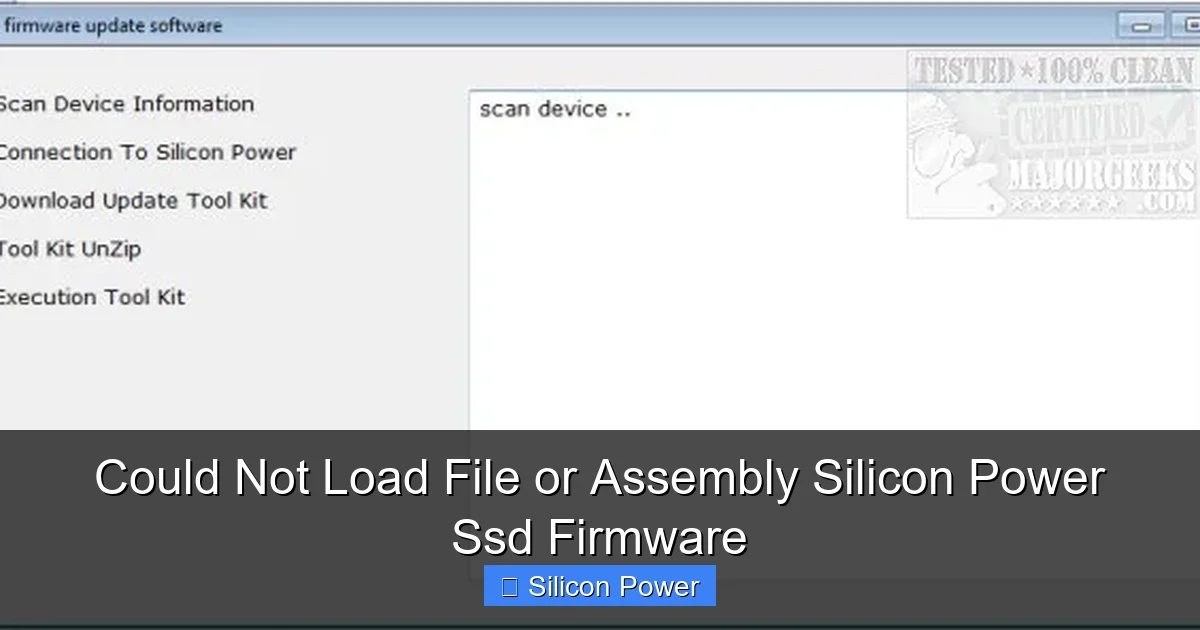
Encountering the “Could not load file or assembly Silicon Power SSD firmware” error can be frustrating, especially when trying to update or access your drive. This issue often stems from corrupted files, outdated drivers, or compatibility problems—but don’t worry, it’s usually fixable with the right steps.
Key Takeaways
- Understand the root cause: The error typically occurs due to missing, corrupted, or incompatible firmware files during SSD updates or system operations.
- Check firmware compatibility: Always verify that the firmware version you’re installing matches your exact Silicon Power SSD model.
- Use official tools only: Download firmware and utilities exclusively from Silicon Power’s official website to avoid malware or corrupted downloads.
- Update drivers and OS: Outdated system drivers or operating systems can prevent proper assembly loading—keep everything current.
- Run as administrator: Many firmware tools require elevated permissions; always launch them with admin rights.
- Backup data first: Before any firmware update, back up your SSD data to prevent irreversible loss in case of failure.
- Contact support if needed: If troubleshooting fails, reach out to Silicon Power customer support with your model number and error details.
Quick Answers to Common Questions
What does “could not load file or assembly” mean for Silicon Power SSD firmware?
It means the firmware tool couldn’t access or read a required file, often due to corruption, missing dependencies, or permission issues.
Can I fix this error without losing data?
Yes, in most cases. The error is usually software-related, so troubleshooting won’t affect your SSD data—but always back up first.
Why does my antivirus block the firmware tool?
Antivirus programs may flag firmware tools as suspicious because they modify low-level system components. Temporarily disable it during updates.
Do I need admin rights to update SSD firmware?
Yes, always run firmware tools as administrator to ensure they have the necessary permissions to access hardware.
Is it safe to update Silicon Power SSD firmware?
Yes, if done correctly. Use official tools, stable power, and back up data first. Incorrect updates can cause issues, so follow instructions carefully.
📑 Table of Contents
What Does “Could Not Load File or Assembly Silicon Power SSD Firmware” Mean?
If you’ve ever tried updating your Silicon Power SSD firmware or running a diagnostic tool only to be greeted by the message “Could not load file or assembly,” you’re not alone. This error is more common than you might think—and while it sounds technical and intimidating, it’s usually a sign of a solvable software or configuration issue rather than a hardware failure.
The phrase “could not load file or assembly” is a .NET Framework error that appears when a program tries to reference a specific dynamic link library (DLL) or executable file but can’t find it, can’t read it, or finds it incompatible. In the context of Silicon Power SSD firmware tools, this often happens during firmware updates, health checks, or when using utilities like the Silicon Power SSD ToolBox or Firmware Update Utility. The system expects certain files to be present and accessible, but something—be it a corrupted download, missing dependency, or permission issue—prevents them from loading properly.
This error doesn’t necessarily mean your SSD is broken. In fact, in most cases, the drive is perfectly functional—it’s just that the software meant to interact with it is encountering a hiccup. Think of it like trying to open a locked door with the wrong key: the door (your SSD) is fine, but the key (the firmware tool) isn’t working as expected. Understanding this distinction is crucial because it helps you approach the problem methodically instead of panicking about data loss or hardware replacement.
Common Causes of the Error
Before diving into fixes, it’s important to understand why this error occurs in the first place. Identifying the root cause saves time and prevents you from applying the wrong solution. Here are the most frequent culprits behind the “could not load file or assembly” message when dealing with Silicon Power SSD firmware.

Visual guide about Could Not Load File or Assembly Silicon Power Ssd Firmware
Image source: arka-servis.hr
1. Corrupted or Incomplete Firmware Download
One of the most common reasons for this error is a corrupted or incomplete download of the firmware update file. If your internet connection drops during the download, or if the file gets interrupted by antivirus software, the resulting file may be missing critical components. When the firmware tool tries to load these incomplete files, it fails—leading to the assembly error.
For example, imagine downloading a 50MB firmware file, but only 48MB completes due to a network glitch. The tool sees the file as present, but when it tries to parse the missing data, it throws an error. This is especially common with large firmware packages or when using unreliable download sources.
2. Outdated or Missing .NET Framework
Silicon Power’s firmware tools are often built using Microsoft’s .NET Framework. If your system doesn’t have the required version of .NET installed—or if it’s outdated—the application can’t load the necessary assemblies. This is a classic case of “the software needs a foundation it doesn’t have.”
Windows 10 and 11 usually come with .NET pre-installed, but older systems or clean installs might be missing key versions. Additionally, some users disable .NET features to save space, unknowingly breaking compatibility with essential tools.
3. Antivirus or Security Software Interference
Security programs are designed to block suspicious files, and sometimes they go overboard. Firmware update tools often modify low-level system components, which can trigger false positives in antivirus software. As a result, the security program may quarantine or block the firmware files, preventing them from loading.
We’ve seen cases where users had perfectly valid firmware files, but their antivirus flagged the executable as malware and silently deleted it. When the tool tried to run, it couldn’t find the file—hence the “could not load” error.
4. Permission Issues
Firmware tools often need elevated permissions to access hardware-level functions. If you run the utility without administrator rights, Windows may block it from loading certain assemblies or accessing the SSD directly. This is a common oversight, especially on shared or work computers where users aren’t always logged in as admins.
Even if you’re an admin, simply double-clicking the file might not grant full privileges. The tool needs to be explicitly run “as administrator” to function correctly.
5. Incompatible Firmware Version
Not all firmware updates are universal. Silicon Power releases different firmware versions for different SSD models—even within the same product line. If you accidentally download firmware meant for a SP024GBSS3V50S25 model for a SP0128GBSS3V50S25, the tool may fail to load the correct assembly due to version mismatches.
This is why it’s critical to double-check your SSD model number before downloading any firmware. Using the wrong file can not only cause errors but also potentially brick your drive.
6. Damaged or Missing DLL Files
Sometimes, the error isn’t with the firmware file itself, but with supporting DLLs that the tool depends on. These dynamic link libraries might be missing, corrupted, or blocked by system policies. For instance, if a required DLL like System.IO.Compression or Newtonsoft.Json.dll is missing, the application can’t start properly.
This can happen after a Windows update, a failed software installation, or even malware that deletes system files. In such cases, the firmware tool appears to launch but crashes immediately with the assembly error.
Step-by-Step Troubleshooting Guide
Now that you know what might be causing the issue, let’s walk through a practical, step-by-step approach to fix the “could not load file or assembly Silicon Power SSD firmware” error. Follow these steps in order—they’re designed to be safe, non-destructive, and effective.
Step 1: Verify Your SSD Model and Firmware Version
Before doing anything else, confirm that you have the correct firmware for your specific Silicon Power SSD. Go to the official Silicon Power website, navigate to the support or download section, and search for your exact model number. You can usually find this printed on the SSD label or by using tools like CrystalDiskInfo.
Once you’ve located the correct firmware, compare the version number with what’s currently installed. If they match, you may not need an update at all. If they don’t, download the latest version—but only from the official site. Avoid third-party download portals, as they often host outdated or modified files.
Step 2: Redownload the Firmware Tool
If you suspect the download was corrupted, delete the current firmware file and redownload it. Use a stable internet connection and avoid pausing or resuming the download. After downloading, check the file size against the one listed on the website—if they don’t match, the file is likely incomplete.
Pro tip: Use a download manager or browser with built-in integrity checks (like Chrome or Firefox) to reduce the risk of corruption. Also, temporarily disable your antivirus during the download—just remember to re-enable it afterward.
Step 3: Run the Tool as Administrator
Right-click the firmware update utility and select “Run as administrator.” This grants the program the necessary permissions to access system files and hardware. Many users skip this step and wonder why the tool fails—don’t make the same mistake.
If you’re using a corporate or restricted PC, you may need to contact your IT department for admin access. Running firmware tools without proper privileges is one of the top reasons for assembly load failures.
Step 4: Update .NET Framework
Ensure your system has the latest version of the .NET Framework installed. On Windows 10 and 11, go to Settings > Apps > Optional Features and check if .NET Framework 3.5 and 4.8 (or later) are enabled. If not, install them.
You can also download the latest .NET runtime directly from Microsoft’s website. Keeping .NET updated ensures compatibility with modern applications, including Silicon Power’s tools.
Step 5: Temporarily Disable Antivirus Software
Open your antivirus program and temporarily disable real-time protection. Then, try running the firmware tool again. If it works, your antivirus was likely blocking the file. After confirming the tool runs, you can re-enable protection and add the firmware utility to your antivirus whitelist.
Popular antivirus programs like Norton, McAfee, and Bitdefender are known to interfere with firmware tools. Even Windows Defender can sometimes be overly aggressive—so don’t overlook built-in security features.
Step 6: Check for Windows Updates
Outdated operating systems can cause compatibility issues. Go to Settings > Update & Security > Windows Update and install any pending updates. This ensures your system has the latest drivers, security patches, and runtime libraries needed for firmware tools to function.
We’ve seen cases where a simple Windows update resolved the assembly error by fixing underlying system conflicts. It’s a small step that can make a big difference.
Step 7: Use System File Checker (SFC)
If you suspect system files are damaged, run the System File Checker tool. Open Command Prompt as administrator and type:
sfc /scannow
This scans and repairs corrupted Windows system files, including DLLs that firmware tools might depend on. The process can take 10–20 minutes, so be patient.
After it completes, restart your computer and try the firmware tool again. In many cases, this resolves missing or corrupted assembly issues.
Step 8: Reinstall the Firmware Tool
If the tool itself is corrupted, uninstall it completely, restart your PC, and reinstall it from the official source. Sometimes, leftover files from a previous installation can cause conflicts.
Use a tool like Revo Uninstaller to ensure all registry entries and temporary files are removed before reinstalling. This gives you a clean slate.
Preventing the Error in the Future
Once you’ve resolved the issue, it’s smart to take steps to prevent it from happening again. Prevention is always easier than troubleshooting.
Always Download from Official Sources
Stick to Silicon Power’s official website for firmware and tools. Avoid third-party sites, torrents, or email attachments—even if they claim to offer “updated” versions. These are often outdated, modified, or infected.
Keep Your System Updated
Regularly update Windows, .NET Framework, and device drivers. This ensures compatibility with the latest firmware tools and reduces the risk of assembly errors.
Create Regular Backups
Before any firmware update, back up your SSD data. Use tools like Macrium Reflect, Acronis True Image, or even Windows Backup. If something goes wrong during the update, you won’t lose your files.
Use a Stable Power Source
Firmware updates should never be interrupted. Use a laptop on battery or a desktop with a UPS (uninterruptible power supply) to avoid power failures during the process.
Monitor SSD Health
Use tools like Silicon Power’s SSD ToolBox or CrystalDiskInfo to monitor your drive’s health. Early detection of issues can prevent firmware-related errors down the line.
When to Contact Silicon Power Support
If you’ve tried all the troubleshooting steps and the error persists, it’s time to reach out to Silicon Power’s customer support. Provide them with:
- Your SSD model number
- The exact error message
- Steps you’ve already tried
- Screenshots of the error (if possible)
Their technical team can offer model-specific guidance or confirm if there’s a known issue with your firmware version. In rare cases, they may provide a custom firmware file or recommend a hardware replacement if the drive is under warranty.
Conclusion
The “could not load file or assembly Silicon Power SSD firmware” error is frustrating, but it’s rarely a sign of permanent damage. With the right approach—verifying downloads, running tools as admin, updating software, and disabling interference—you can resolve it quickly and safely. Remember, firmware updates are important for performance and security, so don’t let this error stop you from keeping your SSD in top shape.
By following the steps in this guide, you’ll not only fix the current issue but also build habits that prevent future problems. And if all else fails, Silicon Power’s support team is there to help. Your SSD is an investment—treat it with care, and it’ll serve you well for years to come.
Frequently Asked Questions
Can a corrupted firmware file damage my SSD?
While rare, a failed or interrupted firmware update can potentially brick your SSD. That’s why it’s crucial to use stable power and verified files.
How do I find my Silicon Power SSD model number?
Check the label on the SSD itself, or use tools like CrystalDiskInfo or the Windows Device Manager under “Disk drives.”
Does Windows 11 support Silicon Power firmware tools?
Yes, most Silicon Power tools are compatible with Windows 11, but ensure you’re using the latest version from their website.
Can I update firmware on an external Silicon Power SSD?
It depends on the model. Some external SSDs support firmware updates via USB, while others require internal connection. Check the manual.
Why does the error say “assembly” if it’s about firmware?
The term “assembly” refers to .NET components the firmware tool uses. The error appears when these software parts can’t load, not necessarily the SSD itself.
What if the firmware tool crashes after fixing the error?
If the tool runs but crashes during update, ensure your SSD is properly connected, not in sleep mode, and that no other disk utilities are running.