
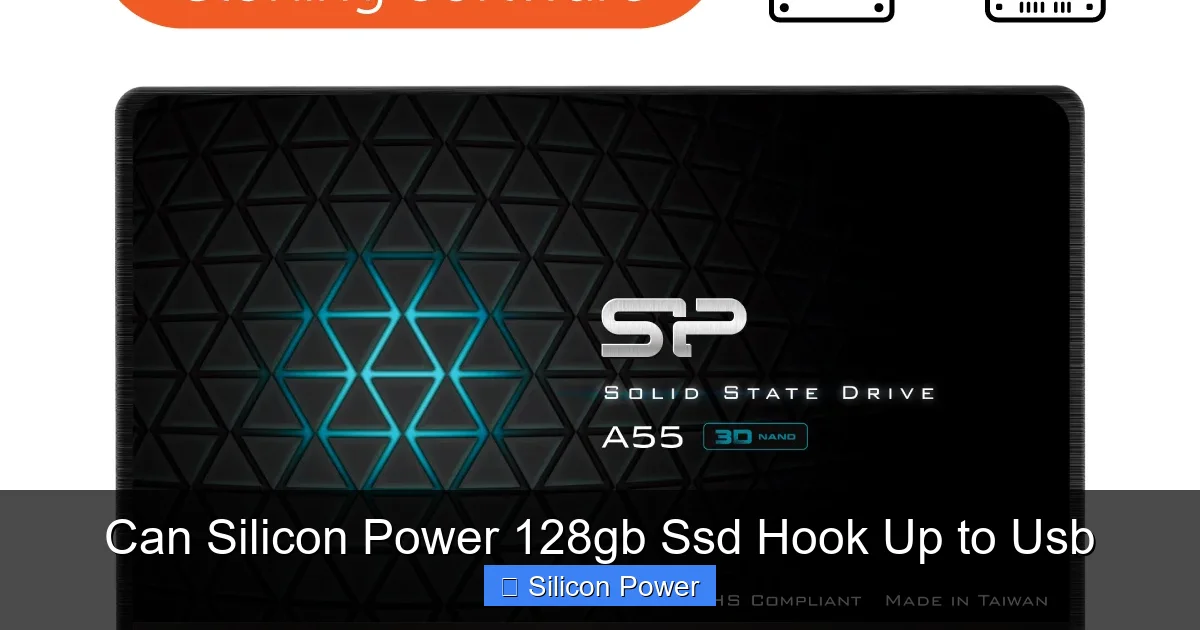
Yes, a Silicon Power 128GB SSD can easily hook up to USB using an external enclosure or USB adapter. This setup turns your internal SSD into a fast, portable drive perfect for backups, file transfers, and bootable media. With the right tools, it’s simple, affordable, and highly effective.
Key Takeaways
- Yes, it’s possible: A Silicon Power 128GB SSD can be connected to USB using a compatible SATA-to-USB enclosure or adapter.
- Performance benefits: SSDs offer faster read/write speeds than traditional HDDs, making file transfers quicker and more reliable.
- Portability and durability: SSDs have no moving parts, so they’re more shock-resistant and ideal for on-the-go use.
- Easy setup: Most enclosures are plug-and-play, requiring no drivers or technical expertise to use.
- Versatile uses: Great for backups, running portable apps, creating bootable drives, or expanding laptop storage.
- Compatibility matters: Ensure the enclosure supports 2.5-inch SATA SSDs and USB 3.0 or higher for best performance.
- Cost-effective upgrade: Reusing an old SSD as an external drive saves money and reduces e-waste.
Quick Answers to Common Questions
Can I use a Silicon Power 128GB SSD with USB?
Yes, you can connect a Silicon Power 128GB SSD to USB using a SATA-to-USB enclosure or adapter. This turns the internal SSD into a fast, portable external drive.
Do I need special software to use the SSD via USB?
No, most enclosures are plug-and-play. Your computer will recognize the drive automatically. You may need to format it, but no special software is required.
Will using USB slow down the SSD?
It depends on the USB version. USB 3.0 or higher maintains near-full SSD speeds. USB 2.0 will significantly reduce performance.
Can I boot my computer from the USB-connected SSD?
Yes, if your computer supports booting from external drives. You’ll need to install an operating system on the SSD and adjust the boot order in BIOS/UEFI.
Is it safe to carry the SSD in a bag or pocket?
Yes, SSDs are shock-resistant and durable. Just make sure the enclosure is secure and avoid extreme temperatures.
📑 Table of Contents
- Can Silicon Power 128GB SSD Hook Up to USB? A Complete Guide
- Why Use an SSD as an External USB Drive?
- What You Need to Connect Your Silicon Power SSD to USB
- Step-by-Step Guide: How to Hook Up Your SSD to USB
- Performance Expectations: What Speed Can You Expect?
- Practical Uses for Your USB-Connected SSD
- Tips for Getting the Most Out of Your SSD
- Troubleshooting Common Issues
- Conclusion: Yes, You Can—and Should
Can Silicon Power 128GB SSD Hook Up to USB? A Complete Guide
So, you’ve got a Silicon Power 128GB SSD sitting around—maybe from an old laptop upgrade or a spare build—and you’re wondering, “Can I hook this up to USB and use it as an external drive?” The short answer? Absolutely. And the best part? It’s easier than you might think.
Silicon Power is a well-known brand in the storage world, offering reliable SSDs that are affordable and efficient. Their 128GB models are commonly used in laptops and compact systems due to their balance of speed, size, and cost. But once that SSD is no longer in active use, it doesn’t have to collect dust. With the right tools, you can transform it into a high-speed external USB drive that’s perfect for storing documents, photos, videos, or even running portable software.
In this guide, we’ll walk you through everything you need to know about connecting a Silicon Power 128GB SSD to USB. From the hardware you’ll need to step-by-step setup instructions, performance expectations, and real-world use cases, we’ve got you covered. Whether you’re a tech newbie or a seasoned DIYer, this guide will help you get the most out of your SSD.
Why Use an SSD as an External USB Drive?
Before we dive into the how-to, let’s talk about why you’d want to do this in the first place. Why not just buy a new external hard drive? Well, there are several compelling reasons to repurpose your Silicon Power 128GB SSD as a USB drive.
First, SSDs are significantly faster than traditional hard disk drives (HDDs). While a typical HDD might deliver read/write speeds of 80–160 MB/s, a SATA SSD like the Silicon Power 128GB model can reach speeds of 500–550 MB/s. That means transferring a 10GB video file could take under 20 seconds instead of over a minute. For anyone who works with large files—photographers, video editors, gamers—this speed difference is a game-changer.
Second, SSDs are more durable. Because they have no moving parts, they’re less likely to fail if dropped or jostled. This makes them ideal for portable use. Imagine carrying your important work files in your backpack—with an SSD, you don’t have to worry about a sudden bump corrupting your data.
Third, SSDs are compact and lightweight. A 2.5-inch SSD is about the size of a smartphone, and when placed in a slim USB enclosure, it becomes a sleek, pocket-sized storage solution. No bulky external drives or tangled cables required.
Finally, repurposing an existing SSD is eco-friendly and cost-effective. Instead of tossing it or letting it gather dust, you’re giving it a second life. You save money by avoiding the purchase of a new external drive, and you reduce electronic waste—a win-win.
What You Need to Connect Your Silicon Power SSD to USB
Now that you’re convinced of the benefits, let’s talk about what you’ll need to make it happen. The good news? You probably already have most of it.
The SSD Itself
Obviously, you’ll need the Silicon Power 128GB SSD. These are typically 2.5-inch SATA drives, which is the standard form factor for laptop SSDs. Make sure it’s in working condition—if it was removed from a functioning system, it should be fine. If you’re unsure, you can test it by temporarily reinstalling it in a computer.
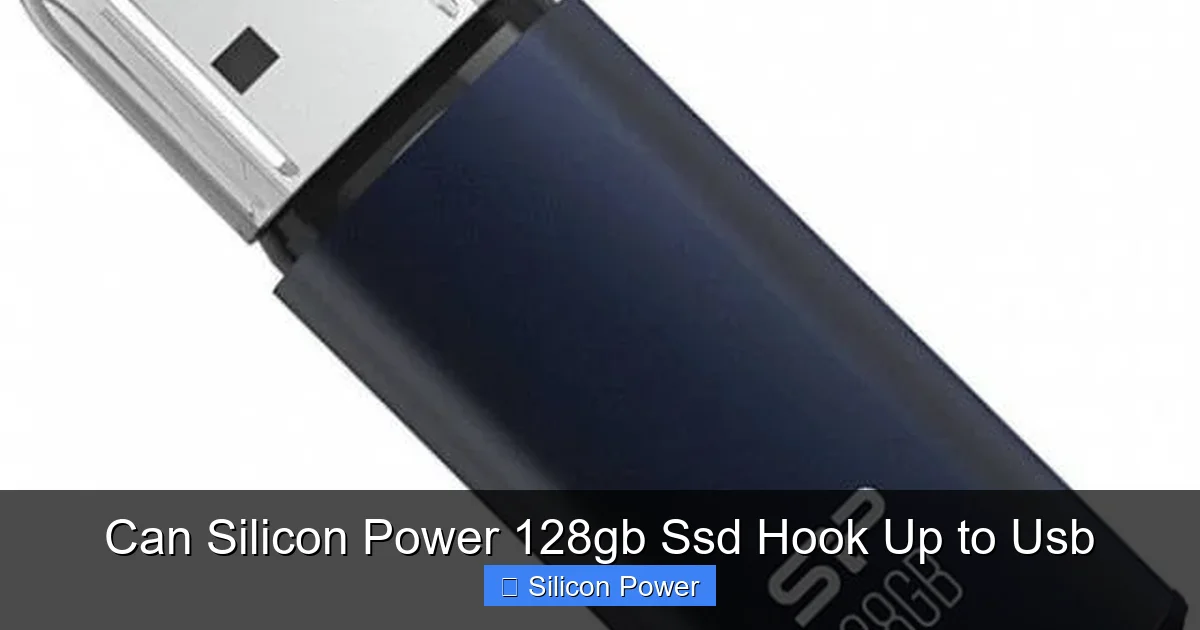
Visual guide about Can Silicon Power 128gb Ssd Hook Up to Usb
Image source: images.maxapro.hu
A SATA-to-USB Enclosure or Adapter
This is the key component. A SATA-to-USB enclosure is a small case that houses your SSD and connects to your computer via USB. It converts the SATA interface into a USB signal, allowing your computer to recognize the SSD as an external drive.
When shopping for an enclosure, look for one that supports:
- 2.5-inch SATA SSDs (most do)
- USB 3.0 or USB 3.1 (for maximum speed)
- UASP (USB Attached SCSI Protocol) support (boosts performance)
- Tool-free installation (makes setup easier)
Popular brands include Sabrent, Orico, and UGREEN. Prices typically range from $10 to $25, making this a very affordable upgrade.
A USB Cable
Most enclosures come with a USB-A to USB-B or USB-C cable. If your computer has USB-C ports, consider getting an enclosure with a USB-C output for faster data transfer and reversible plugging.
Optional: Screwdriver (if needed)
Some enclosures require a small screwdriver to secure the SSD in place. Many newer models are tool-free, using clips or sliders instead. Check the product description before buying.
Optional: External Power (rarely needed)
2.5-inch SSDs draw power directly from the USB port, so you usually don’t need an external power source. However, if you’re using a very old USB 2.0 port or a low-power device (like a Raspberry Pi), you might need a Y-cable or powered hub.
Step-by-Step Guide: How to Hook Up Your SSD to USB
Ready to get started? Here’s a simple, step-by-step guide to turning your Silicon Power 128GB SSD into a USB drive.
Step 1: Prepare Your Workspace
Find a clean, static-free surface to work on. Static electricity can damage electronic components, so avoid working on carpet or wearing synthetic fabrics. If possible, use an anti-static wrist strap.
Step 2: Open the Enclosure
Most enclosures have a sliding cover or a latch. Gently open it to reveal the internal SATA connector. Some models require you to unscrew a small panel—check the instructions that came with your enclosure.
Step 3: Insert the SSD
Align the SSD’s SATA connector with the one inside the enclosure. Gently slide the SSD in until it clicks into place. Make sure it’s seated properly—don’t force it. If your enclosure uses screws, secure the SSD with the provided screws.
Step 4: Close the Enclosure
Once the SSD is in place, close the cover and secure it. Ensure everything is snug but not over-tightened.
Step 5: Connect to Your Computer
Plug the USB cable into the enclosure and then into your computer’s USB port. If you’re using USB 3.0 or higher, look for blue-colored ports for maximum speed.
Step 6: Wait for Recognition
Your computer should detect the drive within a few seconds. On Windows, it will appear in File Explorer under “This PC.” On Mac, it will show up on the desktop or in Finder.
Step 7: Initialize and Format (if needed)
If the drive is new or hasn’t been formatted, your computer may prompt you to initialize it. Follow the on-screen instructions to format the drive. Choose NTFS for Windows, exFAT for cross-platform use (Windows and Mac), or APFS/HFS+ for Mac-only use.
Step 8: Start Using Your Drive
Once formatted, you can start transferring files, installing portable apps, or using it as a backup drive. Enjoy the speed and convenience of your new external SSD!
Performance Expectations: What Speed Can You Expect?
Now that your SSD is connected, you’re probably wondering: “How fast is it really?” The answer depends on a few factors, but generally, you can expect excellent performance.
USB 3.0 vs. USB 2.0
If you’re using a USB 3.0 (or higher) port and enclosure, your Silicon Power 128GB SSD should deliver read/write speeds close to its maximum SATA III limit—around 500–550 MB/s. This is more than enough for 4K video editing, large photo libraries, or fast system backups.
However, if you plug into a USB 2.0 port (common on older computers), speeds will drop significantly—typically to 30–40 MB/s. While still usable, it defeats the purpose of using an SSD. Always use USB 3.0 or higher for best results.
Real-World Transfer Speeds
In practical terms, here’s what you can expect:
- Copying a 5GB movie file: ~10–15 seconds (USB 3.0)
- Transferring 1,000 photos (5MB each): ~1–2 minutes
- Backing up a 50GB project folder: ~2–3 minutes
These speeds are roughly 3–5 times faster than a typical external HDD.
UASP Support: The Speed Boost You Need
If your enclosure supports UASP (USB Attached SCSI Protocol), you’ll see an additional performance boost—up to 20% faster than standard USB 3.0. UASP reduces CPU usage and allows for faster data queuing. Look for enclosures that explicitly mention UASP support.
Thermal Considerations
SSDs can get warm during heavy use, especially in compact enclosures. Most enclosures have aluminum bodies that act as heat sinks, but if you notice the drive getting hot, consider using it in a well-ventilated area or taking short breaks during long transfers.
Practical Uses for Your USB-Connected SSD
So, what can you actually do with your newly converted external SSD? The possibilities are endless. Here are some of the most popular and practical uses.
1. Fast File Storage and Transfers
Use your SSD to store and transfer large files quickly. Whether it’s video projects, game installations, or family photos, the speed of an SSD makes a noticeable difference.
2. Portable Backup Drive
Set up automatic backups using tools like Windows Backup, Time Machine (Mac), or third-party software like Acronis or Macrium Reflect. Because SSDs are reliable and fast, they’re ideal for keeping your data safe.
3. Bootable Operating System Drive
Install a lightweight OS like Linux or a portable version of Windows on your SSD. You can then boot from it on any compatible computer—perfect for troubleshooting, testing, or using a clean system on the go.
4. Expand Laptop or Desktop Storage
If your computer is running low on space, use the SSD as extra storage. Store media files, applications, or even your entire user profile on the external drive.
5. Gaming Storage
Gamers can install games directly onto the SSD for faster load times. While not as fast as an internal NVMe drive, a SATA SSD still offers a significant improvement over HDDs.
6. Portable Workstation
Carry your entire work environment—apps, files, settings—on the SSD. Plug it into any computer and pick up where you left off. Great for freelancers, students, or remote workers.
7. Media Server or Plex Library
Use the SSD as a portable media library for streaming movies and music. Connect it to a smart TV, media player, or Raspberry Pi running Plex.
Tips for Getting the Most Out of Your SSD
To ensure your USB-connected SSD performs well and lasts a long time, follow these best practices.
Use the Right File System
Choose the correct file system based on your needs:
- NTFS: Best for Windows-only use. Supports large files and encryption.
- exFAT: Ideal for cross-platform use (Windows and Mac). No file size limits.
- APFS/HFS+: Best for Mac-only use. Optimized for SSDs.
Enable TRIM (if supported)
TRIM helps maintain SSD performance by clearing unused data blocks. On Windows, TRIM is usually enabled automatically. On Mac, it’s supported for external SSDs running macOS High Sierra or later.
Avoid Filling It Up
SSDs perform best when they have at least 10–20% free space. Avoid filling the drive to capacity, as this can slow down write speeds and reduce lifespan.
Keep It Cool
As mentioned earlier, heat can degrade SSD performance over time. Avoid leaving the drive in hot environments (like a car in summer) and ensure good airflow during use.
Update Firmware (if available)
Check Silicon Power’s website for firmware updates for your SSD model. Updated firmware can improve performance, stability, and compatibility.
Use a Quality Enclosure
Don’t skimp on the enclosure. A cheap, poorly made case can cause connection issues, overheating, or data corruption. Invest in a reputable brand with good reviews.
Troubleshooting Common Issues
Even with the best setup, you might run into a few hiccups. Here’s how to solve the most common problems.
Drive Not Recognized
- Check the USB cable and port. Try a different cable or port.
- Ensure the SSD is properly seated in the enclosure.
- Test the SSD in another computer to rule out hardware issues.
- On Windows, open Disk Management to see if the drive appears but isn’t assigned a letter.
Slow Transfer Speeds
- Make sure you’re using USB 3.0 or higher.
- Check if UASP is enabled (some enclosures have a switch).
- Close background apps that might be using the drive.
- Defragmentation is not needed for SSDs—avoid it.
Drive Disconnects Randomly
- This could be a power issue. Try a powered USB hub.
- Check for loose connections or a faulty cable.
- Update your USB drivers.
File System Errors
- Run a disk check (chkdsk on Windows, First Aid on Mac).
- Reformat the drive if necessary.
- Ensure safe ejection before unplugging.
Conclusion: Yes, You Can—and Should
To wrap it up: yes, a Silicon Power 128GB SSD can absolutely hook up to USB, and doing so is a smart, practical move. With just a simple SATA-to-USB enclosure, you can transform an internal drive into a fast, portable, and durable external storage solution.
The benefits are clear: blazing-fast transfer speeds, enhanced durability, compact size, and cost savings. Whether you’re backing up important files, expanding your storage, or creating a portable workstation, this setup delivers excellent value.
Plus, it’s environmentally responsible. Instead of discarding or storing away an unused SSD, you’re giving it a new purpose. It’s a small step toward reducing e-waste and making the most of the tech you already own.
So, if you’ve got a Silicon Power 128GB SSD lying around, don’t let it go to waste. Grab an enclosure, follow the steps in this guide, and enjoy the speed and convenience of external SSD storage. Your files—and your future self—will thank you.
Frequently Asked Questions
What type of enclosure do I need for a Silicon Power 128GB SSD?
You need a 2.5-inch SATA-to-USB enclosure that supports USB 3.0 or higher. Look for models with UASP support for better performance and tool-free installation for ease of use.
Can I use this setup on both Windows and Mac?
Yes, but you’ll need to format the drive with exFAT for cross-platform compatibility. NTFS works best for Windows, while APFS or HFS+ is ideal for Mac-only use.
How long will the SSD last as an external drive?
SSDs have a long lifespan, especially with light to moderate use. A 128GB SSD can last many years if properly maintained and not filled to capacity.
Do I need to install drivers for the enclosure?
Most modern enclosures are plug-and-play and don’t require additional drivers. However, check the manufacturer’s website for any recommended updates.
Can I use the SSD for gaming?
Yes, you can install and run games from the external SSD. While not as fast as an internal NVMe drive, it’s still much faster than a traditional HDD.
What should I do if the drive isn’t showing up?
Check the connections, try a different USB port or cable, and ensure the SSD is properly seated. On Windows, check Disk Management; on Mac, use Disk Utility to see if the drive is detected.