
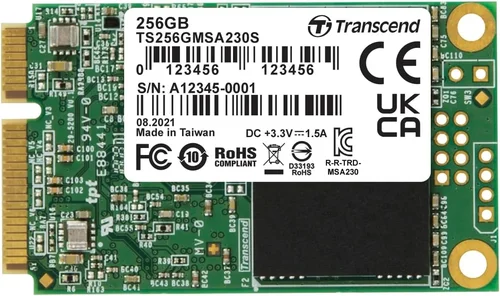
The mSATA SSD market has evolved dramatically over the past few years, and while newer form factors like M.2 NVMe have taken center stage in high-performance computing, mSATA remains a vital upgrade path for millions of older laptops, mini PCs, industrial systems, and embedded devices still in active use. If you’re holding onto a laptop from the early 2010s or maintaining legacy hardware for business or personal projects, upgrading to an mSATA SSD might be one of the most impactful performance improvements you can make—without replacing your entire system. But with limited options, confusing compatibility issues, and rapidly changing technology, choosing the right mSATA SSD in 2026 requires more than just picking the cheapest or fastest drive.
This comprehensive buying guide is designed to cut through the noise and help you make a smart, informed decision. Whether you’re a tech enthusiast looking to breathe new life into an aging ultrabook, a small business owner maintaining fleet laptops, or a DIY builder working on a compact NAS or media center, this guide will walk you through everything you need to know. You’ll learn how to evaluate performance, understand compatibility constraints, avoid common pitfalls, and find the best value for your specific needs. We’ll also highlight top models across different budget ranges and use cases, so you can walk away with a clear recommendation tailored to your situation.
The mSATA market today is a niche but essential segment. While major manufacturers have shifted focus to M.2 and PCIe Gen4/Gen5 drives, several reliable brands continue to produce high-quality mSATA SSDs—often using mature, proven NAND technology that delivers excellent endurance and stability. These drives may not break speed records, but they offer dramatic improvements over traditional hard drives in boot times, application loading, and overall system responsiveness. In this guide, we’ll explore the key factors that matter most when selecting an mSATA SSD, compare different types and use cases, and provide actionable advice to ensure you get the best possible performance and longevity from your purchase.

What to Look for When Buying Buying Guide
1. Compatibility & Form Factor
Before considering speed or capacity, the single most important factor is compatibility. mSATA drives are not interchangeable with M.2 drives—even though they may look similar. The mSATA standard uses the mini PCIe connector and is typically found in older laptops, netbooks, and some industrial computers. To confirm your system supports mSATA, check your device’s service manual, BIOS settings, or use system information tools like HWiNFO or Speccy. Look for an mSATA slot (usually labeled or located near the Wi-Fi card) and verify that your motherboard supports SATA III (6 Gbps) for optimal performance.
Also, note that some systems may share bandwidth between the mSATA slot and other components like the optical drive bay or secondary storage. This can limit performance if both are in use simultaneously. Always confirm whether your system treats the mSATA slot as a primary or secondary storage interface. Additionally, physical size matters: most mSATA drives are 50.95mm x 29.85mm (commonly called “full-size”), but some compact devices use shorter variants. Measure your available space or consult your device documentation to ensure a proper fit.
2. Performance Specifications
While mSATA SSDs are limited by the SATA III interface (theoretical max of ~600 MB/s), real-world performance varies significantly based on controller quality, NAND type, and firmware optimization. Look for sequential read/write speeds of at least 500 MB/s and 450 MB/s respectively—these are typical for modern mSATA drives using TLC or MLC NAND. Random 4K performance is equally important for everyday tasks like opening apps, browsing files, and multitasking. Aim for random read/write IOPS (Input/Output Operations Per Second) above 80,000 and 70,000 respectively.
Don’t be swayed by marketing claims of “up to” speeds—these are often achieved under ideal lab conditions. Instead, look for real-world benchmarks from trusted review sites or user reports. Also, consider sustained performance: some cheaper drives throttle significantly under prolonged workloads due to poor thermal management or aggressive garbage collection. If you plan to use your mSATA SSD for video editing, large file transfers, or running virtual machines, prioritize drives with consistent performance under load.
3. NAND Flash Type & Endurance
The type of NAND flash memory used in an mSATA SSD directly impacts its lifespan, reliability, and cost. In 2026, most consumer-grade mSATA drives use TLC (Triple-Level Cell) NAND, which offers a good balance of price, capacity, and endurance. However, for systems that will see heavy write workloads—such as database servers, logging systems, or frequently updated development environments—consider drives with MLC (Multi-Level Cell) or even SLC (Single-Level Cell) NAND, which offer significantly higher write endurance.
Endurance is measured in TBW (Terabytes Written), indicating how much data can be written to the drive over its lifetime. A typical 512GB TLC mSATA SSD might have a TBW rating of 300–400TB, while an MLC version could exceed 1,000TB. Always check the manufacturer’s datasheet for TBW ratings—don’t rely solely on warranty length as a proxy for durability. Also, look for features like wear leveling, over-provisioning, and error correction (ECC), which help extend drive life and maintain data integrity.
4. Capacity & Future-Proofing
mSATA SSDs are available in capacities ranging from 64GB to 1TB, with 256GB and 512GB being the most common and cost-effective options in 2026. While 128GB may suffice for a basic OS and a few applications, we strongly recommend starting at 256GB for any modern use case. This provides enough space for Windows 11 or Linux distributions, essential software, and moderate file storage without constant cleanup.
If your system supports it and your budget allows, consider a 512GB or 1TB drive—especially if you’re using the SSD as your primary storage. Larger capacities often come with better performance due to increased parallelism across NAND chips and more over-provisioning space. Additionally, higher-capacity drives tend to have longer lifespans because writes are distributed across more cells. Avoid the smallest capacities unless you’re doing a minimal install or using the drive purely for caching.
5. Brand Reputation & Reliability
Not all mSATA SSDs are created equal—even if they share the same specs on paper. Stick with reputable brands known for consistent quality and long-term support. In 2026, reliable manufacturers include Samsung, Crucial (Micron), Kingston, Transcend, and ADATA. These companies invest in robust firmware, rigorous testing, and transparent specifications. Avoid no-name or ultra-budget brands that may use recycled or lower-grade NAND, leading to premature failure or data loss.
Look for brands that provide detailed technical documentation, firmware update tools, and active customer support. Samsung’s Magician software, for example, offers drive health monitoring, performance optimization, and secure erase functions—features that add real value beyond raw speed. Also, consider the supply chain: some brands maintain better inventory of legacy form factors like mSATA, ensuring availability and consistent production quality.
6. Warranty & Support
A strong warranty is a strong indicator of a manufacturer’s confidence in their product. Most quality mSATA SSDs come with a 3- to 5-year limited warranty, often tied to both time and TBW limits. For example, a drive might be covered for 5 years or up to 600TB written—whichever comes first. Always read the fine print: some warranties require registration, original purchase proof, or prohibit certain uses (like server deployment).
Customer support quality varies widely. Samsung and Crucial offer responsive technical support via phone, email, and live chat, while smaller brands may rely on email-only responses with slow turnaround. If you’re deploying mSATA SSDs in a business or industrial setting, prioritize vendors with enterprise-grade support options. Also, check if the manufacturer provides data recovery assistance or partnerships—this can be crucial if a drive fails unexpectedly.
7. Power Efficiency & Thermal Management
For mobile and embedded applications, power consumption and heat output are critical. mSATA SSDs generally consume less power than HDDs—typically 1.5W to 3W under load—but differences between models can affect battery life in laptops. Look for drives with low idle power draw (under 0.5W) and efficient controllers that minimize active power use.
Thermal performance is often overlooked but important in tightly packed systems. Some mSATA drives can reach 70°C+ under sustained load, triggering thermal throttling and reducing performance. Premium models include thermal pads or use controllers with built-in temperature management. If your device has poor ventilation (common in ultrabooks or mini PCs), choose a drive known for stable thermals. User reviews and teardown videos can provide real-world insights into heat behavior.
8. Security Features
If you handle sensitive data, consider mSATA SSDs with hardware-based encryption. Many modern drives support AES-256 encryption and comply with TCG Opal 2.0 standards, allowing full-disk encryption without performance penalties. This is especially valuable for business laptops, government systems, or personal devices storing financial or medical records.
Look for drives that support IEEE-1667 (for Windows BitLocker compatibility) and offer secure erase functionality. Some models include built-in self-encrypting drive (SED) capabilities, which automatically encrypt all data at rest. Avoid software-only encryption solutions, as they can slow down the system and are less secure. Always verify that your operating system and BIOS support the encryption features before purchasing.
Different Types of Buying Guide

Common Buying Mistakes to Avoid
❌ Mistake: Assuming All mSATA Slots Support SATA III
Why it’s bad: Some older systems only support SATA II (3 Gbps), which halves the potential speed of your SSD. Installing a high-performance mSATA drive in such a system wastes money and creates false expectations.
What to do instead: Verify your motherboard or laptop specs to confirm SATA III support. If limited to SATA II, consider whether the upgrade is worth it—or focus on improving other components like RAM.
❌ Mistake: Buying Based Solely on Price
Why it’s bad: Extremely cheap mSATA drives often use outdated controllers, low-grade NAND, or lack essential features like wear leveling. This increases the risk of data loss and premature failure.
What to do instead: Set a minimum quality threshold—stick to known brands and check user reviews. A $10 savings isn’t worth losing critical data.
❌ Mistake: Ignoring Firmware Updates
Why it’s bad: Outdated firmware can cause compatibility issues, performance bugs, or security vulnerabilities. Many users never update their SSD firmware, leaving drives suboptimal or unsafe.
What to do instead: After installation, visit the manufacturer’s website to download and apply the latest firmware. Use official tools only—third-party utilities can brick your drive.
❌ Mistake: Overlooking Power Requirements in Embedded Systems
Why it’s bad: Industrial or portable devices often have strict power budgets. A drive that draws too much current can cause system instability or reduce battery life.
What to do instead: Check the drive’s power specifications (usually in the datasheet) and compare them to your system’s limits. Choose low-power models for mobile or battery-operated applications.
❌ Mistake: Assuming mSATA = M.2
Why it’s bad: These are completely different interfaces. Buying an M.2 drive for an mSATA slot (or vice versa) results in a non-functional setup and wasted money.
What to do instead: Double-check your slot type. mSATA uses a mini PCIe connector with specific keying; M.2 uses a different socket and supports both SATA and NVMe protocols.
❌ Mistake: Skipping Secure Erase Before Disposal
Why it’s bad: Simply formatting or deleting files doesn’t erase data securely. Sensitive information can be recovered from discarded drives.
What to do instead: Use the manufacturer’s secure erase tool or a certified data wiping utility before selling, donating, or recycling your old drive.
❌ Mistake: Not Backing Up Before Installation
Why it’s bad: Cloning or fresh OS installations carry risks. A failed clone or corrupted installer can leave you without a working system.
What to do instead: Always create a full system backup before swapping drives. Use imaging software like Macrium Reflect or Clonezilla to safeguard your data.
Budget Guidelines: How Much Should You Spend?
- Entry-Level ($20–$40): Suitable for basic OS installations on older laptops or lightweight tasks like web browsing and document editing. Expect 128GB–256GB capacities, TLC NAND, and modest performance (400–500 MB/s). Brands like Kingston and ADATA offer reliable options in this range. Ideal for students or casual users on a tight budget.
- Mid-Range ($40–$80): The sweet spot for most buyers. Drives in this tier offer 256GB–512GB capacities, solid performance (500+ MB/s), and reputable brands like Crucial and Samsung. You’ll get better controllers, improved endurance, and often include software utilities. Perfect for general productivity, light gaming, and everyday computing.
- Premium ($80–$150): For enthusiasts, professionals, or systems with demanding workloads. These drives feature MLC NAND, higher TBW ratings, advanced encryption, and superior thermal management. Capacities up to 1TB are common. Ideal for developers, content creators, or industrial applications where reliability is critical.
- Luxury ($150+): Top-tier industrial or enterprise-grade mSATA SSDs with extended temperature ranges (-40°C to 85°C), conformal coating for humidity resistance, and 5+ year warranties. These are overkill for home use but essential for aerospace, medical, or military applications.
Expert Tips for Getting the Best Deal
- Buy during off-peak seasons: Demand for legacy components like mSATA SSDs is lowest in Q1 and Q3. Retailers often discount old stock to make room for newer products.
- Check manufacturer refurbished programs: Samsung, Crucial, and Kingston sell certified refurbished drives at 20–40% off retail, often with full warranties.
- Use price tracking tools: Websites like CamelCamelCamel (for Amazon) or Honey can alert you when prices drop on specific models.
- Prioritize retailers with good return policies: Choose stores like Newegg, B&H, or Micro Center that offer 30-day+ return windows and free return shipping.
- Verify compatibility before clicking “buy”: Use your device’s model number to search forums or manufacturer FAQs. Don’t rely solely on Amazon’s “fits your device” feature—it’s often inaccurate.
- Consider bundle deals: Some sellers offer mSATA SSDs with installation kits, SATA cables, or cloning software at a slight premium—but the convenience may be worth it.
- Read recent user reviews: Focus on reviews from the past 6–12 months. Older reviews may reflect outdated firmware or batch issues that have since been resolved.
- Test immediately after installation: Run benchmarks (CrystalDiskMark), check SMART status (CrystalDiskInfo), and monitor temperatures to ensure the drive is performing as expected.

Frequently Asked Questions
Q: Can I use an mSATA SSD in an M.2 slot?
A: No. mSATA and M.2 are different interfaces with different connectors and signaling protocols. An mSATA drive will not fit or function in an M.2 slot, and vice versa. However, some adapters exist that allow mSATA drives to be used in M.2 slots—but these are rare and not widely supported.
Q: Will an mSATA SSD improve my laptop’s performance?
A: Absolutely—if your laptop currently uses a mechanical hard drive. Upgrading to an mSATA SSD can reduce boot times from minutes to seconds, speed up application launches, and make the entire system feel more responsive. The improvement is especially noticeable on older systems with slow HDDs.
Q: How long do mSATA SSDs last?
A: With typical consumer use, a quality mSATA SSD should last 5–10 years. Actual lifespan depends on usage patterns, TBW rating, and environmental conditions. Most drives outlast their warranty period if not subjected to extreme write workloads.
Q: Do I need to enable TRIM on my mSATA SSD?
A: Yes. TRIM helps maintain performance and longevity by allowing the OS to inform the SSD which blocks are no longer in use. Windows 7 and later enable TRIM automatically for SSDs. You can verify it’s active by running fsutil behavior query DisableDeleteNotify in Command Prompt—if the result is 0, TRIM is enabled.
Q: Can I clone my existing hard drive to an mSATA SSD?
A: Yes, using disk cloning software like Macrium Reflect Free, Acronis True Image, or Clonezilla. Ensure the SSD has equal or greater capacity than the used space on your current drive. Some tools can resize partitions during cloning.
Q: Are mSATA SSDs still being manufactured?
A: Yes, but production is limited and focused on industrial, medical, and legacy support markets. Consumer availability is decreasing, so it’s wise to purchase sooner rather than later if you need one.
Q: What’s the difference between mSATA and mini PCIe?
A: mSATA is a specification that uses the mini PCIe form factor and connector but carries SATA signals instead of PCIe. They look identical, but mini PCIe slots are for expansion cards (like Wi-Fi), while mSATA slots are for storage. Never install an mSATA SSD in a mini PCIe slot not designed for storage—it won’t work.
Q: Can I use an mSATA SSD as a cache drive?
A: Yes, with compatible systems. Some laptops and motherboards support Intel Rapid Storage Technology (RST) or similar caching solutions that use a small SSD to accelerate a larger HDD. Check your BIOS and chipset documentation for support.
Q: Is it safe to buy used mSATA SSDs?
A: Generally not recommended. Unlike HDDs, SSDs don’t show obvious signs of wear, and a used drive could be near its TBW limit. If you must buy used, choose sellers with high ratings, request SMART data, and prefer drives with high TBW ratings and low usage hours.
Q: Do mSATA SSDs require special drivers?
A: No. mSATA SSDs use standard SATA drivers included in modern operating systems. No additional installation is needed beyond connecting the drive and initializing it in Disk Management.
Our Final Recommendations
- Best for Budget-Conscious Buyers: Kingston mSATA SSD 240GB – Reliable, widely available, and priced under $40. Offers solid 500 MB/s speeds and a 3-year warranty. Perfect for reviving older laptops without breaking the bank.
- Best Overall Value: Crucial MX500 mSATA 512GB – Combines excellent performance (560/510 MB/s), Micron 3D TLC NAND, AES-256 encryption, and a 5-year warranty. Consistently praised for stability and real-world speed.
- Best Premium Option: Samsung 860 EVO mSATA 1TB – The gold standard for mSATA drives. Features Samsung’s proven V-NAND technology, Magician software support, and exceptional endurance (600TBW). Ideal for professionals and power users.
- Best for Beginners: ADATA Ultimate SU800 mSATA 256GB – Easy to install, comes with cloning software, and offers reliable performance. Great for first-time upgraders who want a hassle-free experience.
- Best for Advanced Users: Transcend MTS800 512GB MLC – Uses MLC NAND for superior write endurance and includes industrial-grade features like wide temperature support. Excellent for developers, sysadmins, or embedded projects.
Conclusion: Making the Right Choice
Choosing the best mSATA SSD in 2026 isn’t about finding the fastest or most expensive drive—it’s about matching the right combination of compatibility, performance, reliability, and value to your specific needs. Whether you’re breathing new life into a decade-old laptop or maintaining critical industrial hardware, the insights in this guide will help you avoid costly mistakes and make a confident, informed decision.
Remember to prioritize compatibility above all else, invest in a reputable brand, and consider your long-term usage patterns when evaluating endurance and capacity. Don’t overlook the importance of firmware, security, and support—these factors often determine real-world satisfaction more than raw speed specs. And if you’re on a tight budget, know that even entry-level mSATA SSDs deliver transformative improvements over traditional hard drives.
As the tech world moves forward, legacy form factors like mSATA remind us that innovation isn’t just about what’s new—it’s also about making the most of what we already have. With the right SSD, your aging system can feel brand new again. So take the time to research, compare, and choose wisely. Your future self—and your faster, smoother computing experience—will thank you.