
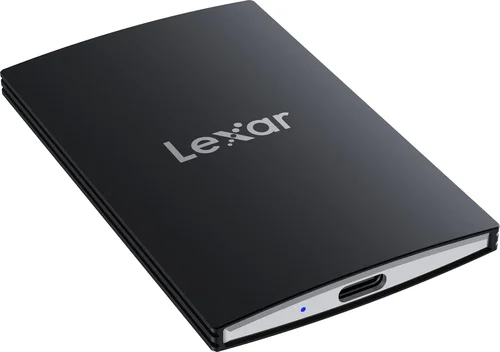
The PlayStation 5 has redefined console gaming with its lightning-fast SSD, immersive 3D audio, and stunning 4K visuals. But even with its built-in 825GB of ultra-fast storage (of which only about 667GB is usable), space fills up quickly. A single AAA title can easily consume 80–150GB, and with modern games pushing past 200GB, many PS5 owners find themselves deleting beloved titles just to make room for new ones. This is where an external SSD becomes not just a convenience—but a necessity.
That’s why we’ve created this comprehensive 2026 buying guide. Whether you’re a casual gamer looking to store a few extra titles or a power user managing a vast digital library, choosing the right external SSD for your PS5 can dramatically improve your gaming experience. In this guide, you’ll learn how to evaluate performance, compatibility, durability, and value—so you can make a smart, informed decision. We’ll walk you through the key factors to consider, compare different types of drives, highlight common pitfalls, and share expert tips to help you get the best deal. By the end, you’ll know exactly what to look for and which models stand out in today’s competitive market.
The external SSD market has evolved rapidly since the PS5’s launch in 2020. Early adopters faced limited options and compatibility headaches, but today’s landscape offers a wide range of high-performance, PS5-certified drives from trusted brands like Samsung, WD, Seagate, and Crucial. With USB 3.2 Gen 2 support, blazing read speeds, and sleek, portable designs, modern external SSDs are more than just storage—they’re performance enhancers. However, not all drives are created equal. Some prioritize speed, others focus on affordability, and a few offer premium features like hardware encryption or ruggedized casings. Our goal is to cut through the noise and help you find the perfect match for your needs, budget, and gaming habits.

What to Look for When Buying Buying Guide
1. Performance Specifications
When it comes to external SSDs for the PS5, performance is paramount—but not in the way you might think. Unlike internal NVMe SSDs, which must meet Sony’s strict 5,500 MB/s read speed requirement to run PS5 games directly, external SSDs connect via USB and are primarily used for storing PS5 games (not playing them natively). However, they can run PS4 games directly from the drive, and faster speeds mean quicker load times and smoother transfers.
Look for drives with USB 3.2 Gen 2 (10 Gbps) or USB 3.2 Gen 2×2 (20 Gbps) interfaces. USB 3.2 Gen 2 is the sweet spot for most users, offering up to 1,050 MB/s real-world speeds—more than enough for seamless PS4 gameplay and rapid file transfers. Avoid USB 3.0 or USB 2.0 drives, as they’ll bottleneck performance and frustrate you with slow load times. Also, check the drive’s sustained read/write speeds, not just peak numbers. A drive that throttles under heavy use will degrade your experience over time.
2. Compatibility & PS5 Support
Not every external SSD works flawlessly with the PS5. Sony has specific requirements, and while most modern USB SSDs are compatible, it’s crucial to verify support before buying. The drive must be USB 3.0 or later, have a minimum capacity of 250GB, and be formatted correctly (the PS5 will reformat it to exFAT, so don’t worry about file systems).
Some drives come with proprietary software or encryption that may interfere with PS5 recognition. Stick to well-known brands with a track record of console compatibility. Also, avoid drives that require external power—PS5 USB ports deliver limited power, and bus-powered drives are more reliable. If you’re unsure, check Sony’s official support page or user forums for confirmed working models.
3. Budget & Price Range
External SSDs vary widely in price, from under $50 for basic 500GB models to over $300 for high-capacity, high-performance drives. Your budget will heavily influence your options, but it’s important to balance cost with long-term value. A cheaper drive might save you money upfront but could fail sooner or offer slower speeds, leading to frustration and potential data loss.
As a general rule, expect to pay:
– $50–$80 for a 500GB entry-level drive
– $80–$150 for a 1TB mid-range model
– $150–$250 for a 2TB premium drive
– $250+ for 4TB or larger capacities
Consider how much storage you realistically need. If you play 3–5 games at a time, 1TB is sufficient. But if you’re a collector or streamer who keeps dozens of titles, 2TB or more is worth the investment.
4. Build Quality & Durability
SSDs are inherently more durable than traditional hard drives because they have no moving parts. However, external drives are often transported, dropped, or exposed to extreme temperatures—so build quality matters. Look for drives with aluminum or magnesium alloy casings, which dissipate heat better and resist physical damage.
Some models feature IP ratings for water and dust resistance (e.g., IP65 or IP67), which is useful if you travel frequently or game in less controlled environments. Shock resistance is also important—many drives are rated to survive drops from 1–2 meters. Additionally, check if the drive includes a protective case or sleeve, especially if you plan to carry it in a backpack.
5. Features & Functionality
Beyond raw speed and capacity, consider what extra features enhance your experience. Some drives include hardware encryption (like AES-256), which protects your data if the drive is lost or stolen. Others come with backup software, password protection, or mobile apps for managing files.
USB-C connectivity is now standard, but ensure the drive includes a USB-C to USB-A cable if your PS5 is in a tight space or you’re using an older hub. Some drives support USB4 or Thunderbolt 3, but these are overkill for PS5 use and often more expensive. Also, check if the drive has activity LEDs—useful for knowing when data is being transferred.
6. Brand Reputation & Reliability
Stick with established brands known for quality and reliability. Samsung, Western Digital, Seagate, Crucial, and SanDisk consistently rank high in user satisfaction and failure rate reports. These companies invest in rigorous testing, offer better firmware updates, and provide stronger customer support.
Avoid no-name or ultra-budget brands, even if they promise high speeds at low prices. Many use inferior NAND flash or controllers that fail prematurely. Check independent reviews from sources like Tom’s Hardware, AnandTech, or user communities like Reddit’s r/PS5. A drive with thousands of positive reviews is usually a safer bet than one with glowing marketing claims but little real-world feedback.
7. Warranty & Support
A good warranty is a sign of a manufacturer’s confidence in their product. Most reputable SSDs come with 3–5 years of coverage, sometimes longer for higher-end models. Look for warranties that include data recovery services or free replacements—some brands even offer expedited shipping.
Customer support matters too. Can you reach a human quickly? Is there a knowledge base or live chat? Brands like Samsung and WD have robust support ecosystems, while smaller brands may leave you waiting days for a response. Also, check if the warranty is transferable—useful if you sell or gift the drive later.
8. Size & Portability
While the PS5 stays in one place, you might want to take your games on the go. Compact, pocket-sized drives are ideal for travel, while larger models may offer better cooling or higher capacities. Consider the drive’s dimensions, weight, and cable management. Some drives include built-in cable wraps or magnetic ports to keep things tidy.
If you’re using the drive exclusively with your PS5, size is less critical—but if you plan to connect it to a laptop or dock, a slim profile and short cable make a big difference. Also, note that some drives get hot during prolonged use. A larger heatsink or fan (rare in external SSDs) can help, but most rely on passive cooling.
Different Types of Buying Guide

Common Buying Mistakes to Avoid
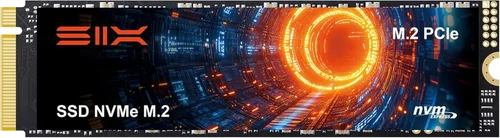
❌ Mistake: Buying an Internal NVMe SSD and Expecting It to Work Externally
Why it’s bad: Many users confuse internal SSD upgrades (which require opening the PS5 and installing an M.2 drive) with external USB SSDs. An internal NVMe SSD won’t work as an external drive without an expensive enclosure, and even then, it may not be optimized for USB performance.
What to do instead: Stick to purpose-built external SSDs with USB connectivity. If you want to expand internal storage, purchase a compatible M.2 SSD separately—but that’s a different upgrade path altogether.
❌ Mistake: Ignoring USB Interface Speeds
Why it’s bad: A high-end SSD connected via USB 2.0 will perform like a budget drive. The interface bottleneck can reduce speeds by 90% or more, defeating the purpose of buying a fast drive.
What to do instead: Always verify the USB standard (USB 3.2 Gen 2 is ideal) and ensure your PS5’s USB port supports it. The rear USB-A port on the PS5 supports USB 3.2 Gen 1 (5 Gbps), while the front USB-C port supports Gen 2 (10 Gbps)—use the front port for best performance.
❌ Mistake: Choosing Capacity Over Reliability
Why it’s bad: A 4TB drive from an unknown brand might seem like a great deal, but if it fails after six months, you lose all your games and saves. Cheap drives often use low-quality NAND that wears out quickly.
What to do instead: Prioritize reputable brands and check failure rate data. For large capacities, consider two smaller drives from trusted manufacturers rather than one risky high-capacity unit.
❌ Mistake: Overlooking Heat Management
Why it’s bad: SSDs throttle performance when they overheat. A drive that gets too hot during long gaming sessions will slow down, causing lag or crashes—especially when transferring large game files.
What to do instead: Choose drives with aluminum casings or built-in heatsinks. Avoid enclosing the drive in tight spaces or using it on soft surfaces like beds or couches that block airflow.
❌ Mistake: Not Checking Warranty Terms
Why it’s bad: Some warranties are voided if the drive is used with a console, or they only cover hardware failure—not data loss. You could be left with a dead drive and no recourse.
What to do instead: Read the fine print. Look for warranties that cover console use and offer data recovery options. Register your drive upon purchase to activate full coverage.
❌ Mistake: Assuming All PS4 Games Run Equally Well
Why it’s bad: While PS4 games can be played directly from an external SSD, performance varies. Some games load faster, others show no improvement. Relying on anecdotal claims can lead to disappointment.
What to do instead: Test a few games after setup. If load times aren’t noticeably better, consider using the SSD for storage only and transferring games to the internal drive when playing.
❌ Mistake: Buying Based Solely on Price
Why it’s bad: The cheapest drive might save you $20 now but cost you $100 in frustration later. Poor build quality, slow speeds, and short lifespans add hidden costs.
What to do instead: Use our budget breakdown below to find the sweet spot for your needs. A mid-range drive often offers the best balance of price, performance, and longevity.
Budget Guidelines: How Much Should You Spend?
– Entry-Level ($50–$80): Ideal for casual gamers who need extra space for a few PS4 titles. Expect 500GB capacity, USB 3.2 Gen 1 speeds (~400–500 MB/s), and basic build quality. Brands like SanDisk and Kingston offer reliable options in this range. Great for students or secondary consoles.
– Mid-Range ($80–$150): The sweet spot for most PS5 owners. Look for 1TB drives with USB 3.2 Gen 2 support, speeds up to 1,000 MB/s, and durable aluminum casings. Models from Samsung (T7), WD (My Passport SSD), and Crucial (X9) dominate this category. Offers excellent value and future-proofing.
– Premium ($150–$250): For enthusiasts and power users. These drives offer 2TB capacity, faster sustained speeds, rugged designs, and advanced features like hardware encryption. The Samsung T7 Shield or WD Black P50 are top picks. Perfect for streamers or those with large game libraries.
– Luxury ($250+): Top-tier performance and capacity. 4TB models from brands like Seagate FireCuda or Samsung X5 (Thunderbolt) fall here. These are overkill for most gamers but ideal for content creators who also use the drive for video editing or backups.

Expert Tips for Getting the Best Deal
– Buy During Major Sales Events: Amazon Prime Day, Black Friday, and Cyber Monday offer the deepest discounts on SSDs. Sign up for deal alerts from Slickdeals or CamelCamelCamel to track price drops.
– Check Refurbished or Open-Box Options: Certified refurbished drives from manufacturers like Samsung or WD often come with full warranties and cost 20–40% less. Just ensure they’re sold directly by the brand or authorized retailer.
– Compare Retailers: Prices vary between Amazon, Best Buy, Newegg, and B&H. Sometimes, smaller retailers offer bundle deals (e.g., SSD + carrying case) that save money overall.
– Read Return Policies: Ensure the seller offers at least a 30-day return window. Some drives may not be recognized by the PS5 out of the box, and you’ll want the option to exchange or refund.
– Test Before Committing: Once connected, transfer a large game (like Call of Duty: Modern Warfare) and monitor transfer speed and temperature. If it’s slow or overheating, consider a different model.
– Register Your Drive: Activate the warranty and firmware updates. Some brands offer extended coverage or free software with registration.
– Use Manufacturer Tools: Download tools like Samsung Magician or WD Dashboard to monitor health, update firmware, and optimize performance.
– Consider Future Needs: If you plan to upgrade your PS5 or use the drive with a PC, invest in a versatile model now to avoid buying twice.

Frequently Asked Questions
Q: Can I play PS5 games directly from an external SSD?
A: No. PS5 games must be played from the internal SSD or a compatible M.2 expansion drive. However, you can store PS5 games on an external SSD and transfer them back when you want to play. This process is much faster with a high-speed external drive.
Q: Will an external SSD improve PS4 game performance?
A: Yes, but only slightly. PS4 games can be played directly from an external SSD, and you may notice faster load times and smoother texture streaming—especially in open-world games. However, the improvement is less dramatic than on PC.
Q: Do I need to format the SSD before using it with PS5?
A: The PS5 will automatically format any compatible external drive when you first connect it. This erases all data, so back up anything important beforehand. The drive will be formatted to exFAT, which is compatible with both PS5 and most PCs.
Q: Can I use the same SSD for PS5 and Xbox?
A: Yes, but not simultaneously. You’ll need to reformat the drive for each console (PS5 uses exFAT, Xbox uses NTFS). Some drives come with dual-partition software to manage this, but it’s easier to use separate drives.
Q: How many games can I store on a 1TB external SSD?
A: It depends on game size. On average, you can store 10–15 PS4 games (50–80GB each) or 5–8 PS5 games (when used for storage only). Smaller indie titles take up less space, while AAA games can exceed 100GB.
Q: Is a USB-C to USB-C cable better than USB-A?
A: USB-C offers faster potential speeds and reversible plug orientation. The PS5’s front USB-C port supports USB 3.2 Gen 2, so using a USB-C to USB-C cable maximizes performance. However, USB-A is fine for most users and often more convenient.
Q: Can I daisy-chain multiple external SSDs?
A: The PS5 supports only one external storage device at a time. You cannot connect multiple drives via a hub and access them simultaneously. If you need more space, upgrade to a larger single drive.
Q: What happens if my external SSD fails?
A: Your games and saves are stored on the drive, so a failure could mean data loss. Always back up critical saves to PlayStation Plus cloud storage. Some drives offer hardware encryption, which protects data but doesn’t prevent failure.
Q: Are external SSDs worth it over HDDs?
A: Absolutely. While HDDs are cheaper per gigabyte, they’re much slower, louder, and more prone to failure. An external SSD offers silent operation, faster transfers, and better durability—making it the superior choice for PS5 users.
Q: Can I use an external SSD for media storage?
A: Yes. You can store videos, music, and photos on the drive and access them via the PS5’s media player. However, the PS5 doesn’t support all file formats, so check compatibility first.
Our Final Recommendations
– Best for Budget-Conscious Buyers: Samsung T7 Portable SSD (500GB) – Reliable, fast, and affordable. Offers USB 3.2 Gen 2 speeds and a sleek design. Perfect for casual gamers who need extra space without breaking the bank.
– Best Overall Value: WD My Passport SSD (1TB) – Excellent balance of price, performance, and durability. Includes hardware encryption and a 5-year warranty. A top choice for most PS5 owners.
– Best Premium Option: Samsung T7 Shield (2TB) – Rugged, waterproof, and dustproof. Ideal for travelers and outdoor gamers. Delivers consistent high speeds and comes with a 5-year warranty.
– Best for Beginners: SanDisk Extreme Portable SSD (1TB) – Easy setup, compact design, and strong performance. Great for first-time external SSD users who want a hassle-free experience.
– Best for Advanced Users: WD Black P50 Game Drive SSD (2TB) – Designed specifically for gamers, with USB 3.2 Gen 2×2 support and speeds up to 2,000 MB/s. Includes a 5-year warranty and aggressive cooling. Ideal for power users and streamers.
Conclusion: Making the Right Choice
Choosing the best external SSD for your PS5 isn’t just about picking the fastest or cheapest drive—it’s about finding the right balance of performance, reliability, and value for your unique needs. Whether you’re expanding storage for a growing game library, improving load times for PS4 titles, or preparing for future upgrades, the right SSD can enhance your gaming experience in meaningful ways.
Remember to prioritize compatibility, USB interface speed, and brand reputation. Avoid common pitfalls like overheating, poor warranties, or incompatible formats. And don’t forget to take advantage of seasonal sales and refurbished deals to stretch your budget further.
Ultimately, the best SSD is the one that fits your lifestyle. If you travel often, go rugged. If you’re on a tight budget, choose value. If you demand peak performance, invest in premium. With the insights from this guide, you’re now equipped to make a confident, informed decision.
So go ahead—free up space on your PS5, keep your favorite games within reach, and enjoy smoother, faster gaming. Your next adventure is waiting.