
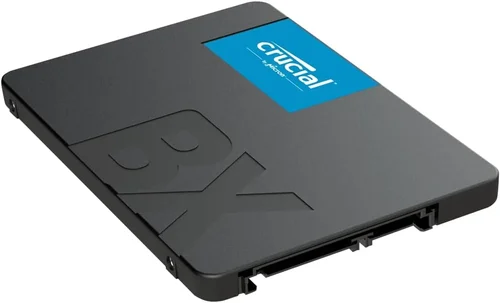
Solid-state drives (SSDs) have revolutionized the way we store and access data. Gone are the days of waiting minutes for a computer to boot up or applications to load—today’s SSDs deliver near-instant responsiveness, dramatically improving productivity, gaming performance, and overall system efficiency. Whether you’re building a new PC, upgrading an aging laptop, or expanding storage for creative work, choosing the right SSD is one of the most impactful decisions you can make. With prices dropping steadily and technology advancing rapidly, now is an excellent time to invest in solid-state storage. But with so many options on the market—from SATA to NVMe, PCIe 3.0 to PCIe 5.0, and capacities ranging from 250GB to 8TB—it’s easy to feel overwhelmed.
This comprehensive buying guide is designed to cut through the noise and help you make a confident, informed decision. You’ll learn exactly what to look for when selecting an SSD, how different types compare, and which models offer the best value for your specific needs. We’ll walk you through key performance metrics, durability considerations, compatibility issues, and budget strategies—all while avoiding common pitfalls that trip up even experienced users. By the end of this guide, you won’ll not only understand the technical differences between SSDs but also know which drive will deliver the best experience for your use case, whether you’re a casual user, a content creator, or a hardcore gamer.
The SSD market in 2026 is more dynamic than ever. Major manufacturers like Samsung, Crucial, Western Digital, Kingston, and Sabrent continue to push the boundaries of speed and reliability, while newer brands like TeamGroup and Netac are offering compelling budget alternatives. Meanwhile, innovations such as QLC NAND, DRAM-less designs, and advanced power management are reshaping what’s possible at every price point. With this guide, you’ll navigate these developments with clarity and confidence, ensuring your next SSD purchase is both future-proof and cost-effective.

What to Look for When Buying Buying Guide
1. Budget & Price Range
Your budget is the foundation of your SSD decision. While it’s tempting to go for the cheapest option available, skimping on storage can lead to poor performance, shorter lifespan, or compatibility issues down the line. Conversely, overspending on features you don’t need wastes money that could be better allocated elsewhere in your system. As of 2026, SSD prices have stabilized significantly compared to the volatility of previous years, making high-capacity drives more accessible than ever.
For most users, a sweet spot exists between $0.08 and $0.15 per gigabyte. At this range, you can get reliable performance, decent endurance, and reputable brand support. Entry-level drives may dip below $0.06/GB but often sacrifice speed, cache, or longevity. Premium NVMe Gen5 drives can exceed $0.25/GB, offering blistering speeds but only benefiting niche workloads like 8K video editing or high-frequency trading simulations. Always consider total cost of ownership—not just upfront price—including potential replacement costs if the drive fails prematurely.
2. Performance Specifications
Performance isn’t just about raw speed—it’s a combination of sequential read/write speeds, random I/O operations per second (IOPS), latency, and sustained performance under load. These specs determine how quickly your system boots, how fast games load, and how smoothly large files transfer.
Sequential speeds measure how fast large files (like videos or disk images) are read or written. For SATA SSDs, this caps out around 550 MB/s due to interface limitations. NVMe drives, however, leverage the PCIe bus and can reach 3,500 MB/s (Gen3), 7,000 MB/s (Gen4), or even 14,000+ MB/s (Gen5). Random IOPS matter more for everyday tasks like opening apps, browsing files, or multitasking—look for drives with high 4K random read/write IOPS (ideally 500K+ for Gen4/Gen5).
But beware of marketing hype. Some manufacturers quote peak speeds under ideal lab conditions that don’t reflect real-world usage. Sustained performance—how well the drive maintains speed during prolonged writes—is often more important, especially for content creators. DRAM cache helps here; drives with dedicated DRAM buffers handle heavy workloads far better than DRAM-less models.
3. Build Quality & Durability
SSDs have no moving parts, making them inherently more durable than HDDs—but not all SSDs are built equally. Key durability factors include NAND type, controller quality, thermal design, and TBW (Terabytes Written) rating.
NAND flash comes in several flavors: SLC (single-level cell) is fastest and most durable but expensive; MLC (multi-level) offers good balance; TLC (triple-level) is common in consumer drives; and QLC (quad-level) stores four bits per cell, increasing capacity but reducing write endurance and speed. Most mainstream SSDs use TLC or QLC. While QLC has improved significantly, it’s best suited for read-heavy workloads (e.g., media storage), not constant writing.
The controller manages data flow, error correction, wear leveling, and garbage collection. Reputable controllers from companies like Phison, Silicon Motion, or Marvell ensure stability and longevity. Thermal throttling is another concern—high-performance NVMe drives can overheat during sustained loads, slowing down dramatically. Look for models with built-in heat spreaders or consider adding an aftermarket heatsink if your motherboard lacks one.
TBW indicates how much data can be written over the drive’s lifetime. A 1TB drive with a 600 TBW rating can theoretically write 600TB before failure. For context, the average user writes less than 20TB per year, so even modest TBW ratings are sufficient for most. However, heavy users (e.g., video editors, database admins) should prioritize higher endurance.
4. Features & Functionality
Modern SSDs come packed with features that enhance usability, security, and longevity. Encryption support (like TCG Opal or AES-256) protects your data if the drive is lost or stolen—essential for laptops and business use. Power-loss protection ensures data isn’t corrupted during unexpected shutdowns, though this is rare in consumer drives and more common in enterprise models.
Cloning software is often bundled with premium drives, simplifying migration from an old HDD or SSD. Firmware update tools allow you to patch bugs and improve performance over time. Some drives also include SSD management utilities that monitor health, temperature, and remaining lifespan—valuable for proactive maintenance.
Form factor matters too. M.2 2280 is the standard for most laptops and desktops, but smaller devices may require 2242 or 2230 sizes. U.2 and EDSFF formats exist for servers but aren’t relevant for typical consumers. Always verify physical compatibility before buying.
5. Brand Reputation
Not all SSD brands are created equal. Established names like Samsung, Crucial (Micron), Western Digital, and Kingston have proven track records for reliability, consistent firmware updates, and responsive customer service. They often use their own NAND and controllers, ensuring tighter integration and better quality control.
Newer or lesser-known brands may offer tempting prices, but they sometimes cut corners—using lower-grade components, skipping rigorous testing, or providing minimal support. That said, some budget brands (like TeamGroup or Netac) have earned trust through transparent specs and solid real-world performance. Always research independent reviews and user feedback before committing to an unfamiliar brand.
Avoid “no-name” drives sold on auction sites with vague specifications. These often use recycled or counterfeit NAND, leading to early failure or data loss. Stick to reputable retailers and verified sellers.
6. Warranty & Support
Warranty length and terms are strong indicators of a manufacturer’s confidence in their product. Most consumer SSDs come with 3- to 5-year limited warranties. Some premium models (e.g., Samsung 990 Pro) offer 5 years or up to a certain TBW limit—whichever comes first.
Check what the warranty covers: Does it include data recovery? Is cross-shipping available? How easy is the RMA process? Brands like Samsung and Crucial provide straightforward online portals for warranty claims, while others may require phone calls or lengthy forms.
Customer support quality varies widely. Look for brands with active forums, detailed FAQs, and timely responses. A good warranty is useless if you can’t get help when you need it.
7. Size & Portability
While most internal SSDs are fixed in place, external SSDs prioritize portability. If you need to carry large files between locations, consider a compact, rugged external SSD with USB 3.2 Gen 2×2 or Thunderbolt 4 support. These can match internal NVMe speeds while surviving drops and dust.
For internal upgrades, ensure the drive fits your system. M.2 drives are slim and ideal for thin laptops, while 2.5-inch SATA SSDs require a drive bay and SATA power cable. Measure available space—some high-end NVMe drives with large heatsinks may not fit in small-form-factor PCs.
8. User Reviews & Ratings
Spec sheets tell part of the story—real-world user experiences complete it. Read reviews from trusted tech sites (like Tom’s Hardware, AnandTech, or PCMag) and aggregate user feedback on retail platforms. Pay attention to patterns: Are multiple users reporting early failures? Is performance inconsistent? Do firmware updates cause issues?
Be wary of fake reviews. Look for detailed, balanced feedback that mentions both pros and cons. Verified purchase badges add credibility. If a drive has hundreds of 5-star reviews but no critical comments, it may be suspicious.
Different Types of Buying Guide

Common Buying Mistakes to Avoid
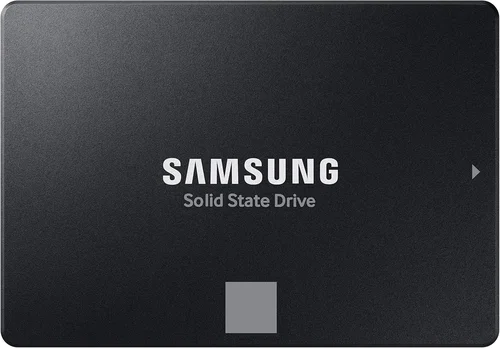
❌ Mistake: Ignoring Interface Compatibility
Why it’s bad: Buying an NVMe drive for a system that only supports SATA will result in a non-functional SSD, even if the physical connector fits. Many older motherboards and laptops accept M.2 drives but only run the SATA protocol.
What to do instead: Check your motherboard or laptop manual to confirm whether the M.2 slot supports PCIe/NVMe. When in doubt, consult the manufacturer’s specifications or use tools like CPU-Z to verify your system’s capabilities.
❌ Mistake: Choosing Capacity Based Solely on Price
Why it’s bad: Opting for a 250GB SSD to save $20 may seem smart, but low-capacity drives fill up quickly and suffer from reduced performance due to lack of over-provisioning space. You’ll end up buying a second drive sooner than expected.
What to do instead: Aim for at least 500GB for general use, 1TB for gaming or creative work, and 2TB+ for media libraries or professional applications. The marginal cost per GB drops significantly at higher capacities.
❌ Mistake: Overlooking DRAM Cache
Why it’s bad: DRAM-less SSDs use system memory (HMB) or slower caching methods, leading to inconsistent performance during heavy multitasking or large file transfers. They’re fine for light use but struggle under load.
What to do instead: Prioritize drives with dedicated DRAM unless you’re on a very tight budget. The performance difference is noticeable in real-world usage, especially for OS drives.
❌ Mistake: Falling for “Gen5 = Must-Have” Hype
Why it’s bad: PCIe Gen5 drives are incredibly fast but offer diminishing returns for most users. Unless you’re working with 8K video, large datasets, or specialized compute tasks, Gen4 provides nearly identical everyday performance at a lower cost and with less heat.
What to do instead: Stick with Gen4 unless you have a specific need for Gen5 speeds. Ensure your motherboard supports Gen5 (Intel 13th/14th Gen or AMD Ryzen 7000+) and has adequate cooling.
❌ Mistake: Neglecting Firmware Updates
Why it’s bad: Outdated firmware can cause bugs, performance degradation, or even data corruption. Some early Gen4 drives had thermal throttling issues resolved only via firmware patches.
What to do instead: Register your SSD with the manufacturer and periodically check for firmware updates using their official utility. Enable automatic notifications if available.
❌ Mistake: Buying Based on Peak Speed Alone
Why it’s bad: A drive advertising “7,000 MB/s” may only achieve that in short bursts. Sustained write performance—critical for video editing or backups—can be half that or worse, especially on QLC drives.
What to do instead: Look for reviews that test sustained performance and mixed workloads. Real-world benchmarks matter more than synthetic peak numbers.
❌ Mistake: Skipping Backup Planning
Why it’s bad: SSDs can fail suddenly without warning signs (unlike HDDs, which often show clicking or slowdowns). Relying solely on a single SSD for critical data is risky.
What to do instead: Implement a 3-2-1 backup strategy: three copies of your data, on two different media, with one offsite. Use cloud storage or an external HDD as a secondary backup.
Budget Guidelines: How Much Should You Spend?
– Entry-Level ($30–$60 for 500GB–1TB): Ideal for basic computing, web browsing, and light office work. Look for reliable SATA or Gen3 NVMe drives from trusted brands. Expect decent performance but limited endurance (300–400 TBW). Avoid no-name brands.
– Mid-Range ($60–$120 for 1TB–2TB): The sweet spot for most users. Gen4 NVMe drives in this range offer excellent speed, robust endurance (600+ TBW), and strong warranties. Perfect for gaming, content creation, and multitasking. Brands like Crucial P5 Plus or WD Black SN770 shine here.
– Premium ($120–$250 for 2TB–4TB): For enthusiasts and professionals who demand top-tier performance and reliability. These drives feature high-end controllers, premium TLC NAND, advanced thermal management, and 5-year warranties. Examples include Samsung 990 Pro and Sabrent Rocket 4 Plus.
– Luxury ($250+ for 4TB+): Reserved for extreme workloads, enterprise use, or future-proofing. Gen5 drives, high-capacity QLC arrays, or specialized enterprise SSDs fall here. Only justified if you regularly handle massive files or require maximum uptime.
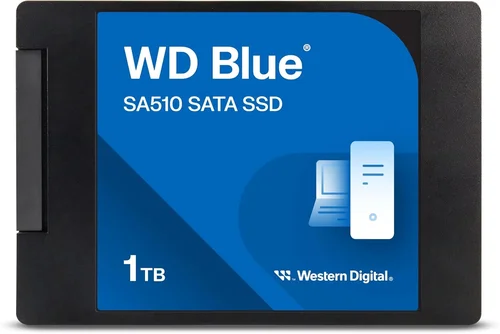
Expert Tips for Getting the Best Deal
– Buy during major sales events: Black Friday, Cyber Monday, Amazon Prime Day, and back-to-school seasons offer the deepest discounts. Sign up for price alerts on sites like CamelCamelCamel or Honey.
– Compare total cost, not just per-GB price: A 2TB drive at $0.10/GB ($200) may be a better deal than a 1TB at $0.09/GB ($90) if you need the space. Factor in your actual usage needs.
– Check retailer return policies: Ensure you can return or exchange the drive if it’s defective or incompatible. Some retailers charge restocking fees for opened electronics.
– Verify compatibility before purchasing: Use your motherboard’s QVL (Qualified Vendor List) or laptop’s compatibility guide. For prebuilts (like Dell or HP), contact support for confirmation.
– Consider refurbished or open-box deals: Reputable sellers (like Best Buy Open-Box or Newegg Refurbished) often offer lightly used SSDs at 20–30% off with full warranties.
– Don’t ignore bundle offers: Some drives come with free cloning software, USB enclosures, or extended warranties. These add real value beyond the hardware.
– Test the drive after installation: Use tools like CrystalDiskMark or AS SSD Benchmark to verify advertised speeds. Monitor health with CrystalDiskInfo or the manufacturer’s utility.
– Keep original packaging and receipt: Essential for warranty claims. Take photos of the drive’s serial number and model before installing.

Frequently Asked Questions
Q: Can I use an SSD as a boot drive?
A: Absolutely! In fact, using an SSD as your primary (boot) drive is one of the best upgrades you can make. It drastically reduces boot times, speeds up application launches, and improves overall system responsiveness. Just ensure your OS is installed on the SSD—not a secondary HDD.
Q: Will an SSD improve gaming performance?
A: Yes, but primarily in load times. Games installed on an SSD will start faster, levels will load quicker, and texture streaming will be smoother. However, FPS (frames per second) is determined by your GPU and CPU—not storage. For open-world games with large assets (like Cyberpunk 2077 or Starfield), an SSD is essential.
Q: How long do SSDs last?
A: Modern SSDs are extremely durable. Under normal use, a 1TB TLC SSD with a 600 TBW rating could last 10+ years—even with heavy daily writing. Most users will upgrade due to capacity needs long before the drive wears out.
Q: Do I need a heatsink for my NVMe SSD?
A: Not always, but recommended for Gen4 and Gen5 drives, especially in small cases or laptops with poor airflow. Many motherboards include M.2 heatsinks. If yours doesn’t, a low-profile aftermarket heatsink (like the Thermalright HR-09) can prevent thermal throttling.
Q: Can I clone my old HDD to a new SSD?
A: Yes! Most SSD manufacturers provide free cloning software (e.g., Samsung Data Migration, Acronis True Image for WD). Alternatively, use third-party tools like Macrium Reflect Free. Ensure the SSD capacity is equal to or larger than the used space on your HDD.
Q: Are external SSDs as fast as internal ones?
A: It depends on the interface. USB 3.2 Gen 2×2 (20 Gbps) or Thunderbolt 4 (40 Gbps) external SSDs can match internal Gen4 speeds. Standard USB 3.0 (5 Gbps) limits you to ~400 MB/s—slower than even SATA SSDs. Always check the port and cable specs.
Q: What’s the difference between TLC and QLC NAND?
A: TLC (3 bits per cell) offers better write endurance and consistent performance, making it ideal for OS and active workloads. QLC (4 bits per cell) increases capacity and lowers cost but reduces write speed and lifespan. Use QLC for secondary storage, not your main drive.
Q: Can I mix SSD brands in RAID?
A: Technically yes, but not recommended. Mixing brands can lead to inconsistent performance, compatibility issues, and complicated troubleshooting. For RAID setups, use identical models from the same batch if possible.
Q: Is it safe to defragment an SSD?
A: No—and you shouldn’t need to. SSDs don’t benefit from defragmentation like HDDs do. In fact, it causes unnecessary wear. Windows and macOS automatically disable defrag for SSDs and enable TRIM instead, which optimizes performance safely.
Q: What happens if my SSD fails?
A: Unlike HDDs, SSDs often fail without warning. Data recovery is difficult and expensive. That’s why regular backups are critical. If under warranty, contact the manufacturer for a replacement—but don’t expect your data back.
Our Final Recommendations
– Best for Budget-Conscious Buyers: Crucial P3 1TB (Gen3 NVMe) – At around $70, it delivers reliable Gen3 speeds, 400 TBW endurance, and Crucial’s solid support. Perfect for upgrading older systems or building a budget PC.
– Best Overall Value: WD Black SN770 1TB (Gen4 NVMe) – Priced near $90, it offers near-Gen5 speeds, excellent sustained performance, and low power consumption. Ideal for gamers and general users who want future-ready speed without overspending.
– Best Premium Option: Samsung 990 Pro 2TB (Gen4 NVMe) – With 1,200 TBW, top-tier performance, and Samsung’s legendary reliability, this drive is the gold standard for professionals and enthusiasts. Worth the ~$180 price for mission-critical workloads.
– Best for Beginners: Kingston NV2 1TB (Gen4 NVMe) – Simple, affordable (~$80), and compatible with almost any modern system. Includes Kingston’s SSD Manager for easy monitoring. Great first NVMe drive.
– Best for Advanced Users: Sabrent Rocket 4 Plus-G 2TB (Gen5 NVMe) – For those with Gen5-capable systems, this drive delivers 14,000 MB/s speeds, robust cooling, and 1,200 TBW. Ideal for 8K video editing, AI training, or extreme multitasking.
Conclusion: Making the Right Choice
Choosing the right SSD doesn’t have to be complicated—but it does require thoughtful consideration of your specific needs, budget, and system constraints. From understanding the nuances between SATA and NVMe to avoiding common pitfalls like ignoring DRAM or overpaying for Gen5, this guide has equipped you with the knowledge to make a smart, confident decision. Remember: the best SSD isn’t necessarily the fastest or the cheapest—it’s the one that aligns perfectly with how you use your computer.
Prioritize reliability and compatibility over flashy specs, invest in sufficient capacity, and never skip backups. Whether you’re breathing new life into an old laptop or building a high-performance workstation, the right SSD will transform your digital experience. Take your time, compare options, and don’t hesitate to lean on trusted reviews and community feedback. Your data—and your patience—will thank you. Now go forth and upgrade with confidence!