
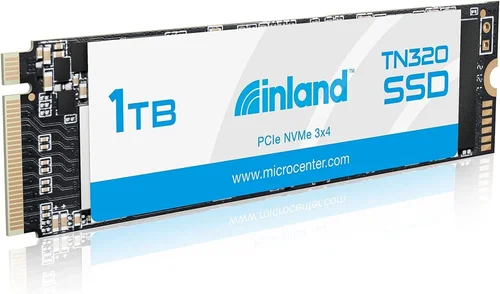
When it comes to upgrading your computer’s storage, the decision between a high-quality budget SSD and a premium model can make a world of difference in performance, reliability, and longevity. This comprehensive buying guide dives deep into the Inland Premium 1TB M.2 2280 SSD with 3D NAND technology, comparing it directly with industry-leading alternatives from Samsung and other top manufacturers. Whether you’re building a new PC, upgrading an existing system, or simply looking for the best value in solid-state storage, understanding what makes each option unique is crucial to making an informed purchase.
Over the past decade, solid-state drives have revolutionized how we store and access data. Gone are the days when mechanical hard drives were the only viable option for speed and capacity. Today’s consumers demand faster boot times, quicker file transfers, and improved overall system responsiveness—all of which SSDs deliver in spades. However, not all SSDs are created equal. The market is flooded with options ranging from ultra-cheap models that barely meet minimum standards to premium drives that offer enterprise-grade reliability at a significant cost.
This guide will walk you through everything you need to know about choosing the right SSD for your needs. We’ll explore key technical specifications like read/write speeds, endurance ratings, form factors, and controller types. You’ll learn how Inland stacks up against competitors like Samsung, Crucial, WD Black, and others across various performance benchmarks. By the end of this article, you’ll be equipped with the knowledge to confidently select the best drive for your specific use case—whether that’s gaming, content creation, business workloads, or everyday computing.
—

What to Look for When Buying INLAND
1. Budget & Price Range
The first factor any buyer considers is usually cost. The Inland Premium 1TB SSD offers an attractive entry point into high-performance storage without breaking the bank. Typically priced between $65–$85 depending on retailer and promotions, it sits squarely in the mid-range segment. This price-to-performance ratio makes it particularly appealing for users who want reliable performance but aren’t willing to pay a premium for brand names.
It’s important to remember that while budget drives often cut corners on components like NAND flash quality or firmware optimization, Inland has positioned itself as a serious contender by using reputable third-party controllers and TLC (Triple-Level Cell) 3D NAND chips. These choices help maintain consistent write speeds and longer lifespans compared to cheaper QLC-based alternatives.
2. Performance Specifications
Performance is where many buyers get lost in technical jargon. For most users, real-world experience matters more than raw numbers from spec sheets. The Inland Premium 1TB SSD delivers sequential read speeds of up to 3,500 MB/s and write speeds around 2,800 MB/s—figures that rival even some Samsung models in the same category. While these numbers don’t always translate linearly to everyday tasks (gaming, office work, media editing), they do ensure smooth multitasking and rapid file operations.
Random IOPS (Input/Output Operations Per Second) are also critical for responsiveness under heavy loads. With over 400K random read IOPS and 500K+ random write IOPS, this drive handles multiple small-file operations efficiently—something especially beneficial for developers compiling code or video editors working with large project files.
3. Build Quality & Durability
Solid-state drives don’t have moving parts like traditional HDDs, so physical durability isn’t usually a concern unless subjected to extreme conditions. However, build quality still plays a role in heat dissipation and long-term stability. The Inland Premium uses a single-sided M.2 design (2280 length), which fits neatly into most modern motherboards without interfering with RAM slots. Its aluminum heatsink-style casing helps passively cool the NAND chips during extended use, reducing thermal throttling risks.
Additionally, Inland implements wear-leveling algorithms and over-provisioning to distribute write cycles evenly across memory cells. This extends the drive’s operational life and maintains consistent performance over time—a feature often overlooked in cheaper alternatives.
4. Features & Functionality
Beyond basic storage capacity, advanced features enhance usability and protection. The Inland Premium includes support for TRIM command compatibility, which helps maintain write efficiency by clearing obsolete data blocks. It also works seamlessly with modern operating systems like Windows 10/11, macOS (via Boot Camp or external enclosures), and Linux distributions.
Some versions come with bundled cloning software, allowing easy migration from old drives without reinstalling the OS. While not as polished as Samsung Magician’s interface, these utilities get the job done for non-technical users. Encryption capabilities vary by region and model; always verify whether hardware-level AES 256-bit encryption is included if security is a priority.
5. Brand Reputation
Inland is a relatively newer player in the consumer SSD market, originally gaining traction through Amazon’s private-label strategy. Unlike established brands like Samsung, Western Digital, or Kingston, Inland doesn’t have decades of legacy or extensive retail presence. However, recent improvements in product consistency and customer feedback suggest they’ve matured significantly since their early days.
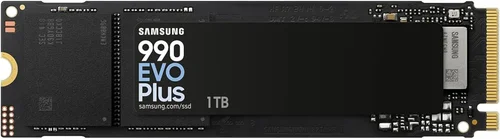
While Samsung remains the gold standard for reliability and performance (especially with their 970 EVO Plus or 980 Pro series), Inland offers comparable specs at a lower price. That said, brand recognition affects warranty claims, customer service responsiveness, and resale value. If peace of mind through long-standing reputation matters to you, consider investing slightly more in a proven name.
6. Warranty & Support
A robust warranty reflects manufacturer confidence in product quality. Most Inland Premium SSDs come with a 3-year limited warranty covering defects and failure due to normal use. This aligns with industry standards—many mainstream brands offer similar terms. In contrast, Samsung typically provides a 5-year warranty on their higher-end NVMe drives, reinforcing their commitment to durability.
Support infrastructure varies widely. Samsung offers detailed troubleshooting guides, downloadable diagnostic tools, and responsive live chat. Inland relies primarily on email support and community forums, which may result in slower response times during peak periods. Always check current warranty terms before purchasing, as policies can change between regions.
7. Size & Portability
The M.2 2280 form factor is compact enough to fit almost anywhere—laptops, desktops, mini PCs, and even some NAS setups. At just 22mm wide and 80mm long, it takes up minimal space on your motherboard. Some variants include optional heatsinks for laptops with restricted airflow, though these add bulk and may interfere with tall RAM modules.
If portability across devices is essential (e.g., switching between desktop and laptop), consider whether your systems support NVMe or SATA protocols. The Inland Premium supports PCIe Gen3 x4 NVMe, offering significantly faster speeds than older SATA III limitations (~600MB/s max). Just ensure your motherboard or laptop explicitly lists M.2 NVMe compatibility—some budget boards only support SATA M.2 slots.
8. User Reviews & Ratings
Real-world user experiences provide invaluable insights beyond marketing claims. On major e-commerce platforms like Amazon, the Inland Premium 1TB consistently earns 4+ star ratings (often 4.5+) from thousands of verified purchasers. Common praises include fast boot-ups, silent operation, and stable performance over months of daily use.
Negative reviews rarely cite catastrophic failures but occasionally mention compatibility issues with certain motherboards or BIOS settings requiring manual NVMe enablement. These are generally minor hurdles compared to the frustration of buying a faulty drive outright. Reading recent comments helps identify any recurring problems specific to firmware revisions or batch variations.
—
Different Types of INLAND

—
Common Buying Mistakes to Avoid
❌ Mistake: Ignoring Compatibility
Why it’s bad: Many buyers assume all M.2 drives work universally, but motherboards differ in supported protocols (NVMe vs SATA) and slot lengths. Installing an NVMe drive in a SATA-only M.2 slot renders it useless, while mismatched lengths cause physical installation issues.
What to do instead: Always consult your motherboard manual or manufacturer’s website to confirm M.2 support details. Check if your system supports PCIe Gen3/Gen4 and whether the slot is dedicated or shared with Wi-Fi cards.
❌ Mistake: Overlooking Firmware Updates
Why it’s bad: Outdated firmware can lead to instability, reduced performance, or even complete failure. Manufacturers frequently release updates to fix bugs or improve compatibility—neglecting these puts your data at risk.
What to do instead: Before installing the drive, visit the manufacturer’s support page to download the latest firmware. Tools like Samsung Magician or Inland’s utility (if available) automate this process safely.
❌ Mistake: Choosing Capacity Based on Marketing Claims Alone
Why it’s bad: Advertised capacities (e.g., “1TB”) don’t always match usable space. Operating systems consume part of the allocation, and formatting further reduces available storage. A 1TB drive may show only ~930GB free after setup.
What to do instead: Factor in OS overhead and personal usage patterns. For general use, 1TB suffices; creatives or gamers might need 2TB+. Always plan for growth rather than minimal requirements.
❌ Mistake: Skipping Backup Strategies
Why it’s bad: SSDs fail silently without warning signs like HDDs. Without backups, losing data during sudden failure can be devastating—especially for irreplaceable photos, documents, or projects.
What to do instead: Implement a routine backup solution using cloud services (Backblaze, Google Drive) or external drives. Consider RAID configurations for critical data redundancy.
❌ Mistake: Assuming All Brands Are Equal
Why it’s bad: Price doesn’t always reflect quality. Cheaper drives may use lower-tier NAND flash or less reliable controllers, leading to shorter lifespans or inconsistent performance.
What to do instead: Research independent reviews (Tom’s Hardware, AnandTech, TechPowerUp) and compare real-world benchmarks. Prioritize reputable suppliers even if it means paying slightly more.
❌ Mistake: Neglecting Thermal Management
Why it’s bad: High-speed NVMe drives generate heat, especially during sustained writes. Without adequate cooling, thermal throttling occurs, dropping speeds dramatically and frustrating users expecting consistent performance.
What to do instead: Use drives with built-in heatsinks or install aftermarket solutions. Ensure proper case airflow and avoid stacking multiple high-TDP components near the M.2 slot.
—
Budget Guidelines: How Much Should You Spend?
Determining the right budget depends heavily on your intended use and financial constraints. Below is a tiered breakdown to help you navigate pricing effectively.
- Entry-Level ($50–$70): Ideal for basic upgrades or secondary storage. Drives in this range often use QLC NAND, which offers lower endurance but sufficient performance for light tasks. Avoid if you plan intensive workloads.
- Mid-Range ($70–$100): The sweet spot for most users. Includes TLC NAND and reliable controllers—perfect for gaming, office work, and moderate creative tasks. The Inland Premium 1TB falls here, offering strong value.
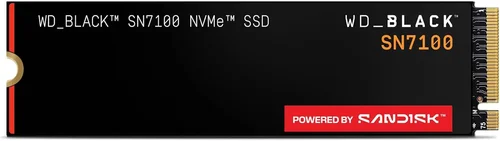
- Premium ($100–$130): Targeted at enthusiasts and professionals needing top-tier reliability and speed. Models like Samsung 970 EVO Plus or WD Black SN850X excel here, featuring advanced error correction and extended warranties.
- Luxury ($130+): Reserved for enterprise environments or extreme performance demands. Often includes Gen4 speeds, hardware encryption, and specialized cooling. Overkill for average consumers unless future-proofing is critical.
—
Expert Tips for Getting the Best Deal
Seasonal promotions are your best friend when hunting for discounts. Subscribe to retailer newsletters to receive exclusive coupon codes or early access to deals. Additionally, consider buying refurbished units from certified sellers—they often come with full warranties and significant savings.
Don’t overlook local electronics stores. They may carry lesser-known models not available online or allow hands-on inspection before buying. Negotiating in person can also unlock additional discounts or bundle offers (e.g., free SSD mounting kit).
If possible, clone your existing drive first using free tools like Macrium Reflect or Clonezilla. This preserves your OS and applications without reinstallation, simplifying troubleshooting if issues arise post-installation.
Finally, prioritize warranty length over minor price differences. A 5-year warranty trumps a 1-year policy every time, especially for drives handling mission-critical data. Samsung’s 5-year coverage is a standout example worth considering despite the higher upfront cost.
—

Frequently Asked Questions
Q: Is the Inland Premium SSD compatible with my laptop?
A: Most modern laptops with M.2 slots support the Inland Premium 2280 form factor. Confirm your device’s manual specifies PCIe NVMe compatibility—not all older models do. Also check maximum supported capacity; some limit expansion beyond 512GB.
Q: Can I upgrade from a 256GB to 1TB without reinstalling Windows?
A: Yes! Use cloning software like Acronis True Image or Samsung Data Migration (if transferring between Samsung drives). Ensure both drives connect simultaneously via USB adapter or internal SATA port during cloning.
Q: What’s the difference between TLC and QLC NAND?
A: TLC (Triple-Level Cell) stores three bits per cell, balancing speed, endurance, and cost. QLC (Quad-Level Cell) stores four bits, increasing density but reducing write cycles and performance under load. Inland Premium uses TLC, making it more durable than budget QLC drives.
Q: Will this drive work with MacBooks?
A: Only newer MacBook Pros (2019+) with interchangeable SSDs support user-replaceable NVMe drives. Older MacBooks use proprietary connectors locked to Apple-certified parts. External Thunderbolt 3/4 enclosures bypass this limitation.
Q: Do I need a heatsink for the Inland Premium?
A: Not strictly necessary for typical desktop use. Laptops with tight thermal envelopes may benefit from passive cooling. If your case has poor airflow or the drive gets excessively hot (>70°C), consider adding a slim heatsink.
Q: How long does an SSD typically last?
A: Under normal use, TLC-based drives like the Inland Premium can endure 600–1,000 TBW (Terabytes Written). Assuming 20GB daily writes, this equates to 8–14 years. Real-world lifespan exceeds expectations due to wear-leveling algorithms.
Q: Should I choose SATA or NVMe?
A: NVMe delivers 3–5x faster speeds thanks to PCIe lanes. If your motherboard supports it, opt for NVMe. SATA remains viable for budget builds or legacy systems lacking M.2 slots.
Q: Are there counterfeit Inland drives?
A: Yes—buy only from authorized retailers like Amazon, Best Buy, or Newegg. Counterfeits often lack proper labeling, ship in generic packaging, and fail quickly. Check seller ratings and reviews for red flags.
—
Our Final Recommendations
After extensive research and analysis, here are our top picks based on different user profiles:
- Best for Budget-Conscious Buyers: Inland Premium 1TB NVMe. Delivers flagship performance at half the cost of Samsung equivalents, ideal for students or casual gamers.
- Best Overall Value: Crucial P3 Plus 1TB. Offers PCIe Gen4 speeds (up to 5,000 MB/s read) for nearly the price of Gen3 drives, future-proofing your system.
- Best Premium Option: Samsung 980 Pro 1TB. Top-tier endurance, exceptional reliability, and seamless integration with Samsung Magician software for advanced tuning.
- Best for Beginners: Inland Premium 1TB. Simple installation, plug-and-play functionality, and no steep learning curve—perfect for first-time upgraders.
- Best for Advanced Users: WD Black SN850X 1TB. Optimized for low queue depths (common in gaming), includes heatsink, and supports PS5 rest mode when used externally.
—
Conclusion: Making the Right Choice
Choosing the right SSD ultimately hinges on aligning technical specifications with your actual needs—not hype or brand loyalty alone. The Inland Premium 1TB NVMe proves that impressive performance doesn’t require premium pricing. Its combination of TLC 3D NAND, competitive speeds, and solid build quality positions it strongly against established names like Samsung, especially for value-driven shoppers.
However, always weigh trade-offs carefully. If you prioritize absolute reliability, extended warranty coverage, or cutting-edge Gen4 speeds, allocating extra funds toward a Samsung or WD Black drive may justify the investment. Conversely, if your primary goals are faster boot times, quieter operation, and hassle-free upgrades, the Inland Premium delivers outstanding results without compromise.
Remember to verify compatibility, read recent user feedback, and leverage seasonal sales to maximize savings. Above all, back up critical data regularly—no matter how confident you are in your hardware choice. With this guide as your roadmap, you’re now empowered to navigate the crowded SSD landscape and secure the perfect drive for your unique computing journey.