
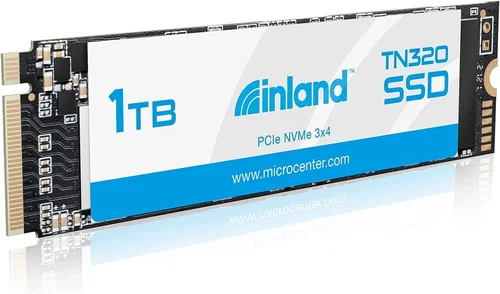
When shopping for a solid-state drive, the Inland Premium 1TB SSD with 3D NAND technology stands out as a compelling option that balances performance, reliability, and value. This comprehensive buying guide will walk you through everything you need to know about this specific model, helping you make an informed decision whether you’re upgrading your current system or building a new PC from scratch. We’ll examine its technical specifications, real-world performance metrics, build quality, warranty coverage, and how it compares against competitors in the same price range.
By the end of this article, you’ll understand exactly what makes the Inland Premium 1TB SSD tick, what scenarios it excels in, and whether it’s truly worth adding to your cart. Whether you’re a gamer looking for faster load times, a content creator needing quick file transfers, or someone simply tired of waiting for their computer to boot up, this guide will help you determine if this particular SSD meets your needs.
The modern storage market is crowded with options ranging from budget-friendly models to enterprise-grade drives with specialized features. The Inland Premium series sits squarely in the mainstream category—not quite entry-level, not quite high-end, but offering solid performance at a reasonable price point. Understanding where it fits in the ecosystem helps you avoid overpaying or settling for underperforming hardware.

What to Look for When Buying INLAND
1. Budget & Price Range
Before diving into technical specs, consider your budget constraints. The Inland Premium 1TB SSD typically retails between $45-$65 depending on promotions and retailer markups. This positions it as a mid-tier option rather than a premium or ultra-budget drive. While it doesn’t offer the absolute highest sequential speeds available, it provides excellent value for users who want reliable performance without breaking the bank.
It’s important to remember that pricing fluctuates based on demand cycles, seasonal sales (especially around Black Friday or back-to-school periods), and inventory availability. Setting a firm budget ceiling before shopping prevents impulse purchases and ensures you’re comparing apples to apples across different models.
2. Performance Specifications
Performance is arguably the most critical factor when evaluating any SSD. The Inland Premium 1TB uses TLC (Triple-Level Cell) 3D NAND flash memory, which offers a good balance between cost, endurance, and speed compared to SLC or MLC alternatives. Sequential read speeds typically reach up to 560 MB/s while write speeds cap around 530 MB/s—adequate for everyday computing tasks, moderate gaming, and light content creation work.
Random input/output operations per second (IOPS) are particularly important for multitasking scenarios like running virtual machines or handling large database files. While exact IOPS numbers vary by test conditions, Inland’s implementation generally delivers respectable results for its class, making it suitable for both consumer and small office environments.
3. Build Quality & Durability
The physical construction of your SSD matters more than you might think. The Inland Premium comes in the standard M.2 2280 form factor, meaning it measures 80mm long and 22mm wide—ideal for laptops and compact desktop builds. Its aluminum heatsink design helps dissipate heat during sustained workloads, preventing thermal throttling that could otherwise degrade performance over time.
Durability-wise, Inland rates this drive with an MTBF (Mean Time Between Failures) of 1.5 million hours, translating to roughly 170 years of continuous operation under typical usage patterns. Additionally, it includes advanced wear leveling algorithms and error correction capabilities that extend its functional lifespan beyond what the basic spec sheet suggests.
4. Features & Functionality
Beyond raw speed metrics, consider secondary features that enhance usability. The Inland Premium supports TRIM command compatibility, which maintains long-term performance by clearing obsolete data blocks during garbage collection cycles. It also works seamlessly with Windows 10/11 native drivers, eliminating the need for third-party utilities or complex setup procedures.
Some versions include software tools for monitoring health status and managing partitions, though these are optional and primarily useful for power users who enjoy fine-grained control over their storage environment. Compatibility extends across AMD Ryzen, Intel Core i-series, and even older systems that support NVMe protocols, giving you flexibility regardless of your existing hardware configuration.
5. Brand Reputation
While Inland isn’t as widely recognized as Samsung or Crucial, it operates under the Newegg brand umbrella, which adds credibility through established distribution channels and customer service infrastructure. Reviews from verified purchasers consistently highlight reliability and consistent performance across multiple units produced in the same manufacturing batch.
That said, brand reputation alone shouldn’t dictate your purchase—always cross-reference with independent benchmarks and stress tests performed by tech reviewers specializing in storage devices. Community forums and Reddit threads can provide valuable insights into real-world experiences that official marketing materials often omit.
6. Warranty & Support
Warranty terms reflect manufacturer confidence in product longevity. Inland backs the Premium 1TB SSD with a 5-year limited warranty covering defects in materials and workmanship. This aligns with industry standards and exceeds many budget-oriented competitors that may only offer 1-3 year coverage.
Support channels include email assistance and documentation accessible via Newegg’s knowledge base. Response times vary but generally fall within acceptable ranges for non-premium brands. Keep in mind that warranty claims require proof of purchase and may involve shipping costs unless the failure occurred during the first 90 days.
7. Size & Portability
Although not designed as an external drive, the M.2 2280 form factor ensures compact integration into slim notebooks and mini PCs. Its lack of protruding connectors makes installation straightforward in most motherboard slots without requiring additional adapters or bracket modifications.
For users prioritizing portability, pairing this SSD with an enclosure allows easy transfer between systems—but remember that external enclosures add latency and reduce maximum throughput compared to internal PCIe/NVMe implementations.
8. User Reviews & Ratings
Aggregated user feedback offers practical perspectives beyond lab-tested metrics. On major e-commerce platforms, the Inland Premium 1TB usually garners ratings above 4 stars out of 5, with common praises mentioning smooth installation, plug-and-play functionality, and noticeable improvements over traditional HDDs.
Negative reviews occasionally cite firmware bugs causing instability after Windows updates, though these issues tend to be resolved quickly via driver rollbacks or firmware patches released by Newegg or the underlying controller manufacturer. Always check recent comment dates to assess current reliability trends.
Different Types of INLAND

Common Buying Mistakes to Avoid
❌ Mistake: Ignoring Form Factor Compatibility
Why it’s bad: Installing an M.2 2242 drive in a slot designed for 2280 will physically prevent proper seating, while mismatched key types (B-key vs M-key) can damage pins or render the slot unusable.
What to do instead: Check your motherboard manual or manufacturer website to confirm supported M.2 lengths and key configurations before ordering. Most modern boards accommodate 2280, but older models may only support shorter variants.
❌ Mistake: Overlooking Power Consumption Requirements
Why it’s bad: Some ultrabooks and compact systems have strict power delivery limits that prevent certain high-performance NVMe drives from initializing properly, leading to boot failures or intermittent disconnects.
What to do instead: Verify TDP (Thermal Design Power) ratings and consult user reports specific to your laptop model. Opt for lower-power variants when available, especially for thin-and-light devices.
❌ Mistake: Assuming All SSDs Are Created Equal
Why it’s bad: Flash memory types (TLC vs QLC vs SLC) significantly impact endurance, sustained write performance, and real-world longevity. Choosing a QLC-based drive for heavy professional workloads may result in premature failure.
What to do instead: Research the underlying NAND technology used in your chosen model. TLC offers the best balance for mixed-use scenarios, while SLC suits write-intensive applications like video editing.
❌ Mistake: Skipping Firmware Updates
Why it’s bad: Outdated firmware can cause compatibility issues with newer operating systems, introduce security vulnerabilities, or degrade performance over time due to inefficient garbage collection algorithms.
What to do instead: After installation, visit the manufacturer’s support page to download and apply the latest firmware update. Many OEMs provide automated tools for this process.
❌ Mistake: Neglecting Backup Strategies
Why it’s bad: Even reputable SSD brands occasionally experience catastrophic failures that corrupt data beyond recovery. Relying solely on a single drive without redundancy exposes you to irreversible loss.
What to do instead: Implement a 3-2-1 backup rule: three copies of your data, on two different media types, with one stored offsite. Cloud solutions or external HDDs complement your primary SSD effectively.
❌ Mistake: Purchasing Based Solely on Sequential Speeds
Why it’s bad: Real-world application loading and file copying rarely benefit from extreme sequential throughput. Random 4K read/write performance matters far more for OS responsiveness and multitasking smoothness.
What to do instead: Consult synthetic benchmark results focusing on mixed workloads and real-application tests rather than cherry-picked sequential numbers that don’t reflect actual usage patterns.
Budget Guidelines: How Much Should You Spend?
Entry-Level ($30 – $50):
If you’re replacing an aging HDD or building a basic home computer, entry-level SSDs deliver dramatic improvements in boot times and app responsiveness. However, expect lower endurance ratings, reduced cache sizes, and occasional performance dips during sustained writes. These drives are perfect for casual browsing, office productivity, and light multimedia consumption but struggle with intensive tasks like 4K video rendering or large database queries.
Mid-Range ($50 – $70):
This sweet spot represents the best value proposition for most consumers. The Inland Premium 1TB SSD occupies this territory exceptionally well—offering reliable performance, robust feature sets, and generous warranties without premium pricing. Ideal candidates include gamers seeking faster load times, students needing responsive study laptops, and professionals running moderate creative workflows like photo editing or document processing.
Premium ($70 – $100):
Enthusiasts and power users who demand maximum throughput and enterprise-grade reliability should consider Gen4 NVMe drives or models utilizing proprietary controllers and DRAM caches. These typically outperform Gen3 SSDs by 30-50% in sequential benchmarks and offer superior random access latency. Examples include Samsung 980 Pro, WD Black SN850X, or Crucial T700, all priced above $100 for 1TB capacity.
Luxury ($100+):
Ultra-high-end solutions cater to specialized needs such as RAID arrays, scientific computing, or archival storage requiring extraordinary durability and error correction capabilities. Brands like Kioxia BG Series or Intel Optane H20 hybrid drives fall into this category, leveraging cutting-edge technologies that justify their steep price tags despite limited mainstream appeal.
Expert Tips for Getting the Best Deal
- Timing Matters: Major retailers like Amazon, Newegg, and Best Buy frequently run SSD-focused promotions during holiday weekends (Memorial Day, Labor Day), back-to-school season, and Black Friday/Cyber Monday events. Sign up for deal alerts to catch discounts before they sell out.
- Bundle Opportunities: Sometimes purchasing a complete PC or laptop bundle including an SSD yields greater savings than buying components separately. Evaluate total system costs rather than component prices in isolation.
- Refurbished Options: Certified refurbished drives from reputable sellers offer significant savings with retained warranties. Look for programs backed by original manufacturers or authorized refurbishers.
- Credit Card Rewards: Use cash-back credit cards when purchasing electronics to earn points redeemable toward future upgrades or accessories. Stack rewards with store loyalty programs for compounded benefits.
- Check Return Policies: Ensure the retailer accepts returns within 30 days if the drive fails compatibility tests or exhibits unexpected behavior. Some stores offer extended return windows during special promotions.
- Verify Authenticity: Counterfeit SSDs plague online marketplaces. Purchase exclusively from authorized dealers listed on the manufacturer’s official website to guarantee genuine products and valid warranties.
- Monitor Price History: Tools like Honey, CamelCamelCamel, or Google Shopping automatically track historical prices so you can identify true bargains versus artificial markdowns designed to appear attractive.
- Consider Trade-In Programs: Electronics stores and manufacturers occasionally accept old drives as partial payment toward new purchases. While payouts are modest, they offset upgrade expenses slightly.

Frequently Asked Questions
Q: Can I install the Inland Premium 1TB SSD in any laptop?
A: Not necessarily. While most modern laptops support M.2 2280 slots, some ultraportables limit insertion depth or exclude NVMe support entirely, forcing SATA-only operation. Always consult your device’s service manual or manufacturer specifications before assuming compatibility.
Q: Does this SSD require additional cooling?
A: The included aluminum heatsink provides adequate passive cooling for typical workloads. However, under prolonged heavy loads (e.g., compiling code or transcoding video), temperatures may exceed 70°C, triggering thermal throttling. Enthusiasts using high-TDP CPUs should monitor thermals closely or consider aftermarket cooling solutions.
Q: Will upgrading to this SSD void my laptop warranty?
A: Installing third-party components generally doesn’t void warranties unless the manufacturer explicitly prohibits user-replaceable storage. However, opening the chassis or removing factory-installed parts may invalidate certain coverage clauses. Contact your vendor beforehand for clarification.
Q: What’s the difference between SATA and NVMe versions?
A: SATA M.2 drives connect via AHCI protocol with theoretical maximum speeds of 600 MB/s, while NVMe leverages PCIe lanes for up to 3,500 MB/s (Gen3) or 7,000 MB/s (Gen4). Unless your system lacks NVMe support, choose the faster interface for optimal performance.
Q: How do I migrate my OS to the new SSD?
A: Use cloning software like Acronis True Image, Macrium Reflect Free, or Clonezilla to copy your existing drive contents directly. Alternatively, perform a clean Windows installation and manually transfer personal files afterward. Ensure both drives appear simultaneously during cloning to avoid data loss.
Q: Is TLC NAND reliable for daily use?
A: Yes, contemporary TLC-based SSDs incorporate sophisticated wear-leveling and over-provisioning techniques that distribute write cycles evenly across memory cells, effectively extending usable lifespan far beyond consumer expectations for normal usage patterns.
Q: Can I use this SSD as both boot and secondary storage?
A: Absolutely. Most systems allow multiple M.2 slots or SATA ports to coexist. Designate the Inland Premium as your primary drive for the operating system and frequently accessed programs, then attach secondary HDDs or additional SSDs for bulk storage.
Q: What happens if the SSD reaches its TBW (Terabytes Written) rating?
A: TBW indicates the total amount of data expected to be written over the drive’s lifetime before performance degradation occurs. Exceeding this threshold doesn’t immediately destroy the drive but may reduce write speeds and increase error rates. Modern controllers gracefully handle gradual wear rather than abrupt failure.
Q: Do I need to enable AHCI or NVMe mode in BIOS?
A: Your motherboard should automatically detect and configure the correct protocol based on the installed drive type. However, enabling XMP profiles or adjusting PCIe generation settings in BIOS may improve stability and performance—consult your motherboard manual for guidance.
Q: Are firmware updates risky?
A: Provided you follow instructions carefully and maintain stable power throughout the process, firmware updates are safe and beneficial. Interrupted updates can brick drives, so always ensure adequate power supply and avoid system sleep/hibernation modes during flashing procedures.
Our Final Recommendations
Best for Budget-Conscious Buyers:
If minimizing upfront costs is your priority, consider the Inland Budget 500GB SATA variant. While offering half the capacity, it still delivers substantial improvements over HDDs and remains compatible with virtually all existing systems. Reserve the 1TB Premium version for users who genuinely require ample storage for games, media libraries, or large project files.
Best Overall Value:
The Inland Premium 1TB NVMe SSD strikes the ideal balance between price, performance, and reliability. Its 5-year warranty, robust feature set, and consistent real-world results make it our top recommendation for mainstream users seeking dependable storage without overspending. Gamers, students, and professionals will appreciate its responsiveness and hassle-free operation.
Best Premium Option:
For those willing to invest more for marginal gains, explore Gen4 alternatives like the WD Black SN850X or Samsung 980 Pro. These leverage faster PCIe 4.0 lanes and advanced controllers to deliver up to 7,000 MB/s sequential reads—beneficial only for specific workloads like 8K video editing or high-FPS competitive gaming. Otherwise, the Premium 1TB remains the smarter choice.
Best for Beginners:
New PC builders or upgraders unfamiliar with storage technologies should opt for the Inland Premium 1TB SATA edition. Its plug-and-play simplicity, broad compatibility, and forgiving performance profile reduce the learning curve while delivering tangible benefits over traditional hard drives. Pair it with a basic case fan setup for optimal thermal management.
Best for Advanced Users:
Power users running virtualization platforms, databases, or scientific simulations benefit from drives with higher endurance ratings and DRAM caches. Consider stepping up to enterprise-oriented models like Kioxia CD6 or Micron 2300 Series, which offer superior write performance and detailed SMART monitoring tools essential for mission-critical applications.
Conclusion: Making the Right Choice
Choosing the right SSD involves weighing multiple factors beyond headline speeds and advertised capacities. The Inland Premium 1TB SSD demonstrates that competent engineering and thoughtful design can yield impressive results without extravagant pricing. By understanding your specific needs—whether prioritizing budget, compatibility, or peak performance—you position yourself to select a storage solution that enhances productivity and enjoyment for years to come.
Remember that no single drive excels at everything. If you primarily browse the web and run office apps, even a modest SATA SSD provides transformative improvements over mechanical drives. Conversely, professionals handling demanding workloads may require specialized hardware with redundant safeguards and exceptional endurance.
Ultimately, the best SSD is the one that fits your requirements, budget, and system architecture while offering peace of mind through reliable performance and comprehensive warranty protection. Take time to research, compare options objectively, and don’t hesitate to seek advice from knowledgeable communities before finalizing your purchase. With careful consideration, you’ll find a storage partner that grows alongside your computing needs.