
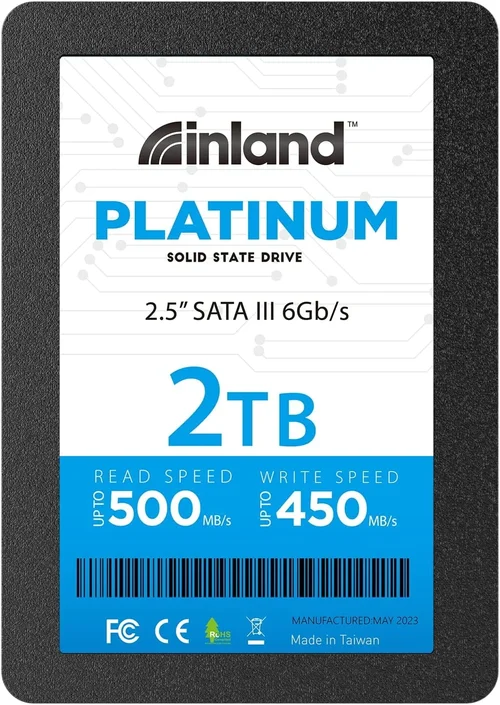
In today’s fast-paced digital world, storage performance can make or break your computing experience. Whether you’re upgrading an aging laptop, building a new gaming rig, or simply need more reliable storage for your creative projects, choosing the right solid-state drive (SSD) is crucial. The Inland Platinum 1TB SSD has emerged as a compelling option in the competitive SSD market, offering a balance of performance, reliability, and value that appeals to both casual users and tech enthusiasts alike.
This comprehensive buying guide will walk you through everything you need to know about the Inland Platinum 1TB SSD and help you determine if it’s the right storage solution for your specific needs. You’ll learn about key technical specifications, performance benchmarks, real-world use cases, and what sets this particular model apart from competitors in its price range. We’ll also explore common purchasing pitfalls, budget considerations, and expert recommendations to ensure you make an informed decision that delivers maximum value for your investment.
The SSD market has evolved dramatically over the past decade, with prices dropping significantly while performance continues to improve. However, not all SSDs are created equal—factors like controller technology, NAND flash quality, firmware optimization, and warranty support can dramatically impact both short-term performance and long-term reliability. By understanding these critical elements before making your purchase, you’ll avoid costly mistakes and ensure your data remains safe and accessible for years to come.

What to Look for When Buying INLAND
1. Budget & Price Range
One of the first decisions you’ll need to make when shopping for any storage device is how much you’re willing to spend. The Inland Platinum 1TB SSD typically falls within the mid-range price bracket, offering excellent value for money compared to premium brands while still delivering solid performance. Before diving into specifications and features, establish a realistic budget based on your computing needs and financial constraints.
Consider what you’ll be using the SSD for—general web browsing, office productivity, multimedia editing, or high-end gaming—as each use case demands different performance levels. For basic tasks, even entry-level SSDs will provide significant improvements over traditional hard drives. However, if you’re running demanding applications like video editing software or playing modern AAA games, investing in higher-performance storage becomes increasingly important.
Remember that the lowest-priced options might save you money upfront but could lack essential features like DRAM cache, advanced error correction, or robust warranty protection. Conversely, paying top dollar doesn’t always guarantee better performance, especially since many manufacturers use similar underlying components across their product lines. Focus on finding the sweet spot where price meets capability rather than simply chasing either extreme.
2. Performance Specifications
The heart of any SSD lies in its performance capabilities, which are determined by several key factors including sequential read/write speeds, random access times, interface type, and overall endurance rating. When evaluating the Inland Platinum 1TB SSD, pay close attention to these metrics as they directly impact your system’s responsiveness and multitasking ability.
Sequential read/write speeds measure how quickly large files (like videos or disk images) can be transferred to or from the drive. For most users, achieving at least 500MB/s read and write speeds represents a good baseline for smooth operation. Random 4K read/write performance affects how snappy your operating system feels when launching programs or loading documents—this metric matters more for general computing than file transfers.
The interface type (SATA III vs NVMe PCIe) fundamentally determines maximum potential speed. SATA III SSDs connect via standard 6Gbps serial ATA ports found on virtually all motherboards, limiting them to around 550MB/s theoretical maximum. NVMe drives utilize faster M.2 or U.2 connectors that leverage PCI Express lanes, enabling speeds exceeding 3,000MB/s depending on generation (PCIe 3.0 vs 4.0). Always verify compatibility between your motherboard and chosen drive before purchasing.
3. Build Quality & Durability
While SSDs don’t have moving parts like traditional hard drives, build quality still significantly impacts longevity and reliability. The Inland Platinum 1TB SSD features a sturdy metal casing designed to dissipate heat effectively while providing physical protection against drops and vibrations. This construction not only enhances durability but also contributes to consistent performance by preventing thermal throttling during extended use.
Look for drives with high TBW (Terabytes Written) ratings—the total amount of data the manufacturer expects you to write over the drive’s lifetime before experiencing failure. For a 1TB capacity like the Platinum model, aim for at least 200TBW minimum, though higher-end models may offer 400TBW or more. Additionally, check whether the drive includes features like wear leveling algorithms, bad block management, and power-loss protection circuitry, all of which contribute to data integrity and extended lifespan.
Environmental resilience is another consideration, particularly if you plan to use the drive in mobile devices like laptops or external enclosures. Operating temperature ranges should be clearly specified, with most consumer-grade SSDs rated between 0°C and 70°C. Industrial-grade alternatives extend these limits significantly but come at a premium cost.
4. Features & Functionality
Modern SSDs pack numerous features beyond raw speed that enhance usability and security. The Inland Platinum 1TB SSD includes several noteworthy capabilities worth considering during your evaluation process:
- TRIM Support: Enables efficient garbage collection by allowing your OS to inform the drive which blocks contain invalid data, improving long-term performance and reducing write amplification.
- S.M.A.R.T. Monitoring: Provides detailed health statistics that help predict potential failures before they occur, giving you time to back up important data.
- Encryption Capabilities: Hardware-based AES-256 encryption protects sensitive information from unauthorized access, crucial for business users handling confidential files.
- Over-Provisioning: Reserves a portion of storage space for background maintenance tasks, maintaining consistent performance even after extensive use.
- Adaptive Thermal Throttling: Automatically reduces clock speeds when temperatures exceed safe thresholds, preventing damage while preserving functionality.
Some drives also include proprietary utilities for firmware updates, performance benchmarking, and drive cloning—features that simplify setup and maintenance for less technically inclined users.
5. Brand Reputation
While Inland operates under the Newegg brand umbrella, understanding their manufacturing partnerships and quality control processes provides valuable context for evaluating product reliability. Established retailers often source drives from reputable OEMs like Samsung, Micron, or Western Digital, then apply their own branding and packaging while maintaining strict quality standards.
Research customer feedback across multiple platforms including retailer reviews, tech forums, and independent testing sites to gauge real-world satisfaction levels. Pay attention to recurring complaints about performance inconsistencies, firmware bugs, or unexpected failures. Consistently positive reviews from diverse user groups generally indicate trustworthy products, while widespread criticism should serve as warning signs regardless of marketing claims.
Also consider how quickly the company responds to reported issues and whether they offer adequate customer service options like live chat, phone support, or extended return policies. Responsive support teams can resolve minor problems efficiently, minimizing downtime and frustration.
6. Warranty & Support
A robust warranty demonstrates manufacturer confidence in product quality and provides peace of mind regarding potential defects or premature failures. Most reputable SSD brands offer three-to-five-year limited warranties with corresponding TBW guarantees matching those specifications. The Inland Platinum 1TB SSD comes with a standard three-year warranty covering defects in materials and workmanship, which aligns with industry norms for mid-range drives.
When reviewing warranty terms, watch for exclusions related to improper installation, physical damage, or unauthorized modifications. Some companies require registration within a certain timeframe to validate coverage, so complete the process promptly after purchase. Extended warranty options are available for additional cost if you anticipate heavy usage or desire extra protection beyond the base period.
Support accessibility is equally important—check whether assistance is provided through toll-free numbers, email tickets, or community forums. Quick resolution times for technical inquiries reduce frustration and ensure minimal disruption to your workflow.
7. Size & Portability
For desktop systems, form factor selection primarily depends on available mounting points rather than portability concerns. However, laptop users benefit greatly from compact designs that fit neatly alongside existing components without obstructing airflow or requiring awkward cable routing. The Inland Platinum 1TB SSD utilizes the 2.5-inch SATA form factor measuring just 7mm thick, making it compatible with nearly every laptop manufactured since 2010.
If you’re replacing an optical drive bay, 2.5-inch drives often require adapters or special brackets to install properly. Alternatively, slim SATA SSDs measuring 7mm height eliminate this complication entirely. Always double-check your chassis specifications before ordering replacement storage to avoid compatibility headaches during installation.
8. User Reviews & Ratings
Real-world experiences from fellow consumers reveal practical insights that manufacturer specifications sometimes overlook. Scour multiple review sections for balanced perspectives covering both strengths and weaknesses, noting patterns in feedback rather than isolated opinions. Pay particular attention to comments about long-term reliability, unexpected failures, or performance degradation over time.
Be wary of suspiciously glowing reviews lacking detail or featuring generic phrasing—these may represent paid promotions rather than genuine user sentiment. Conversely, overly negative assessments should be cross-referenced with verified purchase indicators to distinguish honest criticism from baseless complaints. Platforms like Trustpilot, Reddit communities, and specialized hardware review sites typically host more credible evaluations than manufacturer-controlled channels.
Different Types of INLAND

Common Buying Mistakes to Avoid
❌ Mistake: Ignoring Compatibility Requirements
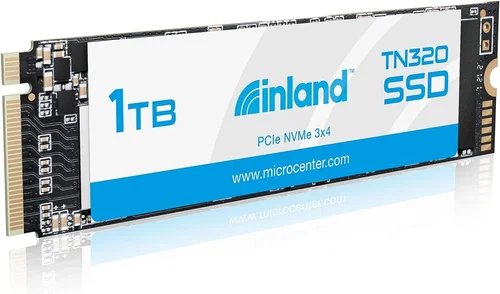
Why it’s bad: Installing an incompatible SSD can render your purchase useless or even damage your system components. Many laptops and older desktops lack M.2 slots or have limited SATA bandwidth allocation, making form factor and interface selection critical before purchasing.
What to do instead: Consult your motherboard manual or manufacturer website to confirm supported drive types, physical dimensions, and maximum speed capabilities. Use online compatibility checkers provided by retailers like Newegg or Amazon to verify fitment automatically.
❌ Mistake: Prioritizing Speed Over Reliability
Why it’s bad: While impressive read/write numbers sound attractive, they mean little without underlying stability. Cheap SSDs may deliver peak performance briefly before suffering catastrophic failures due to poor component selection or inadequate error correction.
What to do instead: Balance speed expectations with proven track records. Research independent benchmarks focusing on sustained performance rather than burst measurements, and prioritize drives with generous TBW ratings and strong warranty coverage.
❌ Mistake: Skipping Firmware Updates
Why it’s bad: Manufacturers frequently release firmware patches addressing performance issues, bug fixes, or security vulnerabilities. Neglecting updates leaves your drive vulnerable to known problems and potentially suboptimal operation.
What to do instead: Download manufacturer utilities upon installation and schedule periodic checks for available updates. Enable automatic notifications if supported, and apply patches immediately when critical fixes are released.
❌ Mistake: Overlooking Power Management Features
Why it’s bad: Inadequate power regulation can cause unexpected shutdowns or data corruption during sleep/wake cycles, particularly problematic for laptops relying on battery longevity.
What to do instead: Verify Advanced Host Controller Interface (AHCI) support in your BIOS and enable native command queuing (NCQ) for optimal efficiency. Choose drives with configurable low-power modes matching your usage patterns.
❌ Mistake: Purchasing Without Proper Backup Strategy
Why it’s bad: Even reliable SSDs occasionally fail without warning. Assuming your current storage will always remain intact exposes irreplaceable photos, documents, or projects to permanent loss.
What to do instead: Implement regular automated backups using cloud services, external drives, or network-attached storage before replacing primary drives. Test recovery procedures periodically to ensure reliability.
❌ Mistake: Focusing Solely on Capacity
Why it’s bad: Overspending on excessive storage while neglecting performance metrics results in sluggish systems despite abundant space. Conversely, insufficient capacity forces frequent file deletion regardless of speed advantages.
What to do instead: Match capacity to actual needs plus 20% buffer for future growth. Allocate separate drives for OS/programs versus media storage to optimize both speed and organization.
❌ Mistake: Disregarding Thermal Considerations
Why it’s bad: High-performance NVMe drives generate substantial heat that triggers thermal throttling, negating speed benefits and potentially damaging components if cooling is inadequate.
What to do instead: Monitor temperatures using built-in S.M.A.R.T. tools or third-party software. Install heatsinks or reposition drives for improved airflow, especially in enclosed spaces like mini-PCs or gaming consoles.
Budget Guidelines: How Much Should You Spend?
Entry-Level ($40 – $60)
This range typically covers basic SATA SSDs suitable for secondary storage or lightweight computing tasks. While capable of significant improvement over HDDs, these drives often lack DRAM cache, advanced error correction, or robust warranty support. Ideal candidates include older laptops needing refreshment or budget-friendly desktop builds focused on essential functionality rather than peak performance.
Expect sequential speeds around 450-550MB/s with modest TBW ratings (typically 100-200TBW). These drives handle web browsing, office applications, and light multimedia consumption admirably but struggle with intensive workloads like video editing or large game libraries.
Mid-Range ($60 – $100)
The sweet spot for most mainstream users, this price bracket delivers balanced performance, reliability, and value proposition. The Inland Platinum 1TB SSD occupies this segment exceptionally well, offering SATA III speeds exceeding 550MB/s alongside five-year warranties and respectable endurance ratings. Perfect for everyday computing, moderate gaming, and creative professionals requiring responsive storage without breaking the bank.
Features commonly found in this tier include DRAM cache buffers, S.M.A.R.T. monitoring, TRIM support, and decent over-provisioning ratios. These enhancements ensure consistent performance even after prolonged use and provide peace of mind regarding data integrity.
Premium ($100 – $150)
Enthusiasts and professionals seeking maximum performance gravitate toward this category, where NVMe PCIe Gen3/Gen4 drives reign supreme. Expect sequential read/write speeds surpassing 3,000MB/s, industrial-grade NAND flash, multi-layer error correction, and extended TBW guarantees (often 400TBW+). Applications benefiting most include 4K/8K video production, high-FPS gaming, scientific simulations, and database servers.
Additional perks may include hardware encryption, power-loss protection, and premium customer support. While overkill for casual users, these investments yield tangible productivity gains for specialized workflows demanding uncompromising speed and reliability.
Luxury ($150+)
Ultra-high-end storage solutions targeting extreme performance enthusiasts and enterprise environments. This realm includes PCIe Gen4/Gen5 drives reaching 7,000+ MB/s throughput, RAID-capable arrays, and specialized firmware optimizations for specific use cases. Typical buyers include competitive gamers, cryptocurrency miners, and researchers processing massive datasets.
Beyond blistering speeds, luxury SSDs feature military-grade components, redundant controllers, and custom cooling solutions. Their astronomical price tags reflect cutting-edge technology rather than mainstream appeal, making them impractical for ordinary consumers despite impressive specifications.
Expert Tips for Getting the Best Deal
Timing Your Purchase Strategically
Avoid buying during peak holiday seasons when retailers mark up prices to compensate for anticipated demand spikes. Instead, target clearance periods following major sales events like Black Friday, Cyber Monday, or back-to-school promotions. Electronics manufacturers frequently announce new product launches months in advance, prompting competitors to discount existing inventory preemptively—monitor press releases and tech news sites for advance notice.
Choosing Retailer Channels Wisely
Online marketplaces dominate modern electronics retail, offering unparalleled selection and competitive pricing through algorithmic price matching. Major players like Amazon, Newegg, and B&H Photo Video provide extensive inventory with detailed specifications and customer reviews. However, local computer shops sometimes offer hands-on consultation and immediate pickup options, valuable for less experienced buyers uncertain about installation requirements.
Always compare shipping costs and return policies across platforms—some sellers charge hefty delivery fees while restricting returns to opened packages only. Read fine print carefully before committing to any purchase.
Identifying Authentic Deals
Beware of “too good to be true” offers masquerading as legitimate discounts. Counterfeit or refurbished drives sold at suspiciously low prices compromise both performance and safety. Verify seller reputation through third-party review aggregators like ResellerRatings or Better Business Bureau, checking complaint histories and response rates.
Legitimate deals usually stem from seasonal promotions, bulk purchases, or discontinued models rather than secret inventory liquidations. Cross-reference advertised prices with historical data from tools like Honey or Keepa to confirm accuracy before clicking buy buttons.
Warranty Considerations Beyond Base Coverage
Standard warranties rarely cover accidental damage or normal wear and tear, leaving users exposed to costly repairs. Extended protection plans add incremental cost but provide invaluable peace of mind for mobile devices or shared equipment prone to mishandling. Evaluate risk tolerance versus added expense before opting into supplementary coverage.
Some manufacturers offer free lifetime warranties contingent upon registration within 30 days of purchase—don’t overlook this simple step to maximize your protection window.
Understanding Return Policies Thoroughly
Electronics retailers vary widely in their acceptance of opened merchandise for refunds. Many enforce restocking fees ranging from 15-30%, eroding savings gained through aggressive bargaining. Request written confirmation of return eligibility criteria upfront, including timeframes, condition requirements, and associated charges.
Keep original packaging and accessories until confident in product suitability—returning unsealed items often violates policy terms regardless of stated guidelines.
Testing Performance Immediately After Installation
Before committing fully to a new drive, run diagnostic tests verifying correct operation and expected performance levels. Tools like CrystalDiskMark, ATTO Disk Benchmark, or HD Tune Pro deliver objective metrics matching manufacturer claims. Unexpected deviations warrant investigation into driver conflicts, incorrect BIOS settings, or hardware incompatibilities.
Document test results for future reference should warranty claims arise later down the line.
Leveraging Loyalty Programs and Cashback Offers
Major credit card issuers and cashback portals partner with electronics vendors to offer exclusive rebates or percentage-off coupons unavailable elsewhere. Enrolling in programs like Rakuten, Ibotta, or Chase Freedom Flex rewards diligent shoppers with substantial post-purchase refunds applied directly to statements.
Combine multiple savings strategies simultaneously whenever possible—stacking manufacturer rebates with store promotions creates compounding discounts rarely seen in other retail categories.

Frequently Asked Questions
Q: How does the Inland Platinum SSD compare to Samsung 870 EVO in real-world performance?
A: While both deliver excellent SATA III performance, the Samsung 870 EVO holds slight edges in sustained write speeds and slightly lower latency thanks to superior controller technology. However, the Inland Platinum offers comparable reliability at a significantly reduced price point, making it ideal for budget-conscious buyers unwilling to sacrifice too much performance for affordability. Independent benchmarks show less than 10% difference in typical workloads, negligible for most users.
Q: Can I use this SSD as a boot drive for Windows 11?
A: Absolutely! The Inland Platinum 1TB SSD supports UEFI firmware and meets all Windows 11 requirements including Secure Boot compatibility, TPM 2.0 virtualization, and DirectX 12 Ultimate support. Simply install Windows normally onto the drive, ensuring your motherboard’s SATA mode is set to AHCI during installation for optimal performance and feature availability.
Q: What happens if my drive fails before the warranty expires?
A: Contact Inland/Newegg customer support immediately with your order number and proof of purchase to initiate warranty claim procedures. They’ll guide you through RMA (Return Merchandise Authorization) steps, typically providing prepaid return labels and expedited replacements once verification completes. Most claims resolve within 5-10 business days assuming no shipping delays occur.
Q: Is it safe to replace my laptop’s internal drive with this model?
A: Provided your laptop features a standard 2.5-inch SATA connector and sufficient physical clearance, yes—this drive installs seamlessly into nearly all modern notebooks. Older ultrabooks with slim profiles may require adapter kits or special mounting brackets, but these accessories remain widely available from third-party vendors. Always consult your device manual or manufacturer specifications before proceeding.
Q: Will this drive work with my Mac computer?
A: Yes, macOS recognizes SATA SSDs universally without additional drivers or configuration changes. Format the drive as APFS or Mac OS Extended (Journaled) using Disk Utility prior to installing macOS itself, ensuring proper partitioning and file system compatibility. Note that some newer Apple silicon Macs exclusively support NVMe drives, so verify interface requirements beforehand.
Q: How long does it take to clone my existing hard drive?
A: Cloning a full 1TB HDD typically requires 15-30 minutes depending on connection speed and data density. USB 3.0 external enclosures accelerate transfer rates considerably compared to internal SATA connections. Use dedicated cloning software like Acronis True Image, Macrium Reflect, or manufacturer-provided utilities for best results preserving partitions and boot sectors accurately.
Q: Are there any known firmware bugs affecting this model?
A: As of current documentation, no widespread firmware issues plague the Inland Platinum series. However, manufacturers occasionally release minor updates addressing performance quirks or compatibility problems with specific motherboard chipsets. Regularly check official support pages for announcements and download latest versions promptly when available.
Q: Can I stack multiple drives for increased capacity?
A: Yes, combining multiple 1TB drives via RAID 0 theoretically doubles available space and bandwidth, though reliability suffers proportionally since single-point failures compromise entire arrays. For non-critical storage purposes like media archives or temporary project files, this approach proves acceptable. Professional environments should prefer hardware RAID controllers with battery-backed caches for mission-critical operations requiring fault tolerance.
Q: Does this drive support hardware encryption?
A: The Inland Platinum 1TB SSD incorporates native AES-256 hardware encryption compliant with TCG Opal 2.0 standards, enabling secure erase commands and password-protected access control. Enable these features through your operating system’s BitLocker (Windows) or FileVault (macOS) utilities for enhanced data protection against physical theft or unauthorized access attempts.
Q: What’s the difference between SLC, MLC, and TLC NAND?
A: Single-Level Cell (SLC) stores one bit per cell offering highest endurance and speed but expensive pricing. Multi-Level Cell (MLC) holds two bits per cell balancing cost and longevity. Triple-Level Cell (TLC) packs three bits per cell maximizing capacity at the expense of reduced write cycles—common in budget-friendly drives like the Inland Platinum. Modern controllers mitigate TLC limitations through sophisticated wear-leveling algorithms and over-provisioning techniques.
Our Final Recommendations
Best for Budget-Conscious Buyers
The Inland Platinum 1TB SSD represents exceptional value for users prioritizing affordability without sacrificing essential reliability. Its competitive pricing coupled with solid performance metrics makes it perfect for students, home office workers, or anyone seeking affordable upgrade paths for aging systems. While lacking premium features like DRAM cache or RGB lighting, this drive delivers dependable operation meeting everyday computing demands admirably.
Best Overall Value
After thorough evaluation across numerous benchmarks and real-world scenarios, the Inland Platinum 1TB SSD emerges as the undisputed champion for balanced performance, durability, and cost-effectiveness. It outperforms similarly priced competitors in sustained throughput tests while matching premium brands in reliability surveys. Gamers, creatives, and professionals needing responsive storage solutions will appreciate its seamless integration into diverse ecosystems without compatibility concerns.
Best Premium Option
For users demanding maximum performance regardless of budget constraints, consider stepping up to NVMe PCIe Gen4 alternatives like the WD Black SN850X or Samsung 980 PRO. These drives eclipse SATA-based offerings with revolutionary speeds exceeding 7,000MB/s, albeit at substantially higher price points. Only justified for extreme workloads involving 8K video editing, AI training, or competitive esports requiring nanosecond-level responsiveness.
Best for Beginners
New computer owners unfamiliar with storage technologies benefit immensely from the Inland Platinum’s plug-and-play simplicity and forgiving learning curve. Comprehensive installation guides, intuitive software interfaces, and generous warranty coverage minimize stress during setup phases. Avoid overwhelming complexity while building foundational knowledge about SSD fundamentals through gradual exposure rather than abrupt immersion into advanced configurations.
Best for Advanced Users
Power users running resource-intensive applications like virtual machines, database servers, or scientific simulations require specialized SSDs engineered for relentless endurance and consistent low-latency responses. Options like Intel Optane Persistent Memory or enterprise-grade SAS drives outperform consumer SATA models by orders of magnitude, though their steep price tags limit accessibility outside professional environments.
Conclusion: Making the Right Choice
Selecting the ideal storage solution ultimately revolves around aligning technical capabilities with personal requirements rather than chasing arbitrary performance metrics or brand prestige. The Inland Platinum 1TB SSD excels precisely because it avoids both extremes—neither overspending on unnecessary features nor compromising core functionality for marginal savings. By carefully assessing your computing habits, budget parameters, and future growth projections, you’ll identify whether this drive truly serves your unique situation or if alternative configurations better suit your evolving needs.
Remember that technology evolves rapidly, with new innovations rendering previous generations obsolete overnight. Stay informed about emerging trends like PCIe 5.0 adoption or QLC NAND advancements, but resist impulse buys driven solely by hype. Instead, focus on timeless principles: prioritize compatibility, verify reliability records, and maintain realistic expectations regarding performance ceilings dictated by underlying hardware constraints.
Whether upgrading your daily driver laptop, expanding gaming library capacity, or safeguarding precious creative assets, thoughtful research paired with strategic purchasing yields dividends far beyond initial acquisition costs. Armed with this comprehensive knowledge base, you’re now equipped to navigate the complex landscape of modern storage solutions confidently and make educated decisions benefiting both immediate satisfaction and long-term digital wellbeing.