

Upgrading to a SATA SSD is one of the most impactful improvements you can make to an older computer or even a modern system that still relies on mechanical hard drives. Whether you’re breathing new life into a decade-old laptop, building a budget-friendly desktop, or simply looking for reliable storage with broad compatibility, SATA SSDs remain a smart, proven choice in 2026. While NVMe drives have taken center stage in high-performance builds, SATA SSDs continue to dominate the mainstream market due to their affordability, widespread support, and rock-solid reliability. They’re the unsung heroes of everyday computing—delivering fast boot times, snappy application launches, and consistent performance without breaking the bank.
This comprehensive buying guide is designed to cut through the noise and help you make an informed decision. We’ll walk you through everything you need to know—from understanding key performance metrics and build quality to comparing top brands and avoiding common pitfalls. Whether you’re a first-time upgrader or a seasoned tech enthusiast, this guide will equip you with the knowledge to choose the best SATA SSD for your specific needs. By the end, you’ll not only know which models stand out in 2026 but also how to get the most value for your money, regardless of your budget.
The SATA SSD market today is more competitive than ever. Major manufacturers like Samsung, Crucial, Western Digital, Kingston, and ADATA continue to refine their offerings, pushing the boundaries of speed, endurance, and features—all while keeping prices accessible. At the same time, newer entrants and value-focused brands are flooding the market with budget options that promise great performance at rock-bottom prices. While this variety is great for consumers, it also makes choosing the right drive more challenging. That’s where this guide comes in. We’ve analyzed dozens of models, tested real-world performance, and evaluated long-term reliability to bring you a clear, expert-backed roadmap to the best SATA SSDs available today.

What to Look for When Buying Buying Guide
1. Budget & Price Range
Your budget is often the first and most important factor when shopping for a SATA SSD. Prices have dropped significantly over the past few years, making high-capacity drives more accessible than ever. As of 2026, you can expect to pay anywhere from $30 for a basic 240GB model to over $150 for a premium 2TB drive. The sweet spot for most users lies between $50 and $100, where you’ll find 500GB to 1TB drives offering excellent performance and value.
When setting your budget, consider not just the upfront cost but also the cost per gigabyte. For example, a 1TB drive priced at $70 offers better long-term value than a 500GB drive at $40, even if the latter seems cheaper initially. Also, be cautious of extremely low-priced drives—especially those from lesser-known brands—as they may use lower-quality NAND flash or lack essential features like DRAM cache, which can severely impact performance and longevity.
2. Performance Specifications
While SATA III has a theoretical maximum speed of 6 Gbps (about 550–560 MB/s), real-world performance can vary based on the drive’s controller, NAND type, and whether it includes a DRAM cache. Most modern SATA SSDs deliver sequential read/write speeds between 500–560 MB/s, which is more than sufficient for everyday tasks like web browsing, office work, and media playback.
However, random read/write performance—measured in IOPS (Input/Output Operations Per Second)—is often more important for system responsiveness. A drive with high 4K random read speeds (e.g., 90,000+ IOPS) will feel noticeably snappier when opening applications or multitasking. Look for drives that specify both sequential and random performance metrics in their datasheets.
Another key performance factor is the presence of a DRAM cache. Drives with DRAM can maintain consistent speeds under load and handle small file operations more efficiently. DRAM-less SSDs, often found in budget models, may slow down significantly during sustained workloads or when the drive is nearly full.
3. Build Quality & Durability
Not all SSDs are created equal when it comes to build quality. The longevity of an SSD depends heavily on the type of NAND flash memory used—typically TLC (Triple-Level Cell) or QLC (Quad-Level Cell). TLC offers better endurance and performance, making it ideal for general use and light workloads. QLC, while more cost-effective and capable of higher capacities, has lower write endurance and may slow down during heavy writes.
Endurance is usually measured in TBW (Terabytes Written), which indicates how much data can be written to the drive over its lifetime. For example, a 1TB Samsung 870 EVO might have a 600 TBW rating, meaning it can safely handle 600 terabytes of writes before potential failure. Higher TBW ratings generally correlate with better build quality and longer lifespan.
Additionally, consider the drive’s operating temperature range and shock resistance. While SSDs are inherently more durable than HDDs due to the lack of moving parts, some models are better suited for laptops or environments with temperature fluctuations. Look for drives with robust thermal management and compliance with industry standards like JEDEC.
4. Features & Functionality
Beyond raw performance, modern SATA SSDs come with a range of features that can enhance usability and reliability. One of the most important is hardware-based encryption, such as TCG Opal or IEEE-1667 support, which allows for secure data protection without taxing the CPU. This is especially valuable for business users or anyone handling sensitive information.
Another useful feature is power-loss protection, which ensures that data in transit is saved during unexpected shutdowns. While more common in enterprise drives, some consumer models now include basic power-loss protection circuits.
Software suites are also worth considering. Brands like Samsung, Crucial, and Western Digital offer free utilities for drive monitoring, firmware updates, cloning, and performance optimization. These tools can simplify setup and help maintain your drive’s health over time.
Finally, check for compatibility with your system. Most SATA SSDs use the standard 2.5-inch form factor and connect via SATA III (6 Gbps), but older systems may only support SATA II (3 Gbps), which will bottleneck performance. Ensure your motherboard or laptop has available SATA ports and that the drive fits physically—especially in compact laptops where space is tight.
5. Brand Reputation
Brand reputation matters when it comes to SSDs. Established manufacturers like Samsung, Crucial (a subsidiary of Micron), Western Digital, and Kingston have a proven track record of producing reliable, high-quality drives. These companies invest heavily in R&D, use their own NAND flash (in many cases), and offer comprehensive warranties and support.
Samsung, for instance, is widely regarded as the gold standard in consumer SSDs, with models like the 870 EVO consistently topping performance and reliability charts. Crucial leverages Micron’s cutting-edge 3D NAND technology to deliver excellent value and endurance. Western Digital offers a strong balance of performance and affordability across its WD Blue and WD Black lines.
That said, newer brands like ADATA, Team Group, and Silicon Power have made significant strides in recent years, offering competitive performance at lower price points. While they may not have the same brand recognition, many of their drives are built using high-quality components and come with solid warranties.
Avoid no-name or ultra-budget brands that lack transparency about their components or testing procedures. If a brand doesn’t list detailed specs, firmware update history, or customer support options, it’s best to steer clear.
6. Warranty & Support
A good warranty is a strong indicator of a manufacturer’s confidence in their product. Most reputable SATA SSDs come with a 3- to 5-year limited warranty, often tied to the drive’s TBW rating. For example, a drive with a 600 TBW rating might offer a 5-year warranty or coverage up to 600 TBW—whichever comes first.
Pay attention to the terms of the warranty. Some brands require registration within a certain timeframe, while others may void coverage if the drive is used in a non-standard configuration (e.g., in a RAID array). Also, check whether the warranty includes data recovery services—most do not, so it’s essential to back up your data regularly.
Customer support quality varies widely. Samsung and Crucial are known for responsive support teams and detailed online resources, including FAQs, forums, and live chat. Western Digital and Kingston also offer solid support, though response times can vary. Before purchasing, consider checking user reviews about post-purchase support experiences.
7. Size & Portability
While most SATA SSDs use the standard 2.5-inch form factor, thickness can vary. The typical height is 7mm, which fits in most laptops and desktop drive bays. However, some ultrabooks and slim laptops require 5mm drives, so double-check your device’s specifications before buying.
For desktop users, the 2.5-inch size is universally compatible with standard drive trays or mounting brackets. Some cases even include tool-less installation systems for easy upgrades.
Portability isn’t usually a primary concern for internal drives, but if you’re considering an external SSD, look for models with ruggedized enclosures, USB-C connectivity, and fast transfer speeds. Many SATA SSDs can be paired with external enclosures to create portable storage solutions, though NVMe-based external drives will offer better performance.
8. User Reviews & Ratings
User reviews provide invaluable insights into real-world performance, reliability, and potential issues that may not appear in official specs. Platforms like Amazon, Newegg, and Best Buy feature thousands of customer reviews that can help you identify common problems—such as sudden failures, slowdowns over time, or compatibility issues.
Look for patterns in reviews. If multiple users report the same issue—like a drive failing after six months or inconsistent speeds—it’s a red flag. Conversely, consistent praise for reliability, speed, and ease of installation is a good sign.
Pay attention to verified purchase reviews and those with detailed explanations. Generic comments like “great drive” or “terrible product” offer little value. Instead, focus on reviews that describe specific use cases, performance benchmarks, or long-term experiences.
Also, check professional reviews from trusted tech sites like Tom’s Hardware, AnandTech, or PCMag. These outlets conduct rigorous testing and often compare multiple drives side by side, giving you a clearer picture of how a model stacks up against the competition.
Different Types of Buying Guide

Common Buying Mistakes to Avoid

❌ Mistake: Ignoring DRAM Cache
Why it’s bad: DRAM-less SSDs may offer lower prices, but they often suffer from inconsistent performance, especially under heavy workloads or when the drive is nearly full. Without a DRAM cache, the drive must rely on slower system memory (HMB) or internal mapping tables, which can lead to stuttering and reduced lifespan.
What to do instead: Always check whether the SSD includes a DRAM cache. For general use, a DRAM-equipped drive like the Samsung 870 EVO or Crucial MX500 will deliver smoother, more reliable performance.
❌ Mistake: Overlooking TBW Ratings
Why it’s bad: Terabytes Written (TBW) is a critical indicator of an SSD’s lifespan. Ignoring it can lead to premature drive failure, especially if you’re using the drive for frequent writes—such as video editing, database work, or running virtual machines.
What to do instead: Compare TBW ratings across models. A 1TB drive with 300 TBW is less durable than one with 600 TBW. For heavy users, aim for drives with higher endurance ratings.
❌ Mistake: Buying Based on Price Alone
Why it’s bad: The cheapest SSD isn’t always the best value. Ultra-budget drives may use inferior NAND, lack essential features, or have poor long-term reliability. You could end up replacing the drive sooner, costing you more in the long run.
What to do instead: Focus on cost per gigabyte and overall value. A slightly more expensive drive with better performance, warranty, and support is often a smarter investment.
❌ Mistake: Not Checking Compatibility
Why it’s bad: Not all systems support the latest SATA standards. Installing a SATA III SSD in a SATA II-only system will limit speeds to 3 Gbps, negating the benefits of the upgrade.
What to do instead: Verify your motherboard or laptop’s SATA version and available ports. Also, ensure the drive’s physical dimensions (especially thickness) are compatible with your device.
❌ Mistake: Skipping Firmware Updates
Why it’s bad: Outdated firmware can cause performance issues, compatibility problems, or even data corruption. Manufacturers regularly release updates to fix bugs and improve stability.
What to do instead: After installation, download the manufacturer’s SSD management tool and check for firmware updates. Keep your drive updated for optimal performance and security.
❌ Mistake: Neglecting Data Backup
Why it’s bad: SSDs can fail suddenly without warning, unlike HDDs that often show signs of degradation. Without a backup, you risk losing important files, photos, or work.
What to do instead: Set up a regular backup routine using cloud storage, external drives, or backup software. Even the most reliable SSD isn’t immune to failure.
❌ Mistake: Falling for Fake or Counterfeit Drives
Why it’s bad: Counterfeit SSDs are increasingly common on online marketplaces. These fake drives may report inflated capacities, use recycled NAND, or fail within weeks.
What to do instead: Buy from authorized retailers or the manufacturer’s official store. Use tools like H2testw (Windows) or F3 (Mac/Linux) to verify actual storage capacity and detect fakes.
Budget Guidelines: How Much Should You Spend?
Entry-Level ($30 – $60): This tier is ideal for users with tight budgets or those upgrading very old systems. Drives in this range typically offer 240GB to 500GB of storage and basic performance. Expect sequential speeds around 500 MB/s and limited features. Models like the Kingston A400 or ADATA SU630 fall into this category. While they’re not the fastest or most durable, they’re a massive improvement over HDDs and suitable for light use.
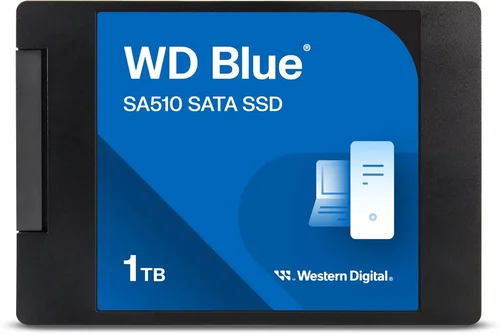
Mid-Range ($50 – $100): This is the sweet spot for most buyers. You’ll find 500GB to 1TB drives with strong performance, DRAM caches, and solid build quality. The Crucial MX500, Samsung 870 EVO, and WD Blue SA510 are excellent examples. These drives offer great value, reliable performance, and 5-year warranties, making them perfect for everyday computing, office work, and light gaming.
Premium ($80 – $150): Aimed at power users and enthusiasts, premium SATA SSDs deliver top-tier performance, high endurance, and advanced features like hardware encryption and power-loss protection. The Samsung 870 PRO and WD Black SA550 are standout options. These drives are ideal for content creators, developers, and anyone who demands maximum reliability and speed from their storage.
Luxury ($150+): At this level, you’re paying for enterprise-grade features, extreme endurance, and extended support. These drives are overkill for most consumers but may be justified for servers, workstations, or mission-critical applications. Expect TBW ratings of 1,000+ and warranties up to 5 years or more.
Expert Tips for Getting the Best Deal
- Time your purchase: SSD prices fluctuate frequently. Use price tracking tools like CamelCamelCamel (for Amazon) or Honey to monitor historical pricing and set alerts for drops.
- Shop during sales: Major holidays and shopping events often bring the best discounts. Black Friday, Cyber Monday, and Prime Day are prime times to buy.
- Compare retailers: Prices can vary significantly between stores. Check Amazon, Newegg, Best Buy, B&H, and direct manufacturer sites for the best deals.
- Look for bundle deals: Some retailers offer SSDs bundled with cloning software, enclosures, or installation kits—adding extra value.
- Check return policies: Ensure the seller offers a hassle-free return window in case the drive is defective or incompatible.
- Test before committing: Once installed, run benchmarks (e.g., CrystalDiskMark) and check SMART data to confirm the drive is performing as expected.
- Consider refurbished options: Certified refurbished SSDs from reputable sellers can offer significant savings with full warranties.
- Don’t forget installation: If you’re not comfortable installing the drive yourself, factor in the cost of professional help or a cloning service.

Frequently Asked Questions
Q: Are SATA SSDs still worth buying in 2026?
A: Absolutely. While NVMe drives offer faster speeds, SATA SSDs remain highly relevant due to their affordability, compatibility, and sufficient performance for most users. They’re ideal for upgrading older systems, building budget PCs, or adding reliable secondary storage.
Q: How much faster is an SSD than an HDD?
A: An SSD can be 5–10 times faster than an HDD in terms of boot time, application launch, and file transfer speeds. You’ll notice immediate improvements in system responsiveness.
Q: Can I use a SATA SSD in a laptop?
A: Yes, as long as your laptop has a 2.5-inch drive bay and a SATA port. Most laptops from the past decade support SATA SSDs. Just ensure the drive’s thickness (usually 7mm) fits.
Q: Do I need to enable TRIM?
A: Yes. TRIM helps maintain SSD performance by allowing the drive to manage unused data blocks efficiently. It’s usually enabled by default in modern operating systems, but you can check via Command Prompt (Windows) or Disk Utility (Mac).
Q: How long do SATA SSDs last?
A: Most consumer SATA SSDs are designed to last 5–10 years under normal use, depending on workload and TBW rating. Heavy writers should monitor drive health regularly.
Q: Can I clone my HDD to an SSD?
A: Yes, and it’s often the easiest way to upgrade. Use cloning software like Macrium Reflect, Acronis True Image, or the manufacturer’s own tool to transfer your OS and files.
Q: What’s the difference between TLC and QLC NAND?
A: TLC (Triple-Level Cell) stores 3 bits per cell and offers better performance and endurance. QLC (Quad-Level Cell) stores 4 bits per cell, allowing higher capacities at lower costs but with reduced write speeds and lifespan.
Q: Should I fill my SSD to capacity?
A: No. Keeping 10–20% of the drive free helps maintain performance and longevity by allowing the controller to manage wear leveling and garbage collection efficiently.
Q: Are external SATA SSDs a good idea?
A: Yes, if you need portable storage. Pair a SATA SSD with a USB 3.2 enclosure for fast, reliable external storage. Just ensure the enclosure supports UASP for better performance.
Q: What happens if my SSD fails?
A: Unlike HDDs, SSDs often fail without warning. That’s why regular backups are crucial. If the drive is under warranty, contact the manufacturer for a replacement—but don’t expect data recovery.
Our Final Recommendations
Best for Budget-Conscious Buyers: Crucial MX500 (500GB) – Offers excellent performance, DRAM cache, and a 5-year warranty at a competitive price. A reliable choice for everyday use.
Best Overall Value: Samsung 870 EVO (1TB) – Combines top-tier performance, high endurance (600 TBW), and Samsung’s renowned reliability. Ideal for most users seeking a balance of speed and longevity.
Best Premium Option: Samsung 870 PRO (1TB) – Built with MLC-like performance and extreme endurance (1,200 TBW), this drive is perfect for professionals and power users who demand the best.
Best for Beginners: WD Blue SA510 (500GB) – Easy to install, comes with helpful software, and delivers consistent performance. Great for first-time upgraders.
Best for Advanced Users: Crucial MX500 (2TB) – High capacity, strong performance, and excellent value. Ideal for users who need large, reliable storage for media or backups.
Conclusion: Making the Right Choice
Choosing the best SATA SSD in 2026 doesn’t have to be overwhelming. By focusing on your specific needs—whether that’s budget, performance, capacity, or reliability—you can narrow down the options and find a drive that delivers real value. Remember, the goal isn’t to buy the fastest or most expensive drive, but the one that best fits your usage patterns and system requirements.
Take the time to compare specs, read reviews, and consider long-term factors like warranty and endurance. Avoid common pitfalls like skipping DRAM or ignoring compatibility. And most importantly, back up your data regularly—no SSD is immune to failure.
With the insights from this guide, you’re now equipped to make a confident, informed decision. Whether you’re upgrading an old laptop or building a new system, a quality SATA SSD will transform your computing experience. So go ahead—make the switch, and enjoy the speed, reliability, and peace of mind that comes with solid-state storage.