

Solid-state drives (SSDs) have revolutionized the way we store and access data. Gone are the days of slow boot times, laggy file transfers, and the constant whirring of mechanical hard drives. Today’s SSDs deliver near-instant responsiveness, silent operation, and rock-solid reliability—making them essential for everything from everyday computing to high-end gaming, content creation, and enterprise workloads. Whether you’re upgrading an aging laptop, building a new gaming rig, or setting up a workstation for video editing, choosing the right SSD can dramatically impact your system’s performance and longevity.
But with so many brands, form factors, and technical specifications on the market, it’s easy to feel overwhelmed. Not all SSDs are created equal. Some prioritize raw speed, others emphasize endurance and reliability, while many strike a balance between cost and performance. This comprehensive buying guide is designed to cut through the noise and help you make an informed decision based on your specific needs, budget, and use case. We’ll explore the key factors that define SSD quality, compare different types and categories, highlight common pitfalls, and provide expert-backed recommendations to ensure you get the best possible value for your investment.
The SSD market in 2026 is more competitive than ever. Major players like Samsung, Western Digital, Crucial, Kingston, and SK hynix continue to push the boundaries of NAND flash technology, while newer entrants like Solidigm (a spin-off from Intel) and Corsair are gaining traction with innovative designs and aggressive pricing. Meanwhile, advancements in PCIe 5.0, NVMe protocols, and 3D NAND stacking have enabled blistering read/write speeds and increased storage densities. However, this rapid innovation also means that older models can quickly become outdated—or overpriced. Our goal is to equip you with the knowledge to navigate this evolving landscape confidently, so you can choose an SSD that delivers optimal performance, durability, and value for years to come.

What to Look for When Buying Buying Guide
1. Budget & Price Range
Your budget is often the first and most important factor in any tech purchase. SSDs come in a wide range of prices, from under $30 for a basic 256GB model to over $500 for high-capacity, enterprise-grade drives. While it’s tempting to go for the cheapest option, doing so can lead to disappointment in terms of performance, longevity, and reliability. Conversely, overspending on features you don’t need is equally wasteful.
When setting your budget, consider both the upfront cost and the long-term value. A slightly more expensive SSD with better endurance ratings and a longer warranty may save you money in the long run by avoiding premature failure or the need for early replacement. For most consumers, the sweet spot lies in the mid-range category—typically $50 to $150 for a 1TB drive—where you get excellent performance, solid build quality, and reputable brand support without breaking the bank.
2. Performance Specifications
Performance is where SSDs truly shine—but not all drives perform the same. The two most critical performance metrics are sequential read/write speeds and random read/write IOPS (Input/Output Operations Per Second).
Sequential speeds measure how fast large files (like videos or game installations) can be read from or written to the drive. These are typically advertised in MB/s (megabytes per second). For example, a PCIe 4.0 NVMe SSD might boast speeds up to 7,000 MB/s read and 6,500 MB/s write. While impressive, these numbers are only relevant if your system supports the same interface (e.g., PCIe 4.0 or 5.0).
Random IOPS, on the other hand, reflect how well the drive handles small, scattered data requests—common in operating system operations, multitasking, and database workloads. A higher IOPS rating means smoother performance during everyday tasks. For most users, a drive with at least 500,000 IOPS for random read and 400,000 for write is more than sufficient.
Other performance-related specs include latency (how quickly the drive responds to requests) and queue depth (how many operations it can handle simultaneously). While these are less commonly advertised, they matter for power users and professionals.
3. Build Quality & Durability
Unlike traditional hard drives, SSDs have no moving parts, which inherently makes them more durable against physical shock and vibration. However, build quality still varies significantly between manufacturers and models. High-quality SSDs use robust PCBs (printed circuit boards), reliable controllers, and premium NAND flash memory.
One key indicator of durability is the drive’s TBW (Terabytes Written) rating—the total amount of data that can be written to the drive over its lifetime before it’s likely to fail. For example, a 1TB Samsung 990 Pro has a TBW of 600TB, meaning you could write 100GB of data every day for over 16 years before reaching the limit. Consumer drives typically range from 150TBW to 600TBW, while enterprise models can exceed 1,000TBW.
Another factor is power efficiency, especially important for laptops and portable devices. High-quality SSDs consume less power, generate less heat, and extend battery life. Look for drives with advanced power management features and low idle power draw.
4. Features & Functionality
Modern SSDs come with a variety of features that enhance usability, security, and performance. Some of the most valuable include:
– Hardware Encryption: Drives with AES-256 encryption protect your data even if the drive is physically removed from your system. This is crucial for business users and anyone handling sensitive information.
– DRAM Cache: SSDs with a dedicated DRAM cache (a small memory chip) offer faster access to frequently used data and better overall performance, especially under heavy workloads. DRAM-less drives are cheaper but can suffer from performance degradation over time.
– SLC Caching: Single-Level Cell (SLC) caching uses a portion of the NAND flash to mimic faster SLC memory, boosting short-term write speeds. This is common in consumer SSDs and helps maintain high performance during bursts of activity.
– Thermal Throttling Protection: High-speed NVMe drives can get hot. Quality models include heat spreaders or thermal sensors that reduce performance slightly to prevent overheating—ensuring consistent operation under load.
– Software Suite: Many brands offer companion software for drive monitoring, firmware updates, and data migration. Samsung’s Magician and Western Digital’s Dashboard are excellent examples.
5. Brand Reputation
Not all SSD manufacturers are equal. Established brands with a proven track record of reliability and innovation tend to deliver more consistent quality. Samsung, for instance, has been a leader in NAND flash technology for years and consistently ranks at the top in independent benchmarks. Western Digital and its subsidiary SanDisk offer a wide range of reliable drives, while Crucial (owned by Micron) leverages in-house memory production for competitive pricing and quality.
Newer or lesser-known brands may offer tempting deals, but they often lack the rigorous testing, global support, and long-term reliability of industry leaders. That said, some budget brands like Kingston and Team Group have earned solid reputations for delivering good value without major compromises.
When evaluating a brand, consider:
– Historical reliability and failure rates
– Availability of firmware updates
– Transparency in specifications (e.g., disclosing NAND type and controller)
– Customer support responsiveness
6. Warranty & Support
A strong warranty is a strong indicator of a manufacturer’s confidence in their product. Most reputable SSDs come with a 3- to 5-year limited warranty, often tied to the TBW rating. For example, if you exceed the TBW before the warranty period ends, coverage may be voided.
Pay attention to what the warranty covers. Does it include data recovery? Is it transferable if you sell the drive? Are there regional limitations? Some brands, like Samsung and Crucial, offer straightforward, globally recognized warranties with easy online registration and RMA (Return Merchandise Authorization) processes.
Customer support quality also matters. Can you reach a real person quickly? Are drivers and firmware updates readily available? Brands with dedicated support portals and active community forums (like Samsung’s support page or Western Digital’s knowledge base) tend to provide better post-purchase experiences.
7. Form Factor & Compatibility
SSDs come in several physical forms, and choosing the right one is essential for compatibility:
– M.2 2280: The most common form factor for modern laptops and desktops. It’s compact, plug-and-play, and supports both SATA and NVMe interfaces. The “2280” refers to its dimensions: 22mm wide and 80mm long.
– 2.5-inch SATA: The traditional SSD shape, ideal for older systems or desktops with spare drive bays. These are limited to SATA III speeds (around 550 MB/s).
– U.2 and EDSFF: Used primarily in enterprise environments for high-density storage and hot-swappable configurations.
– mSATA and M.2 2242/2260: Smaller variants used in ultra-thin laptops and embedded systems.
Before buying, check your device’s manual or manufacturer specs to confirm which form factors and interfaces (SATA vs. NVMe) are supported. Installing an NVMe drive in a SATA-only slot won’t work—and vice versa.
8. User Reviews & Ratings
While specs and marketing materials provide a foundation, real-world user feedback offers invaluable insights. Look for reviews from trusted tech sites (like Tom’s Hardware, AnandTech, or PCMag) as well as aggregated user ratings on retail platforms like Amazon, Newegg, or Best Buy.
Pay attention to:
– Consistency in performance over time
– Reports of failure or corruption
– Thermal behavior under load
– Ease of installation and software use
Be wary of overly positive or negative reviews that seem biased or lack detail. Instead, focus on patterns—multiple users reporting the same issue (e.g., overheating or slow writes after cache fills) should raise a red flag.
Different Types of Buying Guide

Common Buying Mistakes to Avoid

❌ Mistake: Ignoring Interface Compatibility
Why it’s bad: Buying an NVMe SSD for a system that only supports SATA will result in a drive that doesn’t fit or function. This is a common issue with older laptops and prebuilt desktops.
What to do instead: Always verify your motherboard or laptop’s supported interfaces before purchasing. Check the manual or use tools like CPU-Z or Speccy to identify available M.2 slots and their protocols.
❌ Mistake: Overlooking DRAM Cache
Why it’s bad: DRAM-less SSDs may offer similar peak speeds but suffer from significant performance drops during sustained workloads. They’re more prone to slowdowns and wear out faster under heavy use.
What to do instead: Prioritize SSDs with a DRAM cache unless you’re on a very tight budget. The performance and longevity benefits far outweigh the small cost difference.
❌ Mistake: Chasing Maximum Speed Without Need
Why it’s bad: Paying a premium for PCIe 5.0 speeds when your workload doesn’t benefit (e.g., web browsing, office apps) is wasteful. Most users won’t notice the difference between PCIe 3.0 and 5.0 in daily tasks.
What to do instead: Match the SSD’s performance to your use case. Gamers and creators should aim for PCIe 4.0; casual users can stick with PCIe 3.0 or even SATA.
❌ Mistake: Neglecting TBW and Endurance Ratings
Why it’s bad: A low TBW rating means the drive may fail prematurely if you write large amounts of data regularly (e.g., video editing, server use).
What to do instead: Check the TBW spec and calculate your expected usage. For heavy workloads, choose drives with higher endurance or consider enterprise-grade options.
❌ Mistake: Buying Based Solely on Price
Why it’s bad: The cheapest SSDs often use lower-quality NAND, lack DRAM, and have poor warranties. They may fail sooner or perform inconsistently.
What to do instead: Balance price with features, brand reputation, and reviews. A slightly more expensive drive from a trusted brand is usually a better long-term investment.
❌ Mistake: Forgetting About Thermal Management
Why it’s bad: High-speed NVMe drives can overheat in compact laptops or poorly ventilated cases, leading to thermal throttling and reduced performance.
What to do instead: Choose drives with built-in heat spreaders or consider adding an aftermarket heatsink. Ensure adequate airflow in your system.
❌ Mistake: Not Checking Firmware Updates
Why it’s bad: Outdated firmware can cause bugs, security vulnerabilities, or performance issues. Some drives require updates to reach advertised speeds.
What to do instead: Register your drive with the manufacturer and periodically check for firmware updates using their official software.
Budget Guidelines: How Much Should You Spend?
– Entry-Level ($25–$50 for 500GB): Ideal for basic upgrades or secondary storage. Expect SATA or DRAM-less NVMe drives with modest speeds (500–2,000 MB/s). Brands like Kingston A400 or Crucial BX500 offer reliable performance for light use. Not recommended for gaming or heavy workloads.
– Mid-Range ($50–$100 for 1TB): The sweet spot for most users. You’ll find PCIe 3.0 and 4.0 NVMe drives with DRAM, strong endurance, and excellent real-world performance. Models like the Samsung 980, WD Blue SN580, or Crucial P3 deliver great value and reliability.
– Premium ($100–$200 for 1TB): For enthusiasts, gamers, and professionals. These drives offer top-tier speeds (up to 7,000 MB/s), robust build quality, and advanced features like hardware encryption and thermal monitoring. The Samsung 990 Pro, WD Black SN850X, and SK hynix Platinum P41 are standout choices.
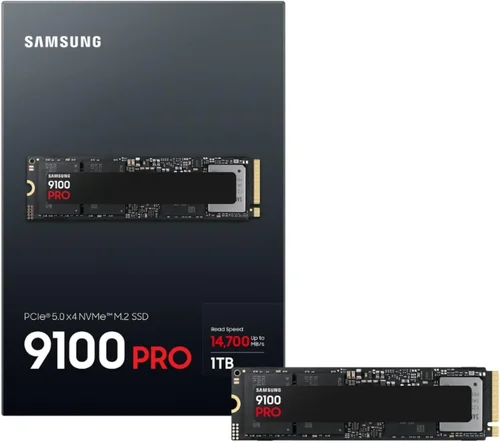
– Luxury ($200+ for 1TB): Cutting-edge PCIe 5.0 drives with extreme performance, massive capacities (up to 8TB), and enterprise-grade durability. These are overkill for most consumers but ideal for 8K video editing, AI workloads, or future-proofing high-end systems. Expect brands like Samsung, Corsair, and Solidigm to dominate this space.
Expert Tips for Getting the Best Deal
– Buy During Sales Cycles: SSD prices fluctuate throughout the year. The best deals typically occur in November (Black Friday), July (Prime Day), and January (post-holiday clearance). Set price alerts on sites like CamelCamelCamel or Honey to catch drops.
– Shop from Reputable Retailers: Stick to well-known stores like Amazon, Newegg, Best Buy, or direct from manufacturer websites. Avoid third-party sellers with low ratings or unclear return policies.
– Compare Total Cost of Ownership: Factor in warranty length, expected lifespan, and potential replacement costs. A $10 cheaper drive with a 3-year warranty may cost more in the long run than a $20 more expensive one with 5 years of coverage.
– Check Return and Exchange Policies: Ensure the retailer offers at least a 30-day return window. Some brands also allow direct returns if the drive fails under warranty.
– Test Before Committing: If possible, run benchmarking tools like CrystalDiskMark or AS SSD after installation to verify performance matches advertised specs.
– Consider Refurbished or Open-Box Deals: Certified refurbished SSDs from manufacturers often come with full warranties and can save you 20–30%. Just ensure they’re from official programs, not random resellers.
– Don’t Overbuy Capacity: A 2TB drive sounds great, but if you only need 1TB, you’re paying for unused space. Use cloud storage or external drives for overflow instead.
– Future-Proof Wisely: If you’re building a new PC, invest in a PCIe 4.0 or 5.0 compatible motherboard. This allows you to upgrade your SSD later without replacing the entire system.

Frequently Asked Questions
Q: Are all NVMe SSDs faster than SATA SSDs?
A: Not necessarily. While NVMe drives have higher potential speeds, real-world performance depends on your system and workload. For everyday tasks like web browsing or document editing, the difference may be negligible. However, for large file transfers, gaming, or video editing, NVMe’s speed advantage is significant.
Q: Can I use an SSD in an external enclosure?
A: Yes, but ensure the enclosure supports the SSD’s interface (SATA or NVMe) and has a fast connection like USB 3.2 Gen 2 or Thunderbolt 3/4. NVMe enclosures can deliver speeds up to 2,000 MB/s, rivaling internal drives.
Q: How long do SSDs typically last?
A: Most consumer SSDs last 5–10 years under normal use, thanks to high TBW ratings and wear-leveling algorithms. Heavy workloads may shorten lifespan, but modern drives are designed to outlast the typical upgrade cycle.
Q: Do I need to defragment an SSD?
A: No. Defragmentation is harmful to SSDs and unnecessary. Windows and macOS automatically optimize SSDs using TRIM commands, which maintain performance without wear.
Q: What’s the difference between TLC, MLC, and QLC NAND?
A: These refer to how many bits are stored per memory cell. TLC (3-bit) is common in consumer drives, offering a balance of speed, endurance, and cost. MLC (2-bit) is more durable but pricier. QLC (4-bit) is cheaper and higher capacity but slower and less durable. For most users, TLC is the best choice.
Q: Can I recover data from a failed SSD?
A: It’s possible but difficult and often expensive. Unlike HDDs, SSDs don’t always allow traditional data recovery methods. Regular backups are essential. Some manufacturers offer data recovery services, but success isn’t guaranteed.
Q: Should I fill my SSD to capacity?
A: No. SSDs need free space (at least 10–20%) for wear leveling and garbage collection. Filling a drive to 95% can drastically reduce performance and lifespan.
Q: Are SSDs safe from power outages?
A: Modern SSDs include power-loss protection circuits that prevent data corruption during sudden shutdowns. High-end models have capacitors that provide enough power to finish pending writes.
Q: Can I install an SSD in an old computer?
A: Yes, as long as it has a SATA port or an available M.2 slot. Even older systems benefit greatly from an SSD upgrade, with faster boot times and improved responsiveness.
Q: Do SSDs get slower over time?
A: They can, especially DRAM-less or QLC-based models under heavy use. However, features like SLC caching and TRIM help maintain performance. Regular maintenance and avoiding full capacity use minimize slowdowns.
Our Final Recommendations
– Best for Budget-Conscious Buyers: Crucial P3 1TB – A reliable PCIe 3.0 NVMe drive with DRAM, strong performance, and a 5-year warranty at an unbeatable price.
– Best Overall Value: Samsung 980 1TB – Combines excellent speeds, Samsung’s proven reliability, and competitive pricing. Ideal for gamers and general users.
– Best Premium Option: Samsung 990 Pro 2TB – Top-tier PCIe 4.0 performance, 1,200TBW endurance, and advanced thermal management. Perfect for professionals and enthusiasts.
– Best for Beginners: WD Blue SN580 1TB – Easy to install, reliable, and well-supported with WD Dashboard software. Great for first-time upgraders.
– Best for Advanced Users: SK hynix Platinum P41 2TB – One of the fastest consumer SSDs on the market, with exceptional efficiency and endurance. Ideal for power users and content creators.
Conclusion: Making the Right Choice
Choosing the best SSD isn’t just about picking the fastest or cheapest drive—it’s about finding the right balance of performance, reliability, and value for your specific needs. Whether you’re upgrading an old laptop, building a high-end gaming PC, or managing large media files, the right SSD can transform your computing experience.
Remember to prioritize compatibility, consider your workload, and don’t overlook long-term factors like warranty and endurance. Avoid common pitfalls like ignoring DRAM or overpaying for unnecessary speed. And always do your research—read reviews, compare specs, and take advantage of seasonal sales.
Ultimately, the best SSD for you is the one that fits your budget, meets your performance requirements, and comes from a brand you trust. With the insights and recommendations in this guide, you’re well-equipped to make a confident, informed decision. Upgrade wisely, and enjoy the speed, silence, and reliability that only a quality SSD can deliver.