
Internal SSDs have revolutionized how we store and access data, transforming everything from boot times to game loading speeds. Whether you’re upgrading an aging laptop, building a high-performance gaming rig, or equipping a workstation for creative professionals, choosing the right internal SSD is one of the most impactful decisions you can make. With so many brands, form factors, and technical specs flooding the market in 2026, it’s easy to feel overwhelmed. That’s why this comprehensive guide exists—to cut through the noise and help you make a smart, informed decision based on your actual needs, not marketing hype.
In this guide, you’ll learn exactly what separates a good SSD from a great one, how to decode performance metrics like sequential read/write speeds and IOPS, and which brands consistently deliver reliability and value. We’ll break down the key factors that matter most—from budget considerations to endurance ratings—and compare the different types of SSDs available today. You’ll also discover common pitfalls to avoid, expert-backed tips for getting the best deal, and our top recommendations across multiple categories. By the end, you won’t just know who makes the best internal SSDs—you’ll know why, and how to pick the perfect drive for your setup.
The internal SSD market in 2026 is more competitive than ever. Major players like Samsung, Western Digital, Crucial, Kingston, and SK Hynix continue to push the boundaries of speed and efficiency, while newer entrants like TeamGroup and Netac are shaking up the budget segment with surprisingly capable drives. NVMe PCIe Gen4 and even early Gen5 SSDs dominate the high-end, while SATA SSDs still hold strong for older systems or secondary storage. With prices dropping steadily and capacities climbing past 8TB for consumer models, there’s never been a better time to upgrade—but only if you choose wisely.
What to Look for When Buying Buying Guide
1. Budget & Price Range
Your budget is the first and most practical filter when shopping for an internal SSD. Prices vary dramatically based on capacity, interface (SATA vs. NVMe), generation (PCIe Gen3, Gen4, Gen5), and brand reputation. As of 2026, you can find reliable 1TB SATA SSDs for under $60, while high-end 2TB PCIe Gen5 drives may cost $300 or more. It’s tempting to go for the cheapest option, but skimping too much can mean sacrificing performance, endurance, or even data integrity.
Consider your use case: casual users browsing the web and streaming videos won’t need bleeding-edge speeds, but gamers, video editors, or developers working with large files will benefit significantly from faster NVMe drives. A good rule of thumb is to allocate at least 5–10% of your total system budget to storage—especially if it’s your primary drive. Also, watch for seasonal sales (like Black Friday or Amazon Prime Day) when premium drives often drop 20–30% in price.
2. Performance Specifications
Performance is where SSDs truly shine—and where confusion often begins. The two most commonly advertised metrics are sequential read/write speeds (measured in MB/s) and random input/output operations per second (IOPS). Sequential speeds matter most for large file transfers (like copying a 4K video), while random IOPS affect everyday responsiveness (opening apps, loading levels in games).
For NVMe drives in 2026, expect:
– PCIe Gen3: Up to ~3,500 MB/s read
– PCIe Gen4: Up to ~7,000 MB/s read
– PCIe Gen5: Up to ~14,000 MB/s read (though real-world gains may be modest for non-professional workloads)
However, raw speed isn’t everything. Sustained performance under load, thermal throttling behavior, and controller efficiency are equally important. High-end drives often include heatsinks or advanced thermal management to maintain peak speeds during extended use. Always check reviews that test real-world performance—not just synthetic benchmarks.
3. Build Quality & Durability
An SSD’s longevity depends heavily on its internal components: NAND flash type, controller quality, and whether it includes a DRAM cache. Look for drives using 3D TLC (triple-level cell) or MLC (multi-level cell) NAND—these are more durable and reliable than QLC (quad-level cell), which trades endurance for higher density and lower cost.
Endurance is measured in TBW (terabytes written)—the total amount of data that can be written to the drive over its lifetime. A 1TB drive with a 600 TBW rating can theoretically endure writing 600TB before failure. For context, the average user writes less than 20TB per year, so even modest TBW ratings are sufficient for most. But if you’re doing heavy video editing or database work, aim for higher TBW and consider enterprise-grade drives.
Physical build matters too. While SSDs have no moving parts, poor soldering or low-quality PCBs can lead to early failure. Stick with reputable manufacturers who disclose component details and undergo rigorous testing.
4. Features & Functionality
Modern SSDs come packed with features that go beyond basic storage. Full-disk encryption (like AES-256) is essential for laptops handling sensitive data. Power-loss protection ensures your data isn’t corrupted during unexpected shutdowns—a must for workstations. Some drives include proprietary software for monitoring health, updating firmware, or cloning your old drive.
Form factor is another functional consideration. The most common internal SSD form factors are:
– M.2 2280: Slim, stick-like drive that plugs directly into the motherboard. Ideal for laptops and compact builds.
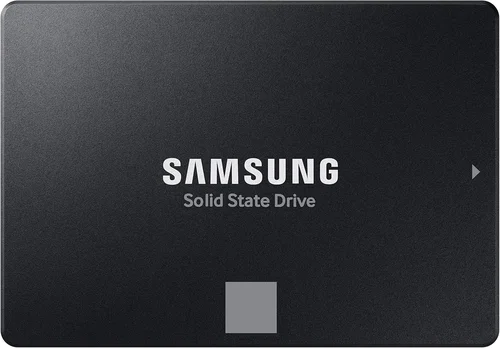
– 2.5-inch SATA: Traditional rectangular drive that connects via SATA cable. Common in older desktops and laptops.
– U.2: Less common, used mainly in servers and high-end workstations.
Ensure your system supports the interface and form factor you choose. Most modern motherboards support M.2 NVMe, but double-check your BIOS and physical space—some M.2 slots share bandwidth with SATA ports.
5. Brand Reputation
Not all SSD brands are created equal. Established names like Samsung, Western Digital, and Crucial have decades of storage expertise and invest heavily in R&D, quality control, and customer support. They consistently rank highest in reliability surveys and offer transparent specs.
That said, newer brands like TeamGroup, Netac, and Lexar have earned solid reputations in the budget and mid-range segments. Avoid completely unknown brands with vague specifications or no warranty—these are often rebrands of low-tier OEM drives with questionable NAND sourcing.
Look for brands that publish detailed datasheets, offer firmware updates, and have active community support. User forums like Reddit’s r/buildapc or Tom’s Hardware are great places to see real-world experiences.
6. Warranty & Support
Warranty length and terms are strong indicators of a manufacturer’s confidence in their product. Most consumer SSDs come with 3- to 5-year limited warranties. Samsung and Kingston often offer 5 years, while some budget drives may only provide 2–3 years.
Pay attention to warranty conditions. Some require registration, others void coverage if the drive exceeds its TBW limit. Also, check if the warranty includes data recovery services—rare, but valuable if you’re storing irreplaceable files.
Customer support quality varies widely. Samsung and Crucial offer responsive live chat and detailed troubleshooting guides. Lesser-known brands may only provide email support with slow response times. If you’re buying for a business or mission-critical system, prioritize brands with proven support infrastructure.
7. Compatibility & System Requirements
Before clicking “buy,” verify that your system can actually use the SSD you’re considering. For M.2 NVMe drives, ensure your motherboard has an available M.2 slot that supports NVMe (not just SATA). Older systems may only support PCIe Gen3, limiting the benefit of a Gen4 or Gen5 drive.
Laptops often have strict space and connector limitations. Some ultrabooks only accept single-sided M.2 drives or specific lengths (like 2242 instead of 2280). Check your device’s service manual or manufacturer specs.
Operating system compatibility is rarely an issue in 2026—Windows 11, macOS Sonoma, and modern Linux distributions all support NVMe out of the box. However, if you’re dual-booting or using legacy systems, confirm driver availability.
8. User Reviews & Real-World Testing
Spec sheets tell part of the story—real-world performance tells the rest. Always cross-reference manufacturer claims with independent reviews from trusted sources like AnandTech, Tom’s Hardware, or YouTube channels like Gamers Nexus. Look for tests that measure:
– Boot and application load times
– Game level loading
– File transfer consistency
– Thermal performance under sustained load
– Failure rates in long-term usage
User reviews on retail sites (Amazon, Newegg) can reveal hidden issues like inconsistent firmware, poor customer service, or early failures. Be wary of drives with overwhelmingly positive reviews that seem too uniform—they may be incentivized or fake.
Different Types of Buying Guide

Common Buying Mistakes to Avoid
❌ Mistake: Ignoring DRAM Cache
Why it’s bad: DRAM-less SSDs use system memory (HMB) or slower caching methods, which can cause significant slowdowns during sustained writes or multitasking. This leads to stuttering in games, laggy file operations, and reduced lifespan under heavy use.
What to do instead: Always choose an SSD with a dedicated DRAM cache unless you’re on an extremely tight budget and only doing light tasks like web browsing or document editing.
❌ Mistake: Overpaying for Gen5 Without Need
Why it’s bad: PCIe Gen5 SSDs offer incredible peak speeds, but most consumer applications—even gaming—don’t benefit noticeably from them yet. You’re paying a premium for performance you won’t fully utilize, and many Gen5 drives run hot without adequate cooling.
What to do instead: Stick with Gen4 unless you’re working with 8K video, large datasets, or building a future-proof workstation. Gen4 offers 95% of the real-world benefit at half the cost.
❌ Mistake: Choosing QLC NAND for Primary Drive
Why it’s bad: QLC (quad-level cell) NAND stores four bits per cell, increasing density but reducing write endurance and speed—especially during sustained writes. It’s prone to slowdowns once the SLC cache is exhausted.
What to do instead: Use QLC only for secondary storage (like media libraries). For your OS and applications, stick with TLC or MLC NAND for better performance and longevity.
❌ Mistake: Neglecting Thermal Management
Why it’s bad: High-speed NVMe drives generate significant heat. Without proper cooling, they throttle performance to prevent damage, negating their speed advantage. This is especially true in laptops or tightly packed PC cases.
What to do instead: Choose drives with built-in heatsinks or plan to add one. Ensure your case has adequate airflow, and avoid installing NVMe drives near GPU exhaust paths.
❌ Mistake: Buying Based Solely on Capacity
Why it’s bad: Larger drives often have better performance due to more NAND chips and parallelism, but blindly chasing capacity can waste money. A 4TB drive you’ll never fill costs more than necessary and may use less efficient NAND.
What to do instead: Assess your actual storage needs. Most users are fine with 1–2TB. Use cloud storage or external drives for archives, and keep your internal SSD for active projects and the OS.
❌ Mistake: Skipping Firmware Updates
Why it’s bad: Manufacturers regularly release firmware updates to fix bugs, improve performance, and enhance compatibility. Running outdated firmware can lead to instability or missed optimizations.
What to do instead: Register your drive and check for firmware updates every 6–12 months. Use the manufacturer’s official tool (like Samsung Magician or WD Dashboard) to apply updates safely.
❌ Mistake: Ignoring Return Policies
Why it’s bad: Even reputable brands can ship defective units. If you can’t return or exchange a faulty drive quickly, you risk data loss and downtime.
What to do instead: Buy from retailers with generous return windows (30+ days) and clear warranty processes. Avoid third-party sellers with unclear policies.
Budget Guidelines: How Much Should You Spend?
– Entry-Level ($40–$80 for 1TB): Ideal for basic computing, web browsing, and office work. Look for SATA or DRAM-less NVMe drives from brands like Kingston, Crucial, or TeamGroup. Expect modest speeds (500–2,000 MB/s) and limited endurance, but perfectly adequate for light use.
– Mid-Range ($80–$150 for 1TB): The sweet spot for most users. These are typically NVMe PCIe Gen3 or Gen4 drives with DRAM cache and TLC NAND. Brands like Samsung (980/990), WD Black SN770, and Crucial P5 Plus offer excellent performance, reliability, and 5-year warranties. Great for gaming, streaming, and general productivity.
– Premium ($150–$300 for 1TB): For enthusiasts and professionals. These include high-end Gen4 drives (like Samsung 990 Pro, WD Black SN850X) and early Gen5 options. Expect top-tier speeds, robust thermal designs, high TBW ratings, and advanced features like hardware encryption. Perfect for 4K/8K video editing, 3D rendering, and competitive gaming.
– Luxury ($300+ for 1TB): Reserved for extreme workloads or future-proofing. Includes flagship Gen5 drives (like Gigabyte AORUS Gen5 12000) and enterprise-grade consumer models. Often bundled with premium software, extended warranties, and elaborate heatsinks. Only justified if you regularly transfer multi-gigabyte files or need maximum IOPS.

Expert Tips for Getting the Best Deal
– Time your purchase: Major sales events like Black Friday, Cyber Monday, Amazon Prime Day, and back-to-school season offer the deepest discounts. SSD prices also tend to drop after new generations launch (e.g., when Gen5 arrived, Gen4 prices fell sharply).
– Buy from authorized retailers: Stick with Amazon (sold by Amazon, not third parties), Newegg, Best Buy, or direct from manufacturer websites. This ensures genuine products, valid warranties, and reliable return policies.
– Compare total cost of ownership: Factor in warranty length, expected lifespan, and performance. A $20 cheaper drive with half the TBW may cost more in the long run if it fails early.
– Check for bundle deals: Some manufacturers offer free cloning software, heatsinks, or extended warranties with purchase. Retailers like Micro Center sometimes include free installation or tech support.
– Monitor price history: Use tools like CamelCamelCamel (for Amazon) or Honey to track price trends and set alerts. Many SSDs fluctuate by $10–$30 weekly.
– Test before committing: If possible, buy one drive first to test compatibility and performance in your system before purchasing multiple units (e.g., for RAID setups).
– Consider refurbished/open-box: Certified refurbished SSDs from reputable sellers often come with full warranties and can save 20–40%. Just avoid drives with high power-on hours.
– Don’t forget the OS: If you’re building a new PC, factor in the cost of Windows or macOS. Some SSD bundles include OS licenses or migration tools.

Frequently Asked Questions
Q: Is NVMe always faster than SATA?
A: Yes, in terms of interface speed—NVMe leverages PCIe lanes for much higher bandwidth. However, for everyday tasks like web browsing or office work, the difference is barely noticeable. SATA is sufficient if your system doesn’t support NVMe or you’re on a tight budget.
Q: Do I need a heatsink for my M.2 SSD?
A: Not always, but highly recommended for Gen4 and Gen5 drives, especially in small form-factor PCs or laptops. Heatsinks prevent thermal throttling and maintain peak performance during sustained workloads.
Q: Can I use an SSD in an old computer?
A: Absolutely! SATA SSDs are backward-compatible with any system that has a SATA port—even decades-old machines. You’ll see massive improvements in boot and load times.
Q: How long do SSDs last?
A: Modern consumer SSDs typically last 5–10 years under normal use. With TBW ratings and wear-leveling algorithms, failure due to write exhaustion is rare. More often, drives fail from manufacturing defects or power surges.
Q: Should I fill my SSD to capacity?
A: No. SSDs need free space (10–20%) for garbage collection and wear leveling. Filling a drive near capacity slows it down and reduces lifespan.
Q: Are cheaper SSDs safe for my data?
A: Reputable budget brands are generally safe for personal use. Avoid no-name drives with no specs or warranty. Always back up critical data regardless of drive quality.
Q: Can I install an SSD alongside my HDD?
A: Yes! Many users keep their OS and apps on the SSD for speed and use the HDD for bulk storage like photos, videos, and backups.
Q: Does SSD speed affect gaming?
A: Indirectly. Faster SSDs reduce level load times and texture pop-in, especially in open-world games. But once a level is loaded, FPS is determined by your GPU and CPU—not storage speed.
Q: What’s the difference between Gen4 and Gen5?
A: Gen5 doubles the bandwidth of Gen4 (up to ~14,000 MB/s vs. ~7,000 MB/s). However, real-world gains are minimal for most users, and Gen5 drives require better cooling and compatible hardware.
Q: How do I clone my old drive to a new SSD?
A: Use free tools like Macrium Reflect, Clonezilla, or manufacturer-provided software (e.g., Samsung Data Migration). Connect both drives, clone the OS partition, then swap them in your system.
Our Final Recommendations
– Best for Budget-Conscious Buyers: Crucial P3 1TB (PCIe Gen3 NVMe) – Reliable, DRAM-cached, and consistently priced under $70. Great for upgrading older systems without breaking the bank.
– Best Overall Value: Samsung 980 (1TB, PCIe Gen3) – Proven performance, excellent endurance, and Samsung’s legendary reliability. Often on sale for under $80.
– Best Premium Option: Samsung 990 Pro 2TB (PCIe Gen4) – Top-tier speeds (~7,450 MB/s), robust heatsink design, 1,200 TBW endurance, and 5-year warranty. Ideal for creators and gamers.
– Best for Beginners: WD Blue SN580 1TB (PCIe Gen4) – Simple setup, solid performance, and WD’s user-friendly dashboard. No-frills reliability for first-time upgraders.
– Best for Advanced Users: SK Hynix Platinum P41 2TB (PCIe Gen4) – Consistently ranks #1 in performance benchmarks, with exceptional power efficiency and a 700 TBW rating. A favorite among tech enthusiasts.
Conclusion: Making the Right Choice
Choosing the best internal SSD in 2026 isn’t about picking the fastest or most expensive drive—it’s about matching the right technology to your specific needs, budget, and system capabilities. Whether you’re breathing new life into an old laptop with a SATA SSD or building a cutting-edge rig with a Gen5 powerhouse, the key is informed decision-making. Prioritize reliability, compatibility, and real-world performance over flashy specs. Remember: a well-chosen SSD doesn’t just store your files—it transforms how you experience your entire system.
Take the time to assess your usage patterns, read independent reviews, and consider total cost of ownership. And don’t rush: with prices trending downward and technology evolving rapidly, waiting a few weeks for a sale or newer model can pay big dividends. When you do buy, choose a trusted brand, protect your investment with backups, and enjoy the instant responsiveness that only solid-state storage can deliver. Your future self—and your faster-booting, quicker-loading machine—will thank you.