
[FEATURED_IMAGE_PLACEOLDER]
Upgrading to a solid-state drive (SSD) is one of the most impactful performance improvements you can make to any computer—whether it’s a laptop, desktop, or even a gaming rig. The speed boost, reduced boot times, and overall snappiness are game-changers. But here’s the catch: simply installing a new SSD isn’t enough. You need to transfer your operating system, applications, settings, and personal files from your old drive to the new one. That’s where SSD migration software comes in.
This process—known as disk cloning or system migration—can be tricky if done manually. Copying files isn’t enough; you need to replicate the entire system structure, including boot sectors, partitions, and hidden recovery data. Without the right tools, you risk ending up with a drive that won’t boot, corrupted data, or hours of reinstalling Windows or macOS from scratch. That’s why choosing the best SSD migration software is critical. It saves time, reduces frustration, and ensures a seamless transition.
In this comprehensive guide, we’ll walk you through everything you need to know to select the ideal SSD migration software in 2026. Whether you’re a tech-savvy enthusiast, a casual user upgrading your laptop, or a professional managing multiple systems, this guide will help you make an informed decision. We’ll cover key selection criteria, compare different types of software, highlight common pitfalls, break down pricing tiers, and offer expert tips to get the best value. By the end, you’ll have a clear roadmap to pick the right tool for your needs—and migrate your SSD like a pro.
The market for SSD migration tools has evolved significantly over the past few years. What started as basic disk-copying utilities has grown into sophisticated software suites offering intelligent cloning, sector-by-sector duplication, OS optimization, and even cloud integration. With brands like Acronis, EaseUS, Macrium, and Samsung leading the charge, users now have more options than ever. However, this abundance of choice can be overwhelming. Some tools are free but limited; others are powerful but expensive. Some work flawlessly with specific hardware; others offer broad compatibility. Our goal is to cut through the noise and help you find the software that delivers reliability, ease of use, and performance—without breaking the bank.
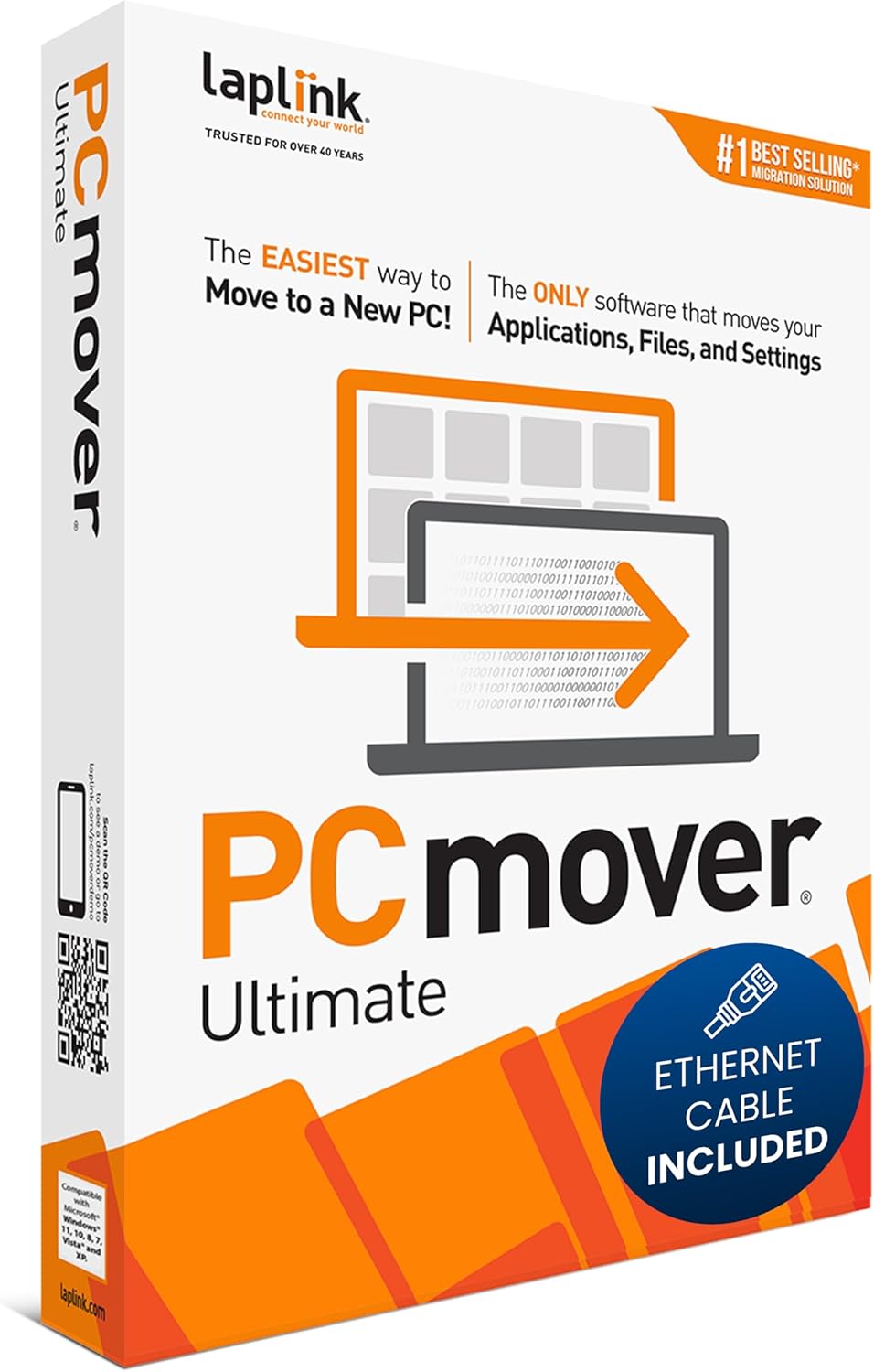
What to Look for When Buying SSD Migration Software
1. Compatibility with Your Operating System
One of the most fundamental factors to consider is whether the software supports your operating system. Most SSD migration tools are designed for Windows, but macOS users need specialized solutions, and Linux users may require open-source or command-line alternatives. Even within Windows, compatibility can vary—some software only supports Windows 10 and 11, while others extend support back to Windows 7 or even Vista.
For example, if you’re running Windows 11 on a modern laptop with an NVMe SSD, you’ll want software that recognizes NVMe drives and supports UEFI boot modes. On the other hand, if you’re cloning a legacy system with an older SATA drive and BIOS firmware, you need a tool that can handle MBR partitioning. macOS users should look for tools that support APFS and Time Machine backups, such as Carbon Copy Cloner or SuperDuper!.
Always check the software’s system requirements before purchasing or downloading. A mismatch here can render the tool useless, no matter how feature-rich it is. Additionally, consider whether the software supports both 32-bit and 64-bit systems, especially if you’re working with older hardware.
2. Drive Support and Cloning Flexibility
Not all SSDs are created equal, and neither are all cloning tools. The best SSD migration software should support a wide range of drive types, including SATA SSDs, NVMe M.2 drives, external USB drives, and even hybrid drives (SSHDs). It should also handle different file systems—NTFS, FAT32, exFAT, APFS, ext4, and more—depending on your platform.
More importantly, look for cloning flexibility. Some tools offer sector-by-sector cloning, which copies every byte of data—even unused space—ensuring an exact replica. This is useful for forensic or archival purposes but can be slow and unnecessary for most users. Others use intelligent cloning, which only copies used sectors, speeding up the process and allowing you to clone a larger drive to a smaller SSD as long as there’s enough free space.
Another key feature is partition resizing. When migrating to a smaller SSD, the software should automatically resize partitions to fit the new drive. Conversely, when upgrading to a larger drive, it should offer options to expand partitions and utilize the extra space. Tools like Macrium Reflect and Acronis True Image excel in this area, offering dynamic partition management during the cloning process.
3. Ease of Use and User Interface
No one wants to spend hours deciphering a complex interface or reading a 50-page manual just to clone a drive. The best SSD migration software strikes a balance between power and simplicity. A clean, intuitive user interface (UI) with step-by-step wizards can make the process accessible even to beginners.
Look for features like drag-and-drop cloning, one-click migration, and visual drive mapping. Some tools offer a “clone this drive” button that automates the entire process—ideal for users who just want to upgrade without technical hassle. Others provide advanced options for power users, such as scheduling, scripting, and command-line support.
For example, EaseUS Todo Backup uses a straightforward wizard that guides users through selecting source and destination drives, adjusting partition sizes, and starting the clone. In contrast, tools like Clonezilla are powerful but require technical knowledge and command-line input, making them less suitable for casual users.
4. Performance and Speed
Speed matters—especially when you’re cloning multi-terabyte drives. The best SSD migration software minimizes downtime by optimizing read/write operations and leveraging hardware acceleration where possible. Look for tools that support multi-threading, SSD TRIM commands, and direct memory access (DMA) to maximize transfer rates.
Some software also includes performance-enhancing features like defragmentation before cloning, which can improve SSD lifespan and speed. Others offer incremental cloning, allowing you to update the destination drive with only the changes made since the last clone—ideal for regular backups.
Real-world performance can vary based on your hardware. A high-end NVMe SSD paired with a fast CPU and ample RAM will see the biggest gains from optimized software. However, even on older systems, efficient algorithms can make a noticeable difference. Always check benchmarks and user reviews for real-world speed tests.
5. Data Security and Reliability
When you’re copying your entire operating system and personal files, data integrity is paramount. The last thing you want is a corrupted clone that won’t boot or loses critical files. The best SSD migration software includes built-in error checking, checksum verification, and rollback capabilities.
Look for tools that offer verification after cloning—comparing the source and destination drives byte-for-byte to ensure accuracy. Some software even creates a recovery image or bootable rescue media, so you can restore your system if something goes wrong.
Encryption support is another important consideration, especially for business users or those handling sensitive data. Tools like Acronis True Image offer AES-256 encryption for both source and destination drives, ensuring your data remains secure during and after migration.
6. Additional Features and Value-Added Tools
While core cloning functionality is essential, many SSD migration tools come with bonus features that enhance their value. These can include:
– Backup and restore: Full system backups, incremental backups, and cloud storage integration.
– Disk imaging: Creating ISO-like images of your drive for archival or disaster recovery.
– Scheduling: Automating regular backups or clones.
– Bootable rescue media: USB or CD/DVD tools to recover or clone systems that won’t boot.
– Partition management: Resizing, merging, or splitting partitions without data loss.
– SSD optimization: Enabling TRIM, aligning partitions, and disabling hibernation for better performance.
For example, Macrium Reflect Free offers robust imaging and scheduling, while Samsung Data Migration includes SSD-specific optimization tools for Samsung drives. These extras can turn a simple cloning tool into a comprehensive system management suite.
7. Pricing and Licensing Model
SSD migration software ranges from completely free to several hundred dollars, depending on features and licensing. Free versions often come with limitations—such as no support for dynamic disks, no incremental backups, or branding on cloned drives. Paid versions typically offer full functionality, priority support, and regular updates.
Consider whether you need a one-time purchase or a subscription model. Some tools, like Acronis True Image, use a subscription-based approach with cloud storage included. Others, like EaseUS Todo Backup, offer perpetual licenses with optional paid upgrades.
Also, check the licensing terms. Can you use the software on multiple machines? Is it tied to a specific hardware ID? Business users should look for volume licensing options, while home users may prefer single-device licenses.
8. Customer Support and Documentation
Even the best software can run into issues—especially during critical operations like system migration. Reliable customer support can mean the difference between a quick fix and hours of frustration. Look for vendors that offer multiple support channels: email, live chat, phone, and community forums.
Comprehensive documentation is equally important. Step-by-step guides, video tutorials, FAQs, and troubleshooting tips can help you resolve common issues without contacting support. Some companies, like Acronis and Macrium, maintain extensive knowledge bases and active user communities.
Additionally, check update frequency. Regular software updates indicate active development and responsiveness to user feedback. A tool that hasn’t been updated in over a year may lack support for newer hardware or operating systems.
Different Types of SSD Migration Software
Common Buying Mistakes to Avoid
❌ Mistake: Choosing Software Based Solely on Price
Why it’s bad: While budget is important, opting for the cheapest or free option can lead to data loss, failed clones, or compatibility issues. Free tools often lack critical features like partition resizing, boot verification, or customer support.
What to do instead: Evaluate the total value—features, reliability, and support—not just the price tag. A $50 tool that works flawlessly is better than a free one that corrupts your system.
❌ Mistake: Ignoring Drive Compatibility
Why it’s bad: Not all software supports NVMe, M.2, or external USB drives. Using incompatible tools can result in unrecognized drives or failed migrations.
What to do instead: Verify that the software explicitly supports your SSD type and connection interface before purchasing.
❌ Mistake: Skipping Backup Before Cloning
Why it’s bad: Cloning overwrites the destination drive. If something goes wrong, you could lose both your original and cloned data.
What to do instead: Always create a full backup of your important files before starting the migration process.
❌ Mistake: Not Testing the Cloned Drive
Why it’s bad: A cloned drive may appear successful but fail to boot due to partition misalignment or missing boot files.
What to do instead: After cloning, disconnect the old drive and test booting from the new SSD to ensure everything works.
❌ Mistake: Overlooking Post-Migration Optimization
Why it’s bad: SSDs require specific settings like TRIM and proper alignment to perform optimally. Cloning without optimization can reduce speed and lifespan.
What to do instead: Use software that includes SSD optimization tools or manually enable TRIM and check alignment after migration.
❌ Mistake: Assuming All Cloning Tools Are Equal
Why it’s bad: Features vary widely—some tools can’t clone dynamic disks, others lack scheduling, and many don’t support UEFI.
What to do instead: Compare feature lists and read reviews to find a tool that matches your specific needs.
❌ Mistake: Not Checking for Updates
Why it’s bad: Outdated software may not support newer operating systems or hardware, leading to compatibility issues.
What to do instead: Choose vendors with a track record of regular updates and long-term support.
Budget Guidelines: How Much Should You Spend?
– Entry-Level ($0 – $30): Ideal for casual users performing a one-time upgrade. Free tools like Macrium Reflect Free or Samsung Data Migration offer solid basic functionality. Expect limited features, no customer support, and potential branding on cloned drives.
– Mid-Range ($30 – $80): The sweet spot for most home users. Tools like EaseUS Todo Backup Professional or Acronis True Image Standard provide advanced cloning, scheduling, imaging, and reliable support. These offer the best balance of price and performance.
– Premium ($80 – $150): For power users and small businesses. Software like Acronis True Image Premium or Paragon Hard Disk Manager includes cloud backup, ransomware protection, and centralized management. Ideal for those who value data security and automation.
– Luxury ($150+): Enterprise-grade solutions such as Acronis Cyber Protect or Veeam Agent for Windows. These are designed for IT professionals managing multiple systems, offering deployment tools, compliance reporting, and 24/7 support.

Expert Tips for Getting the Best Deal
– Buy during seasonal sales: Look for discounts during Black Friday, Cyber Monday, or back-to-school periods. Major vendors often offer 30–50% off.
– Check manufacturer websites: Sometimes, SSD makers offer exclusive deals on their migration software when purchased with a drive.
– Use free trials: Most paid tools offer 30-day trials. Test them on a non-critical system before committing.
– Read user reviews: Sites like Trustpilot, Reddit, and tech forums provide real-world insights into reliability and ease of use.
– Prioritize lifetime licenses: Avoid subscription models if you only need the software once. Look for perpetual licenses.
– Verify return policies: Ensure you can get a refund if the software doesn’t work with your setup.
– Update your BIOS: Before cloning, ensure your system firmware supports the new SSD, especially for NVMe drives.
– Use a USB-to-SATA adapter: For laptops, connect the new SSD externally to clone without opening the device.

Frequently Asked Questions
Q: Can I clone a larger HDD to a smaller SSD?
A: Yes, as long as the used space on the HDD is less than the SSD’s capacity. Intelligent cloning tools like EaseUS or Macrium will resize partitions automatically.
Q: Will cloning transfer my Windows license?
A: Yes, Windows licenses are tied to your Microsoft account or motherboard, not the drive. Cloning preserves activation.
Q: Do I need to format the new SSD before cloning?
A: No. The cloning process will overwrite the destination drive, including formatting and partitioning.
Q: Can I use SSD migration software on a Mac?
A: Yes, but you need macOS-compatible tools like Carbon Copy Cloner, SuperDuper!, or ChronoSync. Windows tools won’t work.
Q: How long does SSD migration take?
A: It depends on data size and drive speed. A 500GB clone typically takes 20–45 minutes on modern NVMe drives.
Q: What if the cloned drive won’t boot?
A: Check BIOS boot order, ensure UEFI/legacy settings match, and verify that the boot partition was copied. Use recovery media to repair if needed.
Q: Can I clone only my OS and not all files?
A: Most tools clone the entire drive, but some allow selective cloning of partitions. For OS-only migration, consider imaging and restoring just the system partition.
Q: Is it safe to clone over USB?
A: Yes, but USB 3.0 or higher is recommended for speed. Ensure the connection is stable to avoid interruptions.
Q: Do I need to enable TRIM after cloning?
A: TRIM should be enabled automatically in Windows 10/11, but you can verify with the command fsutil behavior query DisableDeleteNotify in Command Prompt.
Q: Can I use the old HDD as a backup after cloning?
A: Absolutely. Once confirmed the SSD works, you can reformat the old drive and use it for storage or backups.
Our Final Recommendations
– Best for Budget-Conscious Buyers: Macrium Reflect Free – Reliable, feature-rich, and completely free for personal use. Great for basic cloning and imaging.
– Best Overall Value: EaseUS Todo Backup Professional – Affordable, user-friendly, and packed with features like scheduling, incremental backups, and bootable rescue media.
– Best Premium Option: Acronis True Image Premium – Top-tier security, cloud integration, and ransomware protection. Ideal for users who prioritize data safety.
– Best for Beginners: Samsung Data Migration – Simple, one-click cloning optimized for Samsung SSDs. Perfect for first-time upgraders.
– Best for Advanced Users: Clonezilla – Free, open-source, and highly customizable. Best for Linux users and IT professionals who need full control.
Conclusion: Making the Right Choice
Choosing the best SSD migration software isn’t just about picking the most popular or expensive tool—it’s about finding the right fit for your technical skill level, hardware setup, and budget. Whether you’re upgrading a single laptop or managing a fleet of workstations, the right software can make the process smooth, safe, and stress-free.
Remember to prioritize compatibility, ease of use, and data reliability. Don’t skimp on features that protect your system, and always test your cloned drive before retiring the old one. With the insights and recommendations in this guide, you’re well-equipped to make a confident decision.
Take the time to evaluate your needs, compare options, and choose a tool that will serve you well—not just today, but for future upgrades too. Your data deserves the best care, and with the right SSD migration software, you can ensure a seamless transition to faster, more reliable storage.