
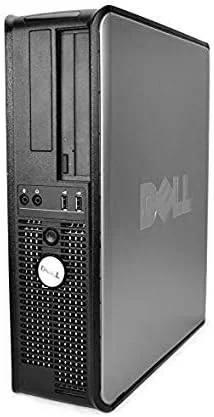
Upgrading your Dell OptiPlex 780 with a solid-state drive (SSD) is one of the most impactful performance improvements you can make to an aging but still capable desktop system. Released in 2009, the OptiPlex 780 was built during the era of traditional hard disk drives (HDDs), and while it may feel sluggish by today’s standards, a modern SSD can breathe new life into it—transforming boot times, application loading, and overall system responsiveness. Whether you’re using it for basic office tasks, light multimedia work, or even as a home server, an SSD upgrade is a cost-effective way to extend the useful life of this reliable business-class machine.
This comprehensive buying guide is designed specifically for OptiPlex 780 owners who want to make an informed, future-proof decision when selecting an SSD. You’ll learn not only which drives are compatible, but also how to evaluate performance, durability, value, and long-term reliability. We’ll walk you through every critical factor—from interface compatibility and form factor to real-world speed benchmarks and warranty considerations—so you can confidently choose the best SSD for your needs and budget. With the SSD market evolving rapidly and prices continuing to drop, now is an excellent time to upgrade. This guide cuts through the noise and delivers expert-level advice tailored to your specific system.
The SSD landscape today is vast and varied, offering everything from budget SATA drives to high-performance NVMe options. However, the Dell OptiPlex 780 presents unique constraints due to its age and hardware limitations. It lacks native M.2 or NVMe support, meaning your options are primarily limited to 2.5-inch SATA SSDs connected via the existing SATA II (3 Gbps) interface. While this caps theoretical speeds at around 300 MB/s—well below what modern SSDs can deliver—the real-world improvement over a mechanical HDD is still dramatic. In this guide, we’ll help you navigate these limitations while maximizing value, performance, and longevity. By the end, you’ll have a clear roadmap to selecting, installing, and optimizing the perfect SSD for your OptiPlex 780.

What to Look for When Buying Buying Guide
1. Interface Compatibility
The most critical factor when choosing an SSD for your Dell OptiPlex 780 is ensuring it matches the system’s storage interface. The OptiPlex 780 uses the SATA II (Serial ATA 3 Gbps) standard, which is slower than modern SATA III (6 Gbps) but still fully compatible with SATA III SSDs—they simply operate at the lower speed. This means you can safely install any 2.5-inch SATA SSD, but you won’t benefit from the full speed potential of newer drives. It’s important to avoid NVMe or M.2 drives unless you plan to use a PCIe adapter (which we’ll discuss later), as the motherboard does not natively support them. Always verify that the SSD you’re considering uses the standard SATA data and power connectors found in the OptiPlex 780.
2. Form Factor and Physical Fit
The OptiPlex 780 supports 2.5-inch SSDs, but you’ll need to consider how to mount them since the case is designed for 3.5-inch drives. Most 2.5-inch SSDs come with mounting brackets or can be secured using adhesive pads or rubber grommets. Alternatively, you can purchase a 2.5-inch to 3.5-inch adapter bracket (often included with SSD kits or available for under $10). Ensure the SSD’s thickness is 7mm or 9.5mm—standard sizes that fit comfortably in most desktop bays. Avoid ultra-slim 5mm drives unless you confirm clearance, as some may require additional spacers. Physical fit is rarely an issue, but it’s worth double-checking dimensions if you’re using a compact or custom case modification.
3. Storage Capacity Needs
Determining the right SSD capacity depends on your usage. For basic tasks like web browsing, email, and office applications, a 240GB or 256GB drive is sufficient and offers excellent value. If you plan to store media files, games, or development environments, consider 500GB or 1TB options. Keep in mind that SSDs perform best when they have at least 10–20% free space, so avoid filling the drive to capacity. Also, larger SSDs often have better endurance and slightly faster write speeds due to more NAND chips and better wear-leveling algorithms. For the OptiPlex 780, we recommend starting at 256GB as a practical minimum, with 500GB being the sweet spot for most users.
4. Performance Specifications
While the SATA II interface limits peak speeds, you should still look for SSDs with strong real-world performance. Focus on sequential read/write speeds (ideally 500+ MB/s read, even if capped by SATA II) and random 4K read/write IOPS (Input/Output Operations Per Second), which affect everyday responsiveness. Drives with DRAM caches generally offer better sustained performance and longevity. Avoid DRAM-less SSDs if possible, especially for systems used frequently or for multitasking. Although the OptiPlex 780 won’t reach the full potential of high-end SSDs, choosing a drive with robust internal architecture ensures smoother operation and longer lifespan.
5. Endurance and Durability
SSD endurance is measured in terabytes written (TBW) or drive writes per day (DWPD). For a desktop like the OptiPlex 780 used in typical office or home environments, even modest endurance ratings (e.g., 150–300 TBW for a 500GB drive) are more than sufficient. However, if you plan to use the system for heavy file transfers, video editing, or as a server, opt for higher-endurance models. Look for SSDs with 3D NAND technology, which offers better density and longevity than older planar NAND. Also, check for power-loss protection if reliability is a top concern, though this is more common in enterprise drives.
6. Brand Reputation and Reliability
Stick with reputable brands known for consistent quality and firmware support. Top-tier manufacturers like Samsung, Crucial, Kingston, Western Digital, and SanDisk have proven track records in the consumer SSD market. These brands often provide better error correction, longer warranties, and more reliable firmware updates. Avoid no-name or ultra-budget drives from unknown brands, as they may use inferior NAND or lack proper quality control. Reading professional reviews and user feedback can help identify models with a history of stability and performance.
7. Warranty and Support
A good warranty is a strong indicator of a manufacturer’s confidence in their product. Most quality SSDs come with 3- to 5-year limited warranties, often tied to both time and TBW limits. For example, a 500GB drive might offer a 5-year warranty or 300 TBW, whichever comes first. Check the fine print: some warranties require registration, and others may not cover data recovery. Dell’s own support for the OptiPlex 780 has long ended, so relying on the SSD manufacturer’s support is essential. Choose brands with accessible customer service and clear warranty terms.
8. Price-to-Performance Ratio
With SSD prices at historic lows, it’s tempting to go for the cheapest option. However, the best value often lies in mid-range drives that balance cost, performance, and longevity. As of 2026, expect to pay around $20–$30 for a 256GB SATA SSD, $35–$50 for 500GB, and $60–$90 for 1TB. Avoid drives priced significantly below market average—they may use recycled NAND or lack essential features like DRAM. Instead, look for deals from trusted retailers during sales events like Black Friday, Prime Day, or back-to-school promotions.
Different Types of Buying Guide

Common Buying Mistakes to Avoid

❌ Mistake: Buying an NVMe SSD Without an Adapter
Why it’s bad: The Dell OptiPlex 780 does not have M.2 slots or native NVMe support. Installing an NVMe SSD directly will result in it not being detected by the system. While PCIe adapters exist, they require an available PCIe x1 or x16 slot and may not offer full performance due to bandwidth sharing.
What to do instead: Stick with 2.5-inch SATA SSDs unless you’re comfortable with hardware modifications. If you want NVMe speeds, research compatible PCIe adapters and ensure your BIOS can boot from them.
❌ Mistake: Choosing a DRAM-less SSD for Daily Use
Why it’s bad: DRAM-less SSDs use system memory (HMB) or rely on slower caching methods, which can lead to performance drops during sustained writes or multitasking. Over time, this can reduce responsiveness and lifespan.
What to do instead: Prioritize SSDs with dedicated DRAM caches, such as the Samsung 870 EVO or Crucial MX500. The performance and longevity benefits far outweigh the small price difference.
❌ Mistake: Overlooking Physical Installation Requirements
Why it’s bad: The OptiPlex 780’s drive bays are designed for 3.5-inch drives. A 2.5-inch SSD won’t stay secure without proper mounting, risking disconnection or damage.
What to do instead: Purchase a 2.5-inch to 3.5-inch mounting bracket or use double-sided mounting tape. Many SSD kits include these adapters—check the product description before buying.
❌ Mistake: Ignoring Power Connector Compatibility
Why it’s bad: Some older systems have limited SATA power connectors. If your OptiPlex 780 only has one free power cable, you may need a splitter or Molex-to-SATA adapter.
What to do instead: Check your existing power supply connections before purchasing. Most modern PSUs have multiple SATA power outputs, but it’s wise to verify. Use quality adapters to avoid voltage drops.
❌ Mistake: Buying Based Solely on Price
Why it’s bad: Extremely cheap SSDs often use lower-grade NAND, lack DRAM, or have poor firmware. This can lead to data corruption, slow performance, or premature failure.
What to do instead: Focus on value, not just cost. A $45 500GB SSD from a reputable brand is a better long-term investment than a $25 no-name drive.
❌ Mistake: Not Checking BIOS Boot Order
Why it’s bad: After installing the SSD, the system may still boot from the old HDD if the boot order isn’t updated, negating the upgrade.
What to do instead: Enter BIOS (usually by pressing F2 during startup), navigate to the Boot tab, and set the SSD as the first boot device. Save and exit.
❌ Mistake: Skipping Data Migration or Fresh Install
Why it’s bad: Cloning a fragmented or bloated HDD to an SSD can carry over inefficiencies. A fresh OS install often yields better performance and cleaner operation.
What to do instead: Consider a clean installation of your operating system. Use tools like Macrium Reflect or Samsung Data Migration for cloning if preferred, but defragment and clean the source drive first.
Budget Guidelines: How Much Should You Spend?
Entry-Level ($20–$40): This tier is ideal for users on a tight budget or those upgrading a secondary machine. Expect 240GB–500GB capacities from brands like Kingston, PNY, or budget lines from Crucial. These drives are reliable for basic tasks but may lack DRAM or have lower endurance. Perfect for light office work, web browsing, and casual use.
Mid-Range ($40–$70): The sweet spot for most OptiPlex 780 users. Drives like the Samsung 870 EVO 500GB, Crucial MX500 500GB, or WD Blue 3D NAND offer excellent performance, DRAM caches, and 5-year warranties. This range provides the best balance of speed, capacity, and longevity for everyday productivity and multitasking.
Premium ($70–$120): For power users or those planning to keep the system for several more years. 1TB models from top brands deliver maximum storage, high TBW ratings, and advanced features like power-loss protection. Ideal if you store large files, run virtual machines, or use the system as a media server.
Luxury ($120+): While unnecessary for the OptiPlex 780’s SATA II limits, this tier includes high-end SATA SSDs or NVMe setups with PCIe adapters. Only recommended for enthusiasts who want to future-proof or experiment with performance tuning. Realistically, spending beyond $100 offers diminishing returns on this platform.
Expert Tips for Getting the Best Deal
– Buy during seasonal sales: Major retailers like Amazon, Newegg, and Best Offer deep discounts during Black Friday, Cyber Monday, Prime Day, and back-to-school seasons. Sign up for price alerts using tools like CamelCamelCamel or Honey.
– Compare prices across retailers: Don’t assume Amazon has the lowest price. Check B&H Photo, Micro Center, and even Dell’s refurbished store for competitive deals. Micro Center often price-matches and offers in-store pickup.
– Look for bundle deals: Some SSDs come with free cloning software, mounting brackets, or SATA cables. These add-ons can save you $10–$20 in accessories.
– Check for open-box or refurbished units: Reputable sellers like Amazon Renewed or Best Buy Outlet offer certified pre-owned SSDs at 20–40% off. Ensure they include full warranties.
– Verify warranty terms before buying: Some brands require online registration within 30 days to activate the warranty. Keep your receipt and serial number handy.
– Test the SSD after installation: Use tools like CrystalDiskMark or AS SSD Benchmark to confirm performance. Also, check SMART status with CrystalDiskInfo to ensure the drive is healthy.
– Enable TRIM in your OS: TRIM helps maintain SSD performance over time. On Windows, open Command Prompt as admin and type fsutil behavior query DisableDeleteNotify. If it returns 0, TRIM is enabled.
– Consider future upgrades: If you plan to replace the OptiPlex 780 soon, a 500GB SSD offers the best portability and reuse value across systems.

Frequently Asked Questions
Q: Can I install an NVMe SSD in my Dell OptiPlex 780?
A: Not natively. The OptiPlex 780 lacks M.2 slots and does not support NVMe booting in its BIOS. However, you can use a PCIe-to-M.2 adapter card in an available PCIe slot. Note that this may not provide full NVMe speeds due to PCIe 2.0 x1 bandwidth limits (around 500 MB/s), and boot support depends on BIOS compatibility.
Q: Will a 1TB SSD be overkill for my OptiPlex 780?
A: Not necessarily. While 1TB is larger than most users need, it offers better longevity and performance due to more NAND chips and wear-leveling efficiency. If you store media, backups, or development files, 1TB is a smart investment. Prices have dropped significantly, making it a cost-effective upgrade.
Q: Do I need to reinstall Windows after installing the SSD?
A: Not always. You can clone your existing HDD to the SSD using software like Macrium Reflect Free or Acronis True Image. However, a fresh Windows installation often yields better performance and fewer legacy issues. Back up your data before either method.
Q: How do I know if my OptiPlex 780 supports SATA III SSDs?
A: The OptiPlex 780 officially supports only SATA II (3 Gbps). However, SATA III SSDs are backward compatible and will work at SATA II speeds. You won’t get the full benefit of SATA III, but the SSD will still perform far better than an HDD.
Q: Can I use the SSD as a secondary drive?
A: Yes. You can install the SSD alongside your existing HDD. Use the SSD for the operating system and frequently used programs, and the HDD for bulk storage. This hybrid approach maximizes speed and capacity.
Q: What’s the difference between TLC and QLC NAND?
A: TLC (Triple-Level Cell) stores 3 bits per cell and offers better endurance and performance than QLC (Quad-Level Cell), which stores 4 bits. For the OptiPlex 780, TLC is preferred for daily use. QLC drives are cheaper but wear out faster under heavy writes.
Q: How long will an SSD last in my OptiPlex 780?
A: With typical home or office use, a quality SSD should last 5–10 years. Most 500GB drives have a TBW rating of 150–300 TB. Unless you’re writing terabytes of data daily, endurance won’t be a concern.
Q: Do I need to enable AHCI mode in BIOS?
A: The OptiPlex 780 typically defaults to AHCI mode, which is optimal for SSDs. If your system is set to IDE mode, change it to AHCI in BIOS for better performance. Be aware that switching modes after OS installation may require registry edits to avoid boot errors.
Q: Can I use a USB-to-SATA adapter to test the SSD before installing?
A: Yes. Connect the SSD via USB to another computer to verify it’s recognized and functional. This is especially useful if you’re buying used or refurbished. However, USB 3.0 speeds may bottleneck performance testing.
Q: Will an SSD improve gaming performance on the OptiPlex 780?
A: It will reduce load times and improve level streaming, but the OptiPlex 780’s aging CPU and integrated graphics will remain the primary bottleneck. For light or retro gaming, an SSD makes a noticeable difference.
Our Final Recommendations
Best for Budget-Conscious Buyers: Kingston A400 480GB – At around $35, this drive offers reliable performance, decent endurance, and easy installation. It lacks DRAM but is sufficient for basic tasks and comes with a 3-year warranty.
Best Overall Value: Samsung 870 EVO 500GB – The gold standard for SATA SSDs. With a DRAM cache, 3D TLC NAND, and a 5-year warranty, it delivers exceptional reliability and performance—even on SATA II. Priced around $50, it’s the top choice for most users.
Best Premium Option: Crucial MX500 1TB – Offers high capacity, excellent endurance (650 TBW), and consistent performance. Ideal for users who want maximum storage and longevity. Often available under $90, it’s a future-proof investment.
Best for Beginners: WD Blue 3D NAND 500GB – User-friendly, widely available, and backed by Western Digital’s strong support. Includes Acronis cloning software and a 5-year warranty. Great for first-time upgraders.
Best for Advanced Users: Samsung 970 EVO Plus 1TB + PCIe Adapter – For those willing to experiment, this NVMe setup via a PCIe x1 adapter can push speeds beyond SATA II limits. Requires technical know-how but offers a glimpse into modern SSD performance.
Conclusion: Making the Right Choice
Upgrading your Dell OptiPlex 780 with an SSD is a smart, cost-effective way to modernize a trusted workhorse. While the system’s SATA II interface imposes speed limits, the real-world benefits—faster boots, quicker app launches, and smoother multitasking—are undeniable. By focusing on compatibility, reliability, and value, you can select an SSD that delivers years of dependable service.
Remember to prioritize drives with DRAM caches, reputable brands, and adequate capacity for your needs. Avoid common pitfalls like incompatible form factors or overlooked BIOS settings. And don’t forget to take advantage of seasonal sales and bundle deals to maximize your investment.
Whether you’re reviving an old office PC, setting up a home server, or simply extending the life of a reliable machine, the right SSD can make all the difference. Use this guide as your roadmap, and you’ll transform your OptiPlex 780 into a responsive, efficient system ready for the demands of 2026 and beyond.