
Solid-state drives (SSDs) have revolutionized personal computing, delivering faster boot times, quicker application launches, and significantly improved overall system responsiveness compared to traditional hard disk drives (HDDs). As we move through 2026, the SSD market continues to evolve at a rapid pace, with two dominant interface technologies vying for your attention: SATA and NVMe. Choosing between them isn’t just about speed—it’s about understanding your specific needs, budget constraints, hardware compatibility, and long-term goals. Whether you’re upgrading an aging laptop, building a high-performance gaming rig, or setting up a workstation for content creation, the decision between SATA and NVMe can dramatically impact your experience.
This comprehensive buyer’s guide is designed to cut through the technical jargon and marketing noise to help you make an informed, confident choice. We’ll explore the key differences between SATA and NVMe SSDs, break down what really matters when shopping for one, highlight common pitfalls to avoid, and provide actionable advice based on real-world usage scenarios. By the end of this article, you’ll know exactly which type of SSD aligns with your performance expectations, system capabilities, and financial plan—no guesswork required.
The SSD landscape in 2026 is more diverse than ever. While SATA SSDs remain widely available and affordable, NVMe drives—especially those using the PCIe Gen4 and emerging Gen5 standards—are pushing performance boundaries previously unimaginable. Yet, not every user needs blistering read/write speeds. For everyday tasks like web browsing, office work, or media consumption, a well-chosen SATA SSD may be more than sufficient—and often more cost-effective. On the other hand, gamers, video editors, software developers, and data professionals will find that NVMe’s superior throughput and lower latency deliver tangible benefits. This guide will equip you with the knowledge to navigate these trade-offs intelligently.

What to Look for When Buying Buying Guide
1. Budget & Price Range
Your budget is often the most immediate constraint when selecting an SSD. In 2026, SATA SSDs typically offer better value per gigabyte, especially at higher capacities (1TB and above). A 1TB SATA SSD can often be found for under $60, while comparable NVMe drives—particularly PCIe Gen4 models—may start around $80–$100. However, prices have been steadily converging as NVMe technology becomes mainstream. It’s important to consider not just the upfront cost but also the cost-per-gigabyte over time, especially if you plan to upgrade storage later.
For budget-conscious buyers, SATA remains a smart choice. But if you’re investing in a new system or planning to keep your PC for several years, spending a bit more on NVMe now could future-proof your setup. Always compare prices across reputable retailers and watch for seasonal sales—Black Friday, Prime Day, and back-to-school periods often feature significant SSD discounts.
2. Performance Specifications
Performance is where SATA and NVMe diverge most dramatically. SATA III, the current standard for SATA SSDs, caps theoretical bandwidth at 6 Gbps—roughly 550–600 MB/s in real-world sequential read/write speeds. This is fast enough for most general computing tasks but becomes a bottleneck for data-intensive workflows.
NVMe SSDs, by contrast, connect directly to the PCIe bus, bypassing the SATA controller entirely. PCIe Gen3 NVMe drives deliver 3,000–3,500 MB/s, while Gen4 models routinely exceed 5,000 MB/s—and Gen5 drives now push past 10,000 MB/s. Random read/write performance (measured in IOPS) is even more critical for multitasking and OS responsiveness, and here NVMe again dominates. If you frequently transfer large files, edit 4K/8K video, compile code, or run virtual machines, NVMe’s performance advantage is hard to ignore.
3. Build Quality & Durability
SSDs have no moving parts, making them inherently more durable than HDDs. However, not all SSDs are built equally. Look for drives from manufacturers with proven track records in NAND flash reliability—brands like Samsung, Crucial, WD, Kingston, and SK Hynix consistently rank high in endurance tests. Check the drive’s TBW (Terabytes Written) rating, which indicates how much data can be written over its lifespan. A 1TB drive with a 600 TBW rating is generally more durable than one rated at 300 TBW.
Additionally, consider whether the drive includes features like power-loss protection, thermal throttling safeguards, and ECC (Error Correction Code) memory. These aren’t always necessary for casual users but are crucial for professionals who can’t afford data corruption or unexpected shutdowns.
4. Features & Functionality
Beyond raw speed, modern SSDs come with a suite of software and firmware features. Many manufacturers offer proprietary tools for drive monitoring, firmware updates, cloning, and encryption. Samsung’s Magician software, for example, provides detailed health reports and performance optimization options. Crucial’s Storage Executive includes secure erase and over-provisioning controls.
NVMe drives often support advanced features like TRIM, S.M.A.R.T. monitoring, and hardware-based encryption (e.g., TCG Opal). Some high-end models even include DRAM caches or HMB (Host Memory Buffer) technology to boost performance on DRAM-less designs. While these features may seem technical, they contribute to long-term stability and security—especially important if you’re storing sensitive data.
5. Brand Reputation
Stick with established brands when possible. While lesser-known brands may offer tempting deals, they often cut corners on NAND quality, controller chips, or firmware support. Reputable manufacturers invest heavily in R&D, quality control, and customer service. Samsung, for instance, produces its own NAND and controllers, ensuring tight integration and reliability. Western Digital and Crucial (a Micron brand) also control their supply chains, reducing the risk of counterfeit or subpar components.
That said, some newer brands like Sabrent and TeamGroup have earned solid reputations for delivering high-performance NVMe drives at competitive prices. Just be sure to read independent reviews and check warranty terms before committing.
6. Warranty & Support
A good warranty is a strong indicator of a manufacturer’s confidence in their product. Most premium SSDs come with 5-year limited warranties, often tied to the TBW rating. For example, a drive might offer 5 years or 600 TBW—whichever comes first. Always register your drive after purchase to activate full warranty coverage.
Customer support quality varies widely. Samsung and Crucial are known for responsive support teams, while some budget brands may offer only email-based assistance with slow response times. If you’re buying for a business or mission-critical system, prioritize brands with robust support infrastructure.
7. Compatibility & Form Factor
Not all SSDs fit all systems. SATA SSDs come in 2.5-inch form factors and connect via SATA data and power cables—ideal for older laptops and desktops. M.2 SATA drives exist but are rare; most M.2 slots support NVMe only.
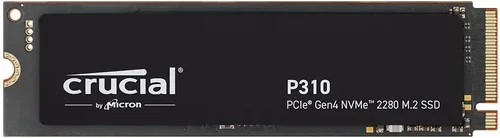
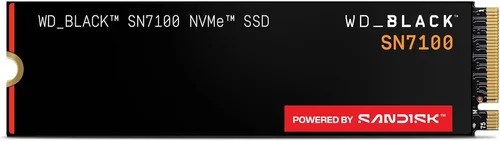
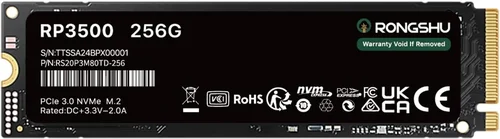
NVMe SSDs use the M.2 form factor (commonly 2280: 22mm wide, 80mm long) and plug directly into the motherboard. However, you must ensure your system supports NVMe—most motherboards from 2017 onward do, but older systems may require a BIOS update or simply lack the necessary M.2 slot. Also, check whether your M.2 slot supports PCIe Gen3, Gen4, or Gen5, as mixing generations can limit performance.
8. User Reviews & Real-World Testing
Spec sheets tell part of the story—but real-world performance can differ. Always consult trusted review sites (like Tom’s Hardware, AnandTech, or StorageReview) and user feedback on retail platforms. Pay attention to comments about consistency, heat generation, and long-term reliability. A drive that hits peak speeds in benchmarks but throttles under sustained load may disappoint in daily use.
Also, watch for reports of firmware bugs or compatibility issues. Some early PCIe Gen5 drives, for instance, suffered from excessive heat output requiring heatsinks—something not always mentioned in marketing materials.
Different Types of Buying Guide

Common Buying Mistakes to Avoid
❌ Mistake: Ignoring System Compatibility
Why it’s bad: Buying an NVMe drive for a system that only supports SATA—or vice versa—means the drive won’t work at all. Even among NVMe drives, mixing PCIe generations can lead to reduced performance or outright incompatibility.
What to do instead: Always verify your motherboard or laptop specifications before purchasing. Use tools like CPU-Z or the manufacturer’s support page to confirm M.2 slot capabilities.
❌ Mistake: Prioritizing Peak Speed Over Real-World Use
Why it’s bad: A Gen5 NVMe drive hitting 12,000 MB/s looks impressive on paper, but if you’re only browsing the web or writing documents, you’ll never notice the difference—and you’ll pay a premium for unused performance.
What to do instead: Match your SSD choice to your actual workload. Gamers and creators benefit from NVMe; casual users don’t need it.
❌ Mistake: Overlooking Thermal Management
Why it’s bad: High-performance NVMe drives, especially Gen4 and Gen5 models, generate significant heat. Without proper cooling, they throttle performance to prevent damage, negating their speed advantages.
What to do instead: If your case or laptop lacks airflow, consider a drive with a built-in heatsink or purchase an aftermarket M.2 heatsink. Avoid cramming hot drives into tight enclosures.
❌ Mistake: Choosing DRAM-Less SSDs for Critical Tasks
Why it’s bad: DRAM-less SSDs use system RAM (via HMB) for caching, which can slow down under heavy multitasking or large file transfers. They’re fine for light use but risky for professional work.
What to do instead: For OS drives or workloads involving frequent writes, always choose an SSD with onboard DRAM cache.
❌ Mistake: Skipping Firmware Updates
Why it’s bad: Outdated firmware can cause bugs, reduced performance, or even data loss. Manufacturers regularly release updates to fix issues and improve stability.
What to do instead: Install the manufacturer’s SSD management software and check for firmware updates quarterly.
❌ Mistake: Buying Based Solely on Price
Why it’s bad: The cheapest SSD may use lower-grade NAND or lack essential features like power-loss protection, leading to premature failure.
What to do instead: Balance cost with reliability. A slightly more expensive drive from a trusted brand often pays off in longevity and peace of mind.
❌ Mistake: Neglecting Backup Strategy
Why it’s bad: SSDs can fail suddenly without warning signs. Relying solely on a new SSD without backups risks permanent data loss.
What to do instead: Implement a 3-2-1 backup rule: 3 copies of data, 2 local (on different media), 1 offsite (cloud or external drive).
Budget Guidelines: How Much Should You Spend?
– Entry-Level ($40–$70 for 1TB): Ideal for basic upgrades or secondary storage. Look for reliable SATA SSDs like the Crucial MX500 or Samsung 870 EVO. Expect ~550 MB/s speeds and solid endurance. Perfect for office PCs, school laptops, or media centers.
– Mid-Range ($70–$110 for 1TB): The sweet spot for most users. NVMe PCIe Gen3 drives like the WD Black SN770 or Samsung 980 offer excellent performance without breaking the bank. Great for gaming, streaming, and general productivity.
– Premium ($110–$180 for 1TB): For enthusiasts and professionals. PCIe Gen4 drives such as the Samsung 990 Pro or Crucial T700 deliver top-tier speeds and reliability. Ideal for 4K video editing, 3D rendering, and high-FPS gaming.
– Luxury ($180+ for 1TB): Cutting-edge Gen5 drives like the Gigabyte AORUS Gen5 10000 or Corsair MP700 PRO. These are overkill for most but essential for AI training, scientific computing, or future-proof builds. Often require active cooling.
Expert Tips for Getting the Best Deal
– Time your purchase: Major sales events like Black Friday, Amazon Prime Day, and New Year promotions often feature SSD discounts of 20–40%. Sign up for price alerts on sites like CamelCamelCamel or Honey.
– Buy from authorized retailers: Stick to Amazon (sold by Amazon, not third parties), Newegg, Best Buy, or direct from manufacturers. This ensures warranty validity and reduces counterfeit risk.
– Check refurbished options: Many manufacturers sell certified refurbished SSDs with full warranties at 20–30% off. These are thoroughly tested and often indistinguishable from new units.
– Bundle with other components: Some retailers offer discounts when purchasing SSDs with motherboards, CPUs, or laptops. Look for “combo deals” during system builds.
– Read the fine print on warranties: Some warranties require registration within 30 days or proof of purchase. Keep your receipt and register immediately.
– Test before relying on it: After installation, run a full diagnostic using tools like CrystalDiskInfo or the manufacturer’s utility to confirm health and performance.
– Consider used market cautiously: While tempting, used SSDs may have hidden wear. Only buy from trusted sellers with verifiable TBW data.
– Don’t forget the OS license: If you’re cloning or fresh-installing Windows, ensure you have a valid license key. Some pre-built systems tie licenses to hardware.

Frequently Asked Questions
Q: Can I use an NVMe SSD in a SATA-only slot?
A: No. NVMe and SATA use different protocols and physical connectors. An NVMe M.2 drive will not fit or function in a SATA M.2 or 2.5″ SATA port. However, some motherboards have M.2 slots that support both—check your manual.
Q: Will an NVMe SSD make my old computer faster?
A: Only if your system supports NVMe. Most pre-2015 systems do not. Even if they have an M.2 slot, it may be SATA-only. Upgrading to NVMe on an incompatible system requires a PCIe adapter card—but performance gains may be limited by older CPUs and chipsets.
Q: Do I need a heatsink for my NVMe SSD?
A: Not always, but recommended for Gen4 and Gen5 drives, especially in small form-factor PCs or laptops with poor airflow. Heatsinks prevent thermal throttling during sustained workloads.
Q: Is DRAM important in an SSD?
A: Yes, for performance and longevity. DRAM acts as a cache for the drive’s mapping table. DRAM-less SSDs are slower under heavy loads and may wear out faster. Always choose DRAM-equipped drives for OS or primary storage.
Q: Can I run both SATA and NVMe SSDs in the same system?
A: Absolutely. Most modern motherboards support multiple storage interfaces simultaneously. You can use an NVMe drive for your OS and games, and a SATA drive for bulk storage.
Q: How long do SSDs last?
A: Modern SSDs are extremely durable. A typical 1TB drive with a 600 TBW rating could last 10+ years under normal use (writing ~160GB/day). Consumer workloads rarely approach these limits.
Q: Should I defragment my SSD?
A: No. Defragmentation is unnecessary and harmful to SSDs, as it increases write cycles. Windows automatically disables defrag for SSDs and enables TRIM instead, which optimizes performance safely.
Q: What’s the difference between PCIe Gen3, Gen4, and Gen5?
A: Each generation doubles the bandwidth per lane. Gen3 offers ~1 GB/s per lane, Gen4 ~2 GB/s, and Gen5 ~4 GB/s. Most consumer NVMe drives use 4 lanes, so Gen5 can reach ~14,000 MB/s theoretical max.
Q: Are external SSDs as fast as internal ones?
A: It depends on the interface. USB 3.2 Gen 2×2 (20 Gbps) can saturate a Gen3 NVMe drive, but Thunderbolt 3/4 (40 Gbps) is needed to接近 Gen4 speeds. For portability, USB-C NVMe enclosures are excellent.
Q: Can I recover data from a failed SSD?
A: Possibly, but it’s more difficult than with HDDs. SSDs use wear-leveling and TRIM, which can erase data quickly. Professional data recovery services exist but are expensive. Prevention (backups) is far better.
Our Final Recommendations
– Best for Budget-Conscious Buyers: Crucial MX500 1TB SATA SSD – Reliable, affordable, and universally compatible. Perfect for upgrading older systems without breaking the bank.
– Best Overall Value: Samsung 980 1TB NVMe PCIe Gen3 – Blends near-Gen4 speeds with Gen3 pricing. Excellent for gamers and general users seeking a meaningful performance boost.
– Best Premium Option: Samsung 990 Pro 1TB NVMe PCIe Gen4 – Consistently top-rated for speed, endurance, and software support. Ideal for creators and power users.
– Best for Beginners: WD Blue SA510 1TB SATA SSD – Simple installation, great performance for the price, and backed by Western Digital’s solid reputation.
– Best for Advanced Users: Crucial T700 1TB NVMe PCIe Gen5 – Built for extreme workloads with built-in heatsink and blistering 12,000 MB/s speeds. Requires a Gen5-compatible motherboard.
Conclusion: Making the Right Choice
Choosing between SATA and NVMe SSDs in 2026 comes down to aligning technology with purpose. SATA SSDs remain a fantastic, cost-effective solution for everyday computing, offering reliable performance and broad compatibility. NVMe drives, particularly PCIe Gen4 and Gen5 models, unlock transformative speed for demanding applications—but only if your system can support them and your workflow justifies the investment.
Don’t let marketing hype dictate your decision. Instead, assess your actual needs: What do you use your computer for? How long do you plan to keep it? What’s your budget? By answering these questions honestly, you’ll avoid overspending on unused performance or underspending on a drive that bottlenecks your system.
Remember, the best SSD isn’t necessarily the fastest—it’s the one that delivers the right balance of speed, reliability, compatibility, and value for your unique situation. Use the insights in this guide to shop confidently, avoid common traps, and invest in storage that enhances your digital life for years to come.
Now that you’re equipped with expert knowledge, it’s time to upgrade. Whether you choose SATA or NVMe, you’re making a smart move toward a faster, more responsive computing experience. Happy shopping—and enjoy the speed!