

Upgrading your Lenovo laptop with a solid-state drive (SSD) is one of the most impactful performance improvements you can make in 2026. Whether you’re working with an older ThinkPad, a sleek Yoga, or a high-performance Legion gaming machine, swapping out a traditional hard drive or even a slow SATA SSD for a modern NVMe drive can dramatically boost boot times, application loading speeds, and overall system responsiveness. But with so many SSDs on the market—each boasting different speeds, capacities, form factors, and price points—it’s easy to feel overwhelmed. That’s where this comprehensive SSD shopping guide comes in.
This guide is designed to cut through the noise and help you make an informed decision tailored specifically to Lenovo laptops. We’ll walk you through the essential factors to consider, explain the differences between SSD types, highlight common pitfalls, and provide expert-backed recommendations based on real-world performance and compatibility. Whether you’re a student, a creative professional, a business user, or a gamer, understanding what makes an SSD truly “best” for your Lenovo device will save you time, money, and frustration. By the end of this guide, you’ll know exactly what to look for, how much to spend, and which models deliver the best value for your needs.
The SSD market in 2026 is more dynamic than ever. With advancements in NAND flash technology, controller efficiency, and PCIe Gen5 adoption, today’s drives offer unprecedented speed and reliability. However, not every SSD is compatible with every Lenovo laptop. Some models support only 2.5-inch SATA drives, while others are built for M.2 NVMe SSDs. Some newer systems even support dual SSD configurations. Our goal is to help you navigate these nuances and choose a drive that not only fits physically but also maximizes your laptop’s potential. Let’s dive in.

What to Look for When Buying Buying Guide
1. Compatibility: Form Factor and Interface
The single most important factor when choosing an SSD for your Lenovo laptop is compatibility. Not all SSDs fit all laptops—even within the same brand. Lenovo uses several form factors and interfaces across its product lines, so you must verify what your specific model supports before purchasing.
There are two primary SSD form factors used in Lenovo laptops:
- 2.5-inch SATA SSDs: These resemble traditional hard drives and connect via a SATA III interface. They’re common in older ThinkPads, entry-level IdeaPads, and some budget models. While slower than NVMe drives (typically maxing out around 550 MB/s), they’re reliable and widely supported.
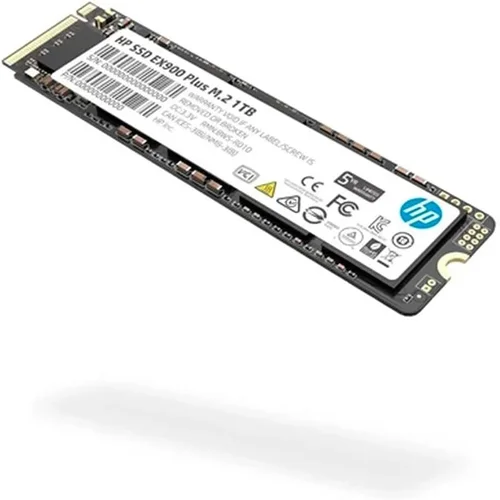
- M.2 SSDs: These are small, stick-like drives that plug directly into the motherboard. They come in different lengths (e.g., 2242, 2260, 2280) and support either SATA or NVMe protocols. Most modern Lenovo laptops—including ThinkPad T-series, X1 Carbon, Yoga, and Legion models—use M.2 2280 NVMe drives.
To confirm compatibility, check your laptop’s user manual, Lenovo’s official support page, or use tools like Lenovo Vantage or Crucial’s System Scanner. Pay close attention to whether your system supports PCIe Gen3, Gen4, or even Gen5. For example, the ThinkPad X1 Carbon Gen 11 supports PCIe Gen4, while older models may only support Gen3. Installing a Gen4 drive in a Gen3 slot will work, but you won’t get the full speed benefit.
2. Performance Specifications: Speed and Endurance
SSD performance is measured primarily by read/write speeds (in MB/s or GB/s), IOPS (input/output operations per second), and endurance (measured in terabytes written, or TBW). For most users, sequential read/write speeds are the most relevant metric—they determine how fast large files load or transfer.
In 2026, NVMe SSDs dominate the high-performance segment. PCIe Gen4 drives typically offer speeds between 5,000–7,000 MB/s, while Gen5 drives can exceed 10,000 MB/s. However, unless you’re doing heavy video editing, 3D rendering, or large database operations, Gen4 speeds are more than sufficient. Most everyday tasks—web browsing, office work, media playback—won’t benefit noticeably from Gen5 speeds, especially if your Lenovo laptop doesn’t fully support it.
Endurance matters too. Consumer SSDs usually have a TBW rating between 150TB and 1,200TB. A higher TBW means the drive can handle more data writes over its lifetime. For typical users writing 20–50GB per day, even a modest 300TBW drive will last over 15 years. Gamers and content creators should aim for 600TBW or higher.
Also consider random 4K read/write performance (measured in IOPS). This affects how quickly your system opens apps, loads game levels, or handles multitasking. Look for drives with strong random performance—especially if you use your laptop for productivity or light creative work.
3. Capacity: How Much Storage Do You Really Need?
SSD capacity directly impacts price and usability. In 2026, 500GB remains the sweet spot for most users, offering enough space for the OS, essential apps, and a decent library of documents, photos, and videos. However, if you work with large files—like 4K video, RAW photos, or game libraries—consider 1TB or 2TB drives.
Here’s a quick capacity guide based on usage:
- 250GB: Only for very light use (web browsing, basic documents). Not recommended unless you’re on a tight budget and use cloud storage heavily.
- 500GB: Ideal for students, office workers, and casual users. Fits Windows 11, Office suite, browsers, and several games or apps.
- 1TB: Best for gamers, content creators, and professionals. Allows room for large software, media libraries, and future updates.
- 2TB+: For power users, video editors, or those who prefer local storage over cloud. Also useful if your Lenovo laptop supports dual SSDs.
Keep in mind that SSDs perform best when they’re not nearly full. Aim to keep at least 10–20% free space for optimal performance and longevity. Also, larger drives often have better endurance and slightly faster speeds due to more NAND chips working in parallel.
4. Build Quality & Durability
SSDs have no moving parts, making them inherently more durable than HDDs. However, build quality still varies significantly between brands and models. Look for drives with robust controllers, high-quality NAND flash (preferably TLC or MLC, not QLC), and thermal management features.
Thermal throttling is a real issue in thin laptops like the ThinkPad X1 Carbon or Yoga Slim. High-performance NVMe drives can get hot under sustained load, causing the drive to slow down to prevent damage. Premium SSDs often include built-in heat spreaders or are designed to throttle gracefully. Some Lenovo laptops even have thermal pads or heatsinks for the M.2 slot—check if yours does.
Also consider shock resistance and operating temperature range. While SSDs are generally resilient, extreme conditions (like being dropped or used in hot environments) can affect longevity. Industrial-grade drives exist, but for consumer use, most reputable brands offer sufficient durability.
5. Brand Reputation & Reliability
Not all SSD brands are created equal. In 2026, the most trusted names include Samsung, Western Digital (WD), Crucial, Kingston, SK hynix, and Kioxia. These companies invest heavily in R&D, quality control, and firmware updates. They also offer better long-term support and more transparent specifications.
Avoid no-name or ultra-budget brands that may use inferior NAND or recycled components. While they might seem like a bargain, they often fail prematurely or suffer from poor performance consistency. Look for brands with a proven track record in the consumer and enterprise SSD markets.
Samsung, for example, is known for its excellent reliability and performance across its 980 Pro and 990 Pro lines. WD’s Black SN850X and SN770 are also top performers. Crucial offers great value with its P5 Plus and P3 series. These brands also provide user-friendly tools for cloning, monitoring, and firmware updates.
6. Warranty & Support
A good warranty is a strong indicator of a manufacturer’s confidence in its product. Most reputable SSDs come with a 3- to 5-year limited warranty. Some high-end models, like the Samsung 990 Pro, offer 5 years or up to a certain TBW limit—whichever comes first.
Check what the warranty covers. Does it include data recovery? Is it transferable? Can you get a replacement without returning the faulty drive? Also, consider the availability of customer support. Brands like Samsung and WD offer responsive support via chat, phone, and email. Smaller brands may only offer email support with slow response times.
Additionally, look for drives that include software utilities. Samsung Magician, WD Dashboard, and Crucial Storage Executive help monitor drive health, update firmware, optimize performance, and clone your old drive. These tools can significantly extend your SSD’s lifespan and simplify the upgrade process.
7. Price & Value for Money
SSD pricing has stabilized in 2026, with NVMe drives offering excellent value. As of early 2026, you can expect to pay approximately:
- 500GB NVMe SSD: $35–$60
- 1TB NVMe SSD: $50–$90
- 2TB NVMe SSD: $90–$160
SATA SSDs are slightly cheaper but offer lower performance. Avoid paying a premium for features you don’t need—like PCIe Gen5 speeds on a Gen3 laptop. Instead, focus on getting the best balance of speed, capacity, endurance, and reliability within your budget.
Value isn’t just about the lowest price. A $70 1TB drive from a reputable brand with a 5-year warranty and strong performance is often a better investment than a $50 drive from an unknown manufacturer with questionable longevity.
8. User Reviews & Real-World Feedback
Spec sheets tell part of the story, but user reviews reveal the rest. Look for feedback on long-term reliability, thermal performance, compatibility with specific Lenovo models, and ease of installation. Sites like Amazon, Newegg, and Reddit (especially r/thinkpad and r/buildapc) are goldmines for real-world insights.
Pay attention to patterns. If multiple users report the same issue—like the drive not being detected in a ThinkPad T14 or overheating in a Yoga 9i—it’s likely a real concern. Conversely, consistent praise for performance, quiet operation, or smooth cloning can signal a winner.
Also check professional reviews from trusted tech sites like Tom’s Hardware, AnandTech, or PCMag. They conduct rigorous benchmarks and stress tests that go beyond manufacturer claims.
Different Types of Buying Guide

Common Buying Mistakes to Avoid
❌ Mistake: Ignoring Compatibility
Why it’s bad: Buying an NVMe SSD for a laptop that only supports SATA will result in a drive that doesn’t work at all. Even among M.2 drives, mixing up SATA and NVMe protocols is a common error.
What to do instead: Always verify your laptop’s storage specifications before purchasing. Use Lenovo’s support site or a tool like HWiNFO to identify your current drive and slot type.
❌ Mistake: Choosing the Cheapest Drive Available
Why it’s bad: Ultra-budget SSDs often use low-quality NAND, weak controllers, and lack proper firmware. They may fail prematurely or suffer from performance drops over time.
What to do instead: Invest in a reputable brand with good reviews and a solid warranty. The extra $10–$20 is worth it for peace of mind and longevity.
❌ Mistake: Overpaying for Unnecessary Speed
Why it’s bad: Paying a premium for PCIe Gen5 speeds on a Gen3 laptop is a waste of money. You won’t see any real-world benefit.
What to do instead: Match the SSD generation to your laptop’s capabilities. A Gen3 drive in a Gen3 slot delivers excellent performance for most users.
❌ Mistake: Skipping the Backup
Why it’s bad: Installing a new SSD often involves wiping your old drive. Without a backup, you risk losing important files, photos, or work.
What to do instead: Always back up your data before upgrading. Use cloud storage, an external drive, or cloning software to preserve your files.
❌ Mistake: Not Checking for Thermal Throttling
Why it’s bad: High-performance NVMe drives can overheat in thin laptops, causing slowdowns during sustained workloads like video editing or gaming.
What to do instead: Choose drives with good thermal management or consider adding a small heatsink if your laptop allows it. Monitor temperatures using tools like HWMonitor.
❌ Mistake: Forgetting About Cloning Software
Why it’s bad: Manually reinstalling Windows and all your apps is time-consuming and error-prone.
What to do instead: Use cloning software (many SSDs include it) to copy your old drive to the new one. This preserves your OS, settings, and files.
❌ Mistake: Buying Without Checking Warranty Terms
Why it’s bad: Some warranties are voided if the drive is used in a laptop instead of a desktop, or if the TBW limit is exceeded quickly.
What to do instead: Read the fine print. Ensure the warranty covers laptop use and understand the TBW limits relative to your usage.
Budget Guidelines: How Much Should You Spend?
Your budget should align with your usage needs and laptop capabilities. Here’s a breakdown of what to expect at different price tiers in 2026:
Entry-Level ($25–$50): At this price, you’ll find 250GB–500GB SATA SSDs or budget NVMe drives like the Crucial P3 or Kingston NV2. These are perfect for basic upgrades on older Lenovo laptops. Expect decent performance for everyday tasks but limited endurance and no advanced features.
Mid-Range ($50–$90): This is the sweet spot for most users. You can get a 1TB NVMe Gen3 or Gen4 drive from a reputable brand like Samsung, WD, or Crucial. These offer excellent speed, reliability, and warranty coverage. Ideal for students, professionals, and casual gamers.
Premium ($90–$150): Here, you’ll find high-end NVMe Gen4 drives with top-tier performance, robust build quality, and advanced features like hardware encryption and thermal throttling protection. Great for content creators, developers, and power users with compatible Lenovo systems.
Luxury ($150+): This tier includes PCIe Gen5 drives, 2TB+ capacities, and enterprise-grade features. Only necessary if you have a cutting-edge Lenovo laptop (like a Legion 7i Gen 8 or ThinkPad P16) and workloads that demand maximum throughput. Overkill for most consumers.

Expert Tips for Getting the Best Deal
- Buy during seasonal sales: Major retailers and manufacturers often discount SSDs during back-to-school, Black Friday, and holiday seasons. Sign up for newsletters to get early alerts.
- Compare prices across retailers: Check Amazon, Newegg, Best Buy, B&H, and Lenovo’s official store. Sometimes Lenovo offers exclusive bundles or discounts for ThinkPad owners.
- Look for refurbished or open-box deals: Certified refurbished SSDs from reputable sellers often come with full warranties and can save you 15–25%.
- Check return policies: Ensure the retailer offers at least a 30-day return window in case of compatibility issues.
- Use cloning software: Most SSD manufacturers provide free cloning tools. Use them to transfer your OS and data seamlessly.
- Monitor drive health: After installation, use tools like CrystalDiskInfo or the manufacturer’s software to track temperature, wear level, and SMART status.
- Consider future upgrades: If your Lenovo laptop supports dual SSDs, start with a smaller drive and add a second one later for expanded storage.
- Avoid counterfeit drives: Buy from authorized retailers. Counterfeit SSDs are common on third-party marketplaces and often have fake capacity or performance.

Frequently Asked Questions
Q: Can I upgrade the SSD in any Lenovo laptop?
A: Most modern Lenovo laptops allow SSD upgrades, but some ultra-thin models (like certain Yoga or IdeaPad Slim variants) have soldered storage that cannot be replaced. Always check your specific model’s service manual.
Q: Do I need to reinstall Windows after upgrading?
A: Not necessarily. You can clone your existing drive to the new SSD using software like Macrium Reflect, Acronis True Image, or the tools provided by SSD manufacturers. This preserves your OS, apps, and files.
Q: Will a faster SSD improve gaming performance?
A: Yes, but primarily in load times. Games will launch faster, and levels will load quicker. However, in-game FPS (frames per second) is determined by your GPU and CPU, not storage speed.
Q: Can I use an external SSD with my Lenovo laptop?
A: Absolutely. USB 3.2 Gen 2 or Thunderbolt 3/4 external SSDs offer excellent performance for portable storage or backups. Just ensure your laptop has the right ports.
Q: How do I know if my Lenovo laptop supports NVMe?
A: Check the specifications on Lenovo’s support site or use a tool like HWiNFO. If your current SSD is labeled as “NVMe” or “PCIe,” your system supports it. If it’s labeled “SATA,” you may be limited to SATA speeds.
Q: Is it safe to buy a used SSD?
A: It can be, but proceed with caution. Check the drive’s SMART data to assess wear level and remaining lifespan. Avoid drives with high write counts or errors. Refurbished drives from reputable sellers are a safer bet.
Q: Do I need a heatsink for my M.2 SSD?
A: Only if your laptop gets hot during heavy use or if the SSD lacks built-in thermal management. Some Lenovo models include heatsinks; others don’t. Monitor temperatures and add one if needed.
Q: Can I mix different SSD brands in a dual-drive setup?
A: Yes, but it’s best to use drives with similar performance and endurance to avoid bottlenecks. Also, ensure both are compatible with your laptop’s slots.
Q: How long do SSDs last?
A: Most consumer SSDs last 5–10 years under normal use. With typical daily writing of 20–50GB, even a 300TBW drive can last over 15 years. Modern SSDs are very reliable.
Q: What’s the difference between TLC, MLC, and QLC NAND?
A: TLC (3-bit) offers the best balance of performance, endurance, and cost. MLC (2-bit) is more durable but pricier. QLC (4-bit) is cheaper and denser but wears out faster. Avoid QLC for heavy workloads.
Our Final Recommendations
Best for Budget-Conscious Buyers: Crucial P3 1TB NVMe Gen3 – At around $55, it delivers solid performance, 600TBW endurance, and a 5-year warranty. Perfect for upgrading older Lenovo laptops without breaking the bank.
Best Overall Value: Samsung 980 Pro 1TB NVMe Gen4 – A proven performer with excellent speeds (up to 7,000 MB/s), strong reliability, and Samsung Magician software. Ideal for ThinkPad X1 Carbon, Yoga, and Legion users.
Best Premium Option: WD Black SN850X 2TB NVMe Gen4 – Built for gamers and creators, this drive offers top-tier performance, robust thermal management, and a 5-year warranty. Great for high-end Legion and ThinkPad P-series laptops.
Best for Beginners: Kingston NV2 1TB NVMe Gen3 – Simple, reliable, and affordable. Comes with cloning software and is easy to install. A great first upgrade for students or casual users.
Best for Advanced Users: SK hynix Platinum P41 2TB NVMe Gen4 – One of the fastest and most efficient drives on the market, with exceptional endurance (1,200TBW) and low power consumption. Perfect for power users and professionals.
Conclusion: Making the Right Choice
Choosing the best SSD for your Lenovo laptop doesn’t have to be complicated. By focusing on compatibility, performance, capacity, and reliability, you can find a drive that transforms your system’s speed and responsiveness. Remember: the “best” SSD is the one that matches your laptop’s capabilities and your personal needs—not necessarily the fastest or most expensive one on the market.
Start by identifying your laptop model and storage interface. Then, set a realistic budget and prioritize features that matter most to you—whether that’s speed, capacity, or longevity. Avoid common pitfalls like ignoring compatibility or skimping on quality. And don’t forget to back up your data before making the switch.
With the right SSD, your Lenovo laptop will feel like new again—faster boot times, quicker app launches, and smoother multitasking. Whether you’re a student, professional, or gamer, this upgrade is one of the most cost-effective ways to extend your device’s life and enhance your daily experience. So go ahead—make the switch, and enjoy the speed.