
If you’re reading this, chances are you’re tired of waiting for your laptop to boot up, load applications, or transfer files. Maybe your current hard drive is making strange clicking noises, or your system feels sluggish even after a fresh OS install. Whatever the reason, upgrading to a solid-state drive (SSD) might be one of the most impactful performance improvements you can make to your laptop—especially if it still uses an older mechanical hard disk drive (HDD). In fact, switching from an HDD to an SSD often feels like getting a brand-new computer, even if the rest of the hardware is a few years old.
This comprehensive buying guide is designed to cut through the noise and help you make a smart, informed decision when choosing the best SSD for your laptop in 2026. Whether you’re a student, a creative professional, a gamer, or just someone who wants a faster, more responsive machine, we’ll walk you through everything you need to know—from understanding technical specs to avoiding common pitfalls. By the end of this guide, you’ll not only know which SSDs are currently leading the market, but also how to match one to your specific needs, budget, and laptop compatibility.
The SSD market has evolved dramatically over the past decade. What once was a niche upgrade for tech enthusiasts has now become mainstream, with prices dropping significantly while performance and capacities have skyrocketed. Today, you can get multi-terabyte SSDs that are faster, more reliable, and more affordable than ever before. However, with so many options—SATA, NVMe, M.2, PCIe Gen3, Gen4, Gen5, DRAM cache, TLC, QLC, and more—it’s easy to feel overwhelmed. This guide demystifies the jargon, compares the top contenders, and gives you actionable advice to ensure you get the best possible SSD for your laptop without overspending or making a compatibility mistake.

What to Look for When Buying Buying Guide
1. Form Factor and Compatibility
The first and most critical factor when choosing an SSD for your laptop is ensuring it physically fits and is compatible with your system. Laptops come in a variety of designs, and not all SSDs will work in every machine. The two most common form factors are 2.5-inch SATA drives and M.2 drives, but even within these categories, there are important distinctions.
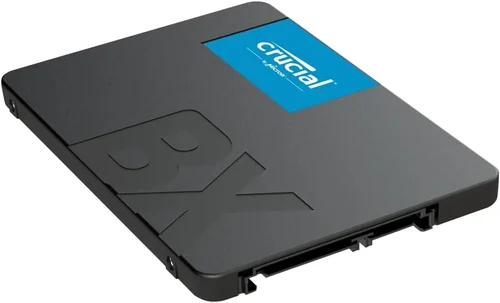
2.5-inch SATA SSDs are the traditional rectangular drives that resemble older laptop hard drives. They connect via a SATA data and power cable and are typically used in older or budget laptops that don’t support M.2. These drives are easy to install and widely compatible, but they’re slower than modern NVMe options.
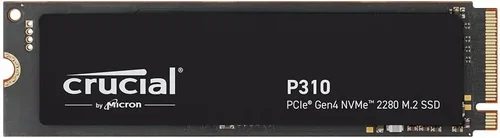
M.2 SSDs, on the other hand, are small, stick-like drives that plug directly into a dedicated slot on the motherboard. They come in different lengths (commonly 2280, meaning 22mm wide and 80mm long) and can use either SATA or NVMe protocols. NVMe M.2 drives are significantly faster than SATA-based ones because they use the PCIe interface instead of the older SATA bus.
Before buying, check your laptop’s manual or manufacturer’s website to confirm which form factors and interfaces are supported. Some laptops only have one M.2 slot, while others may support both M.2 and 2.5-inch drives. Also, note whether your system supports PCIe Gen3, Gen4, or Gen5—this affects which NVMe drives will deliver their full performance.
2. Performance Specifications
Once you’ve confirmed compatibility, the next step is evaluating performance. SSD performance is typically measured in two key areas: sequential read/write speeds and random read/write IOPS (Input/Output Operations Per Second).
Sequential speeds refer to how quickly large files (like videos or game installations) can be read from or written to the drive. For most users, sequential read speeds above 500 MB/s (for SATA) or 3,000 MB/s (for NVMe Gen3) are more than sufficient. High-end NVMe Gen4 drives can reach 7,000 MB/s or more, while Gen5 drives are pushing past 10,000 MB/s—though real-world benefits may be minimal unless you’re working with massive media files or doing heavy data processing.
Random IOPS, on the other hand, measure how well the drive handles small, scattered files—like opening applications, loading game levels, or multitasking. Higher IOPS mean snappier system responsiveness. For everyday use, look for drives with at least 500,000 IOPS for random reads. Gamers and professionals should aim for 700,000+ IOPS.
It’s also important to consider sustained performance. Some SSDs, especially budget QLC-based models, may show high peak speeds but throttle under prolonged workloads due to limited SLC caching. If you plan to do large file transfers or video editing, opt for drives with robust caching and thermal management.
3. Storage Capacity
Storage capacity is a balancing act between cost, performance, and your actual needs. SSDs come in sizes ranging from 128GB to 8TB, but not all capacities are created equal.
For most users, a 500GB SSD is the sweet spot. It provides enough space for the operating system, essential applications, and a reasonable amount of personal files. If you’re a student or casual user, 256GB might suffice, but be prepared to manage storage carefully. On the other hand, if you work with large files—such as 4K video, RAW photos, or game libraries—consider 1TB or higher.
One often-overlooked benefit of larger SSDs is performance. Higher-capacity drives typically have more NAND chips and better parallelism, which can improve speed and longevity. Additionally, SSDs perform best when they have some free space (ideally 10–20%). A nearly full drive can slow down significantly due to garbage collection and wear leveling inefficiencies.
Finally, consider future-proofing. If your laptop allows for easy SSD upgrades, you might start with a smaller drive and expand later. But if access is difficult (as in many ultrabooks), it’s worth investing in a larger capacity upfront.
4. NAND Flash Type and Endurance
SSDs use different types of NAND flash memory, which affects speed, durability, and cost. The main types are SLC, MLC, TLC, and QLC.
SLC (Single-Level Cell) stores one bit per cell and offers the best endurance and speed, but it’s expensive and mostly used in enterprise environments. MLC (Multi-Level Cell) stores two bits per cell and strikes a good balance between performance and cost, though it’s becoming rare in consumer drives.
TLC (Triple-Level Cell) stores three bits per cell and is the most common type in modern consumer SSDs. It offers a good mix of speed, capacity, and affordability. Most high-quality TLC drives include SLC caching to boost performance during bursts of activity.
QLC (Quad-Level Cell) stores four bits per cell, allowing for higher capacities at lower prices. However, QLC drives tend to be slower, especially during sustained writes, and have lower endurance (measured in TBW—Terabytes Written). They’re best suited for light workloads like web browsing, office tasks, and media storage.
When evaluating endurance, check the TBW rating. For example, a 1TB Samsung 980 Pro has a TBW of 600, meaning it can write 600 terabytes over its lifetime. A similarly sized QLC drive might only have a TBW of 220. If you plan to use your laptop for heavy writing tasks (like video editing or database work), prioritize TLC or MLC drives with higher TBW ratings.
5. DRAM Cache
DRAM cache is a small amount of high-speed memory built into the SSD that acts as a buffer between the controller and NAND flash. It stores the flash translation layer (FTL) map, which tells the drive where data is physically located. This dramatically improves performance, especially for random reads and writes.
SSDs with DRAM cache are generally faster and more consistent under load. They also tend to have better longevity because the controller doesn’t need to constantly read the FTL map from slower NAND.
DRAM-less SSDs, often found in budget models, rely on system memory (HMB—Host Memory Buffer) or store the FTL map directly on the NAND. While this reduces cost, it can lead to performance drops during heavy multitasking or when the drive is nearly full.
For most users, especially those running multiple applications or gaming, a DRAM-equipped SSD is worth the slight price premium. However, if you’re on a tight budget and only doing light tasks, a well-designed DRAM-less drive (like the Crucial P3) can still offer solid performance.
6. Brand Reputation and Reliability
Not all SSDs are created equal, even if they share similar specs. Brand reputation matters because it reflects real-world reliability, firmware quality, and long-term support.
Top-tier brands like Samsung, Western Digital, Crucial, Kingston, and SK Hynix have a proven track record of producing reliable, high-performance SSDs. They invest heavily in research, use high-quality components, and offer robust firmware updates.
Avoid no-name or ultra-budget brands, especially those sold on lesser-known online marketplaces. These drives may use recycled NAND, outdated controllers, or lack proper testing. In some cases, they may even falsify specs or use counterfeit components.
Look for brands that provide detailed specifications, transparent warranty terms, and active customer support. User forums and professional reviews can also give insight into long-term reliability. For example, Samsung’s 980 Pro and 990 Pro series have consistently ranked among the most reliable NVMe drives, with low failure rates and excellent performance retention over time.
7. Warranty and Support
A strong warranty is a good indicator of a manufacturer’s confidence in their product. Most reputable SSDs come with a 3- to 5-year limited warranty, often tied to both time and endurance (e.g., 5 years or 600 TBW, whichever comes first).
When comparing warranties, pay attention to the terms. Some brands offer free data recovery services or expedited replacement programs. Others may require you to ship the drive back at your own expense or limit support to certain regions.
Also, check if the brand provides useful software tools. Samsung Magician, for instance, offers drive health monitoring, performance optimization, firmware updates, and secure erase functions. These tools can extend the life of your SSD and help troubleshoot issues.
If you’re buying from a third-party seller (like Amazon or Newegg), ensure the warranty is valid and that the seller is authorized. Counterfeit or gray-market drives may not be covered by the manufacturer’s warranty.
8. Price and Value
Price is always a consideration, but it shouldn’t be the only one. The cheapest SSD isn’t always the best deal—especially if it sacrifices performance, endurance, or reliability.
As of 2026, you can expect to pay roughly:
- $0.08–$0.12 per GB for budget SATA or DRAM-less NVMe drives
- $0.12–$0.18 per GB for mid-range TLC NVMe drives with DRAM
- $0.18–$0.30+ per GB for high-end Gen4 or Gen5 drives with premium features
Look for drives that offer the best balance of price, performance, and capacity for your needs. For example, a 1TB Samsung 980 Pro might cost more upfront than a 1TB Kingston NV2, but it offers faster speeds, better endurance, and a longer warranty—making it a better long-term investment.
Also, consider total cost of ownership. A slightly more expensive SSD with better endurance may last longer and require fewer replacements, saving you money over time.
Different Types of Buying Guide

Common Buying Mistakes to Avoid
❌ Mistake: Ignoring Laptop Compatibility
Why it’s bad: Buying an NVMe Gen4 SSD for a laptop that only supports SATA will result in a drive that either doesn’t fit or runs at reduced speeds. You’ll waste money and time.
What to do instead: Always verify your laptop’s SSD slot type, interface, and maximum supported speed before purchasing. Use manufacturer specs or diagnostic tools to confirm compatibility.
❌ Mistake: Choosing the Cheapest Drive Without Research
Why it’s bad: Ultra-budget SSDs often use low-quality NAND, lack DRAM, and have poor endurance. They may fail prematurely or deliver inconsistent performance.
What to do instead: Prioritize reputable brands and read professional reviews. A slightly more expensive drive from Samsung or Crucial is usually a safer long-term investment.
❌ Mistake: Overpaying for Unnecessary Speed
Why it’s bad: Paying a premium for a Gen5 SSD when your laptop only supports Gen3 means you’re not getting the full benefit. The drive will be bottlenecked by the system.
What to do instead: Match the SSD generation to your laptop’s capabilities. A high-quality Gen3 drive often provides better value than a top-tier Gen5 drive running at Gen3 speeds.
❌ Mistake: Neglecting Capacity Needs
Why it’s bad: A 256GB SSD might seem sufficient, but after installing the OS, apps, and updates, you’ll quickly run out of space. This leads to performance degradation and constant storage management.
What to do instead: Aim for at least 500GB, even for basic use. If your budget allows, 1TB is ideal for most users and offers better performance and longevity.
❌ Mistake: Forgetting About Thermal Throttling
Why it’s bad: High-performance NVMe drives can get hot, especially in thin laptops with poor airflow. Without proper cooling, they may throttle speeds to prevent damage.
What to do instead: Look for drives with built-in thermal management or consider adding a small heatsink if your laptop allows. Avoid overclocked or poorly cooled drives in compact systems.
❌ Mistake: Not Checking Warranty and Return Policies
Why it’s bad: If the drive fails or is incompatible, a short or restrictive warranty can leave you stuck with a useless product.
What to do instead: Choose brands with at least a 3-year warranty and check return policies before buying. Prefer retailers with easy return processes.
❌ Mistake: Skipping Firmware Updates
Why it’s bad: Outdated firmware can cause performance issues, compatibility problems, or even data corruption.
What to do instead: After installation, check for firmware updates using the manufacturer’s tool (e.g., Samsung Magician). Keep your SSD firmware current for optimal performance and security.
Budget Guidelines: How Much Should You Spend?
Your budget will significantly influence which SSD you can afford, but it’s important to align spending with your actual needs. Here’s a breakdown of what to expect at different price tiers in 2026:
Entry-Level ($30–$60 for 500GB): At this price, you’ll find basic SATA SSDs or DRAM-less NVMe drives. These are great for older laptops or light use, but expect modest speeds and lower endurance. Ideal for students or casual users upgrading from an HDD. Look for models like the Crucial BX500 or Kingston NV2.
Mid-Range ($60–$120 for 1TB): This is the sweet spot for most buyers. You can get a high-quality TLC NVMe Gen3 or Gen4 drive with DRAM cache, strong performance, and a 5-year warranty. Examples include the Samsung 980, WD Black SN770, and Crucial P5 Plus. These drives offer excellent value and will significantly boost your laptop’s responsiveness.
Premium ($120–$250 for 1TB): For enthusiasts and professionals, premium drives offer top-tier performance, advanced features like hardware encryption, and superior endurance. Gen4 drives like the Samsung 990 Pro, WD Black SN850X, and Sabrent Rocket 4 Plus fall into this category. They’re ideal for gaming, video editing, and heavy multitasking.
Luxury ($250+ for 1TB): At this level, you’re paying for cutting-edge technology, such as PCIe Gen5 support, ultra-high speeds, and enterprise-grade reliability. These drives are overkill for most users but may be justified for content creators or users with Gen5-compatible systems. Examples include the Corsair MP700 Pro and Gigabyte AORUS Gen5.

Expert Tips for Getting the Best Deal
- Buy during major sales events: SSD prices drop significantly during Black Friday, Cyber Monday, Amazon Prime Day, and holiday sales. Plan your purchase around these times to save 20–40%.
- Compare prices across retailers: Check Amazon, Newegg, Best Buy, B&H, and direct from manufacturers. Sometimes, the manufacturer’s site offers exclusive bundles or extended warranties.
- Look for refurbished or open-box deals: Certified refurbished SSDs from reputable sellers often come with full warranties and can save you money. Just ensure they’re from authorized resellers.
- Check for bundle deals: Some retailers offer SSDs with free cloning software, installation kits, or external enclosures. These extras can add value.
- Read return policies carefully: Ensure the seller allows returns if the drive is incompatible or defective. Avoid third-party sellers with poor ratings.
- Use price tracking tools: Tools like Honey, Keepa, or CamelCamelCamel can alert you when prices drop on specific models.
- Consider future upgrades: If your laptop supports multiple drives, buy a smaller SSD now and add a second one later. This spreads out the cost while improving performance.
- Don’t forget installation: If you’re not comfortable opening your laptop, factor in the cost of professional installation. Some shops offer affordable SSD upgrade services.

Frequently Asked Questions
Q: Can I use an NVMe SSD in a SATA-only laptop?
A: No. NVMe SSDs require an M.2 slot that supports the PCIe interface. If your laptop only has a SATA M.2 slot or a 2.5-inch bay, you’ll need a SATA SSD. However, some M.2 slots support both SATA and NVMe—check your laptop’s specifications.
Q: Will upgrading to an SSD void my laptop’s warranty?
A: Generally, no—upgrading the SSD is considered a user-replaceable part in most laptops. However, if you damage the system during installation, that specific damage may not be covered. Always check your warranty terms.
Q: How do I transfer my data to the new SSD?
A: Use cloning software like Macrium Reflect, Acronis True Image, or Samsung Data Migration. These tools copy your entire system—OS, apps, and files—to the new drive, so you can boot directly from it.
Q: Is a larger SSD faster?
A: Often, yes. Larger SSDs have more NAND chips, allowing for better parallelism and higher performance. They also have more over-provisioning space, which improves longevity and sustained speeds.
Q: Do I need a heatsink for my M.2 SSD?
A: It depends. High-performance Gen4 and Gen5 drives can get hot, especially in thin laptops. If your laptop has space and poor airflow, a small heatsink can help prevent thermal throttling. Some drives come with built-in heat spreaders.
Q: Can I use an external SSD with my laptop?
A: Yes. External SSDs connect via USB-C or Thunderbolt and are great for expanding storage or backing up data. However, they’re not a replacement for an internal SSD if you want faster boot and load times.
Q: How long do SSDs last?
A: Most consumer SSDs last 5–10 years under normal use, depending on workload and TBW rating. Modern drives are very reliable, and failure is rare unless subjected to extreme conditions.
Q: Should I enable TRIM?
A: Yes. TRIM helps the SSD manage deleted data efficiently, maintaining performance over time. It’s usually enabled by default in Windows and macOS, but you can check in Disk Management or System Information.
Q: What’s the difference between PCIe Gen3, Gen4, and Gen5?
A: Each generation doubles the bandwidth. Gen3 offers up to ~3,500 MB/s, Gen4 up to ~7,000 MB/s, and Gen5 up to ~14,000 MB/s. However, real-world gains depend on your laptop’s support and workload.
Q: Can I mix SSD brands in my laptop?
A: Yes, but it’s not recommended unless you’re using one for the OS and another for storage. Mixing drives can complicate maintenance and backup strategies. Stick to one reliable brand for consistency.
Our Final Recommendations
Best for Budget-Conscious Buyers: Crucial P3 1TB – A reliable DRAM-less NVMe Gen3 drive that offers excellent value at under $70. Perfect for upgrading older laptops without breaking the bank.
Best Overall Value: Samsung 980 1TB – Combines TLC NAND, DRAM cache, and strong performance at a reasonable price. Ideal for most users seeking a balance of speed, reliability, and cost.
Best Premium Option: Samsung 990 Pro 1TB – A top-tier Gen4 NVMe drive with blazing speeds, excellent endurance, and Samsung’s proven reliability. Great for gamers and professionals.
Best for Beginners: WD Blue SA510 500GB – A simple, affordable 2.5-inch SATA SSD that’s easy to install and widely compatible. Perfect for first-time upgraders.
Best for Advanced Users: WD Black SN850X 2TB – A high-performance Gen4 drive with massive capacity, robust thermal management, and gaming-optimized firmware. Ideal for power users and content creators.
Conclusion: Making the Right Choice
Choosing the best SSD for your laptop doesn’t have to be overwhelming. By focusing on compatibility, performance, capacity, and reliability, you can find a drive that transforms your computing experience. Whether you’re upgrading an aging machine or building a high-performance workstation, the right SSD will deliver faster boot times, quicker app launches, and a more responsive system overall.
Remember, the best SSD isn’t always the fastest or most expensive—it’s the one that matches your laptop’s capabilities and your personal needs. Take the time to research, compare options, and avoid common pitfalls. And don’t forget to back up your data before making the switch.
With the insights from this guide, you’re now equipped to make a confident, informed decision. So go ahead—upgrade your laptop, reclaim your productivity, and enjoy the speed and reliability that only a quality SSD can provide. Your future self will thank you every time your computer boots up in seconds.