

When it comes to building or upgrading a computer—whether for work, gaming, creative projects, or everyday use—one of the most critical decisions you’ll face is choosing between a traditional hard disk drive (HDD) and a solid-state drive (SSD). This choice affects everything from how fast your system boots up and launches applications to how reliably your data is stored over time. With technology evolving rapidly and prices shifting dramatically in recent years, the once-clear divide between HDDs and SSDs has become more nuanced. Today, both storage types coexist in the market, each serving distinct user needs and budgets.
This comprehensive guide is designed to cut through the noise and help you make an informed, confident decision. Whether you’re a student on a tight budget, a professional handling large media files, or a gamer seeking lightning-fast load times, understanding the strengths and limitations of HDDs versus SSDs is essential. We’ll explore performance benchmarks, durability, cost per gigabyte, real-world usage scenarios, and future-proofing considerations. By the end of this article, you’ll not only know which type of drive suits your needs but also how to get the best value for your money in 2026.
The storage landscape has changed significantly since the early days of computing. HDDs dominated for decades thanks to their high capacity and low cost, while SSDs were once considered luxury components reserved for enterprise systems or high-end laptops. However, advancements in NAND flash technology, increased production scale, and aggressive pricing strategies have made SSDs accessible to mainstream users. In fact, many new laptops and desktops now ship with SSDs as standard—even at entry-level price points. Meanwhile, HDDs continue to hold their ground in applications where massive storage capacity is paramount, such as data centers, video editing workstations, and home media servers. As we move further into 2026, the line between these two technologies continues to blur, making it more important than ever to understand what each offers—and what you truly need.

What to Look for When Buying Buying Guide
1. Budget & Price Range
Your budget is often the first and most decisive factor when choosing between an HDD and an SSD. Historically, HDDs have offered far more storage per dollar—making them ideal for users who need terabytes of space without breaking the bank. For example, a 4TB HDD might cost around $80–$100, whereas a comparable SSD could easily run $300 or more. However, the gap has narrowed considerably in recent years, especially for smaller capacities like 500GB or 1TB. Today, a 1TB SATA SSD can be found for under $60 during sales, making SSDs increasingly viable even for budget builds.
When evaluating price, consider not just the upfront cost but also long-term value. An SSD may cost more initially, but its faster performance can extend the usable life of your system by reducing bottlenecks. Additionally, SSDs consume less power and generate less heat, which can lower electricity bills and reduce cooling needs—especially relevant for laptops and compact desktops. Always compare cost per gigabyte: as of early 2026, HDDs average around $0.02–$0.03 per GB, while SSDs range from $0.06–$0.15 per GB depending on type (SATA vs. NVMe) and brand.
2. Performance Specifications
Performance is where SSDs truly shine—and it’s the single biggest reason most users upgrade from HDDs. Traditional HDDs rely on spinning magnetic platters and a moving read/write head, which introduces mechanical latency. Typical HDD speeds range from 80–160 MB/s for sequential reads/writes, with access times measured in milliseconds. In contrast, even basic SATA SSDs deliver 500–550 MB/s, while modern NVMe SSDs (using the PCIe interface) can exceed 7,000 MB/s—over 40 times faster than a standard HDD.
Real-world implications are significant: an SSD can reduce Windows boot time from over a minute (on an HDD) to under 15 seconds. Applications launch instantly, file transfers complete in seconds rather than minutes, and multitasking feels seamless. Gamers will notice drastically reduced loading screens, while content creators benefit from faster project saves and asset imports. If speed matters—and for most users in 2026, it does—an SSD is almost always the better choice.
3. Build Quality & Durability
Durability is a major differentiator between HDDs and SSDs. Because HDDs contain moving parts, they’re inherently more vulnerable to physical shock, vibration, and wear over time. Dropping a laptop with an active HDD can result in catastrophic data loss due to head crashes. SSDs, being entirely electronic with no moving components, are far more resilient. They can withstand drops, bumps, and extreme temperatures much better—making them ideal for mobile devices, rugged environments, or frequent travelers.
That said, SSDs aren’t indestructible. NAND flash memory has a finite number of write cycles (measured in terabytes written, or TBW). However, for typical consumer workloads, modern SSDs are rated for hundreds of terabytes—far beyond what most users will ever reach in a device’s lifespan. Manufacturers like Samsung, Crucial, and Western Digital publish detailed endurance ratings, so always check the TBW spec if you plan to write large amounts of data regularly (e.g., video editing or database work).
4. Features & Functionality
Beyond raw speed and capacity, consider the features that come with each drive type. Most modern SSDs support advanced technologies like TRIM (which maintains performance over time), wear leveling (to extend lifespan), and hardware encryption (for security). High-end NVMe SSDs often include thermal throttling protection and DRAM caches for sustained performance. Some even support the latest PCIe 5.0 standard, doubling bandwidth compared to PCIe 4.0 drives.
HDDs, while simpler, still offer useful features like built-in error correction, S.M.A.R.T. monitoring, and hybrid models (SSHDs) that combine a small SSD cache with a large HDD for improved responsiveness. However, these hybrid solutions rarely match the performance of a pure SSD and are becoming less common as standalone SSD prices drop. For most users, a dedicated SSD provides a cleaner, more efficient experience.
5. Brand Reputation
Not all drives are created equal—even within the same category. Brand reputation matters because it reflects consistency in quality, reliability, and customer support. Established names like Samsung, Crucial (a Micron brand), Western Digital, Seagate, and Kingston have proven track records in both HDD and SSD markets. Samsung’s 990 PRO and Crucial’s P5 Plus are frequently cited as top-tier NVMe SSDs, while WD Blue and Seagate Barracuda remain reliable HDD options.
Avoid unknown or ultra-cheap brands, especially for SSDs. Counterfeit or low-quality drives may advertise high capacities but use inferior NAND or fake controllers, leading to data corruption or early failure. Stick with reputable retailers and check professional reviews (like those from Tom’s Hardware, AnandTech, or PCMag) before purchasing. A trusted brand may cost slightly more upfront but saves headaches—and potential data loss—down the line.
6. Warranty & Support
Warranty terms vary widely and can be a deciding factor, especially for long-term investments. Most consumer SSDs come with 3- to 5-year limited warranties, often tied to both time and TBW limits. For example, a 1TB SSD might be warrantied for 5 years or 600TB written—whichever comes first. HDDs typically offer 2- to 3-year warranties, though some enterprise-grade models extend to 5 years.
Pay attention to what the warranty covers: does it include data recovery? Is advance replacement available? How easy is it to initiate a claim? Brands like Samsung and Crucial offer straightforward online support and RMA processes, while others may require lengthy phone waits or proof of purchase. A strong warranty signals manufacturer confidence in their product—and gives you peace of mind.
7. Size & Portability
Physical dimensions matter, especially in compact systems. Standard 3.5-inch HDDs are bulky and require more power, making them unsuitable for thin laptops or small-form-factor PCs. Most desktops can accommodate them, but space-constrained builds may struggle. In contrast, 2.5-inch SSDs (and even smaller M.2 NVMe drives) are sleek, lightweight, and consume minimal power—perfect for ultrabooks, mini-PCs, and portable workstations.
M.2 SSDs, which plug directly into the motherboard, eliminate cables entirely and save significant space. They’re the go-to choice for modern laptops and high-performance desktops. If you’re building a portable rig or upgrading an older laptop, ensure your system supports the drive form factor you choose. Adapters exist for some conversions, but native compatibility is always preferable.
8. User Reviews & Ratings
While specs and marketing materials provide useful data, real-world user experiences offer invaluable insights. Check aggregated review scores on platforms like Amazon, Newegg, or Best Buy, but read beyond the stars. Look for patterns: do multiple users report early failures? Are there complaints about inconsistent speeds or poor customer service? Conversely, consistent praise for reliability or performance under load is a strong positive signal.
Forums like Reddit’s r/buildapc or r/DataHoarder often feature detailed discussions about specific drive models, including long-term reliability reports. Professional reviewers also conduct stress tests that simulate years of use in days. Combining expert analysis with community feedback gives you a well-rounded perspective—and helps avoid regrettable purchases.
Different Types of Buying Guide

Common Buying Mistakes to Avoid

❌ Mistake: Prioritizing Capacity Over Speed
Why it’s bad: Many users focus solely on how many terabytes a drive offers, ignoring the impact of slow access times on daily usability. A 4TB HDD might seem like a great deal, but if your system takes minutes to boot or apps lag constantly, the extra space won’t compensate for the frustration.
What to do instead: Consider a tiered storage approach: use a smaller, fast SSD (500GB–1TB) for your OS and frequently used programs, and pair it with a larger HDD for media, backups, or archives. This gives you the best of both worlds—speed when you need it, and capacity when you don’t.
❌ Mistake: Buying the Cheapest SSD Without Checking Endurance
Why it’s bad: Budget SSDs often useQLC (quad-level cell) NAND, which is cheaper but wears out faster under heavy write loads. If you’re editing videos, running virtual machines, or compiling code, a low-endurance drive may fail prematurely.
What to do instead: Look for SSDs with TLC (triple-level cell) or MLC NAND and check the TBW rating. For heavy workloads, aim for at least 600TBW on a 1TB drive. Brands like Samsung and Crucial clearly list endurance specs—don’t skip this step.
❌ Mistake: Ignoring Form Factor Compatibility
Why it’s bad: Not all systems support every drive type. Older laptops may only accept 2.5-inch SATA drives, while newer ones require M.2 slots. Buying an NVMe SSD for a motherboard that only supports SATA will result in a useless component.
What to do instead: Check your device’s manual or use tools like Crucial’s System Scanner to verify compatibility before purchasing. If unsure, consult a technician or choose a universally compatible option like a 2.5-inch SATA SSD.
❌ Mistake: Overlooking Thermal Management for NVMe Drives
Why it’s bad: High-performance NVMe SSDs can get extremely hot during sustained workloads. Without proper cooling, they may throttle performance to prevent damage, negating their speed advantage.
What to do instead: If using a PCIe 4.0 or 5.0 NVMe drive in a compact case or laptop, ensure adequate airflow or install a heatsink. Many motherboards include built-in M.2 heatsinks—use them!
❌ Mistake: Assuming All SSDs Are Equal
Why it’s bad: Marketing can be misleading. Some “gaming” SSDs offer minimal real-world benefits over standard models but cost significantly more. Others may use outdated controllers or lack DRAM caches, hurting performance.
What to do instead: Focus on real benchmarks, not flashy packaging. Look for drives with DRAM caches (essential for consistent performance) and read professional reviews that test sustained speeds, not just peak numbers.
❌ Mistake: Neglecting Backup Strategy
Why it’s bad: Whether you choose HDD or SSD, no drive lasts forever. Relying on a single drive without backups risks permanent data loss from failure, corruption, or accidental deletion.
What to do instead: Implement the 3-2-1 backup rule: keep 3 copies of your data, on 2 different media types, with 1 copy offsite (e.g., cloud storage). Treat your primary drive as volatile—not a long-term archive.
❌ Mistake: Buying Based Solely on Brand Loyalty
Why it’s bad: Just because you’ve used a brand before doesn’t mean it’s the best choice today. Product lines evolve, and competitors may offer better value or innovation.
What to do instead: Stay open-minded. Compare current models across brands using objective criteria like price, performance, warranty, and user feedback. Sometimes switching brands yields surprising savings or improvements.
Budget Guidelines: How Much Should You Spend?
- Entry-Level ($30–$70): At this tier, you’ll find 500GB SATA SSDs from reputable brands or 2–4TB HDDs. Ideal for basic computing, light office work, or as a secondary drive. Expect modest speeds (for SSDs) or high capacity (for HDDs), but avoid no-name brands.
- Mid-Range ($70–$150): This is the sweet spot for most users. You can get a 1TB NVMe SSD (PCIe 3.0 or 4.0) with excellent performance and reliability, or a high-capacity 6–8TB HDD for bulk storage. Great for gamers, students, and home users who want speed without overspending.
- Premium ($150–$300): Targeted at enthusiasts and professionals. Options include 2TB PCIe 4.0 NVMe SSDs with top-tier endurance, or enterprise-grade HDDs with 7200 RPM and advanced error correction. Perfect for video editors, developers, and power users.
- Luxury ($300+): Reserved for cutting-edge needs. Think 4TB+ PCIe 5.0 SSDs, RAID-ready arrays, or NAS-optimized HDDs with 5-year warranties. Only necessary for specialized workloads like 8K video editing, AI training, or large-scale data hosting.
Expert Tips for Getting the Best Deal
- Buy during major sales events: Retailers consistently discount storage drives during holidays and shopping festivals. Patience can save you 20–40%.
- Compare total cost of ownership: Factor in power efficiency, expected lifespan, and potential productivity gains. An SSD may cost more upfront but pays dividends in time saved.
- Check retailer return policies: Ensure you can test the drive and return it if defective. Some stores offer 30–90 day windows—use them wisely.
- Look for bundle deals: OEM system builders or PC part retailers sometimes include free SSDs with motherboard or CPU purchases.
- Verify authenticity: Purchase from authorized sellers to avoid counterfeit drives. Check serial numbers on manufacturer websites.
- Consider refurbished options: Certified refurbished SSDs from brands like Samsung or Crucial often come with full warranties and significant savings.
- Don’t forget installation tools: Some SSDs include cloning software or mounting kits—read the box contents carefully to avoid extra purchases.
- Future-proof with PCIe 4.0/5.0: If your motherboard supports it, investing in a newer interface ensures compatibility with upcoming software and hardware demands.

Frequently Asked Questions
Q: Can I use both an HDD and an SSD in the same system?
A: Absolutely! In fact, this is a popular and cost-effective strategy. Install your operating system and frequently used applications on the SSD for speed, and use the HDD for storing large files like videos, photos, and backups. Most modern motherboards support multiple drive connections.
Q: Will an SSD improve gaming performance?
A: Yes—but primarily in load times, not frame rates. Games installed on an SSD will launch faster and have shorter level-loading screens. However, once loaded, gameplay smoothness depends more on your GPU and CPU. For open-world games with frequent asset streaming (like Cyberpunk 2077 or Starfield), an SSD makes a noticeable difference.
Q: How long do SSDs really last?
A: For typical consumer use, a modern SSD will easily outlast the useful life of your computer. Most 1TB SSDs are rated for 600TBW—equivalent to writing 100GB per day for over 16 years. Unless you’re constantly transferring massive files, endurance isn’t a practical concern.
Q: Are external SSDs worth it?
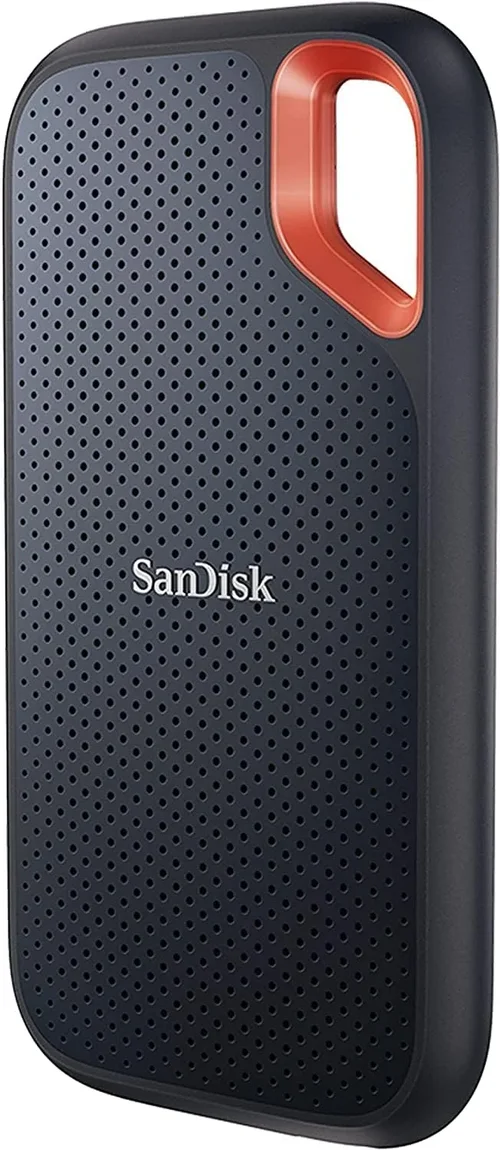
A: Yes, especially for portability and speed. External SSDs (like the Samsung T7 or SanDisk Extreme) offer near-internal performance and are ideal for photographers, videographers, or anyone needing fast, reliable portable storage. Just ensure your USB port supports USB 3.2 Gen 2 or Thunderbolt for full speed.
Q: Do I need to defragment an SSD?
A: No—and you shouldn’t. Defragmentation is designed for HDDs to reduce mechanical seek time. SSDs have no moving parts, so defragging wastes write cycles and shortens lifespan. Windows automatically disables defrag for SSDs and enables TRIM instead, which is the correct maintenance method.
Q: What’s the difference between SATA and NVMe?
A: SATA is an older interface limited to ~550 MB/s. NVMe uses the PCIe bus, allowing much higher speeds (up to 14,000 MB/s on PCIe 5.0). NVMe drives are typically M.2 form factor and require motherboard support. If your system has an M.2 slot, NVMe is almost always the better choice for performance.
Q: Can I recover data from a failed SSD?
A: It’s possible but often difficult and expensive. Unlike HDDs, SSDs don’t always fail gradually—they can become completely inaccessible without warning. Professional data recovery services exist, but success isn’t guaranteed. This underscores the importance of regular backups.
Q: Are there eco-friendly storage options?
A: SSDs are generally more energy-efficient than HDDs, reducing carbon footprint over time. Some manufacturers also use recycled materials or offer take-back programs. Look for drives with ENERGY STAR certification or sustainability reports from brands like Seagate and Western Digital.
Q: Should I upgrade my old laptop’s HDD to an SSD?
A: Almost always yes—even if the laptop is several years old. An SSD upgrade is one of the most cost-effective ways to breathe new life into aging hardware. You’ll see dramatic improvements in boot time, app responsiveness, and overall usability.
Q: What about cloud storage vs. local drives?
A: Cloud storage is great for accessibility and backup, but it can’t replace local drives for performance-sensitive tasks. Internet speed, subscription costs, and privacy concerns limit cloud utility for large files or real-time work. A hybrid approach—local SSD for active work, cloud for syncing and backup—is often optimal.
Our Final Recommendations
- Best for Budget-Conscious Buyers: Crucial MX500 1TB SATA SSD – Reliable, affordable, and widely compatible. Offers excellent performance for the price and comes with a 5-year warranty.
- Best Overall Value: Samsung 980 (non-Pro) 1TB NVMe SSD – Blends PCIe 3.0 speed, low power consumption, and Samsung’s proven reliability at a competitive price. Great for most users.
- Best Premium Option: Samsung 990 PRO 2TB PCIe 4.0 NVMe SSD – Top-tier performance, robust endurance (1,200TBW), and excellent thermal management. Ideal for gamers and creators.
- Best for Beginners: Western Digital Blue SN580 1TB NVMe SSD – Simple installation, solid speeds, and user-friendly software. Perfect for first-time upgraders.
- Best for Advanced Users: Seagate FireCuda 530 4TB PCIe 4.0 NVMe SSD – High capacity, extreme endurance (2,550TBW), and optimized for heavy workloads like 4K/8K video editing.
Conclusion: Making the Right Choice
Choosing between an HDD and an SSD in 2026 isn’t about picking a “winner”—it’s about matching the right technology to your specific needs, budget, and usage patterns. SSDs have become the default choice for primary storage due to their unmatched speed, durability, and decreasing costs. They transform the computing experience, making systems feel instant and responsive. HDDs, meanwhile, remain indispensable for high-capacity, low-cost storage where speed is secondary.
As you weigh your options, remember that the best solution often combines both: a fast SSD for your operating system and critical applications, paired with a spacious HDD for media and archives. This balanced approach maximizes performance without sacrificing affordability. Always prioritize reputable brands, verify compatibility, and never underestimate the value of a solid backup strategy—regardless of drive type.
Ultimately, the decision comes down to what matters most to you: raw speed and responsiveness, or vast storage at a bargain. With the insights from this guide, you’re now equipped to make a confident, informed choice that will serve you well for years to come. Don’t rush—take the time to assess your workflow, compare options, and invest wisely. Your future self will thank you every time your computer boots up in seconds instead of minutes.