

If you’re building or upgrading a PC in 2026, chances are you’ve already considered swapping out your old SATA SSD—or even your aging hard drive—for a blazing-fast M.2 NVMe SSD. These compact storage drives deliver incredible speeds, often exceeding 7,000 MB/s, and they’re becoming the standard for modern computing. But here’s the catch: not every motherboard has an M.2 slot. And even if it does, you might want to add more high-speed storage without sacrificing precious PCIe lanes or SATA ports.
That’s where M.2 SSD PCIe adapters come in. These clever little expansion cards let you install one or more M.2 NVMe SSDs into a standard PCIe slot on your motherboard, effectively turning unused bandwidth into ultra-fast storage. Whether you’re a content creator working with 8K video, a gamer loading massive open-world titles, or a developer running virtual machines, adding an M.2 SSD via a PCIe adapter can dramatically boost your system’s performance.
But with dozens of models on the market—ranging from basic single-slot cards under $20 to premium multi-drive enclosures costing over $150—it’s easy to feel overwhelmed. Which one supports PCIe Gen 4? Does it work with both B-key and M-key SSDs? Will it throttle under heavy load? And how do you avoid compatibility nightmares?
This comprehensive buying guide cuts through the noise. We’ll walk you through everything you need to know to choose the right M.2 SSD PCIe adapter for your setup in 2026. From understanding key technical specs to comparing different types, avoiding common pitfalls, and getting the best value for your budget, this guide is designed to help both beginners and seasoned builders make a confident, informed decision. By the end, you’ll know exactly what to look for—and what to skip—when shopping for your next storage upgrade.

What to Look for When Buying Buying Guide
1. PCIe Generation & Bandwidth Support
The single most important factor when choosing an M.2 SSD PCIe adapter is its support for PCIe generations—specifically, whether it’s compatible with PCIe Gen 3, Gen 4, or even Gen 5 (which is starting to appear in high-end systems as of 2026). Your SSD’s speed is directly tied to the bandwidth available through the PCIe lanes it uses.
Most modern M.2 NVMe SSDs are built for PCIe Gen 4, offering sequential read/write speeds up to 7,400 MB/s. If you plug one of these into a Gen 3-only adapter, you’ll be bottlenecked at around 3,500 MB/s—essentially wasting half your drive’s potential. Conversely, if you’re using a Gen 3 SSD, a Gen 4 adapter won’t hurt, but it also won’t help—it’s future-proofing at best.
Always check your motherboard’s PCIe slot version before buying. Most consumer motherboards still offer at least one Gen 4 x4 slot, but older boards may only support Gen 3. Also note that some adapters are labeled “Gen 4 ready” but require BIOS updates or specific chipsets (like AMD X570/B550 or Intel Z690+) to function at full speed.
2. Number of M.2 Slots & Drive Capacity
M.2 PCIe adapters come in single-slot, dual-slot, and even quad-slot configurations. Your choice depends entirely on how much storage you need and how many drives you plan to install.
Single-slot adapters are the most common and affordable, ideal for users adding just one extra NVMe drive. They’re compact, draw minimal power, and fit easily into most cases. Dual-slot models let you run two M.2 SSDs simultaneously—great for RAID 0 setups (for speed) or RAID 1 (for redundancy). Quad-slot adapters are rarer and typically aimed at workstation or server users who need massive parallel storage throughput.
Keep in mind that each additional drive consumes PCIe lanes. A dual-drive adapter usually requires a PCIe x8 or x16 slot to maintain full x4 bandwidth per drive. If you install it in an x4 slot, both drives may share bandwidth, reducing performance. Also, larger adapters generate more heat and may require active cooling (fans) or robust heatsinks—especially under sustained loads like video editing or database operations.
3. Form Factor Compatibility (Key Types)
M.2 SSDs come in different “keys”—physical notches that determine which interfaces they support. The two most common are B-key (supporting SATA and PCIe x2) and M-key (supporting PCIe x4 and NVMe). Almost all high-performance NVMe SSDs use the M-key.
Your adapter must match your SSD’s key type. Most modern PCIe adapters are designed for M-key SSDs, but some older or budget models only support B-key. Always verify compatibility before purchasing. Additionally, ensure the adapter supports the physical length of your SSD—common sizes include 2242, 2260, 2280, and 22110 (measured in millimeters: width x length). The “2280” format (22mm wide, 80mm long) is the industry standard, but workstation users may opt for longer 22110 drives for extra capacity.
4. Cooling & Thermal Management
High-speed NVMe SSDs can get extremely hot—especially during prolonged read/write operations. Without proper cooling, they may throttle performance to prevent damage, dropping speeds by 30–50%. That’s why thermal design is critical in M.2 PCIe adapters.
Look for models with large aluminum or copper heatsinks that make direct contact with the SSD’s controller and NAND chips. Some premium adapters include thermal pads pre-applied or bundled, while others feature finned designs for better airflow. Active-cooled adapters with small fans are available for multi-drive setups but add noise and complexity.
Passive cooling is usually sufficient for single-drive consumer use, provided your case has decent airflow. However, if you’re running sustained workloads (e.g., rendering, compiling code, or gaming with large asset streams), investing in an adapter with robust heatsinking is wise. Avoid bare PCB adapters with no thermal solution—they’re cheap for a reason.
5. Build Quality & Durability
Not all adapters are created equal. Cheap models often use thin PCBs, low-grade solder joints, and flimsy mounting hardware that can fail over time. A poorly built adapter might disconnect during use, corrupt data, or even damage your SSD or motherboard.
Inspect the PCB thickness (1.6mm is standard), look for reinforced PCIe connectors, and check user reviews for reports of cracking or loosening. Gold-plated PCIe contacts improve conductivity and reduce corrosion. Also, ensure the adapter fits securely in your case—some oversized models interfere with GPU clearance or RAM slots.
Reputable brands like ASUS, Gigabyte, MSI, and Sabrent typically offer better build quality than no-name brands, though there are exceptions. If you’re spending $100+ on high-end SSDs, don’t skimp on the adapter holding them.
6. RAID & Software Support
If you’re planning to use multiple M.2 SSDs in a RAID array, your adapter must support RAID functionality—either through hardware (onboard controller) or software (via your OS or motherboard BIOS).
Most consumer-grade adapters rely on software RAID, which works fine for basic setups but lacks advanced features like hot-swapping or battery-backed cache. Hardware RAID adapters are more expensive but offer better performance and reliability, especially for professional workflows.
Check whether the adapter includes RAID configuration utilities or requires manual setup in Windows Disk Management or Linux mdadm. Also, confirm that your motherboard’s chipset supports the desired RAID level (e.g., Intel RST for RAID 0/1/5).
7. Brand Reputation & Ecosystem Integration
While many third-party adapters work flawlessly, sticking with well-known brands often means better compatibility, firmware updates, and customer support. Brands like ASUS, Gigabyte, and MSI design their adapters to integrate seamlessly with their own motherboards, including RGB lighting sync (if applicable) and UEFI BIOS recognition.
Third-party specialists like Sabrent, Addlink, and Orico also produce reliable adapters with strong track records. Avoid ultra-cheap, unbranded options from unknown sellers—they may use counterfeit controllers or lack proper certification.
Additionally, consider ecosystem synergy. If you already own an ASUS motherboard with Aura Sync, an ASUS Hyper M.2 card will let you control RGB lighting uniformly. For minimalists, a no-frills Sabrent adapter might be preferable.
8. Warranty & Customer Support
A good warranty reflects confidence in product quality. Most reputable adapters come with 1–3 years of coverage, though some premium models offer lifetime warranties. Check what’s included: Does it cover accidental damage? Is replacement free, or do you pay shipping?
Customer support matters too. If your adapter fails or isn’t recognized by your system, you’ll want responsive help—not automated emails or dead forums. Read recent user reviews to gauge support quality. Brands with dedicated technical teams (like Sabrent’s live chat) tend to resolve issues faster than those relying solely on email tickets.
Different Types of Buying Guide

Common Buying Mistakes to Avoid

❌ Mistake: Ignoring PCIe Lane Allocation
Why it’s bad: Installing a multi-drive M.2 adapter in a PCIe x4 slot can force both drives to share bandwidth, cutting speeds in half. This is especially problematic on motherboards with limited lanes (e.g., B-series chipsets).
What to do instead: Check your motherboard manual to confirm available PCIe lane configurations. Use an x8 or x16 slot for dual-drive adapters to ensure each SSD gets full x4 bandwidth.
❌ Mistake: Buying a Gen 3 Adapter for a Gen 4 SSD
Why it’s bad: You’ll bottleneck a $200 Gen 4 SSD, limiting it to Gen 3 speeds (~3,500 MB/s) and wasting money.
What to do instead: Match your adapter generation to your SSD. If you own or plan to buy Gen 4 drives, invest in a Gen 4-compatible adapter—even if it costs $10–$20 more.
❌ Mistake: Overlooking Thermal Throttling
Why it’s bad: An uncooled adapter can cause your SSD to throttle during long file transfers or renders, leading to inconsistent performance and potential data corruption.
What to do instead: Choose an adapter with a substantial heatsink or active cooling if you perform sustained workloads. Monitor temps using tools like HWiNFO or CrystalDiskInfo.
❌ Mistake: Assuming All Adapters Support RAID
Why it’s bad: Many single-slot adapters don’t support RAID at all, and dual-slot models may require specific BIOS settings or drivers.
What to do instead: Verify RAID compatibility in the product description or manual. For hardware RAID, look for adapters with onboard controllers (e.g., ASMedia ASM2824).
❌ Mistake: Choosing Based Solely on Price
Why it’s bad: The cheapest adapter may lack proper power delivery, use low-quality components, or fail within months—costing you more in downtime and replacement.
What to do instead: Balance cost with features. A $30 adapter with a heatsink and Gen 4 support is often a better long-term investment than a $15 bare-bones model.
❌ Mistake: Not Checking Physical Clearance
Why it’s bad: Large adapters can block GPU installation, interfere with tall RAM heatsinks, or prevent side panel closure.
What to do instead: Measure your case interior and compare with the adapter’s dimensions. Low-profile or half-height brackets may be needed for small form factor builds.
❌ Mistake: Skipping Firmware Updates
Why it’s bad: Outdated firmware can cause compatibility issues, especially with newer SSDs or motherboards.
What to do instead: Visit the manufacturer’s website after purchase to check for firmware updates. Some brands (like ASUS) offer easy flashing via UEFI.
Budget Guidelines: How Much Should You Spend?
Entry-Level ($10 – $25): Ideal for basic upgrades on older systems or adding a secondary SATA-based M.2 SSD. Expect minimal features—no heatsink, Gen 3 only, single slot. Great for office PCs or budget gaming rigs, but avoid for high-performance NVMe drives.
Mid-Range ($30 – $70): The sweet spot for most users. These adapters typically support PCIe Gen 4, include a decent aluminum heatsink, and fit 2280 SSDs. Dual-slot models in this range offer RAID 0/1 support and are perfect for content creators or enthusiasts who want extra speed without breaking the bank.
Premium ($80 – $150): Designed for professionals and power users. Features include quad-slot support, active cooling, hardware RAID controllers, and robust build quality. Ideal for video editors, 3D artists, or anyone running multiple high-speed NVMe drives in parallel.
Luxury ($150+): Top-tier adapters with enterprise-grade components, Thunderbolt integration, or modular designs. Often used in workstations or compact servers. Overkill for average users but essential for mission-critical applications where uptime and performance are non-negotiable.
Expert Tips for Getting the Best Deal
- Buy during major sales events: Look for discounts during Black Friday, Prime Day, or New Year sales. Brands often bundle adapters with SSDs at reduced prices.
- Check refurbished or open-box deals: Reputable retailers like Newegg, Amazon Renewed, or Best Buy often sell tested adapters at 20–40% off.
- Prioritize retailers with good return policies: Ensure you can return the adapter if it’s incompatible or defective. Avoid third-party sellers with no return window.
- Read recent user reviews: Older reviews may not reflect current firmware or compatibility with newer SSDs. Focus on feedback from the last 6–12 months.
- Verify compatibility before installing: Use tools like CPU-Z or your motherboard’s QVL (Qualified Vendor List) to confirm PCIe lane availability and SSD support.
- Consider future upgrades: If you plan to add more drives later, buy a dual-slot adapter now instead of replacing a single-slot model later.
- Watch for bundle deals: Some manufacturers (e.g., Sabrent) offer adapters + thermal pads + screws in one package—saving you $5–$10 on accessories.
- Test immediately after installation: Run benchmarks (CrystalDiskMark, ATTO) and stress tests to ensure stable performance and no thermal throttling.

Frequently Asked Questions
Q: Can I use an M.2 PCIe adapter with a SATA SSD?
A: Only if the adapter explicitly supports B-key M.2 slots. Most modern NVMe-focused adapters are M-key only and won’t work with SATA M.2 drives. Always check the product specs.
Q: Will an M.2 PCIe adapter work in any PCIe slot?
A: It depends on the slot size and lane allocation. A Gen 4 x4 adapter needs at least a PCIe x4 electrical connection. It can physically fit in an x8 or x16 slot, but performance may be limited if the slot doesn’t provide enough lanes.
Q: Do I need to install drivers for the adapter?
A: Generally, no. M.2 SSDs are recognized as standard NVMe devices by Windows 10/11 and modern Linux kernels. However, RAID functionality may require additional software or BIOS configuration.
Q: Can I boot from an SSD installed via PCIe adapter?
A: Yes, as long as your motherboard’s UEFI supports booting from NVMe devices in PCIe slots. Most modern boards (2018+) do, but check your manual to confirm.
Q: Will the adapter reduce my GPU performance?
A: Only if it shares PCIe lanes with your graphics card. On most consumer CPUs, the GPU uses 16 lanes, and M.2 slots (or adapters) use separate lanes. However, on some B-series motherboards, using certain PCIe slots may disable SATA ports or reduce GPU to x8 mode—check your board’s lane mapping.
Q: Are external M.2 enclosures better than internal adapters?
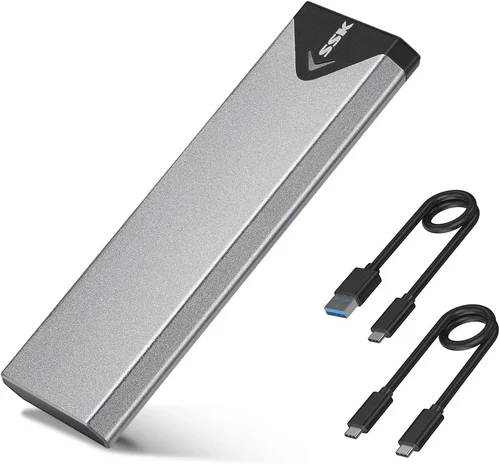
A: External enclosures offer portability and easy swapping but are limited by USB or Thunderbolt bandwidth (typically capped at ~2,800 MB/s for USB4). Internal adapters provide full PCIe speeds and lower latency, making them superior for performance-critical tasks.
Q: How do I prevent my SSD from overheating in the adapter?
A: Ensure the adapter has a quality heatsink, apply thermal pads if needed, and maintain good case airflow. Avoid covering the adapter with cables or other components.
Q: Can I use a PCIe adapter in a laptop?
A: No. Laptops don’t have full-size PCIe slots. Use an M.2-to-USB enclosure instead for external SSD connectivity.
Q: What’s the difference between a PCIe adapter and an M.2 expansion card?
A: They’re essentially the same thing. “Expansion card” is a broader term, while “adapter” emphasizes the conversion from M.2 to PCIe form factor.
Q: Will a Gen 5 adapter work with Gen 4 SSDs?
A: Yes, but it’s unnecessary unless you plan to upgrade to Gen 5 SSDs soon. Gen 5 adapters are backward compatible but significantly more expensive.
Our Final Recommendations
Best for Budget-Conscious Buyers: Sabrent M.2 PCIe Gen 3/4 Adapter (EC-MP4) – At under $25, this no-frills card supports both Gen 3 and Gen 4 SSDs, includes a small heatsink, and fits 2280 drives. Perfect for casual users upgrading from SATA.
Best Overall Value: ASUS Hyper M.2 x16 Gen 4 Card – Priced around $60, it offers dual M.2 slots, robust aluminum heatsinks, RAID support, and seamless integration with ASUS motherboards. A fantastic balance of performance, features, and reliability.
Best Premium Option: Gigabyte AORUS Gen4 AIC SSD Adapter (4x M.2) – For professionals needing maximum throughput, this quad-slot beast supports four Gen 4 SSDs with individual heatsinks and optional fan cooling. Ideal for 8K video editing or database servers.
Best for Beginners: Addlink S70 PCIe Gen 4 Adapter – Simple installation, clear labeling, and included thermal pads make this a great first-time choice. Comes with a 2-year warranty and excellent customer support.
Best for Advanced Users: HighPoint SSD7101A-1 – A hardware RAID controller with four M.2 slots, PCIe Gen 4 x16 interface, and enterprise-grade reliability. Supports RAID 0/1/5/10 and includes management software for fine-tuned control.
Conclusion: Making the Right Choice
Choosing the right M.2 SSD PCIe adapter in 2026 isn’t just about picking the fastest or cheapest option—it’s about matching the right tool to your specific needs. Whether you’re a gamer looking to reduce load times, a creator needing rapid file access, or a sysadmin building a high-availability workstation, the adapter you select will directly impact your system’s performance, stability, and longevity.
We’ve covered the essentials: from PCIe generation and thermal design to RAID support and physical compatibility. We’ve highlighted common pitfalls, broken down budget tiers, and shared expert tips to help you avoid overspending or underperforming. Most importantly, we’ve emphasized that the “best” adapter is the one that aligns with your hardware, workflow, and future plans.
So before you click “buy,” ask yourself: What am I using this for? How many drives do I need? Will I upgrade later? And most crucially—does this adapter unlock my SSD’s full potential without creating new bottlenecks?
Take your time, do your research, and don’t hesitate to reach out to manufacturer support if you’re unsure. With the right M.2 PCIe adapter, you’re not just adding storage—you’re future-proofing your system for the demands of 2026 and beyond. Now go build something amazing.