

When it comes to upgrading your computer’s storage in 2026, few decisions are as impactful—or as confusing—as choosing the right M.2 SSD. Whether you’re building a high-performance gaming rig, refreshing an aging laptop, or setting up a workstation for content creation, the M.2 SSD you select can dramatically affect boot times, application load speeds, file transfer rates, and overall system responsiveness. With so many options flooding the market—from budget-friendly SATA-based drives to blazing-fast PCIe Gen5 NVMe SSDs—it’s easy to feel overwhelmed by technical jargon, conflicting reviews, and rapidly evolving standards.
This comprehensive buying guide is designed to cut through the noise and give you everything you need to make a confident, informed decision. We’ll walk you through the key factors that truly matter—performance, compatibility, endurance, price, and more—and help you understand how different types of M.2 SSDs stack up against each other. You’ll learn how to avoid common pitfalls, identify the best value for your specific use case, and even discover expert tips for scoring the best deals. By the end of this guide, you won’t just know which M.2 SSD to buy—you’ll know why it’s the right choice for you.
The M.2 SSD market in 2026 is more dynamic than ever. While PCIe Gen4 drives have become the mainstream standard for most desktops and high-end laptops, PCIe Gen5 SSDs are now entering the mainstream with impressive speeds exceeding 10,000 MB/s—though often at a premium price and with increased heat output. Meanwhile, older SATA-based M.2 drives still hold value for budget builds or systems with limited bandwidth. Add in considerations like DRAM cache, NAND type (TLC vs QLC), power efficiency, thermal throttling, and form factor compatibility, and it’s clear why choosing wisely matters. This guide will equip you with the knowledge to navigate these variables and select an M.2 SSD that delivers optimal performance, reliability, and longevity—without overspending.

What to Look for When Buying Buying Guide
1. Interface & Protocol: PCIe vs SATA
The interface and protocol your M.2 SSD uses determine its maximum potential speed and compatibility with your system. There are two primary types: SATA-based M.2 SSDs and NVMe-based PCIe M.2 SSDs.
SATA M.2 SSDs use the same protocol as traditional 2.5-inch SATA SSDs, meaning they’re limited to around 550–600 MB/s read/write speeds. While they’re cheaper and widely compatible, they’re best suited for older systems or budget upgrades where speed isn’t critical. On the other hand, NVMe (Non-Volatile Memory Express) SSDs leverage the PCIe (Peripheral Component Interconnect Express) bus, allowing for significantly higher data transfer rates. PCIe Gen3 drives typically reach up to 3,500 MB/s, Gen4 up to 7,000–7,400 MB/s, and Gen5 can exceed 10,000 MB/s.
Always check your motherboard or laptop specifications to confirm which interface your system supports. A Gen5 SSD won’t deliver its full speed on a Gen3 slot, and a SATA M.2 drive won’t work in a PCIe-only M.2 slot. Mismatched compatibility is one of the most common—and avoidable—mistakes buyers make.
2. Form Factor: 2280, 2260, 2242, and Beyond
M.2 SSDs come in different physical sizes, denoted by a four- or five-digit code like “2280.” The first two digits represent width in millimeters (usually 22mm), and the last two or three indicate length (e.g., 80mm for 2280). The 2280 size (22mm x 80mm) is by far the most common and compatible with the vast majority of desktops, laptops, and mini-PCs.
Other sizes like 2260 (60mm) and 2242 (42mm) are less common and typically found in ultrabooks or compact devices. While they offer the same performance as their longer counterparts, their smaller size limits heat dissipation and sometimes capacity. Unless you’re working with a space-constrained system, stick with 2280 for maximum flexibility and cooling potential.
Always verify your device’s M.2 slot supports the length you’re considering. Some laptops only accommodate shorter modules, and attempting to install a 2280 in a 2242 slot (or vice versa) can damage hardware or prevent installation altogether.
3. Performance Specifications: Sequential vs Random I/O
When evaluating SSD performance, manufacturers often highlight sequential read/write speeds—like “7,000 MB/s read”—which reflect how quickly large files (videos, games, ISOs) can be transferred. These numbers are impressive and useful for tasks like video editing or game loading, but they don’t tell the whole story.
Equally important are random I/O performance, measured in IOPS (Input/Output Operations Per Second). This reflects how well the drive handles small, scattered files—like opening applications, loading OS files, or multitasking. A drive with high sequential speeds but poor random performance may feel sluggish during everyday use.
For most users, a balance is ideal. Gamers benefit from high sequential speeds for fast level loads, while professionals working with databases or virtual machines need strong random I/O. Look for drives that publish both metrics, and prioritize random 4K read/write IOPS if your workflow involves many small file operations.
4. NAND Flash Type: TLC vs QLC vs PLC
The type of NAND flash memory used in an SSD affects its speed, endurance, cost, and longevity. In 2026, the most common types are TLC (Triple-Level Cell), QLC (Quad-Level Cell), and emerging PLC (Penta-Level Cell).
TLC stores three bits per cell and offers the best balance of performance, endurance, and price. It’s ideal for general use, gaming, and productivity. QLC stores four bits per cell, allowing for higher capacities at lower costs, but with reduced write speeds and endurance—especially under heavy workloads. PLC, still in early adoption, pushes to five bits per cell, further reducing cost per gigabyte but increasing wear and requiring more sophisticated controllers.
For most users, TLC remains the sweet spot. QLC can be acceptable for secondary storage or light use, but avoid it for primary drives or write-intensive tasks. Always check the drive’s TBW (Terabytes Written) rating—a measure of endurance—to gauge how long it’s likely to last under your usage patterns.
5. DRAM Cache: Why It Matters
DRAM (Dynamic Random-Access Memory) cache acts as a high-speed buffer between the SSD controller and NAND flash, significantly improving performance—especially during sustained writes and random access.
SSDs with DRAM cache maintain consistent speeds and better longevity because the controller can manage data more efficiently. DRAM-less SSDs, often found in budget models, rely on system memory (via HMB—Host Memory Buffer) or slower internal caching, which can lead to performance drops under load.
While DRAM-less drives can be fine for light use, they’re not recommended for gaming, content creation, or multitasking. Always check whether an SSD includes a DRAM chip—most reputable brands will list this in the specifications. If it’s not mentioned, assume it’s DRAM-less.
6. Thermal Management & Throttling
High-performance M.2 SSDs, especially PCIe Gen4 and Gen5 models, generate significant heat during heavy workloads. Without proper cooling, they can throttle—slowing down to prevent overheating—which negates their speed advantages.
Many premium SSDs now include built-in heat spreaders or thermal pads. For desktops, consider installing an M.2 heatsink (often included with motherboards or available separately). Laptops have less room for cooling, so thermal design is even more critical.
Look for drives with robust thermal management features or user-replaceable thermal pads. If you plan to use your SSD for sustained workloads (e.g., video rendering), prioritize models with proven thermal performance. Check reviews for real-world throttling tests—don’t rely solely on manufacturer claims.
7. Endurance & Warranty: TBW and MTBF
SSD endurance is measured in TBW (Terabytes Written)—the total amount of data that can be written to the drive over its lifetime. Higher TBW means longer expected lifespan. For example, a 1TB drive with a 600 TBW rating can theoretically write 600TB before failure.
MTBF (Mean Time Between Failures) is another metric, often listed in hours (e.g., 1.5 million hours). While useful, TBW is more practical for estimating real-world longevity.
Most consumer SSDs come with 3- to 5-year warranties, often tied to TBW limits. A 1TB drive with a 600 TBW rating and 5-year warranty suggests the manufacturer expects it to last at least that long under normal use. For heavy users, aim for higher TBW ratings. Always register your drive with the manufacturer to activate the full warranty.
8. Brand Reputation & Ecosystem Support
Not all SSD brands are created equal. Established names like Samsung, Crucial, Western Digital, Kingston, and Sabrent have proven track records for reliability, firmware updates, and customer support. Lesser-known brands may offer tempting prices but often lack long-term support or consistent quality.
Consider the ecosystem: Does the brand offer reliable cloning software, firmware tools, or migration utilities? Samsung’s Magician, Crucial’s Storage Executive, and WD’s Dashboard are excellent examples of value-added software that enhance usability and monitoring.
Avoid no-name brands with vague specifications or missing firmware support. A few dollars saved upfront could cost you in data loss or replacement headaches down the line.
Different Types of Buying Guide

Common Buying Mistakes to Avoid
❌ Mistake: Ignoring Compatibility
Why it’s bad: Installing an M.2 SSD that doesn’t match your system’s interface (SATA vs NVMe) or form factor (2280 vs 2242) can result in the drive not being recognized, physical damage, or wasted money.
What to do instead: Always check your motherboard or laptop manual for M.2 slot specifications. Use tools like CPU-Z or manufacturer support pages to confirm supported protocols and sizes. When in doubt, contact the device manufacturer.
❌ Mistake: Prioritizing Speed Over Endurance
Why it’s bad: A drive with high sequential speeds but low TBW may fail prematurely under heavy use, especially if it uses QLC NAND or lacks DRAM.
What to do instead: Balance speed with endurance. For primary drives, aim for at least 600 TBW for a 1TB SSD. Check independent reviews for real-world endurance testing.
❌ Mistake: Buying Based Solely on Price
Why it’s bad: The cheapest SSDs often cut corners on NAND quality, controller reliability, and thermal design, leading to poor performance, data corruption, or early failure.
What to do instead: Focus on value—performance, endurance, warranty, and brand reputation per dollar. A slightly more expensive drive from a trusted brand often pays off in longevity and peace of mind.
❌ Mistake: Overlooking Thermal Throttling
Why it’s bad: High-speed SSDs can slow down significantly when overheated, especially in laptops or poorly ventilated cases, negating their performance benefits.
What to do instead: Choose drives with built-in heat spreaders or plan for aftermarket cooling. Monitor temperatures using tools like HWInfo or CrystalDiskInfo.
❌ Mistake: Skipping Firmware Updates
Why it’s bad: Outdated firmware can cause compatibility issues, performance bugs, or security vulnerabilities. Many SSD failures are preventable with timely updates.
What to do instead: Register your SSD with the manufacturer and check for firmware updates periodically. Use official tools like Samsung Magician or Crucial Storage Executive.
❌ Mistake: Assuming All NVMe SSDs Are Equal
Why it’s bad: NVMe is a protocol, not a performance guarantee. A budget NVMe SSD may use slower NAND, lack DRAM, or have a weak controller, performing worse than a high-quality SATA drive.
What to do instead: Read detailed reviews and benchmarks. Look beyond marketing claims and focus on real-world performance metrics.
❌ Mistake: Not Backing Up Before Installation
Why it’s bad: Cloning or fresh OS installation can result in data loss if not done carefully. Always assume something can go wrong.
What to do instead: Back up important data before installing a new SSD. Use reliable cloning software and verify the backup before proceeding.
Budget Guidelines: How Much Should You Spend?
Entry-Level ($30 – $60 for 1TB): This tier includes SATA M.2 SSDs and budget NVMe drives, often DRAM-less or using QLC NAND. Best for light use, older systems, or secondary storage. Expect modest performance and lower endurance. Examples: Kingston NV2, Crucial P3 (QLC version).
Mid-Range ($60 – $100 for 1TB): The sweet spot for most users. Includes PCIe Gen3 and entry-level Gen4 NVMe SSDs with TLC NAND and DRAM cache. Offers excellent performance for gaming, productivity, and general use. Examples: Samsung 980, WD Black SN770, Crucial P5 Plus.
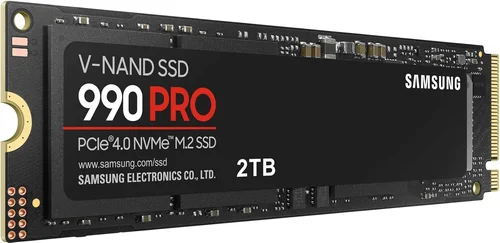
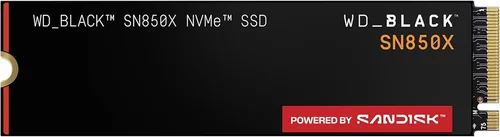
Premium ($100 – $180 for 1TB): High-performance Gen4 NVMe SSDs with top-tier controllers, excellent thermal management, and high endurance. Ideal for content creators, gamers, and power users. Examples: Samsung 990 Pro, WD Black SN850X, Sabrent Rocket 4 Plus.
Luxury ($180+ for 1TB): Cutting-edge Gen5 SSDs with speeds over 10,000 MB/s, advanced cooling, and professional-grade endurance. Best for enthusiasts, professionals, and future-proofing. Examples: Corsair MP700, Gigabyte AORUS Gen5, Samsung 990 Pro with heatsink.
Expert Tips for Getting the Best Deal
1. Time Your Purchase Around Major Sales
The best deals on M.2 SSDs typically occur during Black Friday, Cyber Monday, Amazon Prime Day, and back-to-school sales (July–August). Prices can drop 20–40% during these periods. Avoid buying right after a new model launches—prices are highest then.
2. Buy from Reputable Retailers with Good Return Policies
Stick to trusted sellers like Amazon (sold by Amazon, not third parties), Newegg, Best Buy, or direct from manufacturers. Ensure the return window is at least 30 days and covers defective units. Avoid gray-market or unauthorized resellers.
3. Compare Prices Across Multiple Platforms
Use price comparison tools like PCPartPicker, Google Shopping, or CamelCamelCamel (for Amazon) to track historical prices and identify genuine discounts. Don’t fall for “limited-time offers” that aren’t actually deals.
4. Consider Refurbished or Open-Box Units
Many manufacturers and retailers sell certified refurbished SSDs with full warranties at significant discounts. These are often returned units that have been tested and repackaged. As long as they’re from a trusted source, they’re a safe bet.
5. Check for Bundled Software or Services
Some SSDs come with free cloning software, cloud storage, or extended warranties. Samsung often includes migration tools, while Crucial offers free data recovery services. These add-ons can increase overall value.
6. Monitor Firmware and Security Updates
Choose brands that actively support their products with firmware updates. This ensures long-term compatibility, performance improvements, and security patches. Avoid brands with a history of abandoned products.
7. Test Performance After Installation
Use tools like CrystalDiskMark, AS SSD Benchmark, or ATTO Disk Benchmark to verify your SSD is performing as advertised. Compare results with published specs and user reviews. If performance is significantly lower, contact support.
8. Plan for Future Upgrades
If you’re building a new system, consider investing in a Gen4 or Gen5 SSD even if your current workload doesn’t require it. Future-proofing ensures your system stays relevant for years and avoids the cost of upgrading twice.

Frequently Asked Questions
Q: Can I use a PCIe Gen5 SSD in a Gen4 or Gen3 slot?
A: Yes, but it will operate at the speed of the slot. A Gen5 SSD in a Gen4 slot will run at Gen4 speeds, and in a Gen3 slot at Gen3 speeds. It’s backward compatible, but you won’t benefit from the higher performance unless your system supports Gen5.
Q: Do I need a heatsink for my M.2 SSD?
A: It depends. For Gen3 and light Gen4 use, a heatsink isn’t always necessary. However, for sustained workloads or Gen5 drives, a heatsink is highly recommended to prevent thermal throttling. Many motherboards include M.2 heatsinks—use them.
Q: What’s the difference between M.2 SATA and M.2 NVMe?
A: M.2 is the physical form factor. SATA and NVMe are the protocols. M.2 SATA uses the older SATA interface (slower, ~550 MB/s), while M.2 NVMe uses the PCIe bus (much faster, up to 10,000+ MB/s). They are not interchangeable—check your system’s support.
Q: How long do M.2 SSDs last?
A: Most consumer SSDs last 5–10 years under normal use, depending on TBW rating and usage patterns. A 1TB drive with 600 TBW can write about 164GB per day for 10 years. Heavy users should monitor wear using SMART tools.
Q: Can I install an M.2 SSD in a laptop?
A: Yes, if your laptop has an M.2 slot. Check the manual for supported sizes (usually 2280) and protocols. Some ultrabooks only support SATA M.2, while gaming laptops often support NVMe Gen4.
Q: Is a DRAM-less SSD bad?
A: Not necessarily, but it’s a compromise. DRAM-less SSDs can be fine for light use, but they may slow down during heavy writes or multitasking. For primary drives, prefer models with DRAM cache.
Q: Should I buy a 2TB SSD instead of two 1TB drives?
A: A single 2TB SSD is simpler, uses one slot, and often has better performance due to more NAND channels. However, two 1TB drives offer redundancy and can be configured in RAID for speed or backup. For most users, a single 2TB drive is preferable.
Q: Do M.2 SSDs work with macOS?
A: Yes, but compatibility varies. Apple’s newer Macs use proprietary SSDs, but many third-party M.2 NVMe SSDs work in older Macs or Hackintosh builds. Always check compatibility lists and firmware requirements.
Q: Can I recover data from a failed M.2 SSD?
A: It depends on the failure type. Logical failures (corrupted files) are often recoverable with software. Physical failures (controller or NAND damage) may require professional data recovery services, which can be expensive.
Our Final Recommendations
Best for Budget-Conscious Buyers: Crucial P3 1TB (PCIe Gen3 NVMe)
Offers excellent value with TLC NAND, DRAM cache, and reliable performance for under $60. Ideal for upgrading older systems or building a budget PC.
Best Overall Value: Samsung 980 1TB (PCIe Gen3 NVMe)
A proven performer with strong endurance, low power consumption, and Samsung’s excellent Magician software. Priced around $70, it’s hard to beat for everyday use.
Best Premium Option: Samsung 990 Pro 1TB (PCIe Gen4 NVMe)
Top-tier performance, exceptional endurance (600 TBW), and robust thermal design. Perfect for gamers, creators, and anyone who demands the best.
Best for Beginners: WD Black SN770 1TB (PCIe Gen4 NVMe)
Easy to install, reliable, and well-supported with WD Dashboard software. Great first NVMe SSD with strong performance and no overheating issues.
Best for Advanced Users: Corsair MP700 1TB (PCIe Gen5 NVMe)
Blazing 10,000+ MB/s speeds, built-in heatsink, and high endurance. Ideal for enthusiasts and professionals who need cutting-edge performance and future-proofing.
Conclusion: Making the Right Choice
Choosing the right M.2 SSD in 2026 doesn’t have to be overwhelming. By focusing on compatibility, performance needs, endurance, and value, you can find a drive that enhances your system’s speed and reliability without breaking the bank. Remember: the fastest SSD isn’t always the best—your use case, budget, and system limitations matter just as much.
Start by identifying your primary needs: Are you gaming, creating content, or just upgrading an old laptop? Then, match those needs to the right interface, form factor, and NAND type. Avoid common pitfalls like ignoring thermal management or buying based solely on price. And don’t forget to back up your data before making the switch.
With the insights from this guide, you’re now equipped to make a smart, confident decision. Whether you’re building a dream PC or squeezing more life out of an aging machine, the right M.2 SSD can make all the difference. Take your time, do your research, and invest in a drive that will serve you well for years to come. Your future self—and your faster-booting system—will thank you.