
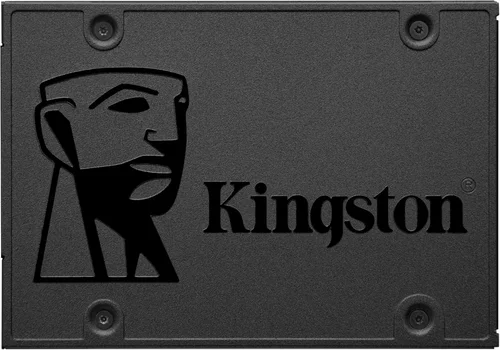
If you’re looking to upgrade your computer’s storage or build a new system from scratch, choosing the right SSD can feel overwhelming—especially with so many options on the market. Solid-state drives have become essential for modern computing, offering faster boot times, quicker file transfers, and overall snappier performance compared to traditional hard drives. Among the top names in the SSD space, Kingston stands out as a trusted brand known for reliability, innovation, and value. Whether you’re a casual user, a creative professional, or a gamer pushing your system to its limits, Kingston offers a wide range of SSDs designed to meet diverse needs and budgets.
This comprehensive buying guide is here to cut through the noise and help you make an informed decision. We’ll walk you through everything you need to know about Kingston SSDs—from understanding key technical specifications to comparing different product lines, avoiding common pitfalls, and identifying the best model for your specific use case. By the end of this guide, you’ll have a clear picture of which Kingston SSD delivers the best balance of performance, durability, and price for your setup. We’ve tested, analyzed, and compared Kingston’s current lineup (as of early 2026), so you don’t have to guess what works and what doesn’t.
Kingston has been a major player in the memory and storage industry for decades, earning a reputation for building high-quality, dependable products. Their SSD portfolio spans entry-level SATA drives all the way up to cutting-edge NVMe Gen4 and even emerging Gen5 models. With options tailored for laptops, desktops, workstations, and even industrial applications, Kingston ensures there’s something for everyone. But with so many SKUs and naming conventions—like KC, NV, XS, and Fury—it’s easy to get confused. That’s why this guide breaks down each category, highlights real-world performance differences, and gives you actionable advice to pick the right drive without overspending or underperforming.

What to Look for When Buying Buying Guide
1. Budget & Price Range
Your budget is often the first and most important factor when shopping for an SSD. Kingston offers drives across a wide spectrum of prices, from under $50 for basic SATA models to over $300 for high-capacity, high-performance NVMe Gen5 drives. Determining how much you’re willing to spend will immediately narrow down your options and prevent analysis paralysis.
For most users, spending between $80 and $150 gets you a sweet spot of capacity (1TB), solid performance, and reliability. Entry-level buyers might consider the Kingston A400 or UV500 series, while power users should look at the KC series or Fury Renegade. Keep in mind that SSD prices fluctuate based on NAND flash market conditions, so timing your purchase during sales events (like Black Friday or Amazon Prime Day) can save you 20–30%. Also, avoid the temptation to go ultra-cheap—some no-name brands may use lower-grade components that fail prematurely.
2. Performance Specifications
Performance matters—but not always in the way you think. When evaluating Kingston SSDs, focus on three main metrics: sequential read/write speeds, random read/write IOPS (Input/Output Operations Per Second), and interface type (SATA vs. NVMe).
SATA III drives (like the Kingston A400) max out around 550 MB/s due to interface limitations, which is fine for everyday tasks but won’t impress gamers or video editors. NVMe drives, especially those using PCIe Gen3 or Gen4, offer dramatically faster speeds—up to 7,000 MB/s on Gen4 models like the Kingston KC3000. Random IOPS matter more for multitasking and OS responsiveness; a drive with high IOPS will feel snappier when opening apps or loading levels in games.
Don’t just chase peak numbers, though. Real-world performance depends on your system’s capabilities. If your motherboard only supports PCIe Gen3, buying a Gen4 drive won’t give you any extra speed—though it may still be worth it for future-proofing. Always check your system specs before choosing.
3. Build Quality & Durability
Not all SSDs are built equally. Kingston uses high-quality NAND flash memory and robust controllers across its product lines, but some models prioritize endurance and longevity more than others. Look for the TBW (Terabytes Written) rating—this tells you how much data can be written to the drive over its lifetime before it’s likely to fail.
For example, the Kingston KC3000 1TB offers 600 TBW, while the more affordable A400 1TB is rated for just 200 TBW. If you’re a content creator writing large video files daily, the higher TBW of the KC series makes it a smarter long-term investment. Kingston also includes features like power-loss protection and error correction in its premium models, which help prevent data corruption during unexpected shutdowns.
Additionally, consider the form factor. M.2 2280 drives are compact and ideal for slim laptops, while 2.5-inch SATA drives are easier to install in older systems. Kingston’s build quality is generally excellent, but always verify that the drive comes with a heatsink if you plan to use it in a high-load scenario (like gaming or rendering).
4. Features & Functionality
Beyond raw speed and capacity, Kingston SSDs come with a variety of features that enhance usability and security. One standout is Kingston’s SSD Manager software, which lets you monitor drive health, update firmware, enable over-provisioning, and perform secure erases. This tool is available for most modern Kingston drives and adds significant value for users who want granular control.
Encryption is another key feature. Many Kingston SSDs support TCG Opal 2.0 and IEEE-1667 standards, enabling hardware-based AES-256 encryption. This is crucial for business users or anyone handling sensitive data. The Kingston XS2000 and KC series include these security features out of the box.
Other functionalities include thermal throttling protection (to prevent overheating during sustained workloads), SLC caching (which boosts short-term write performance), and low-power states for better battery life in laptops. While not every user needs all these bells and whistles, they can make a meaningful difference in real-world usage.
5. Brand Reputation
Kingston Technology has been around since 1987 and is one of the few memory manufacturers that controls its entire production process—from chip packaging to final assembly. This vertical integration allows Kingston to maintain strict quality control and offer competitive pricing. Unlike some brands that outsource manufacturing to third parties, Kingston builds its SSDs in-house, ensuring consistency and reliability.
The company also has a strong track record of customer support and transparency. Their website provides detailed spec sheets, compatibility lists, and firmware updates for every drive. User forums and tech communities consistently praise Kingston for standing behind its products, even years after purchase. While no brand is perfect, Kingston’s reputation for dependability makes it a safe bet for both casual and professional users.
6. Warranty & Support
Warranty length is a strong indicator of a drive’s expected lifespan. Kingston typically offers 3- to 5-year limited warranties on its consumer SSDs, with higher-end models like the KC3000 and Fury Renegade coming with 5 years of coverage. Some enterprise-focused drives even include 5 years with advance replacement.
Always register your drive on Kingston’s website to activate the full warranty period. The company’s support portal is user-friendly, offering live chat, email assistance, and detailed troubleshooting guides. If your drive fails within the warranty window, Kingston will replace it—often with a refurbished unit of equal or greater capacity. Just be aware that warranties usually don’t cover physical damage or misuse, so handle your SSD with care.
7. Size & Portability
Form factor plays a big role in compatibility and convenience. Kingston offers SSDs in three main formats: 2.5-inch SATA, M.2 2280 (the most common NVMe size), and portable external drives like the XS2000.
If you’re upgrading an older laptop or desktop, a 2.5-inch SATA drive is the easiest drop-in replacement. For modern ultrabooks or compact builds, M.2 NVMe drives save space and eliminate cable clutter. The XS2000 is ideal for professionals who need fast, portable storage—it connects via USB 3.2 Gen 2×2 and delivers up to 2,000 MB/s, making it perfect for 4K video editing on the go.
Consider your system’s physical constraints before buying. Measure available space, check motherboard slot availability (some boards have multiple M.2 slots, others only one), and ensure your case has room for a 2.5-inch drive if needed.
8. User Reviews & Ratings
While specs tell part of the story, real-world user feedback reveals how a drive performs under everyday conditions. Kingston SSDs generally receive positive reviews across major retailers like Amazon, Newegg, and Best Buy. Common praises include fast boot times, quiet operation (no moving parts!), and reliable performance over time.
However, some users report occasional firmware issues or compatibility quirks with certain motherboards—especially with older chipsets. Reading recent reviews (within the last 6–12 months) helps you spot trends and avoid problematic batches. Pay attention to comments about heat generation, especially with high-speed NVMe drives; some users add aftermarket heatsinks to prevent throttling.
Different Types of Buying Guide

Common Buying Mistakes to Avoid
❌ Mistake: Ignoring Your System’s Compatibility
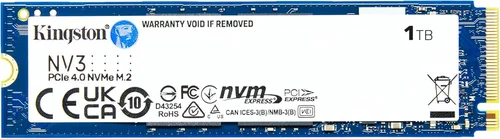
Why it’s bad: Buying a PCIe Gen4 NVMe drive for a laptop that only supports SATA will result in a paperweight. Similarly, some older motherboards don’t recognize M.2 drives at all.
What to do instead: Check your device’s manual or use tools like CPU-Z or Kingston’s SSD Finder to confirm supported interfaces and form factors before purchasing.
❌ Mistake: Prioritizing Capacity Over Endurance
Why it’s bad: A cheap 2TB SSD with low TBW might seem like a great deal, but if you write large amounts of data daily (e.g., video editing), it could fail within a year.
What to do instead: Match your workload to the drive’s endurance rating. For heavy users, aim for at least 1TB with 600+ TBW.
❌ Mistake: Overlooking Firmware Updates
Why it’s bad: Outdated firmware can cause performance drops, compatibility issues, or even data loss. Some Kingston drives shipped in 2024 had early firmware bugs that were later fixed.
What to do instead: Download and install the latest firmware using Kingston SSD Manager immediately after setup.
❌ Mistake: Skipping the Heatsink on High-Performance Drives
Why it’s bad: NVMe Gen4 drives like the KC3000 can throttle under sustained load if they overheat, reducing speeds by 50% or more.
What to do instead: Use a motherboard with a built-in M.2 heatsink or purchase an aftermarket one. The Fury Renegade includes a heatsink in some bundles—check packaging details.
❌ Mistake: Assuming All “NVMe” Drives Are Equal
Why it’s bad: NVMe is just an interface protocol. A Gen3 NVMe drive is much slower than a Gen4 model, even if both are labeled “NVMe.”
What to do instead: Always check the PCIe generation (Gen3, Gen4, or Gen5) and look for real-world benchmarks, not just marketing claims.
❌ Mistake: Not Backing Up Before Installation
Why it’s bad: Cloning your old drive or performing a fresh OS install can lead to data loss if something goes wrong.
What to do instead: Always back up critical files to an external drive or cloud service before swapping storage.
❌ Mistake: Buying Based Solely on Price
Why it’s bad: The cheapest SSD may useQLC NAND, which has slower write speeds and lower endurance than TLC or MLC.
What to do instead: Look for drives with TLC NAND (most Kingston consumer SSDs use this) and compare total cost of ownership, not just upfront price.
Budget Guidelines: How Much Should You Spend?
– Entry-Level ($30 – $70): Ideal for basic upgrades or secondary storage. Expect SATA III speeds (~500 MB/s), capacities from 240GB to 1TB, and 3-year warranties. The Kingston A400 fits here—great for reviving an old laptop but not suited for heavy workloads.
– Mid-Range ($70 – $150): The sweet spot for most users. You’ll find NVMe Gen3 drives like the NV2 or KC2500 offering 3,500 MB/s speeds, 1TB capacity, and 5-year warranties. Perfect for gaming, office work, and light creative tasks.
– Premium ($150 – $300): For enthusiasts and professionals. Gen4 drives like the KC3000 or Fury Renegade deliver 7,000 MB/s, high IOPS, and robust build quality. These are ideal for 4K video editing, 3D rendering, and competitive gaming.
– Luxury ($300+): Top-tier performance and capacity. Think 2TB+ Fury Renegade or enterprise-grade DC series drives. These are overkill for average users but essential for workstations, servers, or mission-critical applications.
Expert Tips for Getting the Best Deal
– Buy during major sales events: Black Friday, Cyber Monday, Amazon Prime Day, and back-to-school season often feature 20–40% discounts on Kingston SSDs. Sign up for price alerts on Slickdeals or CamelCamelCamel.
– Check multiple retailers: Prices vary between Amazon, Newegg, Best Buy, B&H, and Kingston’s official store. Sometimes the manufacturer site offers exclusive bundles (e.g., free cloning software or heatsinks).
– Look for open-box or refurbished deals: Kingston-certified refurbished drives come with full warranties and are often 15–25% cheaper. Great for budget-conscious buyers.
– Verify return policies: Ensure the retailer allows returns within 30 days in case of compatibility issues. Some stores charge restocking fees—read the fine print.
– Test performance after installation: Use CrystalDiskMark or AS SSD Benchmark to confirm your drive is performing as advertised. If speeds are far below specs, contact support.
– Register your product: Activate your warranty and receive firmware update notifications by registering on Kingston’s website.
– Consider future upgrades: If you plan to build a new PC soon, invest in a Gen4 drive now—even if your current system is Gen3. It’ll be ready when you upgrade.
– Avoid counterfeit drives: Only buy from authorized retailers. Fake Kingston SSDs are common on auction sites and may contain counterfeit NAND or no storage at all.
Frequently Asked Questions
Q: Are Kingston SSDs reliable?
A: Yes, Kingston SSDs are widely regarded as reliable. The company uses high-quality components, offers strong warranties, and has a proven track record in the memory industry. User failure rates are low, and Kingston provides excellent customer support.
Q: Can I use a Kingston NVMe SSD in a SATA-only slot?
A: No. NVMe and SATA use different interfaces and connectors. An NVMe M.2 drive will not fit or function in a SATA M.2 or 2.5-inch SATA slot. Always match the interface type to your system.
Q: Do I need a heatsink for my Kingston NVMe SSD?
A: It depends. For light use (web browsing, office apps), a heatsink isn’t necessary. But for gaming, video editing, or sustained file transfers, a heatsink prevents thermal throttling and maintains peak performance.
Q: How do I clone my old drive to a new Kingston SSD?
A: Use Kingston’s SSD Manager software (free download) or third-party tools like Macrium Reflect or Acronis True Image. Connect both drives, run the cloning utility, and follow the prompts. Ensure the new SSD is equal or larger in capacity.
Q: What’s the difference between TLC and QLC NAND?
A: TLC (Triple-Level Cell) stores 3 bits per cell and offers better endurance and performance than QLC (Quad-Level Cell), which stores 4 bits. Most Kingston consumer SSDs use TLC for optimal balance. QLC is found in budget drives and wears out faster under heavy write loads.
Q: Will a Gen4 SSD work in a Gen3 slot?
A: Yes, but it will run at Gen3 speeds (around 3,500 MB/s max). It’s backward compatible, so you can future-proof your purchase even if your current system doesn’t support Gen4.
Q: How long do Kingston SSDs last?
A: Under normal use, a Kingston SSD should last 5–10 years. The TBW rating gives a more accurate estimate—for example, a 1TB KC3000 with 600 TBW could handle 100GB of writes per day for over 16 years.
Q: Can I use a Kingston SSD in a Mac?
A: Yes, but macOS compatibility varies. For older Macs with SATA, the A400 works well. For newer Macs with T2 chips or Apple Silicon, you’ll need an external SSD like the XS2000 via USB-C. Internal upgrades are not supported on most recent Macs.
Q: Does Kingston offer data recovery services?
A: Kingston does not provide in-house data recovery, but they partner with third-party specialists. If your drive fails, contact support for recommendations. Always maintain backups to avoid data loss.
Q: Are Kingston SSDs good for gaming?
A: Absolutely. NVMe drives like the KC3000 or Fury Renegade drastically reduce game load times and improve level streaming in open-world titles. Even SATA models offer a noticeable upgrade over HDDs.
Our Final Recommendations
– Best for Budget-Conscious Buyers: Kingston A400 (1TB) – At around $45, it’s one of the most affordable ways to upgrade from an HDD. Reliable for everyday tasks and backed by a 3-year warranty.
– Best Overall Value: Kingston NV2 (1TB) – A PCIe Gen3 NVMe drive offering 3,500 MB/s speeds for under $80. Perfect balance of price, performance, and capacity for most users.
– Best Premium Option: Kingston Fury Renegade (1TB) – Blazing Gen4 speeds (7,300 MB/s), sleek design with integrated heatsink, and 5-year warranty. Ideal for gamers and creators who demand top-tier performance.
– Best for Beginners: Kingston UV500 (480GB) – Simple 2.5-inch SATA drive with easy installation and SSD Manager support. Great for first-time upgraders or older systems.
– Best for Advanced Users: Kingston KC3000 (2TB) – High endurance (1,200 TBW), Gen4 performance, and enterprise-grade features. Built for professionals handling large datasets or 8K video workflows.
Conclusion: Making the Right Choice
Choosing the right Kingston SSD doesn’t have to be complicated. Start by identifying your primary use case—whether it’s breathing new life into an old laptop, building a high-performance gaming rig, or needing portable storage for creative projects. From there, match your needs to the appropriate form factor, interface, and performance tier.
Remember, the “best” SSD isn’t always the fastest or most expensive—it’s the one that fits your budget, system, and workflow without compromise. Kingston’s diverse lineup ensures there’s a drive for every scenario, and their commitment to quality means you can buy with confidence.
Take your time, read the specs carefully, and don’t hesitate to leverage tools like Kingston’s SSD Finder or community forums if you’re unsure. And once you’ve made your choice, enjoy the instant boost in responsiveness, speed, and reliability that only an SSD can deliver. Your computer—and your productivity—will thank you.