
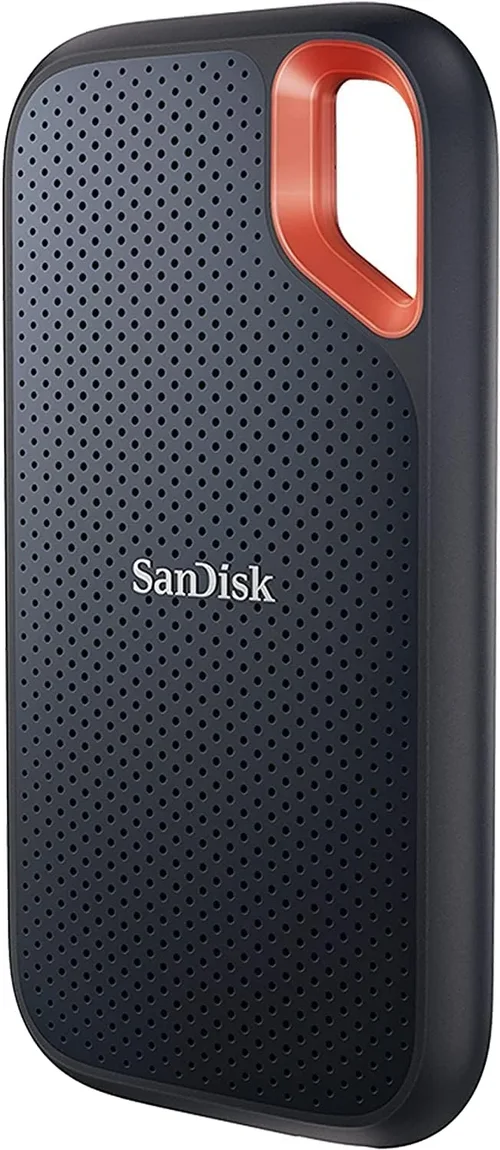
Solid-state drives (SSDs) have become essential tools for students in 2026. Whether you’re writing research papers, editing videos for a media class, running engineering simulations, or simply trying to keep your laptop from freezing during a Zoom lecture, the right SSD can make all the difference. Unlike traditional hard disk drives (HDDs), SSDs use flash memory to store data, which means faster boot times, quicker file transfers, and more reliable performance—especially important when deadlines are looming and your device needs to keep up.
This guide is designed specifically with students in mind. We know that most students operate on tight budgets, juggle multiple responsibilities, and rely heavily on their devices for academic success. That’s why we’ve created a comprehensive, expert-level buying guide that cuts through the technical jargon and focuses on what really matters: performance, value, durability, and ease of use. By the end of this article, you’ll understand exactly what to look for in an SSD, how to avoid common pitfalls, and which models offer the best balance of price and performance for student life.
The SSD market in 2026 is more diverse than ever. From ultra-portable external drives to high-speed internal NVMe models, there’s an option for every need and budget. Major brands like Samsung, Crucial, Kingston, Western Digital, and Sabrent continue to innovate, while newer players like TeamGroup and Netac are pushing prices down without sacrificing quality. With so many choices, it’s easy to feel overwhelmed—but don’t worry. This guide will walk you through every step of the decision-making process, helping you choose the best SSD for your unique situation.
What to Look for When Buying Buying Guide
1. Budget & Price Range
For students, budget is often the most critical factor when shopping for tech. SSDs come in a wide range of prices, and while it’s tempting to go for the cheapest option, doing so can lead to poor performance, shorter lifespan, or compatibility issues. A good rule of thumb is to allocate between $50 and $150 for a reliable SSD, depending on capacity and form factor.
Entry-level SSDs (like the Crucial BX500 or Kingston A400) typically cost $40–$70 for 500GB and offer solid performance for everyday tasks like web browsing, document editing, and light multitasking. Mid-range models (such as the Samsung 870 EVO or WD Blue SN580) range from $60–$120 and deliver faster speeds, better endurance, and longer warranties. Premium options (like the Samsung 990 PRO or Sabrent Rocket 4 Plus) can cost $100–$200+ but are ideal if you’re working with large files, gaming, or running demanding software.
When setting your budget, consider not just the upfront cost but also long-term value. A slightly more expensive SSD with a 5-year warranty and higher TBW (terabytes written) rating may save you money in the long run by reducing the risk of failure and data loss.
2. Performance Specifications
Performance is where SSDs truly shine compared to HDDs, but not all SSDs are created equal. The two most important performance metrics to understand are sequential read/write speeds and random IOPS (input/output operations per second).
Sequential speeds measure how quickly large files (like videos or software installers) can be read from or written to the drive. For SATA SSDs, this typically caps out around 550 MB/s due to interface limitations. NVMe SSDs, which connect via the M.2 slot and use the PCIe interface, can reach speeds of 3,500 MB/s or higher—some even exceed 7,000 MB/s with PCIe 4.0 or 5.0 support.
Random IOPS, on the other hand, reflect how well the drive handles small, scattered files—common in operating systems and applications. A higher IOPS rating means smoother multitasking and faster app launches. For most students, a drive with at least 500 MB/s sequential read and 300 MB/s write speeds (for SATA) or 3,000 MB/s+ (for NVMe) will provide a noticeable improvement over an HDD.
Also pay attention to the controller and NAND type. Drives with DRAM cache (like the Samsung 870 EVO) generally perform better under sustained loads, while DRAM-less models (such as some budget NVMe drives) may slow down during heavy use. TLC (triple-level cell) NAND offers a good balance of speed, endurance, and cost, while QLC (quad-level cell) is cheaper but less durable over time.
3. Build Quality & Durability
Students are notorious for carrying laptops and external drives in backpacks, often subjecting them to drops, bumps, and temperature changes. Unlike HDDs, SSDs have no moving parts, making them inherently more resistant to physical shock. However, build quality still varies significantly between models and brands.
Look for SSDs housed in sturdy aluminum or reinforced plastic casings, especially for external drives. Internal drives should come with proper mounting kits and thermal pads if they’re designed for high-performance use. Some premium models even include heatsinks to prevent thermal throttling during extended workloads.
Endurance is another key aspect of durability, measured in TBW (terabytes written). This indicates how much data can be written to the drive over its lifetime before it’s likely to fail. For example, a 1TB Samsung 990 PRO has a TBW rating of 600TB, while a budget 1TB drive might only offer 200TB. If you plan to use your SSD for video editing, programming, or frequent large file transfers, opt for a higher TBW rating.
Additionally, check for certifications like MIL-STD-810G (military-grade durability) for external SSDs, which ensures resistance to drops, vibrations, and extreme temperatures.
4. Features & Functionality
Beyond raw speed and capacity, modern SSDs come packed with features that can enhance your student experience. One of the most useful is hardware encryption, such as AES-256 bit encryption, which protects your data if your laptop is lost or stolen. Many business-oriented SSDs (like the Samsung T7 Shield or Kingston XS2000) include built-in password protection and encryption software.
Another valuable feature is software support. Top-tier brands often bundle their SSDs with management tools that allow you to monitor drive health, update firmware, clone your existing drive, and optimize performance. Samsung’s Magician software, for instance, provides real-time diagnostics and performance tuning options.
For students who frequently work across multiple devices, consider SSDs with USB-C connectivity and cross-platform compatibility (Windows, macOS, Linux). Some models even support USB 3.2 Gen 2×2, delivering speeds up to 20 Gbps—perfect for transferring large project files quickly.
If you’re upgrading an older laptop, ensure the SSD supports your system’s interface (SATA III or NVMe) and form factor (2.5-inch, M.2 2280, etc.). Compatibility issues are a common cause of frustration, so double-check your laptop’s specifications before purchasing.
5. Brand Reputation
Not all SSD manufacturers are equal. While you can find decent drives from lesser-known brands, sticking with reputable companies often means better quality control, longer warranties, and more reliable customer support. In 2026, the most trusted names in the SSD space include Samsung, Crucial (a Micron brand), Western Digital, Kingston, and Sabrent.
Samsung has long been a leader in NAND flash technology and consistently ranks at the top for performance and reliability. Their 870 EVO and 990 PRO series are favorites among students and professionals alike. Crucial offers excellent value with their MX and BX series, backed by Micron’s decades of memory expertise. Western Digital provides a wide range of options under the WD Blue and WD Black labels, catering to both budget and performance needs.
Kingston focuses on affordability and durability, making their A400 and NV2 series popular among students. Sabrent, while newer, has gained a strong reputation for high-performance NVMe drives at competitive prices, especially their Rocket series.
Avoid no-name brands or drives sold by unknown sellers on marketplaces like Amazon or eBay. These often use lower-grade components, lack proper firmware updates, and may fail prematurely. Stick to authorized retailers and well-reviewed models to minimize risk.
6. Warranty & Support
A solid warranty is a strong indicator of a manufacturer’s confidence in their product. Most reputable SSDs come with a 3- to 5-year limited warranty, covering defects and premature failure. Some high-end models even offer up to 6 or 7 years of coverage.
When comparing warranties, look beyond just the length. Check whether the warranty is prorated (meaning you get less compensation over time) or full-replacement. Also verify if the warranty requires registration and whether it’s transferable if you sell the drive later.
Customer support is equally important. Brands like Samsung and Crucial offer robust online resources, including knowledge bases, live chat, and phone support. Others may only provide email support with slow response times. If you’re not tech-savvy, having access to helpful customer service can be a lifesaver when troubleshooting installation or performance issues.
Additionally, some manufacturers offer data recovery services or partnerships with third-party recovery firms, which can be invaluable if your drive fails and contains critical academic work.
7. Size & Portability
For students who move between classes, libraries, and study groups, portability is a major consideration—especially for external SSDs. Compact, lightweight drives that fit in a pocket or small pouch are ideal for on-the-go use.
Internal SSDs come in two main form factors: 2.5-inch (used in older laptops and desktops) and M.2 (used in modern ultrabooks and compact systems). M.2 drives are significantly smaller and don’t require cables, making them perfect for slim laptops. However, they can be trickier to install if you’re not familiar with opening your device.
External SSDs vary widely in size and weight. The Samsung T7 Touch, for example, is about the size of a credit card and weighs just 58 grams, while larger models like the WD Black P50 can be bulkier but offer higher capacities and faster speeds. Consider how often you’ll be carrying the drive and whether you need it to withstand daily wear and tear.
Also think about cable management. Some drives include built-in cables or dual connectors (USB-A and USB-C), which reduce the risk of losing accessories. Others require separate cables, which can be inconvenient.
8. User Reviews & Ratings
While specs and brand reputation are important, real-world user feedback provides invaluable insights into how an SSD performs under everyday conditions. Before making a purchase, spend time reading reviews on trusted platforms like Amazon, Newegg, Best Buy, and tech forums such as Reddit’s r/buildapc or Tom’s Hardware.
Look for patterns in the reviews. If multiple users report the same issue—such as slow write speeds after filling the drive, overheating, or compatibility problems—it’s a red flag. Conversely, consistent praise for reliability, speed, or ease of installation is a good sign.
Pay attention to reviews from other students or educators, as they’re more likely to use the drive in similar scenarios (e.g., running multiple browser tabs, using Office apps, or storing lecture recordings). Avoid relying solely on professional benchmarks, which may not reflect typical student workloads.
Also check the date of the reviews. SSD technology evolves quickly, and older reviews may not apply to the latest firmware or hardware revisions. Aim for feedback from the past 6–12 months for the most accurate picture.