

When it comes to upgrading or building a computer, one of the most critical decisions you’ll make is choosing the right storage drive. Whether you’re a gamer, content creator, student, or business professional, your storage solution directly impacts everything from boot times and file access speeds to overall system responsiveness. Two primary contenders dominate the market: SATA hard drives (HDDs) and SATA solid-state drives (SSDs). While both use the same interface, they represent vastly different technologies with distinct strengths and weaknesses.
This comprehensive buying guide is designed to cut through the confusion and help you make an informed decision in 2026. We’ll explore the key differences between SATA HDDs and SSDs, break down the factors that matter most—like performance, durability, and cost—and provide real-world insights to match your needs with the right drive. By the end, you’ll understand not just which type of drive is faster or cheaper, but which one truly delivers the best value for your specific use case. Whether you’re building a high-performance gaming rig, setting up a reliable workstation, or simply looking to breathe new life into an aging laptop, this guide will equip you with the knowledge to choose wisely.
The storage market in 2026 continues to evolve rapidly. While NVMe SSDs have taken center stage for peak performance, SATA-based drives—both HDDs and SSDs—remain relevant and widely used. SATA SSDs offer a sweet spot between affordability and speed, especially for older systems or budget builds, while SATA HDDs still dominate in high-capacity, low-cost storage scenarios like media servers or backup archives. Understanding where each technology excels—and where it falls short—is essential to getting the most out of your investment. This guide will walk you through every consideration, from technical specs to long-term reliability, so you can confidently select the best drive for your needs.

What to Look for When Buying Buying Guide
1. Budget & Price Range
Your budget is often the first and most decisive factor when choosing between a SATA HDD and SSD. SATA hard drives remain significantly cheaper per gigabyte, especially at higher capacities. For example, a 4TB SATA HDD typically costs between $80 and $120, while a 4TB SATA SSD can range from $200 to $400 or more. This price gap makes HDDs the go-to choice for users who need large amounts of storage without breaking the bank, such as those storing video libraries, photo archives, or game collections.
On the other hand, SATA SSDs offer a middle ground between traditional HDDs and faster NVMe drives. While not as affordable as HDDs, they’re far more cost-effective than their NVMe counterparts, especially for everyday computing tasks. A 1TB SATA SSD usually costs between $60 and $100, making it accessible for most users looking to upgrade from an HDD. If you’re on a tight budget but still want a noticeable performance boost, a smaller SSD (like 500GB) paired with an HDD for bulk storage is a smart compromise.
2. Performance Specifications
Performance is where SATA SSDs shine over HDDs. A typical SATA SSD delivers read/write speeds of around 500–550 MB/s, which is nearly six times faster than a standard 7200 RPM HDD that averages 80–160 MB/s. This difference translates into real-world benefits: faster boot times (often under 15 seconds), quicker application launches, and smoother multitasking. For instance, opening Adobe Photoshop or loading a large game level happens almost instantly with an SSD, whereas an HDD may take several seconds or even minutes.
However, it’s important to note that SATA SSDs are limited by the SATA III interface, which caps transfer speeds at about 600 MB/s. While this is more than sufficient for most users, those needing maximum performance—such as video editors working with 4K footage—may benefit more from NVMe SSDs. Still, for general productivity, web browsing, office work, and even moderate gaming, a SATA SSD provides a dramatic improvement over an HDD without the premium cost of NVMe.
3. Build Quality & Durability
Durability is a major differentiator between HDDs and SSDs. SATA hard drives contain moving parts—specifically, spinning platters and a read/write head—that make them vulnerable to physical shock, vibration, and mechanical failure. Dropping an HDD, even from a short height, can cause catastrophic damage. This makes them less ideal for laptops or portable devices where movement is frequent.
In contrast, SATA SSDs have no moving parts. They store data on NAND flash memory chips, making them inherently more resistant to drops, bumps, and temperature fluctuations. This robustness makes SSDs the preferred choice for laptops, rugged environments, and users who prioritize long-term reliability. Additionally, SSDs generate less heat and consume less power, contributing to longer battery life in portable devices and reduced cooling needs in desktops.
4. Features & Functionality
Modern SATA SSDs come with advanced features that enhance performance and longevity. Look for drives with DRAM cache, which improves speed and responsiveness by storing mapping tables for faster data access. Drives without DRAM (often labeled as “DRAM-less”) are cheaper but may suffer from slower performance under heavy workloads or when nearing full capacity.
Another key feature is NAND type. Most consumer SATA SSDs use TLC (Triple-Level Cell) or QLC (Quad-Level Cell) NAND. TLC offers a good balance of speed, endurance, and cost, while QLC provides higher storage density at a lower price but with reduced write endurance. For most users, TLC is the sweet spot. Additionally, many SSDs support technologies like TRIM, S.M.A.R.T. monitoring, and wear leveling, which help maintain performance and extend the drive’s lifespan.
5. Brand Reputation
Not all drives are created equal, and brand reputation plays a crucial role in reliability and support. Established manufacturers like Samsung, Crucial, Western Digital, Kingston, and SanDisk have a proven track record of producing high-quality SATA SSDs with consistent performance and firmware updates. These brands often invest heavily in research, quality control, and customer service, which translates into better long-term value.
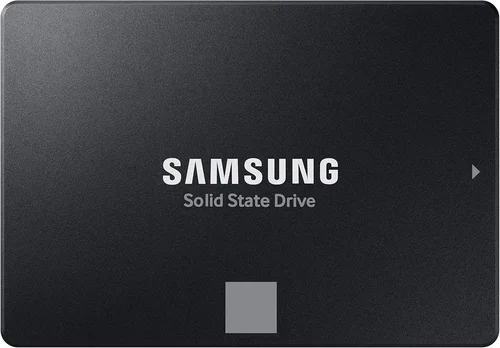
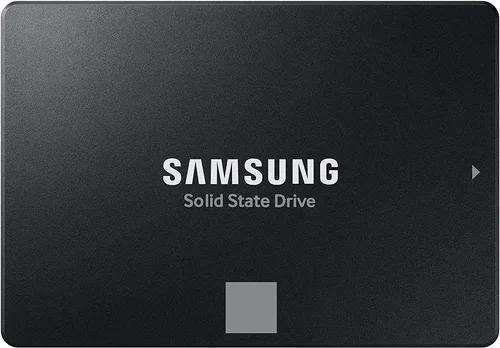
Avoid no-name or ultra-cheap brands, especially for SSDs. While they may offer tempting prices, they often use lower-grade components, lack proper firmware optimization, and may fail prematurely. Reading user reviews and checking professional benchmarks can help you identify reliable models. For example, the Samsung 870 EVO and Crucial MX500 are consistently praised for their performance, endurance, and five-year warranties.
6. Warranty & Support
Warranty length and terms are strong indicators of a drive’s expected lifespan and the manufacturer’s confidence in its product. Most reputable SATA SSDs come with a 3- to 5-year limited warranty, often tied to a terabyte written (TBW) rating—the total amount of data that can be written to the drive before it may fail. For example, a 1TB Samsung 870 EVO has a TBW rating of 600TB and a 5-year warranty, meaning it’s built to handle heavy use over several years.
In contrast, SATA HDDs typically offer 2- to 3-year warranties, with some enterprise models extending to 5 years. However, because HDDs are mechanical, their failure rates are generally higher, and warranties often don’t cover data recovery—only hardware replacement. Always check the warranty details, including whether it’s transferable and what support options are available (e.g., phone, chat, or email).
7. Size & Portability
Both SATA HDDs and SSDs are available in standard 2.5-inch and 3.5-inch form factors, but their physical characteristics differ. A 2.5-inch SATA SSD is compact, lightweight, and ideal for laptops, small form factor PCs, or portable external drives. Its slim profile allows for easy installation in tight spaces, and it doesn’t require extra mounting brackets in most laptop bays.
SATA HDDs, especially 3.5-inch desktop models, are bulkier and heavier due to their internal mechanics. While 2.5-inch laptop HDDs exist, they’re thicker and heavier than their SSD counterparts. If portability is a priority—such as for students, travelers, or remote workers—an SSD is the clear winner. Additionally, SSDs are silent in operation, whereas HDDs produce audible noise from spinning platters and moving heads.
8. User Reviews & Ratings
Before making a purchase, always consult user reviews and professional ratings. Platforms like Amazon, Newegg, and Best Buy provide thousands of real-world experiences that highlight strengths and weaknesses not always apparent in spec sheets. Look for patterns in feedback—consistent praise for speed and reliability, or recurring complaints about failure rates or poor customer service.
Professional reviews from trusted tech sites (e.g., Tom’s Hardware, PCMag, AnandTech) offer in-depth testing on performance, endurance, and power efficiency. These reviews often include benchmark comparisons, thermal testing, and long-term reliability assessments. For example, a drive that scores well in synthetic benchmarks but has poor real-world performance in multitasking scenarios may not be the best choice for everyday use.
Different Types of Buying Guide

Common Buying Mistakes to Avoid
❌ Mistake: Choosing Based Solely on Price
Why it’s bad: Opting for the cheapest drive without considering performance, reliability, or intended use can lead to frustration. A low-cost HDD might save money upfront but result in slow system performance and higher risk of failure. Similarly, a budget SSD with poor NAND or no DRAM cache may underperform and wear out quickly.
What to do instead: Evaluate the total cost of ownership, including performance gains, lifespan, and potential downtime. Invest in a reputable SSD for your OS and critical applications, even if it means a slightly higher initial cost.
❌ Mistake: Ignoring Capacity Needs
Why it’s bad: Buying a 250GB SSD for a gaming PC or video editing workstation will quickly fill up, leading to performance degradation and the need for frequent file management or upgrades. Conversely, purchasing a 4TB SSD for basic web browsing is overkill and wasteful.
What to do instead: Assess your storage requirements realistically. For most users, a 500GB–1TB SSD is sufficient for the OS and apps, with an optional HDD for media. Gamers and creators should consider 2TB or more.
❌ Mistake: Overlooking Interface Compatibility
Why it’s bad: Not all systems support the latest storage interfaces. Older motherboards may lack M.2 slots for NVMe drives, limiting you to SATA. Installing an NVMe drive in a SATA-only system won’t work without an adapter, and even then, performance may be bottlenecked.
What to do instead: Check your motherboard or laptop specifications before buying. If you only have SATA ports, a SATA SSD is your best bet for a performance upgrade.
❌ Mistake: Neglecting Backup Strategies
Why it’s bad: SSDs and HDDs can fail without warning. Relying solely on a single drive—especially an SSD, which can fail suddenly due to write cycle limits—puts your data at risk. Many users lose important files because they didn’t back up regularly.
What to do instead: Implement a 3-2-1 backup strategy: keep three copies of your data, on two different media types, with one copy offsite (e.g., cloud storage). Use tools like Windows Backup, Time Machine, or third-party software.
❌ Mistake: Buying Based on Brand Alone
Why it’s bad: While brand reputation matters, blindly choosing a well-known brand without checking model-specific reviews can lead to disappointment. Some brands offer both premium and budget lines, and the cheaper models may cut corners on components.
What to do instead: Research individual models, not just brands. Compare TBW ratings, NAND types, and real-world performance. A lesser-known model from a reputable OEM might offer better value than a flagship from a big name.
❌ Mistake: Forgetting About Power Consumption
Why it’s bad: In laptops or energy-efficient builds, power draw matters. HDDs consume more power due to spinning platters, which can reduce battery life and increase heat output. This is especially problematic in compact systems with limited cooling.
What to do instead: Choose an SSD for laptops or small form factor PCs. SSDs use significantly less power, run cooler, and extend battery life—often by 30–60 minutes in real-world use.
❌ Mistake: Not Checking Warranty and Return Policies
Why it’s bad: A short or restrictive warranty can leave you stranded if the drive fails. Some retailers have strict return windows or require original packaging, making it hard to return a defective unit.
What to do instead: Read the fine print. Choose drives with at least a 3-year warranty and buy from retailers with generous return policies (e.g., 30–60 days). Keep your receipt and packaging until you’re sure the drive works properly.
Budget Guidelines: How Much Should You Spend?
- Entry-Level ($30–$60): At this price, you’ll find 500GB SATA SSDs from brands like Kingston or Crucial, ideal for basic upgrades. You can also get 1TB–2TB HDDs, perfect for secondary storage. Expect modest performance and standard warranties.
- Mid-Range ($60–$120): This is the sweet spot for most users. A 1TB SATA SSD from Samsung, WD, or Crucial offers excellent performance, reliability, and features like DRAM cache. You can also find high-capacity HDDs (4TB+) for bulk storage.
- Premium ($120–$250): Here, you’ll find top-tier SATA SSDs with high endurance ratings (e.g., 1,200+ TBW), advanced NAND, and 5-year warranties. Ideal for professionals, content creators, or users who want long-term reliability without upgrading to NVMe.
- Luxury ($250+): At this level, you’re paying for maximum capacity (4TB+ SSDs) or enterprise-grade features. These drives are built for 24/7 operation, heavy workloads, and extreme durability. Best for servers, NAS systems, or enthusiasts who demand the best.
Expert Tips for Getting the Best Deal
- Buy During Sales Events: Major sales like Black Friday, Prime Day, and back-to-school periods offer significant discounts on storage drives. Retailers often slash prices by 20–40%, especially on older SSD models.
- Check Multiple Retailers: Compare prices on Amazon, Newegg, Best Buy, and B&H Photo. Use price tracking tools like CamelCamelCamel or Honey to monitor historical prices and get alerts for drops.
- Consider Refurbished or Open-Box: Certified refurbished drives from reputable sellers often come with full warranties and can save you 20–30%. Just ensure they’re tested and include return options.
- Look for Bundled Deals: Some manufacturers offer SSDs bundled with cloning software, mounting brackets, or external enclosures. These extras can add value, especially for first-time upgraders.
- Read the Fine Print on Warranties: Some warranties are voided if the drive is used in certain environments (e.g., RAID arrays). Make sure your intended use is covered.
- Test Before Committing: If possible, test the drive in your system before fully relying on it. Use tools like CrystalDiskMark to verify speeds and check for errors.
- Upgrade in Stages: If budget is tight, start with a smaller SSD for your OS and upgrade later. You can always add a second drive or replace it with a larger one down the line.

Frequently Asked Questions
Q: Is a SATA SSD faster than an HDD?
A: Yes, significantly. A SATA SSD is typically 5–6 times faster than a 7200 RPM HDD in sequential read/write speeds and far superior in random access performance, which affects boot times, application launches, and multitasking.
Q: Can I use a SATA SSD in an old computer?
A: Absolutely. SATA SSDs are backward compatible with SATA I and II ports, though you’ll be limited to lower speeds. Still, even on older systems, an SSD provides a dramatic performance boost over an HDD.
Q: How long do SATA SSDs last?
A: Most consumer SATA SSDs are rated for 150–600TBW (terabytes written). For average users writing 20GB per day, this translates to 10–20 years of use. Real-world lifespan often exceeds manufacturer ratings.
Q: Do I need to defragment a SATA SSD?
A: No. Defragmentation is unnecessary and harmful to SSDs, as it increases write cycles. Windows automatically disables defrag for SSDs and uses TRIM instead to maintain performance.
Q: Are SATA SSDs worth it over NVMe?
A: For most users, yes—especially if your system only supports SATA. The performance difference between SATA and NVMe SSDs is noticeable in benchmarks but less so in everyday tasks like browsing, office work, or gaming.
Q: Can I recover data from a failed SATA SSD?
A: It’s possible but difficult and expensive. Unlike HDDs, SSDs don’t have easily accessible platters. Professional data recovery services may help, but success isn’t guaranteed. Always back up important data.
Q: What’s the difference between SATA SSD and M.2 SATA?
A: They use the same technology and performance, but M.2 SATA drives are smaller and connect directly to the motherboard, saving space. Both are limited to ~550 MB/s due to the SATA interface.
Q: Should I get a DRAM-less SSD?
A: Only if you’re on a very tight budget and using the drive for light tasks. DRAM-less SSDs can slow down significantly when full or under heavy load. For general use, a DRAM-equipped SSD is strongly recommended.
Q: How do I clone my HDD to a new SATA SSD?
A: Use cloning software like Macrium Reflect, Acronis True Image, or Samsung Data Migration. Connect both drives, clone the OS and files, then swap the drives in your system. Most SSDs come with free cloning tools.
Q: Are external SATA SSDs fast?
A: Yes, when connected via USB 3.2 Gen 2 (10 Gbps), external SATA SSDs can reach near-internal speeds. They’re ideal for portable storage, video editing, and backups.
Our Final Recommendations
- Best for Budget-Conscious Buyers: Crucial MX500 1TB SATA SSD – Offers excellent performance, DRAM cache, and a 5-year warranty at a competitive price. Ideal for upgrading older systems.
- Best Overall Value: Samsung 870 EVO 1TB – Consistently top-rated for speed, endurance, and reliability. A proven performer with 600TBW and Samsung’s excellent support.
- Best Premium Option: Western Digital Black 4TB SATA SSD – High-endurance drive designed for power users and creators. Features advanced NAND and robust build quality.
- Best for Beginners: Kingston A400 480GB SATA SSD – Affordable, easy to install, and compatible with most systems. Great first SSD for those new to upgrades.
- Best for Advanced Users: Seagate FireCuda 530 2TB (SATA version) – Combines high capacity with enterprise-grade reliability and a 1,275TBW rating. Perfect for demanding workloads.
Conclusion: Making the Right Choice
Choosing between a SATA HDD and SSD ultimately comes down to your specific needs, budget, and use case. If you prioritize speed, reliability, and system responsiveness, a SATA SSD is the clear winner—even in 2026. It transforms aging systems, reduces boot and load times, and offers peace of mind with no moving parts. For users who need massive storage at the lowest cost, a SATA HDD remains a practical solution, especially for backups, media archives, or secondary storage.
The key is to avoid one-size-fits-all thinking. A hybrid approach—using an SSD for your operating system and critical applications, paired with an HDD for bulk storage—offers the best of both worlds. Evaluate your workflow, consider your budget, and don’t overlook long-term factors like warranty, durability, and power efficiency.
Remember, storage is not just about capacity—it’s about how quickly and reliably you can access your data. Whether you’re building a new PC, upgrading an old laptop, or expanding your storage, the right drive can make all the difference. Use this guide to weigh your options, avoid common pitfalls, and invest in a solution that delivers lasting value. Your future self will thank you every time your computer boots up in seconds instead of minutes.