

The debate between traditional SATA SSDs and M.2 drives has evolved dramatically over the past decade, and in 2026, it’s no longer just about speed—it’s about compatibility, future-proofing, and understanding how each type fits into your specific computing needs. Whether you’re building a high-performance gaming rig, upgrading an aging laptop, or setting up a workstation for content creation, choosing the right solid-state drive (SSD) can make or break your system’s responsiveness and longevity. With new form factors, evolving interface standards like PCIe Gen5, and increasing storage demands from AI workloads and 4K/8K media, the decision between SSD and M.2 isn’t as straightforward as it once was.
This comprehensive buying guide is designed to cut through the technical jargon and marketing hype to give you a clear, expert-level understanding of what truly matters when selecting between these two dominant storage technologies. You’ll learn how to evaluate performance metrics that actually impact real-world usage, how to match your choice to your hardware limitations, and how to avoid costly mistakes like buying an incompatible drive or overspending on features you’ll never use. We’ll also break down budget considerations, highlight common pitfalls, and provide actionable recommendations based on your use case—whether you’re a casual user, a creative professional, or a hardcore gamer.
The storage market in 2026 is more dynamic than ever. While SATA SSDs remain widely available and affordable, M.2 NVMe drives—especially those leveraging PCIe Gen4 and Gen5—have become the standard for new systems, offering blistering speeds that SATA simply can’t match. However, not every system supports M.2, and not every user needs those extreme transfer rates. Some laptops still rely on 2.5-inch SATA bays, while older desktops may lack M.2 slots altogether. Meanwhile, advancements in NAND flash technology, controller efficiency, and thermal management have made both types of drives more reliable and power-efficient. By the end of this guide, you’ll have the knowledge to confidently choose the best option for your setup, balancing speed, cost, compatibility, and future needs.

What to Look for When Buying Buying Guide
1. Interface and Compatibility
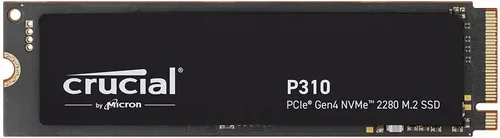
The interface determines how your SSD connects to your motherboard and, crucially, how fast data can move between the drive and your system. SATA III remains the most common interface for traditional 2.5-inch SSDs, capping out at around 550–600 MB/s due to bandwidth limitations. In contrast, M.2 drives typically use the NVMe protocol over PCIe lanes, enabling speeds that range from 2,000 MB/s (PCIe Gen3) to over 12,000 MB/s (PCIe Gen5). Before purchasing, verify your system’s capabilities: check your motherboard manual or use tools like CPU-Z to confirm whether you have an M.2 slot and what PCIe generation it supports. Also, note that some M.2 slots only accept SATA-based M.2 drives (which are slower), not NVMe ones—so don’t assume all M.2 = fast.
2. Performance Specifications
Raw speed isn’t everything, but it’s a critical factor—especially if you work with large files, edit video, or play modern games with massive asset loads. Look beyond marketing claims and focus on sequential read/write speeds (for large file transfers) and random 4K read/write IOPS (for everyday responsiveness like booting Windows or launching apps). For example, a PCIe Gen4 M.2 drive might deliver 7,000 MB/s sequential reads, while a SATA SSD maxes out near 560 MB/s. However, for basic web browsing or office tasks, the difference may be imperceptible. Also consider sustained performance: some budget M.2 drives throttle heavily under prolonged load due to poor thermal design, negating their peak specs.
3. Storage Capacity Needs
Determine how much space you realistically need. A 500GB drive may suffice for a lightweight OS and a few applications, but modern games easily consume 100–200GB each, and 4K video projects can require terabytes. Consider future-proofing: a 1TB or 2TB drive offers better longevity and often better cost-per-gigabyte value. Note that larger capacities generally perform better due to more parallel NAND channels, so a 2TB M.2 drive will typically outperform a 500GB model of the same series—even if both share the same controller.
4. Form Factor and Physical Fit
M.2 drives come in various lengths (e.g., 2280 = 22mm wide × 80mm long), and not all slots support every size. Most consumer motherboards use the 2280 form factor, but compact systems like mini-PCs or ultrabooks may require shorter 2242 or 2230 drives. Traditional SATA SSDs are standardized as 2.5-inch drives, which fit into most laptops and desktops with a spare bay. Always double-check physical dimensions and mounting options—especially in small-form-factor builds where space is tight.
5. Endurance and NAND Type
SSD endurance is measured in terabytes written (TBW)—the total amount of data that can be written before the drive is likely to fail. Higher TBW ratings indicate longer lifespan. This is influenced by the type of NAND flash used: TLC (triple-level cell) offers a good balance of cost, speed, and endurance for most users; QLC (quad-level cell) is cheaper and denser but wears out faster under heavy write workloads; and SLC/MLC are enterprise-grade and rarely found in consumer drives. For typical home or office use, TLC is ideal. If you’re running databases, virtual machines, or frequent large backups, prioritize higher TBW and avoid QLC unless budget-constrained.
6. Thermal Management and Throttling
High-speed M.2 NVMe drives generate significant heat, especially PCIe Gen4 and Gen5 models. Without proper cooling, they can throttle—reducing speed to prevent overheating—which defeats the purpose of buying a fast drive. Many premium M.2 drives include built-in heat spreaders, and some motherboards come with M.2 heatsinks. If your case has poor airflow or you’re using a compact build, consider a drive with robust thermal design or plan to add a heatsink. SATA SSDs run much cooler and rarely throttle, making them more consistent in thermally constrained environments.
7. Brand Reputation and Reliability
Stick with established brands known for quality NAND, reliable controllers, and consistent firmware updates. Top-tier manufacturers like Samsung, Western Digital, Crucial, Kingston, and Sabrent have proven track records. Avoid no-name brands that may use recycled or lower-grade components. Check independent reviews and failure rate reports (e.g., from Backblaze) to gauge real-world reliability. A slightly higher upfront cost for a reputable brand often pays off in longevity and peace of mind.
8. Warranty and Support
Most SSDs come with 3- to 5-year limited warranties, sometimes tied to TBW limits (e.g., “5 years or 600 TBW, whichever comes first”). Longer warranties generally reflect manufacturer confidence in the product. Also consider customer support responsiveness—some brands offer excellent RMA processes, while others make returns cumbersome. Register your drive upon purchase to ensure full warranty coverage, and keep proof of purchase.
Different Types of Buying Guide

Common Buying Mistakes to Avoid

❌ Mistake: Assuming All M.2 Drives Are Fast
Why it’s bad: There are two types of M.2 drives: SATA-based and NVMe-based. SATA M.2 drives look identical to NVMe ones but are limited to ~550 MB/s—the same as a 2.5-inch SATA SSD. Buying an M.2 SATA drive thinking it’s high-speed NVMe is a common and costly error.
What to do instead: Always check the product specifications. Look for terms like “NVMe,” “PCIe,” or “Gen3/Gen4/Gen5.” If it only mentions “SATA” or lacks PCIe references, it’s not an NVMe drive.
❌ Mistake: Ignoring Motherboard Compatibility
Why it’s bad: Not all M.2 slots support NVMe, and some motherboards share bandwidth between M.2 and SATA ports. Installing an NVMe drive in a SATA-only M.2 slot (or vice versa) will result in the drive not being detected.
What to do instead: Consult your motherboard manual or manufacturer’s website. Confirm the M.2 slot type (Key B, Key M, or B+M), supported protocols (SATA/NVMe), and PCIe generation. Use tools like HWiNFO to verify slot capabilities before purchasing.
❌ Mistake: Overpaying for Speed You’ll Never Use
Why it’s bad: A PCIe Gen5 drive costing $400 may offer 12,000 MB/s, but if you’re only browsing the web, streaming videos, or using office apps, you won’t notice any difference compared to a $60 SATA SSD. You’re wasting money on unused performance.
What to do instead: Match the drive to your workload. Gamers and casual users should prioritize capacity and reliability over peak speeds. Save Gen4/Gen5 for professional video editing, 3D rendering, or large database operations.
❌ Mistake: Choosing QLC NAND for Heavy Write Workloads
Why it’s bad: QLC drives are cheaper per gigabyte but have lower endurance and slower write speeds—especially when the SLC cache fills up. They’re prone to performance degradation under sustained writes, making them unsuitable for tasks like video recording, frequent backups, or server use.
What to do instead: Opt for TLC-based drives for most use cases. If budget forces a QLC choice, ensure it has a robust SLC cache and avoid filling it beyond 70–80% to maintain performance.
❌ Mistake: Skipping Thermal Considerations for High-Speed M.2
Why it’s bad: PCIe Gen4 and Gen5 M.2 drives can hit 70–80°C under load. Without cooling, they throttle aggressively, dropping speeds by 50% or more. This negates the benefit of buying a fast drive.
What to do instead: Use a motherboard with an M.2 heatsink, or purchase an aftermarket heatsink. In compact builds, consider drives with integrated heat spreaders or lower-power controllers designed for better thermals.
❌ Mistake: Buying Based Solely on Price Per GB
Why it’s bad: The cheapest drive often uses inferior NAND, weak controllers, or outdated firmware. These may fail prematurely or suffer from poor performance consistency.
What to do instead: Balance cost with brand reputation, warranty length, and real-world reviews. A slightly more expensive drive from a trusted brand often delivers better long-term value.
❌ Mistake: Not Checking Return and Warranty Policies
Why it’s bad: Some retailers or brands have strict return windows or require original packaging. If the drive is defective or incompatible, you could be stuck with it.
What to do instead: Buy from retailers with generous return policies (e.g., Amazon, Newegg, Best Buy). Register the drive immediately and keep all documentation. Choose brands with hassle-free RMAs.
Budget Guidelines: How Much Should You Spend?
Entry-Level ($30–$80): Ideal for basic upgrades or secondary storage. Expect SATA III 2.5-inch SSDs or entry-level M.2 SATA drives in 500GB–1TB capacities. Brands like Crucial BX500 or Kingston A400 offer reliable performance for everyday tasks. Avoid QLC if possible—stick to TLC for better longevity.
Mid-Range ($80–$180): The sweet spot for most users. Here you’ll find high-quality M.2 NVMe PCIe Gen3 drives (e.g., Samsung 980, WD Black SN770) or Gen4 drives on sale. Capacities range from 1TB to 2TB. These deliver excellent speed for gaming, photo editing, and multitasking without breaking the bank.
Premium ($180–$400): For enthusiasts and professionals. Look for top-tier PCIe Gen4 drives like the Samsung 990 Pro, WD Black SN850X, or Sabrent Rocket 4 Plus. These offer blazing speeds (6,500–7,300 MB/s), robust thermal designs, and high endurance (600–1,200 TBW). Great for 4K video editing, large game libraries, and content creation.
Luxury ($400+): Reserved for cutting-edge PCIe Gen5 drives (e.g., Crucial T700, Gigabyte AORUS Gen5) or massive 4TB+ capacities. These are overkill for most consumers but essential for workstations handling 8K video, AI training, or enterprise applications. Expect premium pricing, advanced cooling, and top-tier NAND.
Expert Tips for Getting the Best Deal
- Time your purchase: Major sales events like Amazon Prime Day, Black Friday, and Newegg’s FantasTech Sale offer deep discounts on SSDs. Sign up for price alerts using tools like CamelCamelCamel or Honey.
- Buy from reputable retailers: Stick to well-known stores with clear return policies. Avoid third-party sellers with unclear ratings or no return options.
- Check for bundle deals: Some motherboards or prebuilt PCs include free or discounted SSDs. Upgrading an OEM system? See if the manufacturer offers upgrade kits.
- Consider refurbished or open-box: Certified refurbished drives from brands like Samsung or WD often come with full warranties and significant savings—up to 40% off.
- Read real user reviews: Look beyond star ratings. Search for comments about longevity, thermal performance, and compatibility issues. Sites like Reddit (r/buildapc) and Tom’s Hardware forums offer unbiased insights.
- Test before committing: If possible, test the drive in your system before finalizing setup. Use CrystalDiskMark or AS SSD Benchmark to verify speeds match specs.
- Don’t forget the heatsink: If your motherboard lacks one, buy a compatible M.2 heatsink ($10–$20). It’s a small investment that prevents throttling and extends drive life.
- Future-proof wisely: If building a new PC in 2026, prioritize a motherboard with PCIe Gen5 M.2 slots—even if you start with a Gen4 drive. You’ll have room to upgrade later without replacing the entire system.

Frequently Asked Questions
Q: Can I use an M.2 SSD in a laptop that only has a 2.5-inch SATA bay?
A: No—unless you use an M.2-to-2.5-inch adapter. These adapters convert the M.2 form factor to fit in a standard SATA bay and connect via SATA cables. However, they only work with SATA-based M.2 drives, not NVMe ones. Always confirm your laptop’s storage interface before buying.
Q: Is NVMe always faster than SATA?
A: In terms of peak bandwidth, yes—NVMe over PCIe is significantly faster. But for everyday tasks like booting Windows, opening apps, or web browsing, the real-world difference is often minimal. SATA SSDs still offer massive improvements over HDDs and are perfectly adequate for general use.
Q: Do I need a heatsink for my M.2 drive?
A: It depends. If your case has good airflow and you’re using a PCIe Gen3 or low-power Gen4 drive, you might be fine without one. But for high-performance Gen4 or Gen5 drives—especially in compact or poorly ventilated systems—a heatsink is strongly recommended to prevent thermal throttling.
Q: Can I boot from an M.2 NVMe drive?
A: Yes, as long as your motherboard’s BIOS/UEFI supports NVMe booting—which most modern systems do. During OS installation (Windows, Linux, etc.), the drive will appear just like any other storage device.
Q: Are all M.2 slots the same?
A: No. M.2 slots vary by key type (B-key, M-key, or B+M), supported protocols (SATA or NVMe), and PCIe generation. Some slots share bandwidth with SATA ports—disabling certain drives when an M.2 is installed. Always check your motherboard manual.
Q: How long do SSDs last?
A: Modern SSDs are extremely durable. A typical 1TB TLC drive with a 600 TBW rating could last over 10 years even with 50GB of daily writes. Most users will never reach the endurance limit. Failure is more likely due to controller issues or power surges than NAND wear.
Q: Should I fill my SSD to capacity?
A: No. SSDs need free space for wear leveling and garbage collection. Keep at least 10–20% of the drive free to maintain performance and longevity. Filling an SSD beyond 90% can cause significant slowdowns.
Q: Can I use both SATA and M.2 drives in the same system?
A: Absolutely. Most motherboards support multiple storage devices. You might use a fast M.2 NVMe drive for your OS and apps, and a larger SATA SSD for media or backups. Just ensure you have enough SATA ports and M.2 slots.
Q: Are external SSDs worth it?
A: Yes, for portability and fast file transfers. USB 3.2 Gen 2×2 or Thunderbolt 3/4 external SSDs can deliver 2,000+ MB/s—faster than internal SATA drives. Great for photographers, videographers, or anyone needing mobile high-speed storage.
Q: What’s the difference between DRAM and DRAM-less SSDs?
A: DRAM acts as a cache for the SSD’s mapping tables, improving speed and longevity. DRAM-less drives use system memory (HMB) instead, which is slower and can impact performance under heavy loads. For most users, the difference is negligible, but avoid DRAM-less drives for intensive workloads.
Our Final Recommendations
Best for Budget-Conscious Buyers: Crucial MX500 (1TB SATA) – Reliable, widely compatible, and offers excellent value. Perfect for upgrading older systems or adding secondary storage.
Best Overall Value: Samsung 980 (1TB NVMe Gen3) – Blends speed, reliability, and affordability. Ideal for gamers and general users who want NVMe performance without Gen4 pricing.
Best Premium Option: Samsung 990 Pro (2TB NVMe Gen4) – Top-tier performance, exceptional endurance, and built-in thermal control. The go-to choice for professionals and enthusiasts.
Best for Beginners: WD Blue SN580 (1TB NVMe Gen4) – Easy to install, no heatsink needed, and delivers consistent speeds. Great first NVMe drive for new builders.
Best for Advanced Users: Crucial T700 (2TB NVMe Gen5) – Cutting-edge speed for AI, 8K video, and high-end workstations. Requires a Gen5-compatible motherboard and good cooling.
Conclusion: Making the Right Choice
Choosing between an SSD and an M.2 drive in 2026 ultimately comes down to understanding your specific needs, hardware limitations, and performance expectations. While M.2 NVMe drives—especially PCIe Gen4 and Gen5—offer undeniable speed advantages for demanding applications, traditional SATA SSDs remain a smart, cost-effective choice for everyday computing and legacy systems. The key is not to chase the highest specs blindly, but to align your purchase with real-world usage.
Prioritize compatibility first: verify your system’s interface and form factor support. Then, balance speed, capacity, endurance, and budget. Don’t overlook thermal management for high-speed M.2 drives, and always choose reputable brands with solid warranties. Remember, even a modest SATA SSD is a massive upgrade over an HDD, and for many users, that’s all they’ll ever need.
As storage technology continues to evolve, the gap between SATA and NVMe will likely widen further—but so will the options for every budget and use case. By applying the insights from this guide, you’re equipped to make a confident, informed decision that delivers both immediate performance gains and long-term reliability. Whether you’re breathing new life into an old laptop or building a dream machine from scratch, the right SSD choice will keep your system fast, responsive, and ready for whatever comes next.