
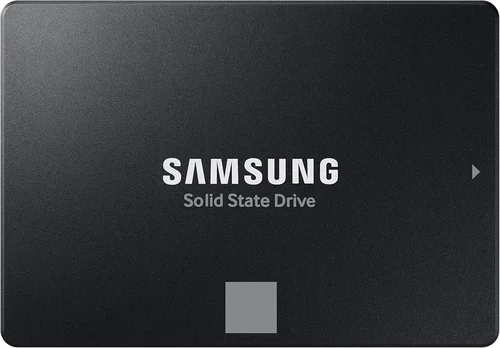
The debate between solid-state drives (SSDs) and hard disk drives (HDDs) has raged for over a decade, but in 2026, the landscape has shifted dramatically. While HDDs once dominated storage due to their affordability and massive capacities, SSDs have surged ahead in performance, reliability, and even value—especially for everyday users. Whether you’re building a new PC, upgrading an old laptop, or setting up a home server, choosing between an SSD and an HDD is one of the most critical decisions you’ll make. This comprehensive buying guide cuts through the noise, offering expert insights, real-world comparisons, and actionable advice to help you make the right choice for your needs.
In this guide, you’ll learn how SSDs and HDDs differ in speed, durability, power consumption, noise, and long-term reliability. We’ll break down key factors like budget, performance specs, form factors, and use cases so you can confidently select the best storage solution. Whether you’re a gamer, content creator, student, or business professional, we’ll help you understand which technology aligns with your workflow. By the end, you’ll not only know which drive type is best for you—but also how to get the most bang for your buck in today’s evolving storage market.

What to Look for When Buying Buying Guide
1. Budget & Price Range
Your budget is often the first and most decisive factor when choosing between an SSD and an HDD. As of 2026, SSDs have become significantly more affordable, narrowing the price gap that once made HDDs the default choice for large storage needs. However, HDDs still offer the lowest cost per gigabyte, especially at higher capacities. A 4TB HDD can cost as little as $80–$100, while a comparable SSD might run $200–$300 or more. For users needing terabytes of storage on a tight budget—such as media archivists or backup-focused individuals—HDDs remain a viable option.
That said, for most consumers, the performance gains of an SSD justify the higher upfront cost. Entry-level SSDs now start around $30 for 500GB models, making them accessible even for budget builds. Mid-range NVMe SSDs offer excellent value at $60–$100 for 1TB, delivering speeds that dramatically improve boot times, application loading, and overall system responsiveness. When evaluating cost, consider total cost of ownership: SSDs consume less power, generate less heat, and are less prone to failure, potentially saving money on electricity and replacement costs over time.
2. Performance Specifications
Performance is where SSDs truly shine. Unlike HDDs, which rely on spinning magnetic platters and a moving read/write head, SSDs use flash memory with no moving parts. This fundamental difference translates into vastly superior speed. A typical SATA SSD can deliver sequential read/write speeds of 500–550 MB/s, while modern NVMe SSDs connected via PCIe 4.0 or 5.0 can exceed 7,000 MB/s—over 10 times faster than even the fastest HDDs.
For everyday tasks like booting Windows, launching applications, or transferring files, this speed difference is immediately noticeable. An SSD can reduce boot times from minutes to seconds, and applications like Photoshop, video editors, or game launchers load almost instantly. HDDs, by contrast, average around 80–160 MB/s, with performance dropping further as the drive fills up or becomes fragmented. Random access times—critical for multitasking and database operations—are also orders of magnitude faster on SSDs.
When comparing SSDs, look beyond just sequential speeds. Check random read/write performance (measured in IOPS), which affects how well the drive handles small, scattered files. NVMe drives generally outperform SATA SSDs in both categories. Also consider endurance ratings (TBW—terabytes written), especially for heavy workloads. High-end SSDs now offer 600–1,200 TBW or more, ensuring years of reliable use.
3. Build Quality & Durability
Durability is a major differentiator between SSDs and HDDs. Because SSDs have no moving parts, they are far more resistant to physical shock, vibration, and temperature fluctuations. This makes them ideal for laptops, portable devices, and environments where the drive might be jostled or dropped. An SSD can survive drops from several feet onto hard surfaces with minimal risk of data loss.
HDDs, on the other hand, are mechanical devices with delicate internal components. The spinning platters (typically rotating at 5,400 or 7,200 RPM) and moving actuator arms are vulnerable to damage from drops, bumps, or even strong magnets. In laptops or portable external drives, this fragility can lead to premature failure. Additionally, HDDs are more susceptible to wear over time due to mechanical friction, though modern models are built to last 3–5 years under normal use.
For users in rugged environments—such as field researchers, travelers, or students carrying laptops between classes—SSDs are the clear winner. Even in desktop setups, the reliability of SSDs reduces the risk of unexpected crashes or data corruption. Look for SSDs with robust controllers, high-quality NAND flash (preferably TLC or MLC over QLC for longevity), and features like power-loss protection in enterprise models.
4. Features & Functionality
Beyond raw speed and durability, modern SSDs offer advanced features that enhance usability and security. Many come with built-in encryption (such as AES-256), hardware-based security protocols (like TCG Opal), and software suites for monitoring health, updating firmware, and optimizing performance. Brands like Samsung, Crucial, and Western Digital provide user-friendly tools that help you track drive lifespan, temperature, and error rates.
NVMe SSDs, in particular, support features like TRIM, garbage collection, and over-provisioning, which help maintain performance over time by managing how data is written and deleted. Some high-end models also include dynamic thermal throttling to prevent overheating during sustained workloads. These features are especially valuable for content creators, gamers, and professionals running resource-intensive applications.
HDDs, while simpler in design, still offer useful functionality. Many enterprise and NAS-grade HDDs include features like rotational vibration sensors, error recovery controls, and advanced power management. However, they lack the low-latency responsiveness and advanced data management capabilities of SSDs. For basic storage needs—like backing up family photos or storing media files—HDDs are functional but increasingly outdated.
5. Brand Reputation
Brand matters when it comes to storage reliability and support. Established manufacturers like Samsung, Crucial (Micron), Western Digital, Seagate, and Kingston have proven track records of producing high-quality SSDs and HDDs. These companies invest heavily in R&D, quality control, and customer service, which translates into better long-term reliability and easier troubleshooting.
Samsung, for example, is renowned for its high-performance NVMe drives like the 990 Pro series, which consistently rank among the fastest and most reliable on the market. Crucial offers excellent value with its MX and P series SSDs, backed by Micron’s advanced NAND technology. Western Digital and Seagate dominate the HDD space with models like the WD Black and Seagate Barracuda, known for their balance of performance and capacity.
Avoid no-name or ultra-cheap brands, especially for SSDs. While they may offer tempting prices, they often use lower-grade components, lack proper firmware updates, and have minimal warranty support. Counterfeit drives are also a growing concern in the SSD market. Stick to reputable retailers and check for authenticity seals or serial number verification tools provided by manufacturers.
6. Warranty & Support
Warranty terms are a strong indicator of a drive’s expected lifespan and the manufacturer’s confidence in its product. Most consumer SSDs come with 3- to 5-year limited warranties, often tied to both time and terabytes written (TBW). For example, a 1TB SSD might have a 600 TBW rating and a 5-year warranty—meaning it’s covered until either condition is met. High-end models may offer up to 1,200 TBW or more.
HDDs typically come with 2- to 3-year warranties, though some enterprise or NAS drives extend to 5 years. However, HDD warranties are usually time-based only, as mechanical wear is harder to quantify than flash endurance. When comparing warranties, also consider the manufacturer’s support infrastructure. Do they offer easy RMA (return merchandise authorization) processes? Is customer service responsive? Brands like Samsung and Crucial provide excellent online support, including live chat and detailed troubleshooting guides.
Always register your drive after purchase to activate the warranty and receive firmware updates. Keep your receipt and packaging in case you need to return the drive. For mission-critical data, consider purchasing extended warranties or using drives with built-in redundancy (like RAID setups), though this adds complexity and cost.
7. Size & Portability
Form factor plays a crucial role, especially in laptops, mini PCs, and external storage solutions. SSDs come in a variety of compact formats, including 2.5-inch (for desktops and laptops), M.2 (for ultrabooks and small form factor builds), and mSATA (less common now). M.2 NVMe drives, in particular, are incredibly small—about the size of a stick of gum—yet deliver desktop-class performance.
This compactness makes SSDs ideal for modern, slim devices where space is at a premium. Many ultrabooks and tablets now use soldered SSDs or M.2 slots to maximize internal space. External SSDs are also growing in popularity, offering fast, portable storage for photographers, videographers, and remote workers. Models like the Samsung T7 or SanDisk Extreme Pro are rugged, lightweight, and deliver speeds up to 1,050 MB/s over USB 3.2.
HDDs, by contrast, are bulkier and heavier due to their mechanical components. While 2.5-inch portable HDDs exist, they’re slower, more fragile, and consume more power. For users who need portable storage but prioritize capacity over speed, HDDs can still make sense—especially for backing up large media libraries. However, for most mobile users, SSDs offer a better balance of speed, durability, and convenience.
8. User Reviews & Ratings
Never underestimate the value of real-world user feedback. Before making a purchase, check reviews on trusted platforms like Amazon, Newegg, Best Buy, and tech forums such as Reddit’s r/buildapc or Tom’s Hardware. Look for patterns in user experiences—consistent praise for speed and reliability, or recurring complaints about failure rates or poor customer service.
Pay attention to long-term reviews (6+ months of use), as they reveal how a drive performs over time. Some SSDs may start strong but degrade in performance due to poor garbage collection or low-quality NAND. Others may have firmware bugs that cause crashes or data loss. User reports can also highlight compatibility issues, such as drives that don’t work well with certain motherboards or operating systems.
Be wary of overly positive or suspiciously uniform reviews, which may be fake. Focus on detailed, balanced feedback that discusses both pros and cons. Also consider professional reviews from outlets like AnandTech, PCMag, or TechSpot, which conduct rigorous benchmarking and stress testing. Combining expert analysis with user experiences gives you the most complete picture of a drive’s real-world performance.
Different Types of Buying Guide

Common Buying Mistakes to Avoid
❌ Mistake: Choosing HDD for Primary Drive in a New Build
Why it’s bad: Using an HDD as your primary (boot) drive in a modern system results in sluggish performance, long boot times, and frustrating delays when launching apps. Even high-end CPUs and GPUs are bottlenecked by slow storage.
What to do instead: Always use an SSD for your operating system and essential applications. Pair it with an HDD only if you need extra storage for large files.
❌ Mistake: Ignoring Form Factor Compatibility
Why it’s bad: Not all drives fit all systems. M.2 SSDs require compatible motherboards, and some laptops only support specific lengths (2242, 2260, 2280). Installing the wrong size can damage your device.
What to do instead: Check your device’s manual or use tools like Crucial’s Advisor to confirm compatibility before buying.
❌ Mistake: Overlooking Endurance Ratings (TBW)
Why it’s bad: Cheap SSDs often use low-endurance QLC NAND, which wears out quickly under heavy write workloads. This can lead to premature failure and data loss.
What to do instead: Choose SSDs with TLC or MLC NAND and check the TBW rating. For heavy use, aim for at least 600 TBW for a 1TB drive.
❌ Mistake: Buying the Cheapest Drive Available
Why it’s bad: Ultra-low-cost drives may use outdated controllers, poor-quality NAND, or lack critical features like DRAM cache, leading to slow performance and reliability issues.
What to do instead: Invest in a reputable brand with good reviews. The extra $20–$30 often buys significantly better performance and longevity.
❌ Mistake: Not Backing Up Data
Why it’s bad: No drive is immune to failure. Relying solely on a single SSD or HDD without backups risks permanent data loss.
What to do instead: Use the 3-2-1 backup rule: 3 copies of your data, on 2 different media, with 1 copy offsite (e.g., cloud storage).
❌ Mistake: Confusing SATA and NVMe Speeds
Why it’s bad: Some buyers assume all SSDs are equally fast. SATA SSDs are limited to ~550 MB/s, while NVMe drives can be 10x faster. Buying a SATA drive for a high-performance build wastes potential.
What to do instead: Match the drive type to your needs. Use NVMe for gaming, video editing, or multitasking; SATA for budget or older systems.
❌ Mistake: Ignoring Thermal Throttling
Why it’s bad: High-performance NVMe SSDs can overheat during sustained workloads, causing thermal throttling that reduces speed and performance.
What to do instead: Choose drives with built-in heat spreaders or install an aftermarket heatsink, especially in compact builds.
Budget Guidelines: How Much Should You Spend?
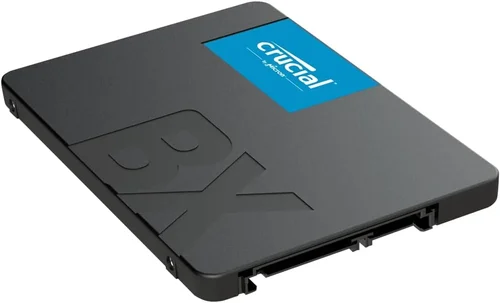
- Entry-Level ($30–$60): Ideal for basic computing needs. A 500GB SATA SSD like the Crucial BX500 or Kingston A400 offers solid performance for web browsing, office work, and light gaming. Avoid HDDs in this range unless you absolutely need capacity over speed.
- Mid-Range ($60–$120): The sweet spot for most users. A 1TB NVMe SSD such as the Samsung 980 or WD Black SN770 delivers excellent speed and reliability for gaming, content creation, and multitasking. This tier offers the best balance of price and performance.
- Premium ($120–$250): For enthusiasts and professionals. High-end NVMe drives like the Samsung 990 Pro or Seagate FireCuda 530 offer top-tier speeds, robust endurance, and advanced features. Ideal for 4K video editing, 3D rendering, or competitive gaming.
- Luxury ($250+): Top-tier performance and capacity. 2TB–4TB NVMe SSDs or enterprise-grade drives with features like power-loss protection and hardware encryption. Best for data centers, workstations, or users who demand maximum reliability and speed.
Expert Tips for Getting the Best Deal
- Shop During Sales Events: Major retailers like Amazon, Newegg, and Best Buy offer significant discounts during Black Friday, Prime Day, and back-to-school seasons. SSD prices can drop 20–30% during these periods.
- Compare Prices Across Retailers: Use price-tracking tools like CamelCamelCamel or Honey to monitor historical prices and set alerts for drops.
- Buy Refurbished or Open-Box: Reputable sellers often offer certified refurbished SSDs at 20–40% off, with full warranties. Ensure the drive has been tested and wiped.
- Check for Bundled Deals: Some motherboards or laptops come with free or discounted SSDs. Look for bundle promotions when upgrading your system.
- Prioritize Warranty Over Price: A slightly more expensive drive with a 5-year warranty is often a better long-term investment than a cheaper one with only 1–2 years.
- Test Before Finalizing: Use tools like CrystalDiskMark or AS SSD Benchmark to verify performance after installation. Ensure the drive meets advertised speeds.
- Consider Future-Proofing: If your system supports PCIe 4.0 or 5.0, invest in a compatible NVMe SSD now to avoid needing an upgrade later.

Frequently Asked Questions
Q: Is an SSD worth it over an HDD in 2026?
A: Absolutely. For most users, the performance, durability, and energy efficiency of SSDs far outweigh the cost difference. Unless you need massive storage on a tight budget, SSDs are the better choice.
Q: Can I use both an SSD and HDD in the same system?
A: Yes. Many users install an SSD for the OS and apps, and an HDD for media, backups, or games. This hybrid setup offers the best of both worlds.
Q: How long do SSDs last?
A: Modern SSDs are designed to last 5–10 years under normal use. Check the TBW rating and monitor health with tools like CrystalDiskInfo.
Q: Are NVMe SSDs faster than SATA SSDs?
A: Yes. NVMe drives use the PCIe interface and are significantly faster, especially for large file transfers and multitasking.
Q: Do I need a heatsink for my NVMe SSD?
A: Not always, but recommended for high-performance drives or compact builds where airflow is limited.
Q: Can I recover data from a failed SSD?
A: It’s possible but more difficult than with HDDs. Professional data recovery services may be required, and success isn’t guaranteed.
Q: Are external SSDs worth the cost?
A: Yes, if you need fast, portable storage. They’re ideal for photographers, videographers, and remote workers who transfer large files frequently.
Q: Should I defragment my SSD?
A: No. Defragmentation is unnecessary and can reduce the lifespan of an SSD. Windows automatically optimizes SSDs using TRIM.
Q: What’s the difference between TLC, MLC, and QLC NAND?
A: TLC (3-bit) offers a good balance of cost and endurance. MLC (2-bit) is more durable but pricier. QLC (4-bit) is cheaper but wears out faster—best for light use.
Q: Can I upgrade my laptop’s HDD to an SSD?
A: In most cases, yes. Check your laptop’s manual for compatibility, and consider cloning your existing drive to avoid reinstalling the OS.
Our Final Recommendations
- Best for Budget-Conscious Buyers: Crucial BX500 1TB SATA SSD – Reliable, affordable, and easy to install. Perfect for upgrading older systems.
- Best Overall Value: Samsung 980 1TB NVMe SSD – Excellent performance, strong endurance, and competitive pricing. Ideal for most users.
- Best Premium Option: Samsung 990 Pro 2TB NVMe SSD – Top-tier speed, robust build, and 5-year warranty. Built for demanding workloads.
- Best for Beginners: Kingston NV2 1TB NVMe SSD – Simple installation, solid performance, and great value. No-frills reliability.
- Best for Advanced Users: WD Black SN850X 2TB NVMe SSD – High-speed PCIe 4.0 performance, advanced thermal management, and excellent for gaming and content creation.
Conclusion: Making the Right Choice
Choosing between an SSD and an HDD in 2026 comes down to understanding your priorities. If speed, reliability, and responsiveness matter most—whether you’re gaming, working, or multitasking—an SSD is the clear winner. While HDDs still have a place for bulk storage and budget builds, their mechanical limitations make them increasingly outdated for primary use. By considering factors like budget, performance, durability, and form factor, you can make an informed decision that aligns with your needs.
Remember, the best storage solution isn’t always the most expensive or the largest—it’s the one that fits your workflow, enhances your productivity, and protects your data. Take the time to research, compare options, and invest in quality. Your future self will thank you every time your computer boots up in seconds or your files transfer in a flash. Whether you go all-in on NVMe or opt for a smart SSD-HDD combo, you’re making a choice that will impact your computing experience for years to come.