
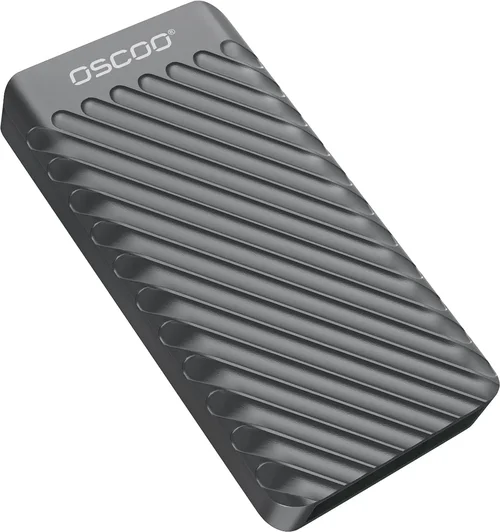
When it comes to building, upgrading, or replacing your computer’s storage, one of the most critical decisions you’ll face is choosing between a solid-state drive (SSD) and a traditional hard disk drive (HDD). This choice isn’t just about speed—it affects everything from system responsiveness and boot times to durability, noise levels, and even long-term reliability. With rapid advancements in NAND flash technology and falling SSD prices, the landscape has shifted dramatically over the past decade. What was once a luxury upgrade is now often the default choice for new systems. Yet, HDDs still hold strong in specific use cases, particularly where massive storage capacity at a low cost is the priority.
This comprehensive buying guide is designed to cut through the noise and help you make an informed decision tailored to your unique needs. Whether you’re a casual user looking to speed up an aging laptop, a content creator managing terabytes of video footage, a gamer seeking faster load times, or a business professional needing reliable data storage, we’ll walk you through every factor that matters. You’ll learn how to evaluate performance metrics, understand real-world implications of different drive types, avoid common pitfalls, and ultimately choose the right storage solution—without overspending or compromising on what truly matters to you.
The storage market today offers more options than ever before. From SATA SSDs and NVMe M.2 drives to high-capacity enterprise HDDs and hybrid SSHDs, the variety can be overwhelming. Prices fluctuate based on technology, brand, capacity, and form factor, and marketing claims often blur the lines between marketing hype and measurable performance. Our goal is to give you clarity, not confusion. By the end of this guide, you’ll not only know whether an SSD or HDD is better for your situation—you’ll also understand why, and how to get the best value for your money in 2026.

What to Look for When Buying Buying Guide
1. Budget & Price Range
Your budget is often the first and most decisive factor when choosing between an SSD and an HDD. As of 2026, SSDs have become significantly more affordable, but they still cost more per gigabyte than HDDs. For example, a 1TB SATA SSD might run you between $60 and $100, while a comparable 1TB HDD typically costs $35 to $50. NVMe SSDs, which offer even faster speeds, command a premium—expect to pay $80 to $150 for a 1TB model from a reputable brand.
However, pricing isn’t just about the upfront cost. Consider total cost of ownership. An SSD can extend the usable life of an older system, reduce power consumption (especially important for laptops), and minimize downtime due to failures. If you’re upgrading a five-year-old laptop just to keep it functional, spending $70 on a 1TB SSD could be far more cost-effective than buying a new machine. On the other hand, if you need 8TB of storage for archival purposes, an HDD at around $120 makes far more financial sense than an SSD that could cost $600 or more.
Always compare price per gigabyte, but don’t let it be your only metric. A slightly more expensive SSD with better endurance ratings or a longer warranty may offer better long-term value. Also, watch for seasonal sales—Black Friday, Prime Day, and back-to-school periods often bring steep discounts on both SSDs and HDDs.
2. Performance Specifications
Performance is where SSDs truly shine—and where HDDs struggle to keep up. The key metrics to consider are sequential read/write speeds, random read/write IOPS (Input/Output Operations Per Second), and access latency.
SSDs, especially NVMe models using the PCIe 4.0 or 5.0 interface, can deliver sequential read speeds exceeding 7,000 MB/s and write speeds over 6,000 MB/s. Even older SATA SSDs typically offer 500–550 MB/s, which is still nearly 5x faster than the average HDD’s 100–200 MB/s. Random performance is even more dramatic: an NVMe SSD can handle hundreds of thousands of IOPS, while an HDD might manage only 100–200 due to mechanical limitations.
Why does this matter? Faster storage translates directly to quicker boot times, snappier application launches, smoother multitasking, and reduced loading screens in games. For example, Windows 11 boots in under 10 seconds on a modern NVMe SSD but can take 30–60 seconds or more on an HDD. Video editors will notice significantly faster project load times and scrubbing performance with SSDs, while gamers benefit from reduced texture pop-in and level load delays.
When comparing specs, look beyond peak numbers. Check sustained write performance—some budget SSDs slow down dramatically after the cache fills up. Also, consider the controller and NAND type (TLC vs. QLC); TLC offers better endurance and consistency, while QLC is cheaper but wears out faster under heavy write workloads.
3. Build Quality & Durability
Durability is a major differentiator between SSDs and HDDs—and one of the strongest arguments in favor of SSDs. HDDs contain spinning platters and moving read/write heads, making them vulnerable to physical shock, vibration, and wear over time. Dropping a laptop with an active HDD can result in catastrophic data loss. In contrast, SSDs have no moving parts, making them inherently more resistant to drops, bumps, and temperature fluctuations.
This makes SSDs ideal for laptops, portable external drives, and environments where reliability is critical—like fieldwork, travel, or industrial settings. Many SSDs are rated to withstand shocks of 1,500G and operate reliably from -40°C to 85°C. HDDs, by comparison, are typically rated for 300G or less and are more sensitive to extreme conditions.
That said, SSDs aren’t indestructible. They have a finite number of write cycles, measured in terabytes written (TBW). A 1TB SSD might have a TBW rating of 600–1,200TB, meaning you could write 100GB per day for 16–32 years before reaching its endurance limit. For most users, this is more than enough. However, if you’re running a database server or doing heavy video editing daily, choose an SSD with high endurance (look for enterprise-grade or prosumer models like Samsung 870 PRO or WD Red SA510).
4. Features & Functionality
Modern storage drives come with a range of features that go beyond basic read/write capabilities. When evaluating SSDs and HDDs, consider what extras matter for your use case.
For SSDs, look for:
– Hardware encryption (e.g., TCG Opal, AES-256) for secure data protection.
– DRAM cache—SSDs with DRAM buffers maintain consistent performance under load and last longer.
– Power-loss protection (common in enterprise SSDs) prevents data corruption during sudden outages.
– Thermal throttling management—high-performance NVMe drives can overheat; models with built-in heat spreaders or dynamic thermal control perform better under sustained loads.
For HDDs, key features include:
– RPM speed—7,200 RPM drives are faster than 5,400 RPM models, ideal for desktops.
– Cache size—larger caches (256MB vs. 64MB) improve performance for frequently accessed data.
– NAS/RAID optimization—drives like WD Red or Seagate IronWolf include vibration resistance and error recovery controls for multi-drive setups.
– SMART monitoring—allows early detection of potential failures.
Hybrid drives (SSHDs) combine a small SSD cache with a traditional HDD, offering a middle ground. However, they’re largely obsolete in 2026 due to the affordability of full SSDs and the superior performance of NVMe technology.
5. Brand Reputation
Not all storage brands are created equal. While third-party manufacturers may offer lower prices, established brands like Samsung, Western Digital, Crucial, Kingston, and Seagate consistently deliver better quality control, firmware updates, and customer support.
Samsung’s SSDs, for instance, are renowned for their reliability and performance, often topping benchmark charts. Western Digital offers a broad portfolio, from budget Blue SSDs to high-end Black SN850X NVMe drives. Crucial (a Micron brand) provides excellent value with strong real-world performance. Seagate remains a leader in HDD technology, especially for NAS and surveillance applications.
Avoid no-name or ultra-cheap brands, especially for internal system drives. These often use lower-grade NAND, lack DRAM caches, and have minimal endurance ratings. A $40 2TB SSD from an unknown brand may seem like a bargain, but it could fail within months under moderate use.
Check professional reviews from trusted sources like Tom’s Hardware, AnandTech, or StorageReview.com. User feedback on Amazon, Newegg, or Reddit can also reveal real-world issues like high failure rates or poor customer service.
6. Warranty & Support
Warranty length and terms are strong indicators of a drive’s expected lifespan and the manufacturer’s confidence in its product. Most consumer SSDs come with 3- to 5-year limited warranties, often tied to TBW limits. For example, a 1TB Samsung 980 PRO has a 5-year warranty or 600TBW—whichever comes first.
HDDs typically offer 2- to 5-year warranties, with enterprise and NAS models sometimes extending to 5 years. Longer warranties usually correlate with higher build quality and better components.
Pay attention to what the warranty covers. Some brands require registration within 30 days of purchase. Others void the warranty if the drive is used in a RAID array or modified. Also, check the return process—some companies offer cross-shipping (sending a replacement before receiving the defective unit), while others make you wait.
For mission-critical data, consider drives with data recovery services or partnerships with recovery firms. While no warranty can replace lost files, knowing you have support options adds peace of mind.
7. Size & Portability
Form factor plays a crucial role, especially in compact systems. SSDs dominate here thanks to their small size and lightweight design. The M.2 2280 form factor (22mm wide, 80mm long) is now standard in laptops, mini-PCs, and modern desktops. These drives plug directly into the motherboard, eliminating cables and saving space.
2.5-inch SATA SSDs are slightly larger but still much smaller and lighter than 3.5-inch HDDs. They’re ideal for laptop upgrades or external enclosures. Portable external SSDs like the Samsung T7 or SanDisk Extreme offer blazing-fast USB 3.2 Gen 2 speeds (up to 1,050 MB/s) and are rugged enough for on-the-go use.
HDDs, particularly 3.5-inch desktop models, are bulky and heavy—often weighing over 600 grams. They require separate power and data cables, making them less suitable for slim builds. However, their larger size allows for higher capacities at lower costs, which is why they remain popular in desktop workstations and server racks.
If portability matters—whether for travel, fieldwork, or frequent upgrades—SSDs are the clear winner.
8. User Reviews & Ratings
While specs and benchmarks are important, real-world user experiences provide invaluable insights. Look for patterns in reviews: Are multiple users reporting early failures? Do performance drops occur after a few months? Is customer service responsive?
Platforms like Amazon, Newegg, and Best Buy allow filtering by verified purchases and sorting by “most recent” or “most helpful.” Pay attention to 1- and 2-star reviews—they often highlight flaws that spec sheets ignore, such as poor thermal management, inconsistent firmware, or compatibility issues with certain motherboards.
Forums like Reddit’s r/buildapc or r/DataHoarder are excellent resources for niche advice. Users frequently share long-term reliability reports, RAID compatibility lists, and tips for maximizing drive lifespan.
Avoid relying solely on aggregate star ratings. A 4.8-star average might hide a few critical flaws mentioned in detailed reviews. Always read the full comments, not just the summary.
Different Types of Buying Guide

Common Buying Mistakes to Avoid
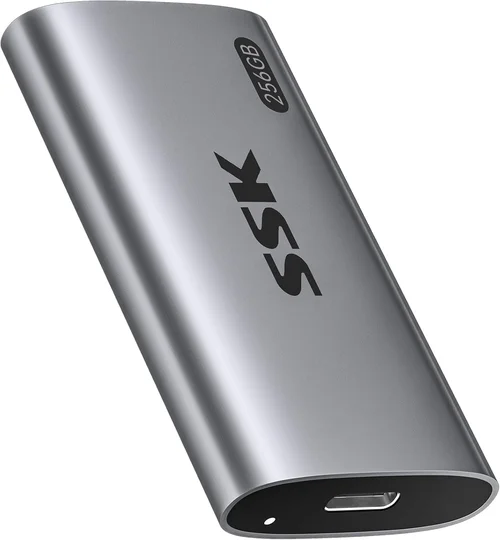
❌ Mistake: Prioritizing Capacity Over Performance
Why it’s bad: Choosing a 4TB HDD because it’s cheaper per gigabyte might save money upfront, but you’ll pay for it in sluggish performance, longer load times, and reduced system responsiveness—especially if it’s your primary drive.
What to do instead: Use an SSD as your boot and application drive (even 500GB is sufficient for most users) and add a large HDD for bulk storage like videos, photos, and backups. This hybrid approach gives you the best of both worlds.
❌ Mistake: Ignoring Form Factor Compatibility
Why it’s bad: Buying an M.2 NVMe SSD for a laptop that only supports SATA M.2 or 2.5-inch drives will result in a useless purchase. Similarly, installing a 3.5-inch HDD in a slim mini-PC without proper mounting can cause physical damage.
What to do instead: Check your device’s manual or manufacturer specs before buying. Use tools like Crucial’s Scanner or Samsung’s Advisor to find compatible upgrades.
❌ Mistake: Overlooking Endurance Ratings
Why it’s bad: Budget QLC SSDs may offer high capacities at low prices, but they wear out quickly under heavy write workloads. Using one for a video editing workstation could lead to premature failure.
What to do instead: For write-intensive tasks, choose TLC or MLC NAND SSDs with high TBW ratings. Look for drives labeled “Pro,” “Workstation,” or “Enterprise.”
❌ Mistake: Skipping Firmware Updates
Why it’s bad: Outdated firmware can cause compatibility issues, performance drops, or even data corruption. Many users never update their SSD firmware, missing critical bug fixes.
What to do instead: Download the manufacturer’s SSD management tool (e.g., Samsung Magician, WD Dashboard) and enable automatic firmware checks.
❌ Mistake: Assuming All NVMe Drives Are Equal
Why it’s bad: A $60 NVMe SSD might use slower NAND and lack a DRAM cache, resulting in poor real-world performance despite high benchmark numbers.
What to do instead: Read detailed reviews and check specs like DRAM presence, NAND type, and sustained write speeds. Stick to reputable brands.
❌ Mistake: Neglecting Backup Strategy
Why it’s bad: Whether you choose SSD or HDD, no drive lasts forever. Relying on a single drive without backups risks permanent data loss.
What to do instead: Follow the 3-2-1 rule: 3 copies of your data, on 2 different media, with 1 copy offsite (e.g., cloud or external drive stored elsewhere).
Budget Guidelines: How Much Should You Spend?
– Entry-Level ($30–$60): At this price, you’re looking at 1TB HDDs or budget 500GB SATA SSDs. Ideal for basic computing, light office work, or secondary storage. Expect modest performance from SSDs and slow speeds from HDDs. Best for students or users upgrading very old systems.
– Mid-Range ($60–$120): This is the sweet spot for most buyers. You can get a reliable 1TB SATA SSD (like Crucial MX500) or a 1TB NVMe SSD (such as WD Blue SN580). Perfect for general use, gaming, and productivity. Offers excellent performance-to-price ratio.
– Premium ($120–$250): For enthusiasts and professionals. High-end NVMe SSDs (Samsung 990 PRO, WD Black SN850X) with PCIe 4.0 speeds, robust cooling, and high endurance. Great for 4K video editing, game development, or running virtual machines.
– Luxury ($250+): Top-tier options include 2TB+ NVMe drives, enterprise-grade SSDs with power-loss protection, or multi-terabyte NAS HDDs. Reserved for power users, servers, or those who demand maximum reliability and performance.

Expert Tips for Getting the Best Deal
– Buy during major sales events: Black Friday, Cyber Monday, Amazon Prime Day, and back-to-school seasons often feature 20–40% discounts on storage. Sign up for price alerts on CamelCamelCamel or Honey.
– Check refurbished or open-box deals: Reputable retailers like Best Buy, Newegg, and B&H offer certified refurbished SSDs with full warranties at 15–30% off retail.
– Compare retailers: Prices vary widely. Amazon, Newegg, B&H, and Micro Center often have competitive pricing. Micro Center’s in-store pickup can save on shipping.
– Look for bundle deals: Some manufacturers offer free cloning software, external enclosures, or extended warranties with purchase.
– Verify return policies: Ensure the seller offers at least a 30-day return window. Avoid third-party sellers with unclear terms.
– Test before finalizing: After installation, run benchmarks (CrystalDiskMark, AS SSD) and check SMART status (using CrystalDiskInfo) to confirm health and performance.
– Consider future-proofing: If your system supports PCIe 4.0, invest in a Gen4 NVMe SSD now—even if you don’t need the speed today, you’ll be ready for future upgrades.

Frequently Asked Questions
Q: Is an SSD really worth the extra cost over an HDD?
A: For most users, absolutely. The performance difference is night and day—faster boots, quicker app launches, and smoother multitasking. Unless you need massive storage on a tight budget, an SSD is the smarter long-term investment.
Q: Can I use both an SSD and HDD in the same system?
A: Yes! This is a popular and effective setup. Install your operating system and frequently used programs on the SSD for speed, and use the HDD for storing large files like videos, photos, and backups.
Q: Do SSDs slow down over time?
A: Modern SSDs with TRIM support and wear leveling maintain consistent performance for years. However, filling an SSD beyond 75–80% capacity can reduce speed. Leave some free space for optimal performance.
Q: Are external SSDs faster than internal HDDs?
A: Yes—even a USB 3.2 Gen 2 external SSD (1,050 MB/s) is significantly faster than an internal 5,400 RPM HDD (100–120 MB/s). Great for portable workflows.
Q: How long do SSDs last?
A: Most consumer SSDs last 5–10 years under normal use. With typical daily writing of 20–50GB, you’ll likely upgrade your system before the drive wears out.
Q: Should I defragment my SSD?
A: No. Defragmentation is unnecessary and harmful to SSDs. Windows automatically disables defrag for SSDs and runs TRIM instead, which optimizes performance safely.
Q: Are cheaper SSDs safe to use?
A: Some are, but many cut corners on NAND quality, controllers, and firmware. Stick to known brands and avoid drives without DRAM caches for primary use.
Q: Can I recover data from a failed SSD?
A: It’s more difficult than with HDDs due to wear leveling and encryption. Professional recovery services exist but can be expensive. Always maintain backups.
Our Final Recommendations
– Best for Budget-Conscious Buyers: Crucial MX500 1TB SATA SSD – Reliable, fast enough for daily tasks, and often under $70.
– Best Overall Value: WD Blue SN580 1TB NVMe SSD – Excellent performance, low power draw, and priced around $85.
– Best Premium Option: Samsung 990 PRO 1TB – Top-tier speeds, robust build, and ideal for gaming and creative work.
– Best for Beginners: Kingston NV2 1TB NVMe SSD – Simple installation, good performance, and very affordable.
– Best for Advanced Users: Seagate FireCuda 530 2TB – High endurance, PCIe 4.0 speeds, and perfect for workstations.
Conclusion: Making the Right Choice
Choosing between an SSD and an HDD in 2026 isn’t about picking a winner—it’s about matching the right technology to your needs. SSDs dominate in speed, durability, and efficiency, making them the best choice for primary storage in almost every scenario. HDDs remain relevant for bulk storage, backups, and budget builds where capacity trumps performance.
By evaluating your budget, performance requirements, use case, and long-term goals, you can make a confident decision. Remember: the best drive is not the fastest or the cheapest—it’s the one that delivers the right balance of reliability, speed, and value for your specific situation.
Don’t rush. Do your research, read reviews, and consider future needs. And whatever you choose, always back up your data. Your files are irreplaceable—your storage should be too.