
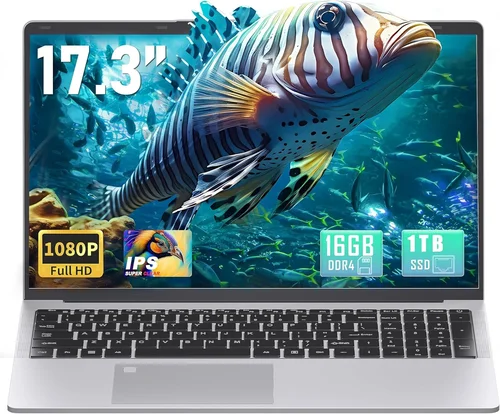
The debate between SSDs and HDDs in laptops has raged for over a decade, but by 2026, the landscape has shifted dramatically. What once was a clear-cut choice between speed and capacity has evolved into a nuanced decision influenced by advancements in storage technology, changing user needs, and the growing demands of modern software and operating systems. Whether you’re a student juggling assignments, a creative professional editing 4K video, or a casual user streaming movies and browsing the web, your laptop’s storage type plays a pivotal role in your overall computing experience. This comprehensive guide is designed to cut through the noise and help you make an informed decision that aligns with your lifestyle, workflow, and budget.
In this detailed buying guide, you’ll learn not just the technical differences between SSDs (Solid State Drives) and HDDs (Hard Disk Drives), but also how those differences translate into real-world performance, durability, and value. We’ll explore the latest developments in storage technology—including NVMe SSDs, SATA SSDs, hybrid drives, and emerging solutions like QLC and PLC NAND—and explain how they affect boot times, file transfers, multitasking, and even battery life. You’ll also discover key factors to consider when choosing a laptop, from performance benchmarks and build quality to warranty coverage and long-term reliability. By the end of this article, you’ll have a clear understanding of which storage type is best suited for your needs—and how to avoid common pitfalls that could cost you time, money, or data.
The laptop market in 2026 is more diverse than ever, with options ranging from ultra-thin ultrabooks to powerful mobile workstations. While SSDs have become the standard in most new laptops—especially in premium and mid-range models—HDDs still hold a place in budget-friendly systems and niche applications where massive storage capacity is prioritized over speed. However, the gap between the two is narrowing, thanks to falling SSD prices and increasing adoption of high-capacity solid-state drives. This guide will help you navigate that evolving landscape, empowering you to choose not just the right storage type, but the right laptop overall.
What to Look for When Buying Buying Guide
1. Budget & Price Range
Your budget is often the first and most important factor when choosing between an SSD and HDD. In 2026, SSDs have become significantly more affordable, with 1TB models now available for under $100 in many cases. However, HDDs still offer the best value per gigabyte, especially for capacities above 2TB. If you’re working with a tight budget—say, under $500—you may find laptops with 500GB or 1TB HDDs, which provide ample space for documents, media, and basic applications. On the other hand, even entry-level laptops now often include at least a 256GB SSD, which delivers a noticeably faster experience. When evaluating price, consider not just the upfront cost but also long-term value: an SSD may cost more initially but can extend your laptop’s usable life by improving responsiveness and reducing wear on other components.
2. Performance Specifications
Performance is where SSDs truly shine. Unlike HDDs, which rely on spinning platters and mechanical read/write heads, SSDs use flash memory with no moving parts. This results in dramatically faster boot times, quicker application launches, and snappier overall system responsiveness. For example, a laptop with an NVMe SSD can boot into Windows 11 in under 10 seconds, while an HDD-equipped system might take 30–60 seconds. File transfers are equally impressive: copying a 10GB video file can take less than a minute on an SSD versus several minutes on an HDD. Additionally, SSDs handle multitasking more efficiently, allowing you to run multiple applications simultaneously without noticeable lag. If your workflow involves photo editing, video rendering, software development, or gaming, an SSD is not just beneficial—it’s essential.
3. Build Quality & Durability
Durability is a critical consideration, especially for students, travelers, or anyone who uses their laptop on the go. HDDs are inherently more fragile due to their mechanical components. A sudden drop or jolt can cause the read/write head to crash into the spinning platters, resulting in data loss or drive failure. SSDs, being solid-state, are far more resistant to physical shock and vibration. This makes them ideal for mobile users who frequently move their laptops between classes, offices, or cafes. Furthermore, SSDs generate less heat and consume less power, contributing to better thermal management and longer battery life. In 2026, many ruggedized laptops designed for fieldwork or outdoor use exclusively feature SSDs for this very reason.
4. Features & Functionality
Modern laptops come with a range of features that can influence your storage decision. For instance, many ultrabooks and 2-in-1 convertibles now use M.2 NVMe SSDs, which are smaller, faster, and more power-efficient than traditional 2.5-inch SATA drives. These compact form factors allow manufacturers to create thinner, lighter laptops without sacrificing performance. Additionally, some high-end models support PCIe Gen 5 SSDs, offering read speeds exceeding 10,000 MB/s—ideal for professionals working with large datasets or 8K video. On the other hand, HDDs are typically limited to SATA III interfaces, capping speeds at around 600 MB/s. If your laptop supports features like Thunderbolt 4, Wi-Fi 6E, or AI acceleration, pairing it with an SSD ensures those capabilities aren’t bottlenecked by slow storage.
5. Brand Reputation
Not all SSDs and HDDs are created equal, and brand reputation matters when it comes to reliability and performance. Established brands like Samsung, Western Digital, Crucial, and Kingston consistently deliver high-quality SSDs with strong endurance ratings and robust firmware. Samsung’s 990 Pro and WD Black SN850X are excellent examples of premium NVMe drives trusted by professionals. For HDDs, Seagate and Toshiba remain reliable choices, particularly for bulk storage needs. When buying a laptop, check which storage brand and model it includes—some manufacturers use lower-tier or rebranded drives that may not perform as well as their standalone counterparts. Reading detailed reviews and checking user feedback can help you identify laptops with reputable storage components.
6. Warranty & Support
Warranty coverage is often overlooked but can save you from costly repairs or data recovery. Most SSDs come with a 3- to 5-year warranty, with some high-end models offering up to 10 years. This reflects the manufacturer’s confidence in the drive’s longevity. HDDs typically have shorter warranties, usually 2–3 years, due to their mechanical nature and higher failure rates over time. When purchasing a laptop, verify the warranty terms for both the system and the storage drive. Some brands, like Apple and Dell, offer extended warranty options that include accidental damage protection and on-site service. Additionally, consider whether the manufacturer provides data recovery services or cloud backup integrations—these can be lifesavers in the event of drive failure.
7. Size & Portability
The physical size and weight of your laptop are directly influenced by the type of storage it uses. SSDs, especially M.2 form factors, are significantly smaller and lighter than 2.5-inch HDDs. This enables manufacturers to design sleeker, more portable laptops—perfect for students, frequent travelers, or remote workers. A laptop with an SSD can be up to 30% lighter and 20% thinner than an HDD-equipped counterpart with similar specs. Moreover, the absence of moving parts means SSDs produce no noise, contributing to a quieter, more pleasant user experience. If you value portability and a minimalist design, an SSD is the clear winner.
8. User Reviews & Ratings
Before making a purchase, always consult user reviews and professional ratings. Platforms like Amazon, Newegg, and Best Buy offer thousands of customer reviews that can reveal real-world performance, reliability issues, and common complaints. Look for patterns: if multiple users report slow boot times or frequent crashes on an HDD-based laptop, that’s a red flag. Conversely, laptops with SSDs often receive praise for speed, responsiveness, and overall satisfaction. Professional review sites like PCMag, CNET, and Laptop Mag provide in-depth benchmarks and comparisons, helping you understand how different storage types perform under stress. Pay attention to long-term reviews, which assess durability and performance over months of use.
Different Types of Buying Guide

Common Buying Mistakes to Avoid

❌ Mistake: Prioritizing Storage Capacity Over Speed
Why it’s bad: Choosing a 2TB HDD over a 500GB SSD because “more space is better” can lead to a frustrating user experience. While you’ll have plenty of room for files, your laptop will feel sluggish, with long boot times, slow app launches, and poor multitasking performance. This is especially problematic with modern operating systems and software that expect fast storage.
What to do instead: Opt for an SSD with at least 500GB of storage. If you need more space, use an external drive or cloud storage for media and backups. The performance gain from an SSD far outweighs the extra capacity of an HDD.
❌ Mistake: Ignoring the Type of SSD
Why it’s bad: Not all SSDs are equal. A SATA SSD is much slower than an NVMe SSD, even though both are “solid state.” Buying a laptop with a SATA SSD when an NVMe version is available means missing out on significant performance improvements, especially in data-intensive tasks.
What to do instead: Check the specifications carefully. Look for NVMe PCIe Gen 4 or Gen 5 SSDs in performance-oriented laptops. If budget is a concern, a SATA SSD is still a major upgrade over an HDD.
❌ Mistake: Overlooking Endurance and TBW Ratings
Why it’s bad: SSDs have a limited number of write cycles. Consumer drives are rated for a certain number of terabytes written (TBW). Ignoring this can lead to premature drive failure, especially if you frequently edit large files or run virtual machines.
What to do instead: Choose SSDs with higher TBW ratings (e.g., 600TBW for 1TB drives). Enterprise-grade or prosumer models like Samsung 990 Pro offer better endurance for heavy workloads.
❌ Mistake: Assuming All Laptops Can Be Upgraded
Why it’s bad: Many modern laptops, especially ultrabooks and MacBooks, have soldered storage that cannot be replaced or upgraded. Buying a laptop with only 256GB of storage thinking you’ll “upgrade later” may leave you stuck with insufficient space.
What to do instead: Verify upgradeability before purchasing. Look for laptops with accessible M.2 slots or replaceable 2.5-inch bays. If upgradeability is limited, buy the largest SSD configuration you can afford.
❌ Mistake: Neglecting Backup Strategies
Why it’s bad: Both SSDs and HDDs can fail. Relying solely on internal storage without a backup plan risks permanent data loss. SSDs can fail suddenly due to firmware issues, while HDDs may degrade over time.
What to do instead: Implement a 3-2-1 backup strategy: three copies of your data, on two different media, with one offsite (e.g., cloud storage). Use tools like Time Machine, Windows Backup, or third-party software.
❌ Mistake: Falling for “Hybrid” Marketing Hype
Why it’s bad: Hybrid drives (SSHDs) combine a small SSD cache with a large HDD. While they offer a slight performance boost over pure HDDs, they don’t match the speed of a full SSD and can be unreliable.
What to do instead: Avoid SSHDs in 2026. The price difference between a 1TB SSHD and a 1TB SSD is minimal, and the performance gap is enormous. Invest in a true SSD.
❌ Mistake: Buying Based on Brand Alone
Why it’s bad: Just because a laptop is from a reputable brand doesn’t mean it has quality storage. Some manufacturers cut corners by using low-end SSDs or outdated HDDs to reduce costs.
What to do instead: Research the specific storage model included in the laptop. Check reviews, benchmarks, and user feedback to ensure it meets your performance and reliability needs.
Budget Guidelines: How Much Should You Spend?
– Entry-Level ($300–$600): At this price point, you’ll typically find laptops with 256GB–512GB SSDs or 1TB HDDs. While HDDs offer more space, the performance difference is stark. Aim for at least a 256GB SSD—many budget models now include one. Avoid pure HDD configurations unless you absolutely need the storage and can tolerate slow performance.
– Mid-Range ($600–$1,200): This is the sweet spot for most buyers. Laptops in this range usually feature 512GB–1TB NVMe SSDs, offering excellent speed and sufficient capacity for everyday use, light creative work, and gaming. You’ll also find better build quality, displays, and battery life. This tier provides the best balance of performance, features, and value.
– Premium ($1,200–$2,000): Designed for professionals and power users, these laptops come with 1TB–2TB NVMe SSDs (often PCIe Gen 4 or Gen 5), high-end processors, and premium materials. Ideal for video editing, 3D rendering, software development, and gaming. The storage is fast, reliable, and often upgradeable.
– Luxury ($2,000+): Top-tier laptops like the MacBook Pro M3 Max, Dell XPS 17, or ASUS ROG Zephyrus Duo feature 2TB–4TB SSDs, sometimes in RAID configurations for maximum speed. These systems are built for extreme workloads and offer unmatched performance, but come at a steep price. Only necessary for specialized professionals or enthusiasts.

Expert Tips for Getting the Best Deal
– Buy During Major Sales Events: Look for discounts during Black Friday, Cyber Monday, back-to-school season (July–August), and Amazon Prime Day. Many retailers offer significant savings on laptops with SSDs.
– Consider Refurbished or Open-Box Models: Certified refurbished laptops from manufacturers like Apple, Dell, or Lenovo often include warranties and can save you 20–40% off retail prices. Ensure the storage is SSD and check the condition.
– Upgrade After Purchase: If your laptop allows it, buy a model with a smaller SSD and upgrade it yourself. A 500GB NVMe SSD can cost under $50, and installation is straightforward with online guides.
– Check for Student or Business Discounts: Many brands offer educational pricing or bulk discounts for businesses. These can include free SSD upgrades or extended warranties.
– Read the Fine Print on Warranties: Some warranties void if you open the laptop or replace components. Verify whether self-upgrades are allowed before making changes.
– Test Before You Buy: If purchasing in-store, ask to boot the laptop and open a few applications. A slow response indicates an HDD or low-quality SSD.
– Use Price Tracking Tools: Websites like CamelCamelCamel or Honey can alert you when a laptop drops in price, helping you time your purchase perfectly.
– Don’t Overpay for Brand Names: A Dell or HP laptop with the same SSD as a lesser-known brand may cost more due to branding. Focus on specs, not logos.

Frequently Asked Questions
Q: Is an SSD really worth the extra cost over an HDD?
A: Absolutely. Even a basic SATA SSD provides a dramatic improvement in boot time, application loading, and overall system responsiveness. The performance gain is noticeable in everyday tasks and essential for demanding workloads. By 2026, the price gap has narrowed to the point where SSDs are the clear choice for most users.
Q: Can I replace an HDD with an SSD in my current laptop?
A: In many cases, yes—especially if your laptop has a 2.5-inch drive bay or an accessible M.2 slot. You’ll need to clone your existing drive or perform a fresh OS installation. Check your laptop’s service manual for compatibility and instructions.
Q: How long do SSDs last compared to HDDs?
A: Modern SSDs are highly durable, with most consumer models rated for 150–600TBW (terabytes written). Under normal use, an SSD can last 5–10 years. HDDs typically last 3–5 years due to mechanical wear. However, SSDs can fail suddenly, so regular backups are crucial.
Q: Do SSDs improve battery life?
A: Yes. SSDs consume less power than HDDs because they have no moving parts. This can extend battery life by 15–30 minutes, depending on usage. Laptops with SSDs also generate less heat, reducing fan activity and further conserving energy.
Q: What’s the difference between SATA and NVMe SSDs?
A: SATA SSDs use the older SATA interface, with speeds capped at around 550 MB/s. NVMe SSDs connect via PCIe lanes, enabling speeds up to 7,000 MB/s (Gen 4) or 10,000+ MB/s (Gen 5). NVMe is significantly faster and ideal for high-performance tasks.
Q: Can I use both an SSD and HDD in one laptop?
A: Yes, if your laptop has multiple drive bays or supports both M.2 and 2.5-inch drives. This setup allows you to use the SSD for the operating system and applications, and the HDD for bulk storage like videos and backups.
Q: Are external SSDs as fast as internal ones?
A: High-speed external SSDs with USB 3.2 Gen 2 or Thunderbolt 4 can match or exceed internal SATA SSDs, with speeds up to 2,000 MB/s. However, they’re still slower than internal NVMe drives. Great for portability and backups.
Q: Do gaming laptops need SSDs?
A: Yes. Modern games require fast storage to load textures, levels, and assets quickly. An SSD reduces load times significantly and improves overall gaming performance, especially in open-world titles.
Q: What happens if my SSD fails?
A: Unlike HDDs, SSDs don’t usually give warning signs before failure. Data recovery is often difficult or impossible. That’s why regular backups are essential. Use cloud services or external drives to protect your files.
Q: Are QLC or PLC SSDs reliable?
A: QLC (4-bit) and PLC (5-bit) SSDs offer higher capacities at lower costs but have lower endurance and slower write speeds. They’re fine for casual use but not recommended for heavy workloads. Opt for TLC (3-bit) SSDs for better balance.
Our Final Recommendations
– Best for Budget-Conscious Buyers: Acer Aspire 5 with 512GB NVMe SSD – Offers excellent value under $600 with fast storage, decent performance, and a full HD display.
– Best Overall Value: Lenovo IdeaPad 5 Pro with 1TB NVMe SSD – Combines a powerful Ryzen 7 processor, 16GB RAM, and spacious SSD for under $900. Ideal for students and professionals.
– Best Premium Option: MacBook Pro 14-inch (M3, 2026) with 2TB SSD – Unmatched performance, battery life, and build quality. Perfect for creatives and developers.
– Best for Beginners: HP Pavilion 15 with 512GB SSD – User-friendly, reliable, and affordable. Great for everyday tasks and light productivity.
– Best for Advanced Users: ASUS ROG Zephyrus G14 with 2TB PCIe Gen 5 SSD – High-end gaming and content creation machine with blazing-fast storage and top-tier specs.
Conclusion: Making the Right Choice
By 2026, the choice between SSD and HDD in laptops is clearer than ever: SSDs are the superior option for nearly every user. They deliver faster performance, greater durability, better battery life, and a more responsive experience—all while becoming increasingly affordable. While HDDs still have a place for bulk storage or ultra-budget systems, their mechanical limitations make them a poor fit for modern computing demands. When selecting a laptop, prioritize an SSD with at least 500GB of storage, and consider NVMe for maximum speed. Factor in your budget, usage needs, and long-term goals to make a decision that will serve you well for years to come.
Remember, the best laptop isn’t the one with the most storage—it’s the one that matches your lifestyle and workflow. Whether you’re writing essays, editing videos, or browsing the web, the right storage choice can transform your experience from frustrating to effortless. Use this guide to cut through the confusion, avoid common mistakes, and invest wisely. Your future self will thank you every time your laptop boots up in seconds, launches apps instantly, and handles multitasking with ease. Make the switch to SSD—your productivity, patience, and data will all benefit.