

If you’re in the market for a new storage drive—whether it’s for a desktop PC, laptop, gaming rig, or even a media server—you’ve likely come across the age-old debate: HDD vs SSD. Which one should you choose? The answer isn’t always straightforward, and it depends heavily on your specific needs, budget, and use case. With technology evolving rapidly and prices shifting every year, making the right decision in 2026 requires more than just knowing the basics. You need a deep understanding of performance, longevity, cost-efficiency, and real-world usability.
This comprehensive buying guide is designed to cut through the noise and give you everything you need to make an informed decision. Whether you’re building your first PC, upgrading an older system, or simply looking to expand your storage, we’ll walk you through the critical factors to consider, compare different types of drives, highlight common pitfalls, and offer expert-backed recommendations. By the end of this article, you’ll know exactly whether an HDD, SSD, or a hybrid setup is best for you—and how to get the most value for your money.
The storage market in 2026 is more diverse and competitive than ever. Traditional hard disk drives (HDDs) continue to offer massive capacities at low prices, making them ideal for bulk storage. Meanwhile, solid-state drives (SSDs) have surged in popularity thanks to falling prices, improved reliability, and blazing-fast performance. Newer technologies like NVMe SSDs and QLC NAND are pushing the boundaries of speed and capacity, while hybrid solutions and cloud-integrated storage are changing how we think about data access. With so many options, it’s easy to feel overwhelmed—but this guide will help you navigate the landscape with confidence.

What to Look for When Buying Buying Guide
1. Budget & Price Range
Your budget is often the most immediate factor in deciding between an HDD and an SSD. As of 2026, HDDs remain significantly cheaper per gigabyte, especially at higher capacities. A 4TB HDD might cost around $80–$100, while a comparable SSD could run $200–$300 or more. For users who need large amounts of storage—such as video editors, photographers, or gamers with massive game libraries—HDDs still offer unbeatable value.
However, SSD prices have dropped dramatically over the past few years. A 1TB SATA SSD now costs roughly $50–$70, making it accessible for most consumers. NVMe SSDs, which are faster but more expensive, typically range from $60–$120 for 1TB. If your budget allows, investing in an SSD—even a smaller one for your operating system and frequently used apps—can dramatically improve your system’s responsiveness.
2. Performance Specifications
Performance is where SSDs truly shine. Unlike HDDs, which rely on spinning platters and a moving read/write head, SSDs use flash memory with no moving parts. This results in dramatically faster boot times, quicker application launches, and snappier overall system responsiveness.
When evaluating performance, look at these key metrics:
– Sequential Read/Write Speeds: Measured in MB/s, this indicates how fast large files can be read or written. SATA SSDs typically offer 500–550 MB/s, while NVMe SSDs can exceed 3,500 MB/s—and some PCIe 4.0 and 5.0 models reach over 7,000 MB/s.
– Random Read/Write IOPS: Input/Output Operations Per Second measure how well a drive handles small, random data requests (like opening multiple browser tabs or loading game assets). SSDs excel here, often delivering tens or hundreds of thousands of IOPS, compared to just a few hundred for HDDs.
– Latency: SSDs have near-instant access times (under 0.1ms), while HDDs can take 5–15ms due to mechanical delays.
For everyday computing, gaming, or professional workloads like video editing or software development, SSDs provide a noticeable performance boost. HDDs, while adequate for basic tasks, can become bottlenecks in modern systems.
3. Build Quality & Durability
Durability is a major differentiator between HDDs and SSDs. Because HDDs contain moving parts, they are more susceptible to physical damage from drops, shocks, or vibrations—especially in laptops or portable devices. A sudden jolt can cause the read/write head to crash into the platter, leading to data loss or drive failure.
SSDs, on the other hand, are inherently more rugged. With no moving components, they can withstand drops, bumps, and extreme temperatures much better. This makes them ideal for laptops, tablets, and mobile workstations. Additionally, SSDs are less prone to wear from constant use, although they do have a finite number of write cycles (measured in terabytes written, or TBW).
When assessing build quality, consider:
– Shock Resistance: Look for drives rated for high G-force tolerance (e.g., 1,500G for SSDs vs. 300G for HDDs).
– Operating Temperature Range: SSDs typically operate safely from 0°C to 70°C, while HDDs may have narrower ranges.
– MTBF (Mean Time Between Failures): SSDs often boast MTBF ratings of 1.5–2 million hours, compared to 500,000–1 million for HDDs.
For users in harsh environments or those who travel frequently, SSDs offer peace of mind that HDDs simply can’t match.
4. Features & Functionality
Modern storage drives come with a range of features that go beyond basic read/write capabilities. When comparing HDDs and SSDs, consider what additional functionalities matter to you.
For SSDs, look for:
– NVMe Support: NVMe (Non-Volatile Memory Express) SSDs connect directly to the PCIe bus, bypassing the SATA bottleneck. They offer significantly higher speeds and lower latency than SATA SSDs.
– DRAM Cache: SSDs with a DRAM cache perform better under heavy workloads and maintain speed over time. DRAM-less SSDs are cheaper but may slow down during sustained writes.
– Encryption & Security: Many SSDs support hardware-based encryption (e.g., AES-256) and TCG Opal compliance, which is crucial for business or sensitive data.
– Power Efficiency: SSDs consume less power than HDDs, which translates to longer battery life in laptops and lower electricity costs in desktops.
For HDDs, features are more limited but still relevant:
– Cache Size: Larger caches (e.g., 256MB vs. 64MB) can improve performance by buffering frequently accessed data.
– Rotational Speed: 7,200 RPM drives are faster than 5,400 RPM models, though they consume more power and generate more heat.
– Helium-Filled Drives: High-capacity enterprise HDDs often use helium to reduce internal friction, allowing for more platters and better efficiency.
5. Brand Reputation
Not all storage brands are created equal. Choosing a reputable manufacturer can mean the difference between a reliable drive and one that fails prematurely. In 2026, the most trusted brands in the SSD space include Samsung, Western Digital (WD), Crucial (a Micron brand), Kingston, and SK Hynix. These companies invest heavily in R&D, quality control, and firmware optimization.
For HDDs, Western Digital, Seagate, and Toshiba dominate the market. WD’s Red and Purple series are popular for NAS and surveillance use, while Seagate’s IronWolf line is known for reliability in multi-drive environments.
When evaluating brands, consider:
– Customer Support: How responsive is the company when you have an issue?
– Firmware Updates: Regular updates can fix bugs, improve performance, and extend lifespan.
– User Feedback: Check forums like Reddit, Tom’s Hardware, and Amazon reviews for real-world experiences.
– Longevity Track Record: Some brands have a history of producing drives that last 5+ years under normal use.
Avoid no-name or ultra-cheap drives from unknown manufacturers—they often use lower-grade NAND or lack proper error correction, leading to data corruption or early failure.
6. Warranty & Support
Warranty terms are a strong indicator of a drive’s expected lifespan and the manufacturer’s confidence in its product. Most consumer SSDs come with a 3- to 5-year warranty, while high-end models (like Samsung’s PRO series) may offer up to 10 years. Some warranties are also tied to TBW (terabytes written), meaning the drive is covered until you’ve written a certain amount of data—e.g., 300TBW for a 1TB drive.
HDDs typically come with 2- to 5-year warranties, though enterprise models may offer longer coverage. Seagate and WD often provide 5-year warranties on their mainstream desktop drives.
When reviewing warranty terms, pay attention to:
– Coverage Duration: Longer is generally better.
– TBW or DWPD (Drive Writes Per Day): Important for SSDs used in write-heavy environments.
– RMA Process: How easy is it to return a failed drive? Some brands offer cross-shipping or prepaid labels.
– Data Recovery Services: A few premium brands include free or discounted recovery options.
7. Size & Portability
Physical size matters, especially for laptops, mini PCs, and external storage solutions. SSDs are available in a variety of form factors, including:
– 2.5-inch: Standard size for laptops and desktops, uses SATA interface.
– M.2: Compact, stick-like drives that plug directly into the motherboard. Available in SATA and NVMe variants.
– mSATA: Older standard, largely replaced by M.2.
– U.2: Larger than M.2, used in servers and high-end workstations.
HDDs are almost exclusively 2.5-inch (for laptops) or 3.5-inch (for desktops). The larger 3.5-inch drives offer higher capacities but require more space and power.
For portability, external SSDs (like the Samsung T7 or WD My Passport SSD) are lightweight, durable, and fast—perfect for photographers, videographers, and remote workers. External HDDs are bulkier and more fragile but offer more storage per dollar.
When choosing a drive, ensure it’s compatible with your system’s form factor and interface. For example, not all motherboards support NVMe M.2 drives, and some laptops only have one M.2 slot.
8. User Reviews & Ratings
While specs and brand reputation are important, real-world user feedback provides invaluable insights. Look for patterns in reviews—consistent praise for speed and reliability, or recurring complaints about failure rates or firmware bugs.
Websites like Amazon, Newegg, and Best Buy offer detailed user reviews with photos and videos. Tech forums such as Reddit’s r/buildapc or r/DataHoarder are also excellent resources. Pay attention to:
– Long-Term Reliability: How do drives perform after 1–2 years of use?
– Compatibility Issues: Are there known problems with certain motherboards or operating systems?
– Noise and Heat: HDDs can be audible under load, while some high-performance SSDs may require heatsinks.
– Ease of Installation: Especially important for beginners.
Avoid drives with a high number of 1- or 2-star reviews citing data loss or premature failure. A few negative reviews are normal, but consistent issues are red flags.
Different Types of Buying Guide

Common Buying Mistakes to Avoid

❌ Mistake: Buying the Cheapest Drive Available
Why it’s bad: Ultra-low-cost drives often use inferior components, lack proper error correction, or have hidden limitations (like no DRAM cache). This can lead to poor performance, data corruption, or early failure.
What to do instead: Stick to reputable brands and read reviews. A slightly more expensive drive from Samsung or WD is usually a safer long-term investment.
❌ Mistake: Ignoring Interface Compatibility
Why it’s bad: Not all SSDs work with all systems. For example, an NVMe M.2 SSD won’t work in a slot that only supports SATA M.2. Similarly, older motherboards may not support PCIe 4.0 speeds.
What to do instead: Check your motherboard or laptop manual for supported interfaces and form factors before purchasing.
❌ Mistake: Overlooking Warranty and TBW Ratings
Why it’s bad: A drive with a short warranty or low TBW may fail sooner than expected, especially under heavy use. This is critical for SSDs used in workstations or servers.
What to do instead: Compare warranty terms and TBW ratings across models. For write-intensive tasks, choose drives with higher endurance (e.g., Samsung PRO or WD Red SSD).
❌ Mistake: Assuming All SSDs Are the Same Speed
Why it’s bad: SATA SSDs max out at ~550 MB/s, while NVMe SSDs can be 6–10x faster. Buying a SATA SSD for a high-performance build wastes potential.
What to do instead: Match the SSD type to your use case. Use NVMe for gaming, video editing, or fast boot times; SATA is fine for basic upgrades.
❌ Mistake: Not Considering Future Upgrades
Why it’s bad: Buying a 250GB SSD today might seem sufficient, but OS updates, games, and apps consume space quickly. Running out of storage leads to constant cleanup and frustration.
What to do instead: Plan for growth. Opt for at least 500GB–1TB for SSDs, and consider expandability (e.g., extra M.2 slots or external drives).
❌ Mistake: Skipping Data Migration Tools
Why it’s bad: Cloning your old drive to a new SSD can be tricky without the right software. Some drives don’t include cloning tools, forcing you to buy third-party software.
What to do instead: Choose drives that come with free cloning software (e.g., Samsung Data Migration, Acronis True Image). This makes upgrades seamless.
❌ Mistake: Neglecting Cooling for High-Performance SSDs
Why it’s bad: NVMe SSDs can get hot under load, especially in laptops or tightly packed cases. Overheating can throttle performance or reduce lifespan.
What to do instead: Use a heatsink if your case or motherboard supports it. For laptops, ensure adequate airflow around the M.2 slot.
Budget Guidelines: How Much Should You Spend?
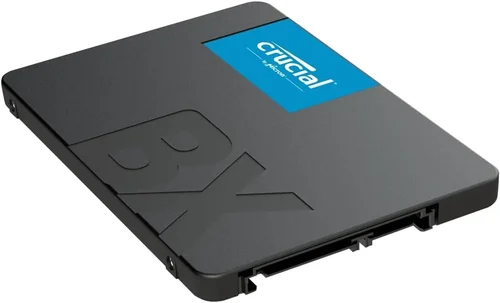
– Entry-Level ($40–$80): Ideal for basic upgrades or secondary storage. Look for 500GB SATA SSDs (e.g., Crucial BX500) or 1TB–2TB HDDs (e.g., WD Blue). Expect modest performance but reliable operation for everyday tasks.
– Mid-Range ($80–$150): The sweet spot for most users. A 1TB NVMe SSD (e.g., WD Black SN770) offers excellent speed and capacity for gaming and productivity. Alternatively, a 2TB–4TB HDD provides ample space for media and backups.
– Premium ($150–$300): For enthusiasts and professionals. High-end NVMe SSDs (e.g., Samsung 990 PRO) with 2TB–4TB capacity deliver top-tier performance. Consider RAID setups or NAS-compatible drives for redundancy.
– Luxury ($300+): Top-tier options for extreme workloads. 4TB+ NVMe SSDs, enterprise-grade drives, or specialized solutions like Intel Optane (though largely phased out by 2026). These are overkill for most consumers but essential for data centers or 8K video editing.
Expert Tips for Getting the Best Deal
– Buy During Sales Events: Major retailers offer significant discounts during Black Friday, Cyber Monday, Amazon Prime Day, and back-to-school periods. Sign up for deal alerts to stay informed.
– Compare Retailers: Prices can vary widely between Amazon, Newegg, Best Buy, and B&H. Check for bundle deals (e.g., SSD + cloning software) or free shipping.
– Consider Refurbished or Open-Box: Certified refurbished drives from reputable sellers often come with full warranties and can save you 20–30%.
– Check Return Policies: Ensure the retailer offers a hassle-free return window (at least 30 days) in case of compatibility issues or defects.
– Test Before Committing: Use tools like CrystalDiskMark or AS SSD Benchmark to verify performance after installation. This ensures you’re getting what you paid for.
– Look for Firmware Updates: Some drives ship with outdated firmware that can affect performance or stability. Check the manufacturer’s website and update if needed.
– Prioritize Endurance for Heavy Use: If you’re editing videos, running VMs, or compiling code, choose SSDs with higher TBW ratings (e.g., 600TBW for 1TB drives).
– Don’t Forget the Heatsink: For NVMe SSDs in compact builds, a $10–$15 heatsink can prevent thermal throttling and extend lifespan.

Frequently Asked Questions
Q: Can I use both an HDD and SSD in the same system?
A: Absolutely. Many users install an SSD for the operating system and frequently used programs, and an HDD for bulk storage like photos, videos, and backups. This hybrid approach balances speed and capacity.
Q: Do SSDs really last as long as HDDs?
A: Modern SSDs are highly reliable and often outlast HDDs in typical consumer use. With proper usage and within TBW limits, a quality SSD can last 5–10 years. HDDs may fail earlier due to mechanical wear.
Q: Is NVMe worth the extra cost over SATA?
A: For most users, yes—especially gamers, content creators, and anyone who values fast boot and load times. The performance difference is noticeable, and prices have become very competitive.
Q: Can I recover data from a failed SSD?
A: It’s more difficult than with HDDs due to TRIM and wear-leveling algorithms. Professional data recovery services may help, but success isn’t guaranteed. Regular backups are essential.
Q: Do I need to defragment an SSD?
A: No. Defragmentation is unnecessary and can reduce SSD lifespan by increasing write cycles. Windows and macOS automatically disable defrag for SSDs.
Q: Are external SSDs faster than internal HDDs?
A: Yes, even over USB 3.2 or Thunderbolt 3/4. An external SSD can outperform an internal HDD in real-world tasks like file transfers and application launches.
Q: What’s the difference between TLC, MLC, and QLC NAND?
A: These refer to how many bits are stored per memory cell. TLC (3-bit) is common and offers a good balance of cost and endurance. MLC (2-bit) is more durable but pricier. QLC (4-bit) is cheaper and higher-capacity but less durable—best for read-heavy workloads.
Q: Can I upgrade my laptop’s storage myself?
A: Many laptops allow SSD or HDD upgrades, but some newer models (especially ultrabooks) have soldered storage. Check your model’s service manual or iFixit guide before attempting.
Q: Is a 256GB SSD enough for Windows 11?
A: It’s possible, but tight. Windows 11 alone uses 30–40GB, and updates, apps, and temporary files consume more. 500GB is the practical minimum for a smooth experience.
Q: Do SSDs get slower over time?
A: They can, especially DRAM-less models under heavy write loads. However, modern SSDs use over-provisioning and garbage collection to maintain performance. Regular TRIM commands help too.
Our Final Recommendations
– Best for Budget-Conscious Buyers: WD Blue 1TB SATA SSD – Reliable, affordable, and widely compatible. Perfect for upgrading older systems without breaking the bank.
– Best Overall Value: Crucial P3 1TB NVMe SSD – Offers excellent performance at a mid-range price. Great for gaming, productivity, and general use.
– Best Premium Option: Samsung 990 PRO 2TB – Top-tier speed, endurance, and reliability. Ideal for professionals and enthusiasts who demand the best.
– Best for Beginners: Seagate Barracuda 2TB HDD – Simple, affordable, and easy to install. Great for first-time builders or those needing extra storage.
– Best for Advanced Users: WD Black SN850X 4TB NVMe SSD – High capacity, blazing speeds, and robust cooling. Perfect for 4K/8K video editing, virtualization, and high-end gaming.
Conclusion: Making the Right Choice
Choosing between an HDD and SSD in 2026 comes down to balancing your needs for speed, capacity, durability, and budget. SSDs have become the default choice for primary storage due to their performance and reliability, while HDDs remain relevant for large-scale, cost-effective storage. The best setup for many users is a combination of both—leveraging the speed of an SSD for critical tasks and the capacity of an HDD for long-term data.
As you evaluate your options, prioritize your specific use case. Are you a gamer who needs fast load times? A photographer storing terabytes of RAW files? A student on a tight budget? Your answer will guide your decision. Don’t forget to consider future-proofing, compatibility, and total cost of ownership—not just the upfront price.
Ultimately, the right drive is the one that fits your workflow, enhances your productivity, and gives you confidence in your data’s safety. With the insights from this guide, you’re now equipped to make a smart, informed choice. Whether you go all-in on SSDs or embrace a hybrid approach, your system will thank you with faster boots, smoother operation, and greater peace of mind.
Take the time to compare models, read reviews, and plan your upgrade carefully. And when you’re ready, invest in quality—your data deserves it.