
When it comes to building, upgrading, or buying a new computer, one of the most critical decisions you’ll face is choosing between a solid-state drive (SSD) and a hard disk drive (HDD). This choice isn’t just about storage—it directly impacts your system’s speed, reliability, noise levels, power consumption, and overall user experience. Whether you’re a casual user browsing the web and streaming videos, a creative professional editing 4K video, a gamer loading massive open-world titles, or a business user managing large databases, your storage solution plays a pivotal role in how smoothly your system performs.
In today’s fast-evolving tech landscape, the gap between SSDs and HDDs has never been more pronounced. SSDs have surged in popularity due to their lightning-fast read and write speeds, silent operation, and increasing affordability. Meanwhile, HDDs continue to offer unmatched storage capacity at a fraction of the cost per gigabyte, making them ideal for mass storage needs. But with so many options on the market—ranging from budget SATA SSDs to high-performance NVMe drives and enterprise-grade HDDs—it’s easy to feel overwhelmed. That’s where this comprehensive buying guide comes in. We’ll break down everything you need to know to make an informed decision tailored to your specific needs, budget, and use case.
Over the course of this guide, you’ll learn how to evaluate key factors like performance, durability, price, and compatibility. We’ll compare different types of SSDs and HDDs, highlight common mistakes to avoid, provide budget guidelines, and share expert tips to help you get the best value. Whether you’re building a gaming rig, upgrading an old laptop, or setting up a home server, this guide will equip you with the knowledge to choose the right drive—and avoid costly regrets down the line.
—
What to Look for When Buying Buying Guide
1. Budget & Price Range
Your budget is often the first and most important factor when choosing between an SSD and an HDD. While SSDs have become significantly more affordable in recent years, they still cost more per gigabyte than HDDs. As of 2026, a 1TB SATA SSD typically ranges from $60 to $100, while a 1TB HDD can be found for as little as $30 to $50. NVMe SSDs, which offer even faster speeds, start around $80 for 1TB and can go up to $200 or more for high-end models.
If you’re on a tight budget and need large amounts of storage—say, for backing up family photos, storing media libraries, or archiving documents—an HDD might be the better choice. However, if performance is a priority and you can stretch your budget slightly, investing in even a modest SSD can dramatically improve your system’s responsiveness. Many users find that a hybrid approach—using a smaller SSD for the operating system and frequently used programs, paired with a larger HDD for bulk storage—offers the best balance of speed and capacity.
2. Performance Specifications
Performance is where SSDs truly shine. Unlike HDDs, which rely on spinning magnetic platters and a moving read/write head, SSDs use flash memory with no moving parts. This fundamental difference translates into vastly superior speed, lower latency, and better overall system responsiveness.
When evaluating performance, look at key metrics like sequential read/write speeds (measured in MB/s or GB/s), random read/write IOPS (input/output operations per second), and access times. A typical SATA SSD delivers read speeds of 500–550 MB/s, while NVMe SSDs connected via PCIe Gen 3 or Gen 4 can reach 3,500 MB/s to over 7,000 MB/s. In contrast, even the fastest HDDs max out around 150–200 MB/s.
For everyday tasks like booting your OS, launching applications, or transferring files, an SSD will feel noticeably snappier. Gamers will appreciate faster level loads, while video editors benefit from quicker access to large project files. If your workflow involves multitasking or handling large datasets, the performance gap becomes even more significant.
3. Build Quality & Durability
Durability is a major advantage of SSDs. Because they have no moving parts, they’re far less susceptible to physical shock, vibration, and mechanical failure. This makes SSDs ideal for laptops, portable devices, and environments where the drive might be jostled or dropped. An SSD can survive drops from several feet without data loss, whereas an HDD’s delicate internal components can be easily damaged.
HDDs, while robust in their own right, are more vulnerable to wear and tear over time. The constant spinning of platters and movement of the read/write head contribute to mechanical wear, which can lead to failure after several years of heavy use. Additionally, HDDs are more sensitive to temperature fluctuations and magnetic fields.
That said, both SSDs and HDDs have lifespans measured in terabytes written (TBW) or mean time between failures (MTBF). High-quality drives from reputable brands often come with ratings that exceed typical consumer usage. For most users, either type will last many years—but SSDs generally offer greater peace of mind in mobile or high-mobility scenarios.
4. Features & Functionality
Modern SSDs and HDDs come with a range of features that can influence your decision. For SSDs, look for support for advanced technologies like TRIM (which helps maintain performance over time), wear leveling (to extend lifespan), and hardware encryption (for data security). Many NVMe SSDs also support features like thermal throttling protection and DRAM cache, which improve sustained performance under heavy loads.
HDDs, while less feature-rich in terms of speed, often include built-in shock sensors, power management tools, and error recovery controls. Some enterprise-grade HDDs offer features like rotational vibration compensation and multi-actuator technology for improved performance in server environments.
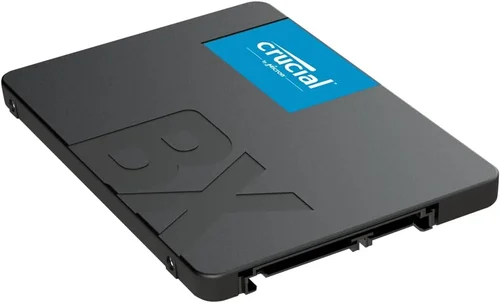
Another consideration is form factor. SSDs come in 2.5-inch (for laptops and desktops), M.2 (compact, ideal for ultrabooks and small builds), and U.2 (used in servers). HDDs are typically 3.5-inch (desktop) or 2.5-inch (laptop). Make sure your system supports the drive type and interface (SATA, NVMe, etc.) before purchasing.
5. Brand Reputation
Not all drives are created equal, and brand reputation matters. Established manufacturers like Samsung, Western Digital, Crucial, Kingston, Seagate, and Toshiba have a proven track record of reliability, performance, and customer support. These brands invest heavily in R&D, quality control, and firmware updates, which translates into more stable and long-lasting products.
While budget drives from lesser-known brands may seem tempting, they often use lower-quality NAND flash or lack proper error correction, leading to higher failure rates and data loss risks. Reading independent reviews and checking user feedback on forums like Reddit, Tom’s Hardware, or AnandTech can help you avoid problematic models.
Additionally, reputable brands typically offer better warranty terms and faster replacement services. A 5-year warranty is common for high-end SSDs, while many HDDs come with 2–3 years of coverage.
6. Warranty & Support
Warranty length and support quality are crucial, especially for long-term reliability. Most consumer SSDs come with 3- to 5-year warranties, often based on either time or terabytes written (whichever comes first). For example, a drive rated for 600 TBW will remain under warranty until you’ve written that much data or the time limit expires.
HDDs usually have shorter warranties—typically 2 to 3 years—though some enterprise models offer 5 years. When comparing warranties, check the terms: some brands require registration, while others offer on-site or advance replacement services.
Customer support is another factor. Brands like Samsung and Crucial provide excellent technical assistance, firmware updates, and data recovery tools. If you’re investing in a high-capacity drive for critical data, having reliable support can be a lifesaver.
7. Size & Portability
If you’re buying a drive for a laptop, mini PC, or portable storage device, size and portability are key. M.2 SSDs are incredibly compact—about the size of a stick of gum—and require no cables, making them perfect for slim devices. 2.5-inch SSDs are also portable and easy to install in most laptops.
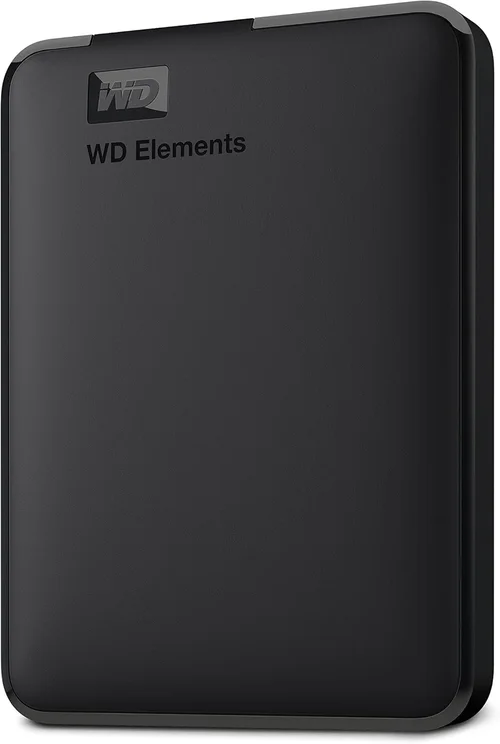
HDDs, especially 3.5-inch models, are bulkier and heavier, which can be a drawback for mobile use. However, 2.5-inch HDDs are still viable for laptops, though they’re thicker than their SSD counterparts. For external storage, portable SSDs (like the Samsung T7 or SanDisk Extreme) offer fast, rugged, and compact solutions ideal for photographers, videographers, and travelers.
When choosing an external drive, also consider interface speed. USB 3.2 Gen 2 (10 Gbps) or USB4/Thunderbolt 3/4 support ensures you can take full advantage of SSD speeds, while older USB 3.0 ports may bottleneck performance.
8. User Reviews & Ratings
Never underestimate the power of real-world user feedback. Before making a purchase, check reviews on trusted platforms like Amazon, Newegg, Best Buy, and specialized tech sites. Look for patterns in user experiences—consistent praise for speed and reliability is a good sign, while recurring complaints about failure rates or poor customer service should raise red flags.
Pay attention to long-term reviews (6 months or more), as early impressions can be misleading. A drive might perform well initially but degrade over time due to poor firmware or low-quality components. Also, consider the sample size: a product with hundreds of positive reviews is generally more reliable than one with only a handful.
Forums and communities like Reddit’s r/buildapc or r/DataHoarder can provide deeper insights, especially for niche use cases like NAS setups or high-end workstations.
—
Different Types of Buying Guide

—
Common Buying Mistakes to Avoid
❌ Mistake: Prioritizing Capacity Over Performance
Why it’s bad: Choosing a large HDD solely for its storage capacity can result in a sluggish system, especially if it’s your primary drive. Slow boot times, laggy applications, and long file transfers can frustrate even casual users.
What to do instead: Consider a dual-drive setup: use a 500GB–1TB SSD for your OS and essential programs, and pair it with a larger HDD for media and backups. This gives you the best of both worlds—speed and space.
❌ Mistake: Ignoring Interface Compatibility
Why it’s bad: Not all drives work with all systems. Installing an NVMe SSD in a motherboard that only supports SATA will result in incompatibility and wasted money.
What to do instead: Check your motherboard or laptop specifications before buying. Look for supported interfaces (SATA III, M.2, NVMe) and physical space. Use tools like Crucial’s System Scanner to verify compatibility.
❌ Mistake: Buying the Cheapest Drive Available
Why it’s bad: Ultra-low-cost SSDs often use inferior NAND flash (like QLC) and lack DRAM caches, leading to poor performance under sustained loads and shorter lifespans.
What to do instead: Invest in a reputable brand with good reviews. Even a mid-tier SSD from Samsung or Crucial will outperform a no-name drive in reliability and longevity.
❌ Mistake: Overlooking Warranty and TBW Ratings
Why it’s bad: A drive with a short warranty or low TBW rating may fail prematurely, especially under heavy use. This is risky for storing important data.
What to do instead: Compare TBW (terabytes written) ratings and warranty terms. For example, a 1TB SSD with 600 TBW is better suited for heavy workloads than one with 300 TBW.
❌ Mistake: Assuming All SSDs Are the Same
Why it’s bad: There’s a huge performance gap between SATA SSDs and NVMe drives. Using a SATA SSD in a high-end gaming PC limits your system’s potential.
What to do instead: Match the drive type to your use case. Gamers and creators should opt for NVMe, while general users can benefit from SATA SSDs.
❌ Mistake: Neglecting Cooling for High-Performance SSDs
Why it’s bad: NVMe SSDs can get hot under load, leading to thermal throttling and reduced performance. Without proper cooling, sustained speeds may drop significantly.
What to do instead: Use a heatsink or thermal pad, especially in compact builds. Many motherboards include M.2 heatsinks—make sure to use them.
❌ Mistake: Not Backing Up Data
Why it’s bad: No drive is immune to failure. Relying solely on a single drive without backups risks permanent data loss.
What to do instead: Follow the 3-2-1 backup rule: keep 3 copies of your data, on 2 different media, with 1 copy offsite (e.g., cloud or external drive).
—
Budget Guidelines: How Much Should You Spend?
- Entry-Level ($30–$60): At this price, you’re likely looking at 1TB HDDs or smaller SSDs (250GB–500GB). Ideal for basic storage needs or budget laptops. Expect slower speeds with HDDs, but even a small SSD can dramatically improve system responsiveness.
- Mid-Range ($60–$120): This is the sweet spot for most users. You can get a reliable 1TB SATA SSD or a 500GB NVMe SSD. Perfect for everyday computing, light gaming, and office work. Many users find this range offers the best balance of performance and value.
- Premium ($120–$250): For enthusiasts and professionals, this tier includes high-capacity NVMe SSDs (1TB–2TB) with PCIe Gen 4 support. These drives deliver blazing speeds for gaming, video editing, and 3D rendering. Also includes high-end external SSDs for portable workflows.
- Luxury ($250+): Top-tier options like 4TB NVMe SSDs, enterprise-grade drives, or RAID-ready storage solutions. Best for content creators, data scientists, and users with extreme performance or capacity demands. Expect premium build quality, extended warranties, and advanced features.
—
Expert Tips for Getting the Best Deal
- Buy During Sales Cycles: Major retailers and manufacturers often discount storage drives during holidays and tech events. Sign up for newsletters from Newegg, Amazon, and B&H to get alerts.
- Compare Prices Across Retailers: Use price comparison tools like Google Shopping or PCPartPicker to find the best deal. Don’t forget to factor in shipping and return policies.
- Check for Bundled Deals: Some retailers offer SSDs bundled with enclosures, cloning software, or installation kits. These can add value, especially for first-time upgraders.
- Consider Refurbished or Open-Box Options: Certified refurbished drives from reputable sellers often come with full warranties and can save you 15–30%. Just ensure they’re from the manufacturer or authorized resellers.
- Read the Fine Print on Warranties: Some warranties are voided if the drive is used in certain environments (e.g., servers). Make sure your intended use is covered.
- Test Before Committing: If possible, test the drive in your system before finalizing the purchase. Tools like CrystalDiskMark can verify real-world performance.
- Upgrade Gradually: If budget is tight, start with a smaller SSD for your OS and upgrade later. You can always add more storage as needed.
- Use Manufacturer Tools: Brands like Samsung and Crucial offer free cloning software to transfer your existing OS and data to a new SSD seamlessly.
—

Frequently Asked Questions
Q: Can I use both an SSD and an HDD in the same system?
A: Absolutely. Many users install an SSD as the primary drive for the operating system and frequently used programs, while using a larger HDD for storing media, games, and backups. This hybrid setup offers excellent performance and ample storage.
Q: How long do SSDs and HDDs typically last?
A: Most modern SSDs are rated for 150–600 TBW (terabytes written), which translates to 5–10 years of normal use. HDDs have a typical lifespan of 3–5 years, though many last longer with proper care. Regular backups are essential regardless of drive type.
Q: Are NVMe SSDs worth the extra cost?
A: For general use, the difference between SATA and NVMe SSDs may not be noticeable. However, for gaming, video editing, or large file transfers, NVMe drives offer significantly faster speeds and are worth the investment if your system supports them.
Q: Do SSDs need to be defragmented?
A: No. Unlike HDDs, SSDs don’t benefit from defragmentation and can actually be harmed by it. Modern operating systems automatically disable defragmentation for SSDs and use TRIM instead to maintain performance.
Q: Can I recover data from a failed SSD or HDD?
A: Data recovery is possible in some cases, especially with HDDs, but it can be expensive and isn’t guaranteed. SSDs are harder to recover from due to wear leveling and encryption. Prevention—through regular backups—is always better.
Q: What’s the difference between DRAM and DRAM-less SSDs?
A: DRAM-equipped SSDs have a dedicated memory cache for mapping data, which improves speed and longevity. DRAM-less SSDs are cheaper but can slow down under heavy workloads. For most users, a DRAM SSD is preferable.
Q: Are external SSDs faster than internal HDDs?
A: Yes, even a USB 3.2 external SSD will outperform most internal HDDs in terms of speed. However, internal NVMe SSDs are still faster than external drives due to interface limitations.
Q: Should I buy a 2TB SSD or two 1TB drives?
A: A single 2TB drive is simpler and often more reliable. However, two 1TB drives can offer redundancy (if used in RAID 1) or allow for separate partitions. For most users, a single large drive is the better choice.
Q: Do SSDs get slower over time?
A: SSDs can slow down as they fill up, especially DRAM-less models. However, modern drives use garbage collection and over-provisioning to mitigate this. Keeping 10–20% of the drive free helps maintain performance.
Q: Is it safe to turn off a computer with an SSD?
A: Yes. Unlike older HDDs, SSDs don’t require a “spin-down” period. You can safely shut down or restart your system at any time without risking data loss.
—
Our Final Recommendations
- Best for Budget-Conscious Buyers: Western Digital Blue 1TB SATA SSD – Reliable, affordable, and widely compatible. Perfect for upgrading older systems.
- Best Overall Value: Crucial P3 1TB NVMe SSD – Offers excellent Gen 3 performance at a competitive price. Great for gaming and productivity.
- Best Premium Option: Samsung 980 Pro 2TB NVMe SSD – Top-tier Gen 4 speeds, robust build quality, and 5-year warranty. Ideal for professionals and enthusiasts.
- Best for Beginners: Kingston NV2 1TB NVMe SSD – Easy to install, reliable, and budget-friendly. Comes with cloning software for hassle-free upgrades.
- Best for Advanced Users: Seagate FireCuda 530 4TB NVMe SSD – High capacity, extreme speeds, and excellent endurance. Built for demanding workloads and future-proofing.
—
Conclusion: Making the Right Choice
Choosing between an SSD and an HDD isn’t about picking a winner—it’s about matching the right technology to your needs. SSDs deliver unmatched speed, durability, and efficiency, making them the clear choice for primary storage in modern systems. HDDs, while slower, remain unbeatable for high-capacity, low-cost storage, especially for backups and media libraries.
As you weigh your options, prioritize what matters most: performance, capacity, budget, or portability. Consider a hybrid setup if you need both speed and space. And always buy from reputable brands with strong warranties and customer support.
Remember, the best drive is the one that fits your workflow, enhances your experience, and protects your data. Whether you’re building a powerhouse gaming rig or simply upgrading an aging laptop, the right storage choice can transform how you interact with your computer.
Take the time to research, compare, and plan. With the insights from this guide, you’re now equipped to make a confident, informed decision. Your future self—and your faster, smoother, more reliable system—will thank you.