
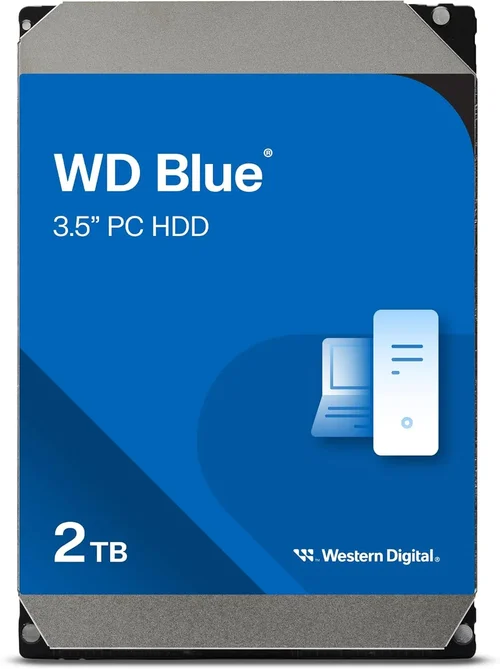
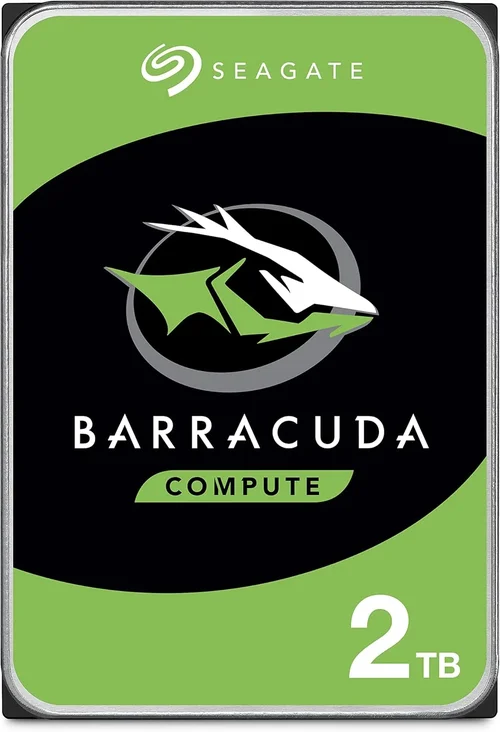
When it comes to building, upgrading, or replacing a computer—whether it’s a desktop, laptop, or even a gaming console—one of the most critical decisions you’ll face is choosing the right storage drive. The debate between HDD (Hard Disk Drive) and SSD (Solid State Drive) has raged for over a decade, but in 2026, the landscape has shifted dramatically. While HDDs once dominated the market due to their affordability and massive capacities, SSDs have surged ahead in performance, reliability, and even value per gigabyte in many scenarios. Yet, both technologies still coexist, each serving distinct user needs and budgets.
This comprehensive buying guide is designed to cut through the noise and help you make an informed decision based on your specific requirements. Whether you’re a casual user storing family photos and streaming movies, a creative professional working with 4K video files, a gamer seeking faster load times, or a business owner managing large databases, understanding the strengths and limitations of HDDs and SSDs is essential. By the end of this article, you’ll know exactly which type of drive—or combination of drives—will deliver the best performance, longevity, and value for your setup.
The storage market in 2026 is more dynamic than ever. Advances in NAND flash technology have driven SSD prices down while increasing capacities, making them viable for everyday users who once relied solely on HDDs. Meanwhile, HDD manufacturers continue to push the boundaries with helium-filled drives, shingled magnetic recording (SMR), and energy-efficient designs that keep them competitive in bulk storage applications. With options ranging from budget-friendly 1TB SSDs to enterprise-grade 100TB HDDs, the choice isn’t just about speed or price—it’s about aligning your storage solution with your workflow, environment, and future needs.

What to Look for When Buying Buying Guide
1. Budget & Price Range
Your budget is often the first and most decisive factor when choosing between an HDD and an SSD. As of 2026, SSDs have become significantly more affordable, but HDDs still hold a clear advantage in cost per gigabyte for large capacities. For example, a 2TB SATA SSD might cost around $120–$150, while a comparable 2TB HDD can be found for $50–$70. However, NVMe SSDs—especially Gen4 and Gen5 models—command higher prices due to their blazing speeds, often ranging from $100 for 1TB to over $300 for 4TB high-performance variants.
If you’re on a tight budget and need terabytes of storage for media libraries, backups, or archival purposes, an HDD is still the most economical choice. But if your priority is system responsiveness, faster boot times, and improved application performance, investing in even a modest SSD can yield dramatic improvements. Many users now opt for a hybrid approach: a smaller SSD (500GB–1TB) for the operating system and frequently used programs, paired with a larger HDD for bulk storage. This strategy balances cost and performance effectively.
2. Performance Specifications
Performance is where SSDs truly shine. Unlike HDDs, which rely on spinning magnetic platters and a moving read/write head, SSDs use flash memory with no moving parts. This fundamental difference translates into vastly superior speed, lower latency, and better overall system responsiveness.
For HDDs, performance is measured primarily in rotational speed (RPM)—common speeds include 5400 RPM (common in laptops) and 7200 RPM (typical in desktops). Higher RPM generally means faster data access, but even the fastest consumer HDDs max out around 150–200 MB/s for sequential reads. Random access times are also much slower due to mechanical delays.
In contrast, SATA SSDs typically deliver 500–550 MB/s, which is already a massive leap over HDDs. But the real game-changers are NVMe SSDs, which connect via the PCIe interface and bypass the SATA bottleneck. Gen3 NVMe drives offer 3,000–3,500 MB/s, Gen4 models reach 5,000–7,000 MB/s, and Gen5 drives (now available in 2026) can exceed 10,000 MB/s. These speeds drastically reduce boot times, accelerate file transfers, and improve multitasking—especially noticeable when launching large applications like video editors or game engines.
When evaluating performance, also consider IOPS (Input/Output Operations Per Second), which measures how quickly a drive can handle small, random read/write requests. SSDs routinely achieve tens or hundreds of thousands of IOPS, while HDDs struggle to reach a few hundred. This makes SSDs ideal for operating systems, databases, and virtual machines.
3. Build Quality & Durability
Durability is a critical consideration, especially for laptops, portable drives, or devices used in mobile environments. HDDs are inherently fragile due to their mechanical components. Dropping a powered-on HDD can cause the read/write head to crash into the platter, resulting in data loss or permanent damage. Even minor shocks or vibrations can degrade performance over time.
SSDs, on the other hand, are solid-state devices with no moving parts. They are far more resistant to physical shock, vibration, and temperature fluctuations. This makes them ideal for laptops, ruggedized devices, and fieldwork. Additionally, SSDs generate less heat and consume less power, contributing to longer battery life in portable devices.
That said, SSDs are not indestructible. NAND flash memory has a limited number of write cycles (measured in terabytes written, or TBW). However, modern SSDs use wear-leveling algorithms and over-provisioning to extend lifespan. For typical consumer use, even a mid-tier SSD will last 5–10 years without issues. Enterprise-grade SSDs are built for heavy workloads and come with much higher endurance ratings.
When assessing build quality, look for drives with robust casings, especially for external models. Some SSDs feature aluminum enclosures for better heat dissipation, while others are designed to be compact and lightweight for portability.
4. Features & Functionality
Beyond raw speed and capacity, modern storage drives come with a range of features that can influence your decision. For SSDs, key features include:
– DRAM Cache: High-performance SSDs include a DRAM buffer that speeds up data mapping and improves longevity. DRAM-less SSDs are cheaper but can suffer from performance drops under sustained loads.
– Encryption Support: Many SSDs support hardware-based encryption (e.g., TCG Opal, AES-256), which is essential for securing sensitive data without impacting performance.
– Power Loss Protection: Found in premium and enterprise SSDs, this feature ensures data integrity during unexpected power outages by using capacitors to complete pending writes.
– Form Factor: SSDs come in various form factors—2.5-inch (SATA), M.2 (NVMe or SATA), and U.2. M.2 drives are compact and ideal for slim laptops, while U.2 drives are used in servers.
For HDDs, features include:
– Helium Sealing: Reduces internal friction, allowing for higher density platters and lower power consumption.
– SMR (Shingled Magnetic Recording): Increases capacity but can slow down write performance, especially for random writes. Best for archival storage.
– CMR (Conventional Magnetic Recording): Traditional recording method with better write performance—preferred for active workloads.
Additionally, consider connectivity options. External drives may use USB 3.2, USB-C, or Thunderbolt 3/4. Thunderbolt-enabled SSDs offer the fastest external transfer speeds, ideal for video editors and content creators.
5. Brand Reputation
Not all storage brands are created equal. Choosing a reputable manufacturer ensures better quality control, longer warranties, and reliable customer support. In the SSD market, top-tier brands include Samsung, Western Digital (WD), Crucial (Micron), Kingston, and SK Hynix. These companies invest heavily in R&D, offer consistent firmware updates, and provide comprehensive diagnostic tools.
Samsung’s 990 Pro and 980 Pro series are renowned for their performance and reliability. WD’s Black SN850X and Blue SA550 are popular among gamers and general users. Crucial’s P5 Plus offers excellent value for mid-range NVMe performance. Kingston’s KC3000 and Fury Renegade are also strong contenders.
For HDDs, Western Digital, Seagate, and Toshiba dominate the market. WD’s Red and Black series are tailored for NAS and high-performance desktops, respectively. Seagate’s IronWolf and Barracuda lines are widely used in both consumer and enterprise environments. Toshiba’s N300 and X300 drives are known for their durability and quiet operation.
Avoid no-name or ultra-cheap brands, especially for critical data storage. While they may offer tempting prices, they often use lower-grade NAND or lack proper firmware optimization, leading to early failure or data corruption.
6. Warranty & Support
Warranty length and support quality are strong indicators of a drive’s expected lifespan and the manufacturer’s confidence in their product. Most consumer SSDs come with a 3- to 5-year limited warranty, often tied to a TBW (terabytes written) limit. For example, a 1TB SSD might have a 600 TBW rating and a 5-year warranty—whichever comes first.
Enterprise and prosumer SSDs often feature longer warranties (up to 10 years) and higher endurance ratings. Some manufacturers, like Samsung and WD, offer free data recovery services or migration tools as part of their support package.
HDDs typically come with 2- to 5-year warranties. WD and Seagate often provide 3- or 5-year coverage on their mainstream drives, while NAS-optimized models may include longer terms. Always register your drive with the manufacturer to activate the full warranty and receive firmware updates.
Customer support varies by brand. Samsung and Crucial offer responsive online chat and detailed knowledge bases. WD and Seagate provide phone support and drive diagnostic utilities. Before purchasing, check user forums and reviews to gauge how quickly and effectively a brand resolves issues.
7. Size & Portability
Physical size and portability matter, especially for laptops, ultrabooks, and external storage solutions. HDDs are generally bulkier due to their mechanical design. A standard 3.5-inch desktop HDD requires a dedicated bay and power connection, making it unsuitable for compact builds. Laptop HDDs are 2.5-inch but still thicker and heavier than SSDs.
SSDs, particularly M.2 NVMe drives, are incredibly compact—about the size of a stick of gum. They plug directly into the motherboard, eliminating cables and saving space. This makes them ideal for small-form-factor PCs, thin laptops, and portable external drives.
For external storage, portable SSDs like the Samsung T7, WD My Passport SSD, and SanDisk Extreme Pro offer high-speed transfers in durable, pocket-sized designs. These are perfect for photographers, videographers, and remote workers who need fast, reliable storage on the go.
If you’re building a compact PC or upgrading a laptop, M.2 SSDs are the clear winner. For desktop users with ample space, 2.5-inch SATA SSDs or 3.5-inch HDDs remain viable options.
8. User Reviews & Ratings
While specs and brand reputation are important, real-world user feedback provides invaluable insights into a drive’s reliability, performance consistency, and potential issues. Always check reviews from trusted sources like Amazon, Newegg, B&H Photo, and tech review sites (e.g., Tom’s Hardware, AnandTech, PCMag).
Look for patterns in user complaints—common red flags include sudden failures, slow write speeds after cache fills, or compatibility issues with certain motherboards. Pay attention to long-term reviews (6+ months of use), as early performance doesn’t always reflect durability.
For example, some DRAM-less SSDs perform well initially but degrade under sustained workloads. Similarly, certain SMR HDDs may work fine for backups but struggle with frequent file modifications.