
In today’s digital world, data is more than just files—it’s memories, work, creative projects, and even entire businesses. Whether you’re a student backing up lecture notes, a photographer storing high-resolution images, or a remote worker managing large project folders, having reliable external storage is no longer optional—it’s essential. But with so many options flooding the market, choosing between an external SSD and an HDD can feel overwhelming. Should you spend more for speed? Is durability really that important? Can you trust your data on a cheaper drive?
This comprehensive buying guide cuts through the noise to help you make the smartest decision for your needs. We’ll compare solid-state drives (SSDs) and hard disk drives (HDDs) across every critical factor—from performance and price to durability and real-world use cases. By the end, you’ll know exactly which type of external drive fits your lifestyle, budget, and workflow. Whether you’re upgrading from an old USB stick or building a backup system for your home office, this guide equips you with expert insights, practical tips, and honest recommendations to avoid costly mistakes.
The external storage market in 2026 is more diverse—and competitive—than ever. Major brands like Samsung, WD, Seagate, SanDisk, and Crucial continue to innovate, pushing the boundaries of speed, capacity, and portability. At the same time, newer players are entering the space with aggressive pricing and bold claims. SSDs have become significantly more affordable, narrowing the price gap with HDDs while offering undeniable advantages in speed and reliability. Meanwhile, HDDs still dominate when it comes to sheer storage capacity per dollar, especially for users who need terabytes of space without breaking the bank. Understanding these trade-offs is key to choosing the right drive—not just for today, but for the next few years of your digital life.

What to Look for When Buying Buying Guide
1. Budget & Price Range
Your budget is often the first filter in any tech purchase, and external drives are no exception. SSDs typically cost more per gigabyte than HDDs, but prices have dropped dramatically in recent years. As of 2026, a 1TB external SSD might range from $80 to $150, while a comparable HDD could be as low as $40 to $70. However, don’t let upfront cost be your only guide—consider total value over time. A faster SSD may save you hours in file transfers, reduce wear on your laptop’s internal drive, and last longer under heavy use. If you’re on a tight budget but need large storage, an HDD might be the only feasible option. But if you value speed, portability, and longevity, investing in an SSD often pays off quickly.
2. Performance Specifications
Performance is where SSDs truly shine. Most modern external SSDs use USB 3.2 Gen 2 or Thunderbolt interfaces, delivering read/write speeds of 500–2,800 MB/s. In contrast, external HDDs typically max out around 120–160 MB/s due to mechanical limitations. This difference is staggering in real-world use: transferring a 50GB video file might take 5 minutes on an HDD but under 30 seconds on a high-end SSD. Look for drives that clearly list sequential read/write speeds—not just “up to” marketing claims. Also check interface compatibility: USB-C is now standard, but ensure your device supports the same protocol (e.g., USB 3.2, Thunderbolt 3/4) to avoid bottlenecks. For creative professionals working with 4K/8K video or large RAW photo libraries, SSD performance isn’t a luxury—it’s a necessity.
3. Build Quality & Durability
Durability matters more than most people realize—especially if you travel frequently or work in unpredictable environments. HDDs contain spinning platters and moving read/write heads, making them vulnerable to drops, shocks, and vibrations. Even a minor bump while the drive is active can cause catastrophic failure. SSDs, with no moving parts, are inherently more rugged. Many premium external SSDs now feature IP67 or IP68 ratings for water and dust resistance, rubberized casings, and shock-absorbing designs. For example, the Samsung T7 Shield can survive drops from up to 3 meters and withstand submersion in 1 meter of water for 30 minutes. If you’re a field journalist, outdoor photographer, or frequent flyer, an SSD’s resilience could mean the difference between losing your work and keeping it safe.
4. Features & Functionality
Beyond raw specs, look for features that enhance usability and security. Hardware encryption (like AES-256) protects sensitive data if your drive is lost or stolen—critical for business users or anyone storing personal documents. Some drives include password protection via companion apps (e.g., WD Security, Samsung Magician). Others offer automatic backup software, cloud integration, or dual-mode connectivity (USB + wireless). Consider also whether the drive supports hardware acceleration for encryption (common in newer SSDs), which doesn’t slow performance. Additionally, check cable inclusion: many drives now ship with USB-C to USB-A and USB-C to USB-C cables for broader compatibility. A drive with thoughtful extras can save you time, hassle, and future expenses.
5. Brand Reputation
Not all storage brands are created equal. Stick with manufacturers known for reliability, consistent firmware updates, and responsive customer service. Samsung, Western Digital, Seagate, SanDisk, and Crucial have proven track records in both consumer and enterprise markets. Avoid no-name brands or ultra-cheap drives from unknown sellers—these often use lower-grade NAND flash or outdated controllers, leading to premature failure or data corruption. Research independent reviews and failure rate reports (like those from Backblaze) before buying. A reputable brand may cost slightly more upfront, but it reduces the risk of data loss and ensures better long-term support.
6. Warranty & Support
A strong warranty is a sign of manufacturer confidence—and your safety net. Most quality external drives come with 3- to 5-year limited warranties. Pay attention to what’s covered: some exclude physical damage, while others offer free data recovery services (rare but valuable). Check if the warranty is transferable (important if you resell) and whether support includes live chat, phone, or email. Also note that warranty claims often require proof of purchase and may involve shipping the drive back for evaluation. For mission-critical data, consider drives with enhanced support plans or those backed by companies with local service centers in your region.
7. Size & Portability
Portability isn’t just about physical dimensions—it’s about how easily the drive integrates into your daily routine. External SSDs are typically pocket-sized, lightweight (often under 100g), and silent in operation. Many resemble a thick USB stick or a small matchbox. HDDs are bulkier, heavier (200g+ for portable models), and produce audible whirring sounds during use. If you commute daily, work from coffee shops, or travel light, an SSD’s compact form factor is a major advantage. However, if your drive stays mostly on a desk at home or in the office, size matters less. Also consider cable management: some drives have built-in cable storage or magnetic attachments to reduce clutter.
8. User Reviews & Ratings
Don’t rely solely on manufacturer specs—real-world user feedback reveals hidden truths. Scour Amazon, Best Buy, Newegg, and professional review sites for patterns in complaints or praise. Look for recurring issues like overheating, inconsistent speeds, or premature failure. Pay special attention to reviews from users with similar use cases (e.g., video editors, gamers, students). Be wary of overly positive reviews that lack detail—they may be incentivized or fake. Tools like Fakespot can help assess review authenticity. A drive with 4.7 stars from 10,000+ verified buyers is generally more trustworthy than one with 5 stars from 50 unverified accounts.
Different Types of Buying Guide

Common Buying Mistakes to Avoid
❌ Mistake: Choosing Based Solely on Price
Why it’s bad: The cheapest drive isn’t always the best value. Low-cost HDDs may use slower RPMs (5400 vs 7200), while budget SSDs might employQLC NAND, which wears out faster under heavy writes. You risk losing data or replacing the drive sooner than expected.
What to do instead: Calculate cost per terabyte, but also factor in expected lifespan, performance needs, and replacement risk. Spend a little more for a reputable brand with better components.
❌ Mistake: Ignoring Interface Compatibility
Why it’s bad: Buying a Thunderbolt SSD for a laptop that only supports USB 3.0 means you’ll never reach its full speed. Conversely, a USB 3.2 Gen 2 drive plugged into a USB 2.0 port will perform like an old HDD.
What to do instead: Check your device’s port specifications before buying. Match the drive’s interface (USB-A, USB-C, Thunderbolt) and protocol version to your system’s capabilities.
❌ Mistake: Overlooking Backup Strategy
Why it’s bad: An external drive is not a backup—it’s a single point of failure. If it fails, gets lost, or is damaged, your data is gone unless you have another copy.
What to do instead: Follow the 3-2-1 rule: keep 3 copies of your data, on 2 different media types, with 1 copy offsite (e.g., cloud or remote drive). Use your external drive as part of a broader strategy.
❌ Mistake: Assuming All SSDs Are Equal
Why it’s bad: Not all SSDs use the same NAND type or controller. TLC SSDs offer a good balance of speed and endurance, while QLC is cheaper but less durable. Some drives throttle heavily under sustained loads.
What to do instead: Research the drive’s internal specs. Look for reviews that test sustained write performance and endurance ratings (measured in TBW—terabytes written).
❌ Mistake: Skipping Encryption for Sensitive Data
Why it’s bad: If your drive contains tax documents, client files, or personal photos, losing it could lead to identity theft or privacy breaches—even if the drive itself isn’t valuable.
What to do instead: Choose a drive with built-in hardware encryption and set a strong password. Avoid software-only solutions that can be bypassed if the drive is removed from its enclosure.
❌ Mistake: Buying More Capacity Than Needed
Why it’s bad: Overspending on unused space wastes money. A 4TB drive might seem future-proof, but if you only need 500GB, you’re paying for capacity you’ll never use.
What to do instead: Audit your current storage usage and project growth over 2–3 years. Most users don’t need more than 2TB unless they work with large media files.
❌ Mistake: Neglecting Firmware Updates
Why it’s bad: Outdated firmware can cause compatibility issues, performance bugs, or security vulnerabilities. Some drives require manual updates via desktop apps.
What to do instead: Register your drive with the manufacturer and periodically check for firmware updates. Enable automatic notifications if available.
Budget Guidelines: How Much Should You Spend?
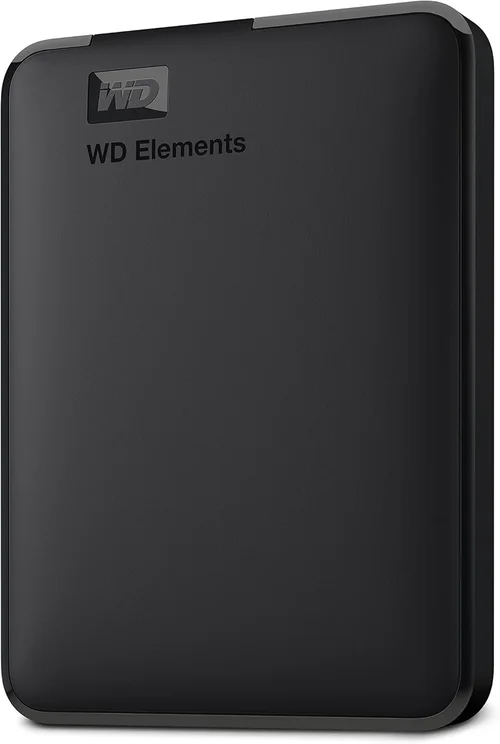
- Entry-Level ($30–$70): This range is dominated by portable HDDs (1TB–2TB) from brands like WD Elements or Seagate Expansion. Expect basic build quality, no encryption, and speeds around 120 MB/s. Suitable for casual backups, school projects, or media storage where speed isn’t critical.
- Mid-Range ($80–$150): The sweet spot for most buyers. Here you’ll find reliable 1TB–2TB external SSDs (Samsung T7, SanDisk Extreme) and higher-capacity HDDs (4TB WD My Passport). These offer good performance, decent durability, and often include encryption and backup software.
- Premium ($150–$300): Ideal for professionals and power users. Options include rugged SSDs (LaCie Rugged), Thunderbolt drives, and high-endurance models with 5-year warranties. Expect top-tier speeds, IP ratings, and advanced security features.
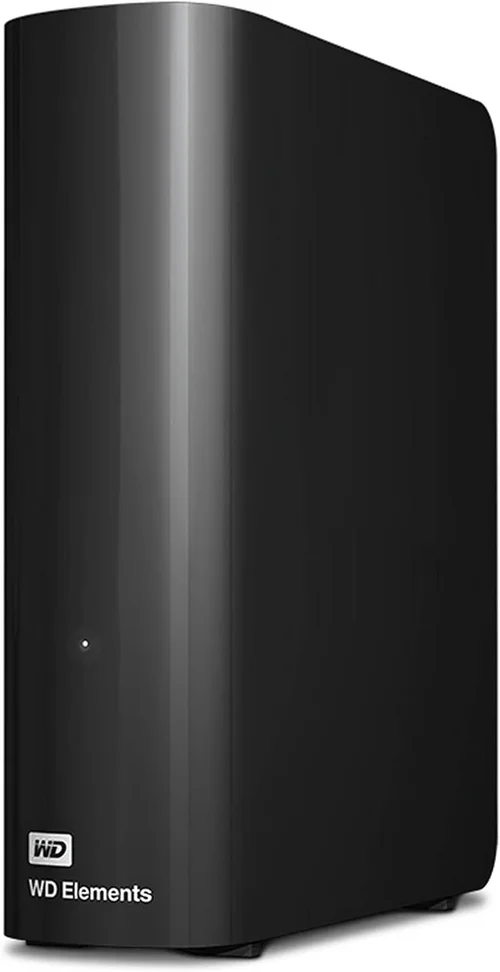
- Luxury ($300+): Reserved for enterprise-grade needs: 4TB+ SSDs, desktop-class HDDs (8TB–20TB), or multi-bay enclosures. These prioritize capacity, redundancy, and 24/7 reliability over portability.
Expert Tips for Getting the Best Deal
- Buy during off-peak seasons: Demand drops after holiday rushes, so January and February often see clearance pricing on last year’s models.
- Check refurbished options: Certified refurbished drives from manufacturers (e.g., Samsung Renewed, WD Certified Refurbished) come with full warranties and can save 20–30%.
- Compare total cost of ownership: Factor in included software, cables, and warranty length—not just the sticker price.
- Use retailer return policies wisely: Test the drive immediately upon arrival. Copy large files, check for noise (HDDs), and verify speeds with tools like CrystalDiskMark.
- Prioritize USB-C with Power Delivery: If your laptop charges via USB-C, a drive that supports pass-through charging can reduce cable clutter.
- Avoid “mystery” sellers on marketplaces: Stick to authorized retailers or the brand’s official store to avoid counterfeit products.
- Consider bundle deals: Some retailers offer external drives with cloud storage subscriptions (e.g., 1TB drive + 6 months of Dropbox).
- Read the fine print on warranties: Some require you to pay return shipping or void coverage if the drive is opened—even for legitimate repairs.

Frequently Asked Questions
Q: Can I use an external SSD as my primary drive?
A: Technically yes, but it’s not recommended for daily OS use due to potential latency and wear. However, it’s excellent for running applications, games, or as a fast secondary drive for active projects.
Q: Do external SSDs overheat?
A: High-performance SSDs can get warm under sustained loads, but most include thermal throttling to prevent damage. Avoid enclosing them in tight spaces during heavy use.
Q: Are external HDDs obsolete?
A: Not at all. They remain the most cost-effective solution for storing large media libraries, backups, and archival data where speed isn’t a priority.
Q: How long do external drives last?
A: SSDs typically last 5–10 years under normal use, while HDDs may fail sooner due to mechanical wear. Actual lifespan depends on usage patterns, environment, and build quality.
Q: Can I recover data from a failed external drive?
A: It depends. SSDs with controller failures are harder to recover than HDDs with head crashes. Professional data recovery services exist but can cost hundreds to thousands of dollars.
Q: Should I encrypt my external drive?
A: Absolutely, if it contains sensitive or personal information. Hardware encryption is seamless and doesn’t impact performance.
Q: Is Thunderbolt worth the extra cost?
A: Only if you need maximum speed (e.g., 4K video editing) and your device supports it. For most users, USB 3.2 Gen 2 SSDs offer plenty of bandwidth at a lower price.
Q: Can I daisy-chain multiple external drives?
A: Yes, via USB hubs or Thunderbolt docks—but ensure your host device provides enough power and bandwidth. Avoid chaining more than 2–3 drives without a powered hub.
Q: Do I need a cooling pad for my external SSD?
A: Generally no. Most portable SSDs are designed to operate safely within their thermal limits. Only consider active cooling for sustained 4K+ video workflows.
Q: What’s the difference between NVMe and SATA external SSDs?
A: NVMe SSDs are faster (up to 2,800 MB/s) and use the PCIe interface, while SATA SSDs max out around 550 MB/s. NVMe is better for professionals; SATA suffices for everyday tasks.
Our Final Recommendations
- Best for Budget-Conscious Buyers: WD Elements Portable HDD (2TB) – Reliable, affordable, and widely available. Perfect for basic backups and media storage.
- Best Overall Value: Samsung T7 Shield (1TB) – Combines speed (1,050 MB/s), ruggedness (IP65), and compact design at a reasonable price.
- Best Premium Option: SanDisk Professional PRO-BLADE SSD (2TB) – Modular system with blazing speeds, tool-less swapping, and enterprise-grade durability.
- Best for Beginners: Seagate One Touch SSD (1TB) – Simple setup, includes backup software, and offers solid performance for everyday use.
- Best for Advanced Users: G-Technology G-DRIVE Mobile Pro SSD (4TB, Thunderbolt) – Built for creatives, with Thunderbolt 3 support, aluminum chassis, and 5-year warranty.
Conclusion: Making the Right Choice
Choosing between an external SSD and HDD isn’t about picking a winner—it’s about matching the right tool to your specific needs. If you prioritize speed, portability, and durability for active workflows, an SSD is almost always the better investment. But if you need massive storage for photos, videos, or backups at the lowest possible cost, an HDD still makes perfect sense. Remember: no single drive solves every problem. The best approach combines smart purchasing with a solid backup strategy.
As you weigh your options, keep your use case front and center. Are you editing videos on location? Backing up family photos? Storing a music library? Let that guide your decision—not marketing hype or peer pressure. And don’t forget to factor in long-term value: a slightly more expensive drive that lasts longer and performs better often costs less over time than replacing a cheap one every two years.
Ultimately, the “best” external drive is the one that fits seamlessly into your life, protects your data, and grows with your needs. Use this guide as your compass, trust reputable brands, and always—always—back up your backups. Your future self will thank you.