
When it comes to upgrading your computer’s storage, few components deliver as immediate and noticeable a performance boost as a solid-state drive (SSD). Whether you’re building a new gaming rig, refreshing an aging laptop, or optimizing a workstation for content creation, the right SSD can dramatically reduce boot times, accelerate application launches, and improve overall system responsiveness. Among the many brands vying for your attention, Corsair has established itself as a trusted name in high-performance PC components—especially in the SSD space. Known for their reliability, innovative designs, and consistent performance, Corsair SSDs are a favorite among gamers, creators, and tech enthusiasts alike.
But with so many models available—ranging from budget-friendly SATA drives to blazing-fast NVMe Gen4 and Gen5 options—choosing the best Corsair SSD for your needs can feel overwhelming. That’s where this comprehensive buying guide comes in. In the following pages, we’ll break down everything you need to know to make an informed decision. You’ll learn how to evaluate key factors like performance, durability, compatibility, and value, understand the differences between SSD types, and avoid common pitfalls that could lead to buyer’s remorse. Whether you’re a first-time builder or a seasoned overclocker, this guide is designed to help you find the perfect Corsair SSD that aligns with your budget, use case, and long-term goals.
The SSD market has evolved rapidly over the past few years, with advancements in NAND flash technology, controller efficiency, and interface speeds pushing the boundaries of what’s possible. Corsair has kept pace by offering a diverse lineup that spans multiple form factors, performance tiers, and price points. From the compact MP600 Mini for laptops to the powerhouse MP700 PRO for extreme workloads, Corsair’s SSD portfolio is built to meet the demands of modern computing. In this guide, we’ll explore the full spectrum of Corsair SSDs, compare their strengths and weaknesses, and provide expert recommendations tailored to different user profiles. By the end, you’ll have the knowledge and confidence to choose the best Corsair SSD for your system—no guesswork required.

What to Look for When Buying Buying Guide
1. Budget & Price Range
Your budget is often the first and most important factor when selecting an SSD. Corsair offers SSDs across a wide price spectrum, from under $50 for entry-level SATA models to over $300 for high-capacity, ultra-fast NVMe drives. It’s essential to balance cost with performance and longevity. While it might be tempting to go for the cheapest option, investing a little more can yield significant benefits in speed, durability, and future-proofing. For most users, the sweet spot lies in the mid-range category, where you get excellent performance without overspending. Always consider the cost per gigabyte—this metric helps you compare value across different capacities and models. For example, a 1TB drive at $0.08 per GB offers better long-term value than a 500GB drive at $0.10 per GB, even if the upfront cost is higher.
2. Performance Specifications
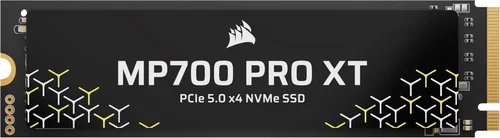
Performance is where Corsair SSDs truly shine, especially in their NVMe lineup. Key specs to evaluate include sequential read/write speeds, random IOPS (input/output operations per second), and the underlying NAND type. Sequential speeds—measured in MB/s—determine how quickly large files like videos or games load. Random IOPS reflect performance in everyday tasks like opening apps or multitasking. Corsair’s high-end models, such as the MP700 PRO, boast read speeds exceeding 12,000 MB/s thanks to PCIe Gen5 technology, while mid-range Gen4 drives like the MP600 CORE XT still deliver impressive speeds around 5,000–7,000 MB/s. Additionally, look for drives with DRAM cache, which significantly improves performance and longevity by acting as a buffer for frequently accessed data.
3. Build Quality & Durability
Durability is critical, especially if you plan to use your SSD in a portable device or high-workload environment. Corsair SSDs are built with high-quality components, including 3D TLC or QLC NAND flash, which offer a good balance of speed, endurance, and cost. Endurance is measured in terabytes written (TBW)—the total amount of data that can be written to the drive over its lifetime. For example, a 1TB Corsair MP600 PRO might have a TBW rating of 700TB, meaning it can handle years of heavy use before nearing its limit. Corsair also uses robust controllers and thermal management solutions, such as heatsinks on their MP series drives, to prevent throttling under sustained loads. This attention to build quality ensures reliable performance even during intensive tasks like video editing or gaming.
4. Features & Functionality
Beyond raw speed, consider the additional features that enhance usability and security. Many Corsair SSDs come with bundled software like Corsair SSD Toolbox, which allows you to monitor drive health, update firmware, and perform secure erases. Some models support hardware encryption (e.g., AES 256-bit), which is essential for protecting sensitive data on laptops or workstations. Others include built-in heatsinks or are designed for compatibility with motherboard M.2 slots that have integrated cooling. Corsair also offers SSDs in various form factors—M.2 2280 is the most common, but they also produce 2.5-inch SATA drives for older systems and compact M.2 2230 drives for ultrabooks. Choosing a drive with the right features ensures it integrates seamlessly into your setup and meets your specific needs.
5. Brand Reputation
Corsair has built a strong reputation over two decades as a leader in PC components, particularly in memory and storage. Their SSDs are known for consistent quality, rigorous testing, and compatibility with a wide range of systems. Unlike some lesser-known brands that may cut corners on components or firmware, Corsair invests in research and development to ensure their drives perform reliably under real-world conditions. This reputation translates into peace of mind—you’re less likely to encounter issues like sudden failures, firmware bugs, or compatibility problems. Additionally, Corsair’s presence in the enthusiast community means their products are frequently reviewed, benchmarked, and recommended by trusted tech sources.
6. Warranty & Support
A solid warranty is a strong indicator of a manufacturer’s confidence in their product. Corsair backs most of its SSDs with a 5-year limited warranty, which is industry-standard for premium drives. This coverage typically includes free replacement if the drive fails within the warranty period, provided it hasn’t exceeded its TBW rating. Corsair also offers responsive customer support through email, live chat, and an extensive knowledge base. When comparing SSDs, always check the warranty terms—some budget drives may only offer 3 years, while enterprise-grade models might include extended support. A longer warranty not only protects your investment but also reflects the expected lifespan and reliability of the drive.
7. Size & Portability
While most desktop users won’t worry about size, portability matters for laptop upgrades, mini-PCs, or compact builds. Corsair offers SSDs in multiple form factors to accommodate different systems. The M.2 2280 (22mm wide, 80mm long) is the most versatile and widely supported, fitting in nearly all modern motherboards and laptops. For ultra-thin devices like the Steam Deck or certain ultrabooks, Corsair’s MP600 Mini (M.2 2230) provides high-speed NVMe storage in a tiny footprint. Conversely, 2.5-inch SATA drives are ideal for older desktops or external enclosures. When choosing, ensure the drive physically fits your system and that your motherboard or laptop supports the interface (SATA vs. NVMe).
8. User Reviews & Ratings
Never underestimate the power of real-world feedback. Before making a purchase, check user reviews on retailers like Amazon, Newegg, or Best Buy, as well as tech forums like Reddit’s r/buildapc or Tom’s Hardware. Look for patterns in feedback—consistent praise for speed and reliability is a good sign, while recurring complaints about overheating or early failure should raise red flags. Corsair SSDs generally receive high marks for performance and build quality, but individual experiences can vary based on use case and system configuration. Pay attention to reviews from users with similar setups to yours, as they’re more likely to highlight relevant pros and cons.
Different Types of Buying Guide

Common Buying Mistakes to Avoid
❌ Mistake: Ignoring Compatibility
Why it’s bad: Not all SSDs work with every system. Installing an NVMe Gen4 drive in a motherboard that only supports Gen3 will limit performance, while a 2.5-inch SATA drive won’t fit in an M.2-only slot.
What to do instead: Check your motherboard or laptop specifications before buying. Look for the supported interface (SATA, NVMe), form factor (M.2 2280, 2230, etc.), and PCIe generation. Use Corsair’s compatibility tool or consult your system manual.
❌ Mistake: Overpaying for Speed You Don’t Need
Why it’s bad: A Gen5 SSD delivering 12,000 MB/s won’t feel significantly faster than a Gen4 drive in everyday tasks like web browsing or office work. You’re paying a premium for performance that goes unused.
What to do instead: Match the SSD to your use case. Gamers and general users will see diminishing returns beyond Gen4 speeds. Save money by choosing a capable Gen4 or even Gen3 drive unless you’re doing heavy video editing or 3D rendering.
❌ Mistake: Skipping the Heatsink on High-Performance Drives
Why it’s bad: NVMe SSDs, especially Gen4 and Gen5 models, generate significant heat under load. Without proper cooling, they can throttle, reducing performance and potentially shortening lifespan.
What to do instead: Choose a Corsair SSD with a built-in heatsink (like the MP600 PRO XS) or purchase a compatible aftermarket cooler. Ensure your case has adequate airflow.
❌ Mistake: Neglecting Endurance Ratings
Why it’s bad: Cheaper SSDs often use QLC NAND, which has lower endurance and slower write speeds compared to TLC. Heavy users may wear them out quickly.
What to do instead: Check the TBW rating and NAND type. For workloads involving frequent writes (e.g., video editing), opt for TLC-based drives like the MP600 PRO, which offer better longevity.
❌ Mistake: Buying Based Solely on Price
Why it’s bad: The cheapest SSD may lack DRAM cache, use inferior controllers, or have poor firmware, leading to instability or early failure.
What to do instead: Prioritize value over cost. Look for drives with DRAM, strong warranties, and positive reviews. Corsair’s mid-range models often offer the best balance.
❌ Mistake: Forgetting About Warranty and Support
Why it’s bad: A short warranty or poor customer service can leave you stranded if the drive fails. Some brands make RMA processes difficult.
What to do instead: Choose Corsair for their reliable 5-year warranty and responsive support. Register your drive to ensure full coverage.
❌ Mistake: Not Checking for Bundled Software
Why it’s bad: Without monitoring tools, you won’t know if your drive is overheating, degrading, or nearing its TBW limit.
What to do instead: Use Corsair SSD Toolbox to track health, update firmware, and optimize performance. It’s free and adds significant value.
Budget Guidelines: How Much Should You Spend?
Entry-Level ($40 – $80):
At this price point, you’ll find Corsair’s SATA SSDs like the MX500 or older NVMe Gen3 models. These are ideal for upgrading older systems or building a budget PC. Expect speeds around 500–600 MB/s for SATA and up to 3,500 MB/s for Gen3 NVMe. Capacities typically range from 250GB to 1TB. While not the fastest, they offer a massive improvement over traditional hard drives and are perfect for everyday computing.
Mid-Range ($80 – $150):
This is the sweet spot for most users. Corsair’s NVMe Gen4 drives like the MP600 CORE XT or MP600 PRO (without heatsink) fall here. You’ll get read speeds of 5,000–7,000 MB/s, excellent endurance, and DRAM cache. These drives are ideal for gaming, content creation, and multitasking. A 1TB model in this range offers the best balance of speed, capacity, and value.
Premium ($150 – $300):
For enthusiasts and professionals, Corsair’s high-end Gen4 and entry-level Gen5 SSDs deliver top-tier performance. Models like the MP600 PRO XS (with heatsink) or MP700 offer speeds up to 12,000 MB/s, robust thermal management, and high TBW ratings. These are perfect for 4K/8K video editing, 3D rendering, and high-FPS gaming. Capacities up to 4TB are available, though at a premium.
Luxury ($300+):
At this tier, you’re investing in cutting-edge technology and maximum future-proofing. The Corsair MP700 PRO, with PCIe Gen5 support, delivers unprecedented speeds and is built for the most demanding workloads. These drives are overkill for average users but essential for professionals working with massive datasets or AI training. Expect premium materials, advanced cooling, and extended warranties.

Expert Tips for Getting the Best Deal
1. Time Your Purchase Around Major Sales Events
Retailers like Amazon, Newegg, and Best Buy frequently discount Corsair SSDs during holidays and shopping events. Black Friday and Cyber Monday often feature the deepest cuts, with savings of 20–30% on high-end models. Sign up for deal alerts or follow Corsair’s official social media for exclusive promotions.
2. Buy Directly from Corsair or Authorized Retailers
Purchasing from Corsair’s website or certified partners ensures you get genuine products with full warranty coverage. Avoid third-party sellers on marketplaces unless they’re highly rated, as counterfeit or used drives can slip through.
3. Compare Prices Across Multiple Platforms
Use price comparison tools like Google Shopping or PriceGrabber to find the best deal. Sometimes, smaller retailers offer competitive pricing with free shipping, even if they’re not as well-known.
4. Look for Bundled Deals
Corsair occasionally bundles SSDs with other components like RAM or cooling solutions. These packages can offer significant savings and are worth considering if you’re building a full system.
5. Check Return and Exchange Policies
Ensure the retailer offers a hassle-free return window (at least 30 days). This gives you time to test the drive and confirm compatibility. Corsair’s own store typically has a 30-day return policy.
6. Monitor Drive Health After Installation
Use Corsair SSD Toolbox to check SMART data, temperature, and wear leveling. Early detection of issues can prevent data loss and ensure you’re getting the performance you paid for.
7. Consider Refurbished or Open-Box Options
Corsair sells certified refurbished SSDs at a discount, often with the same warranty as new units. These are rigorously tested and a great way to save money without sacrificing quality.
8. Upgrade in Stages if Needed
If budget is tight, start with a 1TB NVMe Gen4 drive for your OS and games, then add a secondary SATA SSD later for bulk storage. This approach spreads out costs while maximizing performance where it matters most.

Frequently Asked Questions
Q: Are Corsair SSDs reliable?
A: Yes, Corsair SSDs are known for their reliability and consistent performance. They undergo rigorous testing and come with a 5-year warranty, reflecting confidence in their durability. User reviews and professional benchmarks consistently praise their build quality and longevity.
Q: Can I use a Corsair NVMe SSD in a laptop?
A: It depends on your laptop’s M.2 slot and supported interface. Most modern laptops support NVMe, but some older models only accept SATA M.2 drives. Check your laptop’s manual or manufacturer specs before purchasing. Corsair’s MP600 Mini is specifically designed for compact laptops and handheld devices.
Q: Do I need a heatsink for my Corsair SSD?
A: For Gen4 and Gen5 NVMe drives, a heatsink is highly recommended to prevent thermal throttling. Corsair offers models with built-in heatsinks (e.g., MP600 PRO XS) or you can use a motherboard-integrated cooler. SATA SSDs and Gen3 drives typically don’t require additional cooling.
Q: How do I install a Corsair SSD?
A: Installation is straightforward: power off your system, locate the M.2 or SATA slot, insert the SSD at a 30-degree angle, and secure it with a screw. For 2.5-inch drives, connect SATA data and power cables. Use Corsair SSD Toolbox to initialize and format the drive in Windows.
Q: What’s the difference between TLC and QLC NAND?
A: TLC (Triple-Level Cell) stores three bits per cell and offers better performance, endurance, and longevity. QLC (Quad-Level Cell) stores four bits, increasing capacity and reducing cost but at the expense of speed and durability. Corsair’s high-end drives use TLC, while some budget models may use QLC.
Q: Can I clone my old drive to a Corsair SSD?
A: Yes, you can use cloning software like Macrium Reflect or Acronis True Image to transfer your OS, apps, and files. Corsair doesn’t bundle cloning software, but many free tools work well. Ensure the new SSD is equal or larger in capacity than the source drive.
Q: How long do Corsair SSDs last?
A: With typical use, a Corsair SSD can last 5–10 years or more. The TBW rating gives a good estimate—divide it by your average monthly write volume to estimate lifespan. For example, a 700TBW drive writing 50GB daily would last over 38 years.
Q: Are Corsair SSDs compatible with macOS?
A: Corsair NVMe SSDs can be used in Macs with Windows via Boot Camp or in external enclosures. However, native macOS support is limited, and you may need third-party drivers. For Mac users, consider Apple-certified SSDs or use the drive externally.
Q: What’s the best Corsair SSD for gaming?
A: For most gamers, the Corsair MP600 CORE XT or MP600 PRO offers the best balance of speed, capacity, and price. They load games quickly and handle multitasking with ease. For future-proofing, the MP700 PRO is ideal if your system supports Gen5.
Q: Can I use multiple Corsair SSDs in RAID?
A: Yes, you can configure multiple Corsair SSDs in RAID 0 for increased speed or RAID 1 for redundancy. Ensure your motherboard supports RAID and that all drives are identical for best results. Note that RAID 0 increases risk of data loss if one drive fails.
Our Final Recommendations
Best for Budget-Conscious Buyers: Corsair MX500 (1TB)
A reliable SATA SSD that delivers excellent value for upgrading older systems. With 560 MB/s read speeds and a 5-year warranty, it’s perfect for everyday computing and light gaming.
Best Overall Value: Corsair MP600 CORE XT (1TB)
This NVMe Gen4 drive offers near-top-tier performance at a mid-range price. With 7,000 MB/s read speeds, DRAM cache, and TLC NAND, it’s ideal for gamers and creators who want speed without overspending.
Best Premium Option: Corsair MP700 PRO (2TB)
For enthusiasts and professionals, this Gen5 SSD delivers unmatched performance with 12,000+ MB/s speeds, robust cooling, and high endurance. It’s the ultimate choice for 8K video editing and AI workloads.
Best for Beginners: Corsair MP510 (1TB)
A user-friendly NVMe Gen3 drive with solid performance and easy installation. Great for first-time builders or those upgrading from an HDD.
Best for Advanced Users: Corsair MP600 PRO XS (4TB)
With a built-in heatsink, massive capacity, and Gen4 speeds, this drive is built for power users who demand reliability and performance under heavy workloads.
Conclusion: Making the Right Choice
Choosing the best Corsair SSD doesn’t have to be complicated. By focusing on your specific needs—whether that’s budget, performance, compatibility, or longevity—you can narrow down the options and find a drive that delivers real value. Corsair’s diverse lineup ensures there’s something for everyone, from casual users to hardcore enthusiasts. Remember to prioritize factors like interface compatibility, endurance, and thermal management, and don’t overlook the importance of warranty and support.
As technology continues to evolve, investing in a high-quality SSD is one of the smartest upgrades you can make. It enhances every aspect of your computing experience, from boot times to file transfers. With the insights from this guide, you’re now equipped to make a confident, informed decision. Take the time to assess your system, define your use case, and choose a Corsair SSD that will serve you well for years to come. Your future self—and your faster, smoother PC—will thank you.