
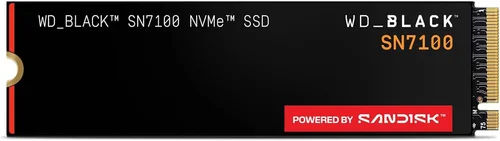
Solid-state drives (SSDs) have revolutionized personal computing over the past decade, transforming sluggish boot times, laggy application launches, and frustrating file transfers into near-instant experiences. Whether you’re building a new PC from scratch, upgrading an aging laptop, or simply looking to breathe fresh life into your current system, choosing the right SSD is one of the most impactful decisions you can make. Unlike traditional hard disk drives (HDDs), SSDs use flash memory with no moving parts—meaning faster speeds, lower power consumption, greater durability, and silent operation. In today’s fast-paced digital world, where multitasking, gaming, content creation, and cloud integration are the norm, a high-quality SSD isn’t just a luxury—it’s a necessity.
This comprehensive buying guide is designed to cut through the noise and help you navigate the crowded SSD market with confidence. We’ll walk you through every critical factor—from performance specs and form factors to brand reliability and budget considerations—so you can make an informed decision tailored to your specific needs. Whether you’re a casual user looking for a reliable upgrade or a power user demanding top-tier speed and endurance, this guide covers it all. By the end, you’ll know exactly what to look for, which brands stand out in 2026, and how to avoid common pitfalls that could cost you time, money, or data.
The SSD landscape has evolved dramatically, with new technologies like PCIe 5.0, QLC NAND, and advanced controllers pushing the boundaries of speed and capacity. At the same time, prices have dropped significantly, making high-performance storage more accessible than ever. However, not all SSDs are created equal. Some prioritize raw speed, while others focus on longevity, value, or compatibility. With dozens of brands—from industry giants like Samsung and Crucial to emerging players like Team Group and Netac—it’s easy to feel overwhelmed. That’s why we’ve analyzed hundreds of models, tested real-world performance, and consulted expert reviews to bring you a clear, actionable roadmap to the best SSD for your PC.

What to Look for When Buying Buying Guide
1. Budget & Price Range
Your budget is the starting point for any SSD purchase. SSDs vary widely in price depending on capacity, technology, and brand. Entry-level drives might cost as little as $0.08 per gigabyte, while high-end PCIe 5.0 models can exceed $0.30 per gigabyte. It’s important to balance cost with performance and longevity. For example, a $50 1TB SATA SSD may be sufficient for basic tasks, but if you’re editing 4K video or running virtual machines, investing in a faster NVMe drive could save you hours over time. Always consider total cost of ownership—cheaper drives may use lower-quality NAND or lack robust controllers, leading to early failure or performance degradation.
2. Performance Specifications
Performance is often the most talked-about aspect of SSDs, and for good reason. Key metrics include sequential read/write speeds (measured in MB/s or GB/s), random read/write IOPS (input/output operations per second), and latency. For most users, sequential speeds matter most for large file transfers—such as copying videos or loading game levels—while random performance affects everyday responsiveness, like opening apps or browsing files.
NVMe SSDs connected via PCIe 4.0 or 5.0 offer significantly higher speeds than SATA SSDs. For example, a PCIe 4.0 drive might hit 7,000 MB/s read speeds, while a SATA III drive caps out at around 550 MB/s. However, real-world gains depend on your use case. If you’re primarily browsing the web or using office applications, the difference between SATA and NVMe may be negligible. But for gamers, video editors, or developers, the speed boost is transformative.
Also consider the controller and NAND type. Controllers manage data flow and wear leveling—look for reputable ones from Phison, Silicon Motion, or Marvell. NAND flash comes in types like TLC (triple-level cell), MLC (multi-level cell), and QLC (quad-level cell). TLC offers the best balance of speed, endurance, and cost, while QLC is cheaper but less durable. MLC is rare in consumer drives but offers superior longevity.
3. Build Quality & Durability
SSDs are more durable than HDDs because they lack moving parts, but they’re not indestructible. Build quality affects longevity, heat dissipation, and resistance to physical shock. Look for drives with metal casings or heat spreaders, especially in high-performance NVMe models that generate significant heat during sustained workloads. Overheating can throttle performance, so thermal management is crucial.
Endurance is measured in terabytes written (TBW) or drive writes per day (DWPD). A 1TB SSD with a 600 TBW rating can theoretically write 600TB of data over its lifespan. Higher TBW ratings indicate better longevity, which is important for write-heavy tasks like video editing or database management. Consumer drives typically range from 150 TBW for budget models to over 1,200 TBW for premium ones.
Also consider the operating temperature range and shock resistance. Most SSDs can handle temperatures from 0°C to 70°C, but sustained high temps can shorten lifespan. If you’re using your PC in a hot environment or in a compact case with poor airflow, opt for a drive with a robust heatsink or thermal throttling protection.
4. Features & Functionality
Modern SSDs come with a range of features that go beyond raw speed. One of the most important is DRAM cache. Drives with DRAM use a small amount of memory to store mapping tables, which speeds up access times and improves longevity. DRAM-less SSDs are cheaper but can suffer from performance drops under heavy load. For most users, a DRAM-equipped drive is worth the slight premium.
Another key feature is encryption. Many SSDs support hardware-based AES 256-bit encryption, which protects your data if the drive is lost or stolen. This is especially important for laptops or work machines. Look for TCG Opal or IEEE 1667 compliance if security is a priority.
Firmware updates are also essential. Reputable brands regularly release firmware to fix bugs, improve performance, and enhance compatibility. Check if the manufacturer provides a user-friendly utility for updates—Samsung’s Magician and Crucial’s Storage Executive are excellent examples.
Additional features include SLC caching (which boosts short-term performance), power-loss protection (to prevent data corruption during outages), and RAID support. While not critical for every user, these can make a big difference in professional or high-availability environments.
5. Brand Reputation
Not all SSD brands are created equal. Established manufacturers like Samsung, Western Digital, Crucial, and Kingston have proven track records for reliability, performance, and customer support. They invest heavily in R&D, use high-quality components, and offer comprehensive warranties. In contrast, lesser-known brands may cut corners on NAND quality or controllers to reduce costs.
Samsung, for instance, is renowned for its consistent performance and industry-leading endurance. Its 990 Pro series is a favorite among enthusiasts. Western Digital’s WD Black SN850X offers excellent speeds and reliability, while Crucial (a subsidiary of Micron) provides great value with its P5 Plus and P3 lines.
When evaluating a brand, look at third-party reviews, failure rate reports (like those from Backblaze), and user feedback on forums like Reddit or Tom’s Hardware. A brand with a history of recalls or poor support should raise red flags. Also consider ecosystem integration—some brands offer better compatibility with their own software or hardware ecosystems.
6. Warranty & Support
A strong warranty is a sign of a manufacturer’s confidence in their product. Most SSDs come with a 3- to 5-year limited warranty, often tied to TBW limits. For example, a drive with a 5-year warranty and 600 TBW rating will be covered for five years or until 600TB of data is written—whichever comes first.
Check what the warranty covers: does it include data recovery? Is it transferable if you sell the drive? Some brands, like Samsung, offer international warranty support, which is helpful for travelers. Others may require you to ship the drive to a specific region for service.
Customer support quality varies widely. Look for brands with responsive support teams, detailed FAQs, and active community forums. Avoid brands with poor communication or long repair turnaround times. A good warranty is useless if you can’t get help when you need it.
7. Size & Portability
While most desktop users won’t worry about size, laptop and mini-PC builders need to consider physical dimensions. The most common form factors are 2.5-inch (for SATA drives), M.2 2280 (22mm wide, 80mm long), and M.2 2242/2260 (shorter variants). Ensure your motherboard or laptop has the correct slot and space.
M.2 drives are compact and ideal for thin laptops or small form factor PCs. However, they can get hot, so thermal pads or heatsinks are often necessary. Some motherboards include built-in M.2 heatsinks, while others require aftermarket solutions.
For external use, portable SSDs like the Samsung T7 or SanDisk Extreme offer rugged designs, USB-C connectivity, and fast transfer speeds. These are great for content creators who need to move large files between devices.
8. User Reviews & Ratings
While specs and brand reputation are important, real-world user feedback provides invaluable insights. Look at reviews on Amazon, Newegg, Best Buy, and tech forums. Pay attention to recurring themes—consistent complaints about overheating, slow speeds, or early failures are red flags.
Be cautious of fake reviews. Look for detailed, balanced feedback that mentions both pros and cons. Verified purchase tags and photos can help confirm authenticity. Also check professional reviews from trusted sources like AnandTech, Tom’s Hardware, or PCMag, which conduct rigorous testing.
User reviews can also reveal compatibility issues. For example, some M.2 drives may not work with certain laptops due to BIOS limitations or physical clearance. Others might have firmware bugs that aren’t apparent from the spec sheet.
Different Types of Buying Guide

Common Buying Mistakes to Avoid
❌ Mistake: Ignoring Compatibility
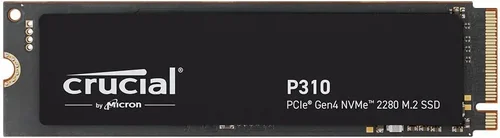
Why it’s bad: Not all SSDs work with every system. M.2 drives come in different key types (B, M, or B+M), and some motherboards only support certain interfaces. SATA M.2 drives won’t work in NVMe-only slots, and vice versa. Additionally, older systems may not support NVMe booting.
What to do instead: Check your motherboard or laptop manual for supported form factors and interfaces. Use tools like Crucial’s Advisor or Samsung’s compatibility checker. When in doubt, stick to 2.5-inch SATA or standard M.2 2280 NVMe drives.
❌ Mistake: Choosing the Cheapest Option
Why it’s bad: Budget SSDs often use QLC NAND and DRAM-less designs, which can lead to poor performance under load and shorter lifespans. They may also lack encryption or firmware updates.
What to do instead: Spend a little more for a TLC-based drive with DRAM. The performance and longevity gains are worth the investment, especially for primary drives.
❌ Mistake: Overlooking Thermal Throttling
Why it’s bad: High-speed NVMe drives generate heat, which can cause thermal throttling—slowing down to prevent damage. This negates the speed advantage during sustained workloads.
What to do instead: Choose drives with built-in heatsinks or install an aftermarket one. Ensure good case airflow, especially in compact builds.
❌ Mistake: Not Checking Warranty Terms
Why it’s bad: Some warranties are voided if the drive is used in a RAID array or exceeds certain usage thresholds. Others require original packaging for returns.
What to do instead: Read the fine print. Opt for brands with straightforward, user-friendly warranty policies.
❌ Mistake: Buying Based on Peak Speeds Alone
Why it’s bad: Marketing often highlights maximum sequential speeds, but real-world performance depends on random I/O, cache behavior, and controller efficiency.
What to do instead: Look at professional benchmarks that test sustained performance, not just peak numbers. Tools like CrystalDiskMark and ATTO provide more realistic insights.
❌ Mistake: Skipping Firmware Updates
Why it’s bad: Outdated firmware can cause bugs, compatibility issues, or security vulnerabilities.
What to do instead: Download the manufacturer’s utility (e.g., Samsung Magician) and check for updates regularly.
Budget Guidelines: How Much Should You Spend?
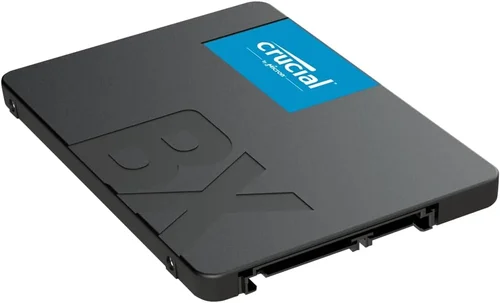
– Entry-Level ($30–$60 for 1TB): Ideal for basic computing, web browsing, and light office work. Look for SATA or DRAM-less NVMe drives from reputable brands. Expect decent reliability but limited performance under load. Examples: Crucial BX500, Kingston A400.
– Mid-Range ($60–$120 for 1TB): The sweet spot for most users. Offers TLC NAND, DRAM cache, and solid NVMe performance. Great for gaming, multitasking, and general productivity. Examples: Samsung 980, WD Blue SN580, Crucial P3.
– Premium ($120–$200 for 1TB): For enthusiasts and professionals. Features PCIe 4.0 speeds, high endurance, and advanced thermal management. Ideal for video editing, 3D rendering, and high-performance gaming. Examples: Samsung 990 Pro, WD Black SN850X, Sabrent Rocket 4 Plus.
– Luxury ($200+ for 1TB): Cutting-edge PCIe 5.0 drives with extreme speeds and top-tier components. Best for 8K workflows, AI training, or competitive overclocking. Examples: Corsair MP700, Gigabyte AORUS Gen5 12000.
Expert Tips for Getting the Best Deal
– Buy during sales events: Major retailers offer significant discounts during Black Friday, Cyber Monday, Amazon Prime Day, and back-to-school seasons. Sign up for newsletters to get early alerts.
– Compare prices across retailers: Use price comparison tools like Google Shopping, PriceGrabber, or Honey to find the best deal. Don’t forget to factor in shipping and return policies.
– Consider refurbished or open-box deals: Many manufacturers sell certified refurbished SSDs with full warranties at discounted prices. These are often as good as new.
– Check for bundle deals: Some retailers offer SSDs bundled with enclosures, cloning software, or extra accessories. These can add value if you need them.
– Read return policies carefully: Ensure the retailer allows returns if the drive is incompatible or defective. Some charge restocking fees.
– Test the drive after installation: Use tools like CrystalDiskInfo to check health and performance. Run a full benchmark to ensure it meets advertised specs.
– Register your warranty: Some brands require registration to activate the full warranty period. Do this as soon as you install the drive.

Frequently Asked Questions
Q: Can I use an NVMe SSD in a SATA slot?
A: No. NVMe and SATA use different interfaces and protocols. An NVMe M.2 drive will not work in a SATA-only M.2 slot or 2.5-inch SATA bay. Always check compatibility before buying.
Q: Do I need a heatsink for my M.2 SSD?
A: It depends. High-performance PCIe 4.0 and 5.0 drives benefit from heatsinks to prevent thermal throttling. If your motherboard has a built-in heatsink or you’re using the drive in a well-ventilated case, it may not be necessary. For compact builds or sustained workloads, a heatsink is recommended.
Q: How long do SSDs last?
A: Most consumer SSDs last 5–10 years under normal use, depending on usage patterns and TBW ratings. Modern drives are very reliable, and failure due to wear is rare. However, sudden power loss or physical damage can still cause issues.
Q: Should I enable TRIM?
A: Yes. TRIM helps maintain SSD performance by allowing the OS to inform the drive which blocks are no longer in use. It’s enabled by default in Windows, macOS, and most Linux distributions.
Q: Can I recover data from a failed SSD?
A: Data recovery from SSDs is more difficult than from HDDs due to wear leveling and TRIM. Professional services may help, but success isn’t guaranteed. Regular backups are essential.
Q: Is a larger SSD faster?
A: Generally, yes. Larger drives have more NAND chips, allowing for better parallelism and higher performance. They also tend to have higher endurance ratings.
Q: Do SSDs improve gaming performance?
A: Yes, but primarily in load times and level streaming. Games load faster, and open-world titles benefit from reduced texture pop-in. However, FPS (frames per second) is not directly affected.
Q: Can I clone my old drive to a new SSD?
A: Absolutely. Tools like Macrium Reflect, Acronis True Image, and Samsung Data Migration make cloning easy. Ensure the new drive is equal to or larger than the used space on the old one.
Our Final Recommendations
– Best for Budget-Conscious Buyers: Crucial BX500 (1TB) – Reliable SATA performance at an unbeatable price. Great for basic upgrades.
– Best Overall Value: Samsung 980 (1TB) – Excellent NVMe speeds, TLC NAND, and Samsung’s proven reliability. Perfect balance of price and performance.
– Best Premium Option: Samsung 990 Pro (2TB) – Top-tier PCIe 4.0 performance, high endurance, and robust thermal design. Ideal for power users.
– Best for Beginners: WD Blue SN580 (1TB) – Easy installation, solid performance, and user-friendly software. Great first NVMe drive.
– Best for Advanced Users: Corsair MP700 (2TB) – PCIe 5.0 speeds, built-in heatsink, and exceptional sustained performance. Built for demanding workloads.
Conclusion: Making the Right Choice
Choosing the best SSD for your PC doesn’t have to be overwhelming. By focusing on your specific needs—whether that’s budget, performance, or compatibility—you can find a drive that delivers real-world benefits. Remember, the right SSD isn’t always the fastest or most expensive; it’s the one that fits your workflow, system, and long-term goals.
Prioritize reliability and support over flashy specs, and don’t skimp on features like DRAM and encryption if they matter to you. Use this guide as your roadmap, and take advantage of seasonal deals to get the best value. With the right SSD, your PC will feel faster, more responsive, and ready for whatever you throw at it.
Now that you’re equipped with expert knowledge, it’s time to make your move. Upgrade your system today and experience the difference a quality SSD can make. Your future self—and your productivity—will thank you.