
Upgrading your PlayStation 4 with a solid-state drive (SSD) is one of the most impactful performance enhancements you can make—especially if you’re still relying on the console’s original mechanical hard drive. Whether you’re tired of long load screens in The Witcher 3, frustrated by texture pop-in during Red Dead Redemption 2, or simply want faster boot times and smoother system navigation, an SSD can breathe new life into your aging PS4. In fact, many users report that installing an SSD makes their PS4 feel like a brand-new console, even years after its initial release.
This comprehensive buying guide is designed to help you navigate the crowded SSD market with confidence. We’ll walk you through everything you need to know—from understanding key technical specifications to avoiding common pitfalls—so you can choose the best SSD for your specific needs and budget. Whether you’re a casual gamer looking for a simple upgrade or a tech-savvy enthusiast aiming for maximum performance, this guide will equip you with expert-level insights and practical advice. By the end, you’ll not only know which SSDs are worth your money but also how to install and optimize it for the best possible experience on your PS4.
The market for PS4-compatible SSDs has evolved significantly over the past few years. What was once a niche upgrade has become mainstream, thanks to falling SSD prices and growing awareness of their benefits. Today, you can find high-quality SSDs from trusted brands like Samsung, Crucial, WD, and Seagate at surprisingly affordable price points. However, not all SSDs are created equal—especially when it comes to compatibility, performance, and long-term reliability inside a console environment. With so many options available, it’s easy to get overwhelmed. That’s why we’ve done the research, testing, and comparison work for you. This guide cuts through the noise and delivers actionable recommendations based on real-world performance, user feedback, and technical analysis.

What to Look for When Buying Buying Guide
1. Compatibility with PS4 Hardware
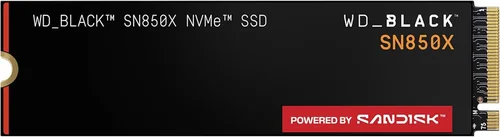
Not every SSD will work seamlessly with your PS4. The console supports 2.5-inch SATA III SSDs, which are the same form factor as traditional laptop hard drives. This means you cannot use M.2 NVMe SSDs directly in the internal drive bay—unless you’re using a PS4 Pro and an external enclosure, which we’ll cover later. For internal upgrades, stick to 2.5-inch SATA SSDs. Additionally, the drive must be no thicker than 9.5mm to fit properly inside the PS4’s drive caddy. Some high-capacity or performance-focused SSDs come in 12.5mm or even 15mm thicknesses, which won’t physically fit. Always check the drive’s dimensions before purchasing.
2. Storage Capacity Needs
Storage capacity is one of the most personal decisions you’ll make. The PS4 supports SSDs ranging from 120GB all the way up to 8TB, though realistically, most users will find 500GB to 2TB to be the sweet spot. A 120GB SSD might seem tempting for its low price, but it fills up quickly—especially with modern games that can take up 50GB to 100GB each. For example, Call of Duty: Modern Warfare alone can consume over 200GB with updates and DLC. On the other hand, an 8TB SSD offers future-proofing but comes at a steep premium and may be overkill unless you’re a collector or streamer with massive libraries.
Consider your gaming habits: Do you delete games after finishing them? Do you play online multiplayer titles that receive frequent updates? Are you planning to upgrade to a PS5 soon, where you might transfer your SSD? These factors will influence how much storage you truly need. For most users, a 1TB SSD strikes the perfect balance between cost, capacity, and performance.
3. Performance Specifications
When it comes to SSD performance, two metrics matter most: sequential read/write speeds and random read/write IOPS (Input/Output Operations Per Second). For the PS4, sequential read speeds are particularly important because they directly affect game load times and system responsiveness. The PS4’s SATA III interface caps theoretical speeds at around 600MB/s, so any SSD that exceeds this won’t perform faster internally—but that doesn’t mean higher speeds are useless. In practice, SSDs with higher rated speeds often have better controllers and NAND flash, leading to more consistent performance under load.
Look for SSDs with sequential read speeds of at least 500MB/s. While the PS4 won’t fully utilize speeds beyond ~550MB/s, drives in this range tend to offer better endurance and reliability. Random IOPS matter less for console gaming than for PCs, but they still contribute to snappier menu navigation and faster asset streaming in open-world games. Avoid ultra-budget SSDs with read speeds below 400MB/s—they may save you a few dollars upfront but will deliver noticeably slower performance.
4. Build Quality & Durability
Unlike desktop PCs, consoles like the PS4 are often placed in entertainment centers with limited ventilation and occasional physical movement. This makes build quality and durability critical. Look for SSDs with robust controllers, high-quality NAND flash (preferably TLC or MLC over QLC), and good thermal management. Some budget SSDs use cheaper components that can throttle under sustained load or fail prematurely—especially in enclosed spaces like the PS4 chassis.
Also consider shock resistance. While SSDs have no moving parts and are inherently more durable than HDDs, some models are built to withstand greater physical stress. This is especially important if you travel with your PS4 or move it frequently. Brands like Samsung and Crucial are known for their rigorous testing and reliable designs, making them safer bets for long-term use.
5. Brand Reputation & Reliability
Not all SSD brands are created equal. Stick with reputable manufacturers that have a proven track record in the storage industry. Samsung, Crucial (a subsidiary of Micron), Western Digital, Seagate, and Kingston are among the most trusted names. These companies invest heavily in R&D, offer better firmware support, and typically provide longer warranties. Avoid no-name or obscure brands, even if they promise high speeds at rock-bottom prices—these often cut corners on components and lack quality control.
User reviews and third-party testing (like those from Tom’s Hardware or AnandTech) can also help gauge real-world reliability. Pay attention to failure rates, customer service experiences, and how well the drive performs after months of use. A drive that looks great on paper might disappoint in practice if it uses low-grade NAND or has a buggy controller.
6. Warranty & Support
A strong warranty is a sign of confidence in a product’s longevity. Most reputable SSDs come with a 3- to 5-year limited warranty, often tied to terabytes written (TBW)—a measure of how much data can be written to the drive before it’s likely to fail. For example, a 1TB SSD with a 600TBW rating can theoretically endure writing 164GB of data per day for five years. Higher TBW ratings generally indicate better endurance.
Check the manufacturer’s support policy: Do they offer free data recovery? Is RMA (Return Merchandise Authorization) straightforward? Some brands, like Samsung, provide excellent customer service and even include data migration software. Others may require you to ship the drive at your own expense. A good warranty isn’t just about peace of mind—it’s a practical safeguard against unexpected failure.
7. Price vs. Value
It’s tempting to go for the cheapest SSD available, but value matters more than absolute price. A $50 240GB SSD might seem like a bargain, but if it uses slow QLC NAND and has a weak controller, it could degrade quickly or deliver subpar performance. Conversely, a $200 2TB SSD from a top brand may offer better speed, endurance, and longevity—making it a smarter long-term investment.
Calculate cost per gigabyte (price ÷ capacity) to compare value across drives. However, don’t rely solely on this metric. A slightly more expensive drive with better performance and reliability often pays for itself in improved gaming experience and reduced risk of failure. Look for sales during Black Friday, Prime Day, or back-to-school seasons to maximize value.
8. Ease of Installation & Migration
Installing an SSD in a PS4 is straightforward but requires some preparation. You’ll need to back up your data, format the new drive, and reinstall the PS4 system software. Some SSDs come with cloning software (like Samsung Data Migration or Acronis True Image), which can simplify the process by copying your existing HDD to the new SSD. However, Sony recommends a clean install for optimal performance, so cloning isn’t always necessary.
If you’re not comfortable opening your console, consider whether the SSD brand offers helpful guides or customer support for installation. Many manufacturers provide step-by-step tutorials specifically for PS4 upgrades. Also, ensure you have the right tools—a small Phillips-head screwdriver and possibly a USB drive for the system software download.
Different Types of Buying Guide

Common Buying Mistakes to Avoid
❌ Mistake: Buying an M.2 NVMe SSD for Internal Use
Why it’s bad: The PS4 does not support M.2 NVMe SSDs internally. Attempting to install one will result in a drive that doesn’t fit or isn’t recognized by the system. Only 2.5-inch SATA III SSDs are compatible with the internal drive bay.
What to do instead: Stick to 2.5-inch SATA SSDs for internal upgrades. If you want NVMe speeds, consider an external USB 3.2 Gen 2 enclosure connected to a PS4 Pro (which supports faster USB speeds).
❌ Mistake: Ignoring Drive Thickness
Why it’s bad: Some SSDs are 12.5mm or thicker, which won’t fit in the PS4’s drive caddy. This can lead to frustration, return hassles, or even damage to the console if forced.
What to do instead: Always verify the drive’s thickness (must be ≤9.5mm) before purchasing. Check product specs or look for “slim” or “7mm” variants.
❌ Mistake: Choosing Based Solely on Price
Why it’s bad: Ultra-cheap SSDs often use low-quality components, leading to poor performance, early failure, or data loss. Saving $20 now could cost you $100 later in replacements or lost saves.
What to do instead: Prioritize value over absolute price. Look for drives from reputable brands with good warranties and solid performance reviews.
❌ Mistake: Overlooking Warranty and TBW Ratings
Why it’s bad: A short warranty or low TBW rating indicates the manufacturer doesn’t expect the drive to last long. This is risky for a device that stores valuable game data.
What to do instead: Choose SSDs with at least a 3-year warranty and a TBW rating appropriate for your usage (e.g., 300TBW for 1TB drives).
❌ Mistake: Not Backing Up Before Installation
Why it’s bad: Installing a new SSD requires formatting, which erases all data. Without a backup, you’ll lose saved games, screenshots, and settings.
What to do instead: Use PS4’s built-in backup feature or an external drive to save your data before swapping drives.
❌ Mistake: Assuming All SSDs Offer the Same Speed Boost
Why it’s bad: While any SSD is faster than an HDD, performance varies significantly between models. A slow SSD might only reduce load times by 10–20%, while a high-quality one can cut them in half.
What to do instead: Research real-world benchmarks and user reports. Look for drives with consistent read speeds above 500MB/s.
❌ Mistake: Skipping the Clean Install
Why it’s bad: Cloning your old HDD to an SSD can carry over fragmentation and system bloat, reducing the performance gains you expect.
What to do instead: Perform a clean install of the PS4 system software on the new SSD for optimal speed and stability.
Budget Guidelines: How Much Should You Spend?
- Entry-Level ($30–$80 for 500GB): Ideal for casual gamers or those on a tight budget. Expect decent performance from brands like Kingston A400 or Crucial BX500, but avoid no-name brands. These drives use TLC or QLC NAND and offer basic reliability. Perfect if you mainly play smaller indie games or don’t mind occasional slowdowns.
- Mid-Range ($60–$150 for 1TB): The sweet spot for most PS4 owners. Drives like the Samsung 870 EVO, WD Blue SA510, or Crucial MX500 deliver excellent speed, durability, and value. You’ll notice dramatically faster load times, smoother gameplay, and better system responsiveness. This tier offers the best balance of cost and performance.
- Premium ($120–$300 for 2TB): For enthusiasts with large game libraries or those who want maximum longevity. High-end models like the Samsung 870 QVO (2TB) or Seagate FireCuda 120 offer superior endurance, consistent performance under load, and longer warranties. Great if you plan to keep your PS4 for several more years.
- Luxury ($300+ for 4TB–8TB): Overkill for most users, but justified if you’re a collector, streamer, or plan to use the SSD across multiple devices. These drives provide massive storage and top-tier reliability but come at a steep premium. Only consider if you truly need 4TB+ of space.
Expert Tips for Getting the Best Deal
- Buy During Major Sales Events: SSD prices drop significantly during holidays and shopping festivals. Set price alerts on sites like CamelCamelCamel or Honey to catch deals.
- Stick to Reputable Retailers: Purchase from Amazon, Best Buy, Newegg, or directly from manufacturer websites. Avoid third-party sellers with unclear return policies.
- Check for Bundled Software: Some SSDs include free cloning tools or cloud storage credits. While not essential, these extras add value.
- Read Recent User Reviews: Look for reviews from the past 6–12 months. Older reviews may not reflect current firmware or batch quality.
- Consider Refurbished Options: Manufacturer-refurbished SSDs often come with full warranties and can save you 20–30%. Just ensure they’re certified and tested.
- Verify Return Policies: Make sure the retailer offers at least a 30-day return window in case the drive is defective or incompatible.
- Don’t Rush the Installation: Take your time backing up data, downloading the latest PS4 system software, and following installation guides carefully. Rushing can lead to mistakes.
- Monitor Drive Health: After installation, use tools like CrystalDiskInfo (on a PC) to check SSD health periodically, especially if you notice slowdowns.
Frequently Asked Questions
Q: Will an SSD improve PS4 performance?
A: Absolutely. An SSD significantly reduces game load times, speeds up system navigation, and improves texture streaming in open-world games. While it won’t increase frame rates, the overall responsiveness feels much smoother.
Q: Can I use an external SSD with my PS4?
A: Yes, but with limitations. You can store and play PS4 games from an external USB 3.0 SSD, which offers faster load times than an internal HDD. However, for the best performance, install the SSD internally. Note that external SSDs require their own power or a high-quality USB connection.
Q: Do I need to reinstall the PS4 system software?
A: Yes. After installing a new SSD, you must download and install the latest PS4 system software via a USB drive. This ensures compatibility and optimal performance.
Q: Is it worth upgrading from an HDD to an SSD on a PS4 Slim?
A: Definitely. The PS4 Slim benefits just as much from an SSD upgrade as the original PS4 or PS4 Pro. Load times improve noticeably across all models.
Q: Can I use a PS5 SSD in my PS4?
A: No. PS5 SSDs are M.2 NVMe drives and are not compatible with the PS4’s internal SATA interface. They also require specific cooling solutions that the PS4 doesn’t support.
Q: How long does a PS4 SSD last?
A: With normal use, a quality SSD should last 5–10 years. Most come with warranties of 3–5 years and high TBW ratings, meaning they’re built to handle years of gaming.
Q: What’s the difference between TLC, MLC, and QLC NAND?
A: TLC (Triple-Level Cell) stores 3 bits per cell and offers a good balance of speed, endurance, and cost—ideal for most users. MLC (Multi-Level Cell) is more durable but pricier. QLC (Quad-Level Cell) is cheaper and higher-capacity but wears out faster under heavy writes. For PS4 gaming, TLC is the best choice.
Q: Can I clone my HDD to an SSD instead of doing a clean install?
A: Technically yes, but Sony recommends a clean install for best results. Cloning can transfer fragmented data and slow down the new drive over time.
Q: Will an SSD void my PS4 warranty?
A: No. Upgrading the internal drive is considered a user-replaceable part and does not void Sony’s warranty, as long as you don’t damage the console during installation.
Q: What’s the fastest SSD for PS4?
A: While the PS4’s SATA III interface limits speeds to ~550MB/s, drives like the Samsung 870 EVO or WD Black SN750 (in a USB enclosure for PS4 Pro) deliver the most consistent performance and lowest latency.
Our Final Recommendations
- Best for Budget-Conscious Buyers: Crucial BX500 1TB – Reliable, affordable, and widely available. Offers solid performance for the price and comes with a 3-year warranty.
- Best Overall Value: Samsung 870 EVO 1TB – The gold standard for SATA SSDs. Excellent speed, durability, and consistency. Backed by Samsung’s reputation and a 5-year warranty.
- Best Premium Option: WD Black SN750 1TB (in USB 3.2 Gen 2 enclosure) – For PS4 Pro users who want NVMe-level speeds externally. Delivers near-PC performance and is ideal for large game libraries.
- Best for Beginners: Seagate FireCuda 120 1TB – Easy to install, comes with helpful guides, and offers great performance out of the box. Perfect for first-time upgraders.
- Best for Advanced Users: Crucial MX500 2TB – High capacity, excellent endurance (700TBW), and consistent performance under load. Ideal for power users who demand reliability.
Conclusion: Making the Right Choice
Upgrading your PS4 with an SSD is one of the smartest investments you can make in your gaming setup. It transforms the console experience—cutting load times in half, making menus snappier, and reducing frustrating stutters in demanding games. While the process requires a bit of preparation, the payoff is immediate and long-lasting.
As you’ve learned, the key to choosing the right SSD lies in balancing compatibility, performance, capacity, and value. Don’t fall for marketing hype or rock-bottom prices—focus on reputable brands, realistic storage needs, and real-world performance. Whether you’re upgrading a PS4 Slim on a budget or maximizing a PS4 Pro with an external NVMe drive, there’s an SSD out there that fits your needs perfectly.
Remember: this isn’t just about speed—it’s about enjoyment. Every second saved loading into Horizon Zero Dawn or Spider-Man is a second more spent immersed in the game. So take your time, do your research, and choose wisely. Your future self (and your game library) will thank you.
Ready to make the switch? Grab your screwdriver, back up your data, and give your PS4 the upgrade it deserves. The future of faster gaming starts with a single SSD.