
[FEATURED_IMAGE_PLACEGOER]
The solid-state drive (SSD) market has evolved dramatically over the past decade, transforming from a luxury upgrade to an essential component in modern computing. Whether you’re building a high-performance gaming rig, upgrading an aging laptop, or expanding storage for creative work, SSDs now offer the speed, reliability, and affordability that make them indispensable. But with so many options flooding the market—ranging from budget SATA drives to blazing-fast NVMe Gen5 models—knowing when to buy can be just as important as knowing what to buy. Timing your purchase correctly can mean saving hundreds of dollars, especially during seasonal sales or product refresh cycles. This comprehensive buying guide is designed to help you navigate the SSD landscape with confidence, ensuring you get the best performance and value for your investment in 2026.
In this guide, you’ll learn not only how to evaluate SSDs based on performance, capacity, and durability, but also how to time your purchase for maximum savings. We’ll walk you through the key factors to consider when shopping, compare different types of SSDs, highlight common pitfalls, and provide expert-backed strategies for scoring the best deals. Whether you’re a first-time buyer or a seasoned tech enthusiast, this guide will equip you with the knowledge to make a smart, informed decision. The SSD market is dynamic, with new technologies emerging and prices fluctuating regularly—so understanding the rhythm of deals and product cycles is crucial. By the end of this article, you’ll know exactly when to buy, where to look, and what to prioritize, so you can upgrade your system without overspending.
The SSD market in 2026 is more competitive than ever. With major manufacturers like Samsung, Western Digital, Crucial, Kingston, and SK Hynix pushing the boundaries of speed and efficiency, consumers benefit from rapid innovation and aggressive pricing. NVMe drives now dominate the high-end segment, while SATA SSDs remain a cost-effective choice for older systems. Meanwhile, PCIe Gen5 SSDs are becoming more accessible, offering double the bandwidth of Gen4 models—though real-world performance gains are still debated. At the same time, global supply chains have stabilized, and manufacturing costs have decreased, leading to more consistent pricing and availability. However, this doesn’t mean prices are static. Flash memory pricing is influenced by factors like NAND production cycles, seasonal demand, and retailer promotions. Knowing how these forces interact is the key to buying at the right time. This guide will break down those patterns and help you time your purchase like a pro.

What to Look for When Buying Buying Guide
1. Budget & Price Range
Your budget is the foundation of any SSD purchase. SSDs vary widely in price depending on capacity, interface, and performance tier. As a general rule, you should aim to spend between $0.08 and $0.25 per gigabyte for most consumer drives. For example, a 1TB SATA SSD might cost around $80–$100, while a high-end 2TB NVMe Gen4 drive could run $150–$250. Premium Gen5 models may push $300 or more for the same capacity. Setting a clear budget helps narrow your options and prevents overspending on features you don’t need. If you’re upgrading an older laptop, a 500GB SATA SSD for under $50 might be sufficient. But if you’re building a new gaming PC, investing in a 1TB or 2TB NVMe drive makes more sense. Always consider total cost of ownership—cheaper drives may save money upfront but could lack endurance or reliability, leading to higher long-term costs.
2. Performance Specifications
Performance is where SSDs truly shine compared to traditional hard drives. Key metrics include sequential read/write speeds, random read/write IOPS (Input/Output Operations Per Second), and latency. NVMe drives typically offer speeds from 3,500 MB/s (Gen3) to over 12,000 MB/s (Gen5), while SATA SSDs cap out around 550 MB/s due to interface limitations. For most users, Gen3 or Gen4 NVMe drives provide more than enough speed for booting Windows, launching applications, and transferring large files. Random performance—measured in IOPS—is especially important for multitasking and workloads like video editing or database management. A drive with high IOPS will feel snappier when opening multiple apps or working with small files. Latency, or response time, should be as low as possible; modern SSDs typically achieve sub-100 microsecond latency, which is imperceptible to users but critical for professional applications.
3. Build Quality & Durability
Not all SSDs are built equally. Durability is measured in terabytes written (TBW), which indicates how much data can be written to the drive over its lifetime. A 1TB drive with a 600 TBW rating can theoretically endure 600 terabytes of writes before failure. Higher-end drives often have higher TBW ratings and use more durable NAND flash, such as 3D TLC or MLC, compared to budget QLC drives that wear out faster. Look for drives with robust controllers and thermal management, especially for Gen4 and Gen5 NVMe models that can get hot under load. Some premium drives include heatsinks or thermal throttling protection to maintain performance. Also, check for shock resistance and operating temperature ranges—important if you’re using the SSD in a laptop or portable device.
4. Features & Functionality
Modern SSDs come with a range of features that enhance usability and security. Hardware encryption (like AES-256) protects your data if the drive is lost or stolen. Some drives support TCG Opal or IEEE 1667 standards for enterprise-grade security. Others include software suites for cloning, monitoring health, or optimizing performance. DRAM cache is another key feature: drives with DRAM perform better under sustained workloads and last longer. DRAM-less SSDs are cheaper but may slow down during heavy use. Additionally, some drives support advanced features like SLC caching, which temporarily boosts write speeds by using a portion of TLC or QLC NAND as faster single-level cells. While not essential for casual users, these features can make a big difference for power users and professionals.
5. Brand Reputation
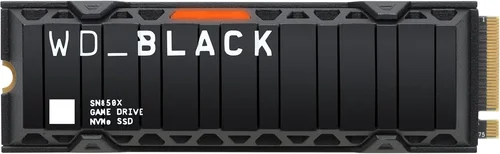
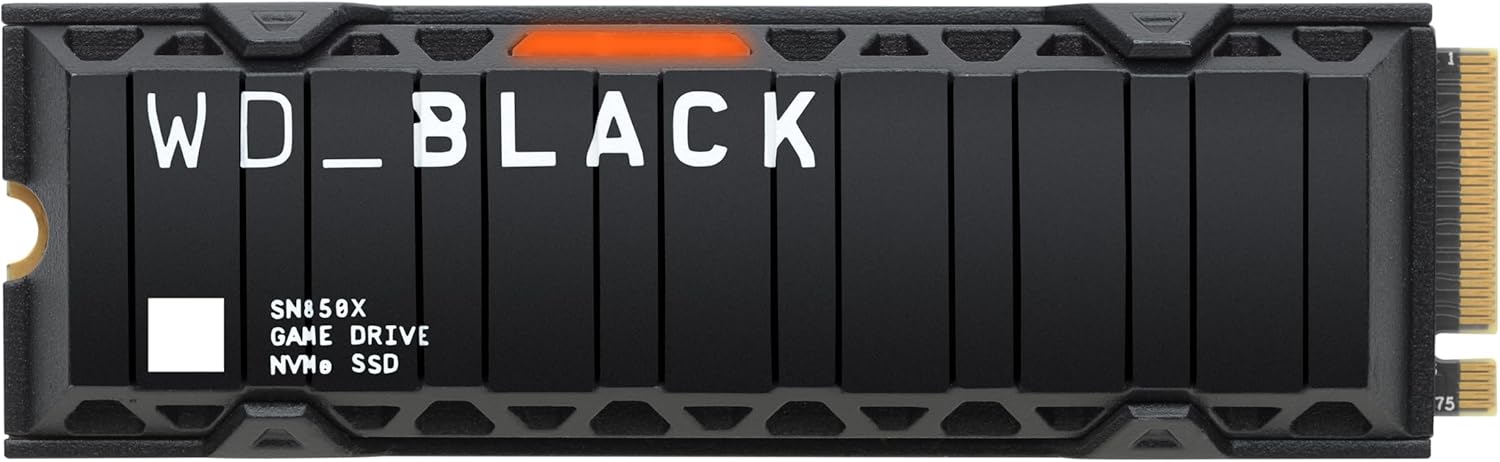
Brand matters when it comes to reliability and support. Established manufacturers like Samsung, Western Digital, Crucial, and Kingston have proven track records for quality and consistency. Samsung’s 990 Pro and Western Digital’s Black SN850X are often cited as top performers. Lesser-known brands may offer tempting prices, but they often cut corners on components or firmware. Look for brands that provide detailed specifications, firmware updates, and responsive customer service. Reading professional reviews and user feedback can help you avoid problematic models. Also, consider regional availability—some brands dominate in certain markets, and warranty support may vary by country.
6. Warranty & Support
A strong warranty is a sign of a manufacturer’s confidence in their product. Most SSDs come with a 3- to 5-year warranty, often tied to TBW limits. For example, a drive might offer a 5-year warranty or 600 TBW, whichever comes first. Longer warranties usually indicate higher endurance and better build quality. Check the terms carefully: some warranties require registration, while others are voided if the drive is used in certain environments (like servers). Also, verify whether the warranty includes data recovery services—most don’t, but some premium brands offer limited support. Customer support responsiveness is another factor; a brand with 24/7 chat or phone support can save you time and frustration if issues arise.
7. Size & Portability
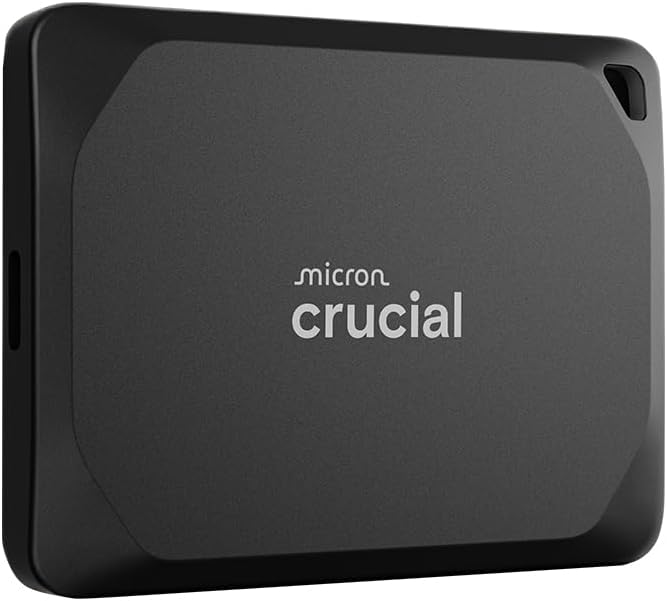
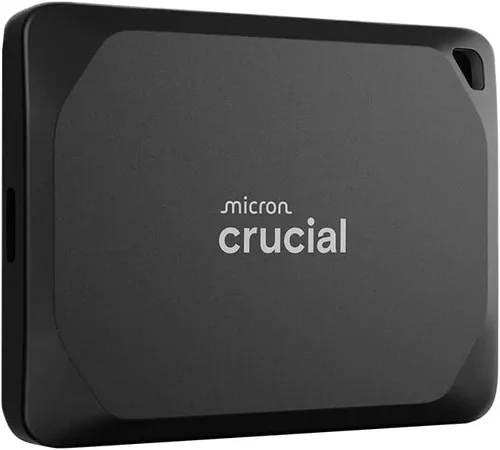
Physical size and form factor matter, especially for laptops and small-form-factor PCs. The most common SSD form factors are 2.5-inch (for SATA), M.2 2280 (for NVMe), and M.2 2242/2260 (smaller variants). M.2 drives are compact and ideal for ultrabooks and mini-PCs, while 2.5-inch drives are easier to install in desktops and older laptops. If you’re upgrading a laptop, confirm the available slots and supported interfaces (SATA vs. NVMe). Some laptops only support one type. For external use, consider portable SSDs with USB-C or Thunderbolt connectivity—these offer fast transfer speeds and are great for backups or media storage. Ruggedized models with water and shock resistance are available for outdoor or travel use.
8. User Reviews & Ratings
Never rely solely on manufacturer specs. User reviews provide real-world insights into reliability, performance, and potential issues. Look for patterns in feedback—if multiple users report overheating, slowdowns, or early failures, it’s a red flag. Sites like Amazon, Newegg, and Reddit’s r/buildapc are valuable resources. Pay attention to reviews from users with similar use cases (e.g., gaming, video editing, general use). Also, check for firmware updates—some drives improve significantly after launch. Be cautious of fake reviews; look for detailed, balanced feedback with photos or benchmarks. Professional reviews from trusted outlets like Tom’s Hardware, AnandTech, or PCMag offer deeper technical analysis and long-term testing.
Different Types of Buying Guide
Common Buying Mistakes to Avoid
❌ Mistake: Ignoring Interface Compatibility
Why it’s bad: Buying an NVMe SSD for a laptop that only supports SATA will result in a drive that doesn’t fit or work. Similarly, installing a Gen4 or Gen5 drive in a Gen3 slot wastes potential performance.
What to do instead: Always check your motherboard or laptop specifications before purchasing. Use tools like CPU-Z or manufacturer manuals to confirm supported interfaces and form factors.
❌ Mistake: Overpaying for Unnecessary Speed
Why it’s bad: Gen5 SSDs offer incredible speeds, but most users won’t notice the difference in everyday tasks. Paying a premium for 12,000 MB/s when 7,000 MB/s is sufficient is a waste of money.
What to do instead: Match the drive to your use case. Gamers and general users should prioritize Gen3 or Gen4. Only content creators or professionals working with 8K video need Gen5.
❌ Mistake: Skimping on Capacity
Why it’s bad: A 256GB SSD fills up quickly with modern games, apps, and OS updates. Running low on space slows performance and limits functionality.
What to do instead: Aim for at least 500GB for basic use, 1TB for gaming, and 2TB+ for media storage or workstations.
❌ Mistake: Choosing DRAM-less SSDs for Heavy Use
Why it’s bad: DRAM-less drives use system memory (HMB) for caching, which can slow down under sustained workloads and reduce lifespan.
What to do instead: Opt for drives with dedicated DRAM cache if you plan to edit videos, run VMs, or transfer large files regularly.
❌ Mistake: Ignoring TBW and Endurance Ratings
Why it’s bad: Cheap QLC drives may have low TBW ratings, meaning they wear out faster under heavy write loads.
What to do instead: Check the TBW rating and choose TLC or MLC NAND for better longevity, especially for write-intensive tasks.
❌ Mistake: Buying During Peak Demand
Why it’s bad: Prices spike during back-to-school season, Black Friday, and new product launches. Buying at these times often means paying more.
What to do instead: Wait for post-holiday sales, end-of-quarter clearances, or when new models are announced (old models drop in price).
❌ Mistake: Overlooking Warranty and Support
Why it’s bad: A drive with a short warranty or poor support can leave you stranded if it fails.
What to do instead: Choose brands with at least a 5-year warranty and responsive customer service. Register your drive for full coverage.
Budget Guidelines: How Much Should You Spend?
– Entry-Level ($30–$80): Ideal for basic upgrades or secondary storage. Expect SATA or low-end NVMe drives with 256GB–500GB capacity. Performance is adequate for web browsing, office work, and light gaming. Look for brands like Crucial BX500 or Kingston NV2.
– Mid-Range ($80–$150): The sweet spot for most users. Offers 1TB NVMe Gen3 or Gen4 drives with strong performance, DRAM cache, and good endurance. Great for gaming, content creation, and multitasking. Examples include Samsung 980, WD Blue SN580, and Crucial P3.
– Premium ($150–$300): For enthusiasts and professionals. Features high-end Gen4 or entry-level Gen5 drives with 1TB–2TB capacity, top-tier speeds, and advanced features like heatsinks and encryption. Models like Samsung 990 Pro, WD Black SN850X, and Sabrent Rocket 4 Plus fit here.
– Luxury ($300+): Top-tier performance for workstations and extreme builds. Includes 2TB+ Gen5 drives with 12,000+ MB/s speeds, robust cooling, and enterprise-grade reliability. Best for 8K video editing, AI workloads, or future-proofing. Expect brands like Corsair MP700 or Gigabyte Aorus Gen5.
Expert Tips for Getting the Best Deal
– Buy After Major Sales Events: Prices often drop in January (post-holiday clearance) and July (mid-year refresh). Retailers clear inventory to make room for new models.
– Monitor New Product Launches: When a new SSD generation is announced (e.g., Gen5), older models (Gen4) see immediate price cuts. Subscribe to tech news sites for launch alerts.
– Use Price Tracking Tools: Set alerts on Amazon, Newegg, or Best Buy using tools like Keepa or Honey. You’ll be notified when prices hit your target.
– Check Outlet and Refurbished Sections: Certified refurbished SSDs from manufacturers often come with full warranties and sell for 20–40% less.
– Stack Discounts: Combine store coupons, cashback sites (Rakuten, TopCashback), and credit card rewards to maximize savings.
– Buy in Bulk for Multiple Drives: Some retailers offer discounts when purchasing two or more SSDs. Useful for building multiple systems or NAS setups.
– Consider Open-Box Deals: Open-box items are often returned due to buyer’s remorse, not defects. They’re tested and sold at a discount with full warranty.
– Watch for Bundle Deals: Some retailers bundle SSDs with motherboards, CPUs, or cases at a reduced total price. These can offer better value than buying separately.
Frequently Asked Questions
Q: Is NVMe worth it over SATA?
A: Absolutely, if your system supports it. NVMe drives are 5–7x faster than SATA SSDs, resulting in quicker boot times, faster game loading, and snappier overall performance. The price difference is minimal for 1TB drives, making NVMe the better choice for new builds.
Q: Can I use a Gen4 SSD in a Gen3 slot?
A: Yes, but it will run at Gen3 speeds. The drive is backward compatible, so you won’t lose functionality—just performance. It’s a good way to future-proof your system.
Q: Do I need a heatsink for my NVMe SSD?
A: Only for Gen4 and Gen5 drives under heavy load. Most motherboards include M.2 heatsinks, but if yours doesn’t, consider an aftermarket one to prevent thermal throttling.
Q: How long do SSDs last?
A: Most consumer SSDs last 5–10 years under normal use. With typical workloads, you’ll likely upgrade before the drive fails. Check TBW and warranty for peace of mind.
Q: Should I buy a 2TB SSD or two 1TB drives?
A: For most users, a single 2TB drive is simpler and often cheaper. However, two 1TB drives offer redundancy and can be used in RAID for performance or backup.
Q: Are external SSDs as fast as internal ones?
A: USB 3.2 Gen 2×2 and Thunderbolt 4 external SSDs can match internal Gen3 speeds (up to 2,000 MB/s). For Gen4/Gen5 speeds, internal installation is required.
Q: Can I recover data from a failed SSD?
A: It’s difficult and expensive. Unlike HDDs, SSDs often fail suddenly with no warning. Regular backups are essential. Some professional services offer recovery, but success isn’t guaranteed.
Q: Is QLC NAND bad?
A: QLC is slower and less durable than TLC, but fine for light use like web browsing and document storage. Avoid QLC for write-heavy tasks like video editing.
Q: Do SSDs improve gaming performance?
A: Yes, especially load times. Games installed on SSDs launch faster and have shorter level loads. However, in-game FPS is unaffected—your GPU and CPU matter more.
Q: When is the cheapest time to buy an SSD?
A: The best deals typically occur in January (post-holiday), July (mid-year sales), and after major product launches. Avoid buying during Black Friday unless you find a verified deal.
Our Final Recommendations
– Best for Budget-Conscious Buyers: Crucial P3 1TB NVMe Gen3 – Excellent performance, DRAM cache, and a 5-year warranty at under $90.
– Best Overall Value: Samsung 980 1TB NVMe Gen3 – Reliable, fast, and from a trusted brand. Often on sale for under $85.
– Best Premium Option: Samsung 990 Pro 2TB NVMe Gen4 – Top-tier speed, endurance, and thermal management. Ideal for gamers and creators.
– Best for Beginners: Kingston NV2 1TB NVMe Gen3 – Simple installation, solid performance, and great for first-time upgraders.
– Best for Advanced Users: WD Black SN850X 2TB NVMe Gen4 – High IOPS, excellent for multitasking and content creation. Includes software suite and heatsink.
Conclusion: Making the Right Choice
Choosing the right SSD—and knowing when to buy it—can significantly impact your computing experience. With the right knowledge, you can avoid overpaying, select a drive that matches your needs, and enjoy faster boot times, quicker app launches, and smoother multitasking. Remember to prioritize compatibility, performance, and durability, and always consider your long-term usage. Timing your purchase around seasonal sales, product refreshes, and price drops can save you substantial money without sacrificing quality. Use the tips and recommendations in this guide to shop smarter, not harder. Whether you’re upgrading an old laptop or building a high-end gaming rig, the perfect SSD is out there—waiting for the right moment to buy. Don’t rush. Do your research, track prices, and when the deal feels right, make your move. Your future self will thank you every time your system boots up in seconds.