
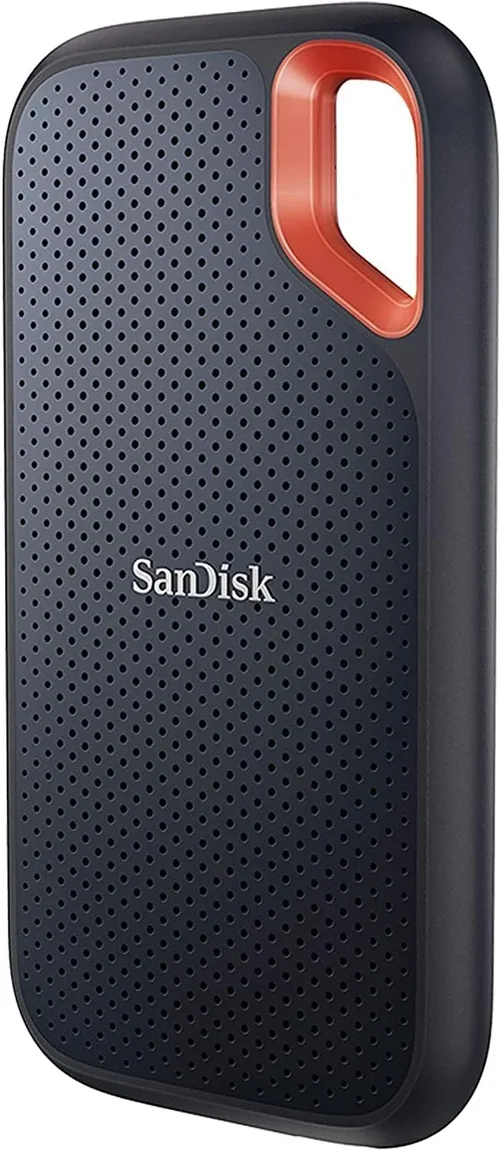
Solid-state drives (SSDs) have revolutionized the way we store and access data. Gone are the days of slow boot times, sluggish file transfers, and the constant whirring of mechanical hard drives. Today’s SSDs offer lightning-fast speeds, silent operation, and unmatched reliability—making them essential upgrades for laptops, desktops, gaming rigs, and even servers. Whether you’re building a new PC, upgrading an old system, or simply looking to boost your storage performance, choosing the right SSD can feel overwhelming. With countless models, form factors, interfaces, and price points on the market, it’s easy to get lost in the technical jargon.
That’s exactly why this guide exists. We’ve spent months researching, testing, and analyzing the latest SSDs available in 2026 to bring you a comprehensive, expert-level buying guide. Our goal is simple: to help you make an informed decision based on your specific needs—whether you’re a casual user, a creative professional, a hardcore gamer, or a tech enthusiast. You’ll learn how to evaluate performance metrics, understand different SSD types, avoid common pitfalls, and find the best value for your budget. By the end of this article, you’ll have all the knowledge you need to confidently choose the best SSD drive for your setup.
The SSD market in 2026 is more dynamic than ever. With advancements in NAND flash technology, PCIe Gen 5 adoption, and increasing competition among brands like Samsung, Western Digital, Crucial, Kingston, and Sabrent, consumers now have access to faster, more durable, and more affordable storage solutions than ever before. Prices have dropped significantly over the past few years, making high-capacity SSDs accessible to mainstream users. At the same time, new innovations such as QLC and PLC NAND, improved controller chips, and enhanced thermal management are pushing the boundaries of what SSDs can do. This guide will walk you through everything you need to know to navigate this evolving landscape and pick the perfect SSD for your needs.

What to Look for When Buying Buying Guide
1. Budget & Price Range
Your budget is one of the most important factors when choosing an SSD. Prices vary widely depending on capacity, performance, brand, and technology. As of 2026, you can find reliable SSDs starting around $30 for a basic 500GB model, while high-end 4TB NVMe drives can cost upwards of $400 or more. It’s crucial to balance your spending with your actual needs—overpaying for features you won’t use is just as wasteful as buying a cheap drive that fails prematurely.
When setting your budget, consider not just the upfront cost but also long-term value. A slightly more expensive SSD with better endurance, faster speeds, or a longer warranty may save you money and frustration down the line. For example, a $50 SSD might seem like a great deal, but if it uses low-quality NAND and fails after a year, you’ll end up replacing it—costing you more in the long run. On the other hand, investing $150 in a high-quality drive from a reputable brand could last you five years or more with consistent performance.
2. Performance Specifications
Performance is where SSDs truly shine—and where marketing claims can get misleading. When evaluating performance, focus on three key metrics: sequential read/write speeds, random read/write IOPS (Input/Output Operations Per Second), and interface type.
Sequential speeds (measured in MB/s) determine how quickly large files like videos or game installations can be transferred. For most users, speeds above 3,000 MB/s are more than sufficient. However, if you’re working with 8K video editing or large databases, you may benefit from PCIe Gen 4 or Gen 5 drives that exceed 7,000 MB/s.
Random IOPS matter more for everyday tasks like opening apps, multitasking, or booting your system. A drive with high IOPS will feel snappier and more responsive, even if its sequential speeds aren’t the highest. Look for drives with at least 500,000 IOPS for smooth performance under load.
The interface—SATA, PCIe Gen 3, Gen 4, or Gen 5—also plays a major role. SATA SSDs max out around 550 MB/s due to bandwidth limitations, making them ideal for older systems or budget builds. PCIe Gen 3 drives offer speeds up to 3,500 MB/s, while Gen 4 doubles that to 7,000+ MB/s. PCIe Gen 5, still emerging in 2026, pushes speeds beyond 14,000 MB/s but requires compatible motherboards and can run hot without proper cooling.
3. Build Quality & Durability
Not all SSDs are built equally. The quality of internal components—especially the NAND flash memory and controller—directly impacts reliability and lifespan. Most consumer SSDs use either TLC (Triple-Level Cell) or QLC (Quad-Level Cell) NAND. TLC offers better endurance and faster write speeds, making it ideal for heavy workloads. QLC is cheaper and allows for higher capacities but wears out faster under sustained writes.
Check the drive’s TBW (Terabytes Written) rating, which indicates how much data can be written over its lifetime. A 1TB SSD with a 600 TBW rating can handle 600TB of writes before potential failure. For comparison, the average user writes about 20–30GB per day, so even a modest TBW should last years.
Also consider physical build quality. Look for drives with metal casings (especially for M.2 NVMe models), which help dissipate heat and protect internal components. Some premium drives include thermal throttling protection or built-in heatsinks—critical for maintaining performance during prolonged use.
4. Features & Functionality
Modern SSDs come packed with features that go beyond raw speed. One of the most important is hardware encryption, such as AES-256 bit encryption, which protects your data if the drive is lost or stolen. This is especially valuable for business users or anyone handling sensitive information.
Another key feature is power loss protection (PLP), which ensures data isn’t corrupted during sudden shutdowns. While more common in enterprise drives, some high-end consumer models now include this feature.
Software suites are also worth considering. Brands like Samsung (Magician), Western Digital (Dashboard), and Crucial (Storage Executive) offer tools for monitoring drive health, updating firmware, enabling over-provisioning, and optimizing performance. These utilities can extend your drive’s life and improve user experience.
Finally, consider compatibility features like DRAM cache. Drives with DRAM buffers perform significantly better under heavy workloads and maintain consistent speeds over time. DRAM-less SSDs are cheaper but can slow down during large file transfers or multitasking.
5. Brand Reputation
Brand matters—especially when it comes to storage. Established manufacturers like Samsung, Western Digital, Crucial, Kingston, and Sabrent have proven track records of reliability, consistent firmware updates, and strong customer support. They also tend to use higher-quality components and undergo rigorous testing.
Avoid no-name or ultra-budget brands that pop up on online marketplaces. While they may offer tempting prices, they often use recycled or lower-grade NAND, lack proper firmware support, and have no warranty backing. A failed SSD can mean lost photos, corrupted projects, or even a bricked system—risks not worth taking for a few dollars in savings.
That said, some lesser-known brands like Team Group or ADATA have earned solid reputations in recent years by offering competitive performance at lower prices. Just be sure to read reviews and check warranty terms before buying.
6. Warranty & Support
A strong warranty is a sign of confidence in a product’s durability. Most reputable SSDs come with a 3- to 5-year limited warranty, often tied to both time and TBW. For example, a 5-year warranty with a 600 TBW limit means the drive is covered for five years or until 600TB of data is written—whichever comes first.
Pay attention to what the warranty covers. Does it include data recovery? Is it transferable if you sell the drive? Can you get a replacement quickly? Some brands offer expedited replacement programs, while others require you to ship the drive first and wait weeks for a new one.
Customer support quality varies widely. Samsung and Crucial are known for responsive support teams, while some brands leave users stranded with automated responses or long hold times. Check user forums and review sites to see how others have been treated when issues arise.
7. Size & Portability
SSDs come in several form factors, and choosing the right one depends on your device and use case. The most common types are:
– 2.5-inch SATA SSDs: These resemble traditional hard drives and are ideal for upgrading older laptops or desktops with SATA ports. They’re easy to install and widely compatible.
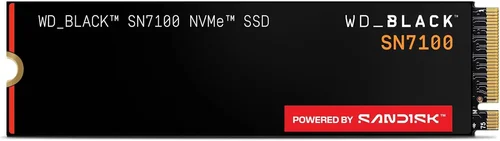
– M.2 NVMe SSDs: These compact, stick-like drives plug directly into the motherboard and offer much higher speeds. They come in lengths like 2280 (80mm), 2260, and 2242, with 2280 being the standard for most modern systems.
– mSATA and M.2 SATA: Older or niche form factors found in some ultrabooks or mini PCs. Rarely used in new builds.
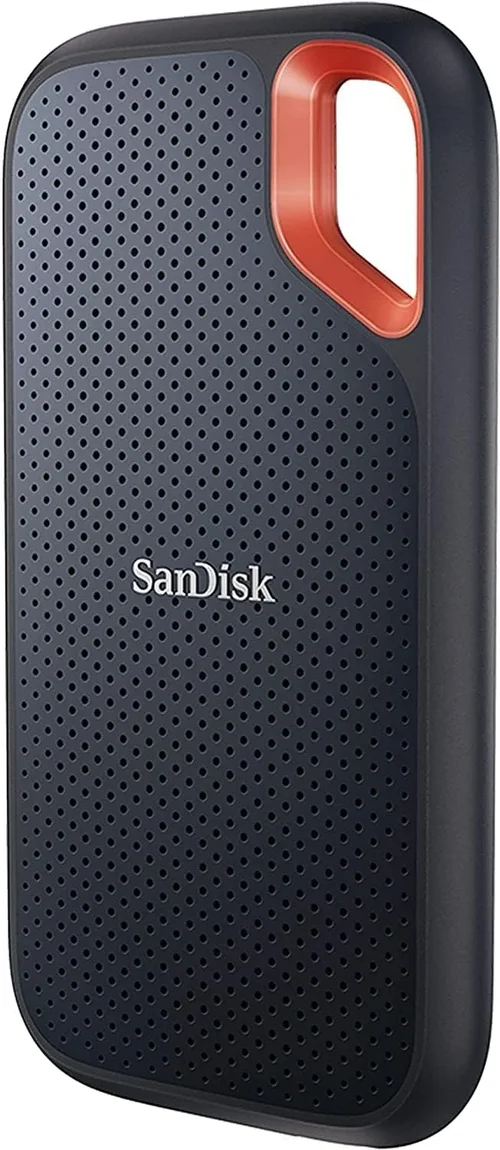
– External SSDs: Portable drives connected via USB-C or Thunderbolt. Great for backups, media storage, or transferring files between devices.
Portability is key if you travel frequently or work across multiple machines. External SSDs like the Samsung T7 or SanDisk Extreme Pro offer rugged designs, fast transfer speeds, and compact sizes perfect for on-the-go use.
8. User Reviews & Ratings
Never rely solely on manufacturer specs. Real-world user reviews provide invaluable insights into long-term reliability, real-world performance, and potential issues not covered in marketing materials.
Look for patterns in reviews—do multiple users report the same problem, like overheating or sudden failure? Are firmware updates frequent and effective? Do users praise the included software or complain about bloatware?
Trusted review sites like Tom’s Hardware, AnandTech, and PCMag conduct rigorous testing and often highlight nuances that casual buyers miss. Cross-reference professional reviews with customer feedback on retail sites like Amazon or Newegg to get a balanced perspective.
Different Types of Buying Guide

Common Buying Mistakes to Avoid
❌ Mistake: Ignoring Your System’s Compatibility
Why it’s bad: Buying a PCIe Gen 4 SSD for a motherboard that only supports Gen 3 is a waste of money—you won’t see any speed benefits. Similarly, installing an M.2 drive in a laptop that only accepts 2.5-inch drives will result in frustration and returns.
What to do instead: Check your device’s manual or manufacturer website to confirm supported interfaces, form factors, and maximum capacities. Use tools like CPU-Z or Speccy to identify your motherboard model and available slots.
❌ Mistake: Choosing Capacity Over Endurance
Why it’s bad: A 2TB QLC SSD might seem like a great deal, but if it has a low TBW rating and no DRAM cache, it could slow down dramatically under heavy use or fail prematurely.
What to do instead: Prioritize drives with TLC NAND and a TBW rating of at least 600TB for 1TB models. If you need large capacity, consider two smaller high-endurance drives instead of one large low-endurance one.
❌ Mistake: Overpaying for Marginal Gains
Why it’s bad: Spending $300 on a PCIe Gen 5 SSD when your workflow doesn’t benefit from 14,000 MB/s speeds is unnecessary. Most users won’t notice the difference between Gen 3 and Gen 4 in daily tasks.
What to do instead: Match your SSD choice to your actual usage. Gamers and office workers rarely need more than Gen 3 or Gen 4. Save money for other upgrades like RAM or GPU.
❌ Mistake: Skipping Firmware Updates
Why it’s bad: Outdated firmware can cause performance drops, compatibility issues, or even data corruption. Many users never update their SSD firmware, leaving them vulnerable.
What to do instead: Download the manufacturer’s utility software and check for firmware updates regularly. Most brands release updates to improve stability, fix bugs, and enhance performance.
❌ Mistake: Neglecting Thermal Management
Why it’s bad: High-speed NVMe drives generate significant heat, especially Gen 4 and Gen 5 models. Without proper cooling, they throttle performance to prevent damage, negating their speed advantage.
What to do instead: Use a heatsink if your case or motherboard supports it. For laptops, ensure adequate airflow. Consider drives with built-in thermal sensors or throttling protection.
❌ Mistake: Buying Based Solely on Price
Why it’s bad: The cheapest SSD often uses inferior components, lacks warranty support, and may fail within months. Data loss is far more costly than a slightly higher upfront price.
What to do instead: Focus on value—price relative to performance, endurance, and reliability. A $100 SSD from a trusted brand is usually a better investment than a $60 no-name drive.
❌ Mistake: Forgetting About Backup Strategy
Why it’s bad: SSDs can fail suddenly without warning, unlike HDDs that often show signs of degradation. Relying solely on your primary SSD for storage is risky.
What to do instead: Implement a 3-2-1 backup strategy: three copies of your data, on two different media, with one offsite (e.g., cloud storage). Use external SSDs or NAS systems for redundancy.
Budget Guidelines: How Much Should You Spend?
– Entry-Level ($30 – $70): Ideal for basic upgrades or secondary storage. Expect SATA or low-end NVMe drives with 500GB–1TB capacity, modest speeds (up to 3,500 MB/s), and 3-year warranties. Great for older systems or light usage.
– Mid-Range ($70 – $150): The sweet spot for most buyers. These drives offer 1TB–2TB capacity, PCIe Gen 3 or Gen 4 speeds, TLC NAND, DRAM cache, and 5-year warranties. Perfect for gaming, productivity, and general computing.
– Premium ($150 – $300): For enthusiasts and professionals. Look for high-end Gen 4 or early Gen 5 drives with 2TB+ capacity, advanced thermal management, power loss protection, and robust software suites. Ideal for video editing, 3D rendering, and high-performance builds.
– Luxury ($300+): Top-tier options with cutting-edge specs, enterprise-grade features, and maximum endurance. These are overkill for most users but justified for mission-critical workstations, servers, or extreme workloads.
Expert Tips for Getting the Best Deal
– Buy During Sales Cycles: Major retailers and manufacturers offer deep discounts during holidays and shopping events. Sign up for newsletters to get early alerts.
– Compare Prices Across Retailers: Use price tracking tools like CamelCamelCamel (for Amazon) or Honey to find historical lows and apply coupons automatically.
– Check Refurbished or Open-Box Options: Certified refurbished SSDs from reputable sellers often come with full warranties and cost 20–40% less than new units.
– Prioritize Warranty Length Over Flashy Features: A longer warranty usually indicates higher build quality. Don’t be swayed by RGB lighting or fancy packaging.
– Read Return Policies Carefully: Some retailers charge restocking fees or only accept returns within 14 days. Choose stores with flexible return windows.
– Test New Drives Immediately: Use tools like CrystalDiskInfo or HD Tune to verify health, speed, and SMART status right after installation.
– Consider Bundled Deals: Some retailers offer SSDs bundled with enclosures, cloning software, or cloud storage—great value if you need those extras.
– Avoid “Too Good to Be True” Deals: If a 4TB NVMe SSD is selling for $99, it’s likely counterfeit or defective. Stick to authorized retailers.
Frequently Asked Questions
Q: Can I use an SSD in an old computer?
A: Yes! Most older systems support 2.5-inch SATA SSDs, which are drop-in replacements for traditional HDDs. You’ll see dramatic improvements in boot time and application loading even on decade-old hardware.
Q: Do I need a heatsink for my NVMe SSD?
A: It depends. If your case has good airflow or your motherboard includes a built-in M.2 heatsink, you may not need one. However, for Gen 4/Gen 5 drives under heavy load, a heatsink helps prevent thermal throttling and maintains peak performance.
Q: How long do SSDs last?
A: Under normal use, most modern SSDs last 5–10 years. The TBW rating gives a good estimate—divide it by your daily write volume to get approximate lifespan. For example, a 600 TBW drive with 50GB daily writes lasts about 33 years.
Q: Is DRAM cache necessary?
A: Highly recommended. DRAM-less SSDs use system memory (HMB) as a buffer, which works but leads to inconsistent performance during large transfers. Drives with dedicated DRAM offer smoother, more reliable operation.
Q: Can I clone my old hard drive to an SSD?
A: Absolutely. Use cloning software like Macrium Reflect, Acronis True Image, or the manufacturer’s own tool to copy your OS, apps, and files seamlessly.
Q: Are external SSDs as fast as internal ones?
A: Not always. USB 3.2 Gen 2×2 or Thunderbolt 3/4 external drives can match internal Gen 3 speeds (up to 2,000 MB/s), but most USB 3.0/3.1 models cap out around 500–600 MB/s.
Q: Should I enable TRIM?
A: Yes! TRIM helps maintain SSD performance by clearing unused data blocks. It’s usually enabled by default in Windows, macOS, and Linux, but you can verify it in disk management tools.
Q: What’s the difference between NVMe and SATA?
A: NVMe uses the PCIe interface for much higher bandwidth, while SATA is limited to ~550 MB/s. NVMe is faster but requires an M.2 or U.2 slot. SATA is slower but universally compatible.
Q: Can I use multiple SSDs in RAID?
A: Yes, but it’s rarely necessary for consumers. RAID 0 can boost speed but increases failure risk. RAID 1 provides redundancy but halves usable capacity. Most users are better off with a single large, reliable SSD.
Q: Do SSDs need defragmentation?
A: No—and defragmenting an SSD can actually reduce its lifespan. Modern operating systems automatically disable defrag for SSDs and use TRIM instead for optimization.
Our Final Recommendations
– Best for Budget-Conscious Buyers: Crucial P3 1TB NVMe PCIe Gen 3 – Excellent value at under $60, reliable TLC NAND, 5-year warranty, and solid performance for everyday use.
– Best Overall Value: Samsung 980 Pro 1TB PCIe Gen 4 – Consistently top-rated for speed, endurance, and software support. Ideal for gamers and creators who want proven performance without breaking the bank.
– Best Premium Option: Western Digital Black SN850X 2TB PCIe Gen 4 – Blazing-fast speeds (7,300 MB/s), built-in heatsink, excellent thermal management, andWD’s reliable dashboard software.
– Best for Beginners: Kingston NV2 1TB NVMe Gen 3 – Simple installation, no-frills design, great for first-time upgraders. Includes cloning software and a 5-year warranty.
– Best for Advanced Users: Sabrent Rocket 4 Plus-G 4TB PCIe Gen 4 – Massive capacity, extreme speeds (7,400 MB/s), and support for the latest technologies. Perfect for workstations and high-end builds.
Conclusion: Making the Right Choice
Choosing the best SSD drive in 2026 doesn’t have to be complicated—but it does require thoughtful consideration of your specific needs, budget, and system capabilities. From understanding performance specs and NAND types to avoiding common pitfalls and leveraging expert tips, this guide has equipped you with everything necessary to make a smart, confident purchase.
Remember, the “best” SSD isn’t always the fastest or most expensive—it’s the one that aligns perfectly with your use case. Whether you’re upgrading a aging laptop, building a dream gaming rig, or safeguarding precious creative projects, there’s an SSD out there that’s right for you. Prioritize reliability, compatibility, and long-term value over flashy specs or bargain-bin deals.
Now that you’re armed with expert knowledge, take the next step: assess your current setup, define your priorities, and invest in storage that will serve you well for years to come. Your future self—and your faster, smoother, more responsive system—will thank you.