

External NVMe SSDs have become essential tools for Mac users who need fast, reliable, and portable storage. Whether you’re a creative professional editing 4K video, a developer compiling large codebases, or a student backing up academic projects, the right external NVMe SSD can dramatically improve your workflow. However, with macOS’s unique file system requirements and Apple’s tight hardware integration, choosing the best format and drive isn’t as simple as picking the fastest or cheapest option. Many users unknowingly format their drives incorrectly, leading to compatibility issues, reduced performance, or even data loss.
This comprehensive guide is designed to help you navigate the complex landscape of external NVMe SSDs under macOS in 2026. You’ll learn not only which drives perform best but also how to format them correctly for optimal speed, compatibility, and longevity. We’ll cover everything from file system choices (APFS vs. exFAT vs. HFS+) to real-world performance benchmarks, budget considerations, and expert tips for avoiding common pitfalls. Whether you’re using a MacBook Air, MacBook Pro, or Mac Studio, this guide will empower you to make an informed decision that aligns with your specific needs.
The market for external NVMe SSDs has exploded in recent years, with dozens of brands offering drives that promise blazing-fast speeds and rugged durability. From compact USB-C enclosures to high-end Thunderbolt 4 models, the options are overwhelming. But not all drives are created equal—especially when it comes to macOS compatibility. Some drives perform poorly due to poor controller choices, while others fail outright because they’re formatted with the wrong file system. Our goal is to cut through the marketing noise and give you actionable, expert-level advice so you can invest in a drive that truly enhances your Mac experience.

What to Look for When Buying Buying Guide
1. File System Compatibility
The most critical factor when choosing an external NVMe SSD for macOS is the file system it uses. macOS supports several file systems, but not all are ideal for external drives. APFS (Apple File System) is the native and recommended format for modern macOS versions (macOS High Sierra and later). It offers superior performance, encryption support, and features like snapshots and cloning. However, APFS is only fully compatible with macOS—Windows and Linux systems cannot read APFS-formatted drives without third-party software.
exFAT is a cross-platform alternative that works seamlessly with both macOS and Windows. It’s ideal if you frequently transfer files between Mac and PC. The downside? exFAT lacks advanced features like journaling and encryption, making it less reliable for long-term storage. HFS+ (Mac OS Extended) is older but still supported. It’s a good choice if you’re using older macOS versions or need Time Machine compatibility, though it’s being phased out in favor of APFS.
Always format your drive before use. Never assume it comes pre-formatted correctly. Use Disk Utility on macOS to reformat the drive to your desired file system. For most users, APFS is the best choice unless cross-platform compatibility is required.
2. Interface & Connection Type
The connection interface determines how fast data can travel between your Mac and the SSD. USB 3.2 Gen 2 (10 Gbps) is common and offers solid performance for everyday tasks. USB 3.2 Gen 2×2 (20 Gbps) doubles that speed, making it ideal for large file transfers. However, the gold standard for external NVMe SSDs is Thunderbolt 3 or Thunderbolt 4 (40 Gbps), which delivers near-internal SSD speeds and supports daisy-chaining multiple devices.
Thunderbolt drives are more expensive but worth it for professionals working with 4K/8K video, large datasets, or virtual machines. USB-C is the physical connector for both USB and Thunderbolt, so always check the specifications to confirm which protocol is supported. A USB-C port labeled “Thunderbolt” will deliver significantly better performance than one labeled “USB 3.2.”
Compatibility matters too. Older Macs may not support Thunderbolt 3/4, so verify your Mac model’s capabilities before investing in a high-speed drive. For example, MacBook Pros from 2016 onward support Thunderbolt 3, while M1/M2/M3 Macs support Thunderbolt 4.
3. Performance Specifications
Speed is often the first thing users look at, but it’s important to understand what those numbers mean. Sequential read/write speeds (measured in MB/s or GB/s) indicate how quickly large files can be transferred. For example, a drive rated at 2,800 MB/s read and 2,500 MB/s write will handle video editing or large backups much faster than one capped at 1,000 MB/s.
Random 4K read/write performance is equally important for tasks like booting applications, loading games, or running databases. This measures how well the drive handles many small files at once. Look for drives with high IOPS (Input/Output Operations Per Second) ratings—ideally above 500,000 IOPS for professional workloads.
Real-world performance can differ from manufacturer claims. Always check independent benchmarks from trusted sources like Tom’s Hardware, AnandTech, or Mac-specific reviewers. Thermal throttling is another concern: some drives slow down under sustained load due to overheating. Look for models with built-in heat sinks or active cooling if you plan to use the drive intensively.
4. Build Quality & Durability
External SSDs are often carried in bags, used on location, or exposed to varying environments. Build quality directly impacts longevity. Look for drives with aluminum or magnesium alloy casings, which dissipate heat better and resist drops. Rubberized coatings can add grip and shock absorption.
IP ratings indicate resistance to dust and water. While most consumer drives aren’t fully rugged, some offer IP55 or IP67 ratings—meaning they can withstand light rain or brief submersion. These are ideal for photographers, videographers, or travelers. Avoid plastic enclosures unless they’re specifically designed for durability.
Internal components matter too. High-quality NAND flash (preferably TLC or MLC over QLC) and reliable controllers (like those from Phison or Silicon Motion) ensure consistent performance and longer lifespan. Cheaper drives may use lower-grade components that degrade faster under heavy use.
5. Capacity & Scalability
Storage needs vary widely. A 500GB drive may suffice for casual users, but professionals often require 2TB or more. Consider future-proofing: a 1TB drive might feel spacious today but could fill up quickly with 4K video projects or software development environments.
Larger capacities often come with better performance due to more NAND chips and parallel processing. For example, a 2TB drive may sustain higher write speeds than a 500GB version of the same model. However, larger drives are more expensive per gigabyte at the high end (4TB+).
Scalability is another factor. Some enclosures allow you to swap out the NVMe SSD, letting you upgrade capacity or replace a failed drive. This is cost-effective and eco-friendly. Pre-built external SSDs are sealed and non-upgradeable, so choose wisely based on your long-term needs.
6. Brand Reputation & Reliability
Not all brands are equal. Established names like Samsung, SanDisk, WD Black, Sabrent, and OWC have proven track records for quality and reliability. They invest in R&D, use high-grade components, and offer better firmware support. Lesser-known brands may offer tempting prices but often cut corners on controllers, NAND, or thermal management.
Check user reviews on Amazon, B&H, or MacRumors forums. Look for patterns: if multiple users report failures within a year, avoid that model. Also, consider brand ecosystem integration. For example, Samsung’s Magician software provides detailed health monitoring, while OWC drives are optimized for Mac workflows.
Reliability isn’t just about hardware—it’s also about software. Some brands include backup utilities, encryption tools, or cloning software. These can save time and enhance security, especially for business users.
7. Warranty & Support
A good warranty reflects confidence in product quality. Most reputable brands offer 3- to 5-year limited warranties. Some, like Samsung and OWC, provide up to 5 years with registration. Longer warranties often correlate with higher endurance ratings (measured in TBW—Terabytes Written).
Customer support matters too. Can you get help quickly if your drive fails? Look for brands with responsive support teams, detailed FAQs, and repair services. Avoid brands that only offer email support with slow response times.
Warranty terms vary. Some cover only manufacturing defects, while others include accidental damage. Read the fine print. Also, note that modifying the drive (e.g., opening the enclosure) may void the warranty.
8. Portability & Design
Size and weight affect usability. Compact drives (under 100g) fit easily in pockets or laptop bags. Larger drives with built-in cooling may be heavier but offer better sustained performance. Consider your use case: a photographer on location needs something lightweight, while a video editor in a studio might prioritize speed over portability.
Cable management is often overlooked. Some drives include retractable cables or magnetic attachments. Others require separate cables, which can get lost. Integrated cables reduce clutter but may wear out over time.
Aesthetics matter to some users. Aluminum finishes, LED indicators, and minimalist designs appeal to Mac users who value sleekness. However, don’t sacrifice functionality for looks—always prioritize performance and durability.
Different Types of Buying Guide

Common Buying Mistakes to Avoid
❌ Mistake: Using the Wrong File System
Why it’s bad: Formatting your drive as NTFS (Windows default) or FAT32 will severely limit functionality on macOS. NTFS is read-only without third-party tools, and FAT32 has a 4GB file size limit—useless for modern video files.
What to do instead: Always format your drive using macOS Disk Utility. Choose APFS for Mac-only use or exFAT for cross-platform compatibility. Never rely on the factory format.
❌ Mistake: Ignoring Thermal Throttling
Why it’s bad: Many external SSDs slow down dramatically under sustained load because they overheat. This defeats the purpose of buying a high-speed drive.
What to do instead: Look for drives with aluminum casings, heat sinks, or active cooling. Test performance with large file transfers before committing to a model.
❌ Mistake: Buying Based on Price Alone
Why it’s bad: The cheapest drives often use low-quality NAND and controllers, leading to early failure or poor performance.
What to do instead: Balance cost with reviews, warranty, and brand reputation. A $200 drive that lasts 5 years is better value than a $100 drive that fails in 6 months.
❌ Mistake: Overlooking Interface Compatibility
Why it’s bad: Buying a Thunderbolt 4 drive for a Mac that only supports USB 3.0 means you’re paying for performance you can’t use.
What to do instead: Check your Mac’s specifications. Use Apple’s “About This Mac” > “System Report” to confirm supported interfaces.
❌ Mistake: Skipping Warranty Registration
Why it’s bad: Many warranties require registration within 30 days. Missing this step leaves you unprotected.
What to do instead: Register your drive immediately after purchase. Keep the receipt and packaging in case of returns.
❌ Mistake: Not Testing Before Heavy Use
Why it’s bad: A drive might work fine for small files but fail under stress. Using it for critical projects without testing risks data loss.
What to do instead: Run a full speed test and large file transfer before relying on the drive for important work. Use tools like Blackmagic Disk Speed Test or AmorphousDiskMark.
Budget Guidelines: How Much Should You Spend?
- Entry-Level ($80–$150): Ideal for students or casual users. Expect USB 3.2 Gen 2 speeds (up to 1,050 MB/s), basic build quality, and 500GB–1TB capacity. Brands like SanDisk Extreme and Samsung T7 are reliable choices. Avoid no-name brands in this range.
- Mid-Range ($150–$300): The sweet spot for most users. Look for USB 3.2 Gen 2×2 or Thunderbolt 3 support, better heat dissipation, and 1TB–2TB capacities. Drives like the WD Black P50 or Sabrent Rocket XTRM-Q offer excellent performance and durability.
- Premium ($300–$500): For professionals and power users. Thunderbolt 4 drives with sustained speeds over 2,800 MB/s, rugged designs, and 2TB+ storage. Models like the OWC Envoy Pro FX or Samsung X5 deliver near-internal SSD performance.
- Luxury ($500+): Top-tier options with 4TB+ capacity, enterprise-grade components, and advanced features like hardware encryption or RAID support. These are overkill for most users but ideal for studios or data-intensive workflows.
Expert Tips for Getting the Best Deal
- Buy during sales cycles: Major retailers offer deep discounts on external SSDs during holidays and back-to-school seasons. Sign up for newsletters to get early alerts.
- Check refurbished options: Apple Certified Refurbished and manufacturer-refurbished drives often come with full warranties at 20–40% off retail price.
- Compare total cost of ownership: Include warranty length, included software, and upgradeability. A slightly more expensive drive with a 5-year warranty may be cheaper long-term.
- Use price tracking tools: Websites like CamelCamelCamel (for Amazon) or Honey track price history and alert you when a drive drops to its lowest price.
- Test before returning: Most retailers offer 14–30 day return windows. Use this time to verify performance and compatibility with your Mac.
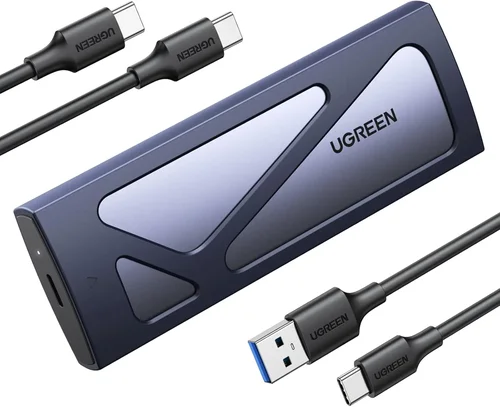
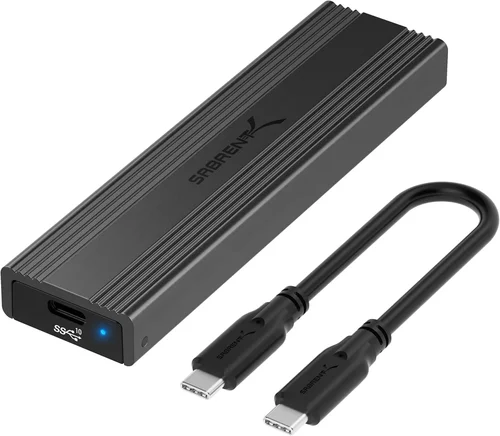
- Consider enclosures for future upgrades: Buying a high-quality USB-C or Thunderbolt enclosure lets you swap in faster or larger NVMe SSDs later, saving money over time.
- Read Mac-specific reviews: General tech sites may not test macOS compatibility thoroughly. Look for reviews on MacRumors, 9to5Mac, or YouTube channels focused on Apple hardware.

Frequently Asked Questions
Q: Can I use an external NVMe SSD as a boot drive on macOS?
A: Yes, but only if it’s formatted as APFS and connected via Thunderbolt or USB 3.2 Gen 2. You can install macOS on the drive and boot from it by holding Option during startup. However, performance may vary, and some features like FileVault may require additional setup.
Q: Will a Windows-formatted NVMe SSD work on my Mac?
A: Only if it’s formatted as exFAT or FAT32. NTFS drives are read-only on macOS without third-party software like Paragon NTFS or Tuxera. Always reformat for best results.
Q: Do I need Thunderbolt for fast speeds?
A: Not necessarily. USB 3.2 Gen 2×2 offers 20 Gbps—fast enough for most users. Thunderbolt 4 (40 Gbps) is better for 4K/8K video editing or running virtual machines, but it’s more expensive and requires compatible hardware.
Q: How do I format my external NVMe SSD on macOS?
A: Open Disk Utility, select the drive, click “Erase,” choose APFS (for Mac-only) or exFAT (for cross-platform), and click “Erase.” Always back up data first—formatting erases everything.
Q: Can I use an external SSD for Time Machine backups?
A: Yes, but it must be formatted as APFS or HFS+. exFAT is not supported for Time Machine. Ensure the drive has enough capacity (at least twice your internal storage).
Q: Why is my external SSD slower than advertised?
A: Common causes include thermal throttling, USB hub usage, outdated cables, or file system overhead. Use a direct USB-C or Thunderbolt port, high-quality cables, and test with large files to get accurate speeds.
Q: Are external NVMe SSDs reliable for long-term storage?
A: Yes, if properly maintained. Avoid extreme temperatures, use safely eject, and keep the drive powered off when not in use. For archival storage, consider copying data to multiple drives or cloud services.
Q: Can I daisy-chain multiple Thunderbolt SSDs?
A: Yes, Thunderbolt 3 and 4 support daisy-chaining up to six devices. This is useful for expanding storage without using multiple ports. Ensure your Mac supports Thunderbolt and use certified cables.
Our Final Recommendations
- Best for Budget-Conscious Buyers: Samsung T7 Shield (1TB) – Rugged, USB 3.2 Gen 2, IP65-rated, and consistently reliable. Great for students and travelers.
- Best Overall Value: SanDisk Extreme Pro (2TB) – USB 3.2 Gen 2×2, 2,000 MB/s speeds, aluminum casing, and excellent software suite. Perfect balance of price and performance.
- Best Premium Option: OWC Envoy Pro FX (2TB) – Thunderbolt 3, 2,800 MB/s sustained speeds, machined aluminum, and macOS-optimized firmware. Ideal for professionals.
- Best for Beginners: WD My Passport SSD (1TB) – Simple setup, compact design, and solid performance. Comes pre-formatted for Mac and includes backup software.
- Best for Advanced Users: Sabrent Rocket XTRM-Q (4TB) – Thunderbolt 3, upgradeable design, and enterprise-grade NAND. Perfect for developers and power users who want flexibility.
Conclusion: Making the Right Choice
Choosing the best external NVMe SSD for macOS in 2026 isn’t just about speed or price—it’s about understanding how the drive integrates with your workflow, file system needs, and long-term goals. From selecting the right format (APFS for Mac-only, exFAT for cross-platform) to avoiding thermal throttling and compatibility pitfalls, every decision impacts performance and reliability.
Prioritize your use case. If you’re editing video, invest in Thunderbolt 4. If you’re a student, a USB 3.2 Gen 2 drive with rugged design may suffice. Always test before relying on the drive for critical tasks, and don’t overlook warranty and support.
Remember, the best drive is the one that fits your needs, budget, and future plans. Use this guide to compare options, avoid common mistakes, and make a confident purchase. Your data deserves the best protection and performance—choose wisely, and your Mac will thank you.