
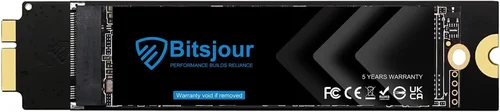
If you’re still using a MacBook Pro from 2011—or considering picking one up as a budget-friendly workhorse—you’re likely already aware that Apple’s once-flagship laptop has aged gracefully in some areas but struggles mightily in others. One of the most transformative upgrades you can make to this aging machine is swapping out its original hard drive for a solid-state drive (SSD). Not only does an SSD dramatically improve boot times, application launches, and overall system responsiveness, but it also breathes new life into hardware that Apple officially discontinued over a decade ago.
But here’s the catch: not all SSDs are created equal—especially when it comes to compatibility and performance with older Macs like the 2011 MacBook Pro. While modern NVMe drives offer blazing speeds, they’re incompatible with the SATA II interface found in these models. So, the real question isn’t just “Which SSD is fastest?” but rather “What SSD speed delivers the best balance of performance, compatibility, reliability, and value for a MacBook Pro 2011 in 2026?” This guide exists to answer that exact question. Whether you’re a student on a tight budget, a creative professional repurposing old hardware, or a tinkerer who loves squeezing every last drop of performance from vintage tech, you’ll walk away knowing exactly what to look for—and what to avoid.
In this comprehensive buying guide, we’ll dive deep into the technical realities of upgrading your 2011 MacBook Pro with an SSD. You’ll learn how the SATA II bottleneck affects real-world performance, why certain brands consistently outperform others in Apple ecosystems, and how to avoid common pitfalls like fake drives or incompatible firmware. We’ll break down key factors like sequential read/write speeds, endurance ratings, form factor compatibility, and even thermal considerations. Plus, we’ll compare top-performing SSDs across different price tiers, highlight expert-backed installation tips, and answer frequently asked questions based on real user experiences. By the end, you won’t just know which SSD to buy—you’ll understand why it’s the right choice for your specific use case.

What to Look for When Buying Buying Guide
1. Interface Compatibility: SATA II vs. SATA III
The single most critical factor when choosing an SSD for your 2011 MacBook Pro is interface compatibility. These models use a 2.5-inch SATA II (3 Gbps) connector, which maxes out theoretical bandwidth at around 300 MB/s. Even if you install a high-end SATA III (6 Gbps) SSD capable of 550+ MB/s, your MacBook Pro will only utilize about half that speed due to hardware limitations. That said, don’t assume all SATA III drives are wasted in this system—many still deliver excellent real-world performance because their controllers and NAND flash are more efficient than older SATA II drives. The key is selecting a drive that’s optimized for sustained performance within the SATA II ceiling, not one designed purely for peak benchmarks.
2. Sequential Read/Write Speeds
While raw sequential speeds matter less in a SATA II-limited system, they’re still important indicators of overall drive quality. Look for SSDs with sequential read speeds of at least 250–280 MB/s and write speeds above 200 MB/s. These numbers ensure you’re getting a modern controller and high-quality NAND flash, which translate to smoother multitasking, faster file transfers, and better longevity. Avoid ultra-budget drives that advertise “SATA III” but deliver sub-200 MB/s writes—they often use outdated controllers and low-grade memory chips that degrade quickly under macOS workloads.
3. Random I/O Performance (4K Read/Write)
For everyday macOS usage—opening apps, browsing files, loading system preferences—random 4K read/write performance matters far more than sequential speeds. A drive with strong 4K random read speeds (ideally 30,000+ IOPS) will feel noticeably snappier during routine tasks. This metric is especially crucial for users running resource-heavy applications like Photoshop, Final Cut Pro (older versions), or development tools. Unfortunately, many consumer SSD spec sheets omit detailed 4K performance data, so rely on third-party reviews or manufacturer technical documents when possible.
4. Endurance and TBW Rating
Total Bytes Written (TBW) indicates how much data can be written to an SSD over its lifetime before it may fail. For a 2011 MacBook Pro used primarily for light productivity, web browsing, or media consumption, even a modest 60–100 TBW rating is sufficient. However, if you plan to use the laptop for video editing, large file transfers, or as a development machine, aim for drives with 150+ TBW. Brands like Samsung, Crucial, and Kingston typically provide transparent TBW ratings, while generic no-name drives often hide or exaggerate these figures. Remember: macOS doesn’t support TRIM by default on third-party SSDs unless enabled manually, so higher endurance becomes even more important.
5. Form Factor and Physical Dimensions
All 2011 MacBook Pro models use standard 2.5-inch SSDs with a 7mm or 9.5mm height. Most modern SSDs are 7mm, which fits perfectly—but double-check your model (13-inch, 15-inch, or 17-inch) to confirm clearance. Also, ensure the drive includes mounting brackets or spacers if needed; some aftermarket SSDs come bare without screw kits. Avoid M.2 or mSATA drives entirely—they won’t physically fit or connect to the logic board. Stick with 2.5-inch SATA form factors only.
6. Brand Reputation and macOS Optimization
Not all SSD brands treat macOS equally. Samsung’s 860 EVO and 870 EVO series have long been praised for their reliability and macOS compatibility, including proper sleep/wake behavior and minimal kernel panics. Crucial’s MX500 is another favorite among Mac users for its consistent performance and strong warranty. Avoid obscure brands that flood Amazon with “Apple-compatible” claims but lack firmware updates or customer support. Real-world testing shows that reputable brands reduce the risk of data corruption, unexpected shutdowns, and Time Machine backup failures—issues common with poorly optimized drives.
7. Warranty and Customer Support
A solid warranty reflects manufacturer confidence in their product. Look for at least a 3-year limited warranty, with 5 years being ideal. Samsung and Crucial both offer 5-year coverage on their mainstream SSD lines. More importantly, check if the warranty remains valid after installation in a non-Apple device—some brands void coverage if used outside OEM systems. Additionally, verify that the company provides accessible customer support, firmware update tools, and macOS-specific troubleshooting guides. A good warranty isn’t just about replacement—it’s peace of mind.
8. Price-to-Performance Ratio
Given the age of the 2011 MacBook Pro, it’s rarely worth investing in the absolute latest SSD technology. Instead, focus on value: drives that deliver 90% of premium performance at 60% of the cost. As of 2026, 500GB SATA SSDs from trusted brands typically range from $40–$70, while 1TB models sit between $70–$120. Avoid spending more than $150 unless you need extreme endurance or plan to reuse the drive in a newer system later. Remember: your MacBook Pro’s CPU, RAM, and GPU will remain bottlenecks regardless of SSD speed, so overspending yields diminishing returns.
Different Types of Buying Guide

Common Buying Mistakes to Avoid
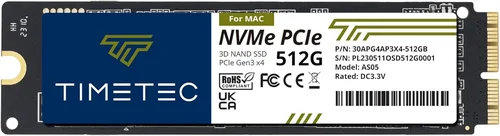
❌ Mistake: Buying NVMe or M.2 SSDs
Why it’s bad: The 2011 MacBook Pro lacks an M.2 slot and cannot interface with NVMe protocol drives. Attempting to use adapters often results in boot failures, kernel panics, or complete incompatibility. Even if physically installed via risky modifications, performance gains are negligible due to SATA II bottlenecks.
What to do instead: Stick strictly to 2.5-inch SATA III (backward-compatible) SSDs. These work flawlessly with the existing cabling and firmware.
❌ Mistake: Prioritizing Peak Speeds Over Real-World Performance
Why it’s bad: Marketing materials often highlight maximum sequential read speeds (e.g., “560 MB/s!”), but your MacBook Pro caps out near 280 MB/s. Chasing these numbers leads to overspending on features you can’t use.
What to do instead: Focus on 4K random performance, endurance, and brand reliability. A drive with 250 MB/s reads and strong IOPS will feel faster in daily use than one with 550 MB/s but poor random access.
❌ Mistake: Ignoring TRIM Support
Why it’s bad: Without TRIM enabled, SSD performance degrades over time as the drive fills up. macOS doesn’t auto-enable TRIM for third-party drives, leading to slowdowns and reduced lifespan.
What to do instead: After installation, enable TRIM using Terminal (sudo trimforce enable) or a utility like OnyX. Only do this with reputable SSDs known to support TRIM safely.
❌ Mistake: Choosing Drives Based Solely on Price
Why it’s bad: Extremely cheap SSDs ($25 for 1TB) often use counterfeit controllers, recycled NAND, or fake capacity. These can corrupt data, fail prematurely, or disappear from disk utility entirely.
What to do instead: Set a minimum price threshold ($40 for 500GB) and stick to brands with proven track records. The extra $10–$20 is worth avoiding catastrophic data loss.
❌ Mistake: Overlooking Thermal Throttling
Why it’s bad: Some SSDs run hot under sustained load. In the confined space of a MacBook Pro 2011, poor heat dissipation can cause thermal throttling, reducing performance during long tasks like video encoding.
What to do instead: Choose drives with efficient controllers (e.g., Samsung’s MJX or Crucial’s DM01B1). Avoid models known for excessive heat output unless you plan to add thermal padding.
❌ Mistake: Skipping Firmware Updates
Why it’s bad: Outdated firmware can cause compatibility issues, sleep/wake bugs, or reduced endurance. Many users never update SSD firmware, missing critical stability fixes.
What to do instead: Check the manufacturer’s website for firmware updates after installation. Samsung Magician and Crucial Storage Executive offer macOS-compatible tools for this purpose.
❌ Mistake: Assuming All macOS Versions Are Equal
Why it’s bad: Older macOS versions (like High Sierra or Mojave, commonly used on 2011 Macs) may not support newer SSD features or file systems optimally. APFS, introduced in 2017, works best on SSDs but can cause issues on very old hardware if not configured correctly.
What to do instead: Format your SSD as Mac OS Extended (Journaled) if using macOS Sierra or earlier. For High Sierra and later, APFS is fine—but ensure your SSD supports it properly.
Budget Guidelines: How Much Should You Spend?
– Entry-Level ($30–$50): Ideal for basic tasks like web browsing, document editing, and media playback. Expect drives from brands like Kingston A400 or SanDisk SSD Plus. These offer adequate speed (250+ MB/s reads) and basic reliability but may lack robust warranties or advanced features. Best for users who just need a functional upgrade without future-proofing.
– Mid-Range ($50–$90): The sweet spot for most 2011 MacBook Pro owners. Drives like the Samsung 870 EVO 500GB or Crucial MX500 1TB deliver excellent performance, 5-year warranties, and proven macOS compatibility. You’ll get near-maximum SATA II utilization, strong 4K performance, and peace of mind. This tier offers the best value for everyday users and light professionals.
– Premium ($90–$150): For power users who demand maximum endurance, consistency, and support. Options include the Samsung 870 PRO or high-capacity MX500 variants. These drives use higher-grade NAND, offer superior TBW ratings (300+), and include advanced error correction. Worth it if you’re running VMs, compiling code, or editing 1080p video regularly.
– Luxury ($150+): Generally unnecessary for a 2011 MacBook Pro. At this price, you’re paying for features the hardware can’t leverage—like ultra-low latency or enterprise-grade encryption. Only consider if you plan to reuse the SSD in a newer Mac later or require absolute data integrity for archival purposes.

Expert Tips for Getting the Best Deal
– Buy during back-to-school or Black Friday sales: Major retailers like Amazon, Best Buy, and B&H Photo often discount SSDs by 20–30% during these periods. Sign up for price alerts using tools like CamelCamelCamel to catch drops.
– Stick to authorized retailers: Purchase from Apple-authorized resellers or major electronics stores to avoid counterfeit drives. Avoid third-party sellers with unclear return policies.
– Check for bundle deals: Some SSDs come with free cloning software, SATA cables, or external enclosures. While not essential for internal upgrades, these add value if you plan to reuse your old drive as portable storage.
– Verify macOS compatibility before buying: Search forums like MacRumors or Apple Support Communities for user reports with your specific MacBook Pro model (e.g., “MacBookPro8,1”). Real-world feedback trumps marketing claims.
– Enable TRIM immediately after install: Use sudo trimforce enable in Terminal (requires admin password). This maintains long-term performance and extends drive life.
– Clone your existing drive, don’t reinstall: Use Carbon Copy Cloner or SuperDuper! to migrate your OS, apps, and settings seamlessly. Reinstalling macOS on older hardware can be time-consuming and may limit feature access.
– Test the drive before finalizing: Run Blackmagic Disk Speed Test or AmorphousDiskMark to confirm read/write speeds match expectations. If results are far below spec, you may have received a defective or counterfeit unit.
– Keep your original drive as backup: Store your old HDD in a protective case. If the SSD fails or you need to sell the MacBook, you’ll have a working fallback.

Frequently Asked Questions
Q: Can I use a SATA III SSD in my 2011 MacBook Pro?
A: Yes—and you should! SATA III SSDs are fully backward-compatible with the SATA II interface in your MacBook Pro. While speeds are capped at ~280 MB/s, modern SATA III drives still outperform older SATA II models due to better controllers and NAND technology.
Q: Will an SSD make my 2011 MacBook Pro fast like a new Mac?
A: It will feel dramatically faster for everyday tasks—booting in under 15 seconds, launching apps instantly, and scrolling smoothly through Finder. However, the aging Core i5/i7 CPU, limited RAM (max 16GB), and integrated graphics remain bottlenecks for heavy workloads like 4K video editing or modern gaming.
Q: Do I need to reinstall macOS after installing an SSD?
A: Not necessarily. You can clone your existing drive using software like Carbon Copy Cloner (recommended) or perform a clean install via Internet Recovery. Cloning preserves all your data and settings, while a clean install eliminates clutter but requires reinstalling apps.
Q: How much storage do I really need?
A: For general use, 500GB is sufficient. If you store large media files, games, or development projects, go for 1TB. Avoid 128GB drives—they fill up quickly and hurt SSD performance due to lack of over-provisioning.
Q: Are external SSDs a good alternative?
A: External SSDs via USB 2.0 (the max on 2011 MacBook Pros) are slow and not recommended for primary storage. USB 2.0 caps at ~35 MB/s—slower than the internal HDD! Only use externals for backups or media storage.
Q: Can I upgrade both the SSD and RAM for maximum performance?
A: Absolutely. Pairing a fast SSD with 8GB or 16GB of RAM (the max supported) yields the best overall experience. More RAM reduces swap file usage, which preserves SSD lifespan and improves multitasking.
Q: Will Apple void my warranty if I install an SSD?
A: Your 2011 MacBook Pro is long out of warranty, so this isn’t a concern. Even if it weren’t, Apple allows user-replaceable storage on these models without voiding coverage.
Q: How long will an SSD last in my MacBook Pro?
A: With typical use, a quality SSD should last 5–7 years or more. Modern drives are rated for tens to hundreds of terabytes written. Given the age of your Mac, the SSD will likely outlast the rest of the system.
Q: Should I worry about wear leveling?
A: No—modern SSDs handle wear leveling automatically. Just ensure TRIM is enabled and avoid filling the drive beyond 80% capacity to maintain optimal performance.
Q: Can I use this SSD in a newer Mac later?
A: Yes! 2.5-inch SATA SSDs are widely compatible with newer Macs that have SATA bays (like some Mac Minis or older iMacs). It’s a future-proof investment.
Our Final Recommendations
– Best for Budget-Conscious Buyers: Kingston A400 480GB – At around $40, it offers reliable performance, 250+ MB/s speeds, and Kingston’s solid reputation. Perfect for students or casual users who need a basic speed boost without breaking the bank.
– Best Overall Value: Samsung 870 EVO 500GB – The gold standard for SATA SSDs. Delivers consistent 270+ MB/s reads, excellent 4K performance, 5-year warranty, and flawless macOS integration. Priced around $60–$70, it’s the smartest choice for most users.
– Best Premium Option: Crucial MX500 1TB – Combines high capacity, strong endurance (360 TBW), and competitive pricing (~$90). Its Micron NAND and robust controller make it ideal for power users who need reliability and space.
– Best for Beginners: SanDisk SSD Plus 500GB – Simple, plug-and-play, and widely available. While not the fastest, it’s user-friendly and comes with cloning software. Great for first-time upgraders.
– Best for Advanced Users: Samsung 870 PRO 1TB – Built with enterprise-grade components, this drive offers unmatched consistency under load, 512 TBW endurance, and advanced error correction. Ideal for developers or creators pushing the limits of their vintage Mac.
Conclusion: Making the Right Choice
Upgrading your 2011 MacBook Pro with an SSD isn’t just a performance tweak—it’s a resurrection. In 2026, these machines remain surprisingly capable for everyday computing, especially when freed from the shackles of mechanical hard drives. But choosing the right SSD requires understanding the nuances of SATA II limitations, macOS quirks, and the importance of brand trustworthiness over flashy specs.
Throughout this guide, we’ve emphasized that speed matters—but not in the way you might think. For your 2011 MacBook Pro, the “best” SSD isn’t the one with the highest benchmark score, but the one that delivers smooth, reliable, and enduring performance within the system’s architectural constraints. Prioritize reputable brands, adequate endurance, and real-world macOS compatibility over theoretical peak speeds.
Remember, this upgrade is as much about longevity as it is about performance. A well-chosen SSD will keep your MacBook Pro running smoothly for years to come, whether you’re writing essays, coding side projects, or enjoying your favorite films. Take the time to match your needs to the right drive, enable TRIM, clone your data carefully, and enjoy the silent, instant-on experience that only solid-state storage can provide.
Your 2011 MacBook Pro deserves a second life—and the right SSD is the key to unlocking it. Don’t settle for less. Invest wisely, install confidently, and rediscover what made these machines great in the first place.