
Solid-state drives (SSDs) have revolutionized how we store and access data. Gone are the days of slow boot times, sluggish file transfers, and the constant whirring of mechanical hard drives. Today, whether you’re building a high-performance gaming rig, upgrading an aging laptop, or managing a professional workstation, choosing the right SSD is one of the most impactful decisions you can make for your system’s speed, reliability, and overall user experience.
This comprehensive buying guide is designed to cut through the noise and help you make a smart, informed decision. Whether you’re a first-time buyer or a seasoned tech enthusiast, you’ll learn exactly what to look for—from performance specs and form factors to endurance ratings and real-world reliability. We’ll break down the latest technologies, compare top brands, highlight common pitfalls, and deliver expert recommendations tailored to different budgets and use cases. By the end of this guide, you’ll not only know which SSD is best for your needs, but also why it matters.
The SSD market in 2026 is more dynamic than ever. With advancements in NAND flash technology, the rise of PCIe 5.0 interfaces, and increasing adoption of NVMe over SATA, consumers now have an overwhelming array of options. Prices have dropped significantly over the past few years, making high-capacity, high-speed storage more accessible than ever. Yet, with so many models, brands, and technical specifications to consider, it’s easy to get lost. This guide will equip you with the knowledge to navigate that complexity with confidence.

What to Look for When Buying Buying Guide
1. Budget & Price Range
Your budget is the starting point for any SSD purchase. SSDs vary dramatically in price depending on capacity, speed, and technology. As of 2026, you can find reliable 1TB SATA SSDs for under $60, while high-end 4TB NVMe Gen5 drives can exceed $500. Setting a realistic budget helps narrow your options and prevents overspending on features you don’t need.
For most users, a mid-range SSD offers the best balance of performance, capacity, and value. If you’re on a tight budget, don’t feel pressured to buy the cheapest option—look for drives with proven reliability and at least a 3-year warranty. Conversely, if you’re building a high-end workstation or gaming PC, investing in a premium drive with top-tier endurance and speed can future-proof your system.
2. Performance Specifications
Performance is often the most exciting—and confusing—aspect of SSD shopping. Key metrics include sequential read/write speeds, random IOPS (Input/Output Operations Per Second), and interface type. These specs determine how quickly your system boots, how fast games load, and how smoothly large files transfer.
Sequential speeds measure how fast large files (like videos or game installations) can be read from or written to the drive. For NVMe SSDs, this typically ranges from 3,500 MB/s (PCIe 3.0) to over 12,000 MB/s (PCIe 5.0). Random IOPS, on the other hand, reflect performance with small, scattered files—critical for multitasking and operating system responsiveness.
While raw speed numbers are impressive, real-world performance depends on your system’s capabilities. A PCIe 5.0 drive won’t reach its full potential in a motherboard that only supports PCIe 3.0. Always match your SSD’s interface to your system’s compatibility.
3. Form Factor & Compatibility
SSDs come in several physical forms, and choosing the right one is essential for compatibility. The most common types are:
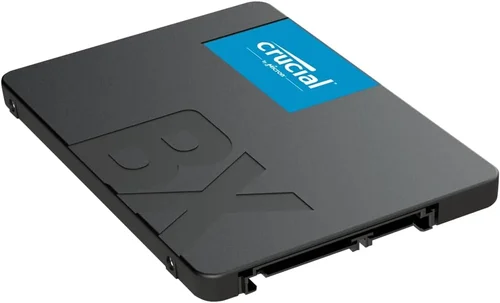
– 2.5-inch SATA: The traditional form factor, ideal for older laptops and desktops with standard drive bays. These drives use the SATA III interface and max out around 550 MB/s.
– M.2: A compact, stick-like drive that mounts directly onto the motherboard. M.2 drives can use either SATA or NVMe protocols, so check your motherboard’s specifications.
– U.2: Less common, typically used in enterprise environments. Requires a special connector and is not suitable for most consumer builds.
M.2 NVMe drives are the go-to choice for modern systems due to their speed and space efficiency. However, ensure your motherboard has an available M.2 slot and supports the drive’s keying (B-key, M-key, or B+M-key) and protocol (NVMe or SATA).
4. Storage Capacity
Capacity determines how much data you can store—from your operating system and applications to games, media, and backups. Common sizes range from 250GB to 8TB, with 1TB and 2TB being the sweet spot for most users.
Consider your current and future needs. A 500GB SSD may suffice for a basic laptop, but gamers and content creators will benefit from 2TB or more. Remember, SSDs perform best when they’re not nearly full—aim to keep at least 10–20% of the drive free for optimal performance and longevity.
5. NAND Flash Technology
NAND flash is the memory technology inside SSDs, and it comes in several types: SLC, MLC, TLC, and QLC. Each has trade-offs between speed, endurance, and cost.
– SLC (Single-Level Cell): Fastest and most durable, but expensive. Used in enterprise applications.
– MLC (Multi-Level Cell): Good balance of performance and endurance. Less common in consumer drives today.
– TLC (Triple-Level Cell): Most common in consumer SSDs. Offers good performance at a reasonable price.
– QLC (Quad-Level Cell): Cheapest per gigabyte but slower write speeds and lower endurance. Best for read-heavy tasks.
For most users, TLC-based SSDs provide the best value. QLC drives are acceptable for secondary storage or light use, but avoid them for primary drives if you frequently write large files.
6. Endurance & TBW Rating
Endurance refers to how much data can be written to an SSD over its lifetime, measured in Terabytes Written (TBW). A higher TBW means the drive can handle more write cycles before wearing out.
For example, a 1TB SSD with a 600 TBW rating can theoretically write 600 terabytes of data before failure. Real-world usage rarely reaches these limits, but TBW is a useful indicator of build quality. Consumer drives typically range from 150 TBW (budget) to 1,200+ TBW (premium).
If you’re a content creator, developer, or database user who writes large amounts of data daily, prioritize drives with higher endurance ratings.
7. Brand Reputation & Reliability
Not all SSDs are created equal. Some brands have a proven track record of reliability, consistent performance, and strong customer support. Top-tier manufacturers include Samsung, Western Digital, Crucial, Kingston, and Sabrent.
Samsung’s 990 Pro and WD Black SN850X are consistently praised for performance and durability. Crucial offers excellent value with its MX and P series. Sabrent excels in high-capacity NVMe drives, while Kingston provides reliable, budget-friendly options.
Avoid no-name or ultra-cheap brands that lack transparency about NAND type, controller, or firmware. These drives may fail prematurely or suffer from poor performance under load.
8. Warranty & Support
A solid warranty reflects a manufacturer’s confidence in their product. Most reputable SSDs come with 3- to 5-year warranties, often tied to TBW limits. For example, a 5-year warranty with 600 TBW means the drive is covered for five years or until 600TB is written—whichever comes first.
Check the warranty terms carefully. Some brands require registration, while others offer limited coverage for OEM or bulk purchases. Also, consider the availability of customer support—can you get help if something goes wrong?
Different Types of Buying Guide

Common Buying Mistakes to Avoid
❌ Mistake: Ignoring Compatibility
Why it’s bad: Buying an M.2 NVMe drive for a laptop that only supports SATA will result in a drive that doesn’t work. Similarly, installing a PCIe 5.0 SSD in a PCIe 3.0 slot wastes money and performance.
What to do instead: Check your motherboard or laptop manual for supported form factors and interfaces. Use tools like CPU-Z or manufacturer specs to confirm compatibility before purchasing.
❌ Mistake: Prioritizing Speed Over Endurance
Why it’s bad: A blazing-fast SSD with low TBW may fail prematurely under heavy write loads, especially in workstations or servers.
What to do instead: Match endurance to your usage. For everyday computing, 300–600 TBW is sufficient. For video editing or database work, aim for 800+ TBW.
❌ Mistake: Choosing QLC for Primary Storage
Why it’s bad: QLC drives have slower write speeds and lower endurance, which can lead to performance degradation when the drive is near full.
What to do instead: Use TLC-based SSDs for your OS and applications. Reserve QLC for secondary storage or media libraries.
❌ Mistake: Overlooking Thermal Throttling
Why it’s bad: High-speed NVMe drives generate heat. Without proper cooling, they throttle performance to prevent damage, negating their speed advantage.
What to do instead: Use motherboards with built-in M.2 heatsinks or install an aftermarket cooler. Monitor temperatures with tools like HWInfo.
❌ Mistake: Buying Based on Price Alone
Why it’s bad: The cheapest SSDs often use inferior components, lack DRAM caches, or have poor firmware, leading to crashes and data loss.
What to do instead: Invest in reputable brands with proven reliability. A slightly higher upfront cost can save you from headaches down the road.
❌ Mistake: Not Checking for DRAM Cache
Why it’s bad: DRAM-less SSDs use system memory (HMB) for caching, which can slow down under heavy workloads and reduce longevity.
What to do instead: Choose SSDs with a dedicated DRAM cache for consistent performance, especially for multitasking and large file transfers.
❌ Mistake: Skipping Firmware Updates
Why it’s bad: Outdated firmware can cause bugs, security vulnerabilities, or performance issues.
What to do instead: Check the manufacturer’s website periodically for firmware updates. Some brands offer utilities to automate this process.
Budget Guidelines: How Much Should You Spend?
– Entry-Level ($40–$80 for 1TB): Ideal for basic computing, web browsing, and office tasks. Look for SATA or PCIe 3.0 NVMe drives from trusted brands like Crucial or Kingston. Expect speeds around 500–3,500 MB/s and 150–300 TBW.
– Mid-Range ($80–$150 for 1TB): The sweet spot for most users. PCIe 4.0 NVMe drives like the Samsung 980 Pro or WD Black SN770 offer excellent performance for gaming and productivity. Expect 500–7,000 MB/s speeds and 600+ TBW.
– Premium ($150–$300 for 1TB): For enthusiasts and professionals. PCIe 5.0 drives like the Sabrent Rocket 5 or Corsair MP700 deliver over 10,000 MB/s and come with robust cooling solutions. These are future-proof and ideal for high-end builds.
– Luxury ($300+ for 1TB): Top-tier drives with enterprise-grade components, extreme endurance (1,200+ TBW), and advanced features like power-loss protection. Best for content creators, developers, and mission-critical systems.
Expert Tips for Getting the Best Deal
– Buy During Sales Events: Major retailers like Amazon, Newegg, and Best Offer deep discounts during Black Friday, Prime Day, and back-to-school seasons. Sign up for newsletters to get early alerts.
– Compare Prices Across Retailers: Use price comparison tools like Google Shopping or PriceGrabber to find the lowest price. Don’t forget to factor in shipping and return policies.
– Check Refurbished or Open-Box Deals: Certified refurbished SSDs from reputable sellers often come with full warranties and can save you 20–40%.
– Prioritize Warranty Over Price: A longer warranty often indicates higher build quality. A $100 drive with a 5-year warranty is better than a $80 drive with a 1-year warranty.
– Read User Reviews: Look beyond star ratings. Pay attention to comments about real-world performance, heat generation, and failure rates.
– Test Before Committing: If possible, test the SSD in your system before finalizing the purchase. Some retailers offer generous return windows.
– Consider Bundle Deals: Some motherboards or prebuilt PCs include SSDs at a discount. These can be a great value if the drive meets your needs.
– Monitor Price Trends: SSD prices fluctuate based on NAND supply and demand. Use historical price trackers to identify the best time to buy.

Frequently Asked Questions
Q: Is NVMe always faster than SATA?
A: Yes, NVMe drives are significantly faster than SATA SSDs. While SATA maxes out at around 550 MB/s, NVMe drives can exceed 7,000 MB/s (PCIe 4.0) or 12,000 MB/s (PCIe 5.0). However, the real-world difference depends on your workload. For everyday tasks, both feel fast, but NVMe excels in large file transfers and gaming.
Q: Can I use an M.2 SSD in a laptop?
A: It depends on your laptop’s specifications. Many modern laptops support M.2 NVMe or SATA drives, but older models may only have 2.5-inch bays. Check your laptop’s manual or manufacturer website for compatibility.
Q: Do I need a heatsink for my NVMe SSD?
A: Not always, but recommended for high-performance drives. PCIe 4.0 and 5.0 SSDs generate significant heat, which can cause thermal throttling. If your motherboard doesn’t have a built-in heatsink, consider an aftermarket solution.
Q: How long do SSDs last?
A: Most consumer SSDs last 5–10 years under normal use. Endurance is measured in TBW, and typical drives can handle hundreds of terabytes written. Real-world failure is often due to manufacturing defects or power surges, not wear.
Q: Should I defragment my SSD?
A: No. Defragmentation is unnecessary and harmful to SSDs. Unlike HDDs, SSDs have no moving parts, and defragging increases write cycles, reducing lifespan. Windows and macOS automatically optimize SSDs using TRIM.
Q: Can I recover data from a failed SSD?
A: It’s possible but difficult and expensive. Unlike HDDs, SSDs use wear-leveling and encryption, making data recovery complex. Regular backups are essential. Use tools like Time Machine (macOS) or File History (Windows).
Q: Are external SSDs worth it?
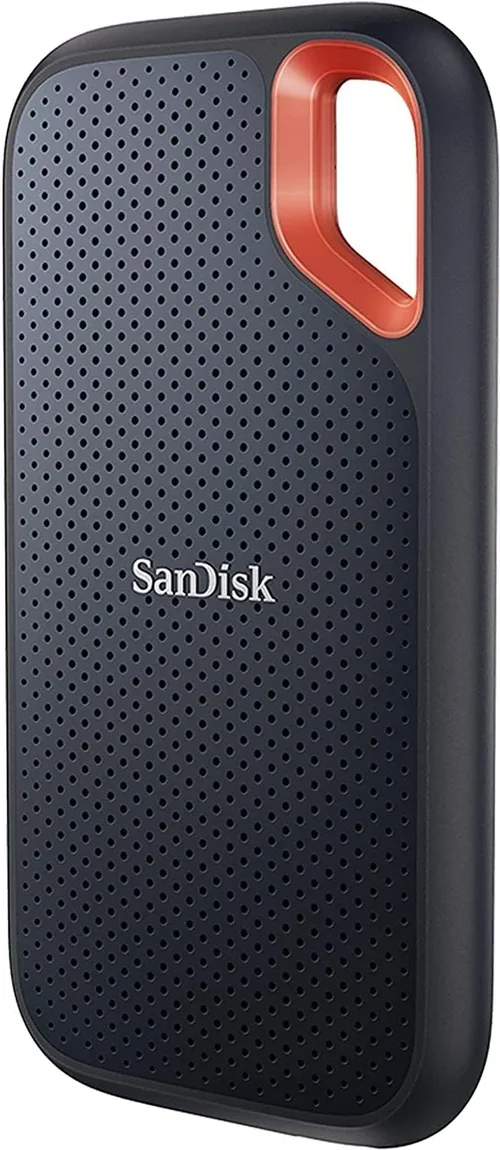
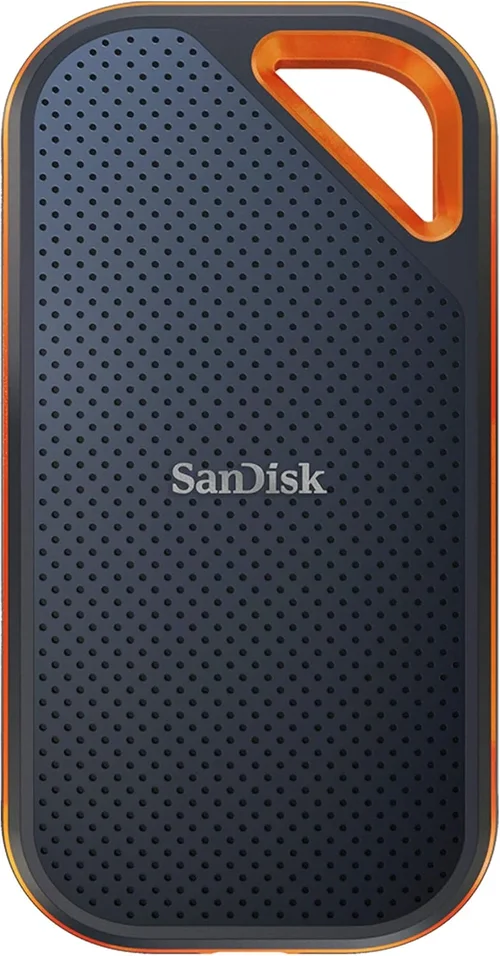
A: Absolutely. External SSDs are perfect for backups, media storage, and portable work. Look for USB 3.2 Gen 2 or Thunderbolt 3/4 models for fast transfer speeds. Brands like Samsung T7 and SanDisk Extreme are reliable choices.
Q: What’s the difference between DRAM and DRAM-less SSDs?
A: DRAM-equipped SSDs have a dedicated memory chip for caching, improving speed and longevity. DRAM-less drives use system RAM (HMB), which can slow down under load. For primary drives, always choose DRAM models.
Q: Can I install an SSD in an old computer?
A: Yes, as long as it has a SATA port or available M.2 slot. Upgrading from an HDD to an SSD is one of the most effective ways to breathe new life into an older system.
Q: Do SSDs improve gaming performance?
A: Yes, but mainly in load times. Games load faster, levels stream more smoothly, and texture pop-in is reduced. However, FPS (frames per second) is determined by your GPU and CPU, not storage.
Our Final Recommendations
– Best for Budget-Conscious Buyers: Crucial P3 1TB (PCIe 3.0 NVMe) – Reliable, fast, and affordable at around $65. Great for upgrading older systems.
– Best Overall Value: Samsung 980 Pro 1TB (PCIe 4.0 NVMe) – Excellent performance, strong endurance, and consistent reliability. Priced around $110, it’s a top pick for most users.
– Best Premium Option: Sabrent Rocket 5 2TB (PCIe 5.0 NVMe) – Blazing speeds over 10,000 MB/s, robust cooling, and 1,800 TBW. Ideal for enthusiasts and professionals.
– Best for Beginners: Western Digital Blue SN580 1TB (PCIe 4.0 NVMe) – Easy to install, quiet, and efficient. Perfect for first-time upgraders.
– Best for Advanced Users: Corsair MP700 Pro 2TB (PCIe 5.0 NVMe) – Built for extreme performance with advanced thermal management and enterprise-grade components.
Conclusion: Making the Right Choice
Choosing the best SSD doesn’t have to be overwhelming. By focusing on your specific needs—whether that’s budget, performance, capacity, or compatibility—you can find a drive that delivers real-world benefits. Remember, the fastest SSD isn’t always the best one for you. A mid-range NVMe drive can transform your system just as effectively as a top-tier model, especially if you’re upgrading from an HDD.
Prioritize reliability, warranty, and real-world performance over flashy specs. Stick with trusted brands, avoid common pitfalls, and take advantage of seasonal deals. Whether you’re building a new PC, upgrading a laptop, or expanding storage, the right SSD will make your system feel faster, more responsive, and more enjoyable to use.
Take the time to assess your usage, compare options, and invest wisely. With the knowledge from this guide, you’re now equipped to make a confident, informed decision. Your future self—and your computer—will thank you.