
Upgrading your Lenovo ThinkPad X220 with a solid-state drive (SSD) isn’t just a performance boost—it’s a full transformation. The X220, released back in 2011, remains a beloved machine among business travelers, students, and tinkerers thanks to its rugged build, excellent keyboard, and modular design. But while its hardware has aged gracefully, the original mechanical hard drives that shipped with most units have not. They’re slow, power-hungry, and prone to failure. Swapping that old HDD for a modern SSD can breathe new life into this classic laptop, turning boot times from minutes into seconds, launching applications instantly, and making everyday computing feel snappy and responsive again.
This guide exists because choosing the right SSD for your X220 isn’t as simple as picking the fastest or cheapest option on Amazon. The X220 uses older SATA II interfaces, which cap theoretical speeds at 3 Gbps—far below what today’s NVMe drives can deliver. Yet, even within those limitations, there are nuances: compatibility quirks, form factor constraints, firmware considerations, and real-world performance differences that matter more than raw specs. Whether you’re restoring a vintage workhorse or building a retro-modern daily driver, this guide will walk you through every critical decision point. You’ll learn how to balance cost, speed, reliability, and longevity—and walk away with confidence that your SSD choice will serve you well for years to come.
The market for SSDs has exploded over the past decade, with prices plummeting and capacities soaring. Today, you can get a 1TB SATA SSD for under $60, and even high-end models rarely exceed $100 for mainstream use. But not all SSDs are created equal—especially when dropped into a decade-old machine like the X220. Some drives overheat under sustained load, others suffer from poor garbage collection algorithms that degrade performance over time, and a few simply don’t play nice with older BIOS versions. This guide cuts through the noise, focusing exclusively on what matters for the X220 ecosystem. We’ll cover everything from interface compatibility and endurance ratings to brand reliability and budget strategies—so you can make an informed, future-proof upgrade without overspending or under-delivering.

What to Look for When Buying Buying Guide
1. Interface Compatibility: SATA II vs. SATA III
The Lenovo ThinkPad X220 is equipped with a SATA II (3 Gbps) interface for its main storage bay. This is a crucial detail that many buyers overlook. While modern SSDs are almost universally SATA III (6 Gbps) compatible, they will operate at SATA II speeds when installed in the X220. In practical terms, this means your maximum sequential read/write speeds will be capped around 280–300 MB/s—even if the drive itself is capable of 550 MB/s or more. So while you won’t benefit from the full speed potential of a high-end SATA III SSD, you’ll still see massive improvements over a traditional HDD, which typically maxes out at 80–120 MB/s.
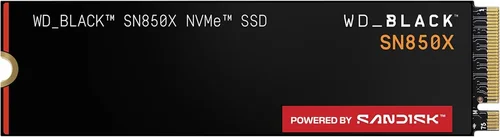
Why does this matter? Because it affects your purchasing strategy. There’s no point spending extra on a premium SATA III SSD with advanced controllers or DRAM caches optimized for 6 Gbps throughput—you’ll never utilize those features fully in the X220. Instead, focus on drives that offer consistent performance within the SATA II bandwidth, good endurance, and reliable firmware. Also note: the X220 does not support M.2 or NVMe drives natively. Attempting to use an M.2 SSD requires an adapter (like an M.2-to-mSATA or M.2-to-SATA converter), but these often introduce compatibility issues, power draw problems, or physical fit challenges. For most users, sticking with a standard 2.5-inch SATA SSD is the safest, simplest, and most effective route.
2. Form Factor and Physical Fit
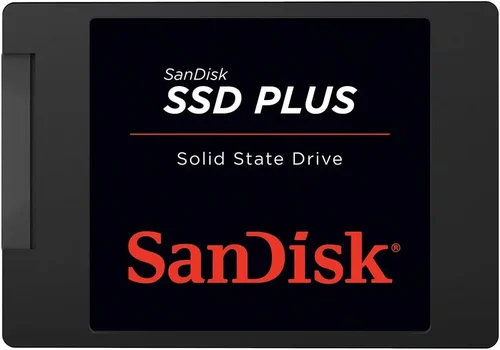
The X220’s main drive bay accepts standard 2.5-inch laptop hard drives or SSDs. However, thickness matters. Most SSDs are 7mm thick, which is ideal for the X220. But some older or bulkier models—especially those with added heatsinks or protective casings—can be 9.5mm or even thicker. If your SSD is too thick, it may not seat properly in the caddy, or the laptop lid might not close fully. Always verify the drive’s dimensions before purchasing. Thankfully, nearly all mainstream consumer SSDs today are 7mm, so this is rarely an issue—but it’s worth double-checking if you’re considering a niche or industrial-grade model.
Another physical consideration is the drive caddy itself. The X220 uses a removable caddy that holds the drive and connects to the motherboard via a SATA connector. When installing your new SSD, you’ll need to transfer this caddy from your old drive to the new one. Make sure your SSD has screw holes aligned with the caddy mounts (most do), and use the original screws to secure it. Avoid forcing the drive into place—if it doesn’t slide in smoothly, recheck the alignment. A loose or misaligned drive can cause connection issues, data corruption, or even damage the SATA port.
3. Performance Within SATA II Limits
Since the X220 bottlenecks SSD performance at ~300 MB/s, prioritize consistency over peak speeds. Look for drives that maintain steady read/write performance across the entire capacity, especially during mixed workloads (like copying files while browsing). Many budget SSDs use TLC or QLC NAND with minimal DRAM cache, which can lead to significant slowdowns once the cache fills up. For example, a drive might advertise 560 MB/s reads, but drop to 80 MB/s after writing 10GB continuously—a scenario you could encounter when transferring large documents or installing software.
In the X220 context, a drive with a modest DRAM cache (even 256MB is sufficient) and good garbage collection will feel much more responsive over time. Avoid DRAM-less SSDs unless they’re explicitly designed for low-power, light-use scenarios (like the Crucial BX series). Instead, opt for models with at least a basic DRAM buffer—such as the Samsung 870 EVO, WD Blue SA510, or Kingston KC600. These drives deliver smooth, predictable performance that complements the X220’s aging but capable CPU and RAM setup.
4. Endurance and NAND Type
SSD endurance is measured in terabytes written (TBW)—the total amount of data that can be written to the drive before it’s likely to fail. For a laptop like the X220 used primarily for office tasks, web browsing, and light development, even modest endurance is more than adequate. A 500GB SSD with 150–300 TBW will easily last a decade under normal use. However, if you plan to use the X220 for video editing, large file transfers, or as a portable server, higher endurance becomes relevant.
NAND type also plays a role. SLC (single-level cell) is the most durable but expensive and rare in consumer drives. MLC (multi-level cell) offers good balance but is increasingly phased out. TLC (triple-level cell) is the standard for most mainstream SSDs today—offering solid performance and decent endurance at a low cost. QLC (quad-level cell) is cheaper and higher-capacity but wears out faster under heavy write loads. For the X220, TLC is the sweet spot: affordable, widely available, and sufficiently durable for typical usage patterns. Avoid QLC unless you’re on an extremely tight budget and only need basic functionality.
5. Brand Reputation and Firmware Stability
Not all SSD brands are equal—especially when dropped into older systems. Some manufacturers prioritize cutting-edge features for modern PCs but neglect backward compatibility or firmware polish. The X220’s BIOS, while robust, isn’t updated regularly, so you need a drive that “just works” without requiring firmware updates or driver tweaks.
Stick with established brands known for reliability and consistent performance: Samsung, Western Digital (including SanDisk), Crucial (Micron), Kingston, and Toshiba/Kioxia. These companies invest heavily in firmware optimization, power management, and error correction—critical for aging hardware. Avoid no-name or ultra-budget brands (like PNY, Team Group, or Silicon Power) unless you’re willing to risk instability, poor TRIM support, or sudden failure. Real-world user reports consistently show that Samsung’s 870 EVO and WD’s Blue series perform flawlessly in X220s, with excellent sleep/wake behavior and no compatibility hiccups.
6. Power Efficiency and Thermal Behavior
The X220 was designed for all-day battery life, and its power management is finely tuned for specific components. While SSDs generally consume less power than HDDs, some models draw more current during active use or idle states—which can impact battery runtime. Look for SSDs with low active and standby power consumption. Samsung and Crucial drives typically excel here, with optimized power states that align well with the X220’s ACPI implementation.
Thermals are another subtle factor. Unlike desktops, the X220 has minimal airflow around the drive bay. Some SSDs—particularly those with aggressive controllers or high-density NAND—can run warm under sustained load. While outright overheating is rare, excessive heat can trigger throttling or reduce NAND lifespan over time. Choose drives with passive thermal designs (no heatsinks) and avoid models known for running hot (like certain Silicon Motion-controlled drives). If you’re concerned, consider applying a thin thermal pad between the SSD and the caddy, though this is usually unnecessary for light workloads.
7. Warranty and Long-Term Support
A good warranty signals manufacturer confidence in their product. Most reputable SSD brands offer 3- to 5-year limited warranties, often tied to TBW limits. For the X220 user, a 5-year warranty is ideal—it covers the expected lifespan of both the drive and the laptop itself. Samsung, for instance, backs the 870 EVO with a 5-year warranty and up to 2,400 TBW on the 1TB model—far exceeding what any X220 user will realistically write.
Also consider support accessibility. Can you easily register the drive? Is RMA processing straightforward? Brands like Samsung and WD have user-friendly portals and global service networks. Avoid brands with vague warranty terms or region-locked support. Remember: if your X220 is a long-term companion, your SSD should be too—and that includes peace of mind from reliable售后 (after-sales) service.
8. Price-to-Performance Ratio for Legacy Systems
Because the X220 caps SSD performance, you don’t need to overspend on top-tier drives. A mid-range SATA SSD delivers nearly identical real-world gains as a premium model. Focus on value: aim for drives that offer the best combination of capacity, endurance, and reliability per dollar. As of 2024, the sweet spot is a 500GB–1TB TLC-based SSD from a trusted brand, priced between $40 and $70.
Avoid the temptation to buy the cheapest SSD available. Ultra-budget drives often cut corners on NAND quality, controller robustness, or firmware—leading to early failure or degraded performance. Conversely, don’t splurge on a $150 2TB drive unless you genuinely need that capacity. For most X220 users, 500GB is plenty for Windows 10/11, essential apps, and personal files. If you need more space, consider using an external USB 3.0 drive or upgrading the optical bay with a second SSD (via a caddy)—a popular mod among X220 enthusiasts.
Different Types of Buying Guide

Common Buying Mistakes to Avoid
❌ Mistake: Buying an NVMe SSD Directly for the Main Bay
Why it’s bad: The X220’s main storage connector is SATA-only and does not support NVMe protocol. Installing an NVMe SSD directly will result in no boot detection, BIOS errors, or complete incompatibility. Even if the physical connector fits (which it won’t), the electrical signaling and firmware expectations are entirely different.
What to do instead: Stick with SATA SSDs for the primary drive bay. If you want NVMe speeds, consider using an M.2 NVMe SSD in the WWAN slot (requires a compatible adapter and BIOS mod) or in the optical bay with a caddy—but this is advanced territory. For 99% of users, a high-quality SATA SSD is the correct, hassle-free choice.
❌ Mistake: Ignoring DRAM Cache in Budget Drives
Why it’s bad: DRAM-less SSDs rely on system memory (HMB) or slower caching methods, which can cause stuttering, slow file transfers, and degraded performance over time—especially noticeable in a system with limited RAM like the X220 (often upgraded to 8GB max).
What to do instead: Prioritize SSDs with dedicated DRAM cache, even in budget segments. The Crucial MX500, Samsung 870 EVO, and WD Blue SA510 all include DRAM and deliver smooth, predictable performance that complements the X220’s architecture.
❌ Mistake: Overpaying for Unused Speed
Why it’s bad: Spending $100+ on a SATA III SSD with 560 MB/s speeds when your X220 can only use half of that is wasteful. You’re paying for performance you’ll never see.
What to do instead: Focus on drives that excel within SATA II limits—consistency, endurance, and reliability matter more than peak bandwidth. A $50 500GB Samsung 870 EVO will feel just as fast as a $90 premium drive in daily use.
❌ Mistake: Skipping Firmware Updates Pre-Installation
Why it’s bad: Some SSDs ship with buggy firmware that causes compatibility issues with older BIOS versions. The X220’s BIOS may not recognize certain drives or handle sleep states correctly without updated firmware.
What to do instead: Check the manufacturer’s website for firmware updates before installing. If possible, update the SSD on a modern system first, then transfer it to the X220. Samsung Magician and WD Dashboard tools make this easy.
❌ Mistake: Using the Wrong Screws or Caddy
Why it’s bad: The X220’s drive caddy uses specific screws to secure the SSD. Using incorrect screws can strip threads, damage the drive, or prevent proper connection. Forcing the drive can bend the SATA connector.
What to do instead: Always reuse the original caddy and screws from your old drive. If lost, purchase a genuine Lenovo X220 caddy (part number 0A62433) or a compatible third-party version. Never force the drive—gentle alignment is key.
❌ Mistake: Neglecting TRIM and OS Optimization
Why it’s bad: Without TRIM enabled, SSD performance degrades over time as the drive fills up. The X220 may not enable TRIM by default, especially with fresh OS installs.
What to do instead: After installation, verify TRIM is active (`fsutil behavior query DisableDeleteNotify` in Windows—should return 0). Also disable defragmentation and enable AHCI mode in BIOS for optimal SSD health.
Budget Guidelines: How Much Should You Spend?
Entry-Level ($25–$40): Ideal for basic upgrades or secondary drives. Look for 240GB–500GB TLC SSDs from reputable brands like Crucial BX500 or Kingston A400. Expect modest performance and lower endurance (100–150 TBW), but still a massive improvement over HDDs. Best for light browsing, document work, or as a temporary solution.
Mid-Range ($40–$70): The sweet spot for most X220 users. A 500GB or 1TB SSD from Samsung, WD, or Crucial (MX500/870 EVO/Blue SA510) offers excellent balance of speed, endurance (300+ TBW), and reliability. These drives include DRAM, strong firmware, and 5-year warranties—perfect for daily productivity, light coding, or media storage.
Premium ($70–$100): For users who want maximum longevity or plan heavy usage. Consider the Samsung 870 PRO (MLC-like endurance) or WD Red SA510 (optimized for 24/7 operation). Overkill for most, but justified if using the X220 as a portable workstation or long-term investment.
Luxury ($100+): Only necessary for extreme capacities (2TB+) or specialized use cases. At this price, you’re paying for brand prestige or niche features—not performance gains in the X220. Generally not recommended unless you need vast local storage.

Expert Tips for Getting the Best Deal
– Buy during seasonal sales: Black Friday, Prime Day, and back-to-school periods often feature 20–30% discounts on SSDs. Sign up for price alerts on CamelCamelCamel or Honey.
– Stick to trusted retailers: Purchase from Amazon (sold by Amazon, not third parties), Newegg, Best Buy, or direct from manufacturer sites. Avoid gray-market sellers.
– Check refurbished options: Manufacturer-refurbished SSDs (e.g., Samsung Certified Refurbished) often come with full warranties at 20–40% off.
– Bundle with other upgrades: If you’re also upgrading RAM or adding an optical bay caddy, buy everything together to save on shipping and installation time.
– Verify return policies: Ensure the seller offers at least 30-day returns. Test the SSD immediately after install.
– Use cloning software: Tools like Macrium Reflect Free or Samsung Data Migration let you clone your old drive to the new SSD without reinstalling Windows.
– Enable AHCI in BIOS: Before installing the SSD, enter BIOS (F1 at boot) and set SATA Mode to AHCI—not IDE—for full SSD feature support.
– Monitor drive health: Install CrystalDiskInfo to track SSD temperature, wear level, and SMART status over time.

Frequently Asked Questions
Q: Can I use an M.2 SSD in my X220?
A: Not directly. The X220 lacks an M.2 slot. However, you can use an M.2-to-SATA adapter in the main bay or install an M.2 NVMe drive in the WWAN slot with a compatible adapter and BIOS mod (requires advanced technical skill). For most users, a standard 2.5-inch SATA SSD is simpler and more reliable.
Q: Will a 1TB SSD fit in the X220?
A: Yes—physically and electrically. The X220 supports drives up to 2TB in the main bay. Just ensure the SSD is 7mm thick and uses standard SATA connectors.
Q: Do I need to reinstall Windows after swapping to an SSD?
A: Not necessarily. You can clone your existing OS using free tools like Macrium Reflect or Acronis True Image. However, a clean Windows install is recommended for optimal performance and to remove bloatware.
Q: How much faster will my X220 be with an SSD?
A: Boot times drop from 1–2 minutes to under 20 seconds. Application launches become near-instant. File transfers speed up 3–4x. Overall system responsiveness improves dramatically—even web browsing feels snappier due to reduced disk I/O latency.
Q: Is the X220’s SATA II interface a dealbreaker?
A: Not at all. While you won’t hit modern SSD speeds, the jump from HDD to SSD is still transformative. SATA II is plenty for office work, web apps, and light development. The bottleneck shifts to CPU/RAM, not storage.
Q: Can I use two SSDs in the X220?
A: Yes! Remove the optical drive and install a second 2.5-inch SSD using an optical bay caddy (available for ~$15). This gives you dual-drive flexibility—e.g., OS on one, data on the other.
Q: What capacity should I choose?
A: For most users, 500GB is ideal. It accommodates Windows 10/11, essential apps, and personal files with room to spare. If you work with large media files, go for 1TB. Avoid 240GB unless strictly budget-constrained—it fills up quickly.
Q: Are external SSDs a good alternative?
A: Only for portable storage—not as a primary OS drive. External SSDs via USB 3.0 are slower than internal SATA and introduce cable clutter. Use them for backups or extra space, not daily driving.
Q: How long will an SSD last in an X220?
A: With typical use, 8–10 years or more. Modern TLC SSDs are extremely durable. Even a 150 TBW drive would take decades to wear out under normal laptop workloads.
Q: Should I disable hibernation to save SSD writes?
A: Hibernation writes RAM contents to disk on shutdown—about 8GB per session. If you hibernate daily, this adds up. Consider disabling it (`powercfg -h off` in Command Prompt as admin) if you rarely use it, but the impact on SSD lifespan is negligible for most users.
Our Final Recommendations
Best for Budget-Conscious Buyers: Crucial MX500 500GB – Reliable, DRAM-equipped, and consistently priced under $50. Offers excellent performance within SATA II limits and a 5-year warranty.
Best Overall Value: Samsung 870 EVO 1TB – The gold standard for SATA SSDs. Outstanding endurance, rock-solid firmware, and seamless X220 compatibility. Priced around $65, it’s a future-proof investment.
Best Premium Option: WD Blue SA510 1TB – Slightly faster sustained writes than the 870 EVO and equally reliable. Great choice if you find it on sale.
Best for Beginners: Kingston KC600 512GB – Easy to install, includes cloning software, and performs flawlessly out of the box. Ideal for first-time upgraders.
Best for Advanced Users: Samsung 870 PRO 1TB – MLC-like endurance (3,000 TBW) for those who demand maximum longevity. Overkill for most, but perfect for mission-critical X220 setups.
Conclusion: Making the Right Choice
Upgrading your ThinkPad X220 with an SSD is one of the most impactful improvements you can make to an aging but capable machine. It’s not just about speed—it’s about restoring confidence in your daily driver, reducing frustration, and extending the laptop’s usable life by years. By focusing on compatibility, reliability, and realistic performance expectations, you can avoid common pitfalls and select a drive that delivers lasting value.
Remember: the X220 doesn’t need the latest tech—it needs the right tech. A well-chosen SATA SSD will transform your experience without breaking the bank or introducing complexity. Prioritize brands with proven track records, avoid overspending on unused features, and don’t forget the small details like TRIM, AHCI mode, and proper installation. Whether you’re a student, professional, or retro-computing enthusiast, your X220 deserves a storage upgrade that matches its enduring quality.
So go ahead—swap that spinning disk for silent, swift solid-state storage. Your X220 will thank you with faster boots, instant app launches, and the satisfying knowledge that you’ve given a classic machine a modern heartbeat. And when you’re done, take a moment to appreciate how far we’ve come—and how wisely you’ve spent your upgrade dollars.