
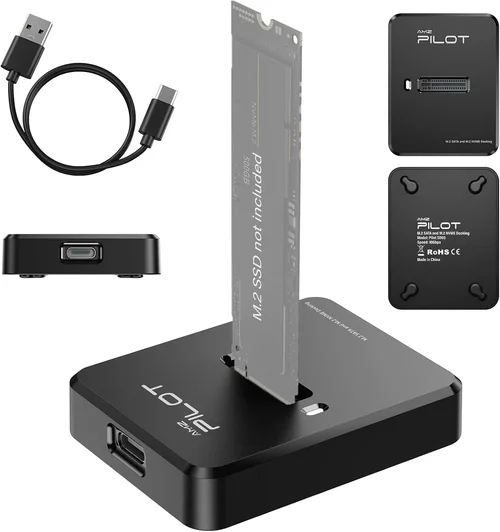
The world of solid-state drives (SSDs) has evolved dramatically over the past decade, transforming from niche high-performance components into essential upgrades for nearly every computing device. Whether you’re building a new gaming rig, upgrading an aging laptop, or optimizing a workstation for content creation, choosing the right SSD interface is no longer just a technical detail—it’s a critical decision that directly impacts your system’s speed, responsiveness, and overall user experience. With multiple interface standards now coexisting in the market—from legacy SATA to cutting-edge PCIe Gen5—it’s easy to feel overwhelmed by conflicting claims, confusing acronyms, and rapidly shifting performance benchmarks.
This comprehensive buyer’s guide cuts through the noise to help you make an informed, future-proof decision. You’ll learn not only which SSD interface delivers the best performance for your specific use case, but also how to balance speed, compatibility, cost, and longevity. We’ll break down the technical nuances of each interface type, compare real-world performance across different workloads, highlight common pitfalls, and provide actionable recommendations based on your budget and needs. Whether you’re a casual user looking to breathe new life into an old machine or a power user pushing the limits of data throughput, this guide equips you with the knowledge to choose wisely.
The SSD market today is more diverse—and competitive—than ever. Major manufacturers like Samsung, Western Digital, Crucial, Kingston, and Sabrent are constantly pushing the envelope with faster controllers, denser NAND flash memory, and increasingly sophisticated thermal management. Meanwhile, motherboard and laptop OEMs continue to adopt newer interfaces like PCIe Gen4 and Gen5, while still supporting older standards for backward compatibility. This creates a complex landscape where the “best” SSD isn’t always the fastest—it’s the one that aligns perfectly with your hardware, workflow, and financial constraints. By the end of this guide, you’ll understand exactly how to navigate that landscape with confidence.
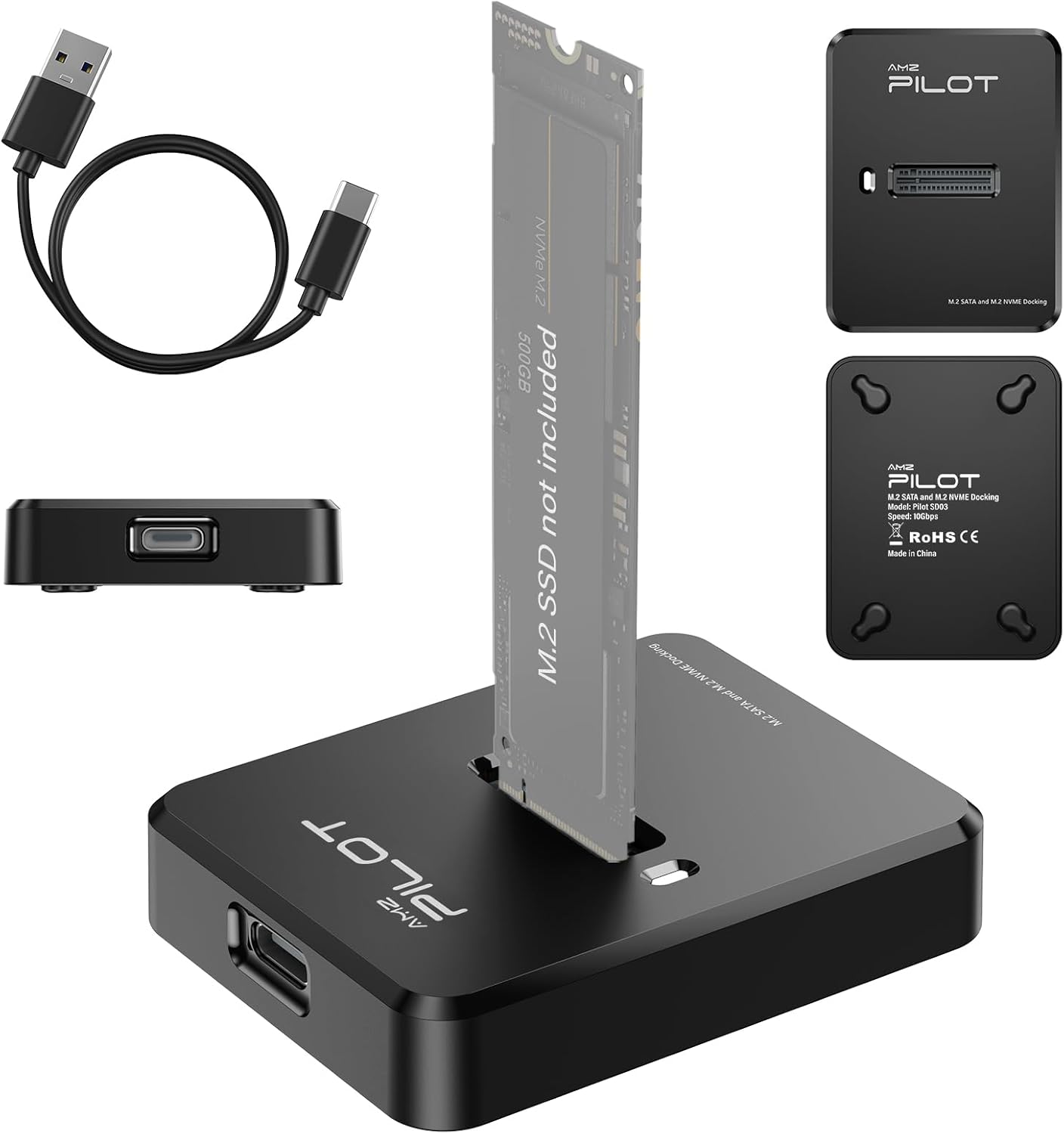
What to Look for When Buying Buying Guide
1. Interface Compatibility
The single most important factor when selecting an SSD is ensuring it’s compatible with your system’s available interface. An SSD can only perform as well as the connection it uses, so mismatching interfaces—like installing a PCIe Gen4 drive in a Gen3-only slot—will bottleneck performance. Always check your motherboard or laptop specifications to confirm which interfaces are supported. For desktops, consult your motherboard manual or manufacturer’s website; for laptops, tools like CPU-Z or manufacturer support pages can reveal M.2 slot types and supported protocols (SATA vs. NVMe). Remember: physical fit doesn’t guarantee electrical compatibility. An M.2 SATA SSD may fit in an M.2 NVMe slot, but it won’t function unless the slot explicitly supports SATA signaling.
2. Performance Specifications
Raw speed numbers—measured in megabytes per second (MB/s) for sequential reads and writes—are often highlighted in marketing materials, but they don’t tell the whole story. While sequential performance matters for large file transfers (e.g., video editing or game loading), random 4K read/write speeds (measured in IOPS—Input/Output Operations Per Second) are far more indicative of everyday responsiveness, such as booting your OS, launching apps, or multitasking. A drive with high sequential speeds but poor random performance may feel sluggish during normal use. Look for drives that offer balanced performance across both metrics. Also consider sustained performance: some SSDs throttle under prolonged heavy workloads due to thermal limitations, so check reviews for real-world stress tests.
3. Form Factor and Physical Fit
SSDs come in several physical formats, and choosing the wrong one can mean the drive simply won’t fit in your system. The most common form factors today are 2.5-inch (used with SATA interfaces), M.2 (a compact card-like design), and U.2 (less common, typically for enterprise use). M.2 drives vary further by length (e.g., 2280 = 22mm wide, 80mm long) and keying (B-key, M-key, or B+M-key), which determines compatibility with slots. Most consumer motherboards support M.2 2280 drives, but always verify before purchasing. Laptops often have strict space constraints—some only accept shorter M.2 2242 or 2230 drives. Installing an incompatible drive isn’t just inconvenient; it could damage your hardware.
4. NAND Flash Type and Controller Quality
Not all SSDs are built with the same internal components. The type of NAND flash memory—SLC, MLC, TLC, or QLC—affects endurance, speed, and cost. SLC is fastest and most durable but prohibitively expensive for consumers; QLC offers high capacity at low cost but suffers from slower write speeds and reduced lifespan. Most modern consumer SSDs use TLC or QLC NAND. Equally important is the SSD controller, the “brain” that manages data flow, error correction, and wear leveling. High-quality controllers from companies like Phison, Silicon Motion, or Samsung’s in-house designs ensure consistent performance and reliability. Avoid no-name brands with vague specifications—they often cut corners on both NAND and controller quality.
5. DRAM Cache Presence
A DRAM cache acts as a high-speed buffer between the host system and the NAND flash, significantly improving performance—especially for random workloads and sustained writes. SSDs with DRAM caches typically outperform DRAM-less models, particularly under heavy multitasking or when handling large files. DRAM-less SSDs rely on Host Memory Buffer (HMB) technology, which borrows system RAM, but this can introduce latency and isn’t always supported on older systems. If performance and longevity are priorities, always opt for an SSD with a dedicated DRAM cache. This is especially crucial for tasks like video editing, database management, or running virtual machines.
6. Endurance and TBW Rating
SSD endurance is measured in Terabytes Written (TBW)—the total amount of data that can be written to the drive over its lifetime before failure becomes likely. Higher TBW ratings indicate greater durability, which is vital for write-intensive workloads like content creation, server applications, or frequent large file transfers. Consumer drives typically range from 150 TBW (for budget 500GB models) to over 1,200 TBW (for high-end 2TB drives). Don’t overlook this spec: a cheap SSD with low TBW may fail prematurely under moderate use, leading to data loss and replacement costs. Always check the manufacturer’s rated TBW and match it to your expected usage patterns.
7. Thermal Management and Throttling
High-performance SSDs—especially PCIe Gen4 and Gen5 models—generate significant heat during sustained workloads. Without adequate cooling, they throttle their speeds to prevent overheating, negating their performance advantages. Many premium SSDs now include built-in heatsinks or thermal pads, and some motherboards provide M.2 heatsinks. If you’re installing a fast Gen4 or Gen5 drive in a compact case or laptop, consider adding a third-party heatsink or ensuring good airflow. Monitor temperatures using tools like CrystalDiskInfo or HWiNFO to confirm your drive isn’t throttling under load. Ignoring thermal management can turn a top-tier SSD into a mid-range performer.
8. Brand Reputation and Firmware Support
Not all SSD brands are created equal. Established manufacturers like Samsung, Western Digital, Crucial, and Kingston have proven track records for reliability, consistent performance, and robust firmware updates. Firmware plays a crucial role in SSD health—it manages wear leveling, error correction, and security features. Poorly designed firmware can lead to sudden failures or performance degradation. Stick with reputable brands that offer regular firmware updates and transparent support. Avoid obscure brands with no history or customer service infrastructure. A slightly higher upfront cost for a trusted brand often pays dividends in peace of mind and long-term reliability.
Different Types of Buying Guide

Common Buying Mistakes to Avoid
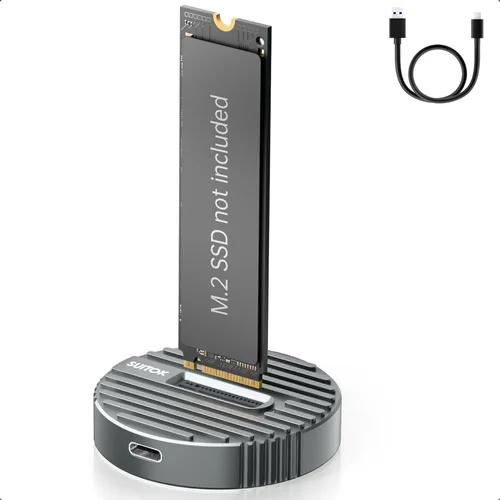
❌ Mistake: Prioritizing Peak Speed Over Real-World Performance
Why it’s bad: Marketing materials often highlight maximum sequential read speeds (e.g., “7,000 MB/s!”), but these numbers are achieved under ideal lab conditions and rarely reflect everyday use. Most users benefit more from strong random 4K performance and low latency than raw throughput.
What to do instead: Focus on balanced performance metrics. Look for drives with strong random read/write IOPS (aim for 500K+ IOPS for Gen4/Gen5 drives) and check third-party reviews that test real-world scenarios like game loading, app launches, and file copying.
❌ Mistake: Ignoring Thermal Throttling in High-Performance Drives
Why it’s bad: PCIe Gen4 and Gen5 SSDs can hit temperatures over 80°C under sustained load, triggering throttling that cuts speeds by 50% or more. Without proper cooling, you’re paying for performance you’ll never see.
What to do instead: Always pair high-speed SSDs with adequate cooling—use motherboard heatsinks, add aftermarket M.2 coolers, or ensure good case airflow. Monitor temps regularly and avoid enclosing drives in tight spaces without ventilation.
❌ Mistake: Buying DRAM-less SSDs for Performance-Critical Tasks
Why it’s bad: DRAM-less SSDs rely on system RAM via HMB, which introduces latency and can degrade under heavy multitasking. They’re fine for light use but struggle with sustained writes or complex workloads.
What to do instead: For gaming, content creation, or professional applications, always choose an SSD with a dedicated DRAM cache. The performance and longevity gains far outweigh the small price difference.
❌ Mistake: Overlooking TBW and Endurance Ratings
Why it’s bad: Cheap SSDs often use QLC NAND with low TBW ratings. If you frequently write large files (e.g., video editors, database users), these drives may fail prematurely, risking data loss.
What to do instead: Calculate your expected write workload and choose a drive with a TBW rating at least 2–3 times your annual usage. For heavy users, opt for TLC-based drives with higher endurance.
❌ Mistake: Assuming All M.2 Slots Support NVMe
Why it’s bad: Some older or budget motherboards have M.2 slots that only support SATA SSDs. Installing an NVMe drive in such a slot will result in no detection or boot failure.
What to do instead: Verify your motherboard’s M.2 slot specifications. Look for terms like “PCIe x4,” “NVMe support,” or consult the manual. When in doubt, choose a dual-mode (SATA/NVMe) drive or stick to known-compatible models.
❌ Mistake: Skipping Firmware Updates
Why it’s bad: Outdated firmware can cause compatibility issues, performance bugs, or even data corruption. Manufacturers frequently release updates to improve stability and security.
What to do instead: Register your SSD with the manufacturer and check for firmware updates periodically. Use official tools (e.g., Samsung Magician, WD Dashboard) to safely apply updates.
❌ Mistake: Buying Based Solely on Price per GB
Why it’s bad: The cheapest SSDs often compromise on NAND quality, controller performance, and endurance. A drive that seems like a bargain may fail early or deliver inconsistent speeds.
What to do instead: Consider total cost of ownership—including reliability, warranty, and performance. A slightly more expensive drive from a reputable brand often provides better long-term value.
Budget Guidelines: How Much Should You Spend?
- Entry-Level ($30–$60 for 1TB): Ideal for basic upgrades on older systems or secondary storage. Expect SATA III or DRAM-less PCIe Gen3 NVMe drives with modest speeds (500–3,500 MB/s). Suitable for web browsing, office work, and light gaming. Brands like Crucial BX500 or Kingston NV2 offer reliable performance at this tier.
- Mid-Range ($60–$100 for 1TB): The sweet spot for most users. Look for PCIe Gen3 or Gen4 NVMe drives with DRAM caches, TLC NAND, and strong random performance. Examples include the Samsung 980, WD Black SN770, or Crucial P5 Plus. These deliver excellent speed for gaming, productivity, and content creation without breaking the bank.
- Premium ($100–$200 for 1TB): Designed for enthusiasts and professionals. Features PCIe Gen4 or early Gen5 support, high-end controllers, robust thermal solutions, and TBW ratings above 600. Drives like the Samsung 990 Pro, WD Black SN850X, or Sabrent Rocket 4 Plus excel in sustained workloads and offer future-proof performance.
- Luxury ($200+ for 1TB): Reserved for extreme performance needs—AI training, 8K video editing, or competitive benchmarking. These drives leverage PCIe Gen5, advanced NAND stacking, and premium materials. Expect speeds over 10,000 MB/s, integrated heatsinks, and warranties up to 5 years. Models like the Corsair MP700 or Gigabyte AORUS Gen5 10000 represent the pinnacle of consumer SSD technology.
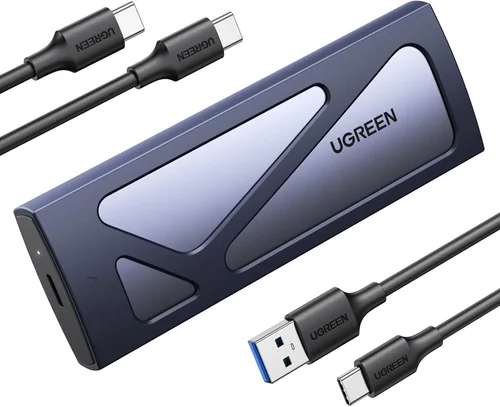
Expert Tips for Getting the Best Deal
- Buy During Major Sales Events: Black Friday, Prime Day, and back-to-school seasons often feature deep discounts on SSDs. Sign up for price alerts on sites like CamelCamelCamel or Slickdeals to catch flash sales.
- Prioritize Retailers with Strong Return Policies: Purchase from retailers like Amazon, Newegg, or Best Buy that offer hassle-free returns. This lets you test compatibility and performance risk-free.
- Check for Bundled Software or Warranties: Some SSDs come with free cloning software, cloud backup credits, or extended warranties. These add-ons can enhance value beyond raw specs.
- Verify Compatibility Before Buying: Use tools like PCPartPicker to cross-check SSD compatibility with your motherboard, especially for M.2 slots and BIOS support.
- Consider Refurbished or Open-Box Options: Certified refurbished SSDs from reputable sellers often come with full warranties and significant savings. Just ensure they include original accessories and firmware support.
- Monitor Firmware and Security Updates: Register your drive and enable automatic update notifications. This ensures you benefit from performance tweaks and security patches.
- Test Performance After Installation: Use benchmarks like CrystalDiskMark or AS SSD to confirm your SSD is performing as advertised. Compare results against manufacturer specs and user reviews.
- Avoid “Too Good to Be True” Deals: Extremely low prices on high-capacity SSDs often indicate counterfeit or used drives relabeled as new. Stick to authorized retailers and verified sellers.

Frequently Asked Questions
Q: Can I use a PCIe Gen4 SSD in a Gen3 slot?
A: Yes, but it will run at Gen3 speeds (around 3,500 MB/s max). The drive is backward compatible, so you won’t damage anything—but you won’t benefit from Gen4 performance unless your system supports it.
Q: Is NVMe always faster than SATA?
A: In terms of interface bandwidth, yes—NVMe over PCIe is significantly faster than SATA III. However, for light everyday tasks, the real-world difference may be minimal. NVMe shines in multitasking, large file transfers, and gaming load times.
Q: Do I need a heatsink for my M.2 SSD?
A: It depends. Gen3 drives rarely need one, but Gen4 and Gen5 drives benefit greatly from heatsinks, especially in small cases or laptops with poor airflow. Many motherboards include built-in M.2 heatsinks—use them!
Q: How long do SSDs typically last?
A: Most consumer SSDs last 5–10 years under normal use, thanks to wear leveling and high TBW ratings. Failure is more likely due to manufacturing defects than wear, which is why warranty coverage matters.
Q: Can I clone my old HDD to a new SSD?
A: Absolutely. Tools like Macrium Reflect Free, Acronis True Image, or manufacturer-specific software (e.g., Samsung Data Migration) make cloning straightforward. Ensure the SSD capacity is equal to or larger than the used space on your HDD.
Q: What’s the difference between TLC and QLC NAND?
A: TLC (Triple-Level Cell) stores 3 bits per cell and offers better speed and endurance. QLC (Quad-Level Cell) stores 4 bits, increasing capacity and lowering cost but reducing write performance and lifespan. Choose TLC for performance, QLC for budget storage.
Q: Will a faster SSD improve my gaming performance?
A: It improves load times and level streaming, especially in open-world games. However, it won’t boost FPS (frames per second), which depends on your GPU and CPU. For gaming, a fast Gen3 or Gen4 NVMe SSD is ideal.
Q: Are external SSDs as fast as internal ones?
A: High-end external SSDs using USB 3.2 Gen 2×2 or Thunderbolt 4 can match internal Gen3 speeds (up to 2,000 MB/s). However, they’re generally slower than internal Gen4/Gen5 drives and may throttle under sustained use due to limited cooling.
Q: Should I enable TRIM on my SSD?
A: Yes. TRIM helps maintain SSD performance over time by informing the drive which blocks of data are no longer in use. It’s usually enabled by default in modern OSes (Windows 10/11, macOS, Linux), but you can verify it in Disk Management or via terminal commands.
Q: Can I use multiple SSDs in RAID for better performance?
A: Technically yes, but it’s rarely necessary for consumers. Modern single SSDs already saturate most workloads. RAID 0 can increase speed but doubles the risk of data loss. For most users, a single high-quality SSD is simpler and safer.
Our Final Recommendations
- Best for Budget-Conscious Buyers: Crucial P3 1TB (PCIe Gen3 NVMe) – Offers excellent value with DRAM cache, 3,500 MB/s speeds, and a 5-year warranty. Perfect for upgrading older systems without overspending.
- Best Overall Value: Samsung 980 1TB (PCIe Gen3 NVMe) – Reliable, fast, and backed by Samsung’s reputation. Delivers consistent performance for gaming, productivity, and everyday use at a reasonable price.
- Best Premium Option: WD Black SN850X 1TB (PCIe Gen4 NVMe) – A top-tier Gen4 drive with exceptional random performance, robust thermal design, and 7,300 MB/s speeds. Ideal for content creators and enthusiasts.
- Best for Beginners: Kingston NV2 1TB (PCIe Gen3 NVMe) – Simple, affordable, and easy to install. Great for first-time upgraders who want a noticeable speed boost without complexity.
- Best for Advanced Users: Corsair MP700 1TB (PCIe Gen5 NVMe) – Pushes the limits with 10,000+ MB/s speeds, integrated heatsink, and support for the latest platforms. Built for those who demand maximum performance and future-proofing.
Conclusion: Making the Right Choice
Choosing the right SSD interface isn’t just about chasing the highest number on a spec sheet—it’s about aligning technology with your actual needs, hardware constraints, and budget. From the universal reliability of SATA to the blistering speeds of PCIe Gen5, each interface serves a purpose. By understanding key factors like compatibility, performance balance, thermal management, and endurance, you can avoid common pitfalls and invest in a drive that delivers lasting value.
Remember, the best SSD for you is the one that fits your system, enhances your workflow, and fits within your financial plan. Don’t let marketing hype sway you into overspending on capabilities you’ll never use. Instead, focus on real-world performance, reputable brands, and thoughtful planning. Whether you’re breathing new life into an aging laptop or building a high-octane workstation, the right SSD interface will transform your computing experience—making every boot, launch, and transfer faster, smoother, and more enjoyable.
Take the time to research, compare, and prioritize. Your data—and your patience—will thank you.