
The solid-state drive (SSD) market has evolved dramatically over the past decade, transforming from a luxury upgrade into an essential component for modern computing. Whether you’re building a high-performance gaming rig, upgrading an aging laptop, or setting up a professional workstation, choosing the right SSD can make or break your system’s responsiveness, reliability, and overall user experience. With prices dropping steadily and performance benchmarks reaching new heights, 2026 is shaping up to be one of the best years yet to invest in solid-state storage—but only if you know what to look for.
This comprehensive buying guide is designed to cut through the noise and help you make a smart, informed decision. We’ll walk you through every critical factor that impacts both price and performance, from interface types and NAND technology to real-world speed tests and endurance ratings. You’ll learn how to balance your budget with your needs, avoid common pitfalls, and identify which SSDs offer the best value for your specific use case. Whether you’re a casual user looking to breathe new life into an old machine or a power user demanding maximum throughput and reliability, this guide will equip you with the knowledge to choose wisely.
The SSD landscape in 2026 is more diverse—and competitive—than ever. Major manufacturers like Samsung, Western Digital, Crucial, Kingston, and Sabrent continue to push the envelope with faster controllers, denser NAND layers, and smarter firmware. At the same time, newer brands and value-focused OEMs are delivering surprisingly capable drives at aggressive price points. With options ranging from budget SATA SSDs under $30 to blazing-fast PCIe 5.0 NVMe drives costing over $500, it’s easy to feel overwhelmed. But by focusing on the right criteria and understanding how different technologies translate into real-world benefits, you can find an SSD that delivers exceptional performance without overspending.
What to Look for When Buying Buying Guide
1. Budget & Price Range
Your budget is the single most important starting point when shopping for an SSD. It dictates not only which models you can consider but also what level of performance, capacity, and reliability you can expect. In 2026, SSD pricing has stabilized significantly thanks to increased NAND production and improved manufacturing efficiencies. However, prices still vary widely based on form factor, interface, and technology.
For most consumers, the sweet spot lies between $50 and $150 for a 1TB drive. At this range, you’ll find reliable NVMe SSDs from reputable brands that offer excellent everyday performance. If you’re on a tight budget—say, under $40—you may need to consider older-generation SATA SSDs or smaller capacities (like 500GB), though these will limit future upgradeability. On the premium end, PCIe 5.0 drives with advanced cooling solutions and high endurance ratings can cost $200–$400 for 2TB, but they’re typically overkill unless you’re doing heavy video editing, 3D rendering, or competitive gaming where every millisecond counts.
Always remember: cheaper isn’t always better. A $25 no-name SSD might seem like a bargain, but it could use low-quality NAND, lack DRAM cache, or come with minimal warranty coverage—all red flags that could lead to data loss or premature failure. Conversely, spending top dollar doesn’t guarantee superior real-world performance unless your workload actually benefits from those extra specs.
2. Performance Specifications
Performance in SSDs is measured primarily through sequential read/write speeds and random IOPS (Input/Output Operations Per Second). Sequential speeds matter most for large file transfers—like copying videos or loading game assets—while random IOPS affect everyday tasks such as booting your OS, launching apps, or multitasking.
In 2026, mainstream NVMe SSDs using PCIe 4.0 typically deliver sequential reads of 5,000–7,000 MB/s and writes around 4,500–6,500 MB/s. High-end PCIe 5.0 drives can exceed 10,000 MB/s, but real-world gains are often marginal unless you’re working with massive datasets. Random 4K read/write performance is equally important; look for drives rated at 500,000+ IOPS for smooth multitasking.
Don’t rely solely on manufacturer claims. Independent reviews from trusted sources like Tom’s Hardware, AnandTech, or StorageReview often reveal discrepancies between advertised and actual performance—especially under sustained workloads or when the drive is nearly full. Thermal throttling is another concern: some high-speed drives slow down dramatically once they heat up unless paired with a heatsink.
Also consider whether your system can even utilize the drive’s full speed. Older motherboards may only support PCIe 3.0, making a PCIe 5.0 drive a wasted investment. Always check your motherboard or laptop specifications before buying.
3. Build Quality & Durability
Not all SSDs are built to the same standard. Build quality affects longevity, data integrity, and resistance to physical stress. Key indicators include the type of NAND flash used, presence of a DRAM cache, and overall component sourcing.
Modern SSDs use either TLC (Triple-Level Cell) or QLC (Quad-Level Cell) NAND. TLC offers better endurance and faster write speeds, making it ideal for general use and gaming. QLC is cheaper and allows higher capacities (like 4TB in a single drive), but it wears out faster under heavy write loads and often relies on slower SLC caching techniques. For most users, TLC strikes the best balance.
DRAM cache is another critical feature. SSDs with dedicated DRAM buffers maintain consistent performance during complex operations and improve longevity by reducing wear on the NAND. DRAM-less SSDs exist—often marketed as “budget” options—but they tend to slow down significantly when the drive is busy or nearly full.
Endurance is quantified in TBW (Terabytes Written), which indicates how much data can be written over the drive’s lifetime. A typical 1TB TLC SSD might have a 600–700 TBW rating, while QLC drives may drop to 300–400 TBW. If you plan to use your SSD for frequent large file transfers, video editing, or server-like workloads, prioritize higher TBW ratings.
4. Features & Functionality
Beyond raw speed and capacity, modern SSDs come with a suite of features that enhance usability, security, and longevity. These include hardware encryption (like AES-256), power-loss protection, thermal management, and proprietary software suites.
Hardware-based encryption ensures your data remains secure even if the drive is removed from your system—a must-have for business users or anyone handling sensitive information. Power-loss protection uses capacitors to safely complete pending writes during sudden shutdowns, preventing corruption.
Many brands offer companion software for monitoring drive health, updating firmware, and optimizing performance. Samsung’s Magician, Crucial’s Storage Executive, and Western Digital’s Dashboard are among the most polished. These tools can extend your drive’s life and alert you to potential issues before they become critical.
Some high-end drives also include integrated heatsinks or support for M.2 heatsink compatibility, which is crucial for maintaining peak performance in compact builds or laptops with poor airflow. While not essential for SATA or low-power NVMe drives, active cooling becomes important with PCIe 5.0 models that can hit 70°C+ under load.
5. Brand Reputation
Brand matters—especially when it comes to long-term reliability and customer support. Established players like Samsung, Western Digital, Crucial (Micron), and Kingston have proven track records of consistent quality, transparent specifications, and responsive service. They also tend to use their own NAND fabrication, giving them greater control over supply chains and component quality.
Newer or lesser-known brands may offer tempting prices, but they often cut corners on firmware, testing, or warranty terms. Look for brands that publish detailed spec sheets, offer firmware updates, and have active community support. Reading user forums (like Reddit’s r/buildapc or r/DataHoarder) can reveal patterns of failure or exceptional reliability that aren’t evident from marketing materials.
That said, some value brands—like TeamGroup, ADATA, or Netac—have earned solid reputations in recent years by delivering reliable drives at competitive prices. The key is to research individual models rather than judging solely by brand name.
6. Warranty & Support
A strong warranty is a strong indicator of a manufacturer’s confidence in their product. Most reputable SSDs come with 3- to 5-year limited warranties, often tied to both time and TBW limits (e.g., “5 years or 600 TBW, whichever comes first”). Always read the fine print: some warranties require registration, proof of purchase, or even original packaging.
Customer support quality varies widely. Samsung and Crucial are known for responsive, knowledgeable service teams. Others may leave you waiting days for a reply or redirecting you to generic FAQs. If you’re buying for a business or mission-critical system, prioritize brands with enterprise-grade support options.
Return policies are equally important. Major retailers like Amazon, Newegg, or Best Buy typically offer 30-day return windows, but some third-party sellers may have stricter terms. Buying directly from the manufacturer sometimes includes extended return periods or free return shipping.
7. Size & Portability
While most internal SSDs are standardized (M.2 2280 for NVMe, 2.5-inch for SATA), portability becomes a factor if you’re considering external SSDs or upgrading multiple devices. M.2 drives are incredibly compact—about the size of a stick of gum—making them perfect for ultrabooks and mini-PCs. However, they require compatible slots and can be tricky to install without proper tools.
External SSDs, often housed in rugged enclosures with USB-C or Thunderbolt interfaces, offer plug-and-play convenience for backups, media storage, or cross-device workflows. Look for models with IP ratings for water/dust resistance if you’re traveling frequently.
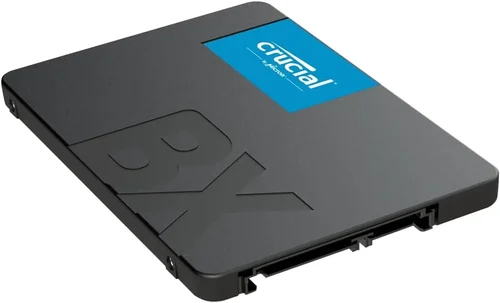
For desktop users, 2.5-inch SATA SSDs remain a viable option, especially if your case lacks M.2 slots. They’re easy to install and widely compatible, though they can’t match NVMe speeds.
8. User Reviews & Ratings
Never underestimate the power of real-user feedback. Professional reviews are invaluable, but they’re usually based on short-term testing. User reviews reveal long-term reliability, real-world performance quirks, and common failure modes.
Check multiple sources: Amazon, Newegg, B&H, and manufacturer websites all host customer reviews. Pay attention to verified purchases and look for patterns—if dozens of users report the same issue (e.g., “drive failed after 6 months” or “slows down when 80% full”), it’s a red flag.
Be wary of fake reviews. Genuine feedback often includes specific details about usage scenarios, system configurations, and troubleshooting steps. Overly generic praise (“Great SSD! Fast!”) with no context is suspect.
Different Types of Buying Guide

Common Buying Mistakes to Avoid
❌ Mistake: Ignoring Your System’s Compatibility
Why it’s bad: Buying a PCIe 5.0 SSD for a motherboard that only supports PCIe 3.0 is like putting premium fuel in a lawnmower—it won’t hurt, but you’re wasting money on unused potential. Similarly, some laptops have only one M.2 slot or require specific keying (B-key vs M-key).
What to do instead: Check your device’s manual or use tools like CPU-Z (for desktops) or manufacturer specs (for laptops) to confirm supported interfaces, form factors, and maximum speeds. When in doubt, opt for PCIe 4.0—it’s backward compatible and offers excellent performance for nearly all users.
❌ Mistake: Choosing Capacity Over Performance Needs
Why it’s bad: A 4TB QLC SSD might seem like a great deal, but if you’re primarily gaming or browsing, you’ll never use that space—and the slower write speeds could hurt load times. Conversely, a 250GB drive may fill up in months, forcing constant file management.
What to do instead: Match capacity to your actual usage. For most users, 1TB is the ideal balance of space and cost. Gamers with large libraries might prefer 2TB, while casual users can get by with 500GB. Always leave 10–20% free space for optimal performance.
❌ Mistake: Overlooking DRAM Cache
Why it’s bad: DRAM-less SSDs use system memory (HMB) or simulate cache in NAND, leading to inconsistent performance—especially during sustained writes or when the drive is nearly full. This can cause stuttering in games or slow app launches.
What to do instead: Prioritize SSDs with dedicated DRAM unless you’re on an extremely tight budget. The performance difference is noticeable in real-world use, even if synthetic benchmarks look similar.
❌ Mistake: Falling for “Gaming” Marketing Hype
Why it’s bad: Many drives are branded as “gaming SSDs” with RGB lighting or aggressive aesthetics, but their internals are identical to standard models. You’re paying for looks, not performance.
What to do instead: Focus on specs, not stickers. A plain-looking Crucial P5 Plus often outperforms a flashy “gaming” drive with the same controller and NAND. Save RGB for your RAM or cooler.
❌ Mistake: Skipping Firmware Updates
Why it’s bad: Outdated firmware can cause bugs, reduced performance, or even data corruption. Manufacturers regularly release updates to fix issues and improve stability.
What to do instead: After installing your SSD, download the manufacturer’s utility software and check for firmware updates. Set reminders to check periodically—especially after major OS updates.
❌ Mistake: Not Considering Future Upgrades
Why it’s bad: Buying a 500GB SSD today because it’s cheap may force you to replace it in a year when you run out of space. Upgrading later often costs more per gigabyte.
What to do instead: Think long-term. If your budget allows, go for 1TB even if you don’t need it immediately. It extends the drive’s useful life and avoids the hassle of migration.
❌ Mistake: Ignoring Thermal Management
Why it’s bad: High-speed NVMe drives generate significant heat. Without proper cooling, they throttle down to protect themselves, negating their speed advantage.
What to do instead: If you’re using a PCIe 4.0 or 5.0 drive in a compact case or laptop, ensure adequate airflow or use a heatsink. Some motherboards include built-in M.2 heatsinks—use them!
Budget Guidelines: How Much Should You Spend?
Entry-Level ($25–$50): This tier is ideal for basic upgrades or secondary storage. Expect SATA SSDs or low-end NVMe drives with QLC NAND and limited endurance. Perfect for web browsing, office work, or reviving old hardware. Look for brands like Kingston NV2 or Crucial BX500.
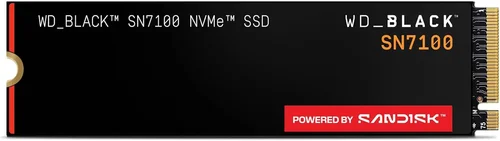
Mid-Range ($50–$120): The sweet spot for most users. You’ll find reliable TLC-based NVMe SSDs (PCIe 3.0 or 4.0) with DRAM cache, solid warranties, and strong real-world performance. Models like the Samsung 980 Pro, WD Black SN770, or Crucial P3 Plus offer exceptional value here.
Premium ($120–$250): For enthusiasts and professionals. These drives feature PCIe 4.0 or 5.0 interfaces, high TBW ratings, advanced thermal solutions, and robust software suites. Ideal for 4K/8K video editing, 3D modeling, or competitive gaming. Consider the Samsung 990 Pro, Sabrent Rocket 4 Plus, or WD Black SN850X.
Luxury ($250+): Top-tier performance with minimal compromises. Often includes 4TB+ capacities, enterprise-grade endurance, and cutting-edge controllers. Only necessary for specialized workloads like AI training, database servers, or extreme content creation. Examples include the Corsair MP700 Pro or Samsung 990 Pro 4TB.
Expert Tips for Getting the Best Deal
– Buy during major sales events: Black Friday, Prime Day, and back-to-school seasons often feature deep discounts on SSDs. Sign up for price alerts on CamelCamelCamel (for Amazon) or Honey.
– Check refurbished or open-box deals: Reputable retailers like Best Buy or Newegg often sell certified refurbished SSDs at 20–30% off with full warranties.
– Compare total cost of ownership: A slightly more expensive drive with a 5-year warranty and high TBW may save money long-term compared to a cheap drive that fails in two years.
– Look for bundle deals: Some manufacturers offer free cloning software, heatsinks, or extended warranties with purchase—especially during promotions.
– Verify return policies: Ensure you can return the drive if it doesn’t perform as expected or isn’t compatible. Avoid third-party sellers with restrictive terms.
– Test before relying on it: After installation, run benchmarks (like CrystalDiskMark) and monitor temperatures. If performance is inconsistent, contact support immediately.
– Don’t forget about cloning: If upgrading from an HDD, use free tools like Macrium Reflect or Samsung Data Migration to transfer your OS and files seamlessly.

Frequently Asked Questions
Q: Is NVMe always faster than SATA?
A: In theory, yes—NVMe drives use the PCIe interface, which has much higher bandwidth than SATA III (6 Gbps). However, for everyday tasks like web browsing or document editing, the difference is barely noticeable. NVMe shines when transferring large files or running multiple applications simultaneously.
Q: Can I use an external SSD as my primary drive?
A: Technically yes, but it’s not recommended for performance-critical tasks. USB 3.2 Gen 2×2 or Thunderbolt 4 can deliver speeds close to internal NVMe, but latency and reliability are generally lower. Best used for backups, media storage, or portable workspaces.
Q: Do I need a heatsink for my M.2 SSD?
A: For PCIe 3.0 or low-power PCIe 4.0 drives, usually not. But PCIe 5.0 drives or those in tightly packed cases benefit greatly from heatsinks. Many motherboards include them—use them if available.
Q: How long do SSDs last?
A: Most consumer SSDs last 5–10 years under normal use. Modern drives have wear-leveling algorithms and high TBW ratings. Unless you’re writing terabytes daily, failure is more likely due to manufacturing defects than wear.
Q: Should I enable TRIM?
A: Yes! TRIM helps maintain SSD performance by telling the drive which blocks are no longer in use. It’s enabled by default in Windows 10/11, macOS, and most Linux distributions.
Q: Can I recover data from a failed SSD?
A: It’s possible but expensive and not guaranteed. Unlike HDDs, SSDs don’t have moving parts, but data recovery requires specialized tools and cleanroom environments. Always maintain backups.
Q: Are cheaper SSDs safe for OS installation?
A: Only if they’re from reputable brands and include DRAM. Avoid no-name drives for your system drive—data loss from a corrupted OS is far costlier than saving $20 upfront.
Q: Does SSD speed affect gaming performance?
A: Indirectly. Faster SSDs reduce level load times and asset streaming hitches, especially in open-world games. But once a game is loaded, FPS is determined by your GPU and CPU—not storage speed.
Q: Can I mix different SSD brands in RAID?
A: Possible, but not advised. Mixed drives may have different performance characteristics, firmware behaviors, or failure rates, leading to instability. Use identical models for RAID arrays.
Our Final Recommendations
Best for Budget-Conscious Buyers: Crucial P3 1TB (PCIe 3.0 NVMe) – At around $55, it delivers reliable TLC performance with DRAM cache and a 5-year warranty. Perfect for upgrading older systems without breaking the bank.
Best Overall Value: Samsung 980 Pro 1TB (PCIe 4.0 NVMe) – Consistently tops performance charts, uses high-quality NAND, and includes excellent software. Priced around $90, it’s the gold standard for mainstream users.
Best Premium Option: WD Black SN850X 2TB (PCIe 4.0 NVMe) – Blazing speeds, robust build, and gaming-optimized firmware. Ideal for creators and enthusiasts who demand peak performance.
Best for Beginners: Kingston NV2 1TB (PCIe 4.0 NVMe) – Simple installation, solid performance, and very affordable (~$65). Great first NVMe drive for those new to SSD upgrades.
Best for Advanced Users: Sabrent Rocket 4 Plus-G 2TB (PCIe 4.0 NVMe) – Offers near-PCIe 5.0 speeds at PCIe 4.0 prices, with excellent thermal performance and high endurance. A favorite among overclockers and workstation builders.
Conclusion: Making the Right Choice
Choosing the best SSD in 2026 isn’t just about chasing the highest numbers on a spec sheet—it’s about aligning technology with your real-world needs, budget, and system capabilities. By focusing on key factors like interface compatibility, NAND type, DRAM presence, and warranty terms, you can avoid costly mistakes and invest in a drive that will serve you reliably for years to come.
Remember, the “best” SSD is the one that delivers the right balance of speed, capacity, durability, and value for your specific use case. Whether you’re breathing new life into an aging laptop or building a cutting-edge gaming rig, the right SSD will transform your computing experience—making boots faster, apps launch instantly, and file transfers effortless.
Take your time, do your research, and don’t be swayed by flashy marketing. Use the guidelines in this article to compare options critically, read real user feedback, and prioritize long-term reliability over short-term savings. With the insights you’ve gained here, you’re now equipped to make a confident, informed decision that maximizes both performance and value.
Your next upgrade starts now—choose wisely, and enjoy the speed.