
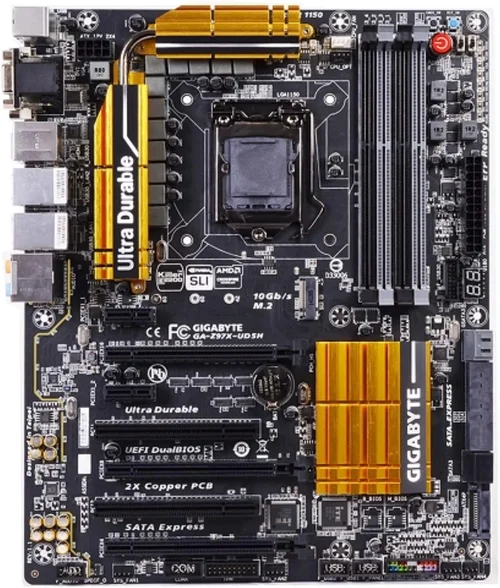
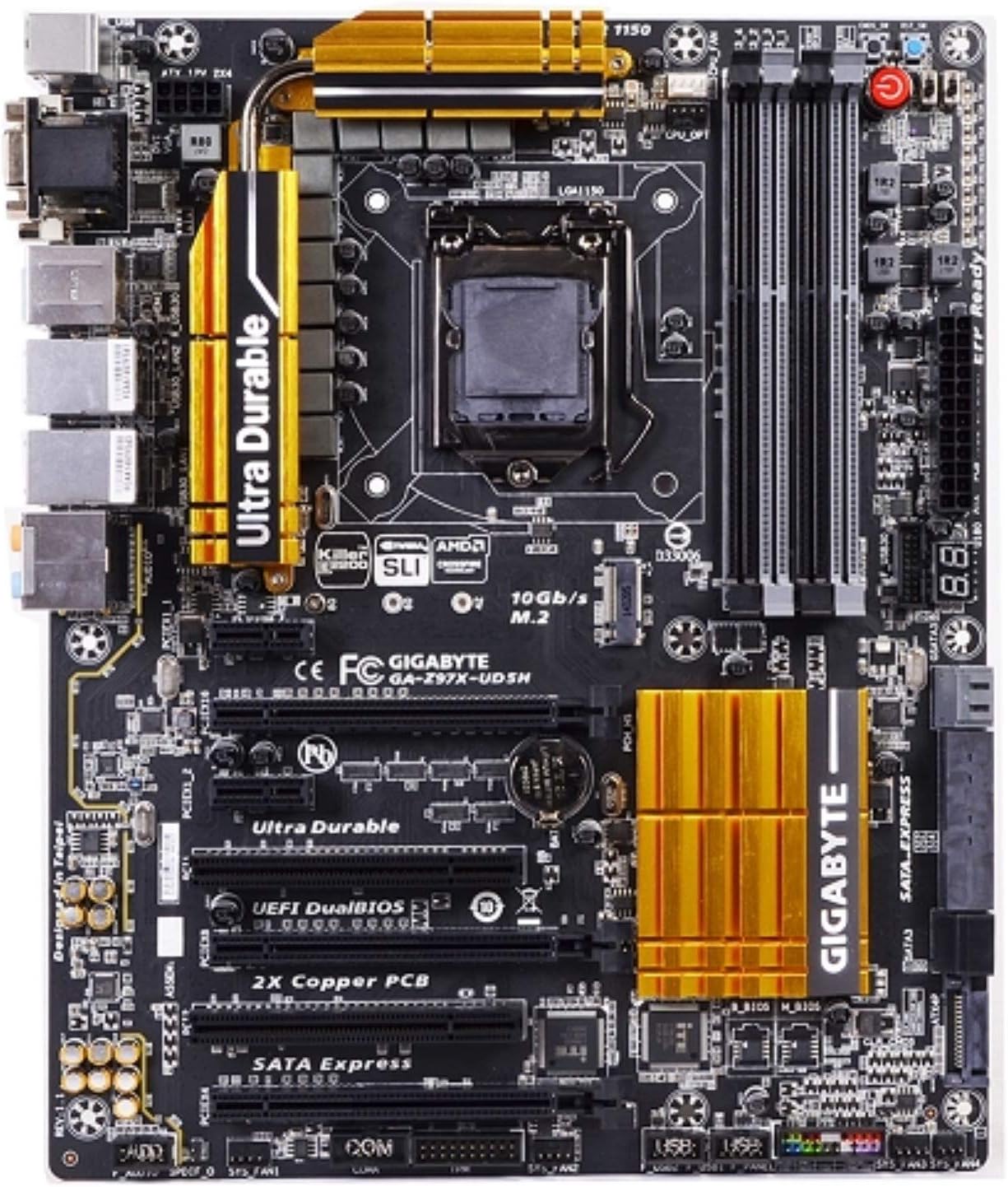
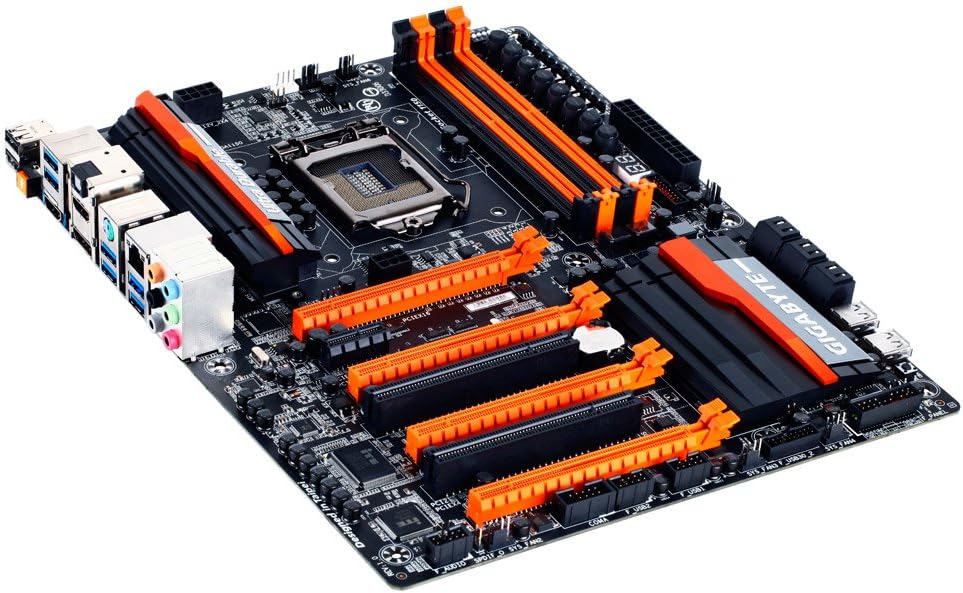
The Gigabyte GA-Z97X-UD5H motherboard, released in 2014, remains a surprisingly capable platform for modern computing—especially when paired with the right solid-state drive (SSD). While it predates the latest PCIe Gen4 and Gen5 SSD standards, this Z97 chipset board still offers excellent SATA III (6Gb/s) support and an M.2 slot that can deliver solid performance for everyday users, content creators, and even light gamers. However, choosing the best SSD for this specific motherboard requires more than just picking the fastest drive on the market. Compatibility, interface limitations, form factor constraints, and real-world performance all play critical roles in ensuring you get the most out of your upgrade without overspending or running into technical roadblocks.
This comprehensive buying guide is designed to help you navigate the crowded SSD landscape with confidence. Whether you’re building a retro-modern PC, upgrading an aging system, or simply looking to breathe new life into your GA-Z97X-UD5H rig, we’ll walk you through every essential consideration—from understanding your motherboard’s technical specs to decoding marketing jargon and avoiding common pitfalls. By the end of this guide, you’ll know exactly what to look for, which drives deliver the best value, and how to future-proof your investment without wasting money on features your system can’t use.
The SSD market has evolved dramatically since the Z97 era. Today’s drives offer blistering speeds, massive capacities, and advanced features like hardware encryption and power-loss protection—but not all of them are compatible with older platforms like yours. Some SSDs may physically fit but underperform due to interface bottlenecks, while others might require BIOS updates or specific configurations to work properly. Our goal is to cut through the noise and give you actionable, expert-level advice tailored specifically to the Gigabyte GA-Z97X-UD5H. We’ll cover everything from budget-friendly SATA options to high-performance NVMe drives that still make sense on this platform, ensuring you make a smart, informed decision that balances performance, reliability, and cost.
What to Look for When Buying Buying Guide
1. Interface Compatibility
The most critical factor when selecting an SSD for the GA-Z97X-UD5H is interface compatibility. This motherboard features six SATA III (6Gb/s) ports and one M.2 slot. However, the M.2 slot on the Z97 chipset only supports PCIe 2.0 x2 lanes—not the faster PCIe 3.0 or 4.0 found on newer boards. This means even if you install a top-tier NVMe SSD like the Samsung 980 Pro, it will be bottlenecked to roughly 1,000 MB/s read speeds instead of its full 7,000 MB/s potential. For most users, this still represents a massive improvement over traditional hard drives, but it’s important to set realistic expectations.
Additionally, the M.2 slot shares bandwidth with certain SATA ports. According to Gigabyte’s manual, using the M.2 slot disables SATA ports 5 and 6. If you already have multiple drives connected, this could impact your storage configuration. Therefore, unless you need the slight latency advantage of NVMe for specific workloads (like video editing or database operations), a high-quality SATA III SSD often provides better overall value and flexibility on this platform.
2. Form Factor & Physical Fit
The GA-Z97X-UD5H supports two primary SSD form factors: 2.5-inch SATA drives and M.2 modules. The 2.5-inch drives are the most straightforward—they connect via standard SATA data and power cables and mount easily in drive bays or using aftermarket brackets. These are ideal for users who want simplicity and don’t mind using up a SATA port.
The M.2 slot, located near the PCIe x16 slot, accepts M.2 2280 (22mm wide, 80mm long) modules. While shorter M.2 drives like 2242 or 2260 will physically fit, they’re rare and often more expensive per gigabyte. Stick with 2280 for the best compatibility and value. Also note that the M.2 slot does not support B-key or B+M-key SATA-based M.2 drives—only PCIe/NVMe types. So if you’re considering an M.2 SATA drive (like the Crucial MX500 M.2), it won’t work here. Always verify the drive’s interface type before purchasing.
3. Performance Specifications
On a Z97 platform, peak sequential read/write speeds are capped by the available interfaces. SATA III SSDs max out around 550–560 MB/s, which is more than sufficient for booting Windows, loading applications, and general multitasking. NVMe drives in the M.2 slot will reach about 900–1,000 MB/s due to the PCIe 2.0 x2 limitation—still a noticeable boost over SATA, especially in random I/O performance.
More important than raw speed is consistency and endurance. Look for drives with strong sustained write performance and low write amplification. DRAM cache is also crucial: SSDs with dedicated DRAM buffers (like the Samsung 870 EVO or WD Black SN750) handle heavy workloads and mixed read/write tasks far better than DRAM-less models (such as the Kingston A400 or Crucial BX500). For the GA-Z97X-UD5H, we recommend prioritizing DRAM-equipped drives unless you’re on an extremely tight budget.
4. Capacity Needs
SSD capacities range from 120GB to 8TB+, but for the Z97 platform, practical sweet spots fall between 500GB and 2TB. A 240GB or 500GB drive is adequate for a basic OS and essential apps, but modern games, creative software, and media libraries quickly eat up space. If you plan to use this system for gaming or content creation, aim for at least 1TB. Larger capacities also improve longevity—SSDs wear out faster when they’re nearly full due to reduced over-provisioning.
Note that pricing per gigabyte drops significantly at higher capacities. For example, a 1TB SATA SSD often costs only 20–30% more than a 500GB model, making the larger size a smarter long-term investment. Avoid anything below 240GB unless you’re using the SSD purely as a boot drive with secondary storage for files.
5. Brand Reputation & Reliability
Not all SSDs are created equal—even within the same price range. Established brands like Samsung, Western Digital, Crucial, Kingston, and SK hynix have proven track records for reliability, firmware stability, and customer support. They also typically use higher-quality NAND flash and controllers, which translate to better endurance and fewer compatibility issues.
Avoid no-name or ultra-budget brands that lack transparency about their components. Some off-brand drives use recycled or lower-grade NAND, which can lead to premature failure or data corruption. Check user reviews on trusted platforms like Amazon, Newegg, or Reddit’s r/buildapc, and look for consistent feedback about longevity and performance under load.
6. Warranty & Support
A good warranty is a strong indicator of a manufacturer’s confidence in their product. Most reputable SSDs come with 3- to 5-year limited warranties, often tied to terabytes written (TBW). For example, a 1TB Samsung 870 EVO has a 600 TBW rating and 5-year warranty, meaning you’d need to write over 330GB per day for five years to exceed it—far beyond typical usage.
When comparing warranties, pay attention to whether the coverage includes data recovery services (rare but valuable) and whether it’s transferable if you sell the drive. Also, ensure the brand offers accessible customer support—some companies require you to ship the drive back before issuing a replacement, which can take weeks.
7. Price-to-Performance Ratio
With the GA-Z97X-UD5H, you don’t need to spend top dollar on cutting-edge SSDs. Because of the platform’s limitations, investing in a PCIe Gen4 drive offers no real benefit. Instead, focus on getting the best performance within the constraints of SATA III or PCIe 2.0 x2. This often means choosing a slightly older but well-reviewed model that’s now available at a discount.
For example, the Samsung 870 EVO (SATA) or WD Blue SN570 (NVMe) deliver excellent performance for their price and are widely compatible with older systems. Avoid “gaming” SSDs with RGB lighting or exaggerated marketing claims—they rarely offer tangible benefits on legacy hardware and often come with inflated prices.
8. Power Efficiency & Thermal Management
While less critical for desktop systems than laptops, power efficiency and heat generation still matter—especially in compact builds or poorly ventilated cases. NVMe drives tend to run hotter than SATA SSDs, and the M.2 slot on the GA-Z97X-UD5H lacks a built-in heatsink. If you opt for an NVMe drive, consider a model with moderate power draw (like the Crucial P3 or Samsung 980) and monitor temperatures using tools like HWInfo or CrystalDiskInfo.
Some high-performance NVMe drives throttle under sustained loads if they overheat. On a Z97 board, where airflow near the M.2 slot may be limited due to GPU proximity, this can affect real-world performance. A simple aftermarket M.2 heatsink (many are included with the drive or sold separately for under $10) can help maintain consistent speeds.
Different Types of Buying Guide

Common Buying Mistakes to Avoid
❌ Mistake: Buying an M.2 SATA Drive for the M.2 Slot
Why it’s bad: The GA-Z97X-UD5H’s M.2 slot only supports PCIe/NVMe drives, not SATA-based M.2 modules. Installing an M.2 SATA drive (like the popular Crucial MX500 M.2) will result in no detection—wasting your money and time.
What to do instead: Double-check the drive’s interface specification. Look for “NVMe” or “PCIe” in the product name or description. If it says “SATA” anywhere, avoid it for the M.2 slot. Use it in a 2.5-inch SATA bay instead.
❌ Mistake: Overpaying for PCIe Gen4 or Gen5 SSDs
Why it’s bad: These cutting-edge drives offer no performance benefit on a Z97 platform. Their speeds far exceed what the M.2 slot or SATA ports can handle, making them a poor value proposition.
What to do instead: Stick to PCIe Gen3 or even Gen2-compatible NVMe drives, or high-quality SATA III models. You’ll save 30–50% without sacrificing real-world performance.
❌ Mistake: Choosing DRAM-less SSDs for Primary Storage
Why it’s bad: DRAM-less drives rely on system RAM (via HMB) or slower caching methods, leading to inconsistent performance, especially during large file transfers or multitasking. They’re prone to slowdowns when the cache fills up.
What to do instead: Invest in a drive with a dedicated DRAM cache. The performance difference is noticeable in daily use, and the extra cost (usually $10–$20) is well worth it for a boot drive.
❌ Mistake: Ignoring BIOS Compatibility
Why it’s bad: Some NVMe drives require UEFI BIOS support to boot. Older BIOS versions on the GA-Z97X-UD5H may not recognize certain NVMe SSDs as bootable devices, leaving you unable to install Windows.
What to do instead: Update your motherboard’s BIOS to the latest version before installing an NVMe drive. Gigabyte has added NVMe boot support in later revisions. Always check the motherboard’s QVL (Qualified Vendor List) if available.
❌ Mistake: Neglecting Thermal Throttling in M.2 Drives
Why it’s bad: High-performance NVMe drives can overheat in the cramped space near the GPU, causing speed throttling and reduced lifespan. The GA-Z97X-UD5H doesn’t include an M.2 heatsink.
What to do instead: Choose a moderately powered NVMe drive (e.g., WD Blue SN570, Crucial P3) and consider adding a low-profile heatsink. Monitor temps with diagnostic software after installation.
❌ Mistake: Buying Based Solely on Sequential Speeds
Why it’s bad: Marketing materials often highlight peak read/write speeds, but real-world performance depends more on random I/O (4K reads/writes) and latency—especially for OS responsiveness and application loading.
What to do instead: Look at reviews that test real-world scenarios (boot times, game loading, file copying). Tools like AS SSD Benchmark or PCMark 10 provide better insights than manufacturer specs alone.
❌ Mistake: Forgetting About SATA Port Limitations
Why it’s bad: Using the M.2 slot disables SATA ports 5 and 6. If you already have multiple drives (HDDs, optical drives, etc.), this could force you to reconfigure your storage setup.
What to do instead: Plan your storage layout in advance. If you need all six SATA ports, stick with a 2.5-inch SATA SSD. Otherwise, enjoy the speed boost of NVMe while managing your port usage.
Budget Guidelines: How Much Should You Spend?
- Entry-Level ($30–$60): Ideal for basic upgrades or secondary drives. Expect 240GB–500GB capacities, often DRAM-less SATA models like the Kingston A400 or Crucial BX500. Suitable for light browsing and office tasks, but avoid for primary OS drives due to performance inconsistencies.
- Mid-Range ($60–$120): The sweet spot for most GA-Z97X-UD5H users. Look for 500GB–1TB DRAM-equipped SATA SSDs (Samsung 870 EVO, WD Blue 3D NAND) or entry-level NVMe drives (WD Blue SN570, Crucial P3). These offer excellent reliability, strong performance, and good warranties.
- Premium ($120–$200): For users wanting maximum speed and capacity on this platform. Consider 1TB–2TB NVMe drives like the Samsung 980 or SK hynix P31 Gold. While bottlenecked by PCIe 2.0 x2, they still deliver superior random performance and longevity. Great for content creators or enthusiasts.
- Luxury ($200+): Generally unnecessary for the Z97 platform. Spending more won’t yield tangible benefits due to interface limitations. Only consider if you plan to reuse the SSD in a future upgrade or need extreme endurance (e.g., enterprise workloads).
Expert Tips for Getting the Best Deal
- Buy during seasonal sales: Major retailers like Amazon, Newegg, and Best Buy offer deep discounts on SSDs during holidays. Sign up for price alerts using tools like CamelCamelCamel or Honey.
- Prioritize reputable retailers: Purchase from authorized sellers to ensure warranty validity. Avoid third-party marketplace vendors with unclear return policies.
- Check for bundle deals: Some SSDs come with free cloning software, mounting brackets, or heatsinks—especially Crucial and Samsung models. These add-ons can save you $10–$20.
- Read professional reviews: Sites like Tom’s Hardware, AnandTech, and StorageReview conduct rigorous testing. Look for reviews that include compatibility notes for older platforms.
- Verify return policies: Ensure the seller offers at least a 30-day return window. Some SSDs may have DOA (dead on arrival) units or compatibility issues that only appear after installation.
- Test before finalizing: Once installed, run benchmarks and stress tests (e.g., CrystalDiskMark, HD Tune) to confirm performance matches expectations. Monitor SMART data for early signs of failure.
- Consider used/refurbished drives cautiously: While tempting, used SSDs may have high wear levels. Only buy from sellers who provide TBW usage data and a warranty.
- Update your BIOS first: Before installing any NVMe drive, flash your GA-Z97X-UD5H to the latest BIOS version (F9 or later). This ensures NVMe boot support and stability.
Frequently Asked Questions
Q: Can I use a PCIe Gen3 NVMe SSD in the GA-Z97X-UD5H’s M.2 slot?
A: Yes, but it will operate at PCIe 2.0 x2 speeds (around 1,000 MB/s max). The drive will be backward compatible, though you won’t benefit from its full Gen3 performance. It’s still a worthwhile upgrade over SATA for latency-sensitive tasks.
Q: Will a 2TB SSD work on this motherboard?
A: Absolutely. Both SATA and NVMe SSDs up to 8TB are supported, limited only by your OS and file system (NTFS supports volumes up to 256TB). Just ensure you have enough physical space and power connectors.
Q: Do I need to enable anything in the BIOS for NVMe support?
A: Yes. After updating to the latest BIOS, enter the UEFI setup and ensure “NVMe Configuration” is enabled. Also, set the boot mode to UEFI (not Legacy/CSM) for optimal compatibility.
Q: Can I clone my old HDD to the new SSD?
A: Yes. Most SSD manufacturers provide free cloning software (e.g., Samsung Data Migration, Acronis True Image for WD). Alternatively, use Macrium Reflect Free or Clonezilla for a reliable clone.
Q: Is it worth upgrading from a SATA SSD to NVMe on this board?
A: For most users, the difference is marginal in daily tasks. However, if you work with large files, databases, or virtual machines, the lower latency of NVMe can improve responsiveness. It’s a nice-to-have, not a must-have.
Q: What happens if I exceed the TBW rating?
A: The drive may still function, but the warranty becomes void. Modern SSDs have built-in wear leveling and over-provisioning, so exceeding TBW under normal use is rare. Most users never come close.
Q: Can I use both M.2 and SATA SSDs simultaneously?
A: Yes, but remember that using the M.2 slot disables SATA ports 5 and 6. You can still use up to four SATA drives alongside the M.2 NVMe drive.
Q: Are there any SSDs specifically recommended for Z97 boards?
A: While no SSD is “made for” Z97, models like the Samsung 870 EVO (SATA), WD Blue SN570 (NVMe), and Crucial MX500 (SATA) are known for excellent compatibility with older platforms.
Q: Should I enable TRIM?
A: Yes. TRIM helps maintain SSD performance over time by allowing the OS to inform the drive which blocks are no longer in use. It’s enabled by default in Windows 10/11, but you can verify with fsutil behavior query DisableDeleteNotify (should return 0).
Q: What’s the difference between TLC and QLC NAND?
A: TLC (Triple-Level Cell) stores 3 bits per cell and offers better endurance and performance than QLC (Quad-Level Cell), which stores 4 bits. For primary drives on a Z97 system, TLC is preferred. QLC is acceptable for secondary storage or archival use.
Our Final Recommendations
- Best for Budget-Conscious Buyers: Crucial BX500 1TB (SATA) – Reliable, affordable, and widely compatible. Lacks DRAM but sufficient for basic use. Great entry point at under $60.
- Best Overall Value: Samsung 870 EVO 1TB (SATA) – The gold standard for SATA SSDs. Excellent endurance, consistent performance, and 5-year warranty. Perfect balance of speed, reliability, and price (~$80).
- Best Premium Option: WD Blue SN570 1TB (NVMe) – Efficient, cool-running NVMe drive that delivers near-maximum performance on PCIe 2.0 x2. Ideal for users wanting the snappiest experience on this platform (~$90).
- Best for Beginners: Kingston KC600 1TB (SATA) – Simple installation, includes cloning software and mounting bracket. User-friendly and dependable for first-time upgraders (~$75).
- Best for Advanced Users: Samsung 980 1TB (NVMe) – Despite being Gen3, it’s one of the most efficient and reliable NVMe drives available. Offers excellent random performance and low power draw—ideal for tweakers and tinkerers (~$100).
Conclusion: Making the Right Choice
Upgrading your Gigabyte GA-Z97X-UD5H with a modern SSD is one of the most impactful improvements you can make—transforming a once-sluggish system into a responsive, capable machine. While the platform’s age imposes certain limitations, smart choices can still yield significant gains in boot times, application loading, and overall usability. The key is aligning your SSD selection with your motherboard’s capabilities, your workload demands, and your budget.
Remember: you don’t need the latest and greatest to feel the benefits of solid-state storage. A well-chosen SATA III drive like the Samsung 870 EVO will serve most users brilliantly, while an NVMe option like the WD Blue SN570 offers a touch more responsiveness for those willing to navigate the M.2 setup. Avoid overspending on features your system can’t utilize, and always prioritize reliability and compatibility over flashy specs.
Take the time to assess your needs, read real-world reviews, and plan your storage configuration carefully. With the insights from this guide, you’re now equipped to make a confident, informed decision that delivers lasting value. Whether you’re reviving an old workstation or building a retro gaming rig, the right SSD will breathe new life into your GA-Z97X-UD5H—proving that sometimes, the best upgrades come from understanding what your hardware can truly handle.