
Solid-state drives (SSDs) have revolutionized how we store and access data. Gone are the days of waiting minutes for a computer to boot up or applications to load—today’s SSDs deliver near-instant responsiveness, dramatically improving productivity, gaming performance, and overall system efficiency. Whether you’re building a new PC, upgrading an aging laptop, or expanding storage for creative work, choosing the right SSD is no longer optional—it’s essential. But with so many options on the market, from budget SATA models to blazing-fast NVMe Gen5 drives, it’s easy to feel overwhelmed. That’s where this guide comes in.
In this comprehensive buying guide, you’ll learn exactly what size SSD is best for your specific needs—not just in terms of storage capacity, but also performance, compatibility, longevity, and value. We’ll walk you through every critical factor to consider, compare different types of SSDs, highlight common pitfalls, and offer expert-backed recommendations tailored to real-world use cases. By the end, you’ll have the confidence to make a smart, informed decision that balances your budget with your performance expectations—whether you’re a casual user, a content creator, a gamer, or a professional developer.
The SSD market in 2026 is more diverse and competitive than ever. Prices have dropped significantly over the past few years, making high-capacity drives accessible to mainstream consumers, while advancements in NAND flash technology (like QLC and PLC) and controller designs continue to push performance and endurance boundaries. At the same time, form factors like M.2 and U.2 dominate new builds, and interface standards such as PCIe 5.0 are becoming mainstream in high-end systems. With options ranging from 250GB budget drives to 8TB enterprise-grade monsters, understanding your actual needs—not just chasing the biggest number—is key to getting the most out of your investment.

What to Look for When Buying Buying Guide
1. Storage Capacity Needs
Choosing the right SSD size starts with understanding how much storage you actually need. While it might be tempting to go for the largest drive available, overspending on unused space is a common mistake. Conversely, buying too small can lead to constant storage anxiety, sluggish performance due to low free space, and the need for premature upgrades.
For most general users—those browsing the web, streaming media, using office applications, and storing personal files—a 500GB to 1TB SSD is ideal. This range offers ample room for the operating system, essential software, and several large applications or games without breaking the bank. If you’re a student, remote worker, or casual gamer, 1TB is often the sweet spot in 2026, providing future-proofing without excessive cost.
Content creators, video editors, 3D artists, and photographers should consider 2TB or larger. A single 4K video project can easily consume 500GB or more, and raw photo libraries from modern cameras can grow rapidly. Gamers with extensive libraries may also benefit from 2TB+, especially as modern AAA titles regularly exceed 100GB each. For example, installing just five major games could fill a 1TB drive.
Professionals working with virtual machines, large databases, or AI/ML datasets may need 4TB or even 8TB drives. These users often benefit from multiple drives—using a smaller, faster NVMe SSD for the OS and active projects, and a larger, high-capacity drive for archival storage.
It’s also important to remember that SSD performance can degrade when drives are more than 70–80% full. This is due to how NAND flash manages data blocks and wear leveling. Keeping at least 20% free space ensures consistent speeds and extends the drive’s lifespan. Therefore, if you plan to use 800GB regularly, a 1TB drive is the minimum recommended size.
2. Performance Specifications
Not all SSDs are created equal when it comes to speed. While capacity tells you how much you can store, performance specs determine how quickly you can access and transfer that data. The two most important metrics are sequential read/write speeds and random read/write IOPS (Input/Output Operations Per Second).
Sequential speeds matter most for large file transfers—such as moving video files, backing up photos, or installing games. Modern NVMe SSDs using PCIe 4.0 can deliver read speeds of 7,000 MB/s or more, while PCIe 5.0 drives are pushing beyond 12,000 MB/s. SATA SSDs, limited by the older interface, cap out around 550 MB/s. For most users, PCIe 3.0 or 4.0 NVMe drives offer the best balance of speed and value.
Random IOPS, on the other hand, affect everyday responsiveness—how fast your system boots, how quickly applications launch, and how smoothly multitasking performs. A drive with high IOPS will feel snappier during normal use, even if its sequential speeds aren’t the highest. Look for drives with at least 500,000 IOPS for random reads and 400,000 for writes in the mid-to-high range.
Another performance factor is the DRAM cache. SSDs with a dedicated DRAM buffer maintain consistent performance under load and improve longevity by reducing write amplification. DRAM-less SSDs are cheaper but can suffer from performance drops during sustained workloads. For general use, a DRAM-equipped drive is strongly recommended.
Finally, consider the NAND type. TLC (Triple-Level Cell) NAND offers the best balance of speed, endurance, and cost and is used in most consumer SSDs. QLC (Quad-Level Cell) is cheaper and allows higher capacities but has lower endurance and slower write speeds, especially when the drive is nearly full. PLC (Penta-Level Cell) is emerging in 2026 but is best avoided for primary drives due to reliability concerns.
3. Form Factor & Compatibility
The physical size and connector type of an SSD determine whether it will fit in your system. The three most common form factors are 2.5-inch SATA, M.2, and U.2.
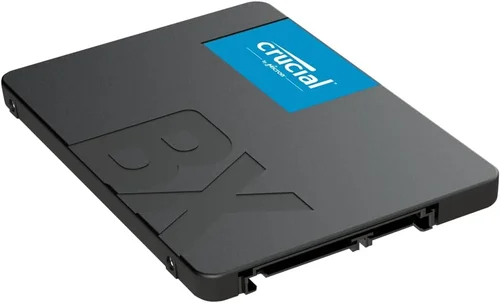
2.5-inch SATA SSDs are the traditional rectangular drives that connect via SATA cables and power connectors. They’re widely compatible with older laptops and desktops but are being phased out in favor of M.2 in new systems. These drives are ideal for upgrading older machines or adding secondary storage.
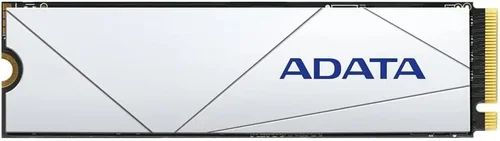
M.2 SSDs are small, stick-like drives that plug directly into the motherboard. They come in different lengths (e.g., 2280, meaning 22mm wide and 80mm long) and support both SATA and NVMe protocols. Most modern laptops and desktops use M.2 slots, and NVMe M.2 drives offer the best performance. Always check your motherboard or laptop manual to confirm which M.2 types (SATA or NVMe) and lengths are supported.
U.2 drives are less common and typically used in servers or high-end workstations. They offer high performance and hot-swappability but require specialized connectors and are not practical for most consumers.
Compatibility also extends to interface standards. PCIe 3.0, 4.0, and 5.0 are the current generations, with each offering roughly double the bandwidth of the previous. A PCIe 5.0 drive will work in a PCIe 4.0 slot but at reduced speeds. Conversely, a PCIe 4.0 drive won’t fit in a PCIe 3.0-only slot unless it’s backward compatible (most are). Always match your drive to your system’s capabilities.
4. Endurance & Lifespan
SSD lifespan is measured in terabytes written (TBW)—the total amount of data that can be written to the drive over its lifetime. Higher TBW ratings indicate greater endurance. For example, a 1TB Samsung 990 Pro has a TBW of 600, while a budget 1TB drive might only offer 300 TBW.
Endurance matters most for users who write large amounts of data regularly—such as video editors, database administrators, or those running virtual machines. For typical consumers, even a modest TBW rating will last many years. Most users will never come close to the rated endurance under normal use.
Another metric is drive writes per day (DWPD), which indicates how many times the entire drive capacity can be written per day over the warranty period. A 1TB drive with 1 DWPD can safely write 1TB per day for five years. Most consumer drives offer 0.3 to 1 DWPD.
Modern SSDs also include wear-leveling algorithms and over-provisioning (extra unused space) to distribute writes evenly and extend life. Look for drives with robust controllers and firmware that support these features.
Finally, consider the warranty. Most reputable brands offer 5-year warranties on consumer SSDs, which is a good indicator of expected lifespan. Enterprise drives may offer 1 million hours MTBF (Mean Time Between Failures) and longer warranties.
5. Brand Reputation & Reliability
Not all SSD brands are equal. While third-party manufacturers may offer lower prices, established brands like Samsung, Western Digital, Crucial, Kingston, and Sabrent have proven track records for reliability, performance, and customer support.
Samsung is often considered the gold standard, with consistent top-tier performance and excellent software tools like Samsung Magician. Western Digital and its subsidiary SanDisk offer strong value and reliability across multiple price points. Crucial, a Micron brand, leverages in-house NAND production for competitive pricing and quality.
Avoid no-name or ultra-budget brands, especially those sold exclusively through online marketplaces with limited return policies. These drives may use lower-quality components, outdated controllers, or recycled NAND, leading to early failure or data loss.
Check independent reviews from trusted sources like Tom’s Hardware, AnandTech, or StorageReview. Look for consistency in performance, real-world endurance tests, and user feedback on forums like Reddit’s r/buildapc or r/DataHoarder.
Also consider software support. Many brands offer utilities for monitoring drive health, updating firmware, and optimizing performance. These tools can help extend the life of your SSD and troubleshoot issues early.
6. Price & Value Proposition
SSD pricing has dropped dramatically, with 1TB NVMe drives now available for under $60 and 2TB models under $100 in 2026. However, price should not be the only deciding factor. A cheaper drive may save you $20 upfront but cost more in the long run if it fails early or underperforms.
Calculate cost per gigabyte (GB) to compare value across capacities. For example, a $50 500GB drive costs $0.10/GB, while a $90 1TB drive costs $0.09/GB—making the larger drive a better value. Larger drives often have better endurance and performance due to more NAND chips and better parallelism.
Watch for seasonal sales. Major retailers like Amazon, Newegg, and Best Buy often discount SSDs during Black Friday, Prime Day, and back-to-school periods. Signing up for price alerts on sites like CamelCamelCamel or Honey can help you catch deals.
Consider total cost of ownership. A slightly more expensive drive with a 5-year warranty and better endurance may be cheaper over time than replacing a failed budget drive. Also factor in potential data recovery costs—lost files can be far more valuable than the drive itself.
For most users, mid-range drives from reputable brands offer the best balance of price, performance, and reliability. Avoid the cheapest options unless you’re using the drive for non-critical storage like media backups.
7. Warranty & Support
A strong warranty is a sign of confidence in a product’s quality. Most consumer SSDs come with a 5-year limited warranty, covering defects and premature failure. Some high-end models, like the Samsung 990 Pro, offer up to 6 years or a TBW limit, whichever comes first.
Read the fine print. Warranties often require registration, proof of purchase, and may exclude damage from misuse, power surges, or unauthorized modifications. Some brands offer expedited replacement services, while others require you to ship the drive first.
Customer support quality varies widely. Samsung and Crucial are known for responsive support, while some budget brands may offer limited or slow assistance. Check online reviews for experiences with RMA (Return Merchandise Authorization) processes.
For critical data, always maintain backups regardless of warranty coverage. SSDs can fail suddenly without warning, and no warranty can recover lost files. Use cloud storage, external drives, or NAS systems for redundancy.
If you’re using the SSD in a business or professional setting, consider enterprise-grade drives with enhanced support, longer warranties, and better failure predictability.
8. Use Case & Workload
Your intended use heavily influences the ideal SSD choice. A drive optimized for gaming may not be the best for video editing, and vice versa.
Casual users and office workers benefit most from reliable, mid-tier NVMe drives with 500GB–1TB capacity. Speed matters less than consistency and longevity.
Gamers should prioritize fast load times and large capacity. A 1TB or 2TB NVMe SSD with high sequential read speeds ensures quick game launches and level loads. Consider drives with good sustained write performance for installing large titles.
Content creators need high endurance, fast write speeds, and large capacity. Look for TLC-based NVMe drives with DRAM and strong TBW ratings. A 2TB or 4TB drive is often necessary for 4K/8K video projects.
Developers and IT professionals may benefit from enterprise SSDs with power-loss protection, higher DWPD, and better error correction. These drives are more expensive but essential for mission-critical workloads.
Always match the SSD to your workload. Overpaying for a top-tier drive you won’t fully utilize is wasteful, while under-speccing can lead to bottlenecks and frustration.