
When it comes to upgrading your computer’s storage, few decisions pack as much performance punch as choosing the right SATA SSD. Whether you’re breathing new life into an older laptop, building a reliable desktop workstation, or simply replacing a failing hard drive, a SATA solid-state drive can dramatically improve boot times, application loading speeds, and overall system responsiveness. Yet despite their widespread availability and relatively straightforward installation, selecting the best SATA SSD isn’t as simple as picking the cheapest or fastest option on the shelf.
This comprehensive buying guide is designed to cut through the marketing noise and technical jargon to help you make a smart, informed decision in 2026. We’ll walk you through every critical factor—from performance benchmarks and build quality to brand reliability and real-world durability—so you can confidently choose a drive that matches your needs, budget, and usage patterns. Whether you’re a casual user looking for a basic upgrade or a power user demanding enterprise-grade endurance, this guide covers it all.
The SATA SSD market today is more mature and competitive than ever. With NAND flash technology advancing rapidly and manufacturing costs continuing to fall, high-capacity, high-performance drives are now accessible to mainstream consumers. However, not all SATA SSDs are created equal. Some prioritize raw speed, others focus on longevity under heavy workloads, and many strike a balance between price and performance. Understanding these nuances is key to avoiding buyer’s remorse and ensuring your investment delivers lasting value. By the end of this article, you’ll know exactly what to look for, which specs matter most, and how to avoid common pitfalls that trip up even experienced buyers.
What to Look for When Buying Buying Guide
1. Performance Specifications
Performance is often the first thing people consider when shopping for an SSD—and for good reason. Unlike traditional hard drives, SATA SSDs use flash memory to store data, eliminating mechanical parts and enabling near-instant access times. But not all SATA SSDs perform the same, even within the same interface standard.
The most important performance metrics to evaluate are sequential read and write speeds, typically measured in megabytes per second (MB/s). Most modern SATA III SSDs cap out around 550–560 MB/s for reads and 500–530 MB/s for writes due to the bandwidth limitations of the SATA III interface (6 Gb/s). While this may seem modest compared to NVMe drives, it’s still more than 5x faster than a typical HDD.
Beyond sequential speeds, pay attention to random read/write performance, measured in input/output operations per second (IOPS). This metric reflects how well the drive handles small, scattered files—common in everyday tasks like opening apps, browsing files, or multitasking. A drive with high IOPS will feel snappier during real-world use, even if its sequential speeds are average.
Another often-overlooked spec is sustained performance under prolonged workloads. Some budget SSDs use dynamic SLC caching, which boosts short bursts of speed but slows dramatically once the cache fills up. If you plan to transfer large files regularly or run disk-intensive applications, look for drives with consistent performance or larger, static caches.
2. Capacity & Storage Needs
Choosing the right capacity is about balancing your current storage requirements with future-proofing. SATA SSDs are available in sizes ranging from 120GB all the way up to 8TB, though capacities above 2TB tend to be significantly more expensive and less common.
For most users, a 500GB or 1TB drive offers the sweet spot between cost and utility. A 500GB SSD is sufficient for the operating system, essential applications, and a modest library of documents, photos, and games. However, if you work with large media files (4K video, RAW photos, virtual machines), or play modern AAA games that can exceed 100GB each, 1TB or 2TB is strongly recommended.
It’s also wise to leave some free space—typically 10–20% of total capacity—to maintain optimal performance and longevity. SSDs rely on over-provisioning (extra unused space) for wear leveling and garbage collection. Filling a drive to near capacity can degrade performance and reduce its lifespan.
Consider your upgrade path, too. If you’re replacing a primary drive, ensure the new SSD has enough room for your OS, apps, and personal files. If it’s a secondary drive for extra storage, you might prioritize capacity over speed.
3. NAND Flash Type & Controller Quality
The type of NAND flash memory used in an SSD directly impacts its speed, endurance, and cost. There are three main types: SLC (Single-Level Cell), MLC (Multi-Level Cell), TLC (Triple-Level Cell), and QLC (Quad-Level Cell).
SLC is the most durable and fastest but also the most expensive—typically reserved for industrial or enterprise use. MLC offers a good balance of performance and endurance and is found in higher-end consumer drives. TLC is the most common in mainstream SSDs today, offering decent performance at a lower price point. QLC provides the highest storage density and lowest cost per gigabyte but sacrifices write speed and endurance, making it best suited for read-heavy workloads like media storage.
Equally important is the SSD controller—the “brain” that manages data flow, error correction, wear leveling, and garbage collection. Reputable controllers from companies like Phison, Silicon Motion, and Marvell generally deliver better performance consistency and reliability than no-name or rebranded chips.
When comparing drives, look for models that specify the NAND type and controller model. Avoid drives that omit this information—they may be using lower-quality components or older technology.
4. Endurance & TBW Rating
Endurance refers to how much data can be written to an SSD over its lifetime, usually expressed in terabytes written (TBW). This metric is crucial if you plan to use your drive for heavy writing tasks—such as video editing, database operations, or frequent large file transfers.
For example, a 1TB SATA SSD might have a TBW rating of 400–600TB. That means you could theoretically write 100GB of data to the drive every day for over 10 years before reaching its rated endurance. In practice, most consumer users will never come close to this limit, but higher TBW ratings generally indicate better build quality and longer expected lifespan.
Drives with higher endurance often use better NAND (like MLC or high-grade TLC) and more robust controllers. They’re also more likely to include power-loss protection and advanced error correction features.
If you’re a casual user who mostly browses, streams, and uses office apps, even a QLC drive with moderate TBW will likely last many years. But for content creators, developers, or anyone running servers or workstations, investing in a drive with higher endurance is a smart move.
5. Brand Reputation & Reliability
Not all SSD brands are equal when it comes to reliability, firmware updates, and long-term support. Established manufacturers like Samsung, Crucial (Micron), Western Digital, Kingston, and ADATA have proven track records of producing consistent, high-quality drives with solid customer service.
These brands typically offer better firmware optimization, more transparent specifications, and longer warranties. They also invest in rigorous testing and quality control, reducing the risk of early failure or data corruption.
On the other hand, lesser-known or no-name brands may offer tempting prices but often cut corners on components, firmware, or support. While some budget brands do deliver decent value, it’s wise to research user reviews and professional benchmarks before committing.
Look for brands that provide clear documentation, firmware update tools, and responsive customer support. A strong warranty (typically 3–5 years) is also a good indicator of confidence in product longevity.
6. Warranty & Support
A solid warranty is one of the best indicators of an SSD’s expected lifespan and the manufacturer’s confidence in its product. Most reputable SATA SSDs come with a 3- to 5-year limited warranty, often tied to both time and TBW limits.
For example, a drive might be covered for 5 years or up to 600TBW—whichever comes first. This dual-limit approach ensures that even heavy users are protected, while casual users benefit from long-term coverage.
When evaluating warranties, check what’s included. Does it cover data recovery? Is there a replacement program? Can you register the product online for extended support? Some brands, like Samsung and Crucial, offer excellent customer service with easy RMA (return merchandise authorization) processes.
Avoid drives with very short warranties (1 year or less), as they may indicate lower-quality components or planned obsolescence.
7. Form Factor & Compatibility
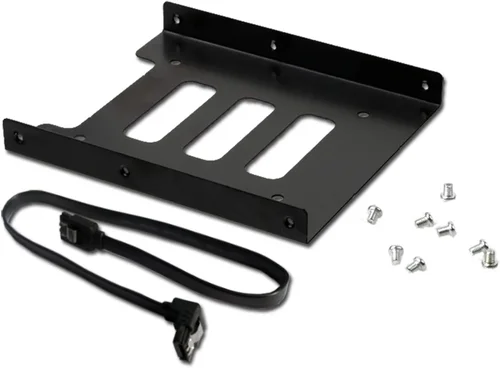
Most SATA SSDs come in the 2.5-inch form factor, designed to fit into the same bays as traditional laptop and desktop hard drives. This makes them ideal for upgrading older systems that don’t support M.2 or NVMe.
However, ensure your system has the necessary SATA ports and power connectors. Most modern motherboards and laptops include SATA III (6 Gb/s) ports, but older systems may only support SATA II (3 Gb/s), which limits performance to around 300 MB/s.
Also consider physical space. In compact laptops or small-form-factor PCs, clearance can be tight. Measure the available bay depth and height to ensure the SSD will fit. Some drives are slightly thicker than standard, which can cause installation issues.
If you’re upgrading a laptop, check whether it uses a 7mm or 9.5mm drive height. Most modern 2.5-inch SSDs are 7mm, but adapters are available if needed.
8. Price per Gigabyte & Value Proposition
While price is important, the best value isn’t always the cheapest drive. Instead, calculate the cost per gigabyte (price ÷ capacity) to compare options fairly. For example, a $50 500GB drive costs $0.10/GB, while a $90 1TB drive costs $0.09/GB—making the larger drive a better value.
In 2026, expect to pay roughly:
– $0.08–$0.12/GB for mainstream TLC drives
– $0.12–$0.18/GB for high-end MLC or enterprise-grade models
– $0.05–$0.08/GB for budget QLC drives (with trade-offs in endurance)
Look for drives that offer a balance of performance, endurance, warranty, and price. A slightly more expensive drive with better components and support often pays off in the long run through improved reliability and fewer headaches.
Different Types of Buying Guide

Common Buying Mistakes to Avoid
❌ Mistake: Prioritizing Speed Over Endurance
Why it’s bad: Many buyers focus solely on read/write speeds and ignore TBW ratings. A drive that looks fast on paper may fail prematurely under heavy write workloads, especially if it uses QLC NAND with low endurance.
What to do instead: Match the drive’s endurance to your usage. For everyday tasks, even QLC is fine. But for frequent large file transfers or professional workloads, choose TLC or MLC with a high TBW rating.
❌ Mistake: Buying Based on Price Alone
Why it’s bad: The cheapest SSDs often use outdated controllers, low-quality NAND, or minimal over-provisioning. This can lead to poor performance, early failure, or data loss.
What to do instead: Calculate cost per gigabyte and compare value across reputable brands. A slightly more expensive drive from a trusted manufacturer usually offers better long-term value.
❌ Mistake: Ignoring Warranty and Support
Why it’s bad: A short or vague warranty may indicate the manufacturer doesn’t stand behind the product. Poor support can leave you stranded if the drive fails.
What to do instead: Choose drives with at least a 3-year warranty and check the brand’s RMA process. Register your drive online to ensure full coverage.
❌ Mistake: Overlooking Compatibility
Why it’s bad: Not all systems support the latest SATA standards or accommodate 2.5-inch drives. Installing an incompatible SSD can result in no boot, reduced performance, or physical fit issues.
What to do instead: Verify your system’s SATA version (III recommended), available bays, and power connectors before purchasing. Check laptop manuals for drive height requirements.
❌ Mistake: Assuming All SATA SSDs Are the Same
Why it’s bad: While SATA III is a standard interface, internal components vary widely. Two drives with identical specs can perform very differently based on controller and NAND quality.
What to do instead: Research specific models using professional reviews and user feedback. Look for consistent performance under real-world conditions, not just peak benchmarks.
❌ Mistake: Skipping Firmware Updates
Why it’s bad: Outdated firmware can cause bugs, performance issues, or security vulnerabilities. Some SSDs ship with known flaws that are later patched.
What to do instead: After installation, check the manufacturer’s website for firmware updates. Use their official tools to apply updates safely.
❌ Mistake: Filling the Drive to Capacity
Why it’s bad: SSDs need free space for wear leveling and garbage collection. Filling a drive beyond 80–90% can degrade performance and reduce lifespan.
What to do instead: Leave at least 10–20% of the drive unused. Use cloud storage or external drives for large media files if needed.
Budget Guidelines: How Much Should You Spend?
Entry-Level ($30–$60): Ideal for basic upgrades or secondary storage. Expect 250GB–500GB capacities with QLC or lower-tier TLC NAND. Performance is adequate for web browsing, office apps, and light use, but endurance and sustained speeds may be limited. Best for users on a tight budget or those replacing a failing HDD.
Mid-Range ($60–$120): The sweet spot for most buyers. Drives in this range (500GB–1TB) typically use high-quality TLC NAND, reliable controllers, and offer 3–5 year warranties. They deliver consistent performance, good endurance (400+ TBW), and are suitable for gaming, multitasking, and moderate content creation.
Premium ($120–$250): For enthusiasts and professionals. These drives (1TB–2TB) often feature MLC NAND, advanced controllers, and enhanced features like power-loss protection. They’re built for heavy workloads, long-term reliability, and maximum performance consistency. Ideal for video editors, developers, and power users.
Luxury ($250+): Top-tier enterprise and industrial-grade SSDs. These offer the highest endurance (1000+ TBW), ruggedized designs, extended temperature ranges, and 5+ year warranties. They’re overkill for most consumers but essential for servers, NAS systems, and mission-critical applications.
Expert Tips for Getting the Best Deal
– Buy during seasonal sales: Major retailers like Amazon, Newegg, and Best Buy often discount SSDs during Black Friday, Cyber Monday, Prime Day, and back-to-school seasons. Sign up for price alerts to catch deals.
– Compare prices across retailers: Use tools like Google Shopping, PriceGrabber, or CamelCamelCamel to track historical prices and find the best current offer.
– Check refurbished or open-box options: Many manufacturers and retailers sell certified refurbished SSDs at significant discounts. These often come with full warranties and are thoroughly tested.
– Prioritize capacity over speed: Since SATA III is bandwidth-limited, there’s little benefit to paying more for “faster” drives. Focus on getting the right capacity and reliability instead.
– Read real user reviews: Look beyond star ratings. Detailed reviews on Amazon, Newegg, or Reddit often reveal real-world performance, failure rates, and compatibility issues.
– Verify return policies: Ensure the seller offers a hassle-free return window (30 days or more) in case the drive is defective or incompatible.
– Use manufacturer tools: Brands like Samsung (Magician), Crucial (Storage Executive), and WD (Dashboard) provide free software for monitoring health, updating firmware, and optimizing performance.
– Consider future upgrades: If your system supports NVMe, consider whether a SATA SSD is the best long-term investment. However, for older systems, SATA remains a cost-effective upgrade path.

Frequently Asked Questions
Q: Is SATA SSD still worth buying in 2026?
A: Absolutely—especially for older systems or budget builds. While NVMe drives are faster, SATA SSDs offer excellent performance for everyday tasks and are often more affordable per gigabyte. They’re also easier to install in legacy hardware.
Q: Can I use a SATA SSD in a laptop?
A: Yes, most laptops with 2.5-inch drive bays support SATA SSDs. Just ensure the drive height (usually 7mm) matches your laptop’s requirements. Some ultrabooks may require M.2 drives instead.
Q: How do I clone my old hard drive to a new SATA SSD?
A: Use cloning software like Macrium Reflect, Acronis True Image, or Samsung Data Migration. Connect both drives, clone the OS and data, then swap them. Most reputable SSD brands include free cloning tools.
Q: Will a SATA SSD improve gaming performance?
A: Yes—games will load faster, levels will stream more smoothly, and system responsiveness will improve. However, in-game frame rates are still determined by your GPU and CPU, not storage speed.
Q: How long do SATA SSDs last?
A: Most consumer SATA SSDs last 5–10 years under normal use. With proper care and moderate workloads, they often outlast the systems they’re installed in. Check the TBW rating for a more precise estimate.
Q: Do I need to enable TRIM?
A: Yes. TRIM helps maintain SSD performance by allowing the OS to inform the drive which blocks are no longer in use. It’s usually enabled by default in Windows 10/11 and macOS, but you can verify it in disk management tools.
Q: Can I use a SATA SSD as a boot drive?
A: Definitely. In fact, that’s one of the best uses for an SSD. Install your operating system on the SSD for dramatically faster boot and shutdown times.
Q: Are external SATA SSDs a good option?
A: Yes, if you need portable storage. External SSDs with USB 3.2 or USB-C interfaces can deliver near-SATA speeds and are great for backups, media, or transferring large files.
Q: What’s the difference between SATA and NVMe?
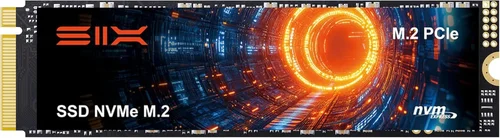
A: SATA uses the older AHCI protocol and is limited to ~550 MB/s. NVMe uses the PCIe interface and can reach 3,500–7,000 MB/s or more. NVMe is faster but requires M.2 or U.2 slots and a compatible motherboard.
Q: Should I worry about SSD failure?
A: While SSDs are more reliable than HDDs, they can still fail. Always maintain backups of important data. Use SMART monitoring tools to check drive health periodically.
Our Final Recommendations
Best for Budget-Conscious Buyers: Crucial BX500 1TB – Offers reliable TLC NAND, solid performance, and a 3-year warranty at an excellent price. Great for basic upgrades and everyday use.
Best Overall Value: Samsung 870 EVO 1TB – The gold standard for SATA SSDs. Uses high-quality MLC-like TLC, delivers consistent performance, and comes with a 5-year warranty. Ideal for most users.
Best Premium Option: Western Digital Black 3D NAND 1TB – Built for performance and endurance, with advanced controllers and excellent sustained write speeds. Perfect for power users and content creators.
Best for Beginners: Kingston A400 480GB – Simple, affordable, and easy to install. Includes cloning software and reliable performance for first-time upgraders.
Best for Advanced Users: ADATA Ultimate SU800 2TB – High-capacity, high-endurance TLC drive with robust firmware and strong real-world performance. Great for workstations and heavy multitasking.
Conclusion: Making the Right Choice
Choosing the best SATA SSD in 2026 doesn’t have to be overwhelming. By focusing on your specific needs—whether that’s budget, performance, capacity, or longevity—you can narrow down the options and find a drive that delivers real value. Remember, the “best” SSD isn’t always the fastest or most expensive; it’s the one that fits your usage, system, and expectations.
Prioritize reputable brands, check endurance ratings, and don’t overlook warranty and support. Avoid common pitfalls like buying solely on price or ignoring compatibility. And when in doubt, lean toward mid-range TLC drives—they offer the best balance for most users.
Whether you’re upgrading an aging laptop or building a reliable desktop, a quality SATA SSD is one of the most impactful upgrades you can make. It’s not just about speed—it’s about reliability, responsiveness, and peace of mind. Take the time to research, compare, and choose wisely. Your future self will thank you every time your computer boots up in seconds.
Ready to make the switch? Use this guide as your roadmap, and you’ll be well on your way to a faster, smoother computing experience.