

Upgrading your ASUS ROG laptop with a high-performance SSD isn’t just about speed—it’s about transforming your entire computing experience. Whether you’re a competitive gamer chasing every frame, a content creator rendering 4K video, or a student juggling multiple applications, the right solid-state drive can make all the difference. ASUS ROG laptops are engineered for peak performance, but they’re only as fast as their storage allows. A sluggish or outdated SSD can bottleneck even the most powerful CPU and GPU, turning an otherwise elite machine into a frustratingly slow device.
This comprehensive guide is designed to help you navigate the crowded SSD market and find the perfect match for your ASUS ROG laptop. We’ll break down everything from technical specs and form factors to real-world performance and budget considerations. By the end, you’ll know exactly what to look for, which models deliver the best value, and how to avoid common pitfalls. Whether you’re replacing a failing drive, upgrading from an older SATA SSD, or building out a new ROG system, this guide will empower you to make a confident, informed decision.
The SSD landscape in 2026 is more dynamic than ever. With advancements in NAND flash technology, PCIe Gen5 adoption, and intelligent thermal management, today’s drives offer unprecedented speed and reliability. However, not all SSDs are created equal—especially when it comes to compatibility with high-performance laptops like the ASUS ROG series. From the compact ROG Zephyrus to the powerhouse ROG Strix and Flow models, each laptop has unique storage requirements. This guide cuts through the marketing noise and delivers expert-level insights tailored specifically for ROG users.

What to Look for When Buying Buying Guide
1. Form Factor and Compatibility
The first and most critical factor when choosing an SSD for your ASUS ROG laptop is ensuring it physically fits and is compatible with your system. Most modern ROG laptops use the M.2 form factor, but there are important distinctions to understand. The two most common types are M.2 2280 (22mm wide, 80mm long) and M.2 2242 (shorter at 42mm). While 2280 is the standard in most ROG models, some ultraportable versions like the Zephyrus G14 may use 2242 or even support both. Always check your laptop’s user manual or ASUS’s official specifications page to confirm the supported form factor.
Beyond physical size, you also need to verify the interface. Most current ROG laptops support NVMe (Non-Volatile Memory Express) over PCIe, which delivers significantly faster speeds than older SATA-based SSDs. PCIe Gen3, Gen4, and even Gen5 are now common, with Gen4 being the sweet spot for most users in 2026. While Gen5 drives offer blazing speeds, they often require advanced cooling solutions due to higher heat output—something to consider if your ROG model has limited thermal headroom. Always match the SSD’s interface (e.g., PCIe Gen4 x4) to your laptop’s capabilities to avoid bottlenecks or incompatibility.
2. Performance Specifications
Performance is where SSDs truly differentiate themselves, especially in a high-end gaming laptop like an ASUS ROG. The two key metrics to focus on are sequential read/write speeds and random IOPS (Input/Output Operations Per Second). Sequential speeds matter most for large file transfers, game loading, and OS boot times, while random IOPS impact multitasking, application responsiveness, and system snappiness.
For PCIe Gen4 drives, expect sequential read speeds between 5,000–7,000 MB/s and write speeds of 4,000–6,500 MB/s. Top-tier Gen5 drives can exceed 10,000 MB/s, but real-world gains may be marginal unless you’re working with massive datasets or 8K video. Random 4K read/write performance should ideally be above 800K IOPS for read and 700K IOPS for write in premium drives. These numbers ensure smooth performance even under heavy workloads, such as running multiple virtual machines or streaming while gaming.
3. Storage Capacity
Capacity directly affects how much data you can store locally, from games and software to media files and backups. For ASUS ROG laptops, we recommend a minimum of 1TB for most users. Modern AAA games routinely exceed 100GB each, and with Windows, drivers, and background apps, a 512GB drive fills up quickly. If you’re a content creator or plan to install multiple large games, 2TB is ideal. High-end users or professionals may even consider 4TB options, though these come at a premium.
It’s also wise to leave 10–15% of the drive unallocated for over-provisioning. This helps maintain performance over time by giving the SSD’s controller more space to manage wear leveling and garbage collection. A nearly full SSD can suffer from reduced write speeds and increased wear, so plan accordingly. If budget is tight, consider starting with 1TB and using cloud storage or an external SSD for less frequently accessed files.
4. NAND Flash Type and Controller
The underlying technology of an SSD—specifically the type of NAND flash memory and the controller—plays a huge role in longevity, performance, and reliability. In 2026, the most common types are TLC (Triple-Level Cell) and QLC (Quad-Level Cell). TLC offers the best balance of speed, endurance, and cost, making it ideal for gaming and general use. QLC is cheaper and denser but sacrifices write endurance and sustained performance, which can be problematic for heavy workloads.
Look for SSDs using 176-layer or higher 3D NAND, as these newer generations offer better density, power efficiency, and longevity. The controller, often from companies like Phison, Silicon Motion, or Samsung’s in-house designs, manages data flow and error correction. A high-quality controller ensures consistent performance and better thermal management. For example, Phison’s E18 controller powers many top-tier Gen4 drives, while Samsung’s Elpis controller is renowned for its efficiency and reliability in the 990 PRO series.
5. Thermal Management and Throttling
High-speed SSDs generate significant heat, especially under sustained loads. Without proper cooling, they can throttle—reducing performance to prevent overheating. This is particularly relevant in slim ASUS ROG laptops like the Zephyrus series, where internal space is limited and airflow is restricted. Some premium SSDs come with integrated heat spreaders or thermal pads, but many rely on the laptop’s existing cooling system.
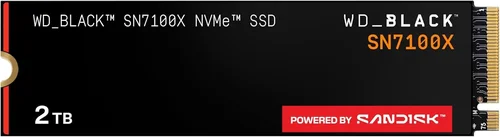
Check if your ROG model has a dedicated SSD heatsink or thermal pad. If not, consider an SSD with a low-profile heatsink or one designed for laptops. Drives like the WD Black SN850X or Samsung 990 PRO include effective thermal solutions. Alternatively, you can purchase aftermarket M.2 heatsinks, but ensure they fit within your laptop’s chassis. Thermal throttling can cut performance by 30–50% in extreme cases, so don’t overlook this factor—especially if you plan to run long gaming sessions or video renders.
6. Brand Reputation and Reliability
Not all SSD brands are equal. Established manufacturers like Samsung, Western Digital, Crucial, Kingston, and SK Hynix have proven track records for quality, firmware updates, and customer support. These brands invest heavily in R&D, rigorous testing, and long-term reliability. While lesser-known brands may offer tempting prices, they often cut corners on NAND quality, controllers, or firmware, leading to higher failure rates.
Look for brands that provide detailed endurance ratings, measured in TBW (Terabytes Written). For example, a 1TB Samsung 990 PRO is rated for 600 TBW, meaning you could write 600 terabytes of data over its lifetime before potential failure. This translates to years of heavy use. Additionally, reputable brands offer better firmware support, which can improve performance and fix bugs post-launch. Avoid no-name drives with vague specifications—your data is too valuable to risk.
7. Warranty and Support
A strong warranty is a sign of confidence in a product’s durability. Most premium SSDs come with 5-year limited warranties, often tied to the TBW rating. For instance, if you exceed the TBW before the 5 years are up, the warranty may void. Always register your drive with the manufacturer to activate full coverage. Some brands, like Samsung and Crucial, also offer data recovery services or migration tools, which can be lifesavers if something goes wrong.
Customer support quality varies widely. Samsung and Western Digital have robust support portals with live chat, detailed FAQs, and firmware update tools. Lesser brands may only offer email support with slow response times. Before buying, check user forums and reviews to see how responsive the company is to issues. A good warranty and support system can save you time, money, and stress down the line.
8. Price and Value for Money
SSD pricing has stabilized in 2026, with Gen4 drives offering excellent value. As of mid-2026, expect to pay around $0.08–$0.12 per GB for a quality 1TB Gen4 NVMe SSD. Premium models with advanced controllers or heatsinks may cost slightly more, while QLC-based drives can dip below $0.07/GB. Avoid drives priced significantly lower than market average—they may use inferior components or lack proper testing.
Consider total cost of ownership, not just upfront price. A slightly more expensive drive with better endurance and performance may last longer and perform better over time, saving you from an early replacement. Also, factor in bundled software—some drives include cloning tools, encryption utilities, or cloud backup subscriptions that add real value. Always compare price per GB across capacities; sometimes a 2TB drive offers better value than two 1TB drives.
Different Types of Buying Guide

Common Buying Mistakes to Avoid
❌ Mistake: Ignoring Thermal Throttling
Why it’s bad: High-performance SSDs can overheat in compact laptops, causing severe performance drops. Without proper cooling, a Gen4 or Gen5 drive may throttle to half its rated speed during extended gaming or rendering sessions.
What to do instead: Choose SSDs with built-in heat spreaders or ensure your ROG model has adequate cooling. Monitor temperatures using tools like HWInfo or CrystalDiskInfo, and consider a low-profile aftermarket heatsink if space allows.
❌ Mistake: Buying Based Solely on Price
Why it’s bad: Extremely cheap SSDs often use low-quality NAND, lack DRAM caches, or have poor controllers. These drives may fail prematurely or suffer from inconsistent performance, risking data loss.
What to do instead: Prioritize value over the lowest price. Look for reputable brands with solid reviews and reasonable TBW ratings. A $20 savings isn’t worth a drive that fails in six months.
❌ Mistake: Overlooking Compatibility
Why it’s bad: Not all M.2 SSDs fit all laptops. Some ROG models only support NVMe, while others may have physical space constraints. Installing an incompatible drive can damage your system or void your warranty.
What to do instead: Double-check your laptop’s manual or ASUS support page. Confirm the form factor (2280, 2242), interface (NVMe vs SATA), and maximum supported capacity before purchasing.
❌ Mistake: Skipping Firmware Updates
Why it’s bad: Outdated firmware can lead to bugs, reduced performance, or compatibility issues. Some SSDs ship with firmware that improves over time through updates.
What to do instead: Register your SSD and check the manufacturer’s website for firmware updates. Use official tools like Samsung Magician or WD Dashboard to keep your drive optimized.
❌ Mistake: Neglecting Backup and Cloning
Why it’s bad: Replacing your SSD without backing up data or cloning your OS can result in hours of reinstallation and lost files.
What to do instead: Use cloning software (like Macrium Reflect or Acronis True Image) to transfer your existing system to the new drive. Always back up critical data before any hardware change.
❌ Mistake: Choosing QLC for Primary Drive
Why it’s bad: QLC SSDs have lower write endurance and slower sustained performance, making them poorly suited for OS drives or heavy workloads. They’re better for secondary storage.
What to do instead: Use TLC-based SSDs for your primary drive. Reserve QLC for bulk storage of media or backups where speed and endurance are less critical.
❌ Mistake: Ignoring Warranty Terms
Why it’s bad: Some warranties are voided if you exceed the TBW rating, even if the drive still functions. Others require registration within 30 days.
What to do instead: Read the fine print. Register your drive promptly and monitor usage with SMART tools to stay within warranty limits.
Budget Guidelines: How Much Should You Spend?
Entry-Level ($50–$80): At this price, you’ll find SATA III SSDs or budget NVMe drives with QLC NAND. These are fine for basic tasks like web browsing, office work, or light gaming, but expect lower endurance and slower write speeds. Ideal for older ROG models or secondary storage.
Mid-Range ($80–$150): This is the sweet spot for most ASUS ROG users. You’ll get PCIe Gen4 NVMe drives with TLC NAND, DRAM caches, and strong performance. Models like the Crucial P5 Plus or WD Black SN770 offer excellent value, with speeds up to 5,000 MB/s and 5-year warranties. Perfect for gaming, streaming, and multitasking.
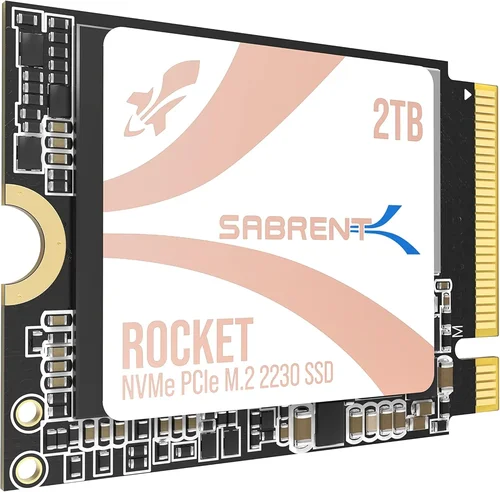
Premium ($150–$250): Here, you’ll find top-tier Gen4 drives like the Samsung 990 PRO or Sabrent Rocket 4 Plus. These feature advanced controllers, high endurance (600+ TBW), and superior thermal performance. Ideal for content creators, competitive gamers, and power users who demand reliability and speed.
Luxury ($250+): This tier includes PCIe Gen5 SSDs and ultra-high-capacity drives (4TB+). While Gen5 offers incredible speeds, real-world benefits are limited unless you’re working with 8K video or AI datasets. These drives often require active cooling and are best suited for enthusiasts or professionals with compatible ROG models.
Expert Tips for Getting the Best Deal
- Buy During Sales Cycles: Major retailers like Amazon, Newegg, and Best Offer deep discounts during holiday sales. Sign up for price alerts using tools like Honey or CamelCamelCamel to catch deals early.
- Check Manufacturer Refurbished Programs: Samsung, WD, and Crucial offer certified refurbished SSDs at 20–30% off with full warranties. These are rigorously tested and often indistinguishable from new units.
- Compare Total Cost of Ownership: Factor in bundled software, warranty length, and expected lifespan. A slightly more expensive drive with better support may save money long-term.
- Use Student or Military Discounts: Many brands offer exclusive discounts for students, educators, or military personnel. Verify your eligibility and stack savings where possible.
- Read Professional Reviews: Don’t rely solely on Amazon ratings. Check trusted tech sites like Tom’s Hardware, AnandTech, or StorageReview for in-depth testing on thermal performance, endurance, and real-world speed.
- Verify Return Policies: Ensure the retailer offers a 30-day return window. Some SSDs may have compatibility issues that only surface after installation.
- Test Before Committing: After installation, run benchmarks (CrystalDiskMark, ATTO) and monitor temperatures. If performance is inconsistent, contact support immediately.
- Consider Bundled Kits: Some SSDs come with enclosures, cloning software, or thermal pads. These add-ons can save you $20–$50 if purchased separately.

Frequently Asked Questions
Q: Can I upgrade the SSD in my ASUS ROG laptop?
A: Yes, most ASUS ROG laptops allow SSD upgrades. However, some models have soldered storage or only one M.2 slot. Check your specific model’s service manual or ASUS support page to confirm upgradeability.
Q: Should I choose PCIe Gen4 or Gen5 for my ROG laptop?
A: If your ROG model supports Gen5 (e.g., ROG Strix Scar 18 with Intel 13th Gen), a Gen5 drive offers future-proofing. However, for most users, Gen4 provides nearly identical real-world performance at a lower cost and with better thermal behavior.
Q: Do I need a heatsink for my SSD?
A: It depends on your laptop’s design. If your ROG model has a built-in SSD heatsink or thermal pad, you may not need one. For high-performance drives in slim chassis, a low-profile heatsink can prevent throttling.
Q: How do I clone my old SSD to a new one?
A: Use cloning software like Macrium Reflect Free, Acronis True Image, or Samsung Data Migration. Connect both drives (via USB adapter if needed), select the source and target, and follow the prompts. Ensure the new drive is equal or larger in capacity.
Q: What’s the difference between DRAM and DRAM-less SSDs?
A: DRAM-equipped SSDs have a dedicated memory cache for mapping data, improving speed and longevity. DRAM-less drives use system memory (HMB), which is slower and can impact performance under heavy loads. Avoid DRAM-less for primary drives.
Q: Can I use an external SSD with my ROG laptop?
A: Absolutely. USB 3.2 Gen 2×2 or Thunderbolt 4 external SSDs offer speeds up to 2,000 MB/s, ideal for gaming or backups. Just ensure your ROG model has the necessary ports.
Q: How long do SSDs last?
A: Most modern SSDs last 5–10 years under normal use. Check the TBW rating—for example, a 1TB drive with 600 TBW could handle 100GB of writes daily for over 16 years.
Q: Is it safe to buy SSDs from third-party sellers?
A: Only buy from authorized retailers or the manufacturer directly. Third-party sellers may offer counterfeit or used drives labeled as new. Look for “sold by Amazon” or “shipped by Newegg” for peace of mind.
Q: Do SSDs improve gaming performance?
A: Yes, but primarily in load times and level streaming. Faster SSDs reduce stuttering in open-world games and speed up boot and install times. However, they don’t increase FPS—your GPU and CPU handle that.
Q: What’s the best SSD brand for ASUS ROG laptops?
A: Samsung, Western Digital, and Crucial are top choices due to their reliability, performance, and strong support. Samsung’s 990 PRO and WD’s Black SN850X are especially popular among ROG users.
Our Final Recommendations
Best for Budget-Conscious Buyers: Crucial P5 Plus 1TB – Offers excellent Gen4 performance at under $90, with a reliable Phison controller and 5-year warranty. Perfect for upgrading older ROG models without breaking the bank.
Best Overall Value: WD Black SN770 1TB – Combines near-top-tier speeds (5,150 MB/s) with low power consumption and no heatsink needed. Ideal for Zephyrus and Strix users who want performance without thermal concerns.
Best Premium Option: Samsung 990 PRO 2TB – The gold standard for NVMe SSDs, with blazing speeds, exceptional endurance (1,200 TBW), and Samsung’s Magician software. Best for creators and enthusiasts with high-end ROG laptops.
Best for Beginners: Kingston KC3000 1TB – Easy to install, comes with cloning software, and delivers consistent Gen4 performance. Great for first-time upgraders who want a hassle-free experience.
Best for Advanced Users: Sabrent Rocket 4 Plus-G 2TB – Features a built-in graphene heatsink, top-tier speeds, and excellent sustained performance. Ideal for users pushing their ROG laptop to the limit with video editing or AI workloads.
Conclusion: Making the Right Choice
Choosing the best SSD for your ASUS ROG laptop is about more than just speed—it’s about compatibility, reliability, and long-term value. By understanding key factors like form factor, NAND type, thermal performance, and warranty, you can avoid common pitfalls and select a drive that truly enhances your experience. Whether you’re a gamer, creator, or power user, the right SSD will unlock your laptop’s full potential, delivering faster load times, smoother multitasking, and greater peace of mind.
Remember, the best SSD is the one that matches your specific needs and budget. Don’t overspend on features you won’t use, but also don’t compromise on quality for the sake of savings. Take the time to research, compare options, and consider future-proofing your investment. With the insights from this guide, you’re now equipped to make a confident, informed decision.
Ready to upgrade? Check your laptop’s specs, pick a drive from our recommendations, and enjoy the transformative power of modern storage. Your ASUS ROG deserves nothing less.