
Solid-state drives (SSDs) have revolutionized the way we store and access data, and Samsung has consistently stood at the forefront of this transformation. Whether you’re upgrading your aging laptop, building a high-performance gaming rig, or expanding storage for professional workloads like video editing or 3D rendering, choosing the right SSD can make a dramatic difference in system responsiveness, boot times, file transfers, and overall user experience. With so many models flooding the market—ranging from budget-friendly SATA drives to cutting-edge NVMe PCIe Gen 5 beasts—it’s easy to feel overwhelmed. That’s exactly why this comprehensive buying guide exists: to cut through the noise, clarify technical jargon, and help you make a confident, informed decision tailored to your specific needs.
In this expert-level guide, you’ll learn how to evaluate Samsung SSDs across every critical dimension—from raw performance metrics and form factors to endurance ratings, warranty coverage, and real-world reliability. We’ll break down the key factors that truly matter when selecting an SSD, compare different product categories, highlight common pitfalls to avoid, and provide actionable tips to get the best value for your money. Whether you’re a first-time buyer or a seasoned tech enthusiast looking to upgrade, this guide equips you with the knowledge to choose not just any Samsung SSD, but the right one for your use case. By the end, you’ll understand not only what makes Samsung a leader in NAND flash innovation but also how to match their latest offerings—like the 990 PRO, 980, and T7 Shield—to your unique requirements.
Samsung’s dominance in the SSD market isn’t accidental. As one of the few companies that designs, manufactures, and integrates its own NAND flash memory, controllers, and firmware, Samsung maintains tight control over quality, performance, and innovation. From pioneering 3D V-NAND technology to delivering some of the fastest consumer NVMe drives on the planet, Samsung has earned a reputation for reliability and cutting-edge engineering. But with a product lineup spanning internal M.2 drives, portable external SSDs, and even specialized enterprise solutions, knowing which model fits your needs requires more than just brand loyalty. This guide dives deep into Samsung’s 2026 SSD portfolio, analyzing everything from sequential read/write speeds and random IOPS to thermal throttling behavior, power efficiency, and long-term durability. You’ll also discover how to interpret specs like TBW (Terabytes Written), understand the implications of DRAM cache presence, and navigate the subtle differences between PCIe Gen 3, Gen 4, and Gen 5 interfaces. Let’s get started.

What to Look for When Buying Buying Guide
1. Performance Specifications
When evaluating any SSD—especially a high-performance model like those in Samsung’s lineup—performance specs are your first and most critical checkpoint. These numbers tell you how fast data can be read from or written to the drive, directly impacting everything from boot times and application launches to large file transfers and multitasking fluidity. For Samsung SSDs, you’ll typically encounter two types of performance metrics: sequential and random.
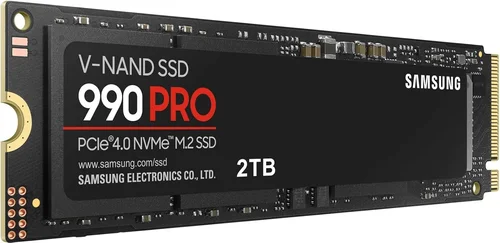
Sequential performance refers to reading or writing large, contiguous blocks of data—think copying a 4K movie file or loading a massive game level. Samsung’s flagship NVMe drives, such as the 990 PRO, boast sequential read speeds up to 7,450 MB/s and write speeds up to 6,900 MB/s (for the 2TB model), thanks to PCIe Gen 4 x4 interface and advanced controller architecture. In contrast, SATA-based models like the 870 EVO max out around 560 MB/s due to the inherent limitations of the SATA III interface. While that may seem slow compared to NVMe, it’s still over five times faster than traditional HDDs and perfectly adequate for everyday computing tasks.
Random performance, measured in IOPS (Input/Output Operations Per Second), reflects how well the drive handles small, scattered data requests—such as opening multiple browser tabs, running database queries, or managing OS-level background processes. High random IOPS translate to snappier system responsiveness, especially under load. The Samsung 990 PRO delivers up to 1.4 million random read IOPS and 1.55 million random write IOPS, making it ideal for content creators and power users. Lower-tier models like the 980 (without DRAM) sacrifice some random performance but remain competent for general use.
It’s also essential to consider sustained performance. Many SSDs can hit peak speeds briefly but throttle under prolonged workloads due to heat buildup. Samsung addresses this with dynamic thermal guard technology and efficient NAND design, but always check reviews for real-world thermal behavior. For example, the 990 PRO maintains high speeds even during extended video renders, while budget drives may slow significantly after a few minutes of heavy use.
2. Form Factor & Compatibility
Not all SSDs fit all systems. The physical form factor determines whether a drive will physically install in your laptop, desktop, or external enclosure. Samsung offers SSDs in three primary form factors: 2.5-inch SATA, M.2 2280, and portable external enclosures like the T-series.
The 2.5-inch SATA drive (e.g., Samsung 870 EVO) is the most universally compatible, fitting into older laptops, desktops with standard drive bays, and even some NAS devices. It connects via SATA data and power cables, making it a reliable upgrade path for systems that don’t support NVMe. However, it’s bulkier and slower than M.2 alternatives.
M.2 SSDs are the modern standard for new PCs and ultrabooks. The “2280” designation (22mm wide, 80mm long) is the most common size. Samsung’s M.2 drives come in two flavors: SATA-based (like the 870 EVO M.2) and NVMe PCIe-based (like the 990 PRO). Crucially, not all M.2 slots support NVMe—some only accept SATA M.2 drives. Always verify your motherboard or laptop specifications before purchasing. For instance, many Intel 10th-gen and older systems have M.2 slots that are SATA-only, while AMD Ryzen and Intel 11th-gen+ platforms typically support PCIe Gen 3 or Gen 4 NVMe.
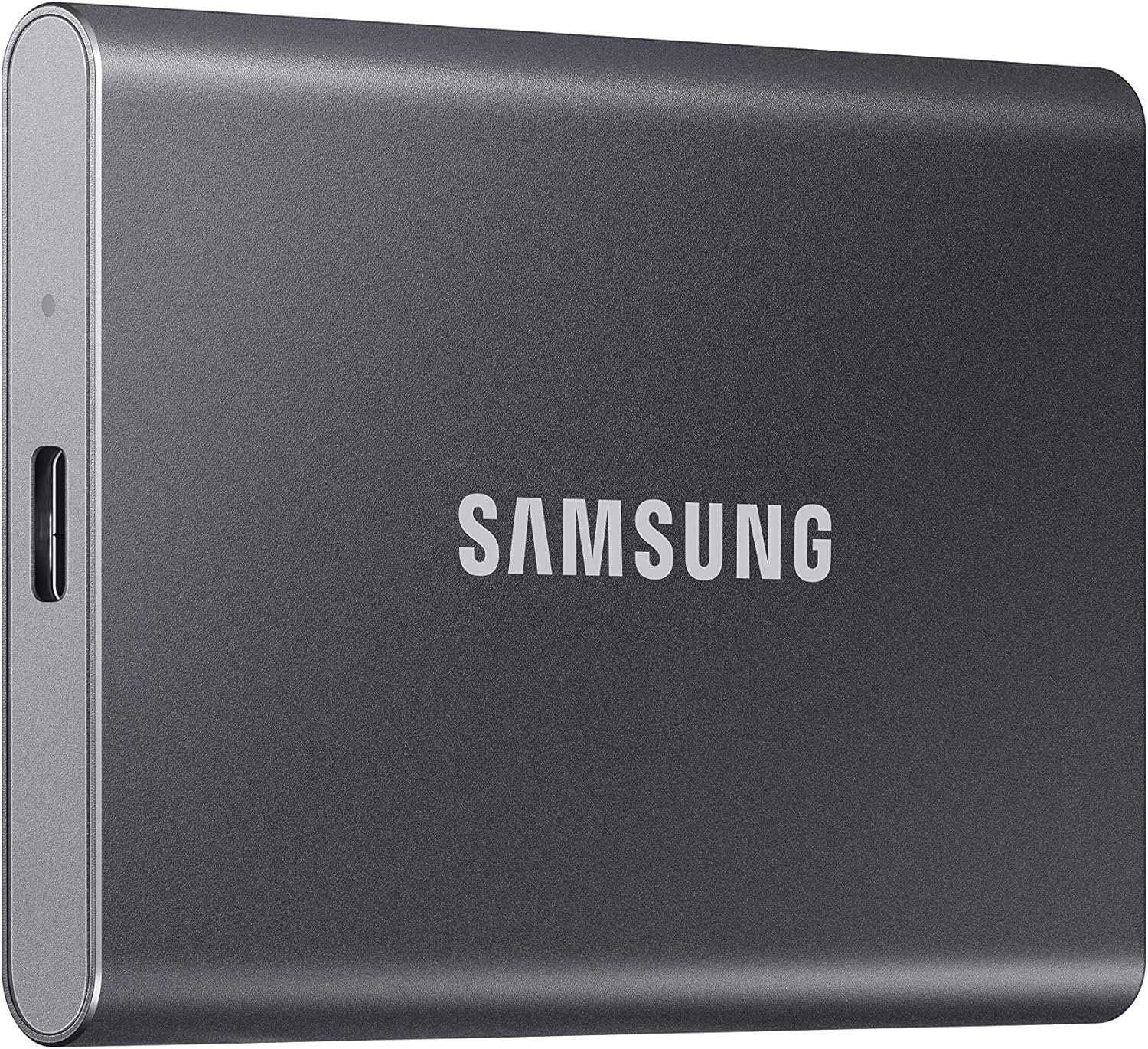
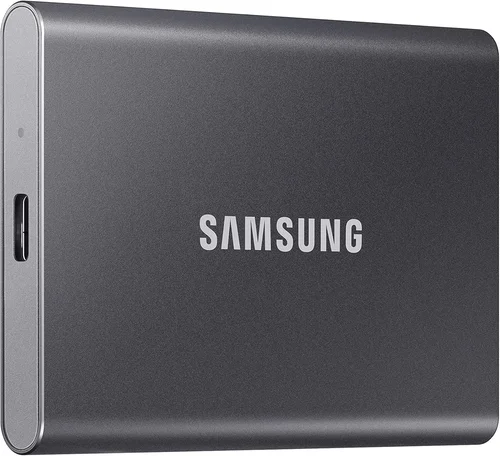
External SSDs like the Samsung T7 and T7 Shield use USB connectivity (USB 3.2 Gen 2) and are housed in compact, durable enclosures. They’re perfect for on-the-go professionals who need fast, portable storage without opening their devices. Just ensure your host device supports USB 3.2 or Thunderbolt for full speed.
3. Storage Capacity Needs
Capacity is a balancing act between cost, performance, and future-proofing. Samsung offers SSDs ranging from 250GB to 4TB (and even 8TB in select enterprise models), but your ideal size depends heavily on usage.
For basic web browsing, office work, and light media consumption, a 500GB SSD is often sufficient—especially if you offload photos, videos, or games to cloud storage or an external drive. However, modern operating systems (Windows 11, macOS Sonoma) and applications consume significant space. A fresh Windows install can take 30–40GB, leaving limited room for programs and updates on a 250GB drive.
Gamers and creative professionals should aim for at least 1TB. AAA titles routinely exceed 100GB each, and 4K video projects can consume terabytes. The Samsung 990 PRO 2TB offers an excellent sweet spot, providing ample space for games, raw footage, and software libraries while maintaining top-tier performance.
It’s also worth noting that SSD performance often scales with capacity. Larger drives have more NAND chips operating in parallel, which can boost both speed and endurance. For example, the 1TB Samsung 980 PRO may sustain 6,500 MB/s writes, while the 2TB version pushes closer to 6,900 MB/s. Additionally, higher-capacity drives typically have longer warranties and higher TBW ratings, reflecting their intended use in demanding environments.
Avoid the temptation to max out your drive. SSDs perform best when they have 10–20% free space for garbage collection and wear leveling. Running near full capacity can degrade performance and reduce lifespan.
4. Endurance & Durability (TBW & MTBF)
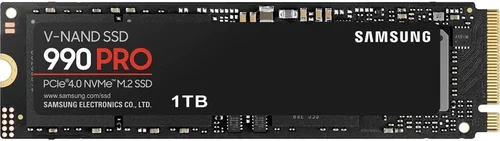
Unlike mechanical hard drives, SSDs have a finite number of write cycles before cells begin to fail. Samsung quantifies this endurance using TBW (Terabytes Written)—the total amount of data that can be written to the drive over its lifetime. For example, the Samsung 990 PRO 1TB has a TBW rating of 600TB, while the 2TB model jumps to 1,200TB. Higher TBW means greater longevity, especially important for workloads involving frequent large file writes (e.g., video editing, database servers, or constant game installations).
Another metric to consider is MTBF (Mean Time Between Failures), which estimates reliability in hours. Samsung SSDs typically boast MTBF ratings of 1.5 to 2 million hours, indicating exceptional build quality. However, real-world durability also depends on NAND type. Samsung uses TLC (Triple-Level Cell) NAND in most consumer drives, which offers a good balance of speed, capacity, and endurance. Their higher-end models may incorporate more resilient NAND variants or advanced error correction.
For most users, even a modest TBW rating will outlast the useful life of the device. A typical user writing 20GB per day would take over 80 years to reach a 600TBW limit. But if you’re a content creator transferring hundreds of gigabytes daily, opting for a higher-capacity, higher-endurance model like the 990 PRO 2TB or 4TB is a smart investment.
Physical durability matters too—especially for external SSDs. The Samsung T7 Shield is IP65-rated against dust and water, and can survive drops from up to 3 meters. Internal drives are less exposed but still benefit from robust controller designs that minimize failure risk during power loss or thermal stress.
5. Interface & Generation (SATA vs. NVMe PCIe Gen 3/4/5)
The interface determines how fast data travels between the SSD and your system. Samsung supports three main interfaces: SATA III, PCIe Gen 3, PCIe Gen 4, and increasingly, PCIe Gen 5.
SATA III remains relevant for older systems and budget builds. It caps at ~600 MB/s, but for everyday tasks, the difference between SATA and NVMe is often imperceptible. The Samsung 870 EVO is a top-tier SATA option, offering near-saturation speeds and excellent reliability.
NVMe (Non-Volatile Memory Express) leverages the PCIe bus for dramatically higher throughput. PCIe Gen 3 x4 (used in the 970 EVO Plus) delivers up to 3,500 MB/s. PCIe Gen 4 x4 (980 PRO, 990 PRO) doubles that to ~7,000 MB/s. PCIe Gen 5, introduced in 2023–2024, pushes speeds beyond 10,000 MB/s, though Samsung’s first Gen 5 consumer drive—the 990 PRO Gen 5—is expected in late 2025 or early 2026 with backward compatibility.
Choosing the right generation depends on your hardware. If your motherboard only supports PCIe Gen 3, buying a Gen 4 drive won’t unlock its full potential—but it will still work at Gen 3 speeds. Conversely, if you have a Gen 4 or Gen 5-capable system (e.g., AMD Ryzen 7000 series or Intel 13th/14th-gen), investing in a Gen 4 or Gen 5 SSD future-proofs your build and maximizes performance for bandwidth-intensive tasks like 8K video editing or real-time ray tracing in games.
Note: PCIe Gen 5 drives generate more heat and may require heatsinks or active cooling. Ensure your case has adequate airflow or consider models with integrated heat spreaders, like the 990 PRO.
6. DRAM Cache Presence
One of the most overlooked yet critical factors in SSD performance is the presence of a DRAM cache. DRAM (Dynamic Random-Access Memory) acts as a high-speed buffer between the NAND flash and the controller, storing mapping tables that track where data is physically stored on the drive. This dramatically improves random read/write performance and overall responsiveness.
Samsung’s premium drives—including the 990 PRO, 980 PRO, and 870 EVO—all include a dedicated DRAM chip. In contrast, budget models like the Samsung 980 (non-PRO) omit DRAM to reduce cost. Instead, they use HMB (Host Memory Buffer), which borrows a small portion of your system’s RAM for mapping tables.
While HMB works adequately for light workloads, it introduces latency and can bottleneck performance under heavy multitasking or sustained writes. For example, the DRAM-less 980 may struggle with simultaneous file transfers and application launches, whereas the 980 PRO handles such scenarios effortlessly.
If you’re using your SSD for gaming, content creation, or running virtual machines, always prioritize DRAM-equipped models. The performance gap in real-world usage can be significant, even if synthetic benchmarks look similar. Samsung’s inclusion of DRAM across its PRO and EVO lines reflects their commitment to delivering consistent, high-quality user experiences.
7. Warranty & Support
A strong warranty is a hallmark of a reliable SSD. Samsung backs its consumer SSDs with generous warranties that often scale with capacity. For instance, the 990 PRO comes with a 5-year limited warranty or up to the TBW limit (whichever comes first). The 1TB model is rated for 600TBW, the 2TB for 1,200TBW, and the 4TB for 2,400TBW.
This tiered approach rewards users who invest in higher-capacity drives—not just with more storage, but with greater peace of mind. Samsung’s warranty covers defects in materials and workmanship, and in many regions, includes free data recovery services or drive replacement.
Customer support is another strength. Samsung offers online troubleshooting tools, firmware update utilities (like Samsung Magician software), and responsive technical assistance. The Magician software is particularly valuable, providing drive health monitoring, performance optimization, and secure erase functions—all tailored to Samsung SSDs.
When comparing warranties, avoid drives with only 1–2 years of coverage unless they’re ultra-budget models. A 3-year minimum is standard, but 5 years (as with Samsung’s flagship drives) signals confidence in product longevity.
8. Price-to-Performance Ratio
Ultimately, value matters. Samsung positions its SSDs across multiple price tiers, and understanding where you get the most bang for your buck is key. The 990 PRO commands a premium but delivers class-leading speeds and endurance, making it ideal for enthusiasts. The 980 PRO offers nearly identical performance at a slightly lower price, while the 980 (non-PRO) sacrifices DRAM and peak speeds for affordability.
For budget-conscious buyers, the 870 EVO remains one of the best SATA SSDs available, offering exceptional reliability and near-maximum SATA speeds at a competitive price. External options like the T7 Touch balance speed, portability, and security (with fingerprint authentication) at a reasonable cost.
Always calculate cost per gigabyte. A 1TB drive priced at $90 equals $0.09/GB, while a 2TB at $160 equals $0.08/GB—making the larger drive a better long-term value. However, don’t overspend on capacity you won’t use. Match your purchase to realistic needs, and consider future expansion via secondary drives if necessary.
Different Types of Buying Guide
Common Buying Mistakes to Avoid
❌ Mistake: Ignoring Your System’s Compatibility
Why it’s bad: Buying a PCIe Gen 4 NVMe SSD for a laptop that only supports SATA M.2 will result in a drive that either doesn’t fit or runs at severely reduced speeds. Similarly, assuming all M.2 slots support NVMe can lead to frustration during installation.
What to do instead: Always check your device’s manual or manufacturer specs. Look for terms like “M.2 NVMe,” “PCIe x4,” or “SATA M.2.” When in doubt, consult Samsung’s compatibility tool or contact support.
❌ Mistake: Prioritizing Peak Speeds Over Real-World Performance
Why it’s bad: Synthetic benchmarks often exaggerate real-world benefits. A drive with 7,000 MB/s reads may not feel dramatically faster than one with 3,500 MB/s for everyday tasks like web browsing or document editing.
What to do instead: Focus on random IOPS, DRAM presence, and sustained write performance. For most users, a balanced drive like the 980 PRO offers better value than chasing maximum sequential speeds.
❌ Mistake: Overlooking Endurance for Light Use
Why it’s bad: While high TBW is great, paying extra for a 2,400TBW drive when you only write 10GB per day is wasteful. Conversely, choosing a low-endurance drive for heavy workloads risks premature failure.
What to do instead: Match TBW to your usage. Casual users can safely choose mid-tier models; professionals should invest in high-endurance drives like the 990 PRO 2TB or 4TB.
❌ Mistake: Skipping Firmware Updates
Why it’s bad: Outdated firmware can cause compatibility issues, performance bugs, or even data corruption. Samsung regularly releases updates to improve stability and security.
What to do instead: Install Samsung Magician and enable automatic firmware checks. Update your drive before heavy use, especially after a fresh OS install.
❌ Mistake: Buying Based Solely on Price
Why it’s bad: The cheapest SSD may lack DRAM, have poor endurance, or use lower-quality NAND. Long-term reliability and performance often justify a modest price increase.
What to do instead: Evaluate total cost of ownership. A $20 more expensive drive with a 5-year warranty and higher TBW may save you money by avoiding replacement costs.
❌ Mistake: Neglecting Thermal Management
Why it’s bad: High-performance NVMe drives generate significant heat. Without proper cooling, they throttle, reducing speeds and potentially shortening lifespan.
What to do instead: Use motherboards with built-in M.2 heatsinks or add an aftermarket cooler. For laptops, ensure adequate ventilation around the SSD slot.
❌ Mistake: Assuming All Samsung SSDs Are Equal
Why it’s bad: Samsung’s lineup includes everything from entry-level 980 to flagship 990 PRO. Confusing models can lead to buying underpowered or overpriced drives.
What to do instead: Learn the product hierarchy: PRO = premium performance, EVO = balanced value, QVO = budget-focused (QLC NAND), T-series = portable external.
Budget Guidelines: How Much Should You Spend?
– Entry-Level ($50–$90): Ideal for basic upgrades or secondary storage. Look at the Samsung 870 EVO (SATA) or 980 (NVMe, DRAM-less). Expect solid reliability and decent speeds for everyday tasks, but avoid heavy workloads.
– Mid-Range ($90–$180): The sweet spot for most users. Models like the 970 EVO Plus (Gen 3) or 980 PRO (Gen 4) offer excellent performance, DRAM cache, and 5-year warranties. Perfect for gaming, office work, and light content creation.
– Premium ($180–$350): For enthusiasts and professionals. The Samsung 990 PRO (Gen 4) delivers top-tier speeds, exceptional endurance, and robust thermal performance. Great for 4K/8K video editing, 3D rendering, and high-FPS gaming.
– Luxury ($350+): Reserved for extreme use cases. The 4TB 990 PRO or upcoming Gen 5 models offer maximum capacity and performance. Only justified for workstations, servers, or users who demand absolute best-in-class hardware.
Expert Tips for Getting the Best Deal
– Buy During Major Sales Events: Samsung SSDs frequently go on sale during Amazon Prime Day, Black Friday, Cyber Monday, and New Year promotions. Prices can drop significantly, especially on higher-capacity models.
– Check Multiple Retailers: Compare prices across Amazon, Best Buy, Newegg, B&H Photo, and Samsung’s official store. Sometimes, the manufacturer offers exclusive bundles or extended warranties.
– Consider Refurbished or Open-Box: Samsung-certified refurbished drives come with full warranties and are often 15–25% cheaper. Open-box items from reputable sellers can also offer great value.
– Use Price Tracking Tools: Services like CamelCamelCamel (for Amazon) or Honey alert you when prices drop below your target. Set alerts for specific models to avoid impulse buys.
– Verify Warranty Terms: Ensure the seller is authorized by Samsung. Unauthorized resellers may void your warranty. Register your drive on Samsung’s website for full support access.
– Test Before Committing: If possible, test the SSD in your system before finalizing setup. Use tools like CrystalDiskMark or Samsung Magician to confirm performance matches specs.
– Beware of Counterfeits: Fake Samsung SSDs exist, especially on third-party marketplaces. Always buy from trusted retailers and check for holographic seals and authentic packaging.
– Plan for Future Upgrades: If you’re building a PC, consider buying a slightly larger drive now to avoid needing a second SSD later. The cost difference between 1TB and 2TB is often minimal relative to long-term convenience.

Frequently Asked Questions
Q: Is the Samsung 990 PRO worth the extra cost over the 980 PRO?
A: Yes, if you need maximum performance and endurance. The 990 PRO offers slightly faster speeds (up to 7,450 MB/s vs. 7,000 MB/s), better power efficiency, and enhanced thermal management. For gamers and creators, the upgrade is justified. For general use, the 980 PRO provides nearly identical real-world performance at a lower price.
Q: Can I use a Samsung NVMe SSD in an older laptop?
A: Only if the laptop has an M.2 slot that supports NVMe. Many older systems only support SATA M.2 or lack M.2 entirely. Check your laptop’s service manual or use tools like CPU-Z to verify compatibility.
Q: Does the Samsung 980 (non-PRO) have DRAM?
A: No, the 980 uses HMB (Host Memory Buffer) instead of a dedicated DRAM chip. This reduces cost but can impact performance under heavy multitasking. For light use, it’s fine; for demanding tasks, choose a DRAM-equipped model.
Q: How long do Samsung SSDs typically last?
A: With normal use, a Samsung SSD can last 5–10 years or more. The TBW rating provides a conservative estimate—most users will upgrade their system long before reaching the write limit.
Q: Is the T7 Shield waterproof?
A: It’s IP65-rated, meaning it’s dust-tight and protected against water jets from any direction. It’s not submersible, but it can survive rain, spills, and brief exposure to moisture.
Q: Can I clone my old HDD to a Samsung SSD?
A: Yes. Use Samsung Data Migration software (free with purchase) or third-party tools like Macrium Reflect or Acronis True Image. Ensure the SSD capacity is equal to or larger than the used space on your HDD.
Q: Do I need a heatsink for the 990 PRO?
A: Not always. The 990 PRO has a built-in heat spreader and performs well in most cases. However, in compact builds or high-ambient-temperature environments, an aftermarket heatsink can prevent thermal throttling.
Q: Are Samsung SSDs compatible with Mac?
A: Internal Samsung NVMe SSDs work in Macs with user-replaceable storage (e.g., older MacBook Pros). For newer Macs with soldered storage, external SSDs like the T7 are the best option. Always format the drive as APFS for macOS.
Q: What’s the difference between TLC and QLC NAND in Samsung drives?
A: TLC (Triple-Level Cell) stores 3 bits per cell and offers better endurance and performance. QLC (Quad-Level Cell) stores 4 bits, increasing capacity and lowering cost but reducing write speed and lifespan. Samsung’s QVO series uses QLC; PRO and EVO models use TLC.
Q: How do I securely erase a Samsung SSD?
A: Use Samsung Magician’s “Secure Erase” feature. This performs a cryptographic erase, instantly rendering all data unrecoverable—faster and safer than traditional wiping methods.
Our Final Recommendations
– Best for Budget-Conscious Buyers: Samsung 870 EVO (1TB) – Reliable, fast SATA performance, 5-year warranty, and proven longevity. Perfect for upgrading older systems.
– Best Overall Value: Samsung 980 PRO (1TB or 2TB) – Near-flagship performance, DRAM cache, PCIe Gen 4 speeds, and competitive pricing. Ideal for most gamers and professionals.
– Best Premium Option: Samsung 990 PRO (2TB) – Top-tier speeds, exceptional endurance, and advanced thermal design. The ultimate choice for content creators and power users.
– Best for Beginners: Samsung 970 EVO Plus (1TB) – Easy installation, excellent performance, and strong reliability. Great first NVMe drive for new PC builders.
– Best for Advanced Users: Samsung 990 PRO Gen 5 (Expected 2026) – When released, this will offer PCIe Gen 5 speeds, cutting-edge NAND, and optimized firmware for workstation-grade workloads.
Conclusion: Making the Right Choice
Choosing the best Samsung SSD isn’t about picking the fastest or most expensive model—it’s about aligning technology with your specific needs, budget, and system capabilities. Whether you’re breathing new life into an aging laptop with a reliable 870 EVO or building a future-proof gaming rig with the blistering 990 PRO, Samsung offers a solution tailored to your workflow. By focusing on key factors like performance, compatibility, endurance, and value, and avoiding common pitfalls like ignoring DRAM or overlooking thermal management, you can invest confidently in storage that delivers both speed and longevity.
Remember, the “best” SSD is the one that disappears into the background—quietly, efficiently, and reliably powering your digital life without fuss. Samsung’s consistent innovation, vertical integration, and customer-centric support make their drives a trusted choice for millions worldwide. As you weigh your options, prioritize your actual usage patterns over marketing hype, and don’t hesitate to leverage tools like Samsung Magician to maximize your drive’s potential. With the insights from this guide, you’re now equipped to make a smart, informed decision that will keep your system running smoothly for years to come. Upgrade wisely—your data deserves it.