
The Mac Mini has long been a favorite among professionals, creatives, and everyday users who value compact design, powerful performance, and seamless integration with the Apple ecosystem. Whether you’re using it as a home office workstation, a media server, or a creative hub for video editing and music production, one thing remains constant: storage is critical. While newer Mac Mini models come with fast internal SSDs, many users quickly find themselves needing more space—especially if they work with large files like 4K video, RAW photos, or complex software projects. This is where an external SSD becomes not just a convenience, but a necessity.
Choosing the right external SSD for your Mac Mini isn’t as simple as picking the first drive you see on Amazon. With so many options on the market—ranging from budget-friendly USB 3.0 drives to blazing-fast Thunderbolt 4 models—it’s easy to get overwhelmed. Some drives promise top-tier speeds but fall short in real-world use, while others offer rugged durability but lack the performance needed for professional workflows. That’s why this guide exists: to cut through the noise and help you make an informed decision based on your specific needs, budget, and use case. Whether you’re a student, a content creator, or a power user managing a home studio, we’ll walk you through everything you need to know to find the perfect external SSD for your Mac Mini.
In this comprehensive guide, you’ll learn how to evaluate key factors like speed, connectivity, build quality, and compatibility. We’ll break down the different types of external SSDs available, compare their strengths and weaknesses, and highlight common pitfalls to avoid. You’ll also get expert tips on when and where to buy, how to maximize value, and what to look for in user reviews. By the end, you’ll have a clear roadmap to choosing an external SSD that not only meets your current needs but also supports your future growth—all while staying within your budget.

What to Look for When Buying Buying Guide
1. Performance Specifications
Performance is arguably the most important factor when selecting an external SSD for your Mac Mini. After all, the whole point of upgrading to an SSD is to enjoy faster file transfers, quicker application launches, and smoother multitasking. But not all SSDs are created equal. The speed of an external SSD depends on several technical specifications, including the interface (USB or Thunderbolt), the type of NAND flash memory used, and the controller inside the drive.
For Mac Mini users, Thunderbolt 3 and Thunderbolt 4 offer the fastest data transfer speeds—up to 40 Gbps—making them ideal for professionals working with large media files. USB 3.2 Gen 2 (10 Gbps) and USB 3.2 Gen 2×2 (20 Gbps) are also excellent choices and more widely compatible with older Mac Mini models. USB 3.0 (5 Gbps) is still functional but noticeably slower, especially when transferring large video files or backing up entire photo libraries.
When comparing performance, look at both read and write speeds. Manufacturers often advertise peak read speeds (e.g., “up to 2,800 MB/s”), but real-world write speeds can be significantly lower, especially under sustained workloads. For example, a drive might hit 2,500 MB/s on a short burst transfer but drop to 800 MB/s when writing a 50GB video file continuously. This is due to thermal throttling or the use of slower SLC caching. Always check independent reviews or benchmarks to see how a drive performs under real-world conditions.
2. Connectivity & Compatibility
Your Mac Mini’s available ports will heavily influence which external SSD you can use. The 2023 Mac Mini (M2 and M2 Pro) comes with two or four Thunderbolt 4 ports, two USB-A ports, HDMI, and Ethernet. Older Intel-based models may only have Thunderbolt 3 or USB 3.0. Knowing your port types is essential because it determines the maximum speed you can achieve.
Thunderbolt 3 and 4 are backward compatible with USB-C, but not all USB-C drives support Thunderbolt. A Thunderbolt SSD will work on a USB-C port, but it will run at USB speeds—wasting the drive’s potential. Conversely, a USB-only drive plugged into a Thunderbolt port will still only perform at USB speeds. So, if your Mac Mini has Thunderbolt, investing in a Thunderbolt SSD makes sense for future-proofing and maximum performance.
Also consider cable inclusion. Some drives come with both USB-C and USB-A cables, which is helpful if you ever need to connect to older devices. Others only include a USB-C cable, which may require you to purchase adapters separately. Additionally, check for macOS compatibility. While most modern SSDs are plug-and-play with macOS, some may require formatting (e.g., from exFAT to APFS) for optimal performance and Time Machine support.
3. Build Quality & Durability
External SSDs are often moved around—between home and office, on location shoots, or during travel. This makes build quality and durability crucial. Look for drives with aluminum enclosures, which not only look sleek and match the Mac Mini’s aesthetic but also help dissipate heat and protect internal components.
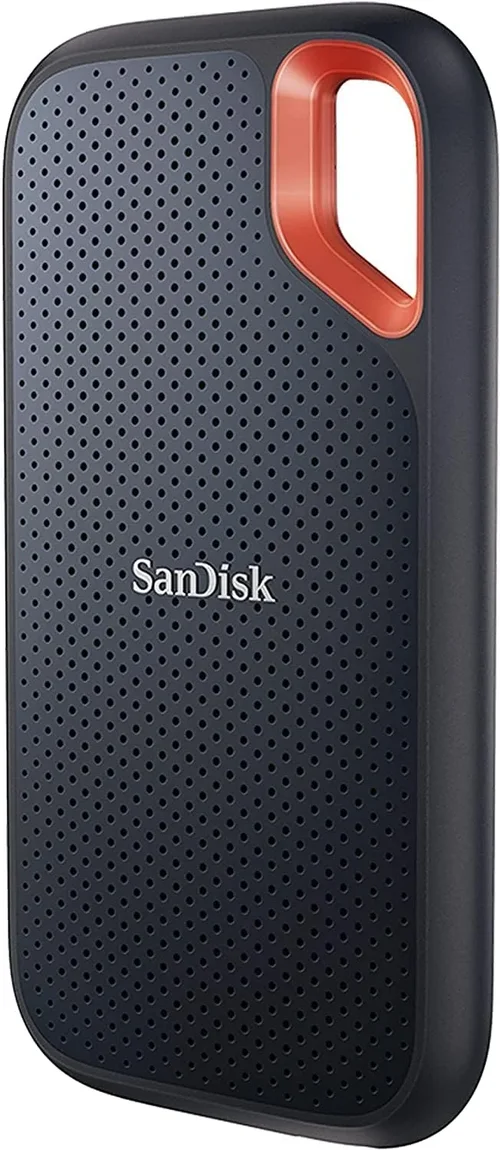
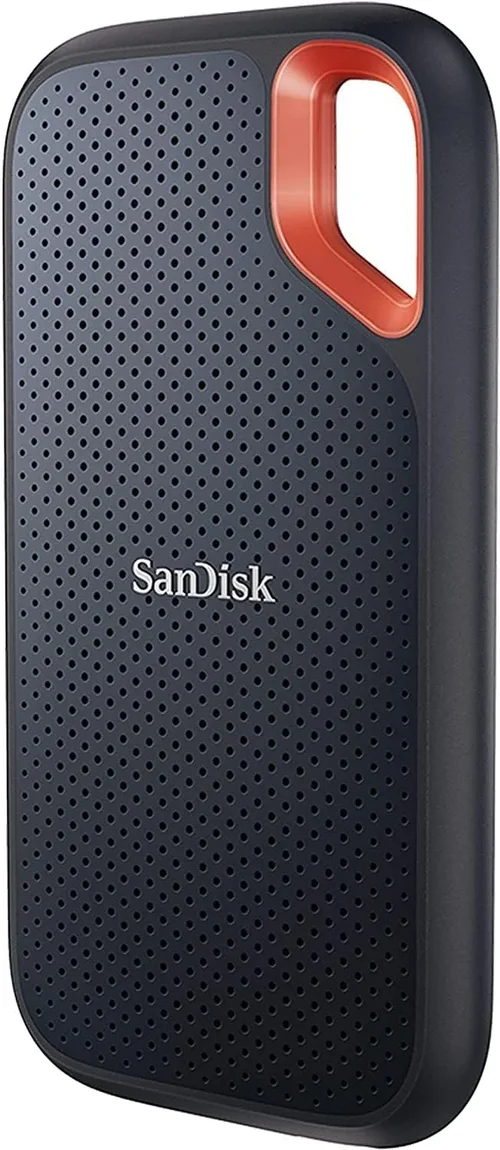
Ruggedized models often feature shock resistance, dust protection, and water resistance (IP55 or higher). These are ideal for photographers, videographers, or anyone working in unpredictable environments. For example, the Samsung T7 Shield or the SanDisk Extreme Pro are designed to withstand drops from up to 3 meters and resist splashes.
Heat management is another often-overlooked aspect. High-speed SSDs generate heat during prolonged use, which can lead to thermal throttling—slowing down the drive to prevent damage. Drives with built-in heat sinks or passive cooling designs (like the OWC Envoy Pro FX) maintain performance better under load. Avoid plastic enclosures with no ventilation, as they’re more prone to overheating.
4. Storage Capacity
Storage needs vary widely depending on your use case. A student storing documents and photos might be fine with 500GB, while a video editor working with 4K footage could easily fill a 2TB drive in a month. It’s tempting to go for the largest capacity available, but balance your needs with budget and portability.
Here’s a quick guide:
– 500GB: Suitable for light users, document storage, or as a backup drive.
– 1TB: Ideal for most users—enough for apps, media, and moderate project files.
– 2TB: Best for content creators, photographers, or those managing large libraries.
– 4TB and above: Reserved for professionals with massive storage demands, such as 8K video editors or 3D animators.
Keep in mind that larger capacities often come with better performance due to more NAND chips and better controllers. Also, consider future needs. If you plan to keep your Mac Mini for 5+ years, a 2TB drive today might feel cramped in a few years.
5. Brand Reputation & Reliability
Not all SSD brands are equal. Stick with reputable manufacturers known for quality, reliability, and customer support. Top-tier brands like Samsung, SanDisk, Western Digital, OWC (Other World Computing), and Crucial have proven track records in the storage industry. They offer consistent performance, better firmware updates, and more reliable long-term support.
Avoid no-name or off-brand drives, even if they’re significantly cheaper. These often use lower-quality components, lack proper firmware, and may fail prematurely. A failed SSD can mean lost work, missed deadlines, or costly data recovery. Reading user reviews on trusted platforms like Amazon, B&H, or MacRumors can give you insight into real-world reliability.
Also, consider the brand’s ecosystem. For example, Samsung offers excellent software like Samsung Magician for drive monitoring and optimization. OWC provides detailed compatibility guides and Mac-specific support. These extras can enhance your experience and peace of mind.
6. Warranty & Support
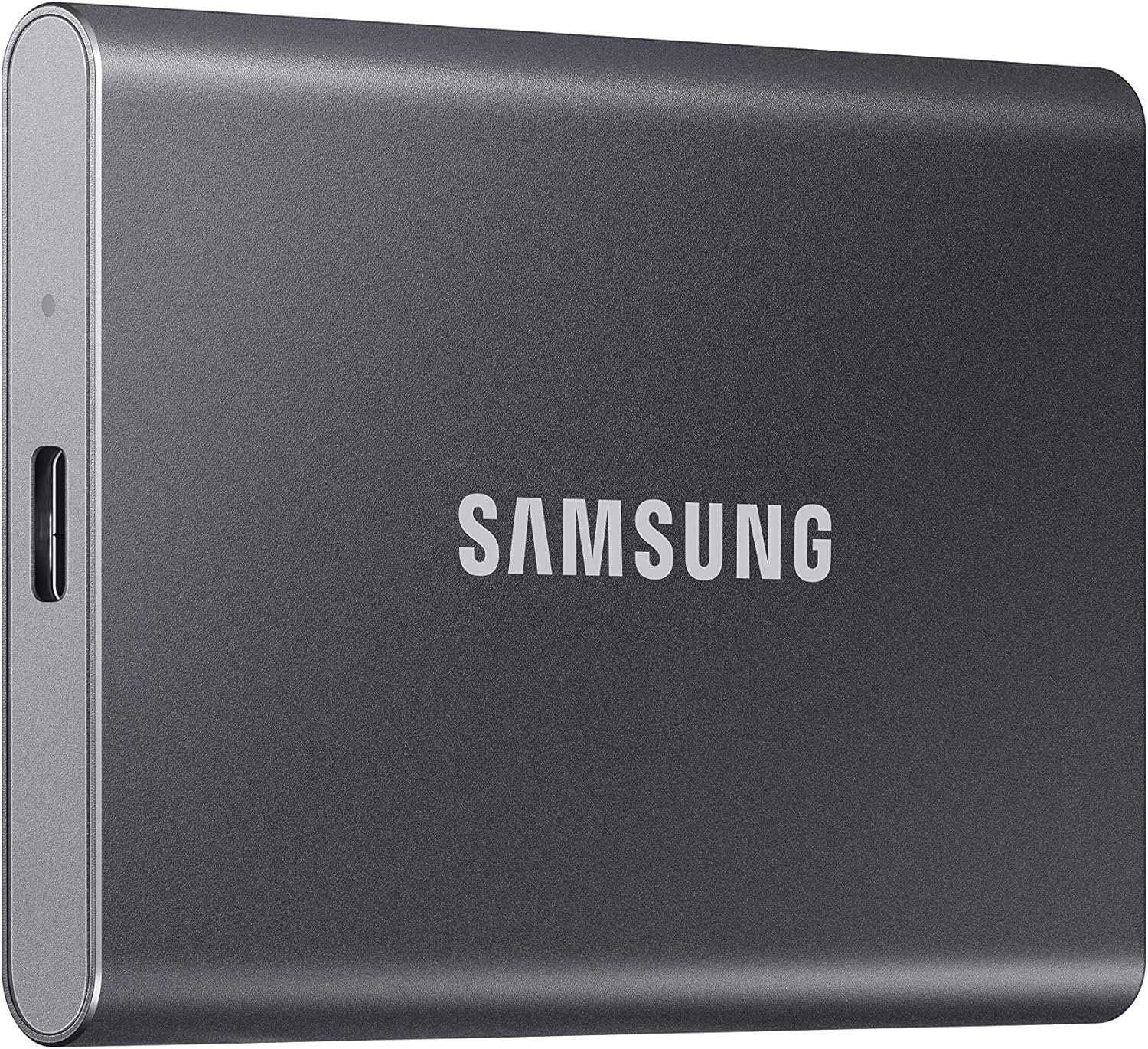
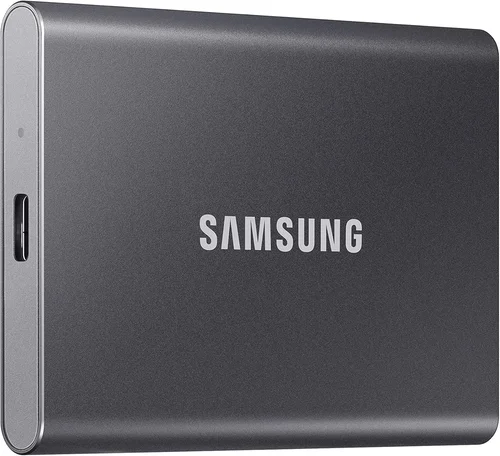
A good warranty is a strong indicator of a manufacturer’s confidence in their product. Most premium external SSDs come with a 3- to 5-year limited warranty. Samsung, for instance, offers a 5-year warranty on the T7 and T9 series, while OWC provides a 3-year warranty with optional extended coverage.
Check what the warranty covers. Does it include accidental damage? Is data recovery included? Some brands offer free data recovery services for failed drives, which can be a lifesaver. Also, look for responsive customer support—live chat, phone support, or detailed online resources.
Avoid drives with only a 1-year warranty unless they’re extremely budget-oriented. And be wary of “lifetime” warranties, which often have hidden terms or are tied to the original purchaser.
7. Portability & Design
While the Mac Mini is a stationary device, you may still want to move your external SSD between locations. Portability matters if you travel for work, collaborate with others, or use multiple computers. Look for compact, lightweight designs that fit easily in a laptop bag or backpack.
Drives like the Samsung T7 (about the size of a credit card) or the SanDisk Extreme (slightly larger but rugged) are excellent for on-the-go use. Some models include built-in cables or protective cases, which add convenience. Avoid bulky enclosures unless you need the extra durability.
Aesthetics also play a role for Mac users. Many prefer drives with a minimalist, aluminum design that complements the Mac Mini’s look. Matte finishes resist fingerprints, while LED indicators can show drive activity—useful for knowing when transfers are complete.
8. Price & Value for Money
Price is always a consideration, but it shouldn’t be the only one. A cheaper drive might save you $50 upfront but cost you more in the long run due to slower speeds, shorter lifespan, or lack of support. Instead of focusing solely on the lowest price, evaluate the value—what you’re getting for your money.
Consider cost per gigabyte. A 1TB drive for $99 ($0.10/GB) is better value than a 500GB drive for $60 ($0.12/GB). Also, factor in included accessories, software, and warranty. Some drives come with free cloud storage (e.g., SanDisk offers 12 months of Dropbox) or backup software, which can add real value.
Look for bundle deals—especially during sales events like Black Friday or Prime Day. Retailers often offer discounts on SSDs when purchased with cables, docks, or other accessories.
Different Types of Buying Guide
Common Buying Mistakes to Avoid
❌ Mistake: Prioritizing Speed Over Reliability
Why it’s bad: A drive that promises 3,000 MB/s but fails after six months is worse than a slower, more reliable one. Speed is important, but not at the expense of data integrity.
What to do instead: Choose drives from reputable brands with proven track records. Check long-term user reviews and failure rates. A slightly slower drive from Samsung or OWC is often a safer bet than a no-name “speed demon.”
❌ Mistake: Ignoring Thermal Management
Why it’s bad: High-speed SSDs generate heat. Without proper cooling, they throttle performance or fail prematurely. This is especially true during long video exports or large backups.
What to do instead: Look for drives with aluminum enclosures, heat sinks, or active cooling. Avoid plastic-bodied drives if you plan to use them intensively.
❌ Mistake: Buying Based Solely on Price
Why it’s bad: The cheapest SSD might save you money upfront but could cost more in data loss, downtime, or replacement. Budget drives often use lower-quality NAND and weaker controllers.
What to do instead: Focus on value, not just price. Consider cost per gigabyte, warranty length, and included features. A $120 drive with a 5-year warranty is often better than a $80 drive with 1 year.
❌ Mistake: Overlooking macOS Compatibility
Why it’s bad: Some drives come preformatted for Windows (NTFS), which macOS can’t write to without third-party software. Others may not support APFS or Time Machine.
What to do instead: Ensure the drive is compatible with macOS out of the box or can be easily reformatted. Look for drives that support APFS, HFS+, or exFAT for cross-platform use.
❌ Mistake: Not Considering Future Needs
Why it’s bad: Buying a 500GB drive today might seem sufficient, but if your storage needs grow, you’ll need to buy another drive—doubling your cost and complicating your workflow.
What to do instead: Anticipate your needs 2–3 years out. If you’re a growing content creator, start with 1TB or 2TB. It’s better to have extra space than to run out mid-project.
❌ Mistake: Skipping the Warranty Check
Why it’s bad: A short or unclear warranty can leave you stranded if the drive fails. Some warranties don’t cover data loss or require you to pay for shipping.
What to do instead: Always read the warranty terms. Prefer brands that offer at least 3 years of coverage and include data recovery options.
❌ Mistake: Forgetting About Cable and Adapter Needs
Why it’s bad: A Thunderbolt SSD without a compatible cable won’t work at full speed. USB-A-only drives may require adapters on newer Mac Minis.
What to do instead: Check what cables are included. If not, factor in the cost of high-quality USB-C or Thunderbolt cables. Invest in a multi-port hub if you frequently switch between devices.
Budget Guidelines: How Much Should You Spend?
– Entry-Level ($60 – $100): These are typically USB 3.0 or USB 3.2 Gen 1 drives with 500GB–1TB capacity. They’re fine for basic file storage, document backups, or light media use. Expect speeds around 400–500 MB/s. Good for students or casual users. Examples: SanDisk Extreme Portable, Samsung T5.
– Mid-Range ($100 – $200): This is the sweet spot for most Mac Mini users. You’ll find USB 3.2 Gen 2 drives (10 Gbps) with 1TB–2TB capacity and speeds up to 1,050 MB/s. These are ideal for photo editing, moderate video work, and general productivity. Examples: Samsung T7, WD My Passport SSD.
– Premium ($200 – $400): Designed for professionals, these include Thunderbolt 3/4 drives and high-end USB 3.2 Gen 2×2 models. Capacities range from 1TB to 4TB, with speeds exceeding 2,000 MB/s. Perfect for 4K/8K video editing, 3D rendering, and large project files. Examples: OWC Envoy Pro FX, Samsung X5.
– Luxury ($400+): These are top-tier drives with enterprise-grade components, RAID support, or ultra-high capacities (8TB+). Often used in studios or for mission-critical backups. Examples: G-Technology G-RAID, LaCie Rugged SSD Pro.
Expert Tips for Getting the Best Deal
– Buy During Major Sales Events: Black Friday, Cyber Monday, Prime Day, and Back-to-School season often feature significant discounts on SSDs. Sign up for deal alerts from retailers like B&H, Amazon, or Best Buy.
– Check Refurbished or Open-Box Options: Certified refurbished drives from manufacturers like Samsung or OWC often come with full warranties and can save you 20–30%. Just ensure they’re sold directly by the brand or an authorized retailer.
– Compare Prices Across Retailers: Use tools like Google Shopping or PriceGrabber to compare prices. Sometimes smaller retailers offer better deals or bundle accessories.
– Read User Reviews Carefully: Look for patterns in reviews—repeated complaints about overheating, slow write speeds, or poor customer service are red flags. Focus on reviews from verified purchasers.
– Test Before Committing: If possible, test the drive with your Mac Mini. Use Blackmagic Disk Speed Test or AmorphousDiskMark to verify real-world performance. Check for compatibility with your apps.
– Consider Bundles: Some retailers offer SSDs with USB-C hubs, docks, or cloud storage subscriptions. These can add value and reduce overall cost.
– Check Return Policies: Ensure the retailer offers at least a 30-day return window. This gives you time to test the drive and return it if it doesn’t meet expectations.
– Don’t Overbuy Capacity: Unless you need it now, avoid paying a premium for 4TB+. Prices per gigabyte decrease as capacity increases, but you can always add a second drive later.
Frequently Asked Questions
Q: Can I use an external SSD as my Mac Mini’s primary drive?
A: Technically yes, but it’s not recommended. While you can boot macOS from an external SSD, performance may vary depending on the connection. Thunderbolt drives offer the best experience, but internal SSDs are still faster and more reliable for daily use. External SSDs are better suited for storage, backups, or project files.
Q: Do I need to format the SSD for macOS?
A: It depends. Most modern SSDs come preformatted as exFAT, which works with both macOS and Windows. However, for best performance and Time Machine support, reformat to APFS (for SSDs) or HFS+ (for older macOS versions). Use Disk Utility to format—just remember this erases all data.
Q: Will a Thunderbolt SSD work on older Mac Minis?
A: Yes, but only at USB speeds if your Mac Mini doesn’t have Thunderbolt. A Thunderbolt 3 drive will work on a USB-C port, but you won’t get the full 40 Gbps speed. Check your Mac Mini’s specs to confirm port types.
Q: How long do external SSDs last?
A: Most high-quality SSDs last 5–10 years under normal use. They have no moving parts, so they’re more durable than HDDs. However, they do have a finite number of write cycles. For most users, this won’t be an issue within the drive’s lifespan.
Q: Can I use an external SSD for Time Machine backups?
A: Absolutely. In fact, SSDs are faster and more reliable than traditional hard drives for backups. Just ensure the drive is formatted as APFS or HFS+ and has enough space (at least twice your internal storage).
Q: Are USB-C and Thunderbolt the same?
A: No. USB-C is a physical connector type, while Thunderbolt is a protocol. All Thunderbolt 3/4 ports use USB-C connectors, but not all USB-C ports support Thunderbolt. Check your Mac Mini’s specs to confirm.
Q: Should I get a portable or desktop SSD?
A: Portable SSDs are compact and bus-powered (no external power needed), making them ideal for travel. Desktop SSDs are larger, often require external power, and offer higher capacities or RAID support—better for stationary use.
Q: Can I daisy-chain multiple SSDs on my Mac Mini?
A: Yes, if you’re using Thunderbolt. Thunderbolt supports daisy-chaining up to six devices. This is useful for expanding storage or connecting monitors and docks.
Q: What’s the difference between NVMe and SATA SSDs?
A: NVMe SSDs are faster and more efficient than SATA-based ones. Most high-performance external SSDs use NVMe technology. SATA SSDs are slower (max ~550 MB/s) and typically found in older or budget models.
Q: Is it safe to leave an external SSD plugged in all the time?
A: Yes, as long as it’s not overheating. Modern SSDs are designed for continuous use. Just ensure it’s in a well-ventilated area and not covered by cables or objects that trap heat.
Our Final Recommendations
– Best for Budget-Conscious Buyers: Samsung T7 (1TB) – At around $90, it offers excellent speed (1,050 MB/s), compact design, and a 5-year warranty. Perfect for students and home users.
– Best Overall Value: SanDisk Extreme Portable SSD (2TB) – Combines rugged durability, fast USB 3.2 Gen 2 speeds, and a competitive price (~$130). Great for photographers and travelers.
– Best Premium Option: OWC Envoy Pro FX (2TB, Thunderbolt) – Blazing-fast Thunderbolt speeds (2,800 MB/s), sleek aluminum design, and Mac-optimized firmware. Ideal for video editors and professionals.
– Best for Beginners: WD My Passport SSD (1TB) – User-friendly, reliable, and comes with backup software. Easy setup and solid performance for everyday use.
– Best for Advanced Users: Samsung X5 (2TB, Thunderbolt 3) – One of the fastest portable SSDs available (2,800 MB/s), designed for 4K/8K workflows. Expensive but unmatched in performance.
Conclusion: Making the Right Choice
Choosing the best external SSD for your Mac Mini doesn’t have to be overwhelming. By focusing on your specific needs—whether that’s speed, capacity, durability, or budget—you can narrow down the options and find a drive that truly enhances your workflow. Remember, the right SSD isn’t just about storing files; it’s about improving performance, protecting your work, and giving you peace of mind.
Start by assessing your use case. Are you a casual user needing extra space for photos and documents? A mid-range USB 3.2 Gen 2 drive like the Samsung T7 will serve you well. Are you a professional editing 4K video or managing large creative projects? Invest in a Thunderbolt drive like the OWC Envoy Pro FX for maximum speed and reliability.
Don’t forget to consider long-term value. A slightly more expensive drive with a better warranty, faster speeds, and proven reliability will save you money and frustration down the line. And always buy from reputable sources, read reviews, and test your drive once it arrives.
Ultimately, the best external SSD for your Mac Mini is the one that fits your lifestyle, supports your goals, and grows with you. With the insights from this guide, you’re now equipped to make a confident, informed decision. So go ahead—upgrade your storage, boost your productivity, and get back to what you do best.