
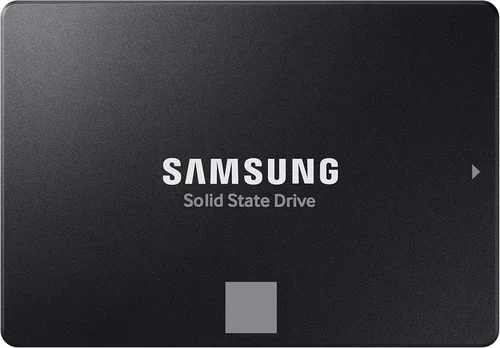
The decision between an SSD and an HDD isn’t just about storage—it’s about performance, reliability, and how you use your computer. Whether you’re building a new PC, upgrading an old laptop, or expanding your data storage, understanding the differences between solid-state drives (SSDs) and hard disk drives (HDDs) is essential. In 2026, the storage landscape has evolved significantly. SSDs are no longer a luxury; they’re the standard for most users, while HDDs still hold value in specific use cases. But with so many options, form factors, and technical specs, it’s easy to feel overwhelmed. That’s where this guide comes in.
This comprehensive buying guide will walk you through everything you need to know to make the right choice for your needs. We’ll break down the key factors to consider, compare different types of drives, highlight common mistakes to avoid, and provide expert-backed recommendations. You’ll learn how to balance speed, capacity, durability, and cost—so you don’t overspend or end up with a drive that doesn’t meet your expectations. Whether you’re a casual user, a creative professional, a gamer, or a data hoarder, this guide is designed to help you navigate the SSD vs HDD debate with confidence.
The market today offers a wide range of storage solutions, from budget SATA SSDs to high-speed NVMe Gen5 drives and massive multi-terabyte HDDs. Prices have dropped significantly over the past few years, making SSDs more accessible than ever. At the same time, advancements in NAND flash technology, controller chips, and firmware have improved both performance and longevity. Meanwhile, HDD manufacturers continue to push the limits of areal density, offering drives with up to 30TB of storage. With such variety, it’s more important than ever to understand what you’re buying. This guide will equip you with the knowledge to choose wisely.

What to Look for When Buying Buying Guide
1. Budget & Price Range
Your budget is one of the most important factors when choosing between an SSD and an HDD. In general, SSDs are more expensive per gigabyte than HDDs, but the gap has narrowed considerably. As of 2026, a 1TB SATA SSD typically costs between $60 and $100, while a 1TB HDD can be found for as little as $40. NVMe SSDs, especially Gen4 and Gen5 models, command higher prices—expect to pay $100–$200 for a 1TB drive. For large capacities, HDDs still dominate: a 8TB HDD might cost around $150, whereas an 8TB SSD could easily exceed $800.
When setting your budget, consider not just the upfront cost but also long-term value. An SSD may cost more initially, but it can extend the life of an older system, reduce power consumption, and improve overall responsiveness. If you’re on a tight budget and need a lot of storage—say, for media files or backups—an HDD might be the better choice. But if performance is a priority, investing in an SSD is almost always worth it.
2. Performance Specifications
Performance is where SSDs truly shine. Unlike HDDs, which rely on spinning platters and moving read/write heads, SSDs use flash memory with no moving parts. This results in dramatically faster data access times, quicker boot speeds, and snappier application loading. For example, a typical SATA SSD can deliver read/write speeds of 500–550 MB/s, while an NVMe SSD (especially Gen4 or Gen5) can exceed 7,000 MB/s.
When evaluating performance, look at three key metrics: sequential read/write speeds, random read/write IOPS (input/output operations per second), and latency. Sequential speeds matter for large file transfers, like copying videos or installing games. Random IOPS are crucial for multitasking and operating system responsiveness. Latency—the time it takes to access data—is nearly instantaneous on SSDs but can be several milliseconds on HDDs.
HDDs, by contrast, typically offer sequential speeds of 80–160 MB/s, depending on RPM (revolutions per minute). A 7200 RPM drive will be faster than a 5400 RPM model, but even the fastest HDDs can’t match the responsiveness of even a basic SSD. If you’re using your computer for gaming, video editing, or software development, an SSD is non-negotiable.
3. Build Quality & Durability
Durability is a major differentiator between SSDs and HDDs. Because SSDs have no moving parts, they’re far more resistant to physical shock, vibration, and temperature fluctuations. This makes them ideal for laptops, portable drives, and environments where the device might be dropped or jostled. Most consumer SSDs are rated to withstand drops from several feet and operate reliably in temperatures ranging from 0°C to 70°C.
HDDs, on the other hand, are mechanical devices with delicate internal components. A sudden impact can cause the read/write head to crash into the platter, resulting in data loss or complete drive failure. This makes HDDs less suitable for mobile use. Additionally, HDDs are more prone to wear over time due to constant spinning and head movement. While modern HDDs are built to last—many have MTBF (mean time between failures) ratings of over 1 million hours—they’re still more vulnerable than SSDs.
When assessing build quality, also consider the type of NAND flash used in SSDs. TLC (triple-level cell) and QLC (quad-level cell) NAND are common in consumer drives and offer a good balance of cost and performance. MLC (multi-level cell) and SLC (single-level cell) are more durable and used in enterprise drives but are rarely found in consumer products due to cost. For most users, TLC is perfectly adequate.
4. Features & Functionality
Modern SSDs come with a range of features that enhance performance, security, and longevity. One of the most important is DRAM cache. SSDs with DRAM cache maintain a small amount of high-speed memory to store the mapping table (which tracks where data is stored on the NAND). This significantly improves performance, especially during sustained workloads. DRAM-less SSDs are cheaper but can suffer from performance drops under heavy use.
Another key feature is power loss protection. Some high-end SSDs include capacitors that provide enough power to finish writing data in the event of a sudden shutdown, preventing corruption. This is especially important for workstations and servers. Additionally, many SSDs support hardware encryption (like AES-256) and TCG Opal compliance, which allow for secure data protection without relying on software.
HDDs, while simpler, also offer features like rotational vibration sensors (to maintain performance in multi-drive setups) and advanced error correction. Some enterprise HDDs include helium filling, which reduces internal friction and allows for higher density platters. However, these features are typically found only in high-capacity or data center drives.
5. Brand Reputation
Not all SSDs and HDDs are created equal, and brand reputation matters. Established brands like Samsung, Crucial, Western Digital, Seagate, Kingston, and Sabrent have a track record of reliability, consistent performance, and strong customer support. These companies invest heavily in R&D, quality control, and firmware updates, which translates to better long-term performance and fewer failures.
Avoid no-name or ultra-cheap drives from unknown manufacturers. These often use lower-quality NAND, lack proper testing, and may fail prematurely. In some cases, they may even misrepresent capacity or performance specs. While you might save $10–$20 upfront, the risk of data loss or drive failure isn’t worth it.
That said, some lesser-known brands offer good value. For example, brands like Team Group, ADATA, and Netac have gained credibility in recent years with solid performance and competitive pricing. Just be sure to read reviews and check warranty terms before buying.
6. Warranty & Support
Warranty length and support quality are critical when investing in storage. Most consumer SSDs come with a 3- to 5-year warranty, often tied to a TBW (terabytes written) rating. For example, a 1TB SSD might have a 600 TBW rating, meaning it’s guaranteed to handle 600 terabytes of data written over its lifetime. If you exceed this, the warranty may be void—though in practice, most users won’t reach this limit for years.
HDDs typically offer 2- to 5-year warranties, but they’re usually time-based rather than usage-based. Some enterprise HDDs come with 5-year warranties and advanced replacement programs. When comparing warranties, look for brands that offer hassle-free RMA (return merchandise authorization) processes and responsive customer service.
Also, check if the manufacturer provides firmware updates. SSDs benefit from firmware improvements that can fix bugs, improve performance, or extend lifespan. Brands like Samsung and Crucial offer easy-to-use tools for updating firmware, while others may require manual downloads.
7. Size & Portability
Physical size and form factor are important, especially for laptops and compact builds. The most common SSD form factors are 2.5-inch (for desktops and older laptops), M.2 (a small stick-like module), and mSATA (less common now). M.2 SSDs are ideal for thin laptops and mini PCs because they take up minimal space and connect directly to the motherboard.
HDDs are almost always 3.5-inch (for desktops) or 2.5-inch (for laptops). The 3.5-inch drives are larger and require more power, making them unsuitable for most laptops. If you’re building a compact PC or upgrading a slim laptop, an M.2 NVMe SSD is often the best choice.
Portability also matters for external drives. Portable SSDs (like the Samsung T7 or SanDisk Extreme) are compact, durable, and fast, making them perfect for photographers, videographers, and travelers. External HDDs are cheaper and offer more capacity, but they’re bulkier and more fragile.
8. User Reviews & Ratings
Before making a purchase, always check user reviews and professional benchmarks. Sites like Amazon, Newegg, and Best Buy provide real-world feedback from buyers, while tech reviewers on YouTube and sites like Tom’s Hardware, AnandTech, and StorageReview offer in-depth testing.
Look for patterns in reviews. If multiple users report the same issue—like slow write speeds, overheating, or early failure—it’s a red flag. Conversely, consistent praise for performance, reliability, or value is a good sign. Pay attention to reviews from users with similar use cases to yours. A drive praised by gamers might not be ideal for a video editor, and vice versa.
Also, consider the sample size. A drive with 5,000 reviews averaging 4.7 stars is more trustworthy than one with 50 reviews at 5 stars. And don’t rely solely on star ratings—read the actual comments to understand the pros and cons.
Different Types of Buying Guide

Common Buying Mistakes to Avoid
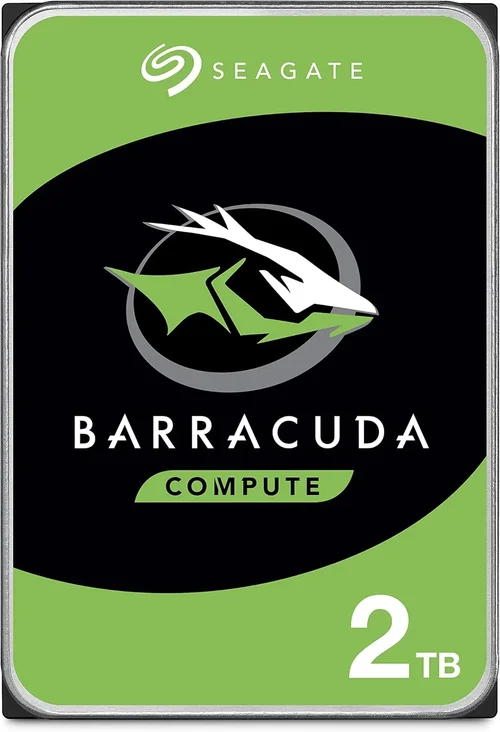
❌ Mistake: Prioritizing Capacity Over Performance
Why it’s bad: Choosing a large HDD for your OS drive because it’s cheap can severely slow down your system. Boot times, app launches, and file transfers will feel sluggish, even on a powerful CPU and GPU.
What to do instead: Use an SSD for your operating system and frequently used applications, even if it’s smaller (256GB–1TB). Reserve larger HDDs for media storage, backups, or archives.
❌ Mistake: Ignoring Form Factor Compatibility
Why it’s bad: Buying an M.2 SSD for a laptop that only supports 2.5-inch drives—or vice versa—means the drive won’t fit or work.
What to do instead: Check your device’s manual or manufacturer specs before buying. Most modern laptops support M.2, but older models may require 2.5-inch SATA drives.
❌ Mistake: Overlooking DRAM Cache in SSDs
Why it’s bad: DRAM-less SSDs can suffer from significant performance drops during sustained writes, making them unsuitable for heavy workloads.
What to do instead: For OS, gaming, or creative work, choose an SSD with DRAM cache. For secondary storage or backups, DRAM-less models can be acceptable.
❌ Mistake: Buying the Cheapest Drive Available
Why it’s bad: Ultra-cheap drives often use low-quality NAND, lack proper testing, and may fail early. Data loss can be catastrophic.
What to do instead: Stick to reputable brands and read reviews. A slightly more expensive drive from Samsung or Crucial is a safer long-term investment.
❌ Mistake: Not Checking TBW and Warranty
Why it’s bad: Some SSDs have low TBW ratings, meaning they may not last as long under heavy use. Without a good warranty, you’re at risk.
What to do instead: Compare TBW ratings and warranty terms. Aim for at least 3 years and a TBW of 300+ for a 1TB drive.
❌ Mistake: Assuming All NVMe SSDs Are the Same
Why it’s bad: NVMe Gen3, Gen4, and Gen5 drives vary widely in speed and price. Buying a Gen5 drive for a Gen3-only motherboard is a waste of money.
What to do instead: Match the SSD generation to your motherboard’s capabilities. Check your motherboard manual for supported PCIe versions.
❌ Mistake: Neglecting Cooling for High-Performance SSDs
Why it’s bad: NVMe Gen4 and Gen5 SSDs can get very hot under load, leading to thermal throttling and reduced performance.
What to do instead: Use a heatsink or thermal pad, especially in compact builds or laptops. Some motherboards include built-in M.2 heatsinks.
Budget Guidelines: How Much Should You Spend?
– Entry-Level ($40–$80): At this price, you’ll find 1TB HDDs and budget SATA SSDs. Ideal for basic storage needs, backups, or upgrading an old system. Expect modest performance from SSDs and slow speeds from HDDs.
– Mid-Range ($80–$150): This is the sweet spot for most users. You can get a high-quality 1TB SATA SSD or a 1TB NVMe Gen4 SSD. Perfect for gaming, productivity, and general use. Offers excellent performance and reliability.
– Premium ($150–$300): For enthusiasts and professionals. 2TB NVMe Gen4 or Gen5 SSDs, high-end SATA SSDs, or large-capacity HDDs (8TB+). Ideal for video editing, 3D rendering, or large game libraries.
– Luxury ($300+): Top-tier NVMe Gen5 SSDs, enterprise-grade drives, or multi-terabyte SSDs. Best for data centers, high-end workstations, or users who demand the absolute best performance and capacity.
Expert Tips for Getting the Best Deal
– Buy during major sales events: Black Friday, Cyber Monday, Prime Day, and back-to-school sales often feature deep discounts on SSDs and HDDs. Sign up for deal alerts from retailers like Amazon, Newegg, and Best Buy.
– Compare prices across retailers: Use price comparison tools like Google Shopping or CamelCamelCamel to find the best deal. Don’t forget to check refurbished or open-box options from reputable sellers.
– Check for bundle deals: Some retailers offer SSDs bundled with enclosures, cloning software, or installation kits. These can add value, especially for first-time upgraders.
– Read the fine print on warranties: Some warranties require registration within 30 days. Others may not cover data recovery. Understand the terms before buying.
– Test before committing: If possible, test the drive in your system before finalizing the purchase. Some retailers offer generous return policies (30 days or more).
– Consider used or enterprise drives: For bulk storage, lightly used enterprise HDDs can be a cost-effective option. Just verify health with tools like CrystalDiskInfo.
– Upgrade incrementally: Start with a smaller SSD for your OS, then add more storage later. This spreads out the cost and lets you prioritize performance first.

Frequently Asked Questions
Q: Can I use both an SSD and an HDD in the same system?
A: Absolutely. Many users install an SSD for the operating system and frequently used programs, and an HDD for large files like videos, photos, and backups. This setup offers the best of both worlds: speed and capacity.
Q: How long do SSDs last?
A: Modern SSDs are very durable. Most consumer drives are rated for 300–600 TBW (terabytes written). For typical use, this translates to 5–10 years of lifespan. Heavy workloads may shorten this, but failure due to wear is rare.
Q: Are NVMe SSDs worth it over SATA?
A: Yes, if your system supports it. NVMe SSDs are significantly faster, especially for large file transfers and multitasking. For gaming, content creation, or productivity, the performance boost is noticeable.
Q: Do I need a heatsink for my NVMe SSD?
A: It depends. In compact builds or laptops, a heatsink can prevent thermal throttling. For desktops with good airflow, it may not be necessary—but it’s a good precaution for Gen4 and Gen5 drives.
Q: Can I recover data from a failed SSD or HDD?
A: It depends on the failure type. Logical failures (corruption, accidental deletion) can often be recovered with software. Physical failures (especially in HDDs) may require professional data recovery services, which can be expensive.
Q: Are external SSDs faster than internal ones?
A: Not necessarily. An external SSD connected via USB 3.2 or Thunderbolt can be very fast, but it’s still limited by the interface. Internal NVMe drives are usually faster, but external SSDs offer portability and ease of use.
Q: Should I defragment my SSD?
A: No. Defragmentation is unnecessary for SSDs and can reduce their lifespan by increasing write cycles. Windows and macOS automatically optimize SSDs using TRIM, which is more efficient.
Q: What’s the difference between SATA and NVMe?
A: SATA is an older interface with a maximum speed of about 600 MB/s. NVMe uses the PCIe interface, allowing speeds up to 14,000 MB/s (Gen5). NVMe is faster but requires M.2 or U.2 slots.
Q: Can I clone my HDD to an SSD?
A: Yes. Tools like Macrium Reflect, Clonezilla, or manufacturer-specific software (e.g., Samsung Data Migration) allow you to clone your existing drive to a new SSD, preserving your OS and files.
Q: Are QLC SSDs reliable?
A: QLC (quad-level cell) SSDs are cheaper and offer high capacity, but they have lower endurance and slower write speeds under heavy use. They’re fine for light tasks and secondary storage but not ideal for OS or gaming drives.
Our Final Recommendations
– Best for Budget-Conscious Buyers: Crucial MX500 1TB SATA SSD – Reliable, affordable, and widely compatible. Great for upgrading older systems.
– Best Overall Value: Samsung 980 Pro 1TB NVMe Gen4 SSD – Excellent performance, strong endurance, and trusted brand. Ideal for most users.
– Best Premium Option: WD Black SN850X 2TB NVMe Gen4 SSD – Top-tier speed, great for gaming and creative work. Comes with a heatsink option.
– Best for Beginners: Kingston NV2 1TB NVMe Gen4 SSD – Easy to install, good performance, and budget-friendly. Perfect for first-time upgraders.
– Best for Advanced Users: Sabrent Rocket 4 Plus 4TB NVMe Gen4 SSD – High capacity, blazing speeds, and excellent for 4K/8K video editing.
– Best for Mass Storage: Seagate IronWolf 8TB 3.5″ HDD – Designed for NAS and media servers. Reliable, quiet, and backed by a 3-year warranty.
Conclusion: Making the Right Choice
Choosing between an SSD and an HDD doesn’t have to be overwhelming. The key is to align your storage choice with your specific needs, budget, and use case. For most users in 2026, an SSD—especially an NVMe model—is the best choice for primary storage due to its speed, durability, and improving affordability. HDDs still have a place for bulk storage, backups, and archival purposes, where capacity matters more than performance.
Remember to consider factors like form factor, interface, DRAM cache, warranty, and brand reputation. Avoid common pitfalls like prioritizing capacity over speed or ignoring compatibility. And don’t forget to take advantage of seasonal sales and bundle deals to get the best value.
Ultimately, the right drive is the one that fits your workflow and enhances your computing experience. Whether you’re building a high-end gaming rig, upgrading a laptop, or setting up a home media server, this guide has equipped you with the knowledge to make a confident, informed decision. Now go forth and upgrade—your system will thank you.